I got my hands on Edubuntu 6.06 about 24 hours ago. Since then, I’ve had a chance to install it on 2 different machines. Here’s a brief rundown of how things have gone so far.
First Install - My Notebook
I have a Sony VAIO V505BL that was running Ubuntu 5.10. I decided to go ahead and do a workstation install of Edubuntu on this laptop even though it was already getting late at night. Things didn't start out well at all. The install seemed to take forever, then, as it neared the end, GRUB failed to install. Now, this is a major problem. You can't really run the system without GRUB to boot it up. I tried every way I could think of to fix the problem, and finally gave up and decided to try reinstalling. The second time, everything went smoothly. I'm not exactly sure what the problem was, but I've experienced this problem before with early pre-release versions of 6.06. I've narrowed it down to one of 3 things.- You must manually delete all existing partitions and then let the installer take the entire disc and do partition it however it wants.
- Use all the default settings for location and language (I had been telling the installer my real location in Russia)
- Make sure your proxy settings are correct (I'm not sure, but I think I entered that info incorrectly the first time).
The second time around, everything went smoothly. Once Edubuntu booted up, I was very impressed. The new artwork is great and things have a nice new polished feel. I went ahead and installed some software from the Add/Remove Applications interface and was pleasantly surprised to find VMWare Player and Sun Java as options. Both of these packages were rather difficult to install in Ubuntu 5.10, now they’re as easy to install as clicking a checkbox.
Second Install - New Dual Xeon Server
Taking what I had learned last night, I installed Edubuntu on our new server. I work at a small university in Russia and we're planning to move our student computer lab to an Edubuntu terminal server setup this summer. Things went extremely smooth with this install. I answered the few setup questions and went to lunch. When I came back, everything was good to go.In about 15 minutes, I had the terminal server up and running and started testing it on different thin clients around the building. Everything went great at first when I tried it on a fairly new computer. One major mistake in the software caused a real problem. I had switched the user interface to Russian, and I wasn’t reading very carefully and pushed the wrong button when logging out. What I did was put the machine to sleep … not the thin client but the server! This should not be an option for thin client users!
From there, things only got worse. It’s not Edubuntu’s fault, but the fault of our old hardware. 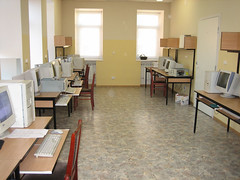 It seems that some or our hardware is so old that it can’t be used reliably as a thin client. We added new network bootable ethernet adapters to our old computers and started testing. Only a few of them worked reliably. Some ran very slowly (we think due to lack of video RAM) and some crashed a lot. After a lot of messing around, even the server was acting funny.
I guess I never realized just how old some of our hardware was. The worst includes a Celeron 266 MHz with 96MB RAM and 1MB of video RAM. I don’t think it’ll work as a thin client, at least not without upgrading the video card. The best computer I tried as a thin client was a fairly new Celeron 2 Ghz with built in video. It worked flawlessly.
It looks like we really have our work cut out for us. It’s going to be interesting to see how many of our old machines we can salvage and use in this new Edubuntu setup. I hope to blog about it along the way.
Update: Linux in education and government has come a long way since 2006. Read about what’s different for the Linux desktop in 2026.