
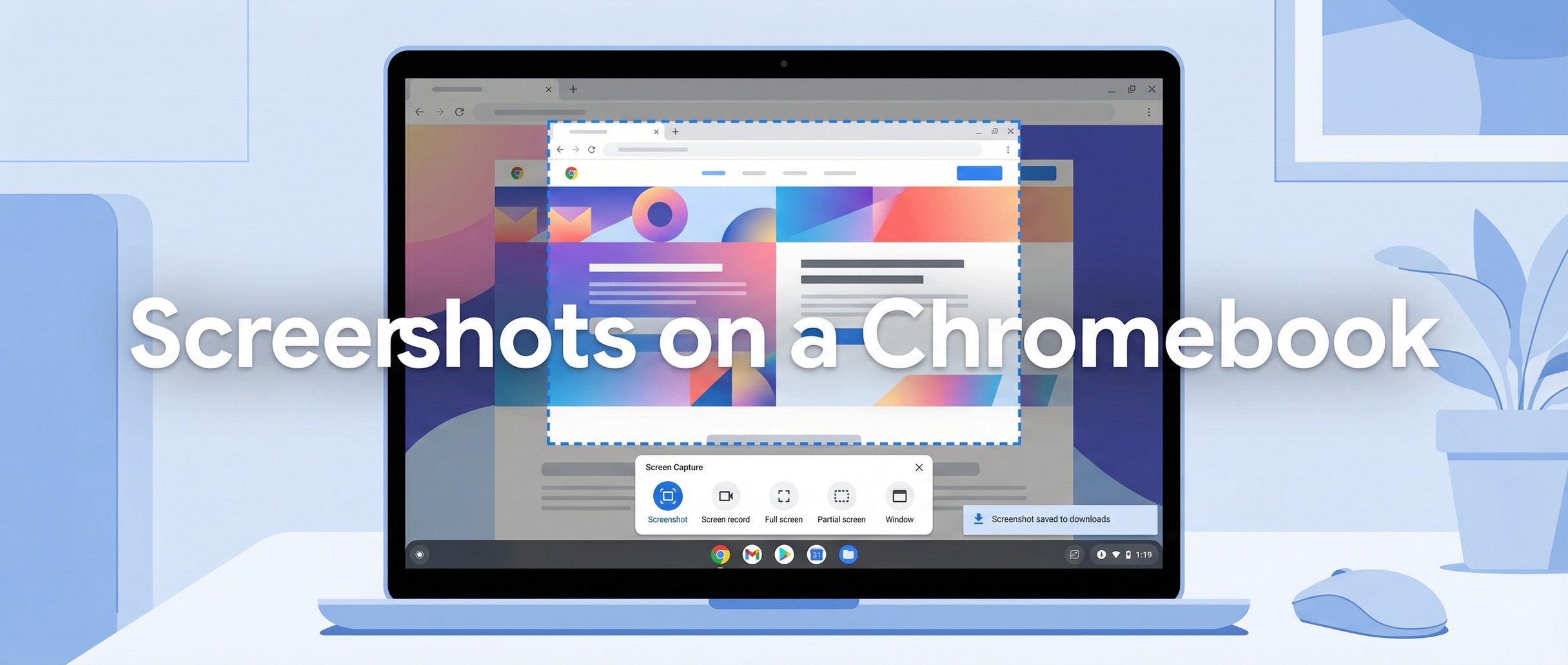
Taking a screenshot on a Chromebook is one of those things that seems like it should be obvious until you sit down and realize there is no Print Screen key anywhere on the keyboard. If you have come from a Windows or Mac background, the Chromebook keyboard layout takes a bit of getting used to. The good news is that ChromeOS actually offers several ways to capture your screen, and once you learn the shortcuts, the process is faster and more flexible than what most other operating systems provide.
This tutorial covers every screenshot method available on a Chromebook, including the dedicated screenshot key found on newer models, the classic keyboard shortcuts, the full Screen Capture toolbar, and even screen recording. By the end, you will know exactly how to capture anything on your screen and where to find those files afterward.
The Dedicated Screenshot Key
If you bought your Chromebook in the last couple of years, take a look at the top row of your keyboard. Many newer Chromebooks include a dedicated screenshot key that looks like a small camera or a rectangle with a circle inside it. You will usually find it in the top row above the 5 or 6 key, roughly where the F5 key would sit on a traditional keyboard.
Pressing this key opens the Screen Capture toolbar at the bottom of your screen, giving you immediate access to full-screen screenshots, partial captures, window captures, and screen recording. It is the single fastest way to get started because it puts every option in front of you with one tap. If your Chromebook has this key, it is probably the only shortcut you need to memorize.
Full-Screen Screenshot with Keyboard Shortcuts
For Chromebooks without a dedicated screenshot key, the quickest way to capture your entire screen is to press ctrl overview . The Show Windows key is the one in the top row that looks like a rectangle with two vertical lines next to it, and it usually sits between the Full Screen and Brightness Down keys.
When you press this combination, ChromeOS instantly captures everything on your screen. A small preview thumbnail appears in the bottom-right corner, confirming that the screenshot was taken. The image is automatically saved to your Downloads folder and copied to your clipboard, so you can immediately paste it into a document, email, or chat with ctrl v .
If you are using an external keyboard that does not have a Show Windows key, press ctrl f5 instead. The F5 key maps to the same function, so the behavior is identical. If you have a dedicated external keyboard paired with your Chromebook, this is the shortcut to remember.
Partial Screenshots
More often than not, you do not want to capture the entire screen. Maybe you just need a section of a web page, a single error message, or a chart from a spreadsheet. For that, press ctrl shift overview (or ctrl shift f5 on an external keyboard).
This shortcut opens the Screen Capture toolbar and puts you directly into partial screenshot mode. Your screen dims slightly and your cursor turns into a crosshair. Click and drag to select the area you want to capture, then release to take the screenshot. If you need to adjust the selection before capturing, you can use the arrow keys on your keyboard to nudge the edges. The spacebar lets you reposition the entire selection box without resizing it, which is helpful when you need to capture a precise area.
Partial screenshots are particularly useful for sharing specific information without revealing everything else on your screen. If you are taking a screenshot of a conversation, a grade, or account information, capturing just the relevant portion saves you from having to crop the image afterward.
Window Screenshots
If you want to capture a single application window without any of the desktop or other windows behind it, press ctrl alt overview . After pressing this shortcut, your cursor changes and ChromeOS highlights each window as you hover over it. Click the window you want to capture, and ChromeOS takes a clean screenshot of just that window, complete with its title bar and borders.
This method produces cleaner results than a full-screen capture when you are documenting a specific application, because you do not get the shelf, the system tray, or any overlapping windows in the shot. It is also faster than taking a partial screenshot and trying to line up the edges of a window manually.
The Screen Capture Toolbar
All of the methods above are quick keyboard shortcuts, but ChromeOS also includes a more visual approach through the Screen Capture toolbar. You can open it in two ways: press shift ctrl overview , or click the clock in the bottom-right corner of your screen to open Quick Settings and then click the Screen Capture button.
The toolbar appears at the bottom of your screen and gives you toggle buttons for three capture modes: full screen, partial, and window. It also lets you switch between taking a screenshot and recording your screen, which is covered in the next section. One particularly useful feature is the settings gear icon on the toolbar, which lets you change where your screenshots are saved. By default they go to your Downloads folder, but you can choose any folder in the Files app, including a Google Drive folder if you want your captures to sync automatically.
The toolbar stays open until you take a capture or press Escape, so you can switch between modes and adjust settings before committing. If you are someone who takes screenshots frequently, the toolbar is worth getting comfortable with because it gives you more control than the keyboard shortcuts alone.
Screen Recording
The Screen Capture toolbar is not just for still images. Toggle the video icon on the toolbar to switch to screen recording mode. You get the same three capture options: record the full screen, a selected area, or a specific window. Before you start recording, you can choose whether to include audio from your Chromebook’s microphone and whether to show your webcam feed as a small overlay in the corner.
Click the record button (or anywhere on the screen in full-screen mode) to begin. A small red indicator appears on the shelf to show that recording is active. When you are done, click that indicator or press search shift x to stop the recording. ChromeOS saves the file in WebM format to your Downloads folder, or you can choose GIF format from the toolbar settings if you need a shorter, more shareable clip.
Screen recording is handy for creating quick tutorials, documenting bugs to send to a support team, or capturing a video call moment. The built-in tool is simple enough that you do not need to install any third-party software for basic recordings.
Tablet Mode Screenshots
If you are using a convertible Chromebook with a touchscreen in tablet mode with the keyboard folded back, the keyboard shortcuts obviously will not work. In that case, press the Power button + Volume Down button at the same time. This captures the entire screen, just like ctrl overview would in laptop mode.
For partial or window screenshots in tablet mode, you will need to open the Screen Capture toolbar through Quick Settings. Swipe down from the status area at the bottom-right, tap Screen Capture, and use the on-screen toolbar to choose your capture mode. It is a couple more taps than the hardware button method, but it gives you the same flexibility as the keyboard toolbar.
Where Screenshots Are Saved
Every screenshot and screen recording on a Chromebook saves to the Downloads folder by default. You can find it by opening the Files app and clicking Downloads in the left sidebar. Screenshots are saved as PNG files with a timestamp in the filename, and screen recordings save as WebM or GIF files depending on your toolbar settings.
In addition to saving to disk, every capture is automatically copied to your clipboard. You can press ctrl v to paste a screenshot directly into a Google Doc, an email, or a Slack message without having to find the file first. If you need to access a recent screenshot from the clipboard history, press search v to see everything you have copied recently.
To change the default save location, open the Screen Capture toolbar and click the settings gear icon. Select a different folder and all future captures will save there instead. Choosing a Google Drive folder is a practical option if you regularly share screenshots across devices.
Troubleshooting
If your screenshots are not working, the first thing to check is whether your Chromebook’s keyboard shortcuts have been remapped. Open Settings, go to Device, then Keyboard, and verify that the top-row keys are set to their default functions rather than being treated as function keys. If “Treat top-row keys as function keys” is enabled, you will need to add the search key to your shortcut combinations, which changes the expected behavior.
School and work Chromebooks managed by an administrator sometimes have the screenshot function disabled entirely. If none of the shortcuts or toolbar options respond, your organization’s IT department may have turned off screen capture through a management policy. In that case, you will need to contact your admin to have it enabled.
If screenshots are saving but you cannot find them, open the Files app and check the Downloads folder. You can also look in the Tote, a small holding area accessible from the shelf that shows your most recent downloads and screenshots. If you previously changed your save location and forgot where, open the Screen Capture toolbar and check the settings to see which folder is currently selected.
Wrapping Up
Chromebooks offer a surprisingly complete set of screenshot tools once you know where to look. The keyboard shortcuts handle quick captures, the Screen Capture toolbar gives you fine-grained control over capture mode and settings, and screen recording is built right in without any extra software. Whether you are a student capturing notes from a lecture, a professional documenting workflows, or someone who just wants to save a recipe from a web page, the tools are already there.
If you are still getting used to the Chromebook keyboard layout, you might also want to check out how to right click on a Chromebook, which covers the touchpad gestures and shortcuts that trip up most new Chromebook users.


