
Gemini AI on Chromebook Plus: A Practical Guide to Google's Built-in Assistant
Published on by Jim Mendenhall

Listen to this article:
After months of watching Windows and macOS users chat with AI sidebars in their browsers, Chromebook owners finally have their turn. Google confirmed in early February 2026 that Gemini in Chrome is rolling out to Chromebook Plus devices in the United States, bringing a tab-aware AI assistant directly into the browser. The rollout started on January 28 with the ChromeOS 144 update, though Google warns the extended rollout could take a couple of weeks before it reaches everyone.
There’s a catch, though, and it’s right there in the name. This isn’t coming to all Chromebooks. Only Chromebook Plus devices qualify, and only in the US for now. If you own a standard Chromebook, you’re out of luck regardless of how capable your hardware might be. And if you’re outside the United States, you’ll need to wait for Google to expand availability, which they’ve hinted at but haven’t committed to a timeline.
So what does Gemini actually do on your Chromebook Plus, and is it genuinely useful or just another AI feature that sounds impressive in press releases? I spent time putting it through real workflows to find out.
Getting Started: Finding and Opening Gemini
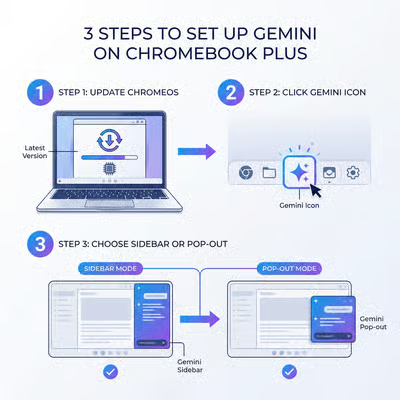
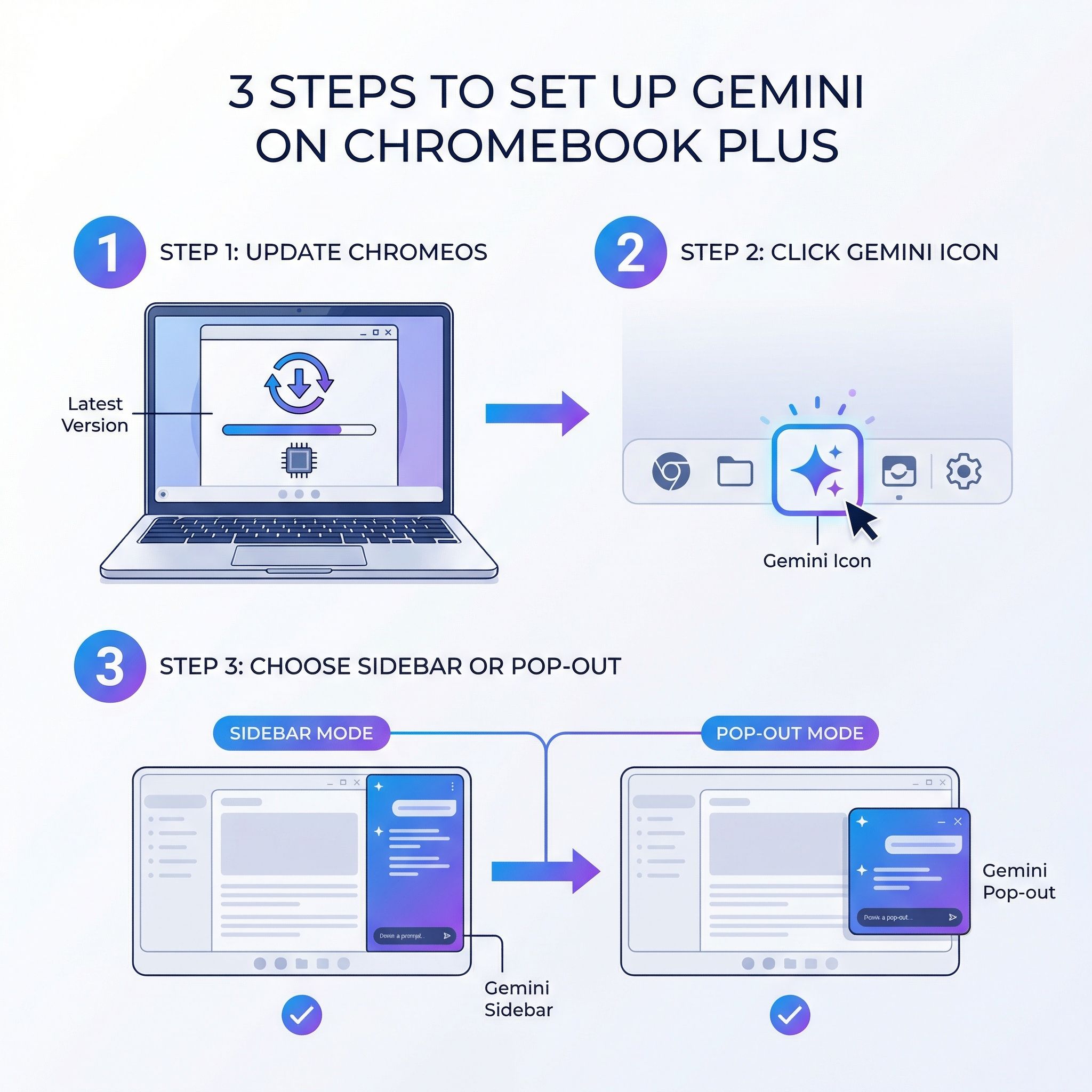
Before you can use Gemini, make sure your Chromebook Plus is running ChromeOS 144 or later. Check your version in Settings > About ChromeOS, and update if needed. Once you’re current, look for the Gemini sparkle icon in the upper-right corner of Chrome, next to the address bar. If it’s not there yet, the rollout may not have reached your device.
You have two ways to summon the sidebar. The fastest is the keyboard shortcut: press Search + G to open Gemini in a side panel alongside your current page. If you’d rather have Gemini in its own tab, press Search + Alt + G to pop it out into a standalone window. The side panel is more practical for most workflows because it keeps your content visible while you interact with the AI, but the pop-out mode is useful when you want more room for longer conversations.
Gemini in Chrome requires you to be signed in with a Google account. It works with personal accounts that have access to the Gemini app, Google Workspace accounts, and Workspace Individual subscriptions. Workspace admins can disable the feature at the domain, organizational unit, or group level, so if you’re on a managed device and don’t see the icon, check with your IT department. The feature is turned on by default for all eligible accounts.
Research Across Multiple Tabs
The most immediately useful feature is Gemini’s ability to understand the context of your open tabs. This isn’t just a chatbot bolted onto the browser; the AI can actually read and reference the pages you have open. When you’re researching a topic with five or six tabs spread across different sources, you can ask Gemini to summarize the key points, identify where sources agree or disagree, or pull specific details from a particular tab.
The tab-sharing feature works through an @-mention system. Type @ in the Gemini sidebar and you’ll see a list of your open tabs. Select up to ten tabs to share with the conversation, and Gemini will incorporate their content into its responses. For a student comparing three different articles about climate policy, this means asking “What are the main points of agreement across these sources?” and getting a coherent synthesis without manually copy-pasting text between windows. For a professional scanning industry news, it means quickly extracting the key takeaways from a morning’s worth of reading.
In practice, the summarization works well for articles and text-heavy pages. Gemini handles news stories, blog posts, documentation, and research papers with reasonable accuracy, pulling out the main arguments and supporting details. Where it stumbles is on pages heavy with tables, charts, or interactive elements, since the AI reads the text content but doesn’t always interpret visual data correctly. If you’re researching spreadsheet data or infographic-heavy pages, you’ll still need to do some manual interpretation.
Drafting Emails and Writing Help
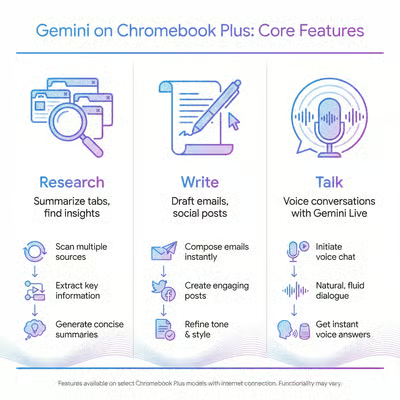
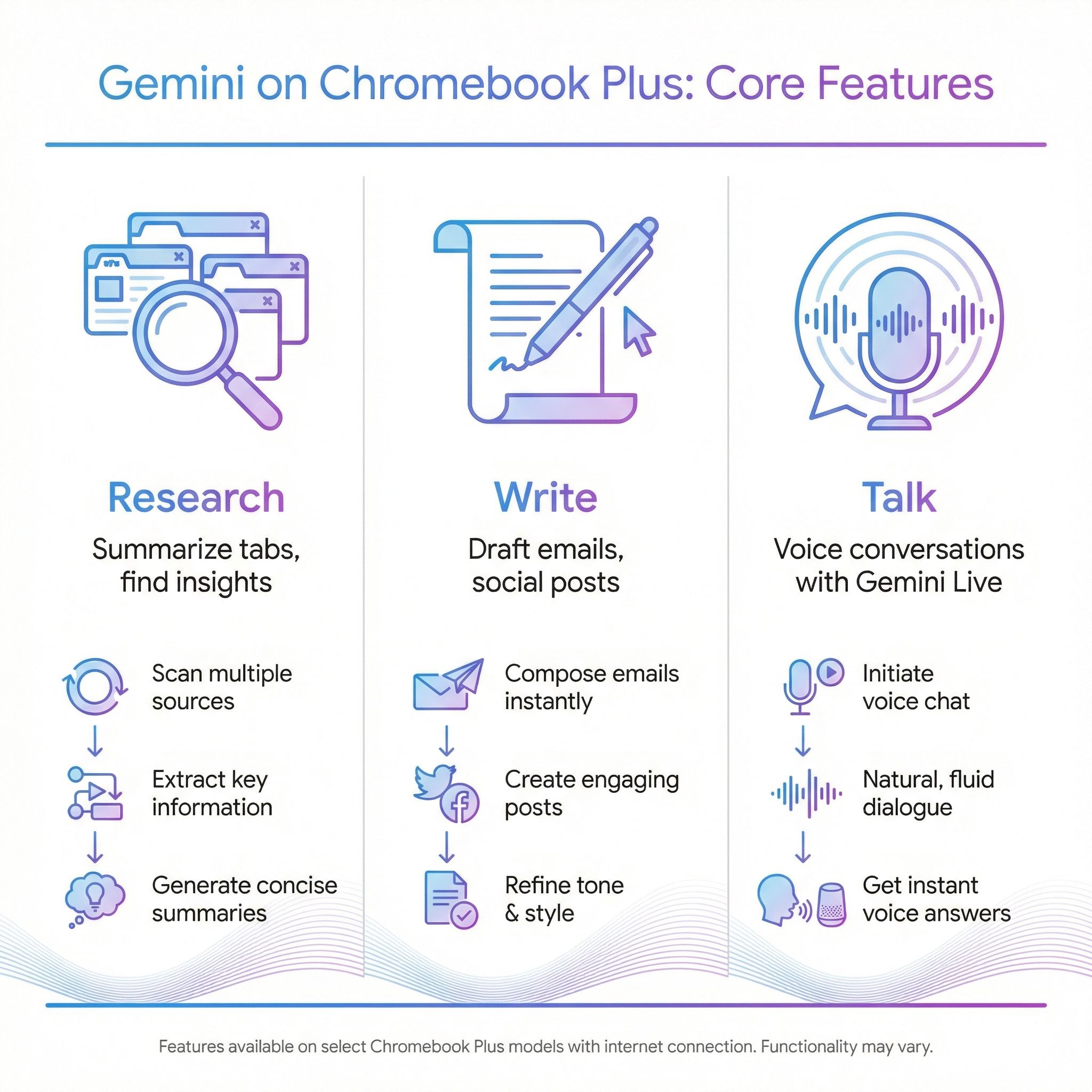
Content generation is the second pillar of Gemini in Chrome, and it’s the feature that will matter most for everyday productivity. Open a Gmail compose window or any text field on the web, and you can ask Gemini to draft content based on what you’re looking at. The workflow feels natural: read an article, open the sidebar, say “Draft a reply email summarizing this article’s key findings for my team,” and Gemini produces a starting draft you can edit and send.
The drafts aren’t perfect, and you shouldn’t expect them to be. Gemini tends toward a slightly formal tone that doesn’t always match how real people write emails. But as a starting point, especially for routine communications where you know what you want to say but don’t want to stare at a blank compose window, it genuinely saves time. The sweet spot is professional correspondence, meeting follow-ups, social media posts, and quick summaries. Creative writing, persuasive arguments, and anything requiring a personal voice still needs significant human editing.
Social media post generation is another strong point. If you’re managing a brand’s social presence or just want to share an interesting article, you can ask Gemini to draft a post about the page you’re viewing. It produces reasonably engaging options that capture the key message, though you’ll want to inject your own personality before hitting publish. The convenience of doing this directly in the browser, without switching to a separate AI tool, is the real value here.
Voice Conversations With Gemini Live
Gemini Live brings voice interaction to the Chromebook Plus experience, and it’s the feature that feels most like the future. Instead of typing queries into the sidebar, you can have a two-way spoken conversation with Gemini. Click the microphone icon in the sidebar, and the AI listens, responds verbally, and maintains context throughout the conversation. It’s genuinely useful for brainstorming sessions where typing feels like a bottleneck, or for preparing for meetings when you want to talk through your points.
The voice quality is natural enough that the conversation doesn’t feel robotic, though there’s an occasional pause while Gemini processes longer queries. For meeting preparation, you can describe your agenda and ask Gemini to help you anticipate questions or identify weak points in your presentation. For creative brainstorming, speaking your ideas out loud and having an AI respond conversationally can help break through the kind of mental blocks that staring at a text box tends to reinforce.
That said, Gemini Live on Chromebook Plus works the same as it does on other platforms. It doesn’t gain any special Chromebook-specific capabilities. And voice interaction in a shared space, whether an open office, a coffee shop, or a classroom, may not always be practical. It’s a feature best suited for private use or when you’re wearing headphones.
Where Gemini Falls Short
Honesty matters here, and Gemini in Chrome is not without significant limitations. Image generation, one of the advertised features, is inconsistent at best. Asking Gemini to create an image sometimes returns a text description rather than an actual image, and when images do generate, they don’t always match the prompt accurately. If you need reliable image creation, dedicated tools like Canva or even Google’s own ImageFX produce better results.
The agentic browsing features that Google has teased, where Gemini can autonomously navigate websites and perform tasks for you, remain more promise than reality in the current rollout. In testing, asking Gemini to perform multi-step web tasks often took longer than just doing them manually. The AI would navigate to the right page but then struggle with form fields, dynamic content, or authentication prompts. These features are clearly early-stage, and Google will likely improve them over time, but don’t buy a Chromebook Plus expecting a fully autonomous web assistant today.
There’s also the matter of accuracy. Like all large language models, Gemini occasionally presents incorrect information with confidence. This is especially concerning when it’s summarizing your open tabs, because the false sense of authority (it’s referencing your actual sources) can make hallucinated details harder to catch. Always verify specific facts, figures, and dates against the original sources rather than trusting Gemini’s synthesis blindly.
Free Tier Versus Gemini Advanced
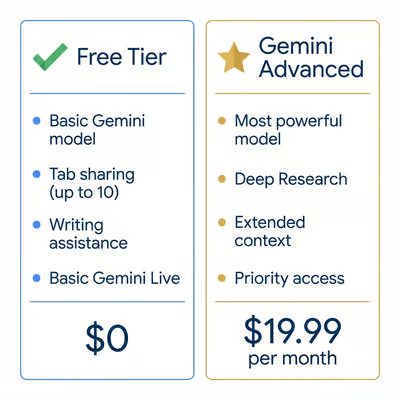
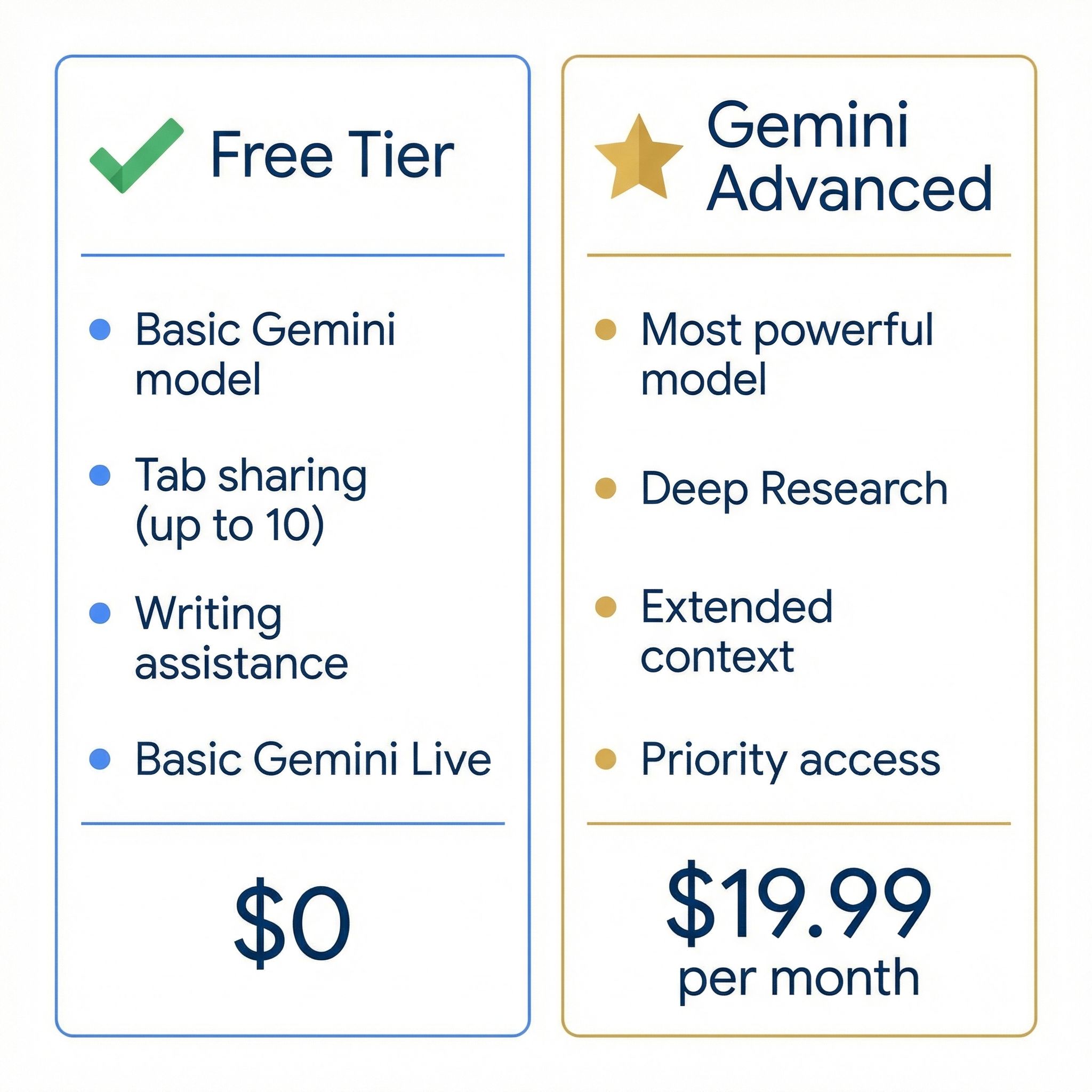
Gemini in Chrome works with a free Google account, but not all features are equal. The free tier gives you access to the basic Gemini model for chat, summarization, and content generation. You get the tab-sharing feature, writing assistance, and basic Gemini Live voice conversations. For most people doing casual research, email drafting, and general Q&A, the free tier is perfectly adequate.
Gemini Advanced, which requires a Google AI Pro subscription at $19.99 per month, unlocks the more powerful Gemini model with longer context windows, more sophisticated reasoning, and access to features like Deep Research that can autonomously investigate topics across the web. The advanced tier also provides higher usage limits and priority access during peak times. Google previously offered a twelve-month free trial (under the old “AI Premium” branding) with new Chromebook Plus purchases, but that promotion ended on January 31, 2026, so new buyers will need to factor in the subscription cost if they want the premium experience.
For most Chromebook Plus users, the honest recommendation is to start with the free tier and see if it meets your needs. The free version handles the core use cases, including summarization, drafting, and basic voice interaction, well enough that many people won’t feel the need to upgrade. The paid tier makes sense primarily for power users who rely heavily on AI for research-intensive work, content creation at scale, or who need the extended context windows for analyzing large documents.
Should You Upgrade for Gemini?
This is the question that matters most for people currently using a standard Chromebook. The straightforward answer: probably not, at least not for Gemini alone. If your current Chromebook handles your daily workflow well, adding an AI sidebar to Chrome isn’t a compelling enough reason to spend $350 or more on new hardware. You can access Gemini through the web app at gemini.google.com on any Chromebook, just without the convenient sidebar integration and tab-awareness features.
The upgrade makes sense if you were already planning to replace an aging Chromebook and want to step up to better hardware. Chromebook Plus devices guarantee meaningful minimum specifications: an Intel Core i3 (12th gen or later), AMD Ryzen 3 5000 C-Series or better, or a qualifying MediaTek Kompanio processor, along with 8GB of RAM, 128GB of storage, and a 1080p display with a 1080p webcam. Beyond Gemini, they include Google’s AI-powered photo editing features like Magic Eraser, enhanced video call quality through AI noise cancellation, and generally smoother performance across all tasks. The AI sidebar is one feature among several that collectively make the Plus certification worthwhile.
Lenovo Chromebook Plus 14" OLED

- ✓Stunning 14-inch OLED display
- ✓MediaTek Kompanio Ultra NPU for on-device AI
- ✓fanless silent operation
- ✓all-day battery life
- ✗No Intel/AMD processor limits some Linux app compatibility
- ✗limited to 8GB RAM
- ✗no biometric login
Acer Chromebook Plus 516 GE
- ✓16-inch 2560x1600 display
- ✓Intel Core 5
- ✓excellent keyboard
- ✓120Hz refresh rate
- ✗Heavier at 3.8 lbs
- ✗no touchscreen
- ✗higher price point
For those outside the US, there’s not much to do except wait. Google has said it looks “forward to bringing this feature to more people and additional languages soon,” which is the kind of non-committal language that could mean months or could mean next year. If Gemini availability is a deciding factor in your purchase, hold off until Google provides a concrete international timeline.
What This Means for ChromeOS
The arrival of Gemini on Chromebook Plus is a meaningful step for the platform, even if the execution isn’t perfect yet. For years, the knock against Chromebooks was that they were “just a browser.” Now that browser has a genuinely capable AI assistant built in, one that integrates with your tabs, generates content, and holds voice conversations. It doesn’t transform the Chromebook experience overnight, but it does make the case for ChromeOS as a serious productivity platform stronger than it’s been in a while.
The timing is also interesting given that ChromeOS and Android are merging into what’s being called Aluminium OS. Google is clearly investing in making Chromebook Plus the premium tier of its laptop lineup, with AI features as a key differentiator. Whether Gemini stays exclusively on Plus devices or eventually trickles down to standard Chromebooks will signal a lot about Google’s long-term strategy for the platform.
For now, if you have a Chromebook Plus in the US, update to ChromeOS 144 and give the Gemini sidebar a try. Start with research tasks and email drafting, where it shines. Be skeptical of its image generation and agentic features, which need more time to mature. And don’t feel pressured into a Gemini Advanced subscription until you’ve tested whether the free tier covers your needs. The AI revolution on Chromebooks has arrived, imperfect edges and all, and it’s worth exploring on your own terms.


