

Listen to this article:
A growing community of digital nomads has discovered something counterintuitive: for certain kinds of work, a cheap Chromebook isn’t a compromise—it’s actually the smarter choice. Light enough to carry all day without noticing. Cheap enough that theft or damage becomes an inconvenience rather than a catastrophe. Secure by design in ways that matter when connecting to sketchy hostel WiFi. And with battery life measured in double digits, these devices let people work from places where outlets are rumors, not guarantees.
The philosophy isn’t “settling for less.” It’s “freedom over features.” When everything lives in the cloud, the device becomes a window rather than a vault. Lose a $300 Chromebook and you’ve lost an afternoon setting up a replacement. Lose a $2,400 MacBook with local files and you’ve potentially lost irreplaceable work. For nomads who prize mobility and peace of mind over raw computing power, the math increasingly favors cheap and cheerful over premium and precious.
Who Should Consider This Approach (And Who Shouldn’t)
This minimalist setup works well for people whose work lives primarily in a browser—writing, email, spreadsheets, social media management, basic photo editing, video calls. Writers, content creators, virtual assistants, marketers, teachers, and customer support professionals can work entirely from ChromeOS without meaningful limitations. The same applies to students, researchers, and anyone whose tools are web-based.
But this approach has real boundaries. Video editors working with 4K footage will struggle—not just with performance, but with storage. Graphic designers dependent on the full Adobe Creative Suite need actual computing power that budget Chromebooks simply don’t provide. Software developers can make ChromeOS work with Linux apps, but it’s a workaround rather than an ideal environment. If your income depends on applications that require Windows or macOS, no amount of minimalist philosophy changes that reality. The goal isn’t to convert everyone to Chromebooks; it’s to identify the travelers for whom it actually makes sense.
The “budget” qualifier matters too. We’re talking about Chromebooks in the $200-400 range, not the absolute cheapest $99 educational devices. Those entry-level machines work fine for basic browsing but struggle with multiple tabs, video calls, and Android apps—the exact tasks digital nomads rely on. You’d want at least 8GB of RAM and 64GB of storage to avoid constant friction. The sweet spot for travel-worthy devices sits around $250-350, where you get capable performance without investing enough to cause heartbreak if something goes wrong.
The Travel-Specific Advantages
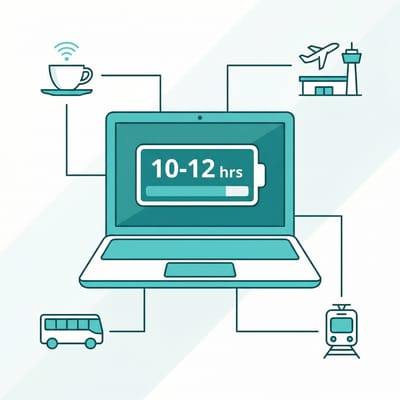
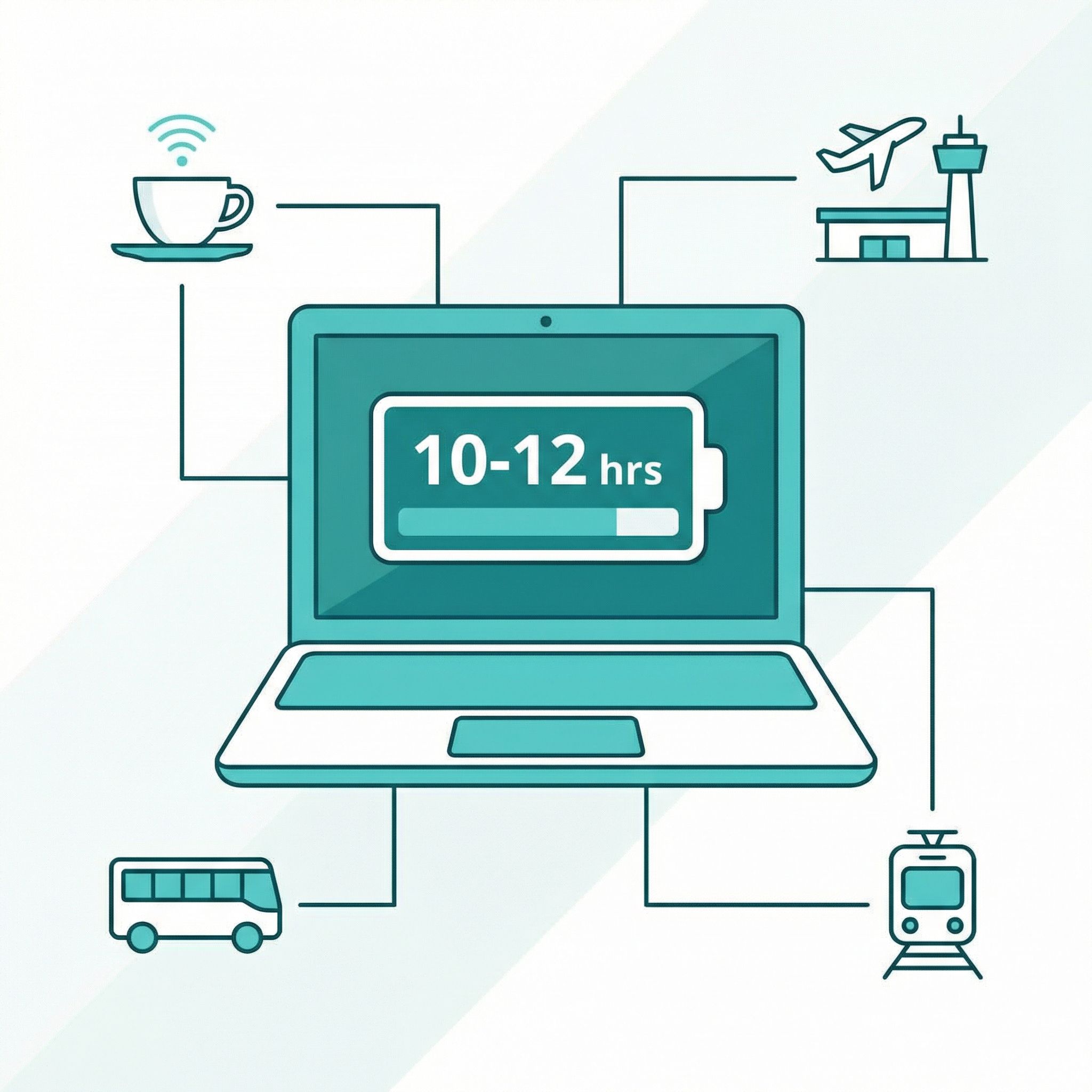
Battery life transforms the digital nomad experience in ways that specs alone don’t capture. A good Chromebook delivers 10-12 hours of actual use, which means leaving the charger at the hostel and working from cafés, parks, beaches, buses, and airport terminals without hunting for outlets or negotiating for the one seat near a power strip. On overnight buses, Chromebook users can work through their entire playlist of offline tasks while others anxiously monitor depleting batteries.
Weight matters more than you might expect after months of carrying your office on your back. Budget Chromebooks typically weigh between 2.5 and 3.5 pounds—noticeably lighter than most Windows laptops or MacBooks. That difference compounds over days of walking through cities, climbing hostel stairs, and fitting your entire life into a 40-liter backpack. The Lenovo Chromebook Duet weighs under a pound with its keyboard attached, light enough that travelers genuinely forget it’s in their bag. When every ounce matters, choosing lightweight tech is choosing comfort.
The psychological weight of a cheap device matters as much as the physical weight. Digital nomads report leaving their Chromebooks on café tables without a second thought, working from street food stalls where drinks could easily spill, and passing through border crossings without worrying about valuable electronics. The knowledge that a laptop is replaceable—that losing it would cost $300 and an afternoon of setup, not $2,000 and months of irreplaceable work—changes how people move through the world. Anxiety has a cost, and cheap tech reduces it.
What Work Can You Actually Do?
The list of tasks that work flawlessly on a budget Chromebook is longer than most people expect. Google Docs, Sheets, and Slides run natively and sync automatically. Gmail, of course. Notion, Trello, Asana, and basically every project management tool. Canva for graphics. Figma for design collaboration. WordPress for content management. Social media schedulers like Buffer and Hootsuite. CRM systems like HubSpot. Video conferencing through Zoom, Google Meet, and Microsoft Teams—though you’ll want decent WiFi for this regardless of your hardware.
The Android app ecosystem extends capabilities further. Lightroom’s mobile version handles photo editing that would have required Photoshop a decade ago. LumaFusion enables capable video editing for short-form content. Spotify, podcasts, and entertainment apps work offline. Banking apps, translation apps, VPN apps—the same tools running on your phone run equally well on your Chromebook. For writers specifically, focused writing apps like iA Writer and Ulysses have Android versions that sync seamlessly with their desktop counterparts.
Linux app support adds another layer for those comfortable with command-line tools. VS Code runs in ChromeOS’s Linux container, enabling web development with a proper code editor. GIMP handles image editing when Canva won’t cut it. LibreOffice provides Microsoft Office compatibility for those stubborn clients who insist on .docx files. The Linux subsystem doesn’t make a Chromebook equivalent to a full development machine, but it fills specific gaps that would otherwise require a more capable laptop. Most nomads won’t need this, but knowing it exists provides reassurance.
Preparing for Offline Work
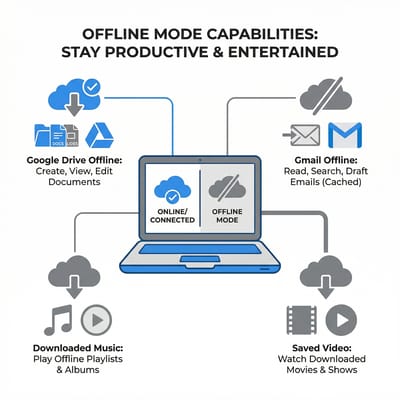
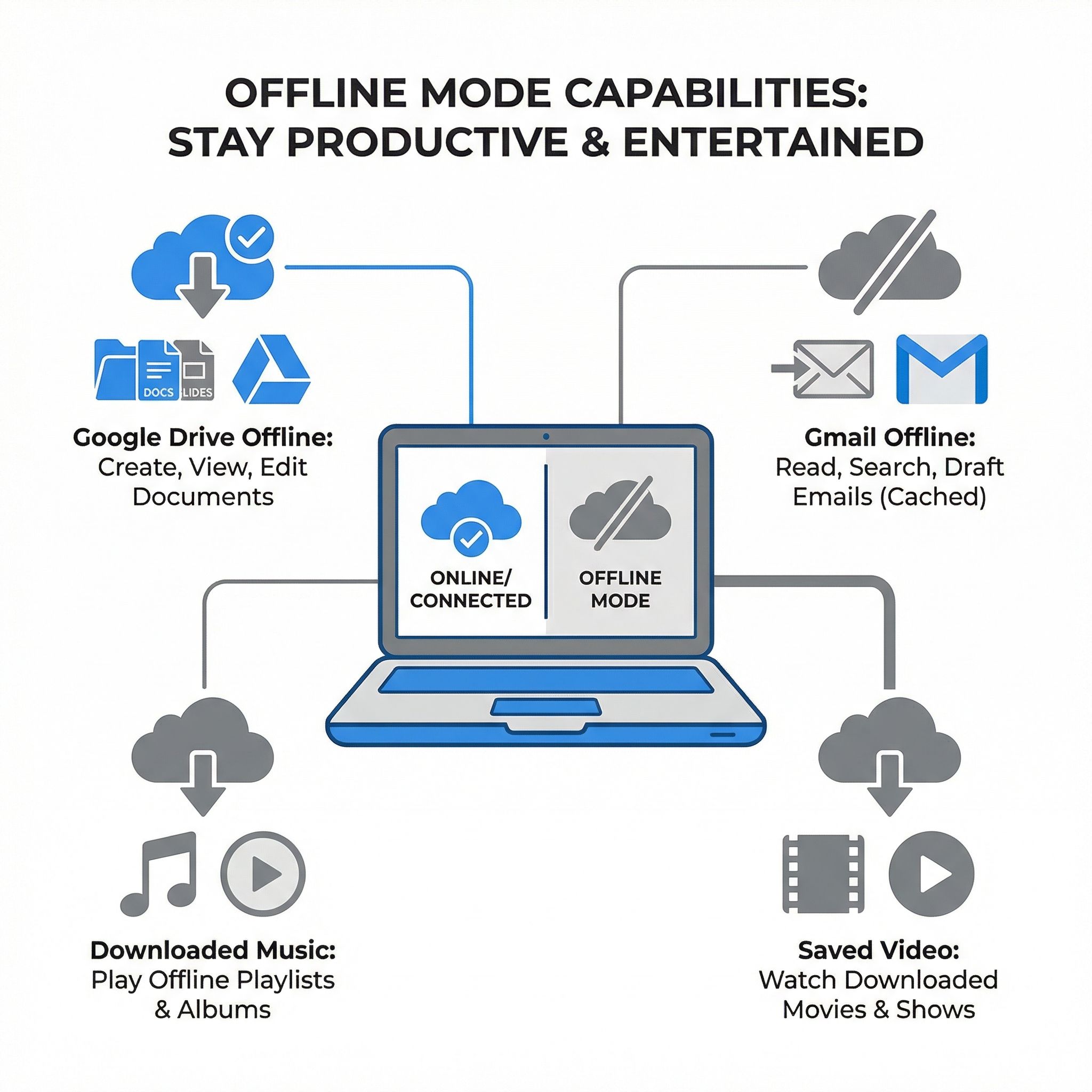
The persistent myth that Chromebooks are useless without internet hasn’t been true for years, but preparing for offline work requires intentional setup. Google Drive’s offline mode serves as the foundation—enable it before you need it, not while desperately trying to access documents on a plane. Right-click any file or folder in the Files app, select “Available offline,” and wait for it to download. This should be done for active projects, reference documents, and anything you’ll conceivably need while disconnected.
Gmail works offline with minimal fuss. Visit mail.google.com, open settings, and enable offline access. Users can read, compose, and organize messages without internet; everything syncs automatically when reconnecting. For writers and anyone who communicates heavily via email, this single feature eliminates most offline anxiety. The same applies to Google Calendar—check the “offline” option in settings and your schedule remains accessible.
Beyond Google’s ecosystem, consider your specific work needs. Spotify lets premium users download playlists for offline listening—essential for long flights or remote locations without reliable internet. Pocket saves articles for later reading, building a personal library of research material that travels with you. Netflix, Amazon Prime, and other streaming services support downloads for entertainment during transit. The key is anticipation: download everything potentially useful before leaving reliable WiFi, because you never know when “spotty connection” will become “no connection at all.”
For writers specifically, dedicated writing apps that work entirely offline are worth considering. Google Docs’ offline mode handles most scenarios, but apps like iA Writer or focused writing tools create documents locally and sync when possible. The goal isn’t to replicate an online workflow offline—it’s to identify the tasks that can be done without internet and batch them for offline sessions. Research and communication require connectivity; writing and editing often don’t.
Security on the Road
ChromeOS’s security model matters more for travelers than for users sitting in secure home offices. The operating system verifies its integrity at every boot, automatically reverting any tampering. Each browser tab and Android app runs in its own sandbox, preventing malicious code from escaping to compromise the system. Updates install automatically and restart takes seconds, not the fifteen-minute ordeals Windows users endure. These features exist in other operating systems, but ChromeOS makes them invisible and mandatory rather than optional settings most users ignore.
Public WiFi remains dangerous regardless of your operating system, which is why a VPN is non-negotiable for nomadic work. The good news is that most VPN providers offer Android apps available through the Play Store on your Chromebook. Installation is straightforward—search for your preferred provider in the Play Store, install the app, log in, and connect. The specific choice of provider matters less than actually using one—pick a service with servers in regions you’ll visit and commit to enabling it whenever you connect to networks you don’t control. The cost is trivial compared to the risk of having credentials or financial information intercepted.
Many providers offer free tiers or trial periods, which can be sufficient for basic security on untrusted networks. Upgrading to a paid plan is worthwhile if you need reliable speeds for video calls or access to servers in specific countries, but free options work for casual use. The Play Store approach means you get the same VPN app running on your phone and Chromebook, keeping your security setup consistent across devices.
Two-factor authentication protects your accounts even if passwords get compromised. Enable it on everything—Google, banking, social media, hosting providers—before you start traveling. The Google Authenticator app runs on your Chromebook, or you can use hardware keys like YubiKey for accounts that support them. The minor inconvenience of entering codes is trivial compared to the catastrophe of losing access to your email or financial accounts while abroad.
Connectivity Strategies Beyond WiFi
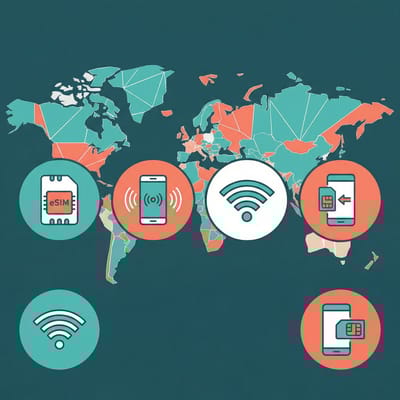
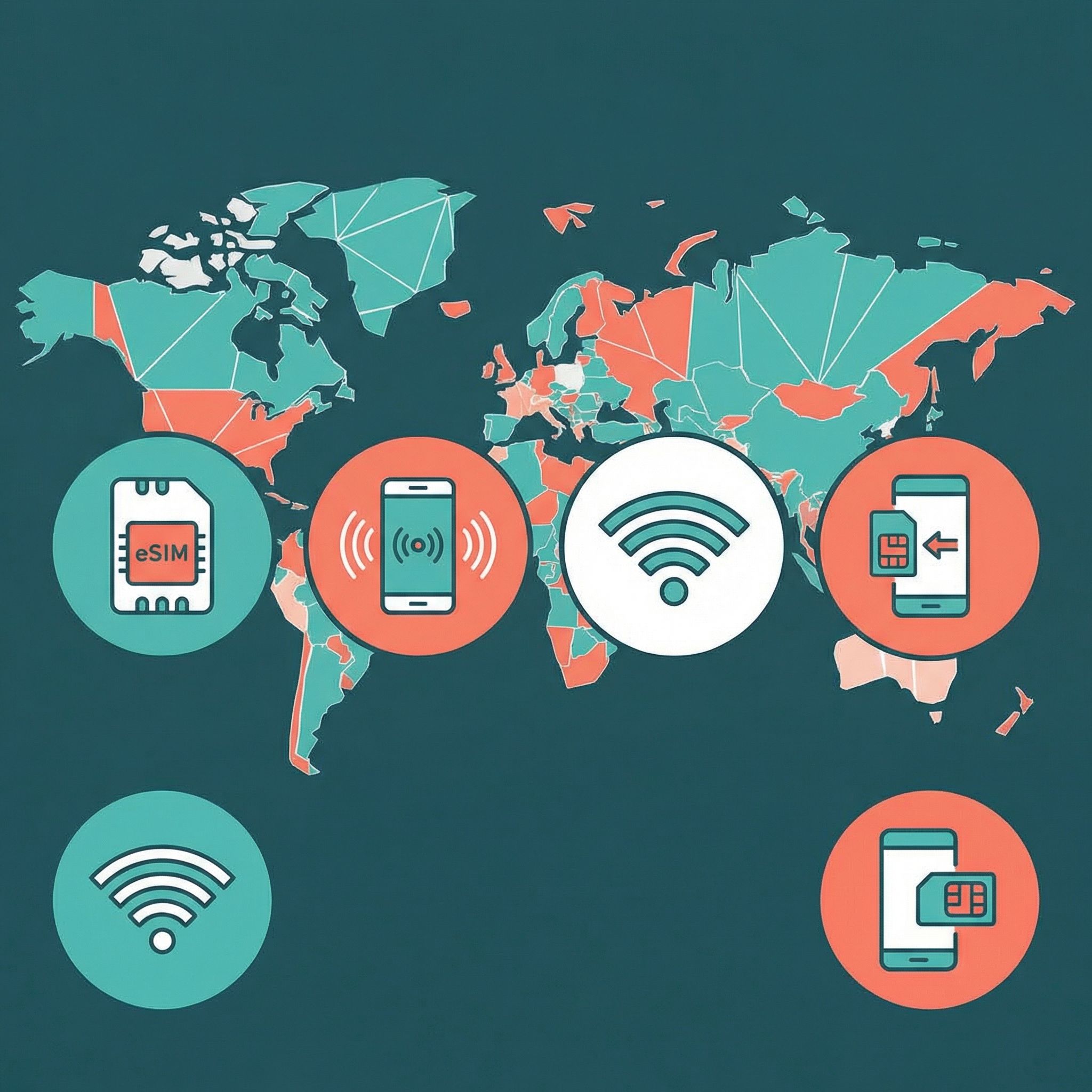
Relying entirely on hostel and café WiFi is a recipe for missed deadlines and frustrated clients. Having backup connectivity changes the game—not expensive international data plans, but strategic approaches to staying online when shared networks fail. The modern nomad’s toolkit includes options that didn’t exist five years ago.
eSIMs have transformed international connectivity for digital nomads. Services like Airalo, Holafly, and Nomad let travelers purchase data plans instantly without physical SIM cards. Most Chromebooks don’t have built-in cellular connectivity, but phones do—enabling the mobile hotspot lets the laptop connect through it. Pre-purchasing an eSIM for a destination country means arriving with working data rather than hunting for SIM card shops while exhausted from travel.
For longer stays, local SIM cards remain the most cost-effective option. Most countries offer prepaid data plans that seem absurdly cheap by American standards—$10-20 monthly for generous data allocations in much of Southeast Asia and Latin America. Pop a local SIM into a phone’s second slot (most modern phones support dual SIM) and use its hotspot when WiFi disappoints. The key is buying SIMs immediately upon arrival, before they’re desperately needed.
Portable WiFi hotspots (pocket WiFi devices) make sense for some travelers, particularly those with multiple devices or traveling in groups. Services like Skyroam and GlocalMe offer hardware that works across multiple countries, eliminating the need for SIM swaps. The devices add weight and another item to charge, but they provide dedicated, reliable connectivity that doesn’t drain your phone battery.
Recommended Chromebooks for Travel
The Lenovo Chromebook Duet represents the ultimate minimalist travel computer. At under a pound with its keyboard cover and a price around $250-300, it’s light enough to carry everywhere without thought. The detachable keyboard lets it function as a tablet for entertainment, then snap into laptop mode for actual work. Battery life exceeds 10 hours. The screen is small at 10.1 inches, which limits productivity for extended work sessions, but for nomads who work from cafés for a few hours between adventures, that tradeoff is acceptable.
For those wanting a larger screen without much weight penalty, the Acer Chromebook Spin 311 hits a sweet spot around $250-350. The 11.6-inch touchscreen flips 360 degrees for tablet-style use, and the fanless design means silent operation in quiet spaces. At 2.65 pounds, it won’t break your back on long travel days. The ruggedized build handles the inevitable bumps and drops of life in backpacks and overhead bins. It’s not glamorous, but it’s capable and reliable—exactly what travel demands.
If budget allows more flexibility, the ASUS Chromebook Plus CX34 (around $400-450) offers genuinely impressive performance from its Intel Core i5 processor. Digital Nomads World calls it “the affordable productivity machine you’ve been waiting for”—light at 1.44kg, 10-11 hours of real-world battery, and MIL-STD-810H durability certification for surviving rough handling. The performance headroom means video calls don’t stutter, multiple tabs don’t lag, and demanding Android apps run smoothly. It’s still cheap enough that theft wouldn’t devastate your finances, but capable enough to eliminate most performance compromises.
What Nomads Say About the Chromebook Life
The practical appeal shows in how real travelers describe their experiences. One digital nomad wrote on Medium about working “from airports, bus terminals, buses, boats, islands, and cafés” with a budget Chromebook, emphasizing that the battery “lasts up to 7 hours of straight use with 50% screen brightness and lasts days of on/off idle usage.” The instant sleep and wake—closing the lid puts it in standby “in split seconds”—means no waiting for the device to catch up with the nomadic pace.
Another traveler highlighted the security peace of mind: “With a Chromebook, there’s no need to worry about viruses or malware thanks to built-in security features. Plus, automatic updates ensure the device is always up to date.” For nomads connecting to dozens of unknown networks per month, this passive security matters more than benchmark scores.
The theme of affordability enabling freedom recurs consistently across nomad forums and travel blogs. “As a budget-conscious digital nomad, getting a reliable and efficient device at a reasonable price point was important, and Chromebook offers great value for the money.” When income fluctuates with exchange rates and client payments, investing $300 instead of $1,500 in hardware leaves more buffer for the unpredictable expenses travel generates.
The Minimalist Tech Philosophy
The Chromebook approach embodies a broader philosophy about travel and possessions. Every item you own requires mental energy—worrying about its safety, maintaining it, finding space for it. Expensive gear amplifies this burden. Cheap, replaceable gear reduces it. The goal isn’t austerity for its own sake; it’s freedom from the anxiety that valuable possessions generate.
Cloud-based computing completes this philosophy. When your documents, photos, and work exist in Google Drive, Dropbox, or whatever service you trust, losing a device becomes inconvenient rather than devastating. Log into any computer anywhere—a hostel’s shared machine, a friend’s laptop, a library terminal—and your entire digital life appears. The device is just a portal. What matters lives elsewhere.
This doesn’t mean never backing up locally or trusting the cloud absolutely. Important documents deserve redundant backups across multiple services. Password managers like Bitwarden store credentials securely across devices. But the fundamental relationship changes: you’re not attached to a specific machine, so you’re free to move through the world without protecting one.
Making the Transition
For those currently attached to Windows or Mac, transitioning to ChromeOS for travel requires honest assessment and deliberate preparation. Start by tracking which applications you actually use daily. Many have web-based equivalents that work identically. Others have capable Android versions. Some—specialized professional software, games, certain development tools—don’t translate at all.
The best approach is trying ChromeOS before committing. Borrow a Chromebook, rent one, or buy a cheap model specifically to test your workflow. Spend a week using it exclusively for work tasks. You’ll quickly discover which tools work fine, which require adjustment, and which genuinely need traditional computing. That experiential knowledge is worth far more than theoretical planning.
For the things that don’t work on ChromeOS, consider hybrid approaches. Some nomads carry a Chromebook for daily use plus a small Windows laptop or tablet for specific applications. Others use cloud-based virtual machines—services like Shadow or Parsec that let you run Windows remotely when needed. The point isn’t ChromeOS purity; it’s finding what works for a specific situation.
The Bottom Line
The digital nomad working from a $300 Chromebook in a Bali café isn’t settling for less. They’re optimizing for different variables than the person who needs a $2,000 workstation—portability over power, replaceability over premium build quality, freedom from anxiety over maximum capability. For work that lives in browsers and cloud services, this trade makes sense. For work that doesn’t, it doesn’t.
The question isn’t whether Chromebooks are “good enough” in some abstract sense. It’s whether they’re good enough for specific work, specific travel styles, and specific relationships with possessions and anxiety. For those who spend most of their work time in Gmail, Google Docs, Notion, and video calls—as many writers, marketers, and remote workers do—a budget Chromebook handles everything needed while costing less, weighing less, and requiring less worry than the alternatives.
Consider trying it. The worst case is spending a few hundred dollars discovering it doesn’t work and reselling the device for minimal loss. The best case is discovering a lighter, simpler, more liberating way to carry an office around the world.


