

If you’re considering a Chromebook or recently bought one, there’s good news: you’re not limited to just web apps. Google brought the Play Store to ChromeOS back in 2016, and today the vast majority of Chromebooks can run Android apps alongside everything else. That means access to millions of apps, from Netflix and Spotify to Microsoft Office and your favorite games. But not every app runs perfectly, and the experience varies significantly depending on your hardware. Here’s what you actually need to know about running Android apps on a Chromebook.
Can Chromebooks Run Android Apps?
Short Answer:
Yes. Any Chromebook released in 2019 or later supports Android apps through the Google Play Store, and many older models do too.
Long Answer:
Google officially added Android app support to ChromeOS in 2016, and the rollout expanded quickly. Unless you’re using a particularly old device, your Chromebook almost certainly supports Android apps. The easiest way to check is to open your Settings, look for the “Apps” section, and see if there’s a Google Play Store option. If it’s there, you’re good to go.
For devices released before 2019, support depends on the specific model. Google maintains an official list of supported devices on the Chromium project site, though at this point the list is more relevant for identifying the handful of older devices that can’t run Android apps than for finding ones that can.
The technical reality is that Chrome OS runs Android apps through a compatibility layer called ARCVM (Android Runtime for Chrome, Virtual Machine). This runs a containerized version of Android alongside ChromeOS, which is why Android apps integrate fairly seamlessly with the rest of the operating system. You can pin them to your shelf, run them in windows, and switch between Android and web apps just like any other software.
How Do I Enable Android Apps on My Chromebook?
Short Answer:
Go to Settings, click Apps, and turn on the Google Play Store option. Accept the terms of service and you’re done.
Long Answer:
Enabling Android apps takes about thirty seconds. Click the time in the bottom-right corner of your screen, then click the Settings gear icon. In the left sidebar, find the “Apps” section and click on it. You should see an option for “Google Play Store” with a toggle or “Turn on” button. Once you enable it, you’ll need to accept Google’s terms of service for the Play Store.
After that, the Play Store app appears in your app launcher just like on any Android phone or tablet. You can search for apps, browse categories, and install whatever you need. Apps download directly to your Chromebook, and most will create shortcuts in your app launcher automatically.
One thing to note: if you’re using a school or work-managed Chromebook, your administrator may have disabled Play Store access. There’s no way around this restriction without administrator intervention, so if you don’t see the Play Store option at all, that’s likely why.
Which Android Apps Work Best on Chromebooks?
Short Answer:
Productivity apps, streaming services, and casual games generally work great. Apps designed for specific phone hardware or those that haven’t been optimized for larger screens may struggle.
Long Answer:
The Android app experience on Chromebooks varies enormously by category, and setting realistic expectations saves a lot of frustration.
Productivity apps represent the sweet spot. Microsoft Office apps, Google’s own suite (when you prefer the app over the web version), note-taking apps like Notion and Evernote, and PDF readers work beautifully. These apps were already designed for tablets and larger screens, so they adapt well to Chromebook displays and support keyboard and trackpad input without issues.
Streaming and media apps also perform excellently. Netflix, Spotify, Amazon Prime Video, Disney Plus, and similar services run smoothly and often provide features you can’t get in the browser, like offline downloads. If you’re a Spotify user who wants to download playlists for offline listening or someone who wants Netflix downloads for travel, the Android apps deliver functionality the web versions don’t offer. This offline capability is one of the best ways to use your Chromebook without internet.
Communication apps work well but with caveats. Slack, Discord, Zoom, and Microsoft Teams all run fine, though some users prefer the web versions because they integrate better with browser-based workflows. WhatsApp is available but requires phone number verification and doesn’t support the same account on multiple devices simultaneously, which limits its usefulness.
Gaming is where things get more complicated. Casual games, puzzle games, and most 2D titles run perfectly well. But graphically demanding games, especially those with 3D graphics, may struggle on lower-end hardware. Additionally, games designed exclusively for touchscreen controls can be awkward to play without a touchscreen, though many Chromebooks include touch displays. The Acer Chromebook Plus 516 GE handles Android games quite well thanks to its powerful processor, but even there, the real gaming story is cloud gaming services like GeForce NOW rather than local Android games.
Apps that generally don’t work well include those requiring phone-specific hardware like cellular calling, certain banking apps that detect the “unusual” environment and refuse to run for security reasons, and apps that assume a vertical phone screen and refuse to resize properly.
Does Hardware Affect Android App Performance?
Short Answer:
Absolutely. More RAM, a faster processor, and adequate storage make a significant difference in how well Android apps run.
Long Answer:
Android apps run in a virtual environment that shares system resources with ChromeOS itself. This means the same hardware that affects ChromeOS performance also affects Android app performance, often more significantly.
RAM is the most critical factor. Chromebooks with 4GB of RAM can run Android apps, but you’ll feel the limitations quickly when switching between multiple apps or running anything demanding. The memory needs to accommodate ChromeOS, the Chrome browser with its tabs, and the Android runtime, so 8GB represents the realistic minimum for a good experience, and 16GB provides breathing room for heavier multitasking.
Processor choice matters more for Android apps than for basic ChromeOS use. Intel’s x86 processors need to translate ARM-based Android app code, which introduces some overhead, though modern translation is efficient enough that most users won’t notice. ARM-based processors like MediaTek and older ARM chips run Android apps natively without translation. However, the translation overhead is usually less important than raw processing power, so a fast Intel chip typically outperforms a slow ARM chip even with translation.
Storage affects how many apps you can install and how quickly they load. Android apps and their data live on your local storage, not in the cloud like web apps. A 64GB Chromebook fills up quickly if you install several large games or media-heavy apps. Consider at least 128GB if you plan to use many Android apps, or take advantage of the microSD card slot that many Chromebooks include.
Chromebook Plus devices provide the best Android app experience because Google requires minimum specifications: at least 8GB RAM, 128GB storage, and a capable processor. These requirements ensure that any Chromebook Plus certified device handles Android apps smoothly without the compromises you might find on budget models.
What Are the Limitations of Android Apps on Chromebooks?
Short Answer:
Some apps aren’t optimized for large screens, certain apps don’t work due to security restrictions, and the overall experience differs from using a phone or tablet.
Long Answer:
Despite how well Android integration works, you’ll encounter limitations that remind you this isn’t a native Android device.
Window management is the most noticeable difference. Android apps open in resizable windows on ChromeOS, but not all apps handle resizing gracefully. Some apps lock to phone-style portrait orientation. Others resize but don’t properly adapt their layouts, leaving awkward spacing or tiny text. A few apps refuse to run at all if they detect a non-standard environment. Google has improved this significantly over the years, and most popular apps work properly, but you’ll occasionally encounter apps that clearly weren’t designed with Chromebooks in mind.
Notification handling differs from Android phones. While ChromeOS does display Android app notifications, they integrate into ChromeOS’s notification system rather than working exactly like Android notifications. Some apps may not deliver notifications as reliably as they would on a phone, particularly if ChromeOS puts the Android runtime to sleep to save battery.
Hardware access limitations mean certain categories of apps simply won’t work. Apps that require cellular modems, phone call capability, or specific sensors that Chromebooks lack will either refuse to install or fail to function properly. GPS works on Chromebooks with location services but may be less precise than phone GPS. Some camera-intensive apps may not work correctly with Chromebook webcams.
Security-sensitive apps, particularly some banking apps and corporate security tools, may refuse to run because they detect the virtualized Android environment. These apps are specifically designed to reject “rooted” or non-standard Android environments for security reasons, and ChromeOS’s implementation can trigger these protections. There’s no reliable workaround for this limitation.
Which Chromebooks Are Best for Running Android Apps?
Short Answer:
Chromebook Plus models are optimized for Android apps, with the Samsung Galaxy Chromebook Plus 15.6” and Acer Chromebook Plus 516 GE being excellent choices.
Long Answer:
If Android app performance is important to you, Chromebook Plus certification is the most reliable indicator of a good experience. Google created the Chromebook Plus tier specifically to ensure minimum hardware standards that support features like Android apps, Linux development, and AI capabilities.
Samsung Galaxy Chromebook Plus 15.6"
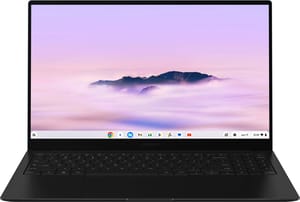
- ✓Stunning AMOLED display
- ✓incredibly thin and light
- ✓strong processor
- ✓10 years of updates
- ✗No touchscreen
- ✗mediocre speakers
- ✗pricey at $699
The Samsung Galaxy Chromebook Plus combines a stunning AMOLED display with the Intel Core 3 100U processor and 8GB of RAM. At just 2.58 pounds, it’s remarkably portable while offering excellent Android app performance. The AMOLED screen makes streaming apps look fantastic, though the lack of touchscreen limits some touch-focused Android apps.
Acer Chromebook Plus 516 GE
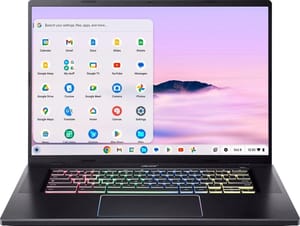
- ✓120Hz display
- ✓RGB keyboard
- ✓2.5Gb Ethernet
- ✓excellent for cloud gaming
- ✗Heavier at 3.81 lbs
- ✗keyboard could be better
- ✗$649 price point
For Android gaming specifically, the Acer Chromebook Plus 516 GE offers the best experience. Its Intel Core 5 120U processor and 120Hz display make Android games feel smooth and responsive. While the real gaming story is cloud gaming through services like GeForce NOW, it also handles demanding Android games better than most Chromebooks.
For budget-conscious buyers, look for any Chromebook Plus model, which guarantees 8GB RAM minimum and a processor capable of handling Android apps properly. Avoid Chromebooks with only 4GB RAM if Android app usage is important to you, as the experience will be noticeably compromised.
What About the Future of Android Apps on ChromeOS?
Short Answer:
Android apps will remain important to ChromeOS, and Google is working on deeper integration between the platforms.
Long Answer:
Google continues investing in the relationship between Android and ChromeOS. The company has consistently improved how Android apps run on Chromebooks over the years, from better window management to improved performance and broader app compatibility.
Recent court documents from the ongoing antitrust case against Google revealed that the company is working on a project called “Aluminium” that aims to bring Android and ChromeOS closer together. While details remain limited and timelines are uncertain, this suggests Google sees Android integration as core to ChromeOS’s future rather than a feature that might be deprecated.
For current Chromebook buyers, this is reassuring. Chromebooks purchased today will receive updates through their Auto Update Expiration date, which for models released in 2021 or later means a full ten years of support. Android app support will continue throughout that period, giving you years of access to the Play Store on your device.
Final Thoughts
Android apps significantly expand what you can do with a Chromebook, transforming it from a device limited to web apps into something far more versatile. For streaming services with offline downloads, productivity apps with better touch interfaces, casual gaming, and thousands of other use cases, Android apps fill gaps that web apps can’t.
The key is matching your expectations to reality. Productivity and entertainment apps work great. Games and specialized apps may require more research. And having a Chromebook with adequate hardware, particularly 8GB RAM or more, makes the whole experience much smoother.
If you’re shopping for a new Chromebook with Android apps in mind, check our Chromebook Comparison Chart to filter by RAM, processor, and Chromebook Plus certification. And if you’re concerned about how long your Chromebook will receive updates and support, our guide to Chromebook Auto Update Expiration explains everything you need to know about software support timelines.


