

Powerwash is the Chromebook reset button most owners only reach for when something is already over. You are selling the device, passing it to a younger sibling, prepping it for a school year, or trying to shake loose a profile that froze solid. ChromeOS makes the act itself almost suspiciously easy: a couple of confirmations and a few minutes later the machine is back to the screen it showed on day one. The marketing story riding alongside that simplicity is that your Google account, not the device, is where your digital life actually lives, so wiping the hardware costs you nothing. That story is mostly true. It is also exactly where casual sellers lose the one folder they needed.
What the cloud brings back
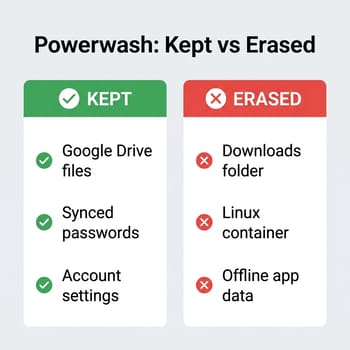
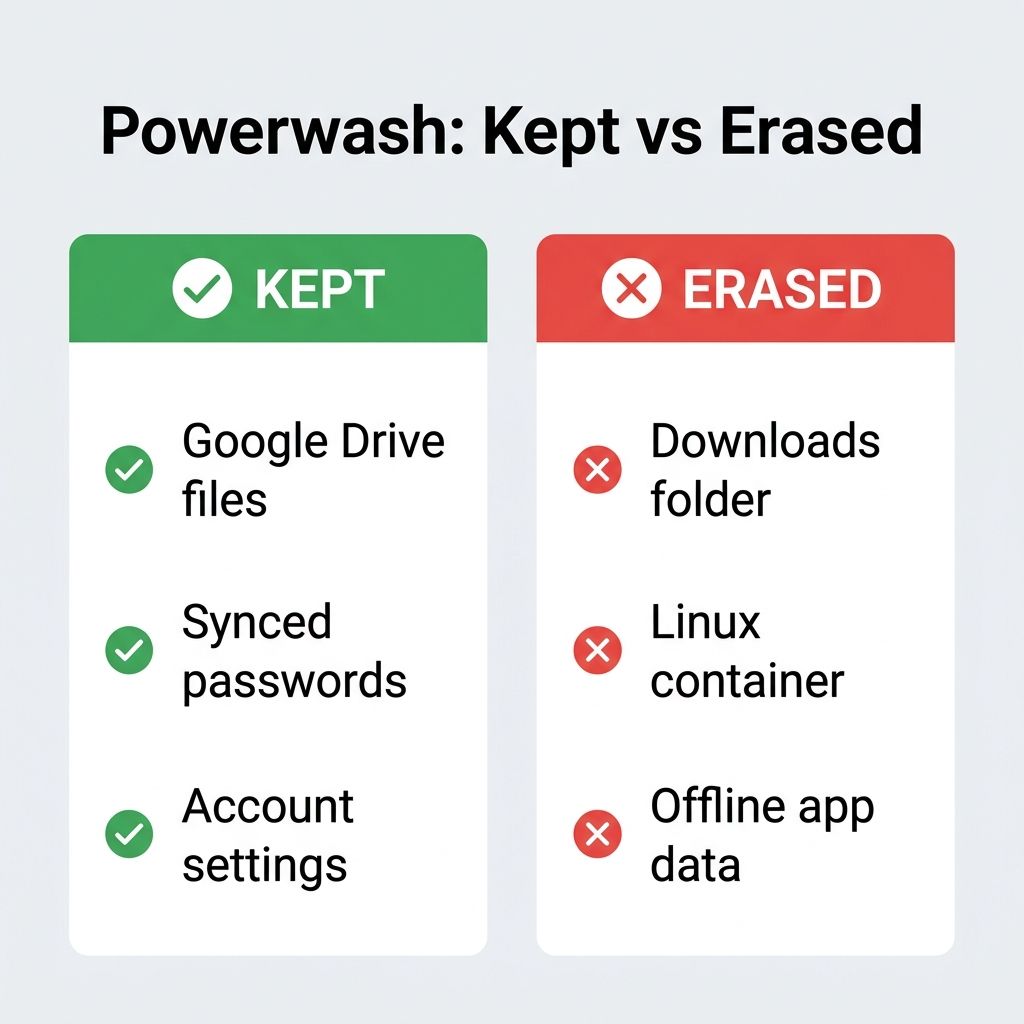
Give the cloud-first pitch its due, because the part that works really does work. Google’s own Powerwash documentation frames the reset as wiping the device and then rebuilding your world the moment you sign back in, and for the things tied to your account that is accurate. Files in Google Drive were never on the Chromebook in any permanent sense, so they are untouched. Chrome bookmarks, browsing history, saved passwords, installed extensions, and your synced preferences all live in the account and flow back down on first login. Vendor walk-throughs like HP’s 2026 reset guide lean hard on this, and they are not wrong to: for someone who keeps their whole workflow in Drive and synced Google services, signing in after a Powerwash does feel like nothing happened.
The trouble is the gap between “synced to your account” and “sitting on the local disk.” Those are two different storage worlds, and Powerwash only refills the first one. Anything that lived solely on the second, with no copy mirrored up to Google, is what the reset quietly carries off.
The Linux environment is the one that hurts
If you ever turned on the Linux development environment, this is the paragraph to read twice. The Linux environment, which runs your Linux apps and the terminal on ChromeOS, lives entirely on the device and is never copied to your Google account. A Powerwash deletes the whole container along with everything in it: your home directory, every package you installed, your dotfiles, and any code you were working on. Steam on ChromeOS is worth calling out separately, because it runs in its own environment, separate from your Linux apps; it is just as local, though, so the reset clears your installed games and their local saves the same way. Independent 2026 guides such as DevX’s data-loss walk-through flag this plainly, and it is the clearest place where a careful explainer out-teaches a vendor’s tidy “click here, click here” version. ChromeOS does give you a safety net, but you have to use it on purpose: the Linux settings include an export-to-file backup that bundles your Linux files into a single archive you can drop on a USB drive or in Drive. Run that export before the reset, or the container is simply gone.
The same logic, less dramatically, applies to everything else parked in local storage. Your Downloads folder is on the disk, not in Drive, so screenshots, PDFs you saved to read later, photos pulled off a phone, and anything you downloaded “just for now” all vanish with the reset. Android apps that stored data offline are a quieter version of the same trap: a game’s local save or a note-taking app that never finished its first cloud sync has nothing to restore from. Saved Wi-Fi networks fall into a conditional version of this, too. If you had network sync switched on for your account, your home and work networks can follow you back; if you did not, the Chromebook forgets every password it knew, and you are retyping the cafe and airport logins from scratch. None of these losses announce themselves. They only surface days later, when you go looking for the file and the folder is empty.
Signing out is not the same as wiping
There is a second worry that runs in the opposite direction, and sellers feel it just as sharply: what of mine stays behind for the next owner? A Powerwash does erase the local user data, which is the point of doing one before a sale. The mistake people make is stopping short of it. Signing out of your account, or even just closing the lid and handing the device over, leaves your profile, your files, and your saved logins exactly where they were. Removing your account from the sign-in screen is closer, but the clean break is the full reset followed by one extra habit: after the Powerwash, open your Google Account’s device list and remove the Chromebook there as well, so it stops showing up as a machine you are signed in on.
Worth knowing for your own sake, and for the buyer’s: a personally owned, unmanaged Chromebook has no consumer activation lock. There is no ChromeOS equivalent of a stolen iPhone that stays bricked to its old owner. Google’s documentation notes that whoever signs in first after a reset becomes the owner account for the device, which means a properly Powerwashed consumer Chromebook is a clean slate for the next person, with no lingering tie to you. The one exception is the case that trips up the most handed-down machines, and it deserves its own section.
The managed-device wall
If the Chromebook came from a school or an employer, the rules are not yours to change. Devices enrolled in an organization are managed server-side, and that enrollment is bound to the hardware itself, not to whoever happens to be holding it. A personal Powerwash does not release a managed Chromebook; the device checks in, recognizes its serial number is still owned by the organization, and forcibly re-enrolls right back into management before you can finish setup. This is by design, and it is why a fleet laptop that “looks wiped” still drops a sign-in restriction or a blocked extension onto its next user. The blunt reality here, the one no resale listing wants to admit, is that a still-enrolled device cannot be cleanly transferred: until the managing organization deprovisions it from its admin console, the Chromebook force-re-enrolls itself after every Powerwash. Deprovisioning is the only thing that releases the hardware, and only the issuing IT administrator can do it. Once they have, the device is a normal Chromebook that can be sold or donated like any other, which is exactly how legitimate refurbishers move retired fleet stock. If you bought a used Chromebook and hit an enrollment screen you cannot get past, that is not a Powerwash the seller skipped; it is a device that was never deprovisioned before it changed hands.
The ten-minute pass before you press reset
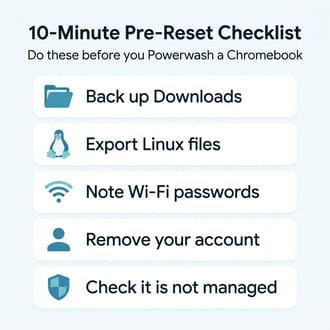
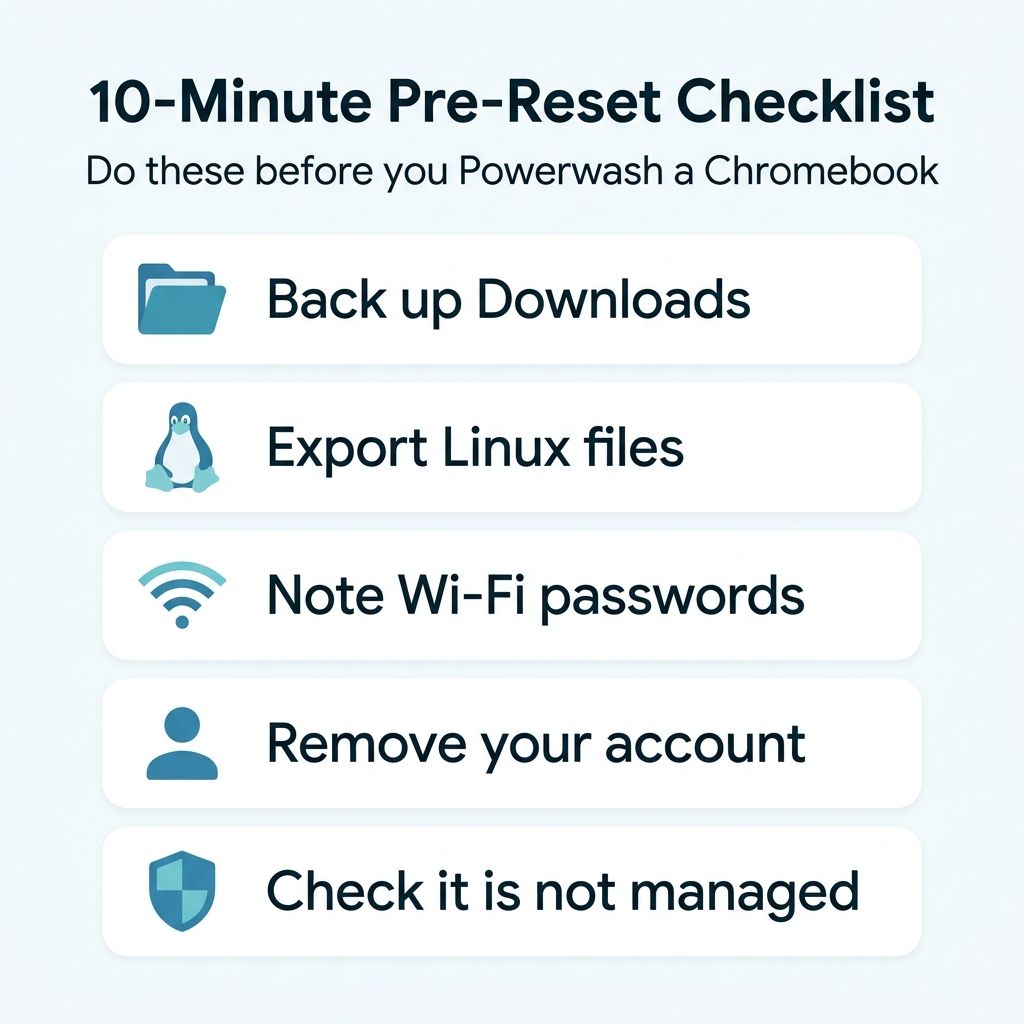
None of this requires a backup ritual; it requires about ten minutes of looking before you leap. Start by copying your Downloads folder onto an external drive or into Drive, since that is where the surprise losses usually hide. If you ever used Linux, run the Linux export and save the archive somewhere off the device. Jot down the handful of Wi-Fi passwords you actually care about, in case network sync was never on. Then handle the account: remove it from the device rather than only signing out, and confirm the Chromebook is not carrying a school or workplace enrollment, because that single check is the difference between a clean handoff and a buyer who emails you a week later. The whole sweep is the kind of thing you do once, calmly, instead of reconstructing it in a panic afterward. Google sensibly recommends backing your files up to Drive or an external drive before the reset, and treating that advice as a short checklist rather than a vague suggestion is the entire trick.
A quick note for the case where Powerwash refuses to start. If the device is corrupted enough that the normal reset will not launch from the sign-in screen, the fallback is ChromeOS recovery, which reinstalls the operating system from scratch. How you do that depends on the model. Many newer Chromebooks support network-based recovery, pulling a fresh image over the internet directly from the recovery screen with no second device involved; older ones instead need recovery media, which means building a recovery USB drive on another computer with Google’s Chromebook Recovery Utility. Either path is slower than a normal Powerwash and wipes just as thoroughly, so the same pre-reset checklist applies. Recovery is the heavier hammer for a machine that is misbehaving, not a different way to save your data.
If you are the one buying
Flip the whole article around and it becomes a used-buyer’s guide. The reassuring half is that a consumer Chromebook with no activation lock is safe to buy once it has been properly reset, so a clean out-of-box setup screen is a good sign. The thing to actually verify is not the wipe but the runway: how many years of updates the device has left. ChromeOS support is time-boxed, and a bargain Chromebook that expires in eight months is not a bargain. Check the model’s Auto Update Expiration date before you pay, using our Chromebook AUE explainer to find it and the used-Chromebook worksheet to turn it into a real dollars-per-update-year number. If you hit any sign-in restriction, blocked setting, or enrollment screen during setup, walk away: that is the managed-device wall, and it means the Chromebook was never deprovisioned by whoever owned it before you.
Powerwash is one of the better factory-reset experiences in computing, and the cloud-first design is most of why. The catch is that “the cloud has it” is doing a lot of quiet work in that sentence, and the things it does not cover are precisely the ones you would miss. Ten minutes of copying files and one clear-eyed look at who actually owns the device is all it takes to keep the reset as painless as the marketing promises. And if the real goal was never to sell at all, an aging Chromebook can keep earning its desk space as a low-power home server or as a shared household machine long after you stopped carrying it around.


