

Chromebooks have been the household share-it-with-everyone computer for more than a decade, yet almost all the advice about sharing one is written for parents managing children. Family Link coverage is everywhere. The adult-shared home is not. About Chromebooks put a number on that gap in a June 2026 statistics piece, reporting that adults aged 36 to 50 average 4.9 hours of daily Chromebook use split between work and household tasks, and ranking security as a top concern. Couples, roommates, and multigenerational homes are a large slice of who actually uses these machines, and nobody is writing for them.
This is a buyer-protection question dressed up as a how-to. The mechanics of adding a second user are trivial; the parts that trip people up are structural. How many profiles can the device really hold before storage runs out? What does each person’s account cost the machine? What happens to a profile when a roommate leaves, and which of the 2026 ChromeOS features follow the device rather than the person signed into it? Those are the questions this guide answers.
Three Ways to “Share” a Chromebook, and Only One Is a Real Profile
Before anything else, it helps to separate three things people lump together. The first is a true ChromeOS user profile, created through “Add Person” on the sign-in screen. Each one is a system-level account with its own apps, settings, and, importantly, its own encrypted storage. The second is adding multiple Google accounts inside the Chrome browser through the avatar switcher in the top-right corner. The third is Guest mode, a temporary session that keeps nothing.
The distinction matters more than it looks. A couple who share a single ChromeOS profile but keep separate Gmail logins inside the browser are not getting separate, private spaces; they are sharing one vault, one Downloads folder, and one set of cookies, with two email inboxes layered on top. That is fine for a shared “house computer” where privacy between the two adults is not the point. It is the wrong choice if each person wants their own files kept private. For that, you want two system profiles, each with its own encrypted vault, not two browser logins inside one profile.
Guest mode is the underrated option for the short-term case. When a houseguest needs to print a boarding pass or a visiting relative wants to check email for a week, Guest mode opens a clean session and erases everything on sign-out. It leaves no profile behind, which neatly sidesteps the leftover-account problem covered later in this guide. Reach for it whenever someone needs the machine briefly and will never touch it again.
How Many Profiles Can One Chromebook Hold?
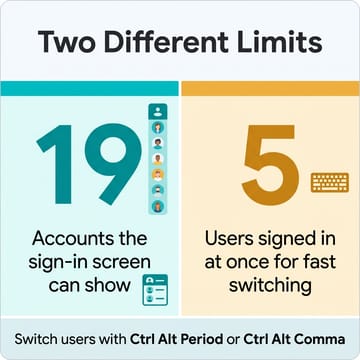
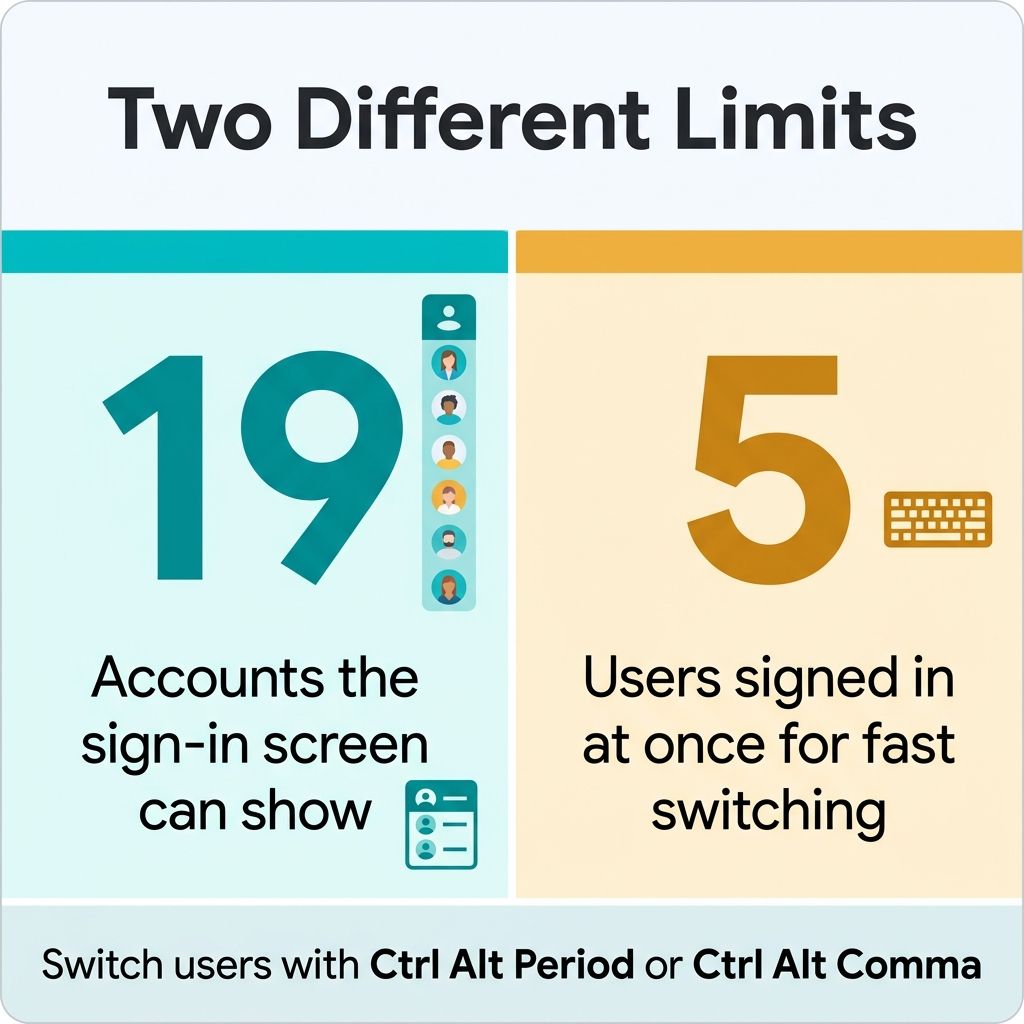
There are two separate limits here, and conflating them is the single most common source of confusion. The first is how many accounts the device will remember and display. Google’s own documentation states plainly that “the sign-in screen can show up to 19 accounts.” The second is how many people can be signed in at the same time for fast switching, and that ceiling is much lower: Google says “you can add up to 5 users” signed in simultaneously. A household of four can absolutely keep four profiles signed in and hop between them; a household that has cycled through a dozen roommates over the years can accumulate accounts up to that 19-account display wall.
What happens past the wall is where the documentation gets thin. Google notes that “if your Chromebook is running low on space, the profile that hasn’t been used the longest will be removed from your Chromebook automatically,” but it does not explicitly say that exceeding 19 accounts is the trigger. Third-party guides such as XDA’s walkthrough connect the two directly, describing the 19-account limit and the silent auto-deletion as cause and effect. The candid read is that Google commits to the 19-account display limit and to storage-driven cleanup separately, and leaves the relationship between them undocumented. The safe operating assumption for a household is to not treat 19 as a guaranteed ceiling. On a small-disk device, storage pressure can prune an old, unused profile well before you ever get close to that number.
Storage, Not Account Count, Limits Shared Chromebooks
The reason storage, not account count, is the real limit comes down to how ChromeOS isolates users. Per Google’s Chromium OS security design, each user gets a unique encrypted “vault” created at first login, tied to that person’s credentials, so one user cannot read another user’s files. This is genuine privacy between household members, which is exactly what you want on a shared machine. It is privacy between users, not bulletproof security against a determined attacker who has the physical device, so set expectations accordingly.
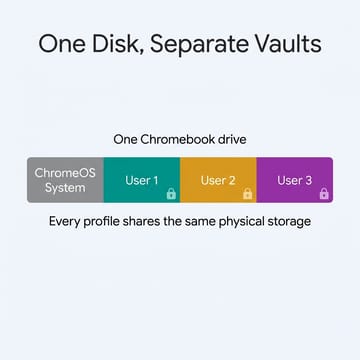
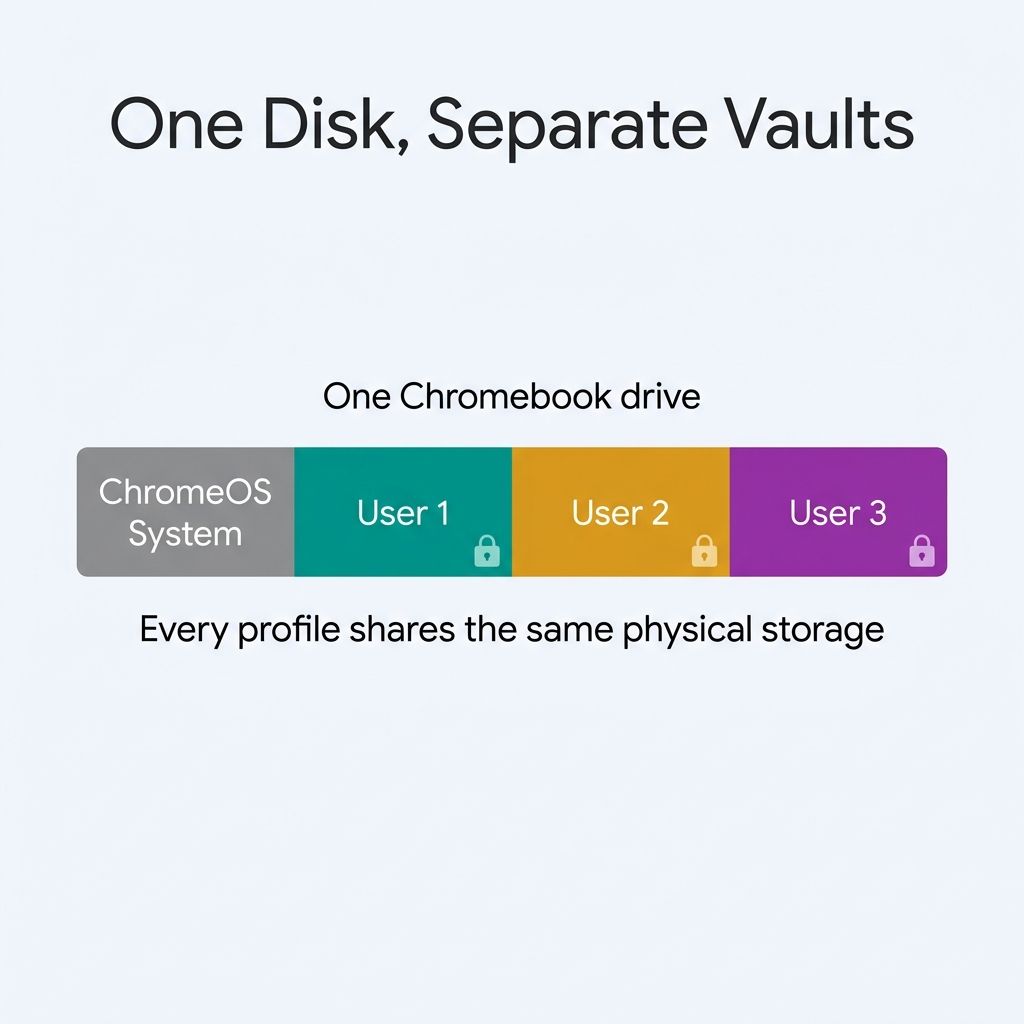
Every one of those vaults draws from the same physical disk. On a 64GB eMMC Chromebook, once ChromeOS, the recovery partition, and a couple of Android or Linux installs take their share, the space left for several users to keep photos, downloads, and offline files is tight. Add a second and third profile that each install apps and cache files, and a budget device can feel full surprisingly quickly. There is no fixed “profiles before it slows” number worth quoting, because the answer depends entirely on how much each person stores; the practical reality is that storage exhaustion, not a magic profile count, is what bites a shared household first.
This is the rule that should drive a shared-home purchase. A single-user Chromebook can get away with 64GB. A device that two or three adults will all keep files on should start at 128GB, and ideally use a faster NVMe or UFS storage tier rather than the slowest eMMC found in bottom-shelf education units. The extra storage is not a luxury on a shared machine; it is the difference between four people coexisting and a monthly fight over who has to delete their downloads.
Fast Switching Without Logging Everyone Out
Day to day, the appeal of a shared Chromebook is jumping between people quickly. With multiple users signed in, ChromeOS switches with a keyboard shortcut: press Ctrl+Alt+. (period) to move to the next account and Ctrl+Alt+, (comma) to move to the previous one. It is fast enough that a partner can take over mid-session without anyone losing their open tabs. If you would rather not memorize the shortcut, the same switch is available by clicking the active profile photo in the status area at the bottom-right and picking another signed-in user, which is how most households end up doing it in practice.
There is one catch worth knowing before you rely on it. When several people are signed in at once, you cannot sign them out one at a time; Google’s documentation is explicit that you “need to sign out of all accounts at the same time.” In practice that means simultaneous sign-in is best treated as a convenience for a short stretch of shared use rather than a permanent state where everyone stays logged in around the clock. The worry that piling on users will bog the machine down is a perennial one; a long-running r/chromeos thread asking whether multiple users slow down a Chromebook shows how often people reach for an answer the official documentation never quite gives.
When Someone Moves Out
Households change, and a Chromebook outlives most living arrangements. When a roommate or partner leaves, you remove their profile from the sign-in screen. The part that reassures everyone involved is what removal does and does not touch. Google is clear that “any items that person saved to your Chromebook, such as downloaded files, will be deleted,” and equally clear that “when you remove an account, it’s only removed from the Chromebook. The Google Account itself, including its data and settings, will still exist.” The departing person keeps their Gmail, their Drive, and their photos; the device simply lets go of the local copy and the encrypted vault that went with it.
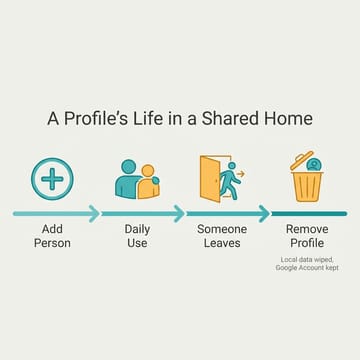
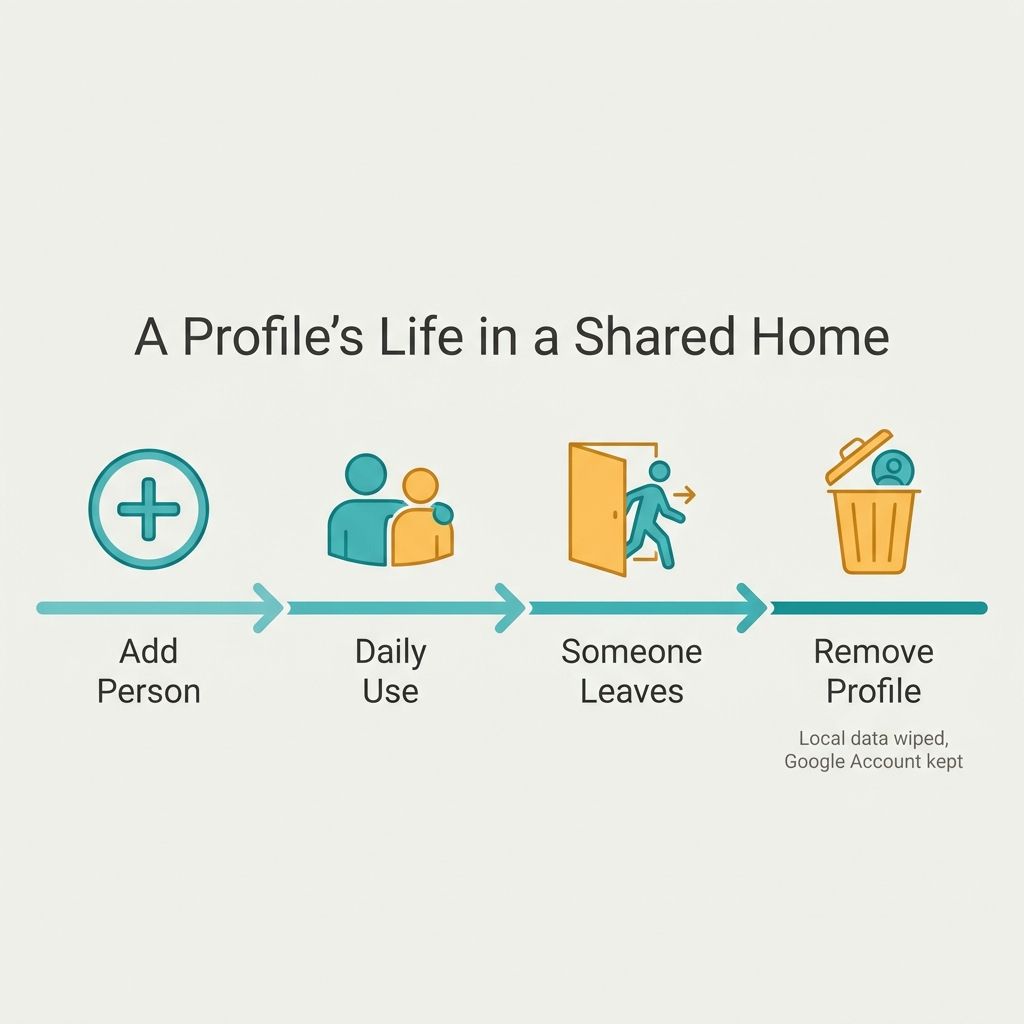
The flip side is the leftover-profile problem, and it is most visible on a Chromebook that changed hands without a cleanup. Buy a used machine, or inherit one from a relative, and you can find old accounts still sitting on the sign-in screen, each holding a stale vault that eats into your storage. It is one of the trip-ups worth checking for on any secondhand purchase, which is why our used Chromebook worksheet treats leftover profiles as a line item. The cleanup matters in both directions; ChromeOS forums regularly feature owners blindsided by removal, including an r/chromeos poster who described waking up to find a user and all of its local data gone, a reminder to back up local files before you remove anyone. If you are handing a Chromebook on to someone else, the clean move is to remove every profile but the owner’s, or to powerwash the device entirely.
How 2026 Features Attach: Device or Profile
Part of sharing a Chromebook in 2026 is understanding which features belong to the hardware and which follow the person. The newest example arrived on June 10, 2026, when Chrome Unboxed reported a persistent Gemini in Chrome button rolling out through ChromeOS M148 on Chromebook Plus devices. The button lives in the system tray, which is a device-level surface every signed-in user sees. As with other per-account data on ChromeOS, the Gemini experience should follow whichever profile is active rather than pool across the household, but Google has not documented the per-profile scoping (or whether the button itself can be hidden per profile), so treat that as the expected behavior to watch rather than confirmed.
The same device-versus-profile split applies to Chromebook Plus features in general. The Chromebook Plus tier is a hardware-and-software bar the machine meets, so its capabilities are available to every profile on a qualifying device; a profile that has not turned on a given AI feature simply will not see it until they do. A premium Plus machine like the HP Dragonfly Pro Chromebook is the clearest illustration of the tier, even though it is now older and harder to find new. One feature that ignores profiles entirely is Auto Update Expiration: AUE is a property of the device, so when a shared Chromebook reaches its expiration date, every profile on it stops getting updates together. There is no per-person reprieve.
Which Chromebook Suits a Shared Home
If storage is the real constraint, then the buying decision for a shared household is mostly a storage-tier decision. Two machines bracket the sensible range. Beyond raw capacity, look for comfortable memory so several signed-in users do not thrash, and a recent enough release date that the device’s update window covers the years a shared machine tends to stay in service. At the higher end, a roomy Chromebook Plus makes the multi-profile math almost disappear.
Acer Chromebook Plus 515
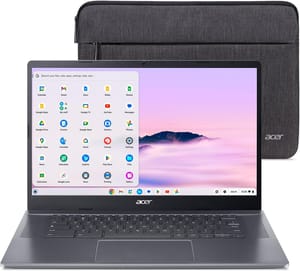
- ✓256GB NVMe SSD
- ✓roomy 15.6-inch FHD touchscreen
- ✓Chromebook Plus features
- ✓updates through 2032
- ✗Modest 250-nit screen brightness
- ✗all-plastic build
- ✗no SD card reader
At the more affordable end, a smaller device works for a couple as long as you respect its storage ceiling. The Lenovo Chromebook Duet 5 is a capable shared-home pick, with the caveat that its base configuration is exactly the kind of small-disk device this guide warns about. Two adults who mostly live in the browser and keep their files in the cloud will be comfortable here; two adults who both hoard local downloads will feel the squeeze on the smaller drive.
Lenovo Chromebook Duet 5
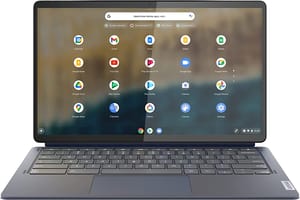
- ✓Gorgeous 13.3-inch OLED
- ✓keyboard included
- ✓light and portable
- ✓updates through 2031
- ✗Base model ships with only 64GB eMMC
- ✗slower storage tier
- ✗modest processor
For the specific case of a device shared between a parent and a school-aged child, the calculus shifts toward managed accounts and the questions in our Chromebook versus iPad for school comparison. For an all-adult home, the advice is simpler: give each person a real system profile, buy enough storage to make that comfortable, lean on Guest mode for visitors, and clean up profiles when the household changes. Do that and one Chromebook can quietly serve a whole house for years.


