

Every few weeks a version of the same complaint lands on Google’s Chromebook Community forums: someone buys a $200 docking station, plugs it into a Chromebook that cost about the same, and their 4K monitor either refuses to appear, locks to a stuttery 30Hz, or clones the first screen instead of extending onto a second. The dock’s box promised dual 4K. The setup delivered one panel at half the frame rate. Nothing is broken, and returning the dock rarely fixes it, because the problem is not the dock at all. It is that the rules for whether a Chromebook drives two 4K displays live in three separate places, and almost no listing joins them for you.
The market is large enough that this is a common and expensive mistake. The docking-station market as a whole reached $4.1 billion in 2026, according to About Chromebooks’ 2026 peripheral usage statistics, and the same data explains why so many of those docks disappoint on ChromeOS. That aggregation puts HDMI 1.4, which caps 4K at 30Hz, on 60% of shipping Chromebooks, while 70% support DisplayPort Alt Mode over USB-C at 4K60 and only 5% include Thunderbolt. Buy on price without reading those numbers and you land in the gap between what the dock can output and what your Chromebook can send it.
Three Spec Sheets Decide Whether a Dock Delivers Dual 4K60
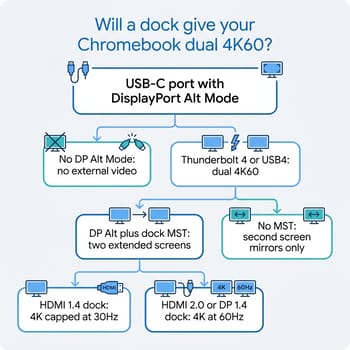
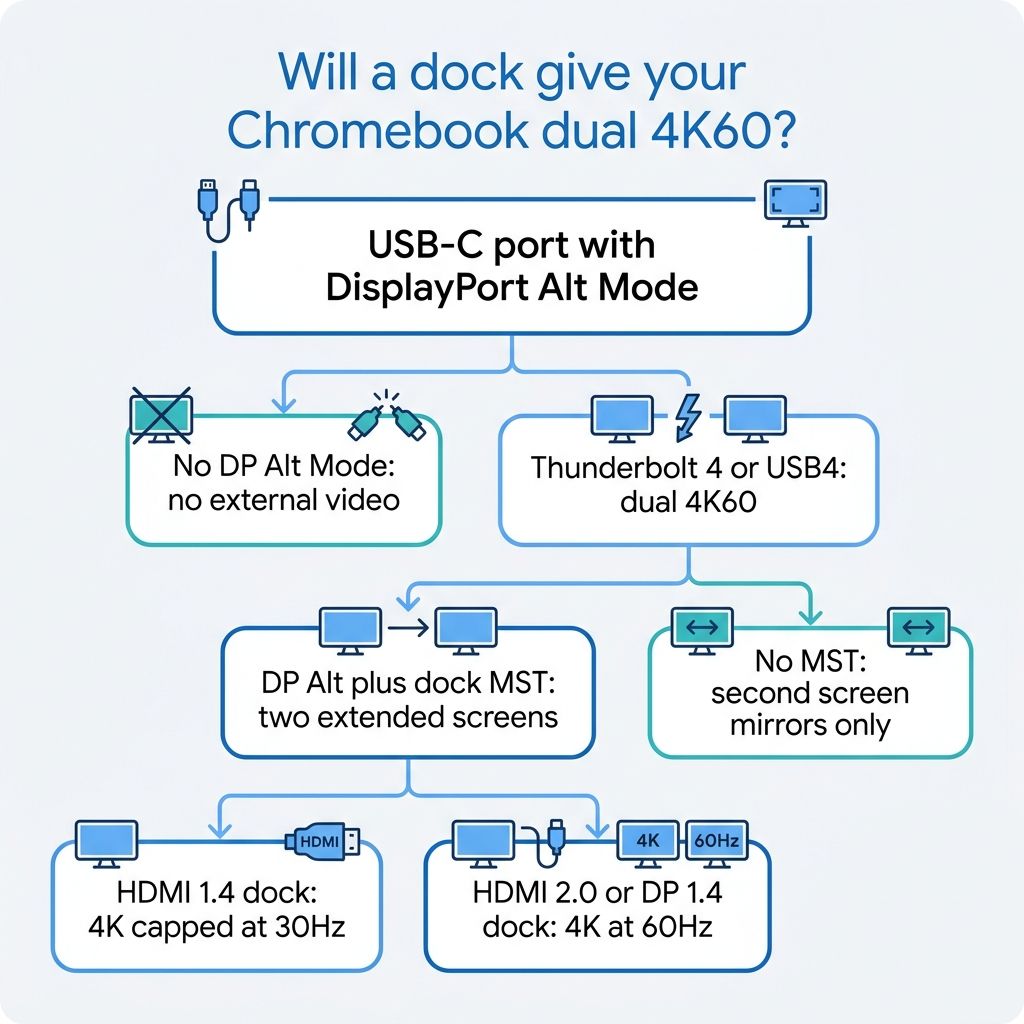
The reason dock shopping goes wrong is that the answer is spread across three documents that never appear together. The first is your Chromebook’s own port specification, which sets a hard ceiling on how much display signal leaves the machine. The second is Google’s ChromeOS Compatible certification, which tells you a dock or monitor passed conformance testing but not what your particular Chromebook will do with it. The third is the dock manufacturer’s supported-refresh table, buried in a spec sheet or an FAQ, which lists the resolutions and frame rates each output can actually hit.
Dual 4K60 happens only when all three agree. Miss one and the setup quietly falls back to the lowest common denominator, which is usually 4K at 30Hz or a mirrored second screen. The rest of this guide walks each layer in turn, then hands you the specific words to look for on both the Chromebook listing and the dock listing.
Your Chromebook’s USB-C Port Sets the Display Ceiling
Start with the machine, because no dock can output a signal the Chromebook never sends. A USB-C port carries video only if it supports DisplayPort Alt Mode, the mode that routes DisplayPort lanes through the USB-C connector. About Chromebooks puts DP Alt Mode on 70% of models, good for a single 4K display at 60Hz, with Thunderbolt 3 or 4, which reaches 8K at 60Hz, on just 5%. A data-only USB-C port, or a plain USB-A port, sends no picture at all. One forum poster trying to run a second monitor off a USB-A hub got the blunt version from a Diamond Product Expert on the Chromebook Community forums: “USB-A does not [have video]… Chrome OS does not support installable drivers so USB-A to HDMI is a no-go.” That last clause matters for docks that use DisplayLink compression to fake extra outputs; without a driver, ChromeOS ignores them.
The bigger trap is assuming that one dock cable equals the Chromebook’s full multi-monitor ability. About Chromebooks lists Chromebook Plus models as driving two to three 4K monitors, but through “2x USB-C + HDMI,” meaning the machine’s own separate ports rather than a single upstream dock cable. A dock funnels everything through one port, and whether that port can split into two independent 4K streams depends on the processor, not the dock. That is a different question from raw port count, and it is where the next layer comes in.
HDMI 1.4 Locks 4K to 30Hz; HDMI 2.0 and DP Alt Reach 60
If your Chromebook or dock leans on HDMI, the version number decides the frame rate. HDMI 1.4, still present on 60% of Chromebooks per About Chromebooks, tops out at 4K30. HDMI 2.0, on roughly 35%, reaches 4K60, and USB-C DisplayPort Alt Mode matches it. The gap is jarring in practice. Testing a 4K monitor across every adapter he owned, the writer at Chrome Unboxed reported he “simply could not get over 4K30,” and living with it was rough: “When window animations and the entire OS moves at 30Hz, it is a tad bit jarring, janky and off-putting.”
The fix is not a better cable but a better port. On a dock listing, that means looking for HDMI 2.0 or DisplayPort 1.4 on the output side, and confirming that the Chromebook’s port can feed it, rather than trusting the “4K” label. A dock that advertises “4K” over an HDMI 1.4 output means 4K at 30Hz, and it is telling the truth in the least useful way possible.
Dual Extended Displays Need MST, and the Dock Has to Carry It
Getting two separate 4K desktops out of one USB-C cable requires Multi-Stream Transport, the DisplayPort feature that packs multiple display streams down a single link for a dock to split apart. Plugable states the dependency plainly on its Certified Works with Chromebook dual-monitor dock, the UD-MSTHDC. The dock drives two HDMI or DisplayPort displays at up to 4K60, but “due to lack of MST functionality in macOS, the USB C dock only allows for one additional extended display. The second display will be mirrored.” ChromeOS has supported MST since version 100, so the same dock that mirrors on a Mac can extend on a modern Chromebook. Without MST, whether because the dock is a cheap single-lane passthrough or the host will not negotiate it, the second screen clones the first.
That clone is the single most common docking complaint on the forums, and the cause is often the silicon rather than the dock. “If using a hub (one USB-C to both monitors) then they both come on but are mirrored and the ‘Displays’ tab in settings only sees one external monitor,” one owner wrote on the Chromebook Community forums, where an expert traced it to the chip: “there are some processors that do not support more than a single external output. This is actually a restriction of the CPU and not a Chromebook limitation.” Another user, trying a splitter, found the same wall: “it only extend to one monitor and mirror the other.” The dock that avoids this names MST on the box and states a host requirement; the UD-MSTHDC wants a Thunderbolt, USB4, or DP Alt Mode USB-C port and ChromeOS 100 or newer. Whether it then reaches dual 4K60 or drops the second panel to 4K30 comes down to how much DisplayPort bandwidth your specific port carries, which is exactly why a Thunderbolt port, with its wider pipe, removes the guesswork.
Google’s “Works with Chromebook” Badge Certifies Conformance, Not Dual 4K60
Google does maintain a formal standard here, which is itself a signal that dock compatibility is a real structural problem and not shopper error. The ChromeOS Compatible Displays Specification, now at version 2.0, is a conformance document. It requires a certified display to support the exact resolution and refresh rate it advertises in its EDID data on every input, to pass the HDMI or DisplayPort compliance tests for whatever version it implements, and to support HDCP 2.2 or later if it is a 4K display. It sets no minimum resolution, mandates no refresh rate, and explicitly excludes displays with embedded MST hubs from its scope, while pushing USB-C devices to a separate dock specification.
Read that carefully and the badge means something narrower than buyers assume. A Works-with-Chromebook dock or monitor has proven it reports its capabilities accurately and speaks the protocols cleanly. It has not promised that your Chromebook will push dual 4K60 through it, because that depends on your machine’s port, not the certified accessory. The badge is a floor that screens out the junk, not a guarantee of the setup you pictured. And a ChromeOS update can still break a working chain: in April 2026 a forum poster reported that after a system update, “I can no longer connect to my external monitors with my USB-C drive. The monitors are dark” (Chromebook Community forums). Certification narrows the odds; it does not remove them.
The Spec Strings to Match on Both Listings
Turn all of this into a two-column shopping check. On the Chromebook listing, confirm the USB-C port says “DisplayPort Alt Mode,” “DP Alt,” “Thunderbolt 4,” or “USB4,” not merely “USB-C,” and note the HDMI version if the machine has a port at all. On the dock listing, look for four things: the “Works with Chromebook” or “ChromeOS Compatible” badge, the letters “MST” if you want two extended screens, output ports rated HDMI 2.0 or DisplayPort 1.4 rather than HDMI 1.4, and a supported-refresh line that spells out “dual 4K at 60Hz” alongside the host port it requires. Competing dock roundups list those caps without the reasoning. Android Police’s guide, for instance, notes one dock does “dual 4K displays at 60Hz” while another “can transmit a 4K 30Hz signal to three monitors,” but never explains that MST and DisplayPort lane budget are what separate them. You now have the why, which turns those tables from marketing into a decision.
Match Your Chromebook Tier to a Dock Class
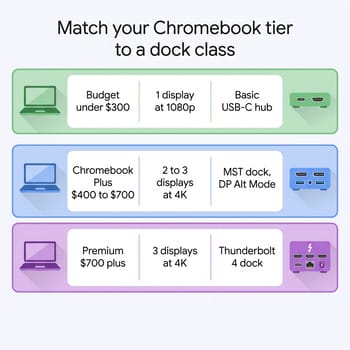
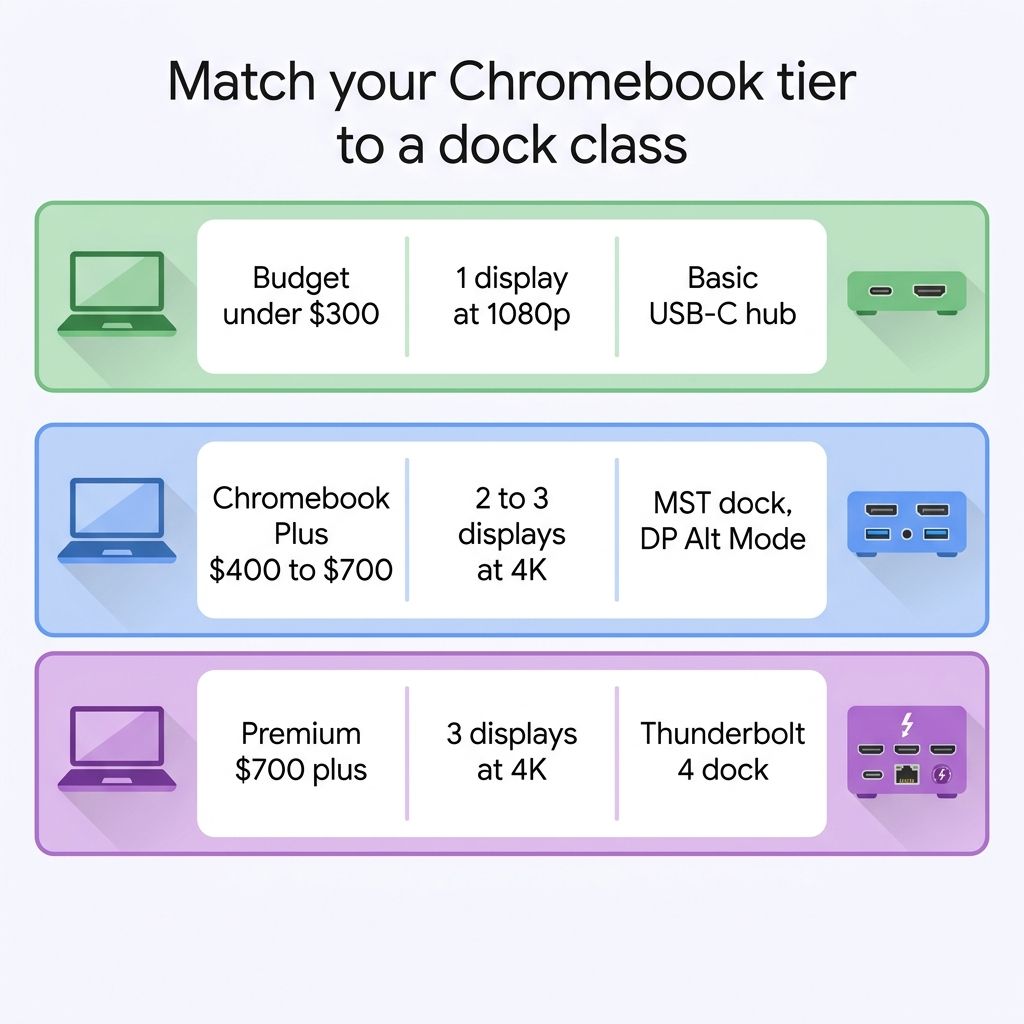
The cleanest way to shop is to match your Chromebook’s price tier to a dock class, because the two track each other closely. Budget Chromebooks under $300, the tier covered in our 4GB Chromebook trap guide, typically ship a single USB-C DisplayPort Alt Mode port and cap out at one external display around 1080p. A detachable like the Lenovo Chromebook Duet 5 sits here too: its two USB-C ports are convenient, but a tablet-class chip is not driving dual 4K. A hub on these machines buys you USB-A ports and an SD slot, not a second monitor, and that is the correct expectation rather than a defect to troubleshoot.
Chromebook Plus models in the $400 to $700 band are where an MST dock earns its price. These machines carry USB-C DisplayPort Alt Mode plus, often, a native HDMI port; the Acer Chromebook Plus 516 GE, for example, pairs full-size HDMI with two USB-C ports that both carry DisplayPort. Feed a certified MST dock from a DP Alt port here and dual monitors extend rather than mirror, with the final refresh riding on how much DisplayPort bandwidth that port supplies. This is the tier where reading the dock’s supported-refresh table pays off most, because it is the tier that can reach dual 4K60 but is not guaranteed to.
At the top, premium Chromebooks past $700 are the ones that make dual 4K60 boring. The HP Dragonfly Pro Chromebook shipped with four Thunderbolt 4 ports, part of the 5% of Chromebooks with Thunderbolt, and a Thunderbolt dock on that class of machine drives multiple 4K panels over a single cable without the bandwidth math. If you are shopping this end of the market, our premium Chromebook guide covers the models with the ports to match. And if the whole point is a desk setup, it is worth asking whether you need a dock at all: a 2-in-1 with its own HDMI and dual USB-C, as we cover in the docked desktop-replacement guide, plugs straight into a monitor and skips the dock entirely.
How to Pick the Combination That Works
The decision comes down to which of three paths your Chromebook can afford. The no-caveat path is a Thunderbolt 4 machine and a Thunderbolt dock, which reaches dual 4K60 without thinking but sits in the priciest and rarest 5% of the market. The common path is a DisplayPort Alt Mode Chromebook and a certified MST dock with HDMI 2.0 or DisplayPort 1.4 outputs, which works for the 70% with DP Alt but can still drop the second screen to 4K30, or to a mirror on a single-output chip, if the port’s bandwidth or the processor falls short. The budget path is one external display, and a hub that says so on the box has told you what to expect.
Cross-check your exact model against its port spec before you buy either the Chromebook or the dock. As of 2026 most shipping machines sit in that middle band, where the dock’s refresh table and your port’s DisplayPort version, not the price on the box, decide whether you get one screen or two. The Chromebook comparison chart lists ports across the lineup if you are still narrowing down the machine itself.


