
Claude Code and Claude Desktop both let Claude write and run code on your machine. Claude Code works in the terminal: you type a request, and it reads files, runs commands, and edits code in the folder you started it in. Claude Desktop is a regular app window with menus and buttons, and it puts Claude’s chat and the same Claude Code engine side by side.
Neither app has a ChromeOS version. Both run in the Chromebook’s Linux environment, which is a Debian system that ChromeOS runs next to your other apps. This guide installs Claude Code, has it build a small project, then installs Claude Desktop from Anthropic’s package repository and opens the same project in it. The video above shows every step on an HP Dragonfly Pro Chromebook.
What You Need
Linux turned on. Linux is off by default, and it is not available on every Chromebook. On a Chromebook from work or school, the administrator can block it (Google’s Linux help page says so too). To check yours, click the time at the bottom right, click the gear to open Settings, then click About ChromeOS at the bottom of the sidebar. Under Developers, the Linux development environment row has a Set up button when Linux is off. When it is on, the row opens its own page, and that page shows the size of the Linux disk.
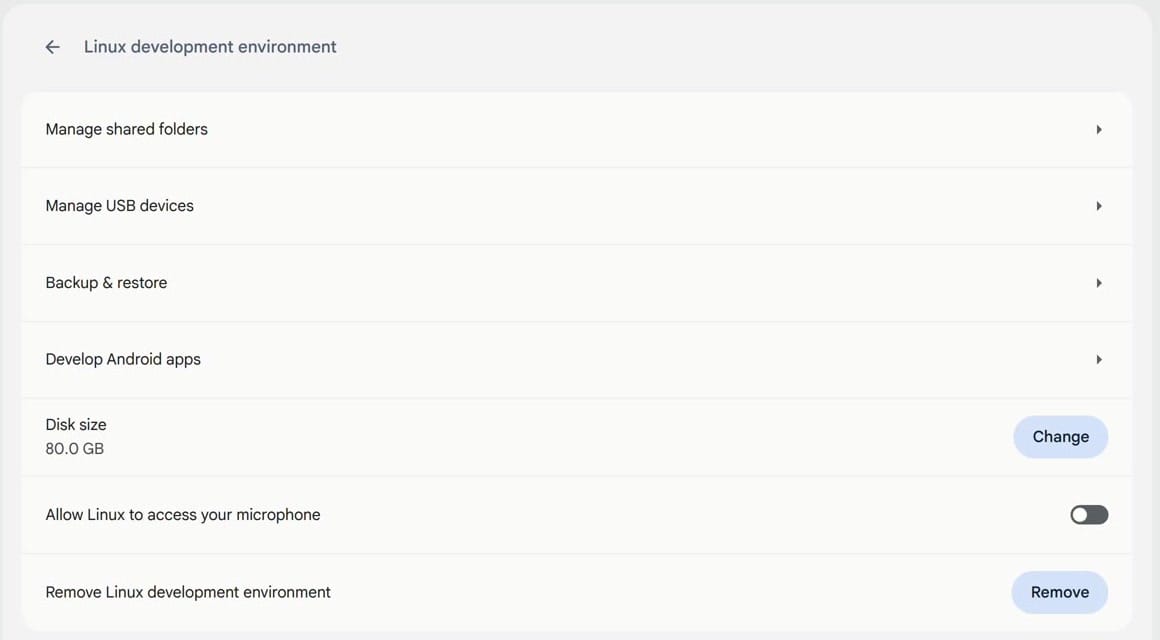
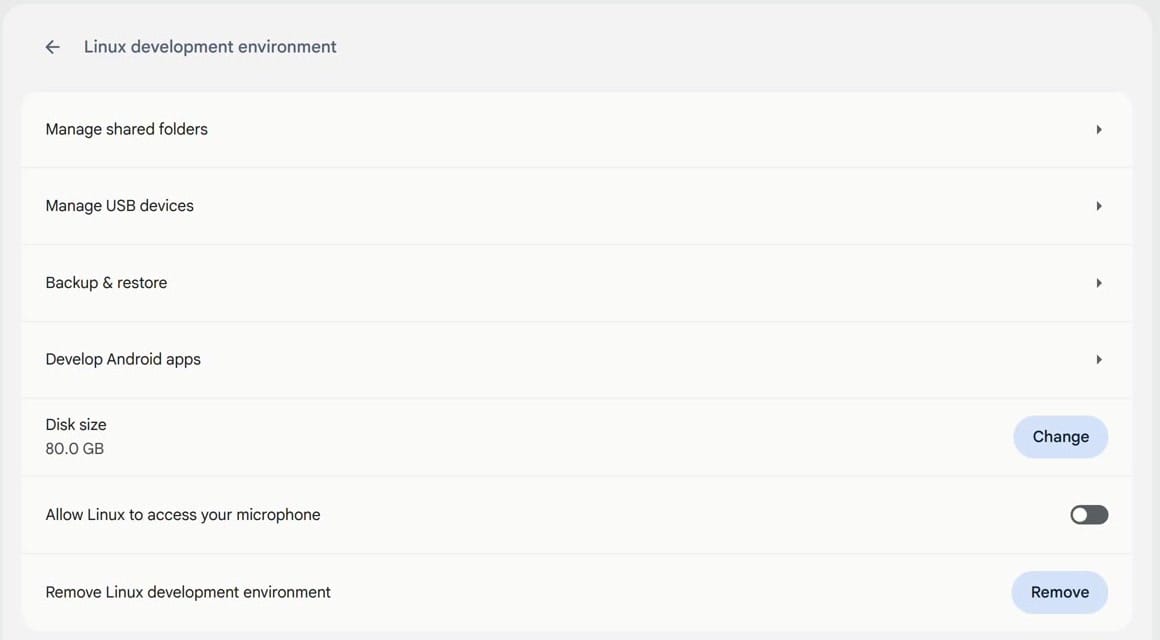
If Linux is off, set it up first with our guide to installing Linux on a Chromebook, or follow along with the video version on YouTube.
A paid Claude plan for Claude Code. Anthropic’s setup page lists the accounts that work: Pro, Max, Team, or Enterprise, or an Anthropic Console account that pays per use. The free claude.ai plan does not include Claude Code. Claude Desktop signs in with a claude.ai subscription or your organization’s single sign-on, and it does not accept a Console API key.
Free disk space. Claude Desktop takes about 600 MB of the Linux disk, more on a first install with its recommended packages, and the Rust project in this guide added about 750 MB. If your Linux disk is small, the Linux settings page above has a Change button for its size. Anthropic lists 4 GB of RAM or more for Claude Code.
Install Claude Code
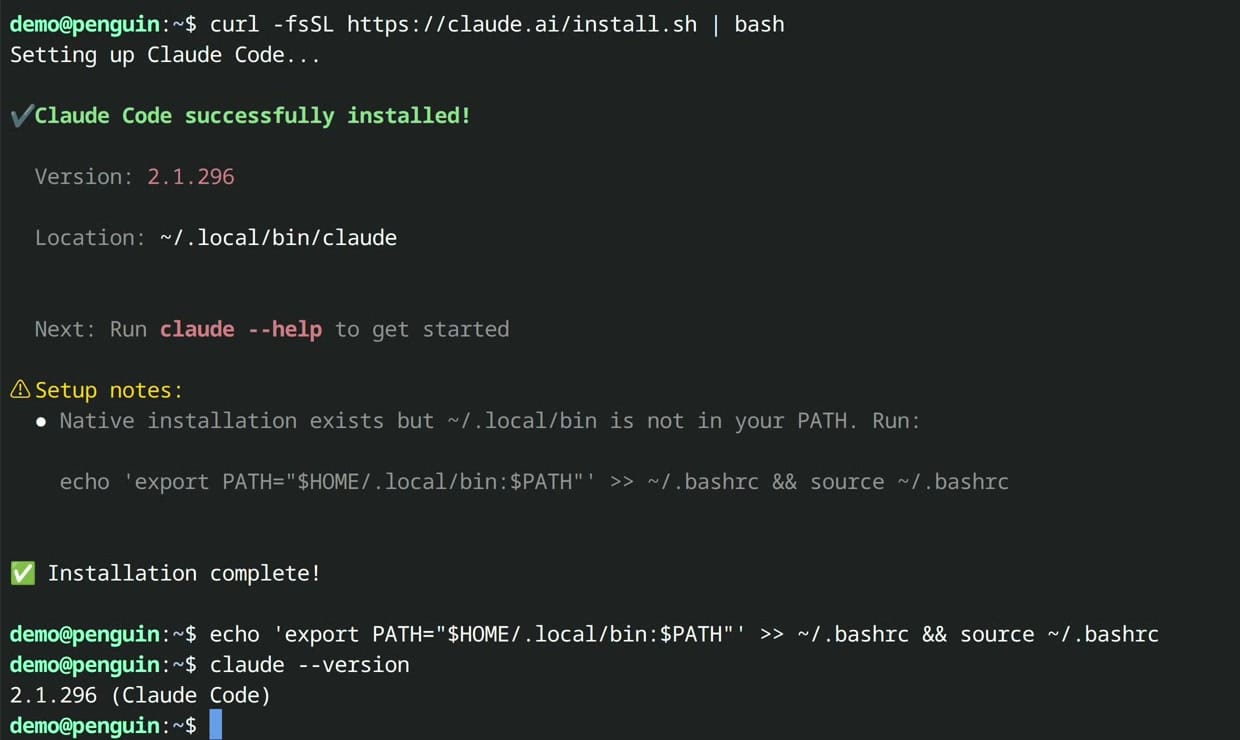
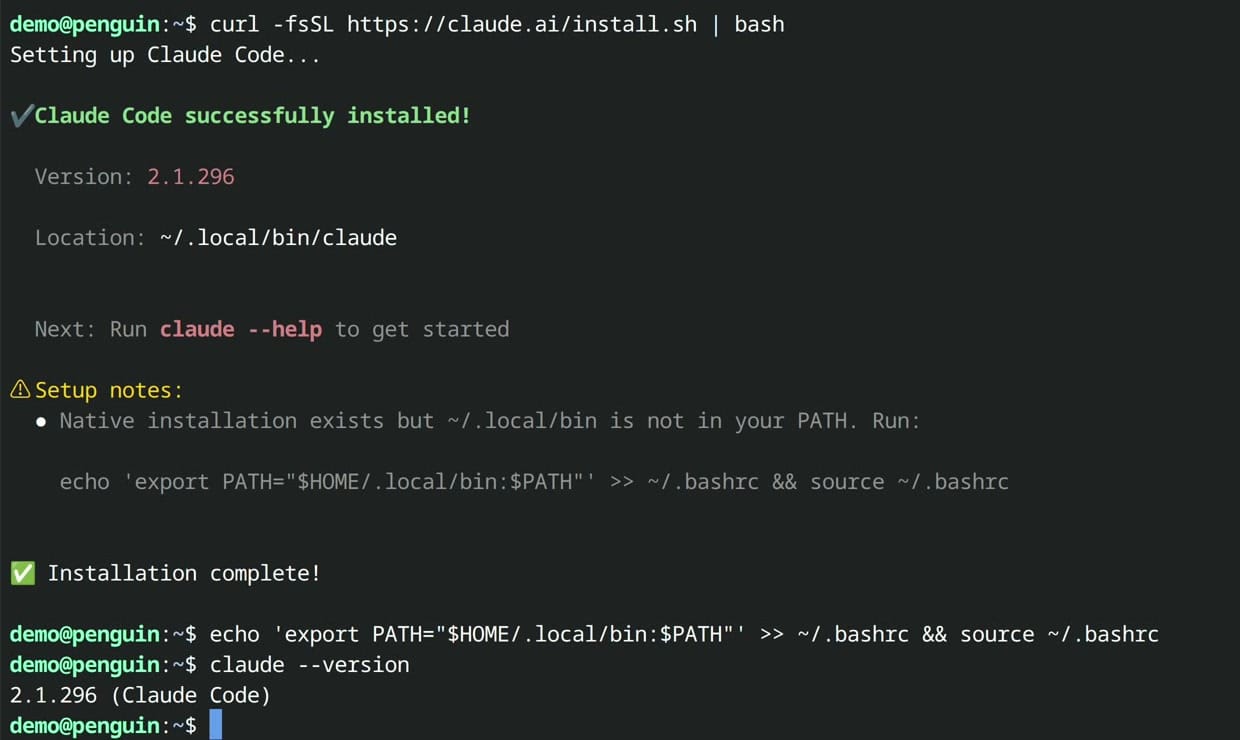
Open the launcher, type terminal, and press enter . In the Terminal app, click penguin, the name of the Linux container, to get a prompt. Then run Anthropic’s native installer:
curl -fsSL https://claude.ai/install.sh | bashThe installer then prints a setup note: the program went to ~/.local/bin, and a fresh Chromebook Linux does not look for programs in that folder. The note gives the line that adds the folder to your PATH. Run it:
echo 'export PATH="$HOME/.local/bin:$PATH"' >> ~/.bashrc && source ~/.bashrcNow claude --version prints the version number, which confirms the install. This native install updates itself in the background, so you do not need to run the installer again.
Sign In and Make a Project Folder
Type claude and press enter . The first screen asks for a text style; Dark mode is selected, so press enter to keep it. The next screen asks for the login method. Pick Claude account with subscription for a Pro, Max, Team, or Enterprise plan, or Anthropic Console account to pay per use.
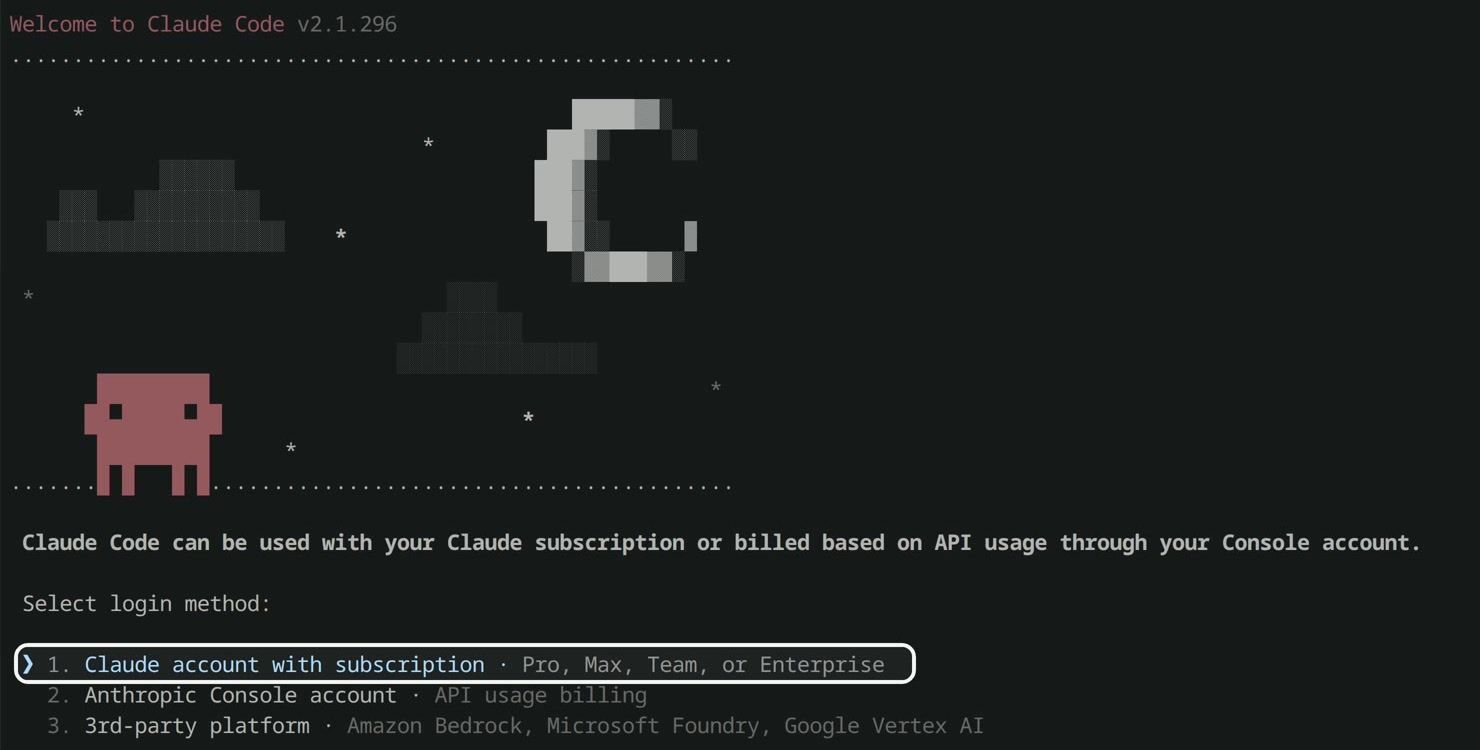
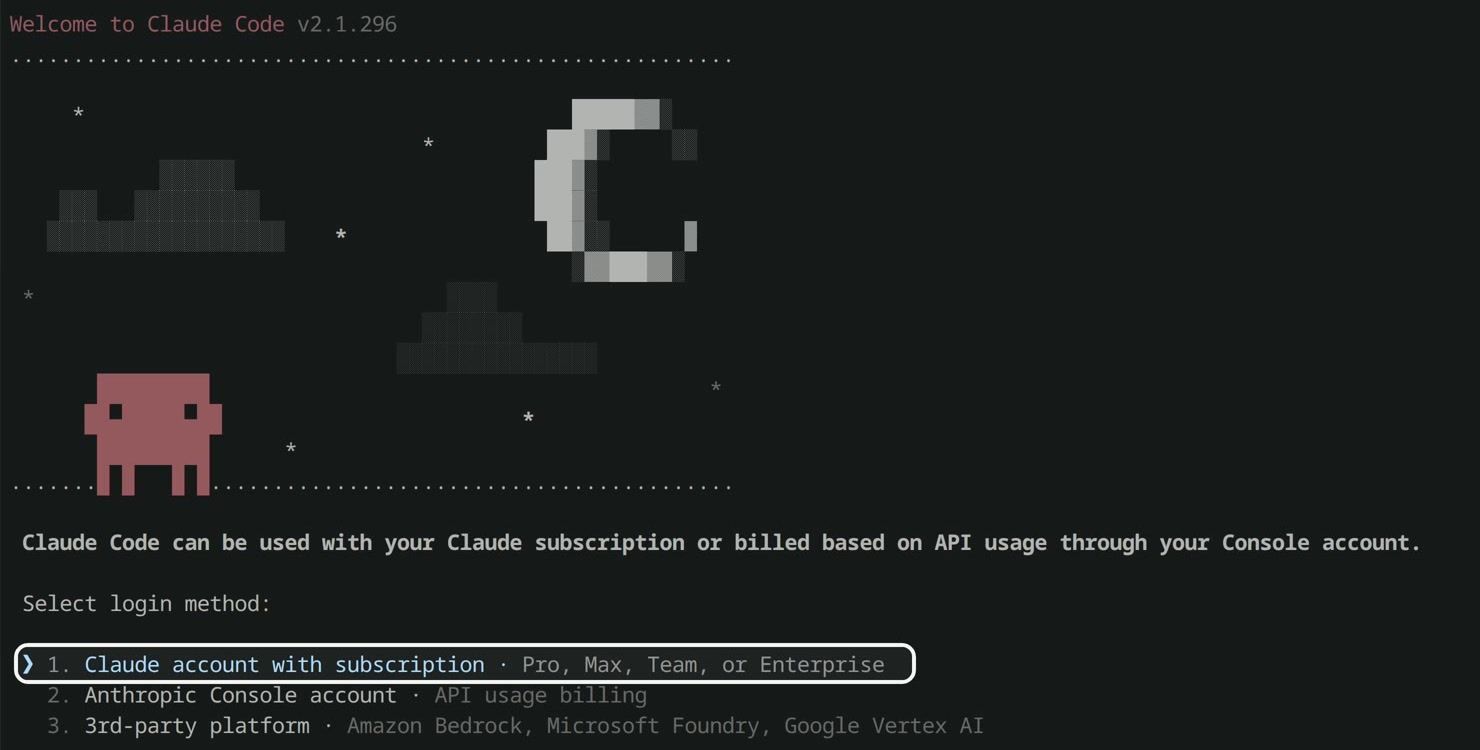
Chrome opens a claude.ai sign-in page. Sign in to your Claude account there and approve the connection. If the page asks you to paste a code back into the terminal, the terminal shows a “Paste code here if prompted” line for it. If Chrome did not open, press c in the terminal to copy the sign-in address and paste it into Chrome yourself.
After the sign-in, Claude Code asks whether you trust the folder it started in, which is your home folder. Choose No, exit. A project should get its own folder, so Claude Code works only on the files in it. Make one and start Claude Code inside it:
mkdir 2048 && cd 2048
claude
The first time Claude Code opens in a new folder, it asks the same question. Choose Yes, I trust this folder, and the prompt opens with the folder name under the version number. A folder you trusted before opens straight to the prompt.
Give Claude Code a First Task
The example task here is a small game: 2048, the sliding tile puzzle, written in Rust as a native Linux program with its own launcher icon. This is the request we typed:
Build a small native Linux game in Rust: 2048, played with the arrow keys, with sliding and merging tiles, a different color for each tile value, the score and best score on screen, and R to start a new game. Use macroquad. Install Rust with rustup if it is missing, and any system libraries it needs. Build a release binary, install it to ~/.local/bin, and add a .desktop file and an icon in ~/.local/share/applications and ~/.local/share/icons so it shows up in the ChromeOS launcher. Run it once to check the window opens.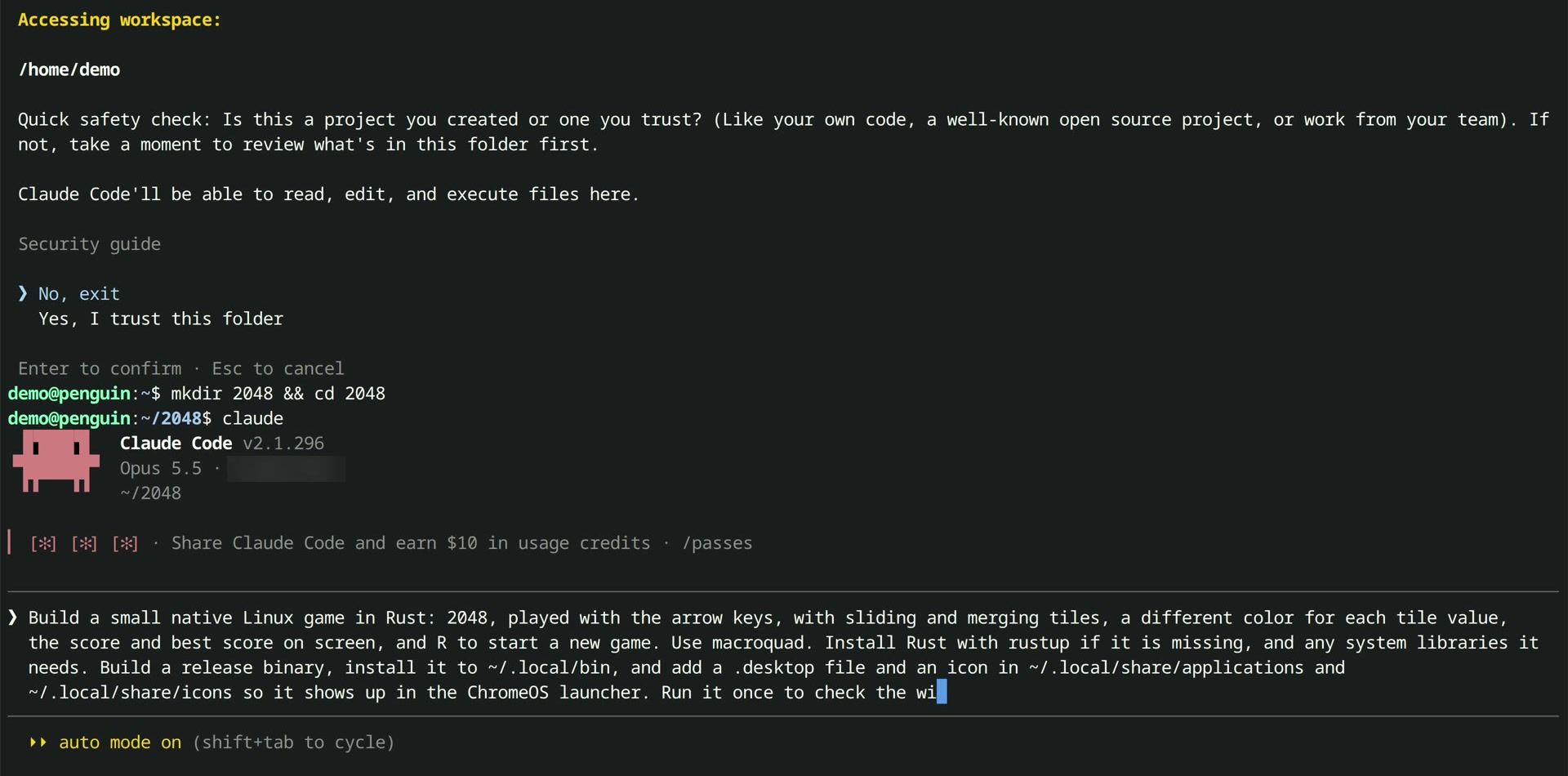
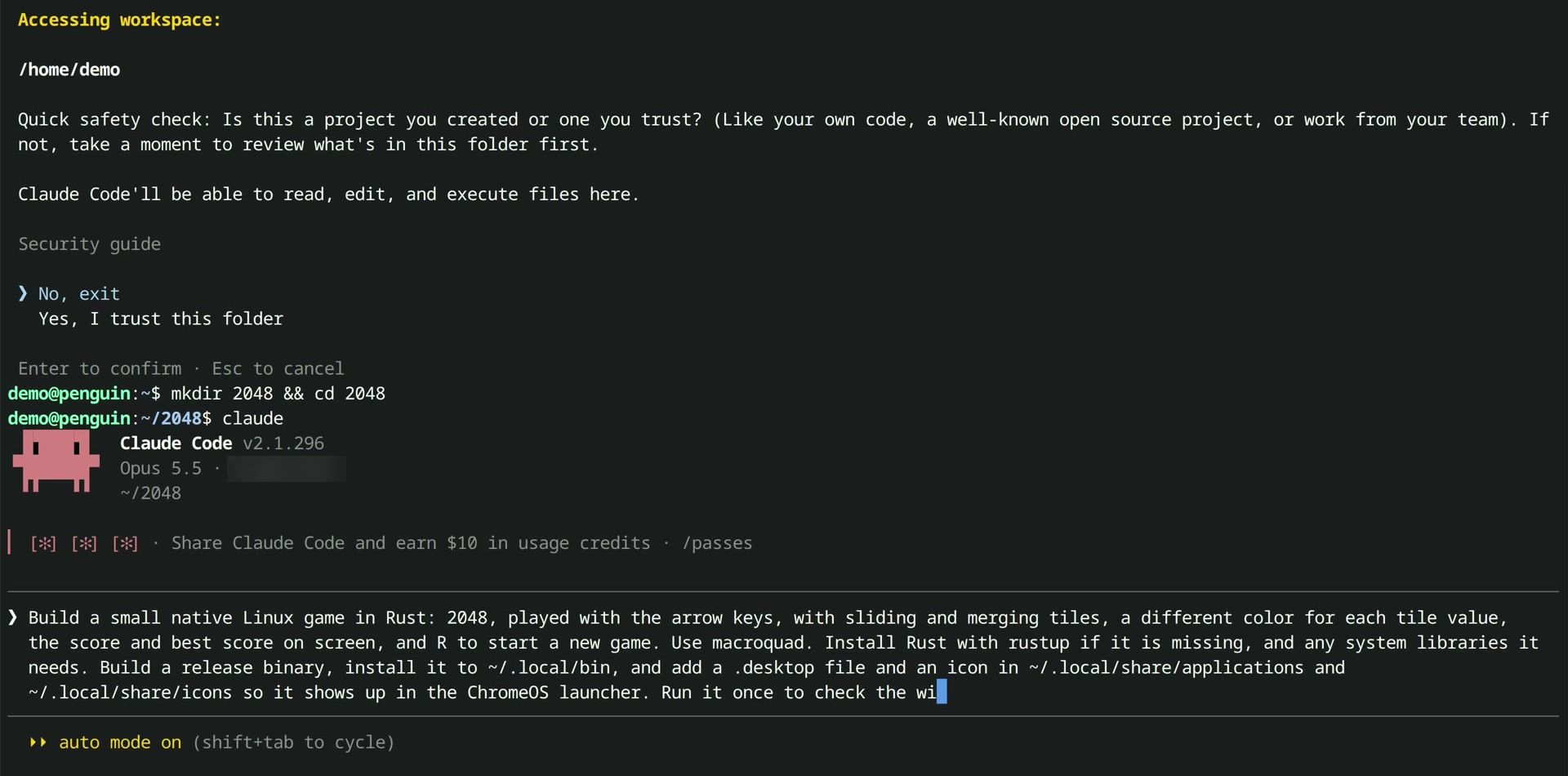
Claude Code did not stop to ask before each step. Auto mode is its starting permission mode: a second model, which Anthropic calls the classifier, reviews each action instead of you (Anthropic’s permission modes page explains what it checks). Each command in the session shows the line “Allowed by auto mode classifier”. Press shift tab to switch modes if you would rather approve each step yourself.
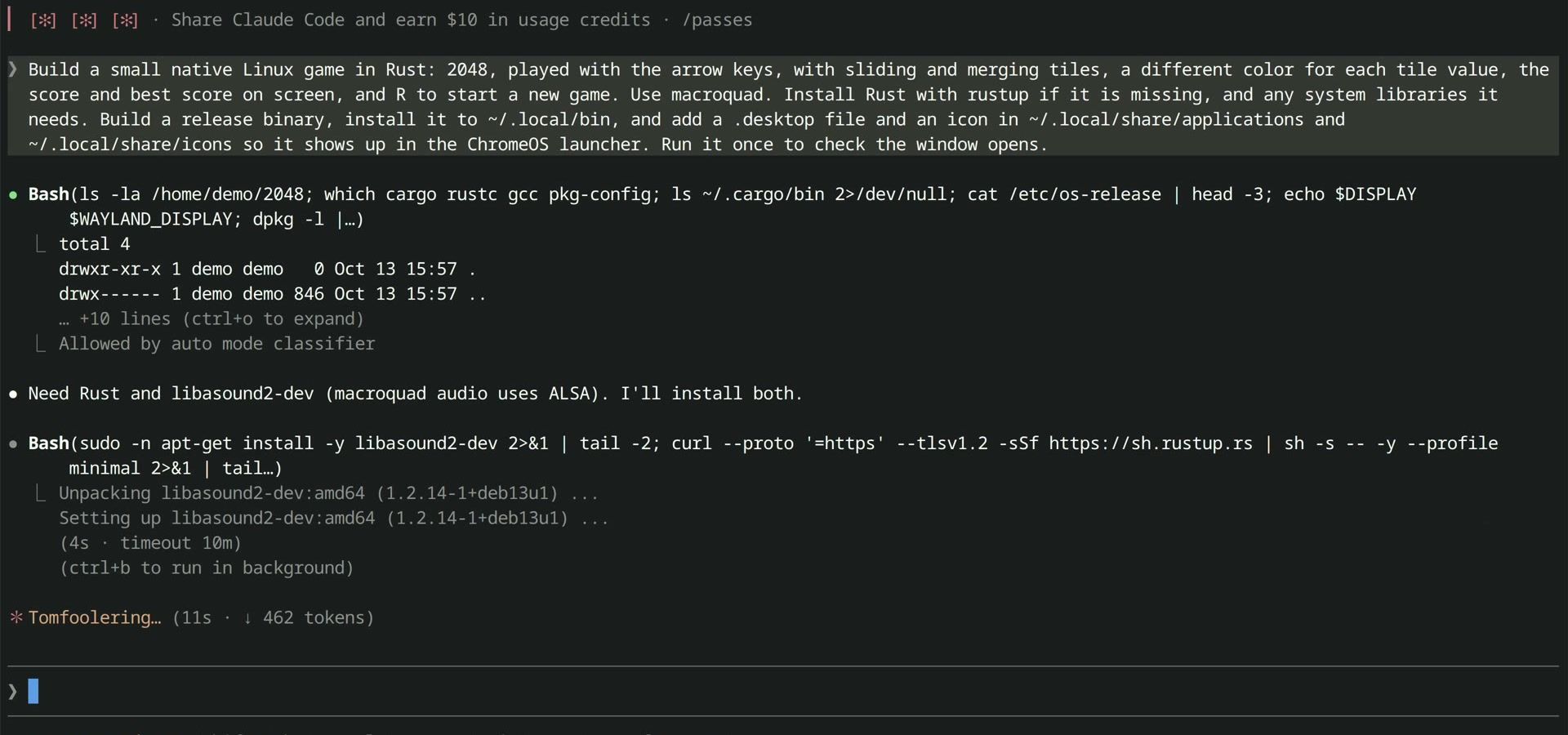
It installed the ALSA audio headers that macroquad builds against (libasound2-dev) with apt and Rust with rustup, wrote the game, and built it. Before it finished, it installed xdotool, started the game, and sent arrow keys to it to test the moves. The whole run took 3 minutes 26 seconds. At the end, Claude Code listed what it made and where each file went: the program in ~/.local/bin, the launcher entry in ~/.local/share/applications, and the icon in ~/.local/share/icons. Rust and the game’s build files took about 750 MB of the Linux disk.
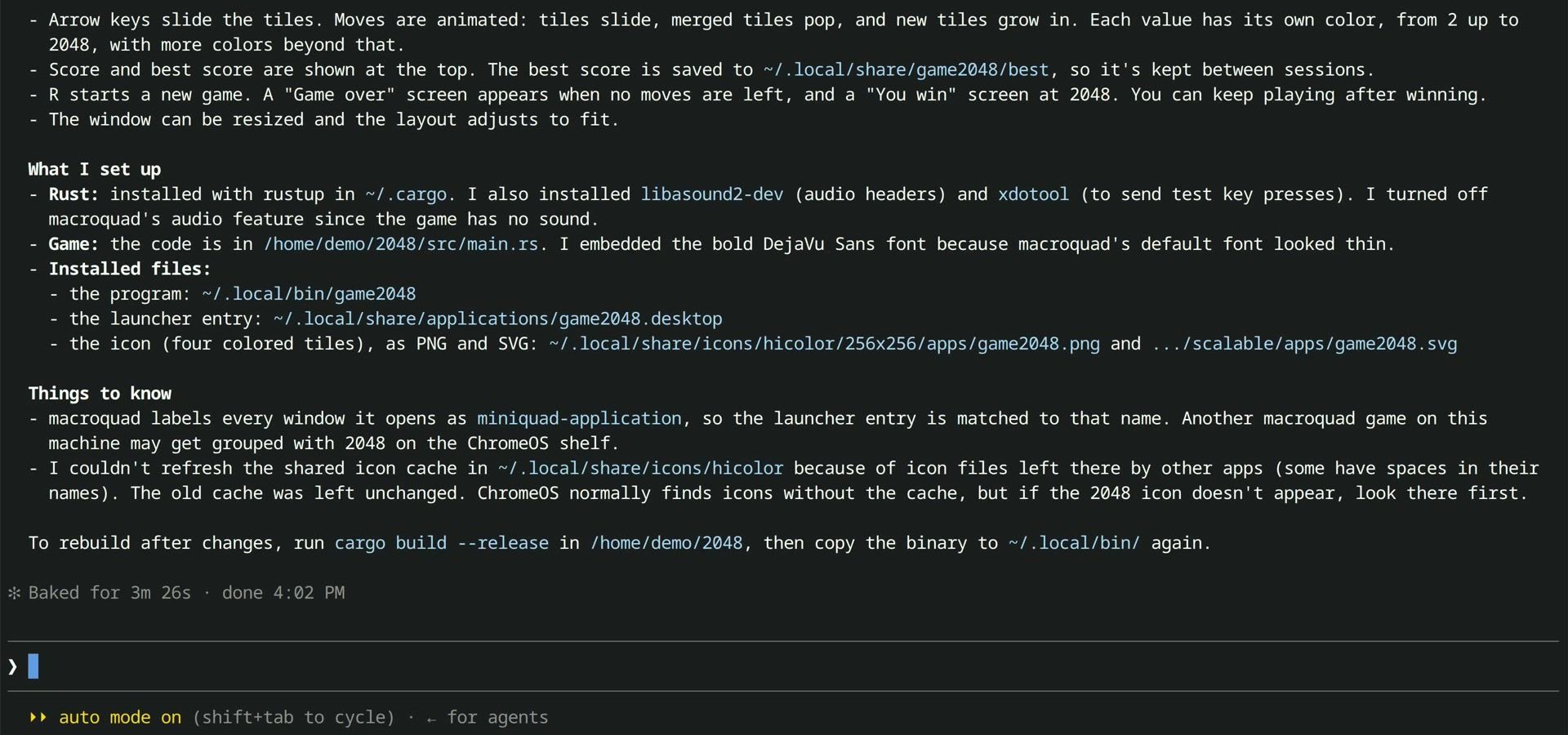
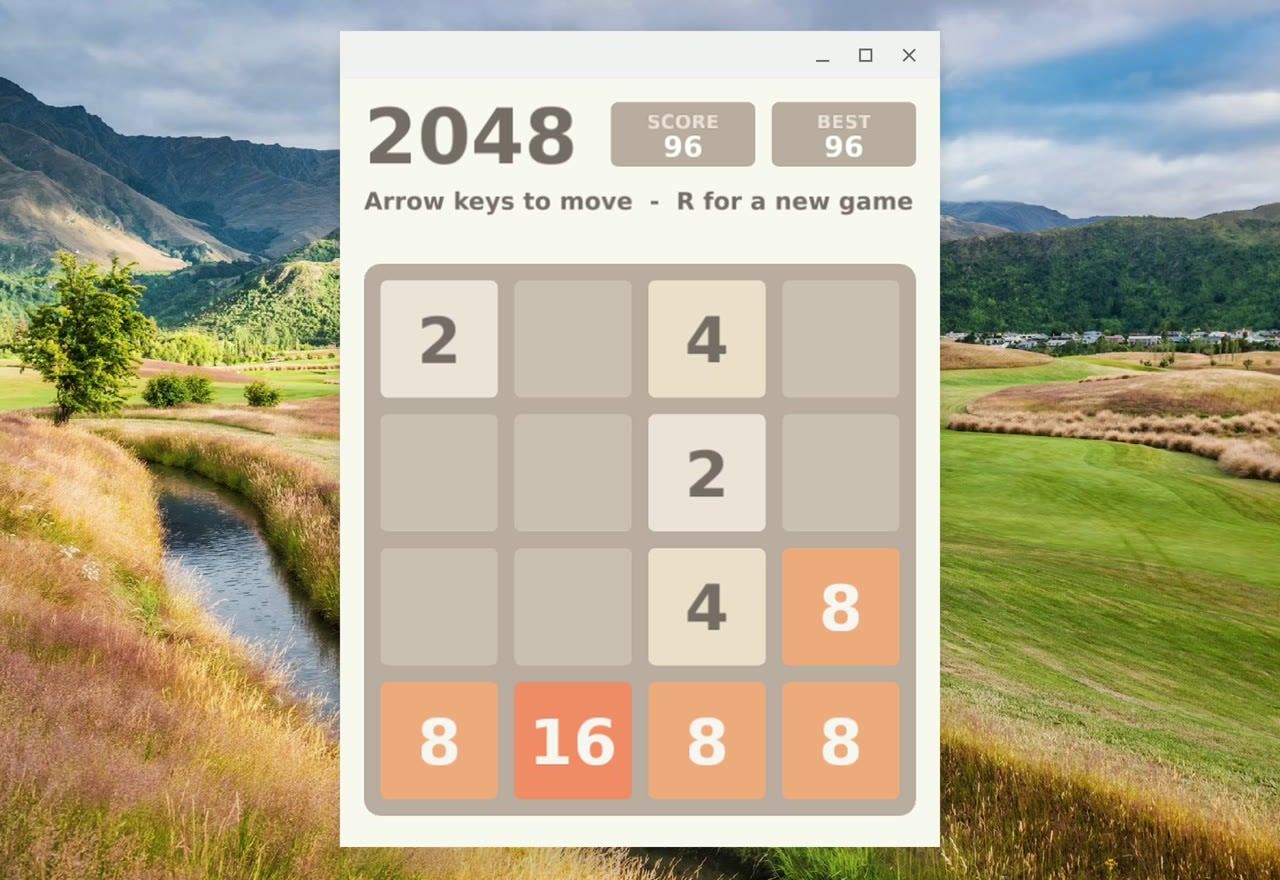
Open the launcher and search for 2048. The game shows up with the tile icon Claude Code made, and it opens in its own window. The arrow keys slide the tiles, matching tiles merge, and the score and best score sit at the top.
Install Claude Desktop
Claude Desktop for Linux is in beta. It installs from Anthropic’s own apt repository, so later versions arrive with your regular Linux package updates. Anthropic’s Linux install page has the same steps. It supports Debian 12 or later on x86_64 or arm64; Chromebook Linux is Debian, and our Chromebook ran Debian 13.
First, download Anthropic’s signing key. The command prints nothing when it works:
sudo curl -fsSLo /usr/share/keyrings/claude-desktop-archive-keyring.asc https://downloads.claude.ai/claude-desktop/key.ascThen show the key’s fingerprint:
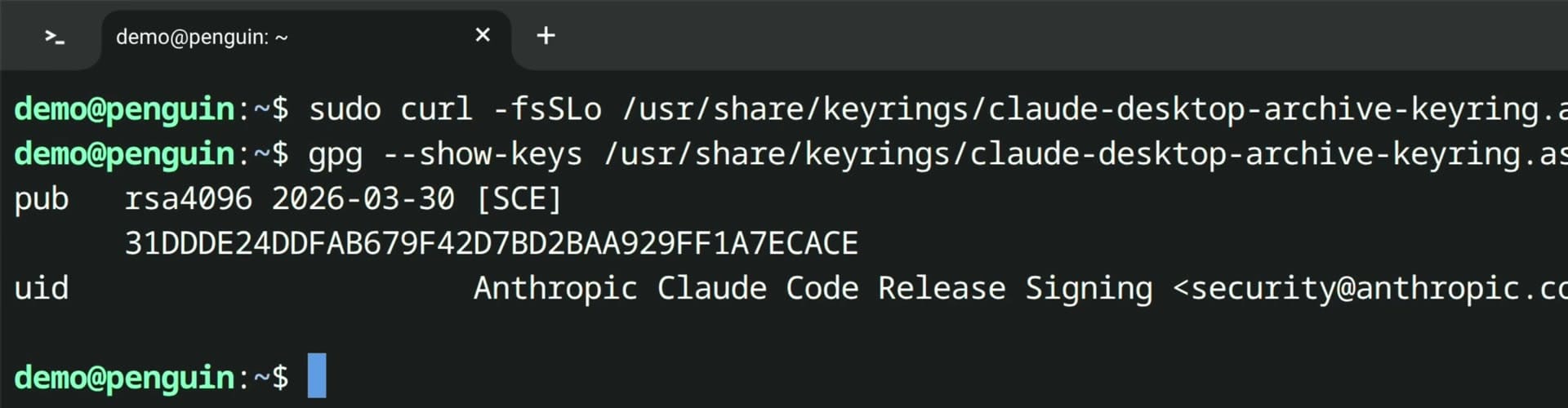
gpg --show-keys /usr/share/keyrings/claude-desktop-archive-keyring.ascIt should print 31DDDE24DDFAB679F42D7BD2BAA929FF1A7ECACE, and the name “Anthropic Claude Code Release Signing”. If it matches the fingerprint on Anthropic’s Linux page, the key came from Anthropic.
Next, add the repository to apt’s list, so apt knows where to find Claude Desktop:
echo "deb [arch=amd64,arm64 signed-by=/usr/share/keyrings/claude-desktop-archive-keyring.asc] https://downloads.claude.ai/claude-desktop/apt/stable stable main" | sudo tee /etc/apt/sources.list.d/claude-desktop.listLast, update the package list and install the app:
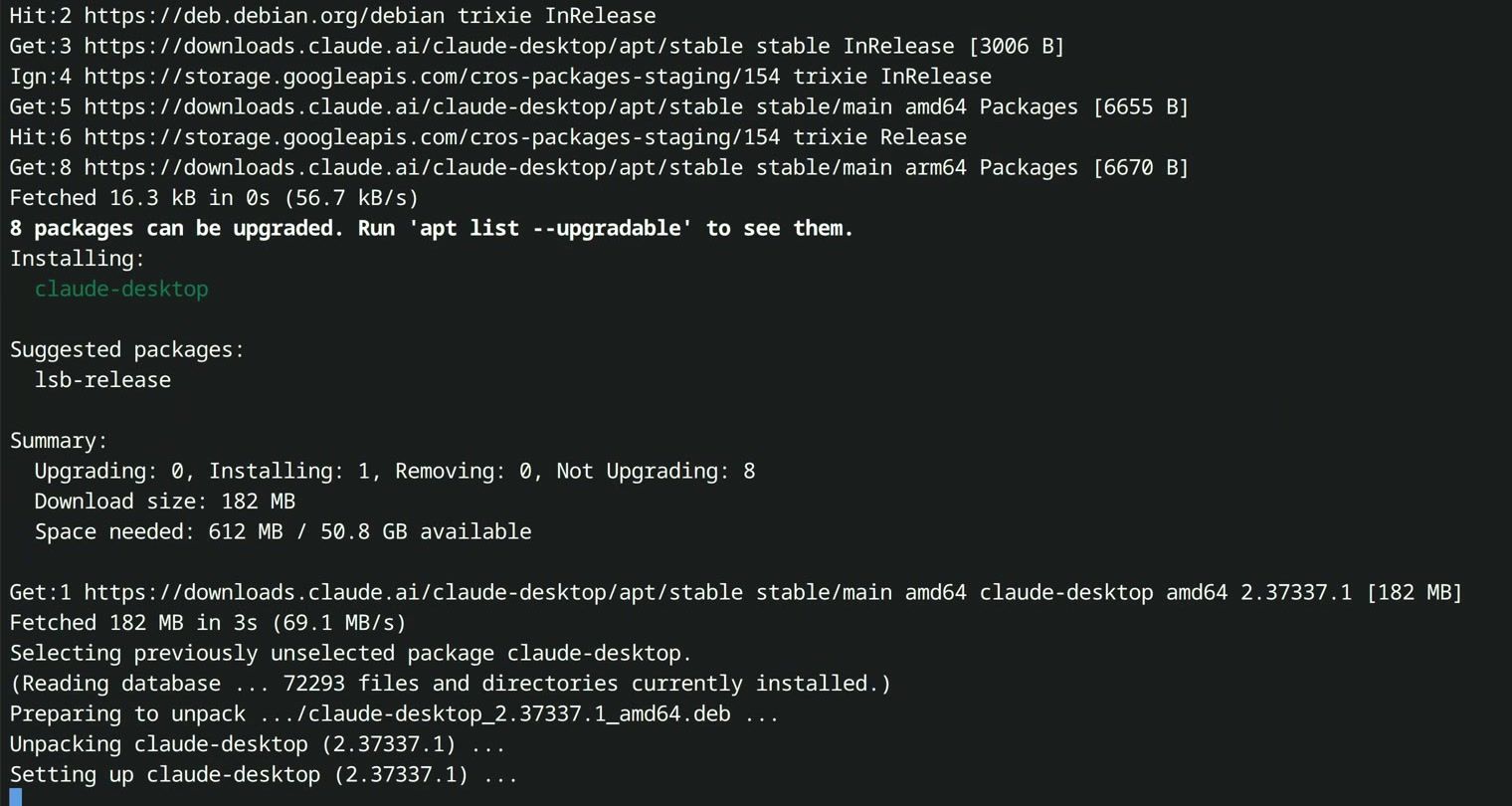
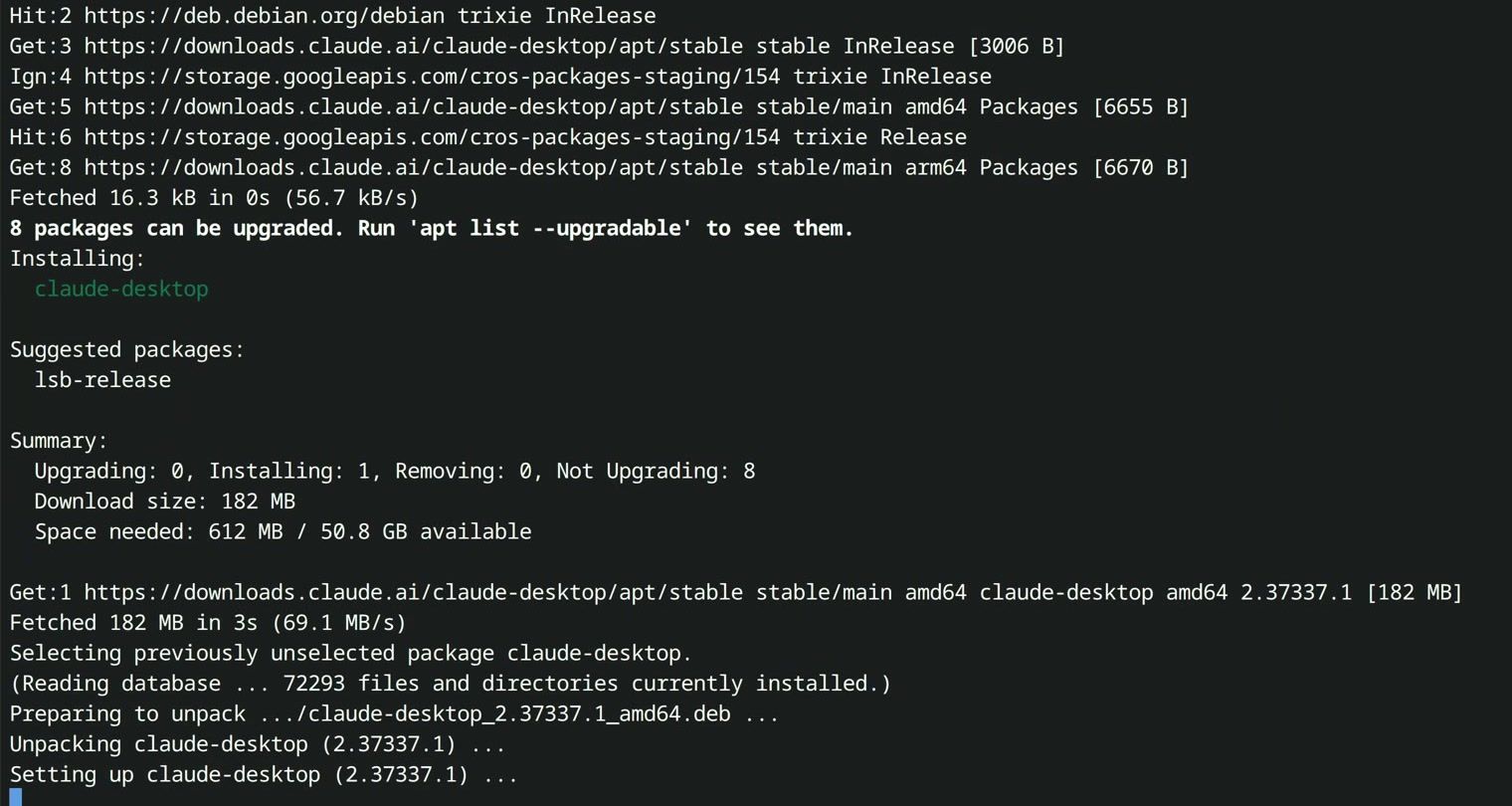
sudo apt update && sudo apt install claude-desktopOn a first install, apt installs about 150 packages in all, including recommended ones such as QEMU (for Cowork) and GNOME Keyring (for the sign-in). On our Chromebook that came to a 315 MB download and about two and a half minutes. When those packages are already in place, as in the screenshot below, the claude-desktop package alone is a 182 MB download and installs in about 20 seconds.
Open Claude Desktop and Choose a Keyring Password
Open the launcher, search for Claude, and click it. On the first launch, Linux asks you to choose a password for a new keyring. The keyring is where the app keeps your sign-in, so you stay signed in between launches.
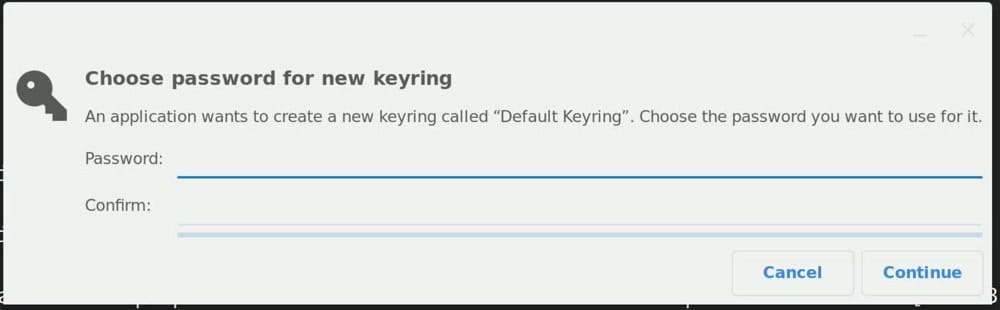
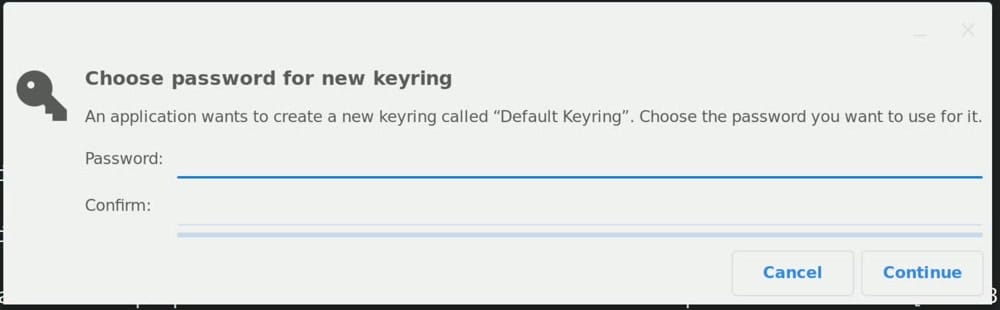
If you leave the password blank and click Continue, a second dialog asks whether to store passwords unencrypted, and Continue accepts that. With a blank password, the keyring opens without asking, and Claude Desktop starts signed in, even after a restart. Your sign-in is then stored unencrypted, so choose a password if other people use your Chromebook.
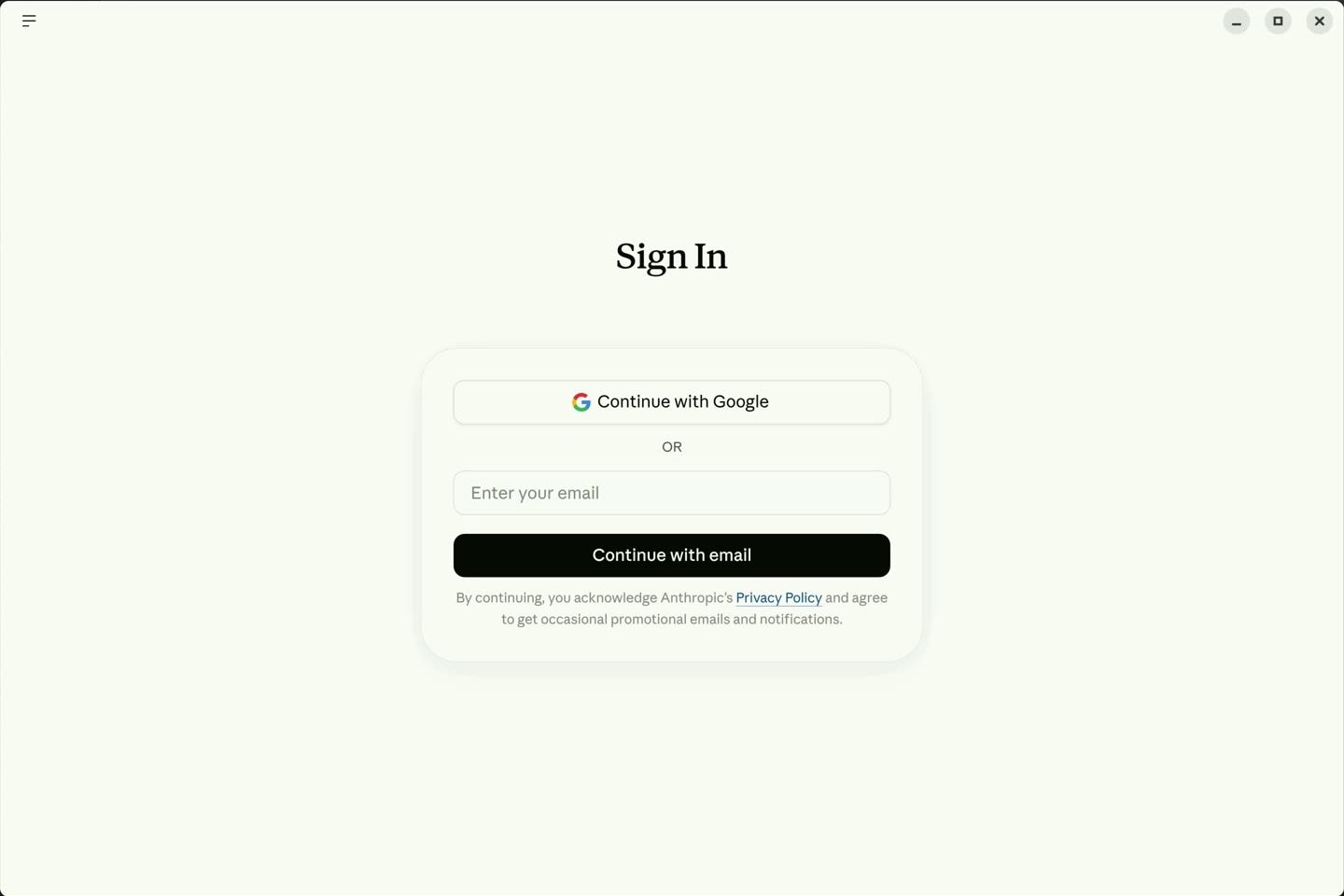
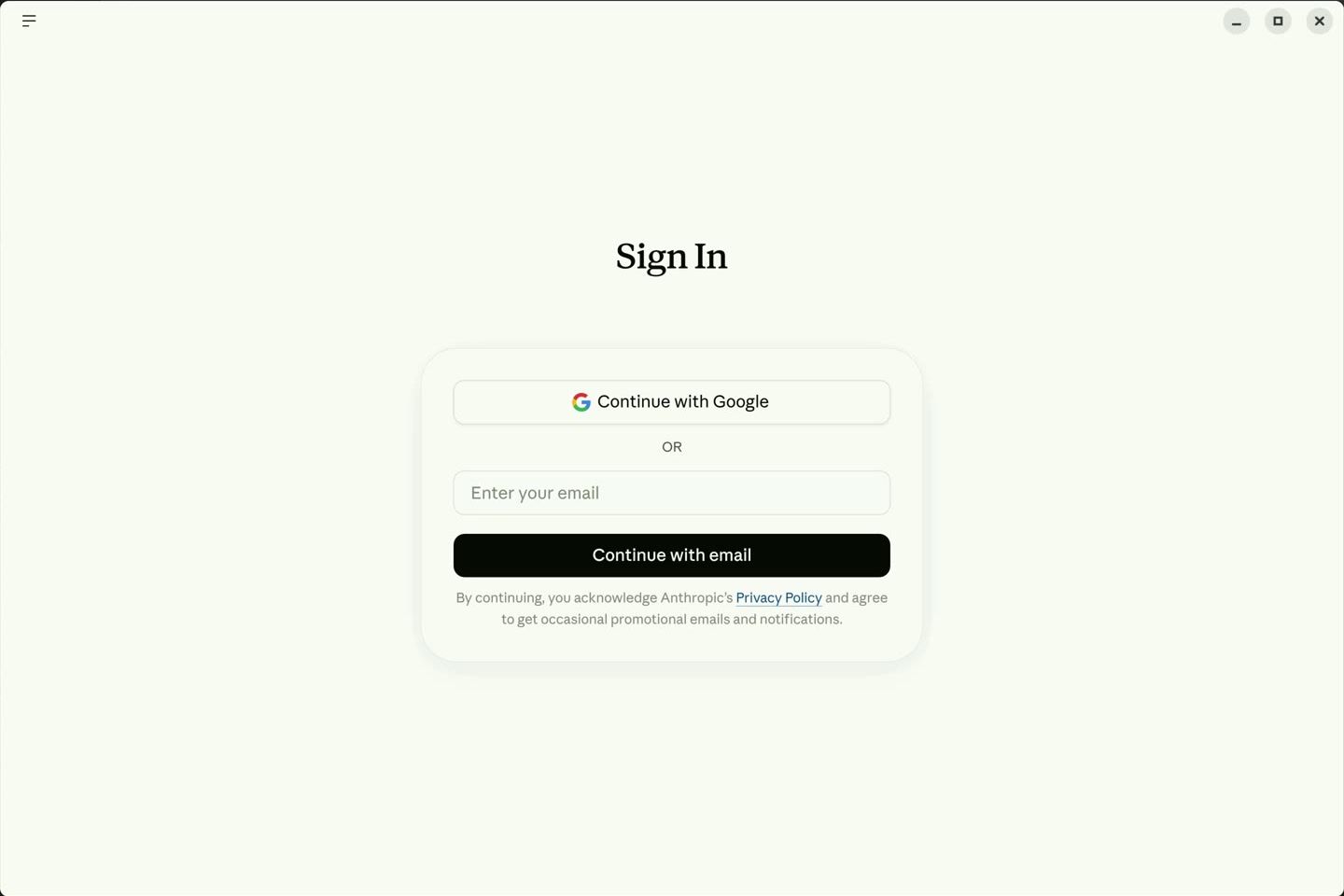
The app opens on a “Claude for Linux” screen. Click Get started to reach the Sign In page, and sign in with Google or with your email address.
Use Code Mode on the Same Project
Claude Desktop has a Code mode, the same Claude Code inside a window. Above the request box, the No folder button has Open folder, which opens a file picker on your Linux home folder. We picked the 2048 folder and clicked Select, and the folder button changed to show the game folder.
Then we asked for a change:
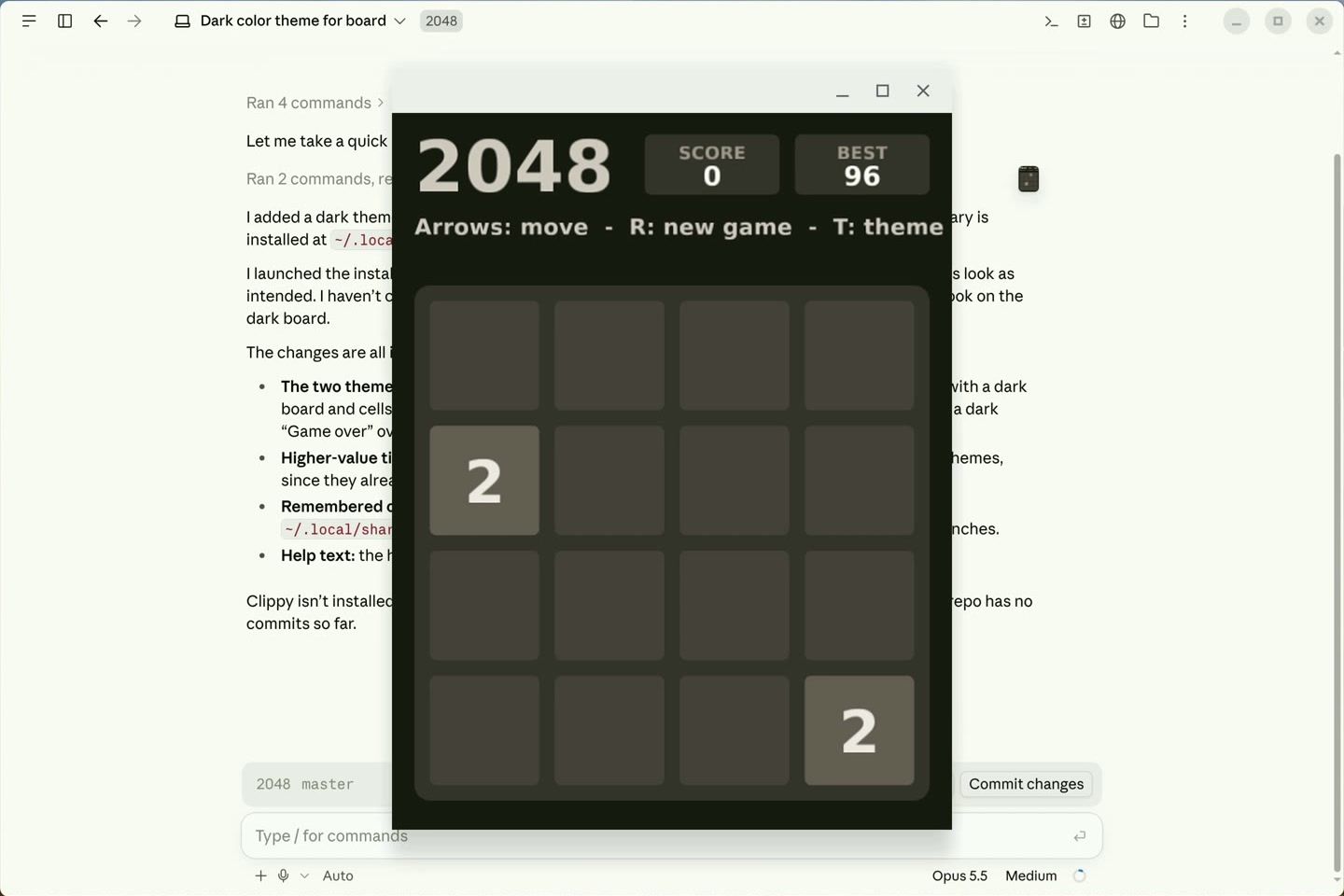
Add a dark color theme for the board and tiles, switched with the T key, then rebuild and reinstall the game.

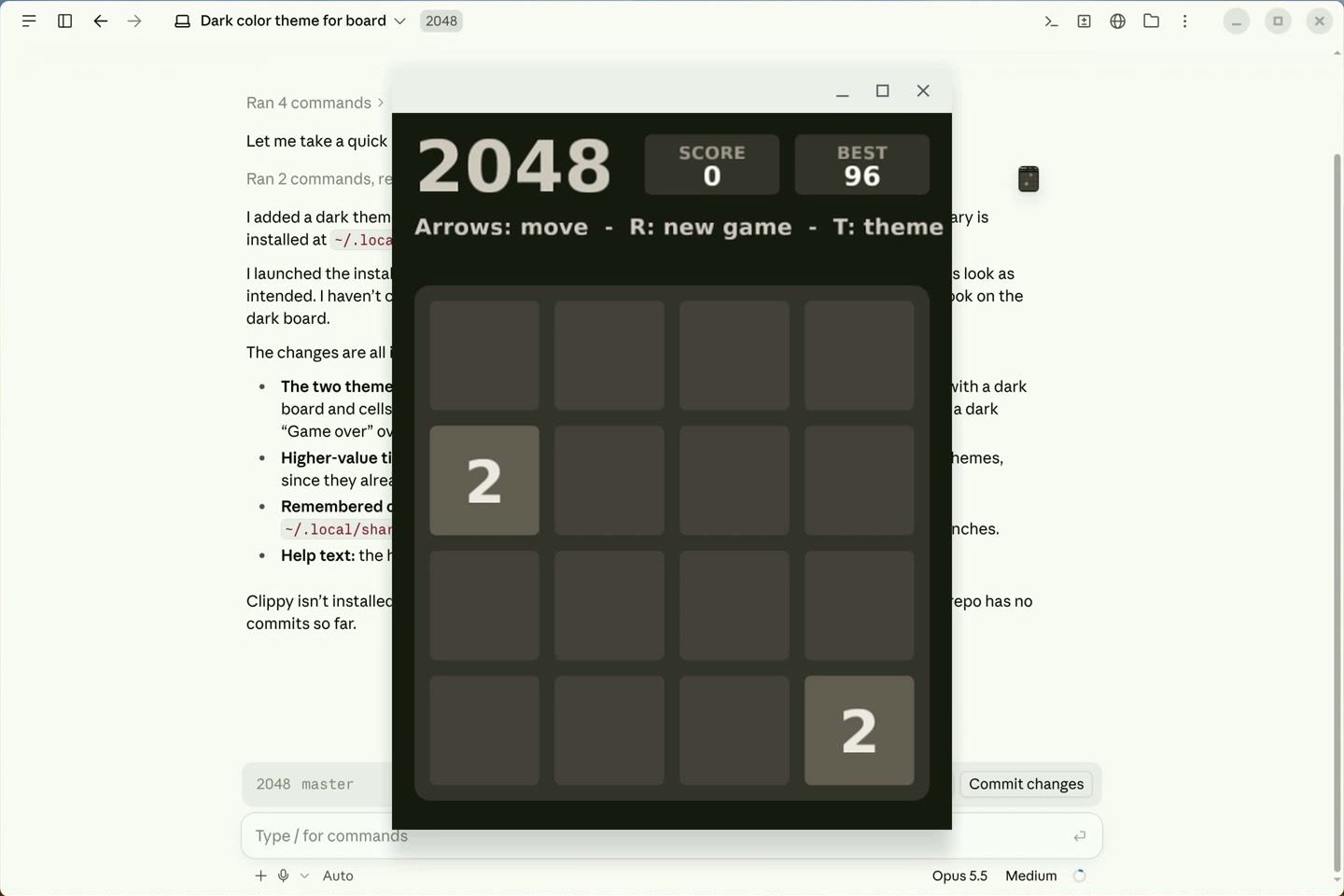
Claude rebuilt and reinstalled the game in about a minute. Opened from the launcher again, the game starts in its usual colors, and pressing t switches the board to the dark theme. The game remembers the choice for the next launch.
Switch to Chat
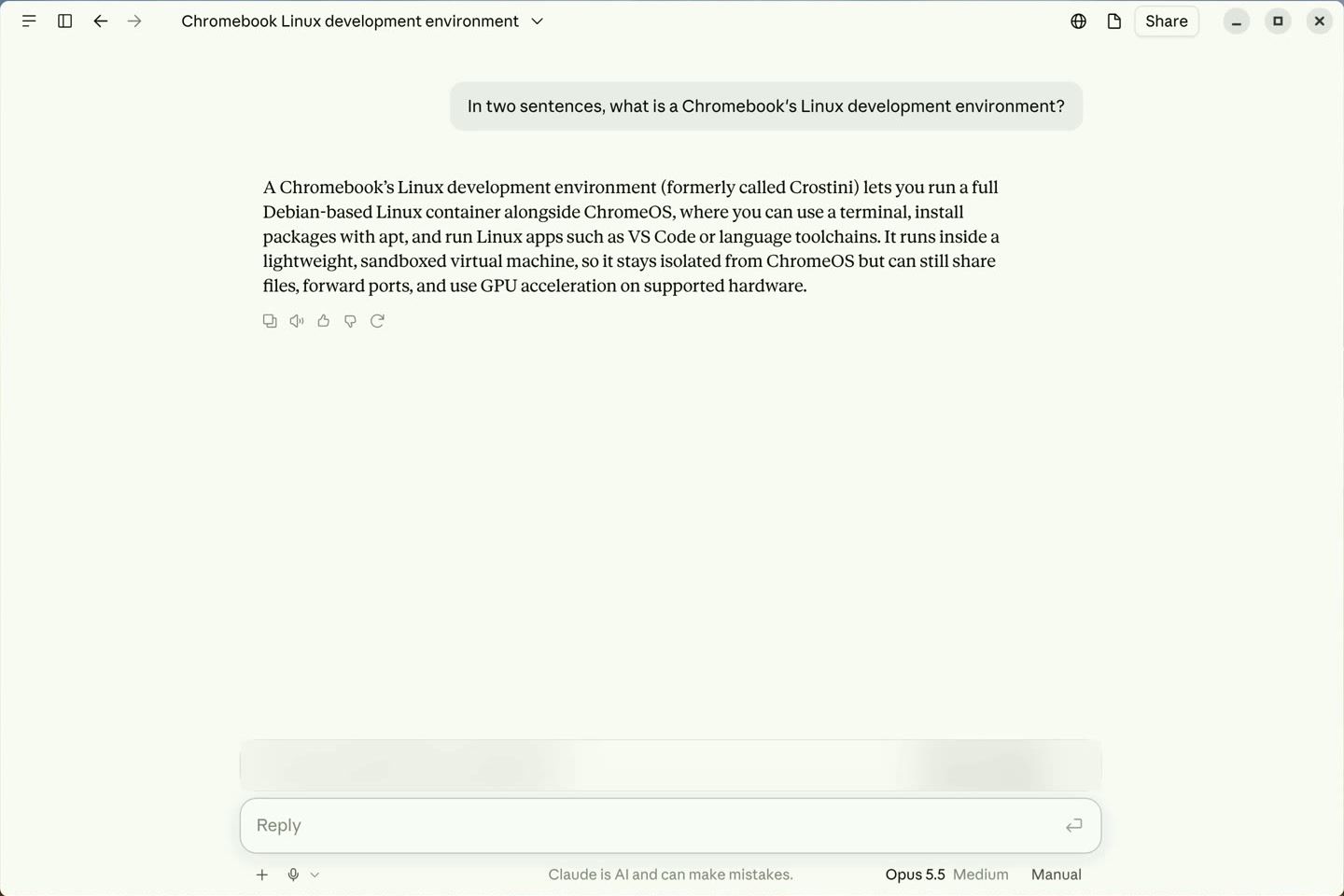
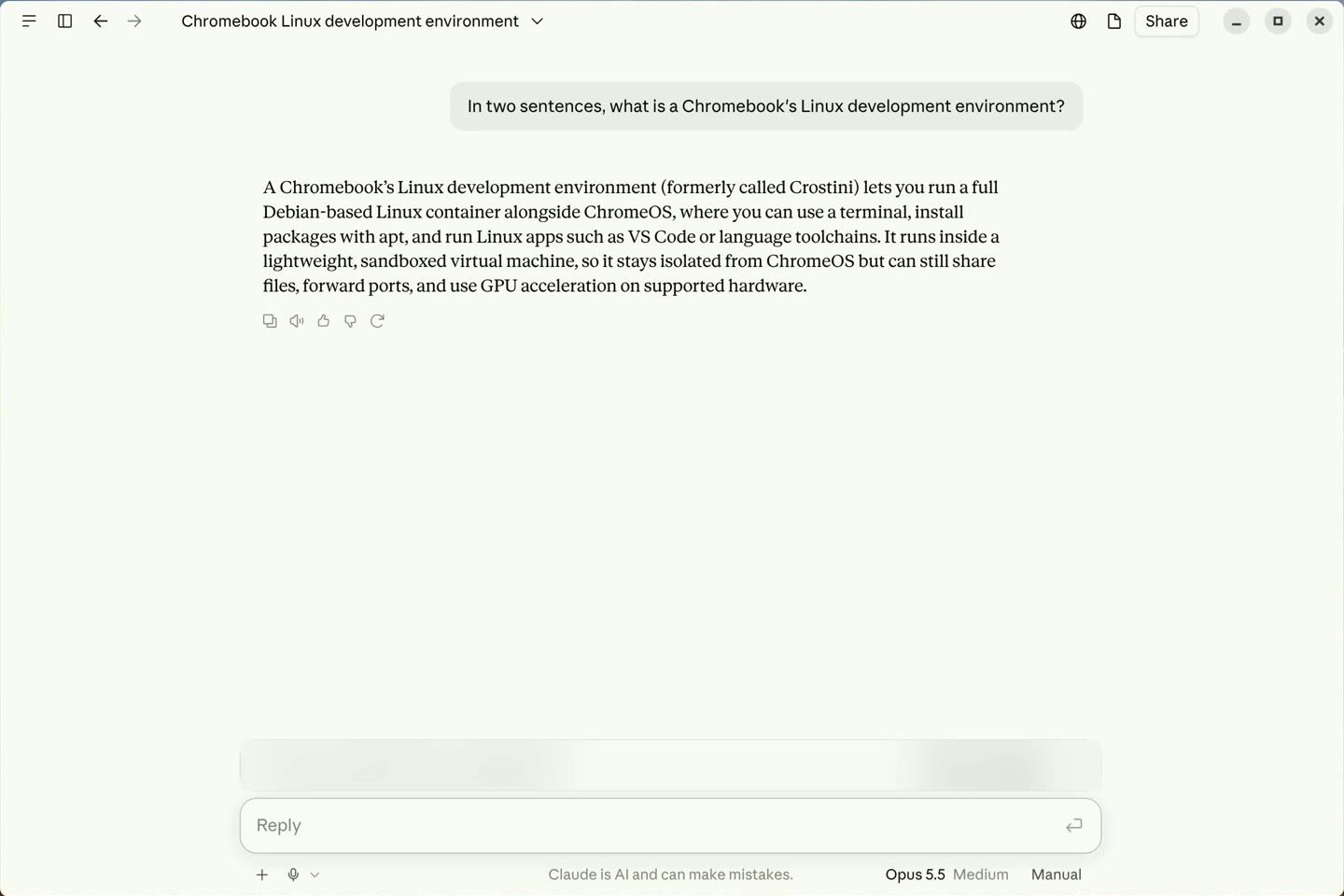
For plain questions, use the chat side of the app. Click the menu button at the top left of the window, open Go, and click Claude (the other entry, Code, switches back). We asked what a Chromebook’s Linux development environment is, and Claude answered in two sentences.
Cowork Needs Virtualization That Chromebook Linux Lacks
Cowork is the part of Claude Desktop for longer agent tasks. On Linux, it runs those tasks in a virtual machine of its own, which needs the /dev/vhost-vsock device. Chromebook Linux already runs inside a virtual machine, and on our Chromebook the container had no /dev/vhost-vsock and no kernel modules folder to add it from. Anthropic’s Linux page says this combination is common on ChromeOS, and in that case the Cowork tab reports that the kernel lacks the virtualization support Cowork needs. Chat and Code mode do not depend on it.
Troubleshooting
claude: command not found. The PATH line from the installer’s setup note did not run, or it ran in another Terminal tab. Run the echo 'export PATH=...' line again, or close the tab and open a new one.
The game window ignores the arrow keys. A Linux app opened from the launcher does not always get the keyboard focus. Click the window’s title bar once, then press , , , or .
Claude Desktop asks you to sign in every time. The app could not reach an unlocked keyring. If you installed with --no-install-recommends, apt skipped GNOME Keyring; install it with sudo apt install gnome-keyring, restart the app, and sign in again. If you set a keyring password, type it when Linux asks to unlock the keyring.
Unable to locate package claude-desktop. apt has not read the new repository yet. Run sudo apt update, and check that cat /etc/apt/sources.list.d/claude-desktop.list prints the deb line from the repository step. If the file is empty, run that step again.
Update or Remove the Apps
Claude Desktop updates with your other Linux packages when you run sudo apt update && sudo apt upgrade. To remove Claude Desktop, run sudo apt remove claude-desktop, then delete the repository entry you added, as Anthropic’s Linux page says:
sudo rm /etc/apt/sources.list.d/claude-desktop.listIf Linux is new to you, our guide to installing Linux on a Chromebook covers apt and Linux apps in more depth, and our guide to clearing the cache and freeing up space on a Chromebook helps when the Linux disk runs low. These steps were tested on ChromeOS 154 with Claude Code 2.1.296 and Claude Desktop 2.37337.1 (beta) on Debian 13.


