

Listen to this article:
After months of watching Windows and macOS users chat with AI sidebars in their browsers, Chromebook owners got their turn in early 2026. Google confirmed in early February 2026 that Gemini in Chrome was rolling out to Chromebook Plus devices in the United States, bringing a tab-aware AI assistant directly into the browser. The rollout started on January 28 with the ChromeOS 144 update. As of September 2026, Google’s Gemini in Chrome availability page lists Chromebook Plus, Mac, and Windows computers in the US, the UK, Canada, India, Japan, Australia, and much of Latin America, Africa, the Middle East, and Asia, with 51 supported device languages.
Only Chromebook Plus devices qualify. If you own a standard Chromebook, you’re out of luck regardless of how capable your hardware might be. Users under 18 get a shorter country list, and no European Union country appears on either list.
Finding and Opening Gemini
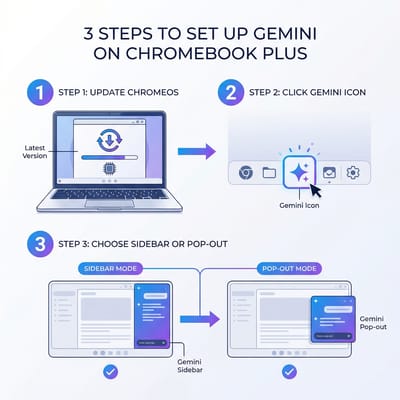
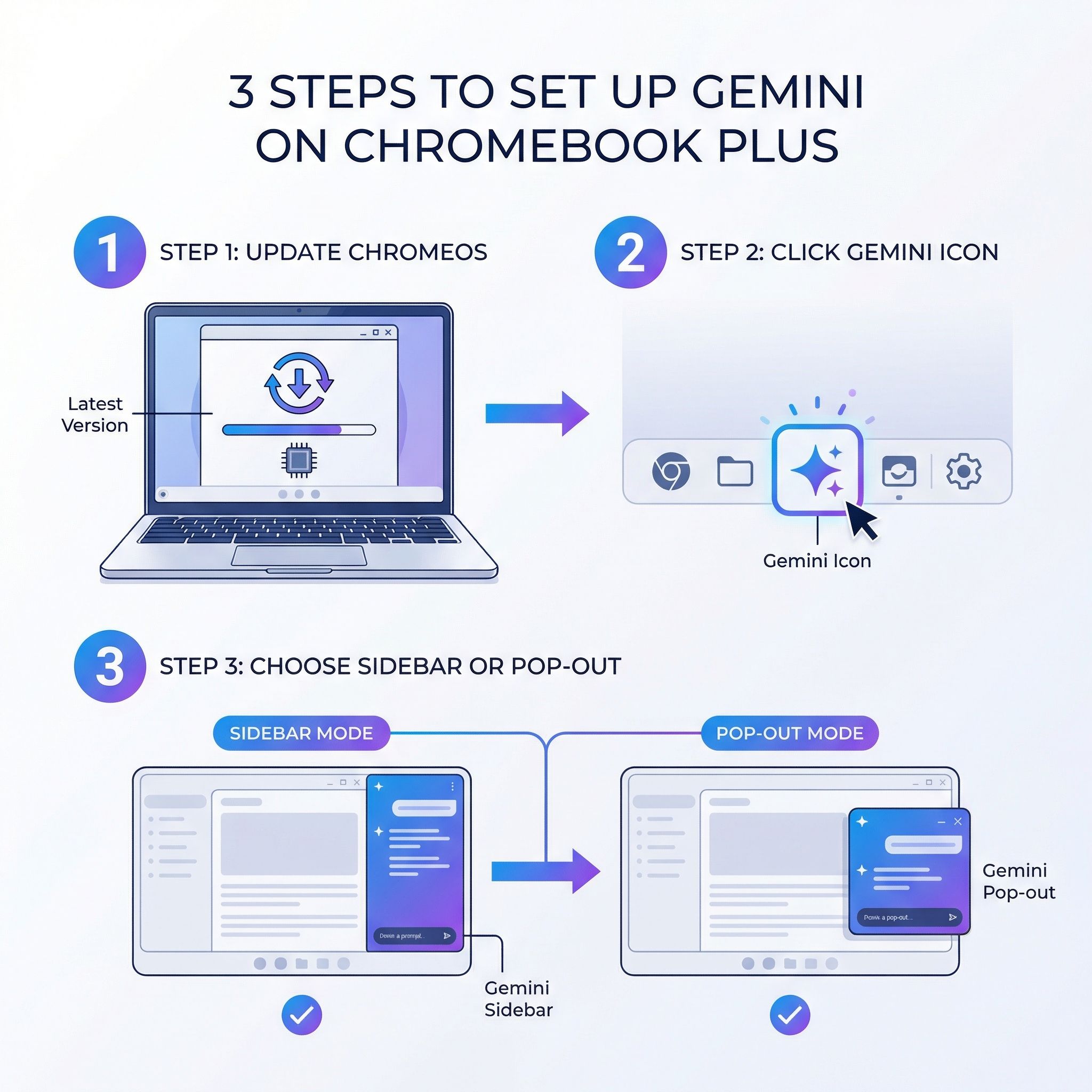
Before you can use Gemini, make sure your Chromebook Plus is running ChromeOS 144 or later. Check your version in Settings > About ChromeOS, and update if needed. Features like this now land quickly because of Chrome’s accelerated two-week release cycle, which pushes new ChromeOS capabilities out faster than the old four-week cadence did. Once you’re current, look for the Gemini sparkle icon in the upper-right corner of Chrome, next to the address bar. If it’s not there yet, the rollout may not have reached your device.
Press Search + G to open Gemini in a side panel alongside your current page. To pop Gemini out into a standalone window, press Search + Alt + G. The side panel is more practical for most workflows because it keeps your content visible while you interact with the AI, but the pop-out mode is useful when you want more room for longer conversations.
Gemini in Chrome requires you to be signed in with a Google account. It works with personal accounts that have access to the Gemini app, Google Workspace accounts, and Workspace Individual subscriptions. Workspace admins can disable the feature at the domain, organizational unit, or group level, so if you’re on a managed device and don’t see the icon, check with your IT department. The feature is turned on by default for all eligible accounts.
Research Across Multiple Tabs
You point it at the tabs you want it to read, and it references those pages. When you’re researching a topic with five or six tabs spread across different sources, you can ask Gemini to summarize the key points, identify where sources agree or disagree, or pull specific details from a particular tab.
The tab-sharing feature works through an @-mention system. Type @ in the Gemini sidebar and you’ll see a list of your open tabs. Select up to ten tabs to share with the conversation, and Gemini will incorporate their content into its responses. For a student comparing three different articles about climate policy, this means asking “What are the main points of agreement across these sources?” and getting a coherent synthesis without manually copy-pasting text between windows. A professional scanning industry news can pull the key takeaways from a morning’s worth of reading the same way.
Reviewers who use it daily describe the summarization as reliable on text-heavy pages. Android Police’s Rajesh Pandey wrote that it “reads the pages I’ve opened, the real spec sheets and review sites I already trust, and bases its answers on the information in front of it,” and Chrome Unboxed’s Robby Payne calls it “a knee-jerk sort of tool that I reach for often” for summaries and spec checks.
Drafting Emails and Writing Help
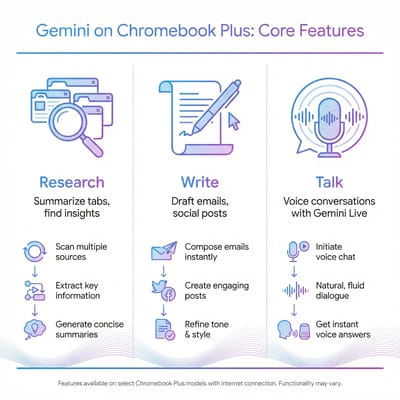
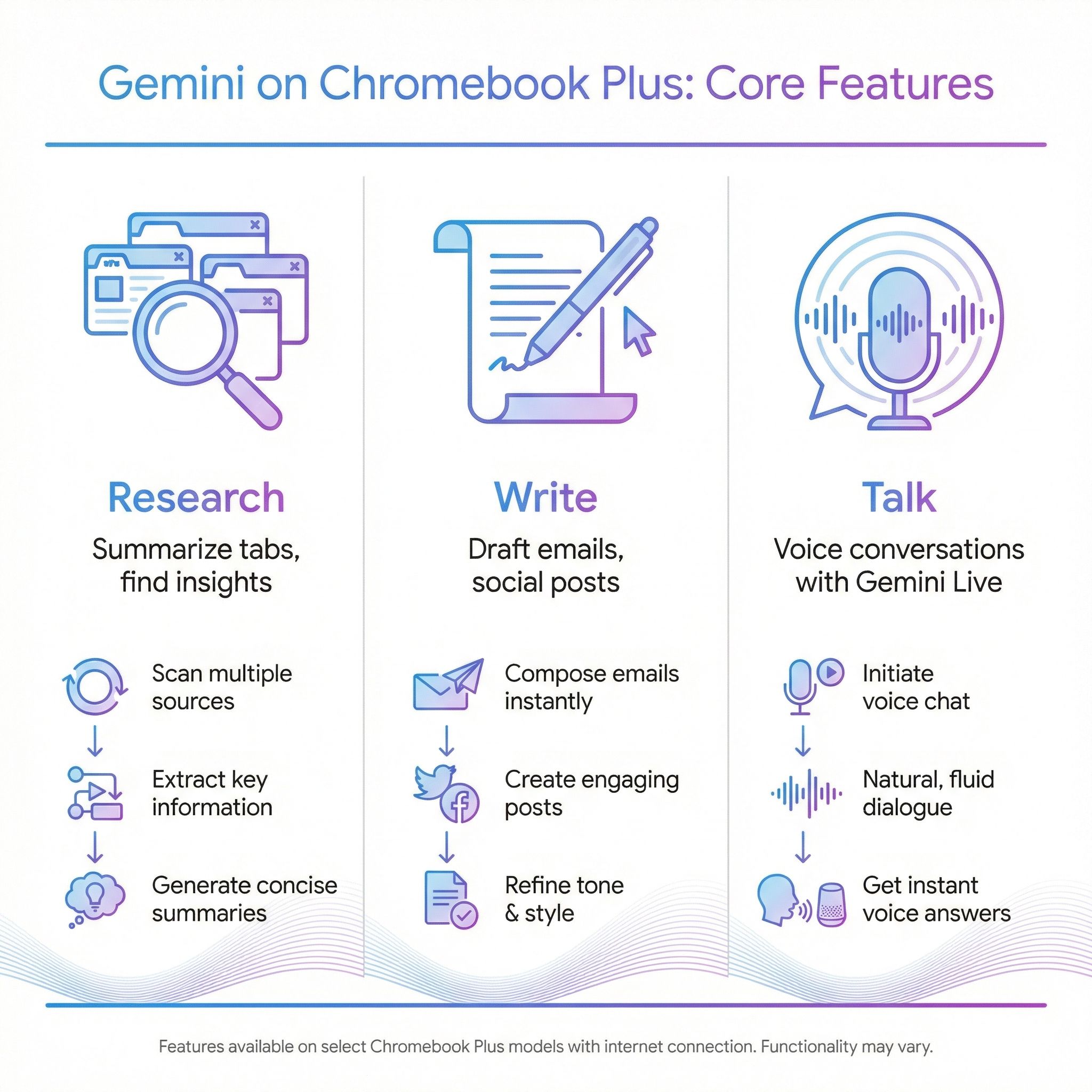
Open a Gmail compose window or any text field on the web, and you can ask Gemini to draft content based on what you’re looking at. For example, read an article, open the sidebar, say “Draft a reply email summarizing this article’s key findings for my team,” and Gemini produces a starting draft you can edit and send.
The drafts aren’t perfect, and you shouldn’t expect them to be. But as a starting point, especially for routine communications where you know what you want to say but don’t want to stare at a blank compose window, it saves time. It works best for professional correspondence, meeting follow-ups, social media posts, and quick summaries. Anything that needs your own voice, such as a persuasive pitch, still needs heavy editing.
If you’re managing a brand’s social presence or just want to share an interesting article, you can ask Gemini to draft a post about the page you’re viewing. It produces reasonably engaging options that capture the key message, though you’ll want to inject your own personality before hitting publish. Doing this in the browser saves a trip to a separate AI tool. If you want to push past drafting into building small apps, our walkthrough of vibe coding with AI Studio on a Chromebook shows how far the browser-based AI tools now go.
Voice Conversations With Gemini Live
Instead of typing queries into the sidebar, you can have a two-way spoken conversation with Gemini. Click the microphone icon in the sidebar, and the AI listens, responds verbally, and maintains context throughout the conversation. It’s useful for brainstorming sessions where typing feels like a bottleneck, or for meeting prep: describe your agenda and ask Gemini which questions to expect or where your presentation is weak.
Gemini Live on Chromebook Plus works the same as it does on other platforms, with no Chromebook-specific capabilities. Talking to a laptop in a shared space is awkward, so Live works best in private or with headphones.
Where Gemini Falls Short
The agentic browsing features, where Gemini navigates websites and performs tasks for you, still need close supervision. Android Police’s Ben Khalesi graded the feature in August 2026 and wrote: “When it works, it’s remarkable. When it doesn’t, you spend longer supervising the attempt than the task would have taken you.” Google’s auto browse help page limits it to US users 18 and over with English devices, personal accounts, and an AI Pro or Ultra plan. These features are early-stage, and Google will likely improve them over time, but don’t buy a Chromebook Plus expecting a fully autonomous web assistant today.
Like all large language models, Gemini occasionally presents incorrect information with confidence. This is especially concerning when it’s summarizing your open tabs, because the false sense of authority (it’s referencing your actual sources) can make hallucinated details harder to catch. Always verify specific facts, figures, and dates against the original sources rather than trusting Gemini’s synthesis blindly.
Free Tier Versus Google AI Pro
A free Google account gets the basic Gemini model, tab sharing, writing help, and basic Gemini Live voice conversations. For casual research and email drafting, that is enough.
Google AI Pro, which costs $19.99 per month, unlocks a stronger Gemini model with longer context windows and Deep Research, which investigates a topic across the web on its own. AI Pro also provides higher usage limits. Google bundles twelve months of AI Pro with new Chromebook Plus purchases, redeemable through January 31, 2027, so a new buyer gets the premium tier free for the first year and pays the subscription after that.
If your Chromebook Plus came with the free year of AI Pro, use that year to learn whether you would miss the paid features. Otherwise, start with the free tier and see if it meets your needs. The free version handles the core use cases, including summarization, drafting, and basic voice interaction, well enough that you may not need to upgrade. The paid tier makes sense mainly if you run Deep Research often or analyze long documents that need the larger context window. And if all this proactive AI is not what you wanted, our guide to turning these features off covers the toggles worth knowing.
Should You Upgrade for Gemini?
For people currently using a standard Chromebook, probably not, at least not for Gemini alone. If your current Chromebook handles your daily workflow well, adding an AI sidebar to Chrome isn’t a compelling enough reason to spend $350 or more on new hardware. You can access Gemini through the web app at gemini.google.com on any Chromebook, just without the convenient sidebar integration and tab-awareness features.
The upgrade makes sense if you were already planning to replace an aging Chromebook and want to step up to better hardware. If you are still deciding whether a Chromebook fits your workflow at all, our 2026 Chromebook buyer’s guide walks through the key questions. Chromebook Plus devices guarantee meaningful minimum specifications: an Intel Core i3 (12th gen or later), AMD Ryzen 3 5000 C-Series or better, or a qualifying MediaTek Kompanio processor, along with 8GB of RAM, 128GB of storage, and a 1080p display with a 1080p webcam. Beyond Gemini, they include Google’s AI-powered photo editing features like Magic Eraser and enhanced video call quality through AI noise cancellation.
Lenovo Chromebook Plus 14" OLED

- ✓14-inch OLED display
- ✓MediaTek Kompanio Ultra NPU for on-device AI
- ✓fanless silent operation
- ✓all-day battery life
- ✗No Intel/AMD processor limits some Linux app compatibility
- ✗RAM fixed at 12GB or 16GB depending on the configuration
- ✗no biometric login
Acer Chromebook Plus Spin 714
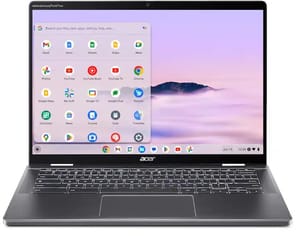
- ✓Intel Core Ultra 5 115U with an NPU
- ✓Thunderbolt 4
- ✓garaged stylus
- ✓360-degree convertible
- ✗No microSD slot
- ✗both USB-C ports on the same side
- ✗updates end June 2034
In the European Union, Gemini in Chrome is not available, and Google has given no date for it. If Gemini is a deciding factor in your purchase, check that your country is on Google’s availability list before you buy.
Any current Chromebook Plus meets the hardware bar for Gemini in Chrome, so pick on screen, battery, and price; our Chromebook Comparison Chart lists them side by side. Google’s Android-based successor to ChromeOS, long codenamed Aluminium, now ships as Googlebook OS on new Googlebooks; current Chromebook Plus models keep running ChromeOS.


