

For most of the last two years, the AI conversation around personal computers was a conversation about features: whose assistant was smartest, whose summaries were most accurate, whose image generator made the least cursed hands. In late May and early June of 2026, a different question started to get louder, and it is the one a growing slice of buyers actually cares about. Not “which AI is best,” but “which computer will leave me alone?”
That shift is not just a feeling anymore. DuckDuckGo, which has quietly run a stripped-down search experience at noai.duckduckgo.com, said traffic to that page was up threefold on Thursday, May 28, 2026, averaging roughly 84 percent above its previous baseline in the days after Google rebuilt its search results around AI summaries. Around the same time, Flathub barred new app submissions that contain AI-generated or AI-assisted code, with exceptions that may be granted for mature, well-maintained projects. Neither story is about a product launch. Both are about people and institutions drawing a line, and that line maps directly onto a buying-and-owning decision Starry Hope readers keep asking us about.
We have circled this theme before, from the parents pulling kids off school Chromebooks to our skeptical read on the Chromebook Plus AI Pro bundle. What none of those pieces did was tell a person who already owns a Chromebook, a Mac, a Windows laptop, or a Linux box how to actually turn the AI down. This is that guide, platform by platform, with a verdict at the end of each section on whether opting out is a quick checkbox or a slog.
First, There Are Two Layers of AI to Switch Off
Before the step-by-step, a distinction that saves a lot of frustration. There are two different layers of AI to switch off, and most how-to articles only address one. The first is the on-device or in-app layer: the Gemini panel in your browser, the Writing Tools menu in macOS, the Recall timeline on Windows. The second is the account layer: what Google, Apple, or Microsoft does with your activity in the cloud, which often keeps running even after you hide the buttons on your screen. Turning off the visible feature is not always the same as opting out of the data processing behind it, so where the account-level switch matters, this guide flags it.
The second caveat is about who controls the machine. If your Chromebook or Windows laptop is enrolled by a school or an employer, many of these toggles will be greyed out, because an administrator sets them in a management console you cannot reach. On a managed device, the candid answer to “how do I turn this off” is often “you cannot, and you need to ask whoever manages it.” Everything below assumes a personal device you own outright. With that framing in place, here is where each platform actually lands.
ChromeOS: A Few Steps, Not One Switch
ChromeOS is interesting because its reputation runs ahead of its reality in both directions. Critics treat it as the most aggressive AI platform because Gemini is everywhere in Google’s marketing, while Google’s own documentation is gentler than that suggests. On a Chromebook Plus, Google says you actually need to opt in the first time you launch Gemini in Chrome, which already puts ChromeOS ahead of the platforms that switch features on and make you find the off button later.
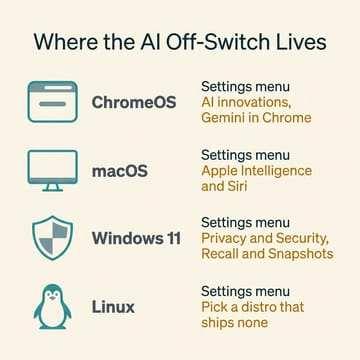
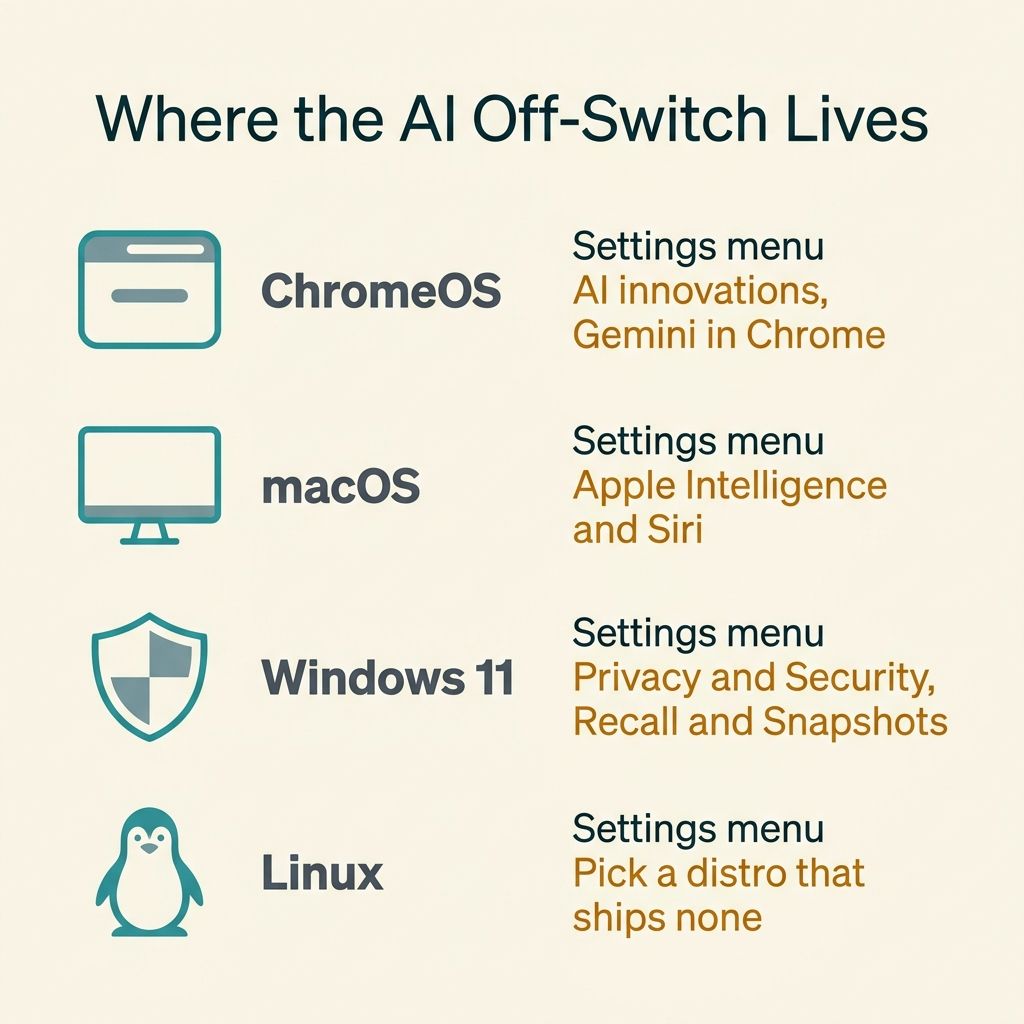
Turning it down is a matter of visiting a few surfaces rather than flipping one master switch. Open Chrome, go to Settings, then to the “AI innovations” section, then to “Gemini in Chrome,” and under Preferences turn off “Show Gemini at the top of the browser” along with the Gemini keyboard shortcut. If the Gemini icon is pinned to your browser toolbar, you can right-click it and choose “Unpin Gemini” to make it disappear entirely. That handles the most visible entry point. The reason this is a few steps and not one is that Gemini reaches into more than the toolbar, so if you also want it out of your launcher and your Google Account, you will want to review your account’s activity controls separately, since hiding the browser button does not by itself stop account-level AI from running. It is also worth knowing that new Gemini surfaces arrive quickly now that Chrome has moved to a two-week release cadence, so it is worth re-checking these settings every so often.
What do you give up? On ChromeOS the loss is the lightest of the four platforms, because Gemini on a Chromebook is mostly an additive layer rather than something woven through the core apps. You lose the contextual help panel and the quick summarize-this-page trick, neither of which most people built a workflow around. Our Gemini on Chromebook Plus guide covers what those features do when you keep them on. Worth remembering: this is the same ChromeOS that has shipped Android apps and a full Linux development environment for years, so switching off Gemini does not turn your Chromebook into a glorified browser. It just turns it back into the capable, quiet machine it was before the AI push. A discontinued-but-supported model like the HP Dragonfly Pro Chromebook, with ChromeOS updates running through 2032, is a perfectly good low-AI daily driver if you find one secondhand.
The verdict: opting out on ChromeOS is a few deliberate steps, not a single toggle, but Google makes the steps findable and the features were largely opt-in to begin with. Easier than its reputation suggests.
macOS: The Cleanest Single Switch
If you want the least-friction opt-out without changing operating systems, this is it. Apple put all of Apple Intelligence behind one consolidated control. Open System Settings, go to “Apple Intelligence & Siri,” and you can switch the whole thing off at the top, or leave it on and disable individual capabilities below. As of June 2026 and macOS Tahoe, that one panel governs Writing Tools, Image Playground, Genmoji, the Clean Up tool in Photos, notification summaries, Live Translation, and the AI-enhanced parts of Siri.
The single-switch design is the most respectful of an AI-off preference among the major commercial platforms, and it is the reason a Mac earns second place in our ranking. There is a real cost to flipping it, though, and it is larger than on ChromeOS precisely because Apple integrated these tools more deeply. Turn Apple Intelligence off and you lose Writing Tools across every app that adopted them, the Clean Up eraser that removes distracting objects from photos, the summarized-notifications feature that collapses a noisy lock screen, and Genmoji. For a lot of people those are nice-to-haves; for anyone who leaned on Writing Tools for proofreading or Clean Up for quick photo fixes, the absence is noticeable. Apple at least makes the trade legible: because the controls are per-feature, you can keep the one tool you like and switch off the rest, rather than choosing all-or-nothing. The Apple Silicon desktop most of our readers ask about, the Mac mini with M4 chip, behaves exactly this way, since the toggle lives in the OS, not the hardware.
The verdict: the cleanest opt-out of any commercial OS. One switch kills everything, per-feature switches let you keep what you want, and Apple does not bury the control. The catch is that you are giving up the most polished set of AI features to do it.
Windows 11: Where Opting Out Is a Real Fight
Windows is the platform where the gap between “limit it” and “remove it” matters most, so it is worth being precise. Recall, the feature that periodically screenshots your screen so you can search it later, is actually the least of the worry on a personal machine. Microsoft’s own documentation states that “Recall is an opt-in experience that requires end user consent to save snapshots,” and that on managed devices it is “disabled and removed” by default. On an unmanaged Copilot+ PC, Recall is available but does not start saving anything until you turn it on. If you never opted in, it is already dormant, and you can confirm that under Settings, then Privacy & Security, then Recall & Snapshots, where you can leave “Save snapshots” off. On Windows 11 Pro you can lock it down harder through Group Policy under Computer Configuration, Administrative Templates, Windows Components, Windows AI, using “Turn off saving snapshots for Recall.”
Copilot is the harder problem, and the reason Windows lands last. It is woven into the taskbar, the Edge browser, and various system surfaces, and on a consumer edition you can uninstall the Copilot app and hide its entry points, but you cannot strip every hook the way an enterprise administrator can. Microsoft did add a Group Policy in 2026 to “Remove Microsoft Copilot app,” but that control is limited to Pro, Enterprise, and Education editions, not Home. So the realistic consumer outcome is a quieter Windows, not an AI-free one: Recall off, Copilot uninstalled and unpinned, the worst of the nagging gone, but the platform still fundamentally built around an assistant Microsoft wants you to use. What you give up by going this route is mostly Recall’s timeline search and Copilot’s quick answers, which is a smaller loss than the effort it takes to suppress them.
The verdict: the most work for the least complete result. You can make Windows 11 calm, and Recall is opt-in so it is probably already off, but a consumer machine will not let you fully delete Copilot. Plan for “limited,” not “gone.”
Linux: Nothing to Turn Off, If You Choose Right
Linux wins this comparison by not entering the race. The mainstream desktop distributions that prioritize stability, Debian and Linux Mint with the Cinnamon desktop, ship with no built-in AI assistant at all. There is no Gemini, no Copilot, no Recall, and therefore no settings page to hunt through. For the reader whose entire goal is a computer that does not push AI at them, that is the whole answer: pick a distribution that never added it, and you are done before you start.
This is not the same as saying Linux is ideologically AI-free across the board, and it is worth being accurate about where the ecosystem is heading. Canonical has signaled that Ubuntu will add AI features over the coming year, but its stated approach is opt-in, sandboxed, and running locally rather than phoning home, which is a meaningfully different posture than defaults-on. Fedora and the GNOME world have been poking at it too, from IBM’s open Granite models to an experimental offline semantic-search tool proposed for Google Summer of Code rather than any shipped GNOME assistant. The structural signal worth noticing is Flathub’s new policy: when the main Linux app store draws a line against AI-generated code, it tells you the community’s center of gravity is skeptical, not eager, which is exactly why the no-AI defaults are likely to hold on the conservative distributions.
The trade with Linux is the oldest one in computing, and it has nothing to do with AI specifically. You get near-total control, and in exchange you take on the work of running an operating system that expects a bit more from you. There is no Apple-grade Writing Tools to miss because there was never one to begin with; if you want AI assistance later, you add it deliberately. For readers already curious about that path, our look at the year of the Linux desktop in 2026 covers the broader case for making the jump. Writers in particular may find our distraction-free Chromebook writing guide useful, since the same low-AI setup pairs well with the focus-oriented tools covered there.
The verdict: the only platform where the off-switch is “do nothing,” provided you choose a distribution that ships no AI. The cost is the general cost of Linux, not an AI penalty.
Stick with Your Current Computer and Turn Off the AI
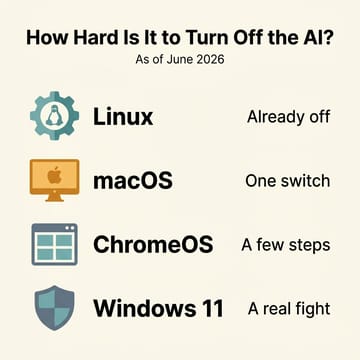
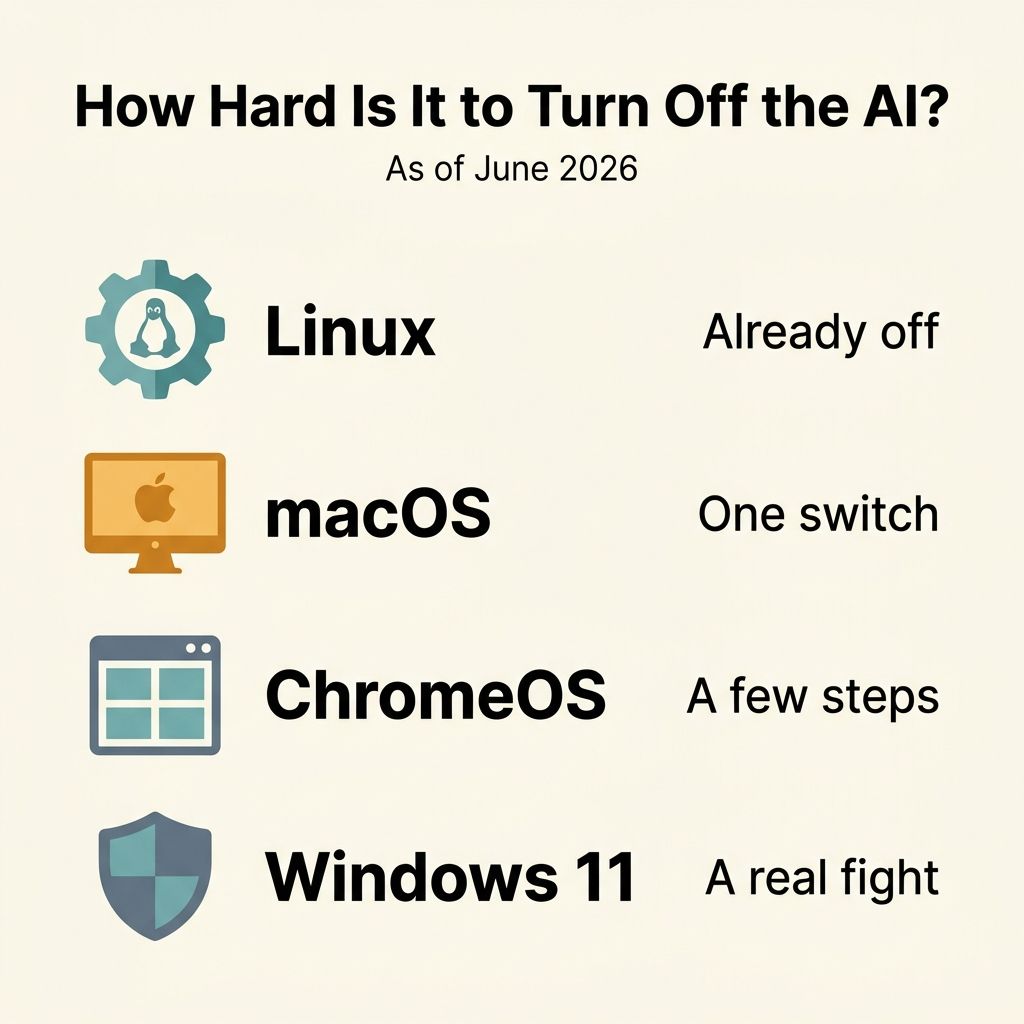
Stack the four verdicts together and the ranking falls out cleanly for anyone whose priority is a low-AI machine. Linux is first because there is nothing to disable on the right distribution. macOS is a close second because a single switch does the job and Apple does not hide it, even if you sacrifice the slickest feature set to flip it. ChromeOS lands third: more steps than a Mac, but findable ones, and a lighter set of features to lose. Windows 11 comes last, not because it is impossible, but because it is the most effort for the least complete result, and a consumer edition will not let you fully remove Copilot.
The more useful takeaway is that you probably do not need to switch operating systems at all. If you already own the hardware, the better move is almost always to spend ten minutes in the settings panel for your platform rather than buying something new in protest. The only group that should let this drive a purchase is people starting from scratch who know up front that being left alone matters more to them than having the best assistant. For them, the recommendation splits two ways: if you want zero friction and a polished machine, a Mac with Apple Intelligence switched off is the path of least resistance, and if you want maximum control and do not mind the learning curve, a no-AI Linux distribution is the one platform that respects the preference by default. Either way, go in clear about the trade. Turning off the AI is easy enough on most of these systems; deciding which conveniences you are willing to live without is the part only you can answer. If you are shopping for a Chromebook with these tradeoffs in mind, our Chromebook Comparison Chart lets you filter by specs to find the right starting point.


