

You bought the Chromebook, set up Family Link the way the wizard walked you through, and picked the screen time limits it offered. Then your kid mentioned they had spent the afternoon talking to a chatbot, and you realized none of the switches you flipped had anything to say about it. That gap is getting more attention this summer: in July 2026, TechCrunch reported that OpenAI is pushing ChatGPT deeper into households, marketing it to families and building onboarding aimed at parents. More chatbots in more homes means more of them sitting one browser tab away on the device you thought you had locked down.
This is a companion to our deeper look at what Family Link controls on a Chromebook. That piece walks through screen time, app approval, and where the web filter goes quiet. Here the focus is narrower and more current: what stops a nine- to fifteen-year-old from opening ChatGPT, Character.AI, or Claude on the Chromebook you just handed them, and which of the paid and free options earn their keep. Starry Hope sells no parental-control product and keeps no affiliate deal with any filtering vendor, so the goal is to describe what each approach does and where it breaks, not to steer you toward a subscription.
Family Link filters websites by category, and AI chatbots are not a category
Family Link’s web filtering gives a parent three postures for a supervised account, and no more. Per Google’s Families documentation, you can allow all sites except the ones you block, try to block explicit sites automatically, or only allow sites you have specifically approved. Those are the levers. There is no category for generative AI, no toggle labeled chatbots, and no built-in list of the big language models. The default posture most families settle on, “try to block explicit sites,” is tuned for sexual and violent content, and a chatbot is neither, so ChatGPT, Claude, Character.AI, Perplexity, and Grok all load like any other website.
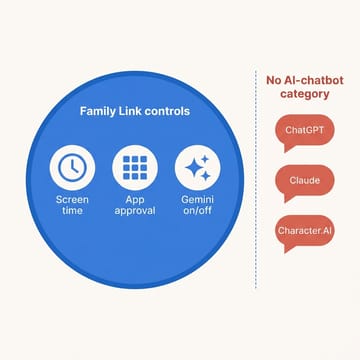
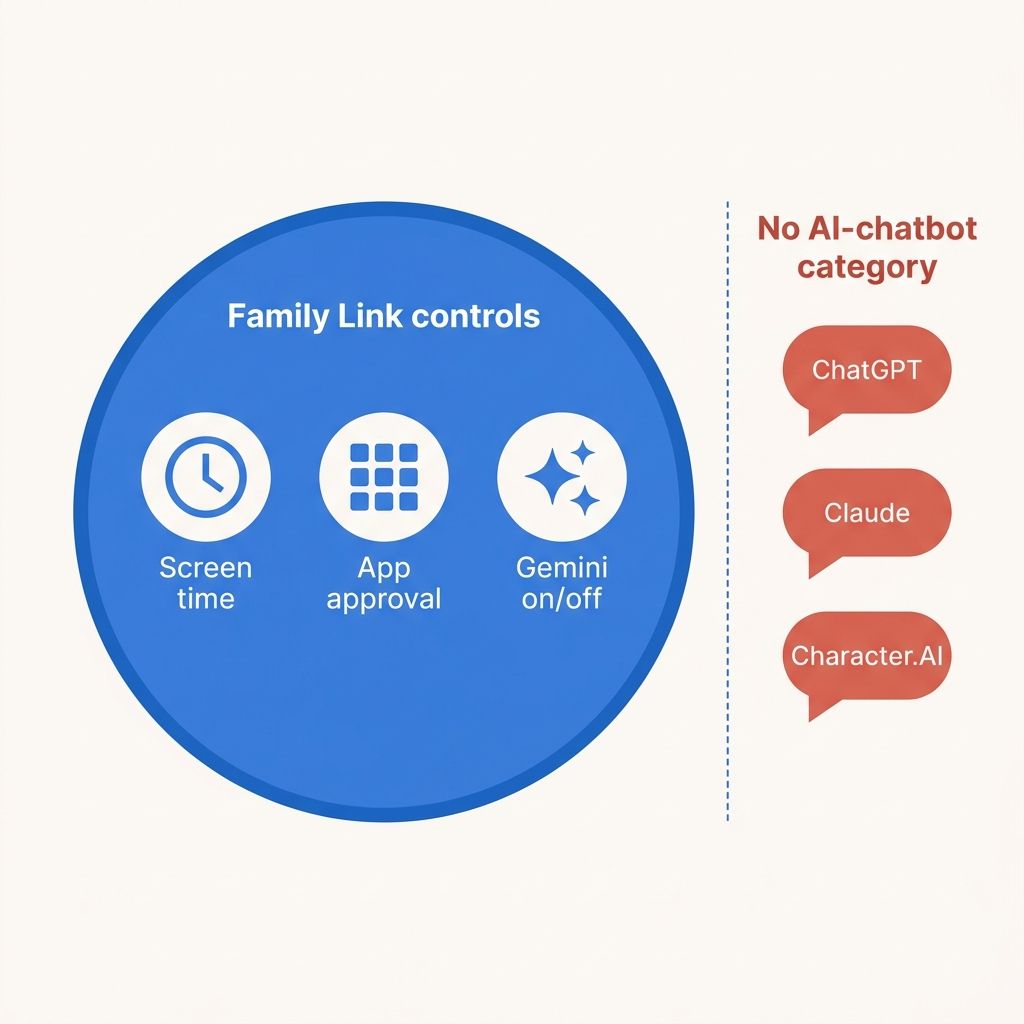
That leaves two ways to stop a specific chatbot inside Family Link, and both are blunt. You can add each chatbot’s address to your blocked-sites list one at a time, which works until your child finds a different subdomain, a mirror, or a chatbot you have not heard of yet. Or you can switch to “only allow approved sites,” which blocks the entire web except the pages you green-light, chatbots included. The allowlist is effective and high-maintenance: every homework site, every video, every research source has to be approved by hand, and for a teenager doing real schoolwork that quickly becomes a part-time job. Neither option is the one-click “block AI” switch parents assume exists, because Family Link does not have one.
Gemini is the one chatbot Family Link can switch off directly
There is a single exception, and it exists because the chatbot in question belongs to Google. Gemini is a Google product, so it plugs into Family Link the way YouTube and the Play Store do. Google’s documentation says a parent controls whether a supervised child can use Gemini Apps, and for a child under 13 a parent has to switch that access on before it works at all. Turn it off and the Gemini app and its signed-in experience stay off for that account. Rollout has been gradual, and Gemini for supervised accounts is not offered in the European Economic Area, Switzerland, or the United Kingdom, but for a family in the US this is a real, first-class on/off control.
The catch is that this switch does not generalize. It governs Gemini specifically, on your child’s signed-in Google account, and it does nothing for ChatGPT or Claude or Character.AI, which have no equivalent hook into Family Link. So the tidy mental model of “I turned off the AI” is only true for one of the several names a kid is likely to type, and it happens to be the one Google can see. The others are the problem.
The chatbot makers’ controls assume your child has an account
You might expect the chatbot companies to cover the gap themselves, and they have each built something, but their controls are designed around accounts, not around the Chromebook. OpenAI’s help center states that ChatGPT is not meant for children under 13 and that teens between 13 and 18 need a parent’s consent, and its parental controls work by having a parent invite a teen to link accounts, after which the parent can set quiet hours and turn up content safeguards. Every one of those protections depends on the teen having a ChatGPT account and accepting the link. They say nothing about a child who opens the site logged out, or who signs up with a birth year that clears 13, and the age check lives at login rather than at the front door. By OpenAI’s own description, the controls are account-based, so they do not stop an unlinked browser visit to the website.
Character.AI took a harder line after a rough year of scrutiny. The company announced it would begin removing open-ended chat for under-18 users in the US starting November 24, 2025, capping minors at two hours a day and then one during the transition, and it is rolling out age-assurance technology to sort adults from kids. That is a meaningful change, but it hinges on the platform correctly guessing your child’s age, and age assurance is a moving target rather than a guarantee. Anthropic sidesteps the question by requiring that all users be at least 18 to create and use a Claude account, which puts a younger child against the rules but not against a wall, since the rule is only as strong as the birth date typed at signup. Across all three, the pattern repeats: the guardrail sits inside the service, keyed to an account and an age the child self-reports, not on the device you control.
Two approaches close the gap, each with a real cost
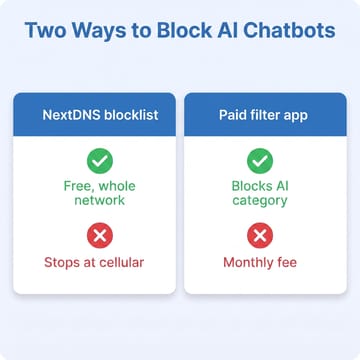
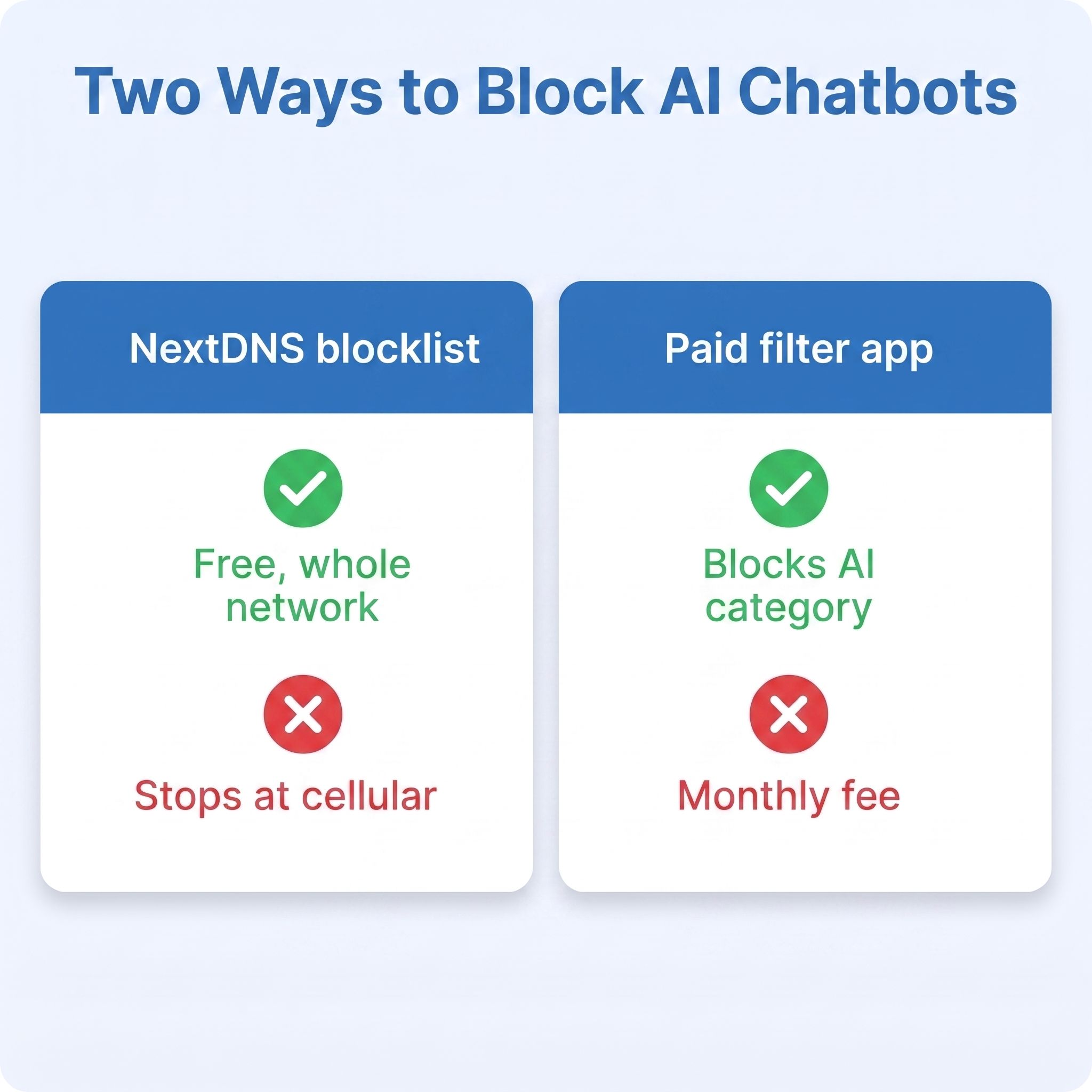
If Family Link has no AI category and the chatbot makers only guard their own accounts, the job of blocking chatbots falls to a layer you add yourself. Two approaches are worth your time, and they trade cost, coverage, and durability against each other. Neither is a set-and-forget answer. A third option you will see recommended elsewhere, a filtering Chrome extension, did not make this list: an extension can be disabled or worked around from the same browser it lives in, and it sees nothing outside Chrome, so it is a speed bump rather than a wall.
A NextDNS blocklist is the best answer for most families
The approach to reach for first ignores the Chromebook entirely and filters at the network’s phone book. Every device on your Wi-Fi looks up website names through DNS, and a filtering resolver lets you decide which names simply stop resolving. NextDNS is built for exactly this: the free tier includes 300,000 DNS lookups a month with every feature and an unlimited custom denylist, and setup amounts to creating a profile, pointing your router (or the Chromebook itself) at the resolver addresses NextDNS shows you, and typing the chatbot domains into the denylist. Fifteen minutes of work covers every device in the house at once, with nothing installed on the Chromebook for a kid to find and switch off.
The starting denylist is short. Blocking these domains shuts the front door of every major chatbot a kid is likely to type in 2026:
chatgpt.comandchat.openai.com(ChatGPT)claude.ai(Claude)character.ai(Character.AI)perplexity.ai(Perplexity)grok.com(Grok)copilot.microsoft.com,poe.com, andmeta.aiif you want the second tier covered too
Gemini is missing from that list on purpose: the Family Link toggle above is the cleaner switch for it, keyed to your child’s account rather than your router. And the same list does double duty. Add the identical domains to Family Link’s blocked-sites list and the block rides along with the supervised account wherever the Chromebook signs in, which patches DNS blocking’s biggest hole for no extra money.
Three caveats before you lean on it. The list rots: chatbots rebrand and mirrors appear (ChatGPT has already changed its main address once), so revisit it every few months. The free quota is generous but not bottomless: past 300,000 monthly queries NextDNS keeps answering but stops filtering until the month rolls over, so a busy household that wants a hard guarantee should budget the $1.99 a month for Pro. And DNS only governs the network it is configured on: it evaporates on a friend’s Wi-Fi or a phone’s hotspot and cannot see inside a VPN. Category resolvers do not rescue you here either; Cloudflare’s 1.1.1.3 family resolver blocks malware and adult content but has no AI category and no custom list, so it will not stop ChatGPT at all. The custom denylist is the piece that makes DNS blocking work for this job.
Paid filtering apps block by AI category, and travel with the device
The most complete option is a paid device filter built for exactly this. Canopy, for one, markets an AI-content category that it says blocks the major chatbots, naming ChatGPT, Grok, Gemini, Claude, and Perplexity, across both their apps and their browser versions, on the argument that blocking one chatbot’s address does nothing to stop a kid from opening another inside a different site. Bark works differently: its Chrome extension monitors and alerts on browsing rather than blocking it, and hard blocking comes from its separate Bark Home network device. Both are subscriptions, and both add a layer of software and setup on top of Family Link. The tradeoff is money and complexity in exchange for the closest thing to a real “block AI” switch that stays with the Chromebook on any network. Whichever layer you choose, visit Family Link’s setting that controls whether your child can add extensions and keep it locked down: a browser extension is less a filtering layer than a bypass kit, since a VPN or proxy extension undoes DNS blocking and most filters, and any filtering extension can be disabled from the same screen it was added on.
Match the approach to how your child gets online
The right answer depends less on which product wins a feature checklist and more on your child’s age and independence. For a younger child who uses the Chromebook at home on your Wi-Fi, the free layers stack up well: Family Link set to “only allow approved sites” or with the chatbot domains blocked, and a NextDNS denylist underneath catching every device on the home network. For an older kid who carries the Chromebook to school, a friend’s house, and coffee shops, the network-scoped tricks stop helping, and a device-level paid filter with an AI category becomes the only layer that travels with them. And for a teenager who needs ChatGPT or Claude for schoolwork, the sharper move is often not a wall at all but the linked-account controls the chatbot makers offer plus an ongoing conversation, because a motivated 15-year-old will out-engineer a filter faster than you can tighten it. If you are still deciding between a Chromebook and the alternative for a student, our Chromebook versus iPad for school comparison walks through how the parental-control story differs across the two.
The Chromebook you buy changes durability, not the chatbot math
None of this depends on which Chromebook you choose, because every one of these controls rides on the Google account and the network, not the hardware. What the hardware changes is how long the device lasts and how well it survives a kid, which is the subject of our full best Chromebook for kids guide. Two picks illustrate the range.
Lenovo Chromebook Duet 11" (2024)

- ✓Detachable tablet form
- ✓included keyboard and kickstand
- ✓very portable
- ✓update window into the mid-2030s
- ✗Small screen for long sessions
- ✗modest performance
- ✗cramped keyboard for big hands
Acer Chromebook Plus 514

- ✓Larger 14-inch screen
- ✓real performance headroom
- ✓sturdier build
- ✓updates guaranteed into 2035
- ✗Heavier than a detachable
- ✗costs more than entry-level kids' models
The headline for a parent shopping in 2026 is that no native Chromebook setting blocks the big AI chatbots by itself. Family Link is a strong base layer that quietly leaves generative AI out of its filter, Gemini is the lone chatbot Google lets you switch off directly, and the rest of the field is guarded only by account rules a child can step around at signup. Closing the gap means adding one deliberate layer on top, a DNS blocklist at home or a paid filter that travels, each with a failure mode you should understand before you rely on it. Pick the one that matches how your kid gets online, keep talking with them about why the chatbots are gated, and you will spend far less time surprised by what the browser history turns up.


