

You buy your kid a Chromebook, set up Family Link the way the welcome screen walks you through, and assume the screen time limit you picked is doing its job everywhere. Then you notice your child still racked up four hours on a Saturday, because the two hours you set applies to the Chromebook and another two hours quietly applies to the phone in their pocket. Family Link counts time per device, not as one shared daily budget, and that single design choice is the gap most parents trip over first. It is not a bug, and it is not hidden malice from Google. It is just not what the marketing implies.
This is the part of the buying decision that the product pages skip and the search results bury. Type “Chromebook parental controls” into Google and the top hits are vendor master guides selling you a paid alternative before they have described what you already have. Starry Hope sells no parental-control product. We cover Chromebooks, so our only incentive is to tell you what you are actually buying. Here is the real picture for 2026, checked against Google’s own Families support documentation rather than a third party’s summary of it.
What Family Link enforces on a Chromebook
Start with the good news, because the gloomy forum version of this story undersells it. On a personally owned Chromebook signed in to a child’s supervised Google account, Family Link is a real set of controls, not a token gesture.
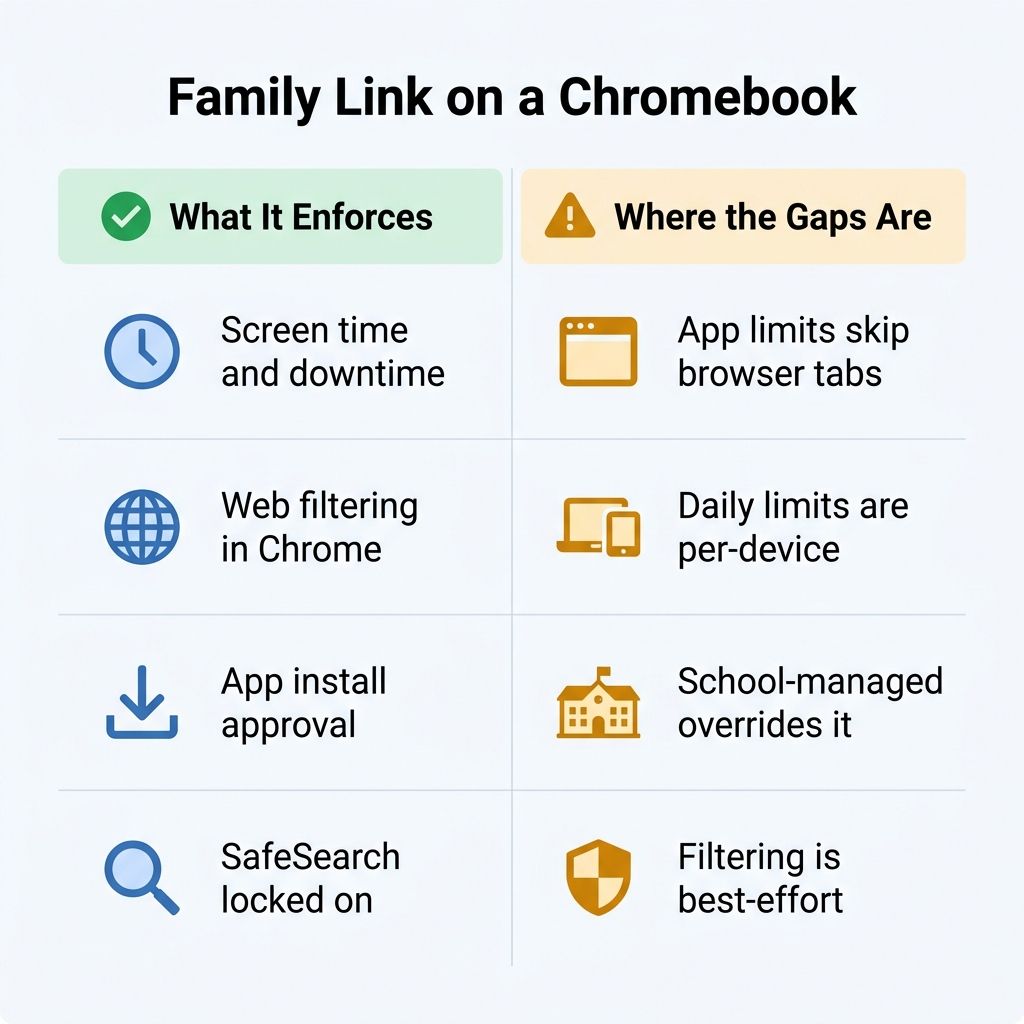
You can set daily screen time limits and downtime, and when the clock runs out the Chromebook locks. You can set a bedtime so the device stops working after a certain hour. You get content filtering inside Chrome with three postures: allow everything except sites you block, try to block explicit sites automatically, or only allow sites you have specifically approved. You can approve or block individual sites, and when a site is blocked your child can send you a request to unlock it. SafeSearch is turned on and locked by default, Incognito mode is switched off, and you control whether your child can grant sites permission to use the camera, microphone, or location.
App installs can run through you, too. You can require your approval for Play Store downloads, set whether that covers all content or only paid and in-app purchases, and set per-app daily time limits on Android apps once the Chromebook is on Chrome OS 83 or newer. For a parent who expected “nothing works on ChromeOS,” that is a meaningful list. The trouble is not that Family Link is empty. The trouble is the shape of what it misses.
Where it goes quiet
The first gap is the per-device math from the opening. Google states it plainly: a daily limit “applies to each Android device or Chromebook your child uses.” Set two hours and a child with both a Chromebook and a phone gets two hours on each. The fix is not a setting; it is a conversation and a habit, plus setting tighter limits on each device if a shared total is what you actually want.
The second gap is the one that surprises parents who think they have locked things down. App time limits only reach apps, and on a Chromebook “apps” means Play Store apps. They do not touch the Chrome browser or the websites inside it, and Google notes that system apps cannot be limited at all. Your child can blow past a YouTube app limit by opening YouTube in a browser tab, because the app time limit feature and the web filter are two separate systems. Site blocking does exist and does work, so browsing is not a free-for-all, but time limits and content blocks are different tools, and confusing them is how a “limited” Chromebook still eats an afternoon.
Third, the web filter is best effort, and Google’s own wording reflects that. “Try to block explicit sites” is a filter, not a guarantee, and SafeSearch can be worked around by a motivated kid. Treat the content filter as a guardrail that catches the obvious, not a wall that stops everything. If your reaction to that is “then I want approved-sites-only,” Family Link supports exactly that posture, at the cost of approving sites one at a time.
The fourth gap is the one that catches families who confuse a home Chromebook with a school one. If the Chromebook is issued and managed by a school district through Google Workspace for Education, Google’s documentation says the school’s administrator, not you, determines which Google services the student can access on that school account. The monitoring picture on a school device is a different story with its own tradeoffs, which we covered in our look at the school Chromebook surveillance debate. Family Link governs the Chromebook you bought and own. It does not govern the one the school loaned out, and if your child adds a school account alongside the personal one, account switching muddies the water further.
What changes when your child turns 13
Here is where a lot of the advice floating around is out of date, so the date stamp matters. For years, the rule was that a child could choose to remove parental supervision on their own once they turned 13, and Google would email the child to explain how. That is the “at 13 you lose control” version of the story, and for years it was accurate.
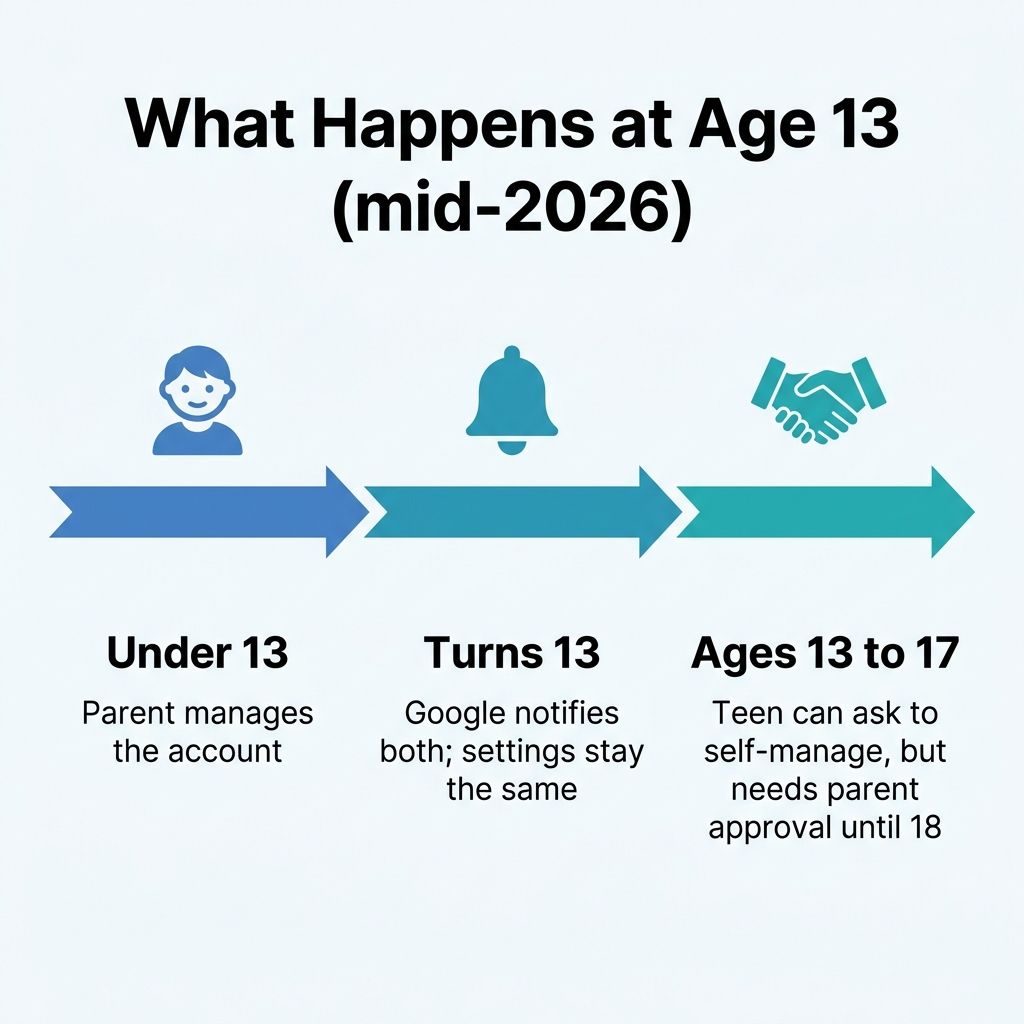
Then security outlets reported that Google reversed course in early 2026, after parent backlash, so that teens can no longer remove supervision on their own. As of mid-2026, supervision does not end automatically at 13. Google’s documentation now states that supervision settings stay the same until your child decides to update their account, and that teens between 13 and 18 need a parent’s approval to stop supervision. Your child still gets the option to ask, and Google still notifies both of you when the birthday arrives, but the off switch is no longer theirs alone. Parents, meanwhile, can choose to ease off and stop supervision at any time once the child is over 13.
The practical read for a parent buying now: 13 is a conversation, not a cliff. If supervision does end later, the account’s parental controls stop applying rather than everything changing at once. Knowing that the timeline shifted in 2026 is the difference between planning around the real rules and planning around a Reddit thread from 2023.
What fills the gaps, and a quick reality check
If the per-device math and the browser-tab gap bother you, third-party tools exist that market themselves squarely at those holes. Boomerang and Mobicip are two of the names a parent will run into, and their own sites describe cross-device and website-level controls of the sort Family Link handles only per device. We are listing them for completeness, not endorsing either one; Starry Hope has not tested them, and we keep no affiliate relationship with parental-control vendors so this section stays clean. Read each vendor’s own page and judge the claims for yourself.
The cross-platform contrast is worth understanding, and it is more modest than the migration posts imply. Microsoft Family Safety, by Microsoft’s own description, also sets screen time per platform, with separate schedules for Windows, Xbox, and Android rather than one shared countdown, so on that specific point it works much like Family Link. Where it differs is in app and game limits that extend across every connected device: a one-hour cap on a specific game is honored whether your kid plays it on the Xbox or the laptop. That cross-device app behavior is the real structural difference, and it is the kind of gap that leads some parents to weigh a Windows laptop instead. This is not an argument that Windows wins. Microsoft’s web filtering only works inside its own Edge browser, neither platform supervises an iPhone’s screen time, and a Chromebook still has real advantages for a kid’s first computer. The point is narrower: know which model you are buying into before the birthday, not after.
Before you rely on any of this, do a five-minute sanity check. Confirm the Chromebook is signed in to your child’s supervised account rather than yours or a guest session, since the controls follow the account, not the hardware. Open Family Link and confirm the Chromebook shows up as a managed device. Then test it: block a site and try to visit it, or set a one-minute app limit and watch the app lock. If a control does not behave the way you expect, it is far better to learn that on a Tuesday evening than during a real conflict.
Which Chromebook makes this easier
None of the Family Link controls depend on which Chromebook you buy; they ride on the Google account, not the chassis. What hardware changes is the experience around the controls, and a kid-friendly Chromebook is mostly about durability, a touchscreen that suits younger users, and enough life left in the device’s update window. Our full best Chromebook for kids guide goes deeper, and if you are weighing a Chromebook against the alternative for schoolwork, our Chromebook versus iPad for school breakdown is the companion piece.
Lenovo Chromebook Duet 11" (2024)
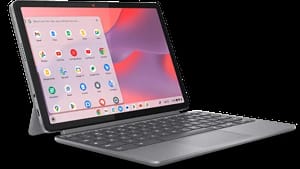
- ✓Detachable tablet form
- ✓included keyboard and kickstand
- ✓very portable
- ✓touchscreen suits younger kids
- ✗Small screen for long sessions
- ✗modest performance
- ✗cramped keyboard for big hands
Acer Chromebook Spin 714

- ✓Sturdier convertible build
- ✓strong performance
- ✓larger touchscreen
- ✓long update window
- ✗Heavier than a detachable
- ✗costs more than entry-level kids' models
If you want to understand where these sit in the broader lineup and how the tiers compare in 2026, our explainer on which Chromebook tier to buy lays out the price-to-capability ladder. Spending up that ladder mostly buys durability and a longer update window, both of which matter more for a device a child will use hard for several years than raw speed does. And if a Chromebook is also entering the home for a different family member, the same “match the device to the person” logic drives our Chromebooks for seniors guide.
The headline for a parent shopping in 2026 is this: Family Link on a Chromebook is a real, usable set of controls that does most of what you want on a device you own, as long as you sign in correctly and plan around the per-device limits and the browser-tab gap. It is not the empty shell the loudest complaints describe, and it is not the all-seeing system the setup wizard implies. Buy with the real list in hand, confirm it is on, and you will spend a lot less time surprised by an activity report. (If you are still untangling the difference between a home Chromebook and the kind a school hands out, our education Chromebook FAQ clears that up.)


