

Listen to this article:
A school-issued Chromebook that comes home with your child likely runs monitoring software that can track far more than the websites they visit during class. Tools like GoGuardian, Linewize, and Securly are standard in American schools, and their capabilities extend well beyond keeping students off YouTube during algebra.
The tension is between protecting students from threats and respecting their privacy and development. After digging through research from the Electronic Frontier Foundation and the Center for Democracy and Technology, I understand why districts land in such different places on it. Parents already face tough decisions about which devices to choose for school, and monitoring policy belongs on that list. The technology does help schools intervene in crises. But it also creates a surveillance infrastructure that disproportionately affects certain students and raises serious questions about what we’re teaching kids about privacy in the digital age.
Monitoring Tools Record Web Activity, Screens, and Keystrokes
According to the EFF’s investigation, GoGuardian alone monitors approximately 27 million students across 10,000 schools. That’s roughly half of America’s K-12 students with their digital activity under constant observation.
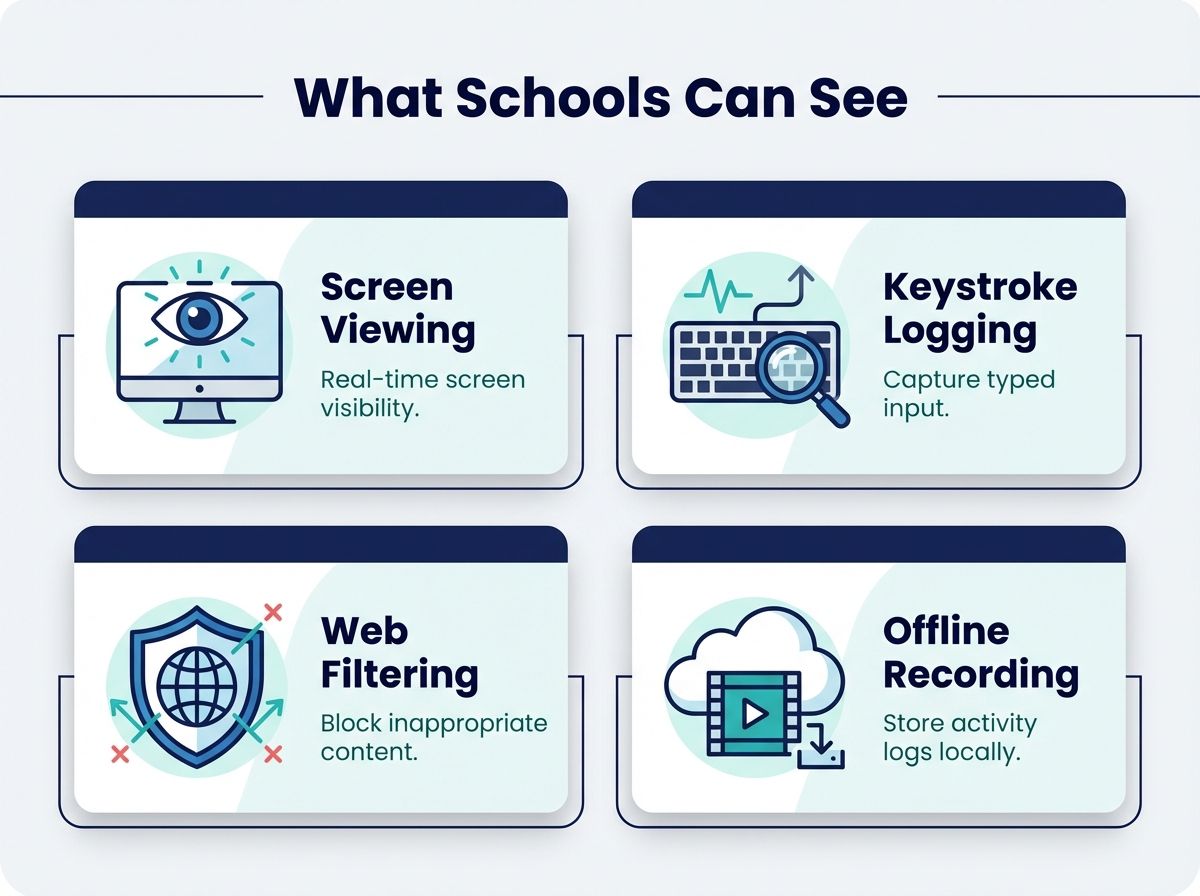
At the most basic level, these tools filter web content on school Chromebooks, blocking categories of sites like adult content, gambling, or social media during school hours. Teachers can view students’ screens in real time, seeing exactly what’s on every device in the classroom simultaneously. Some software takes periodic screenshots, creating a visual record of student activity. Keystroke logging captures what students type, including in private documents. Some tools like Linewize continue monitoring when students are offline, recording activity locally and then uploading it to school servers when the device reconnects to the internet.
Private Documents and Timestamps Reach School Dashboards
A private journal your child writes on the device during a family road trip could be uploaded and analyzed the moment they return to a wifi network.
Search history, email content, documents, browsing patterns, and even timestamps of when the device is opened and closed all flow into school administrative dashboards. The data creates what the EFF calls “comprehensive student profiles” that persist throughout a student’s educational career. And under federal law, schools can collect this data without explicit parental consent for students over 13 if they deem it necessary for legitimate educational purposes.
Schools Cite Crisis Alerts and CIPA Compliance
School administrators and monitoring software vendors point to real, serious threats: signs of self-harm, suicide ideation, or potential violence caught early enough to act on.
GoGuardian’s Beacon product scans student activity for keywords and patterns related to mental health crises, the company emphasizes suicide prevention as a core use case, and there are documented cases where monitoring alerts led to life-saving interventions. When a student Googles “how to end it all” or types concerning content into a document, the system flags it for immediate review by trained staff. I would want that phone call if my child searched for methods of self-harm.
Beyond mental health, schools point to the Children’s Internet Protection Act (CIPA), which requires schools receiving federal funding to implement internet safety measures. While CIPA specifically states it does not require tracking individual students, many districts interpret the law as justification for comprehensive monitoring. School IT leaders interviewed for CDT’s research described genuine dilemmas, weighing safety obligations against the privacy cost of always-on monitoring.
The pandemic accelerated adoption. When students took devices home for remote learning, schools felt increased responsibility for what happened on those machines. One district administrator told EdSurge they needed “granular control” to ensure student safety during the chaos of 2020 and 2021. What began as an emergency measure became permanent infrastructure.
False Positives Bury the Real Alerts and Chill Student Searches
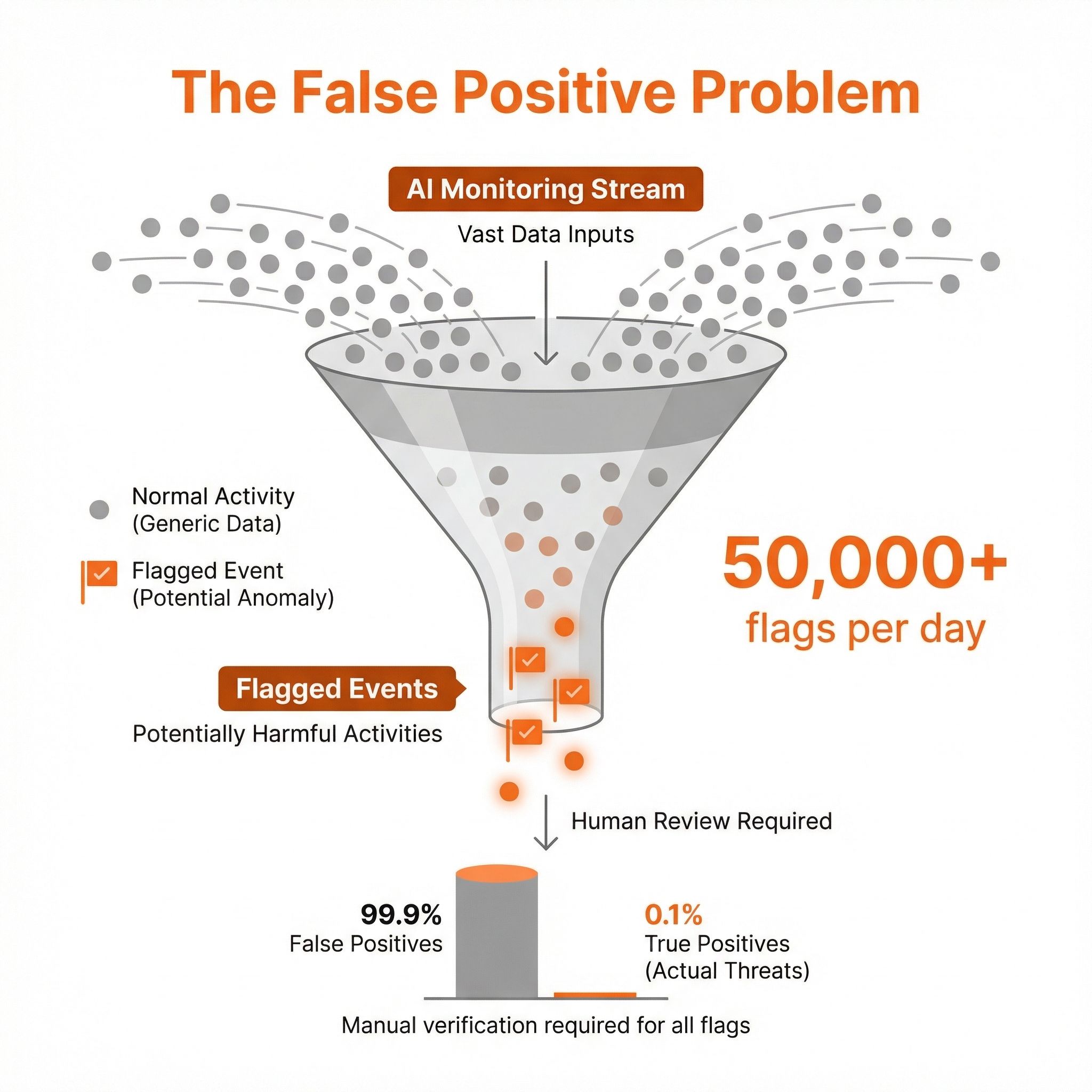
The EFF’s investigation into GoGuardian found software that flags far more content than it identifies correctly. The EFF calls it a “red flag machine.” False positives heavily outweigh accurate detections, with some large school districts receiving over 50,000 flags per day. The volume means administrators often can’t meaningfully review each alert, and benign student behavior gets caught in the net.
Consider a student researching the opioid crisis for a health class assignment, or looking up information about eating disorders to help a friend. Both trigger keyword alerts. A student curious about their own identity might search for LGBTQ+ resources, information about gender identity, or mental health support for questioning youth. Those searches flag too. For students in unsupportive home environments, the knowledge that school officials can see these searches might prevent them from seeking help at all.
Student Privacy Loss Changes What Kids Search For
The Center for Democracy and Technology documented a chilling effect: students who know they’re monitored are less likely to search for sensitive health information, explore questions about identity, or express authentic thoughts in school assignments. One parent quoted in CDT’s report worried about “the long-term ramifications for children who are taught to hand over data to Google without question,” noting that her daughter was being “forced into that at such an early age, when she doesn’t know any better.” That worry sits at the center of our look at Google treating schools as a pipeline of future users, where early account adoption becomes lifelong platform loyalty.
Adolescence involves identity exploration, questioning authority, making mistakes, and learning from them. A generation of students growing up under constant surveillance may learn that privacy doesn’t exist, that authority figures always watch, and that any curiosity or deviation from the norm gets flagged and recorded. The broader screen time debate in education raises parallel concerns about how much exposure is healthy.
Students Without a Second Device Get Surveilled the Most
According to CDT research, 81 percent of teachers report their schools use student activity monitoring software. But only one in four say that monitoring is limited to school hours. That means the majority of schools are tracking students at home, during evenings, and on weekends.
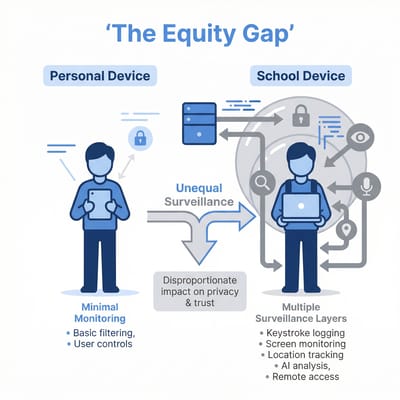
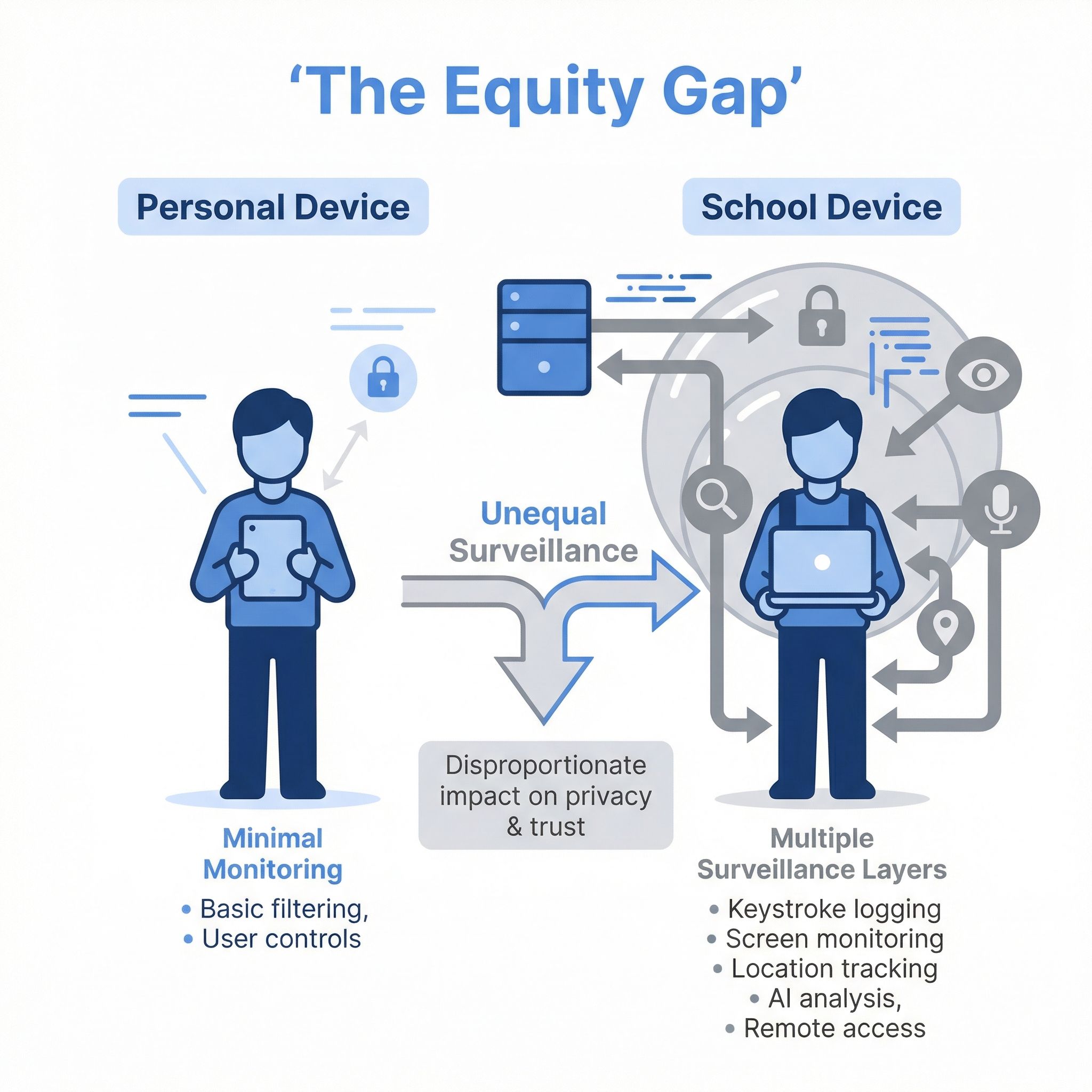
The problem is who has alternatives. Students from families who can afford personal laptops, tablets, and phones can do their personal browsing on unmonitored devices. Students from lower-income families who rely entirely on school-issued equipment have no such option. They face what researchers call “two layers of monitoring,” with device-level surveillance stacked on top of cloud document scanning that affects all students.
Cody Venzke, senior policy counsel at CDT, described the disparity: students who depend on school-issued devices may face monitoring of their screens, open applications, and browsing history 24/7, including surveillance that students using personal devices never encounter. School Chromebook programs were built to close the digital divide. The students who most needed the access are now the ones under the most comprehensive surveillance.
DeVan Hankerson Madrigal, CDT’s Research Manager, put it bluntly: “It’s been long demonstrated that historically marginalized groups of students have fewer educational opportunities than their peers. Those disparities can be compounded through the technologies that schools are using, not only in a lack of access, but also in saddling those students with surveillance technology when that access is provided.”
Boulder Valley Limits Monitoring to School Hours
Not every district has embraced round-the-clock monitoring, and some have found that responsible limits work just fine. Boulder Valley School District in Colorado, with 30,000 students across 55 schools, uses GoGuardian but limits its classroom monitoring features to school hours only.
Andrew Moore, the district’s CIO, explained the philosophy to researchers: “We feel that’s more of a parent’s or guardian’s responsibility, and that it also straddles that fine line between what students are doing in their off hours. Whether someone watching a movie on Netflix is a good thing or a bad thing depends on your perspective, but it’s really not in the school district’s purview to say thumbs up or thumbs down to what you’re doing in the off hours.”
The district still filters web content at all times on school devices, blocking categories like adult content and gambling. But the active surveillance features, where teachers can see student screens and the system logs detailed activity, are disabled when students leave campus.
Moore encouraged other districts not to give up when implementing privacy-respecting policies: “It’s easy to get frustrated when you don’t get it right every single time.” He advises exploring different tools and configurations rather than defaulting to maximum surveillance.
Questions Parents Should Ask Their District
If your child uses a school-issued Chromebook, you have both the right and responsibility to understand what the school can see. Put these to your district’s IT department or school board.
What monitoring software is installed on student devices? Get the specific product names (GoGuardian, Linewize, Securly, Lightspeed, etc.). Each has different capabilities and default settings.
Is monitoring limited to school hours, or does it continue at home? This is the most important question. School-hours-only monitoring stops at the edge of campus, while 24/7 monitoring covers evenings, weekends, and whatever the device records at the kitchen table.
What specific activities trigger alerts? Get the keyword and content categories that flag student activity, and you can have a realistic conversation with your child about what’s being watched.
How long is monitoring data retained, and who can access it? Some schools keep records throughout a student’s entire enrollment, while others purge data regularly. Ask whether just IT staff see the dashboards or if principals and individual teachers also have access. The retention period and breadth of access together determine how much of a profile the school builds on your child and how many people can view it.
What happens when something is flagged, and is there an opt-out? Understanding the review process helps you assess whether false positives are likely to cause problems for your student. A school that has trained counselors reviewing alerts is very different from one where a teacher gets a raw notification. Also ask whether your district allows students to use personal devices instead, though this often means losing access to school-provided software and services.
Push Your District Toward School-Hours-Only Monitoring
Ask your school board the hard questions about monitoring policies. Advocate for school-hours-only approaches like Boulder Valley’s model. Some families have gone further and joined the opt-out movement: parents pushing back on school devices altogether. And if your child needs a device for personal use, consider that an inexpensive personal Chromebook might be worth the investment in their privacy.
If the surveillance question has you rethinking which Chromebook to buy, our Chromebook Comparison Chart lays out specs side by side.
Affordable Personal Chromebooks
If you’re looking for a Chromebook your child can actually own for personal use at home, without school monitoring software, here are some inexpensive options. For a deeper look at what makes a good device for younger users, see our full guide to the best Chromebooks for kids.
Lenovo IdeaPad 3i Chromebook
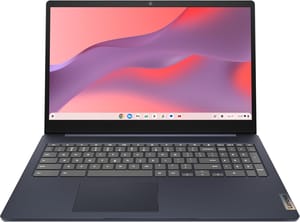
- ✓Under $170
- ✓8GB RAM
- ✓large 15.6-inch display
- ✓10-hour battery
- ✗No touchscreen
- ✗heavier at 3.5 lbs
- ✗basic plastic build
Lenovo Chromebook Duet
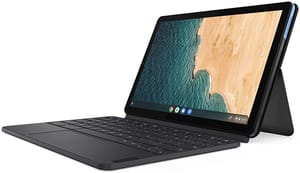
- ✓Tablet flexibility
- ✓included keyboard
- ✓easy to carry
- ✗Small 10.1-inch screen
- ✗limited multitasking RAM
- ✗cramped keyboard
HP Chromebook 14a (2023)
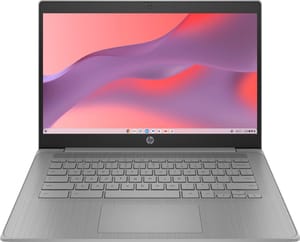
- ✓Excellent 14-hour battery
- ✓decent display
- ✓slim design
- ✗Only 4GB RAM on base model
- ✗limited storage
- ✗not the fastest processor
You control a personal device, and the school controls its own. No school monitoring software, no flagged searches, no administrators viewing your child’s screen. For sensitive personal browsing, identity exploration, or just watching Netflix without a teacher closing tabs, that privacy is worth the modest investment.
Frequently Asked Questions
Can the school see my child’s browsing history?
Yes, along with searches, documents, email, and the times the device opens and closes. The EFF calls the result “comprehensive student profiles” that follow a student through the whole school career.
What gets flagged on a school Chromebook?
Vendors emphasize keywords tied to self-harm, suicide ideation, and violence, and those alerts go to staff. The same matching trips on ordinary schoolwork about the opioid crisis or eating disorders. Searches for LGBTQ+ resources flag too. The EFF found false positives far outnumber accurate detections, with some large districts logging over 50,000 flags a day.
Can the school see what my child does on the Chromebook at home?
Often, yes. In CDT’s research, 81 percent of teachers said their school runs activity monitoring, and only one in four said it stops when the school day does.
How do I find out what my child’s school monitors?
Ask your district IT department or school board. Start with the product name, since GoGuardian, Linewize, Securly, and Lightspeed all behave differently, then ask whether it runs outside school hours, what triggers an alert, how long records are kept, and who can open the dashboard.


