

In early July 2026, Google’s own Manifest V2 timeline page (last updated July 8) put a hard expiration date on the old extensions, and Chrome Unboxed surfaced it for most readers on July 10. The date is August 31, 2026, when Google clears the last remaining Manifest V2 extensions off the Chrome Web Store. The developer and enterprise workarounds that had kept the full uBlock Origin alive have been closing since the Chrome 138 and 139 releases; August 31 is when the listings themselves disappear, so there is nothing left to reinstall from. For a Windows or Mac reader this is a mild inconvenience with a five-minute fix. For anyone shopping for or already using a Chromebook, the Chromebook ad blocker story is different, because on ChromeOS Chrome is both the browser and the launcher.
The standard advice, which is to switch to Firefox or Brave, quietly assumes you can install another desktop browser in a couple of clicks. On a Chromebook you mostly cannot, or at least not the way a PC owner can.
What changes for Chromebook ad blockers on August 31
Google’s own Manifest V2 support timeline is the document that matters. Manifest V2 extensions were disabled by default across all Chrome channels on March 31, 2025, with a temporary toggle to switch them back on. On July 24, 2025, Chrome 138 disabled them everywhere; that build was the last version able to run them at all, and even then only for machines held on the enterprise policy. Chrome 139 then began removing that ExtensionManifestV2Availability policy, so the enterprise exemption ended for anyone who upgraded to Chrome 139 or later. August 31, 2026 is the final step: the remaining V2 listings come off the store entirely.
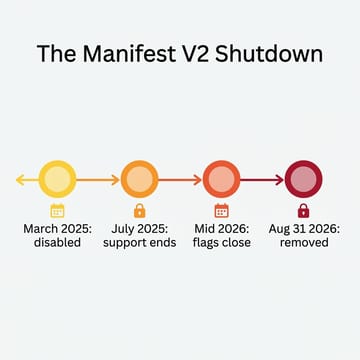
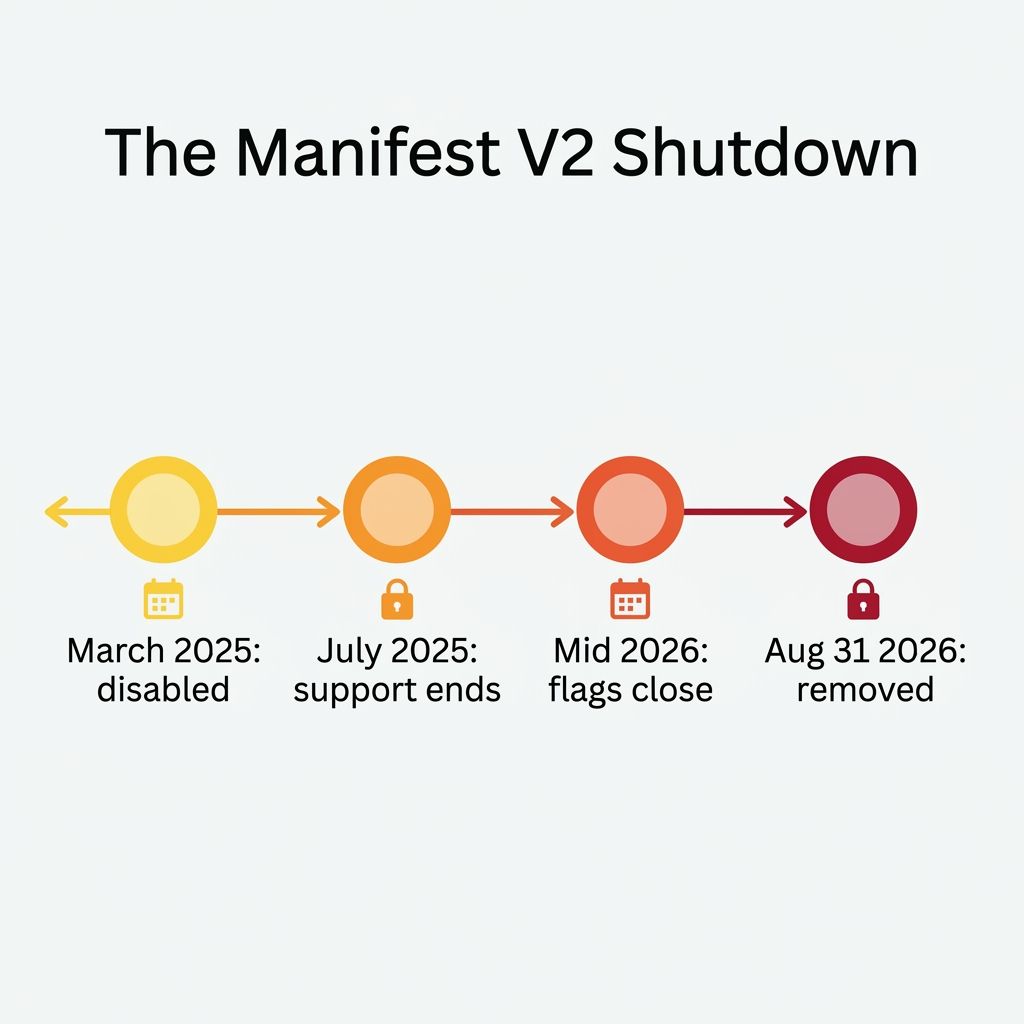
Between those steps sat a set of command-line and policy flags with names like ExtensionManifestV2Disabled and ExtensionManifestV2Availability. These were the “last lifeline” the tech press kept writing about. They were switches for developers and IT administrators. PCWorld, tracking the exact build where the final flag would be locked shut, could only say it was not entirely clear whether that happened in Chrome 150 or 151, noting that analyses differed and the flag still worked “at least to some extent” in one of them. Whichever build closed the flag, the workarounds are effectively gone by now, and August 31 removes the listings that fed them.
None of this is Google singling out ad blockers. The switch from the old webRequest model to the newer declarativeNetRequest API was pitched as a security and performance change, and it does close off a class of malicious extensions. The side effect, which Google has never seemed troubled by, is that the very capability uBlock Origin relied on to filter requests in real time is the capability that went away.
Why a Chromebook can’t just switch browsers
On a Windows laptop the fix is trivial. Download Firefox, install the full uBlock Origin, and nothing about your day changes. Raymond Hill’s project site is blunt about it: the complete uBlock Origin still runs on Firefox and Brave, and those are the recommended homes for it. A Chromebook owner reads that same sentence and hits a wall, because the two escape hatches Chrome users are told to use are the two things ChromeOS makes awkward.
There is no native desktop Firefox for ChromeOS. Your options are the Android build from the Play Store or the full desktop build inside the Linux container, the developer environment that ships disabled on most Chromebooks. Both work, but neither is the one-click swap a PC user performs. So the Chromebook version of “just switch browsers” is a choice between accepting a lighter Chrome ad blocker or doing a bit of setup. If you are still deciding whether ChromeOS is the right platform for you at all, see our take on whether your next computer should be a Chromebook.
Why a powerwash after August 31 costs you your ad blocker
As Chrome Unboxed put it when the date landed, “if you purchase a new Chromebook, powerwash your current machine, or reinstall your browser, you will not be able to download those older extensions again.” An extension you installed while it was still available keeps limping along on an older build until it breaks. But the moment you reset the device, the listing it came from is gone, and there is nothing to reinstall from.
A parent powerwashes the family machine before handing it to a kid for the new school year, or a shopper buys a fresh unit in the July-to-September window and sets it up clean. Our guide to what a Chromebook powerwash actually erases covers the broader reset. After August 31, a reset can quietly cost you an ad blocker or a password manager you can no longer get back in its old form.
The ad blockers that still work on a Chromebook
The Chrome Web Store still carries capable free blockers built on Manifest V3, and none of them is the classic uBlock Origin.
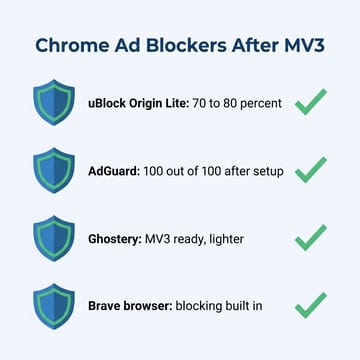
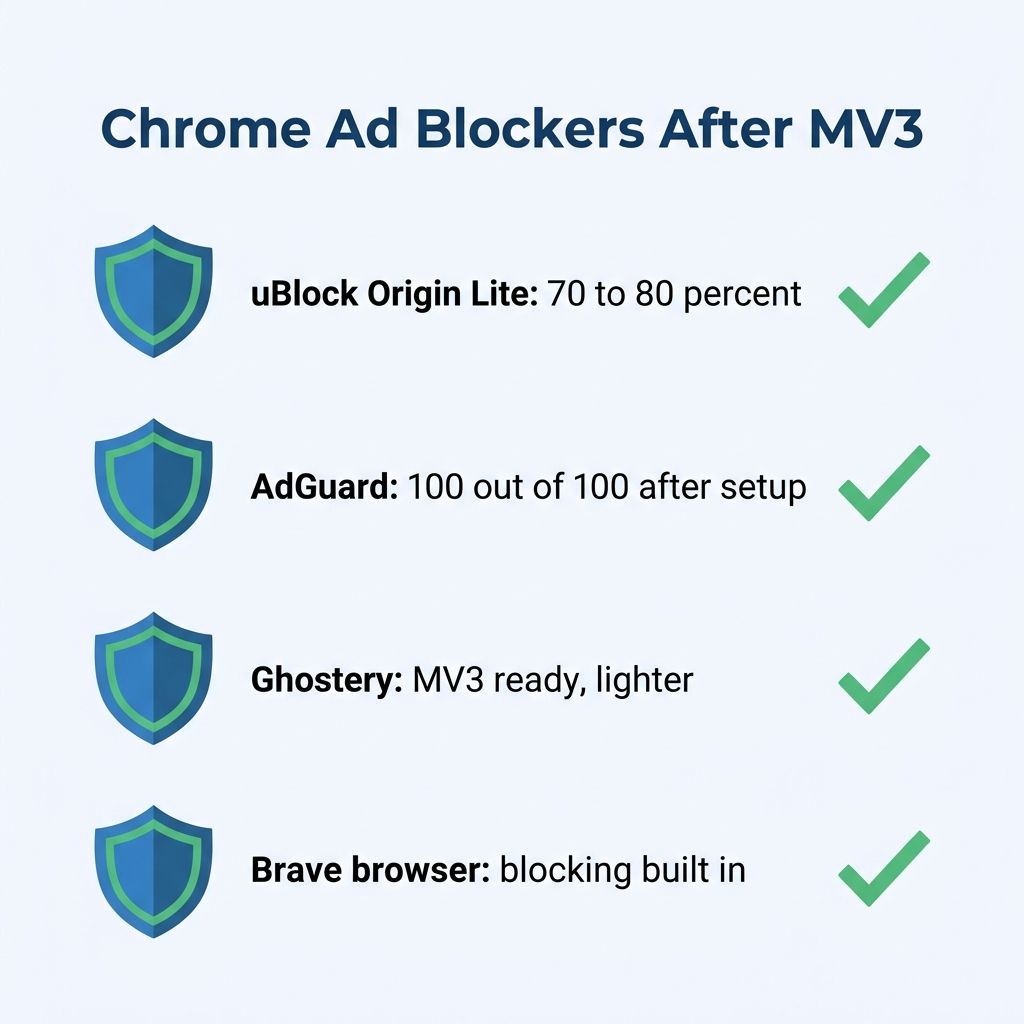
uBlock Origin Lite is the closest thing to the original and comes from the same author. It uses the familiar filter lists but can only apply them as static, pre-declared rules, which means no dynamic filtering, no full element picker, and slower updates when a site changes its ad delivery. Testing from AdLock, which sells a competing ad blocker, puts it at roughly 70 to 80 percent of the original’s effectiveness. For most browsing that is fine; the gap shows up on YouTube and on the newest ad formats.
AdGuard is the most capable Manifest V3 extension available, and in the same AdLock survey it scored 100 out of 100 on AdBlock Tester once fully configured. Its Privacy and Social Media filter lists are off by default, so out of the box it blocks less than you would expect until you turn them on. It also bundles a built-in stealth mode and parental controls that uBlock Origin never offered, which makes it a reasonable pick for a family Chromebook.
Ghostery, now on its Manifest V3 build, is a lighter tracker-and-ad blocker that leans toward privacy and is a fine low-effort choice if AdGuard feels like too many settings. Brave is a whole browser with blocking built into its engine rather than an extension, which is why Chrome’s extension limits do not touch it. On a Chromebook you would install it from the Play Store as an Android app, and its shields work the moment you open it with no configuration.
Firefox brings back the full uBlock Origin, two ways
If you want the complete uBlock Origin experience back, Firefox is the path, and on a Chromebook there are two ways in. The Play Store build is the easy one. Modern Firefox for Android supports a real add-on ecosystem that includes uBlock Origin, so a non-technical owner can install the app and add the extension without ever opening a terminal. The tradeoff is that it behaves like an Android app inside ChromeOS: fine as a secondary browser for the sites you care most about blocking on, less pleasant as your everyday window with lots of tabs.
The Linux container build is the power-user route. Turning on the Linux container gives you the full desktop Firefox with the classic uBlock Origin exactly as it runs on a PC. It is also a meaningfully larger commitment: you are enabling a Linux environment, downloading a sizeable container, and taking on the occasional rough edge that comes with it. If you are the kind of person who already runs Linux apps on your Chromebook, you already know this is the cleanest answer; if you are not, the Play Store Firefox or a good Manifest V3 extension will serve you better.
School and work Chromebooks are a separate case
Managed Chromebooks, the ones a school district or an employer hands out, ran on a different clock. Google’s timeline notes that the enterprise ExtensionManifestV2Availability policy, which let administrators keep Manifest V2 extensions alive for their fleets, was itself removed with Chrome 139, so managed devices lost that exemption too. A parent buying a personal Chromebook for a kid controls the extension setup and should sort it out before the August deadline. A family relying on a school-issued device does not; the district’s IT team decides what is installed, and any ad blocker or accessibility extension is their call, not yours. If you are weighing a personal purchase against leaning on the school machine, see our Chromebook tier guide.
What to do before August 31, and after
On every Chromebook you own, install uBlock Origin Lite or AdGuard from the Chrome Web Store now, while both are one click away, and do the same for any password manager or accessibility extension you depend on. If you are about to buy a new Chromebook or powerwash an old one, get the setup done and let the extensions sync to your Google account so a fresh sign-in restores them. After August 31, treat any Manifest V2 extension still clinging to an older build as living on borrowed time, and move to a Manifest V3 replacement before a reset forces the issue.
For a back-to-school shopper who just wants a clean, affordable machine to set up correctly from day one, a fanless entry-level Chromebook is enough, since the extension story is identical whether you spend $249 or $900.
Lenovo IdeaPad Slim 3 Chromebook
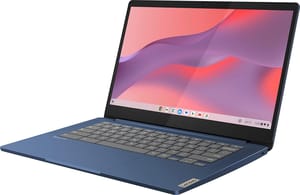
- ✓Fanless and silent
- ✓13.5-hour battery
- ✓14-inch FHD touchscreen
- ✓easy on a back-to-school budget
- ✗MediaTek Kompanio 520 is modest
- ✗eMMC storage
- ✗not for heavy multitasking
If you already own something more premium, the same advice applies with more headroom to run the Linux route. Jim’s own HP Dragonfly Pro Chromebook has the horsepower to run full desktop Firefox in the Linux container comfortably, which is the one Chromebook scenario where the complete uBlock Origin comes all the way back. Most people do not need to go that far. Pick a Manifest V3 blocker that matches how you browse and install it before the store clears out. And if the reason you want a cleaner browser is Chrome’s growing pile of AI prompts, see our guide to turning off the AI features on a Chromebook.


