
A Chromebook has two language settings that are easy to mix up. The display language sets the words in every menu, button, and settings page. The keyboard layout (ChromeOS calls it an input method) sets what each key types. You can change one without touching the other, and ChromeOS keeps your keyboard layout when you change the display language.
This guide changes the display language to Spanish, then switches it back to English using only a Chrome address and the position of two buttons, so you can follow it even when every menu is in a language you cannot read. Then it adds the US International keyboard layout, types an accented letter with it, switches layouts, and removes the layout again. The video above shows the same steps on the Starry Hope channel.
Change the Display Language
Click the time at the bottom right of the screen, then click the gear icon at the bottom of the panel to open Settings. In the sidebar on the left, click System preferences (its subtitle reads “Storage, power, language”). Under the Languages heading, click the Languages row. The page that opens has the device language at the top, with a Change button next to it.
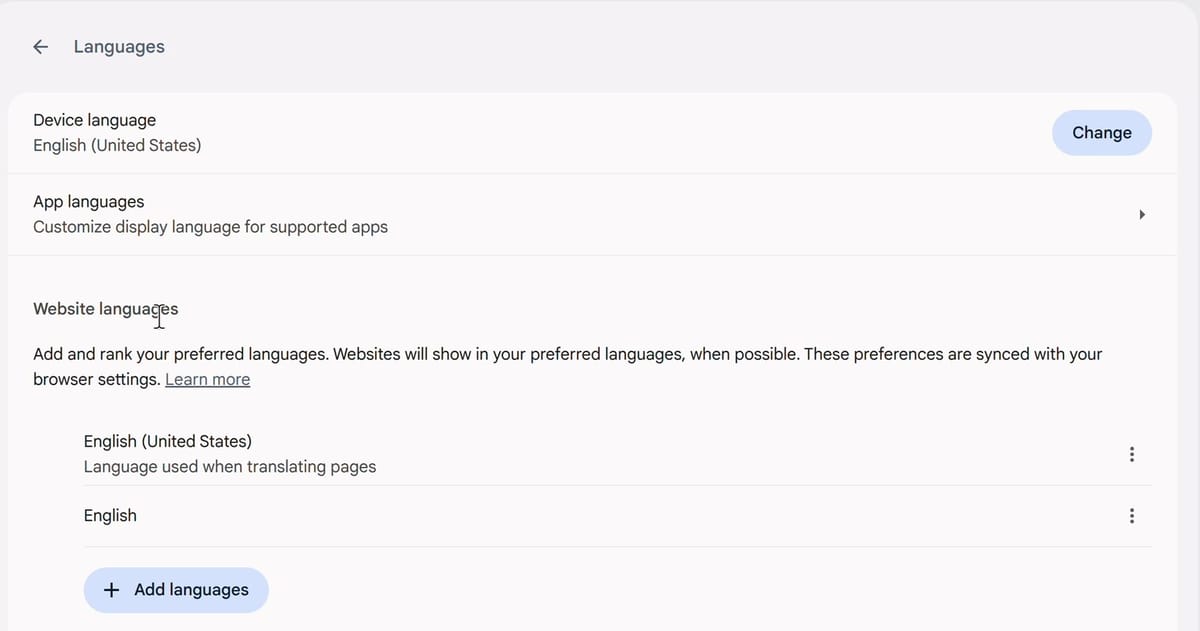
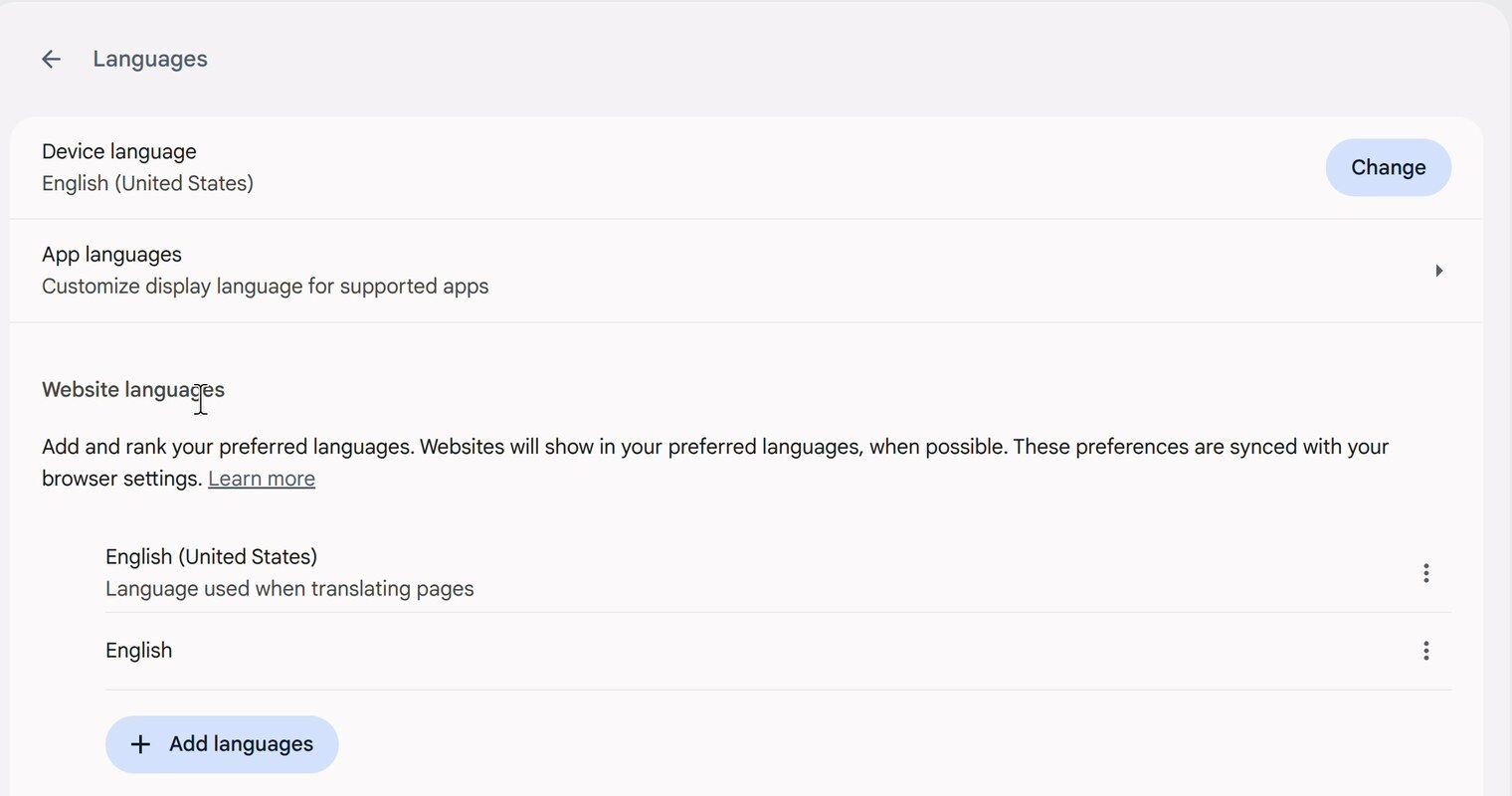
Click Change. The “Change device language” dialog opens with its search box already active, so you can start typing the language name right away. Type Spanish and the list narrows to every Spanish variant. Each row shows the language’s own name first and the translated name second, as in español - Spanish. Click the one you want, and a check mark appears next to it.
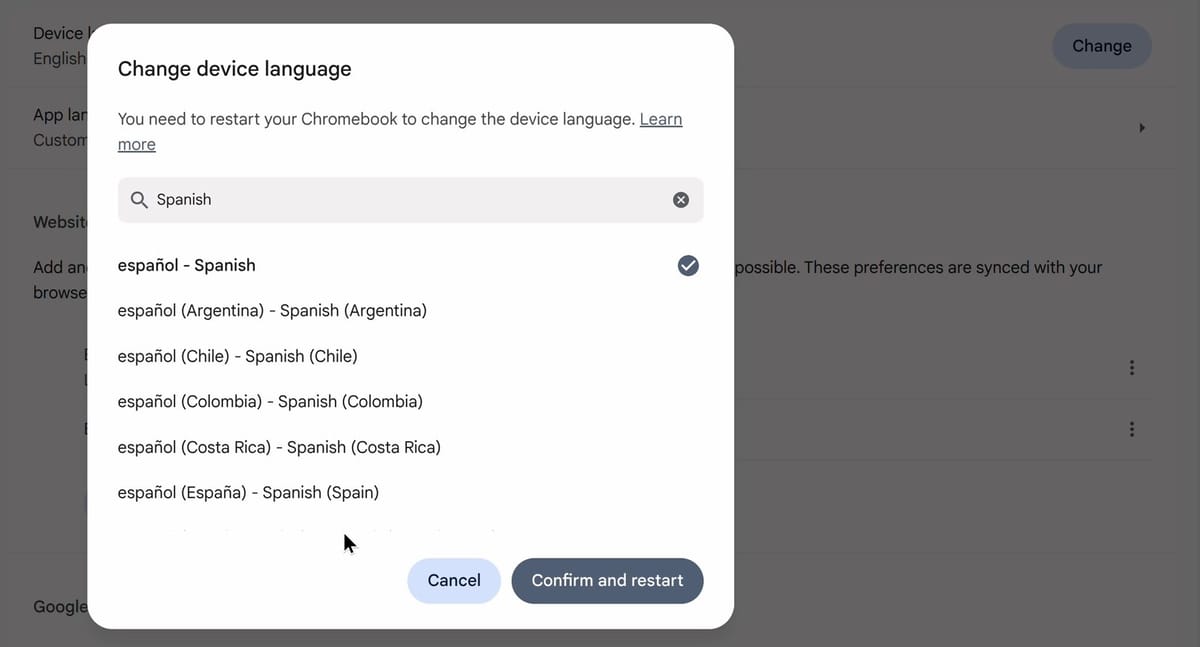
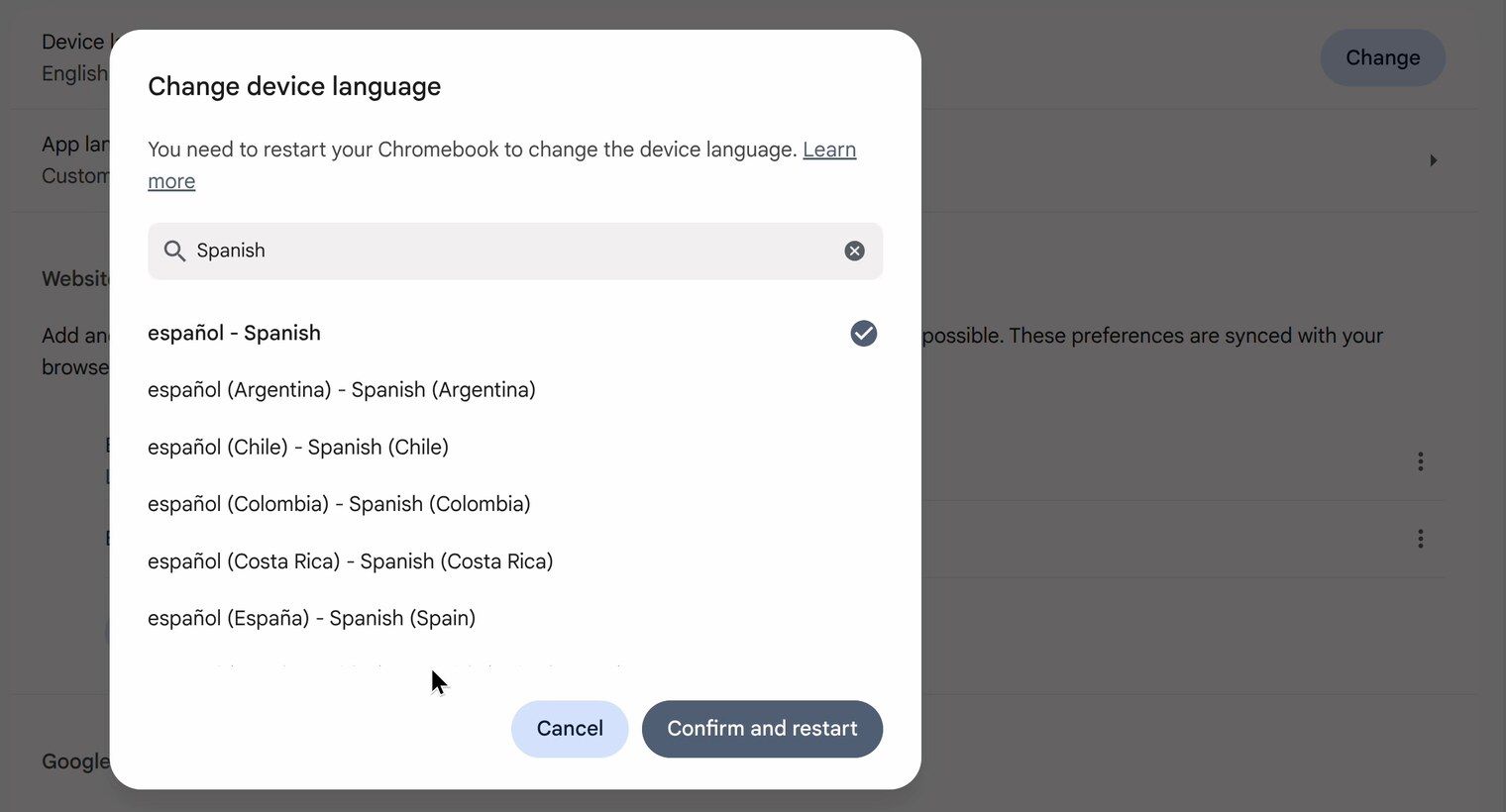
Click Confirm and restart. Despite the name, the Chromebook does not reboot: ChromeOS signs you out and returns to the sign-in screen. The sign-in screen may still be in English. Sign in again, and the shelf, Settings, and the menus all appear in Spanish. If you change your mind before you confirm, Cancel leaves everything as it was.
The same page also has an App languages row for apps that support their own language setting, and a Google Account language section. The page notes that Google sites like Gmail, Drive, and YouTube use your Google Account language unless you changed a single product’s language, so those are set separately from the device language.
Get Back to English When You Cannot Read the Menus
A Chrome address opens the Languages page directly, and Chrome addresses are the same in every language. If the screen is in a right-to-left language such as Arabic or Hebrew, the layout may be mirrored, so look on the left wherever the steps below say right.
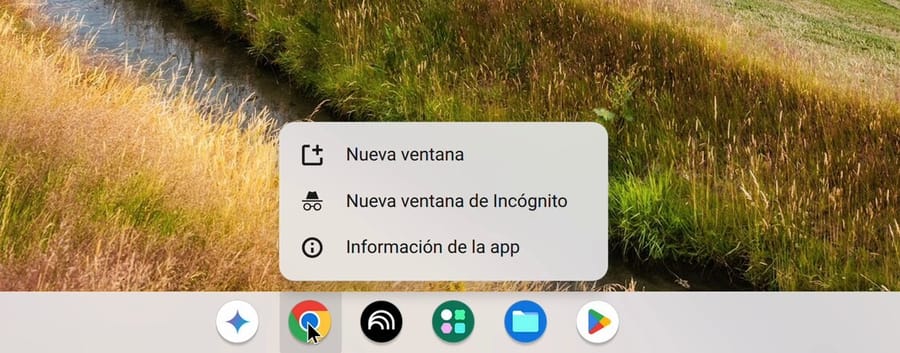
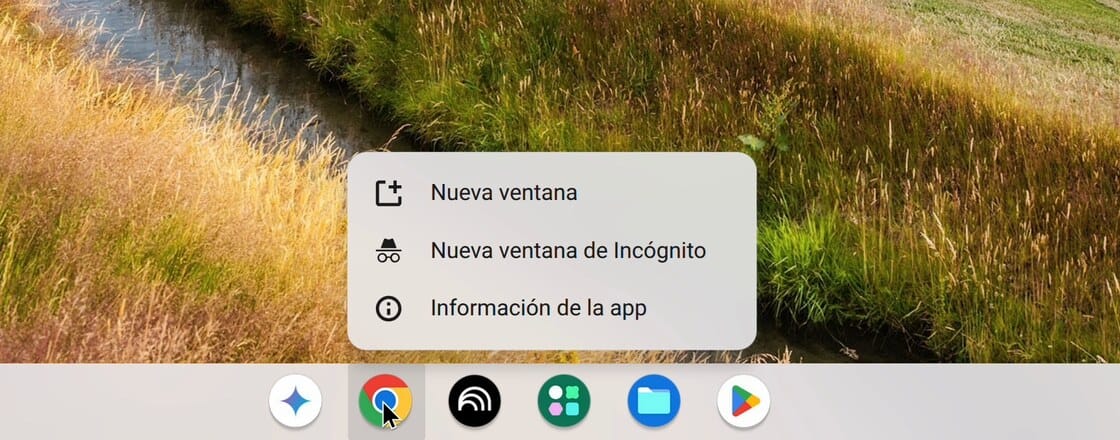
First, open a Chrome window. Right-click the Chrome icon in the shelf at the bottom of the screen and click the first item in the menu. In Spanish it reads “Nueva ventana” (New window). If a Chrome window is already in front, you can press ctrl n instead. The new window opens with the cursor already in the address bar.
Type this address exactly and press enter :
chrome://os-settings/osLanguages/languagesType osLanguages with a capital L. In all lowercase, the address opens Settings on the Network page instead. With the capital L, Settings opens straight on the Languages page, in whatever language the Chromebook is set to.
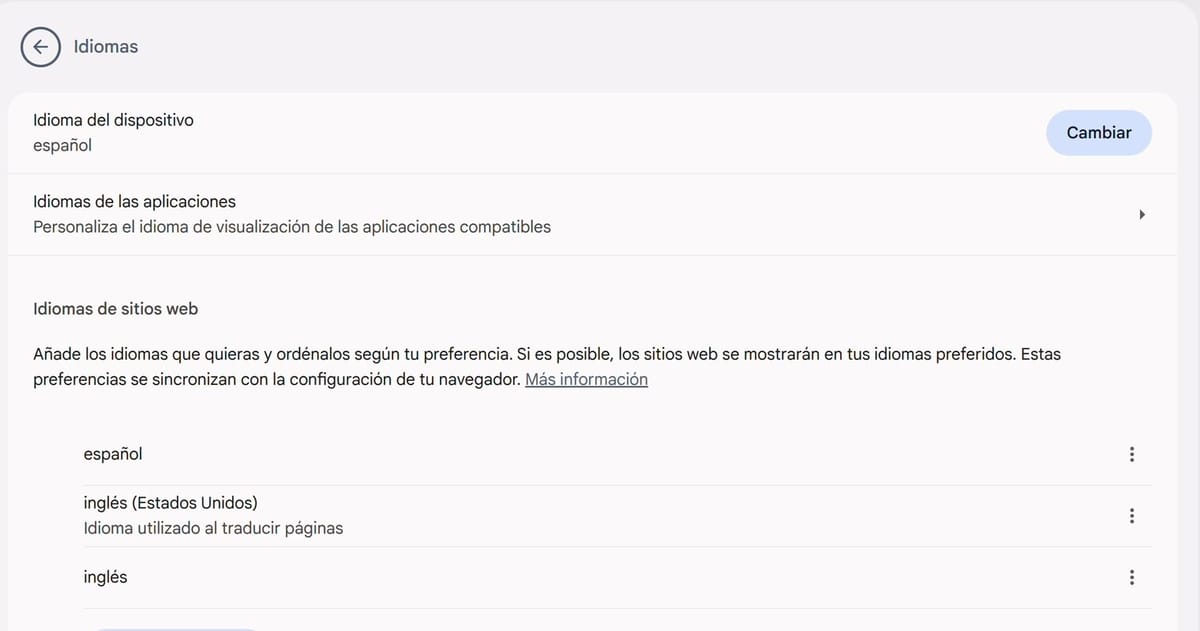
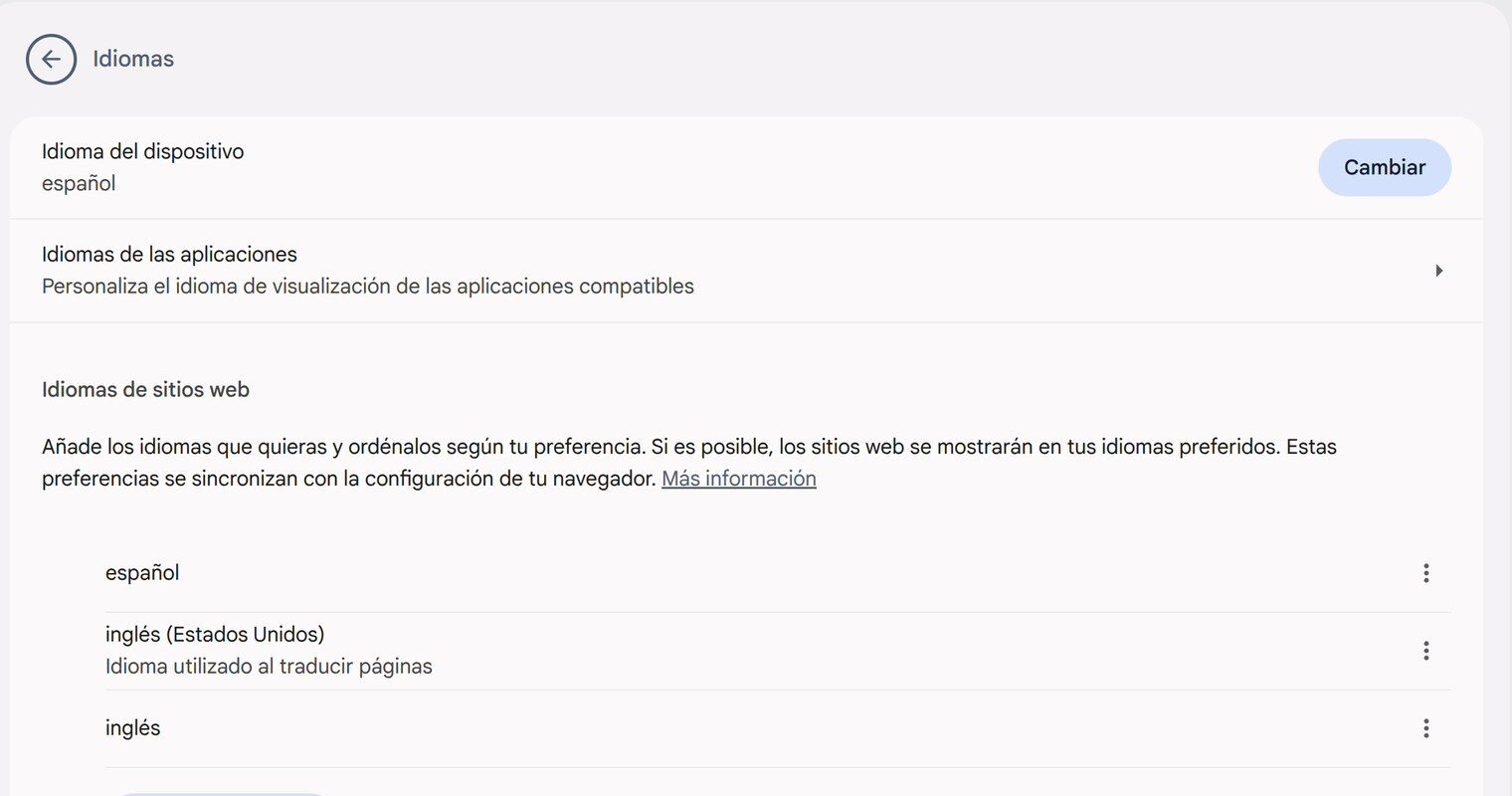
The only button in the first card, at the top right, is the same Change button as before (in Spanish it reads “Cambiar”). Click it. The search box in the dialog is active as soon as it opens, so type United States. Because each row starts with the language’s own name, the English row reads “English (United States)”. With the menus in Spanish, typing United States leaves exactly one row: English (United States) - inglés (Estados Unidos).
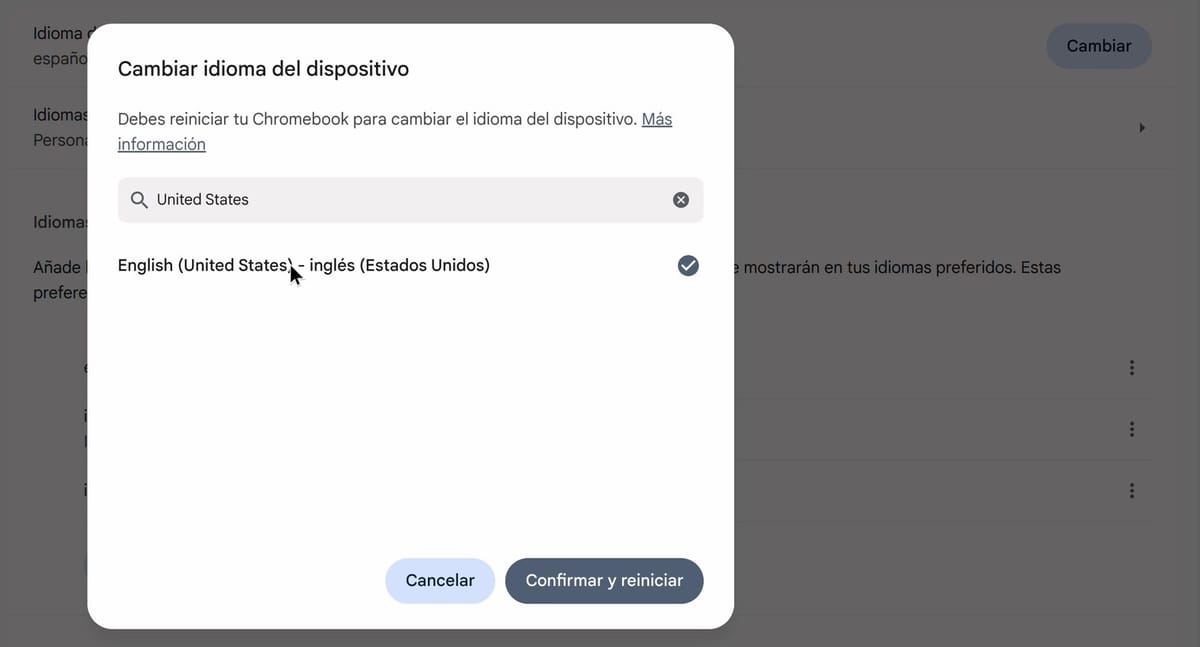
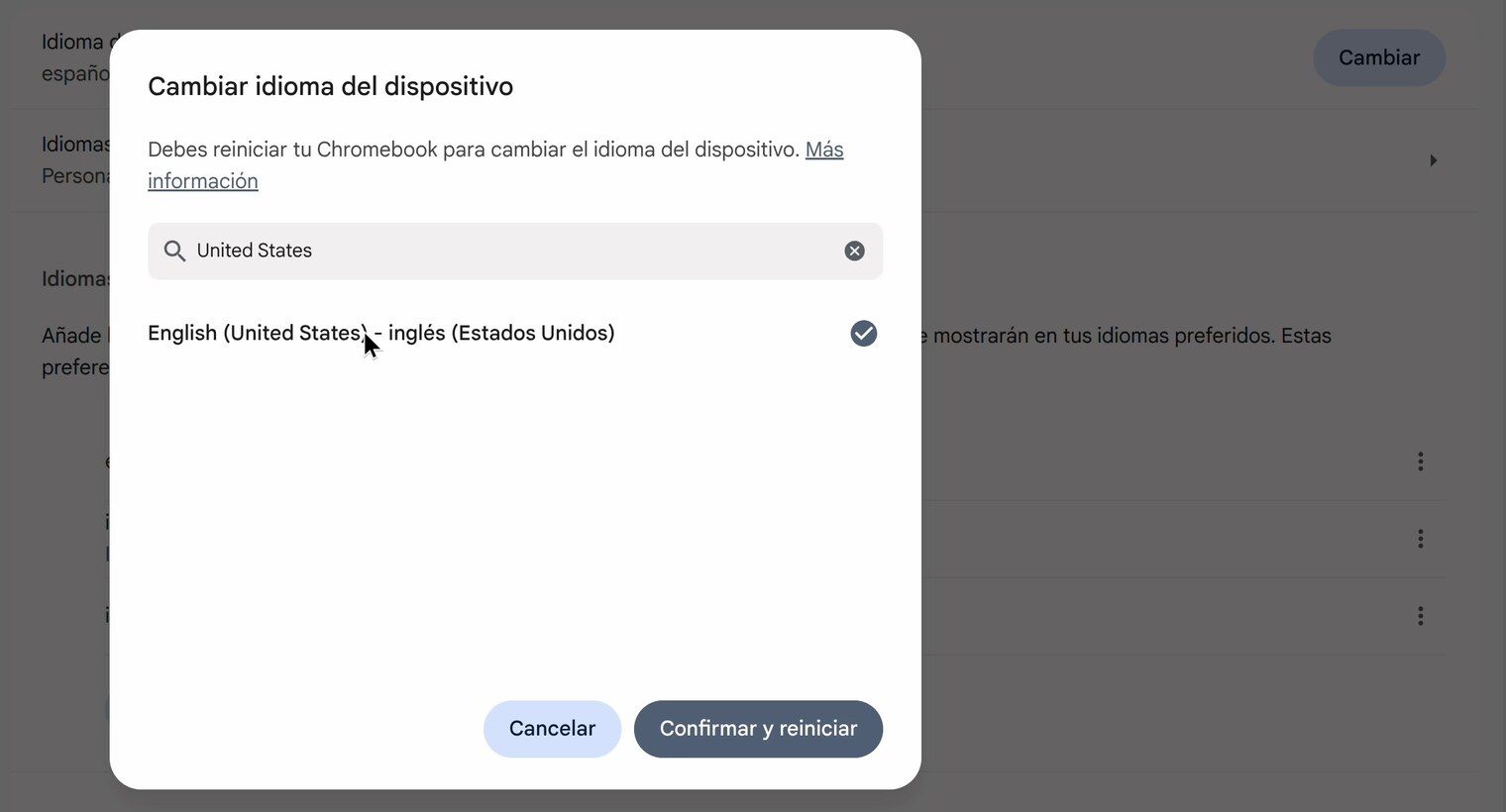
Click that row, then click the button on the right at the bottom of the dialog. That is Confirm and restart (“Confirmar y reiniciar” in Spanish); the button on the left is Cancel. ChromeOS signs you out, and after you sign back in, the menus are in English.
If the address bar types the wrong letters
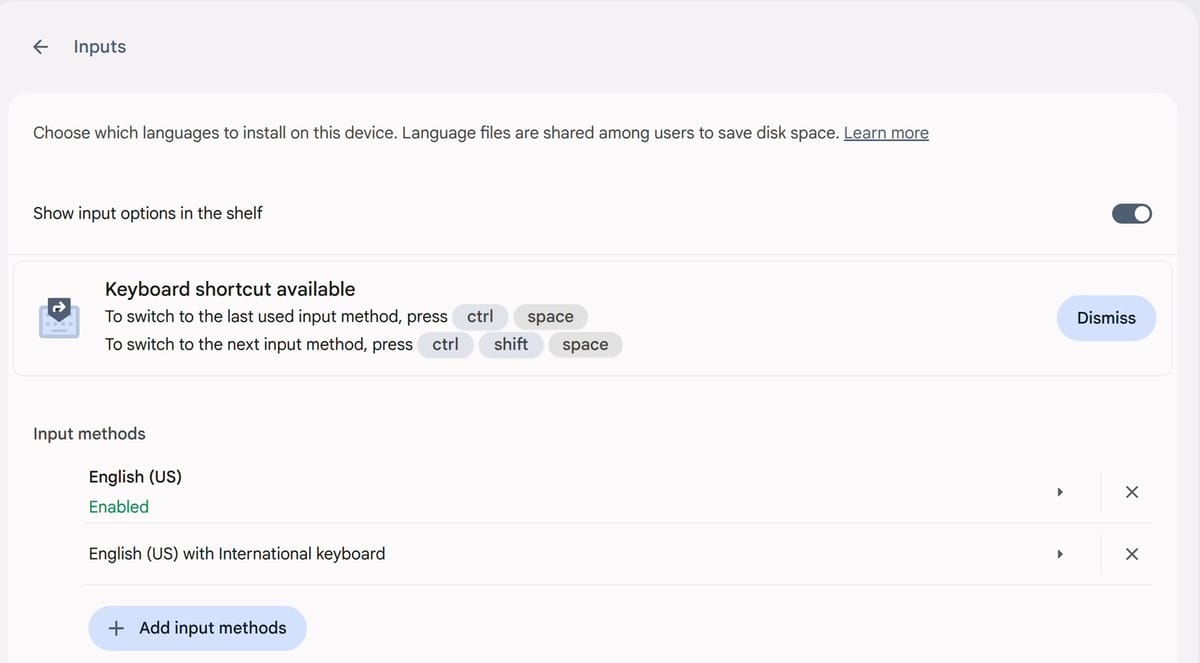
The recovery only works if your keyboard types Latin letters. Changing the display language does not change the keyboard layout, so in most cases this is not a problem. But if a non-Latin layout is active (such as a Russian or Greek keyboard), typing the address produces other characters. Press ctrl space to switch to the last layout you used, or press ctrl shift space to step through your layouts until the letters in the address bar come out right.
Add a Keyboard Layout
Keyboard layouts are under Device, not System preferences. Click the time, then the gear, and this time click Device in the sidebar. Click Keyboard and inputs; its subtitle shows the layout you are using now, such as “English (US)”. Scroll to the bottom of the page and click Input settings.
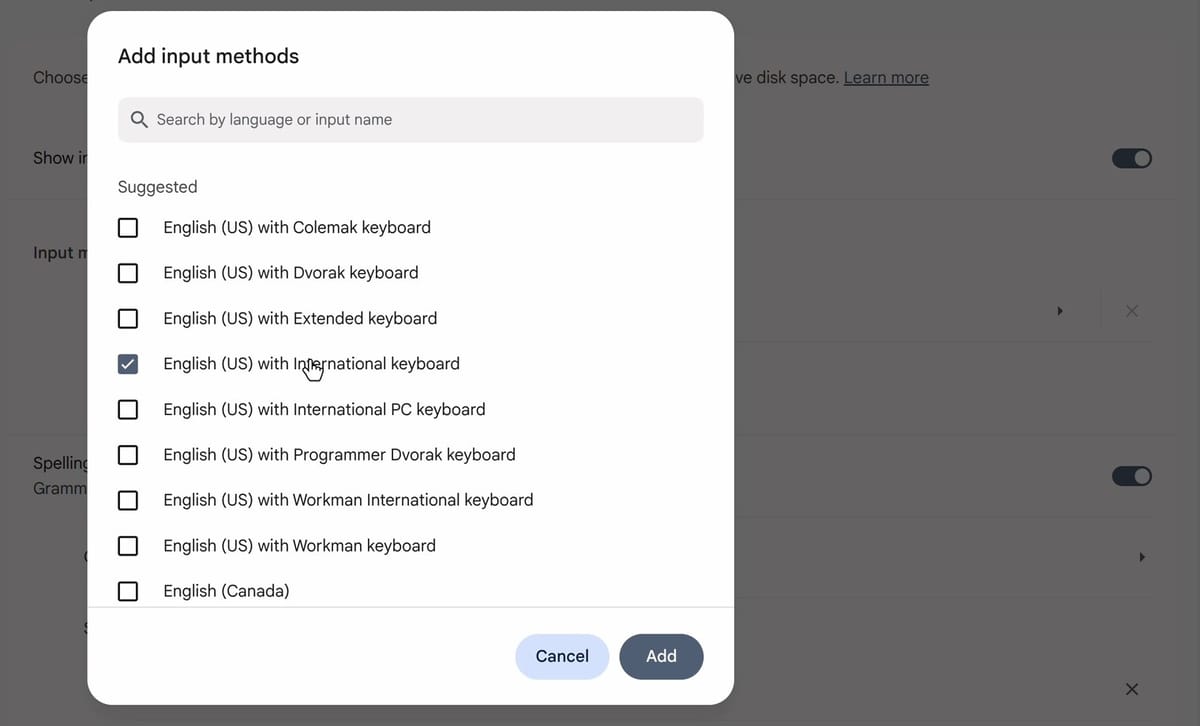
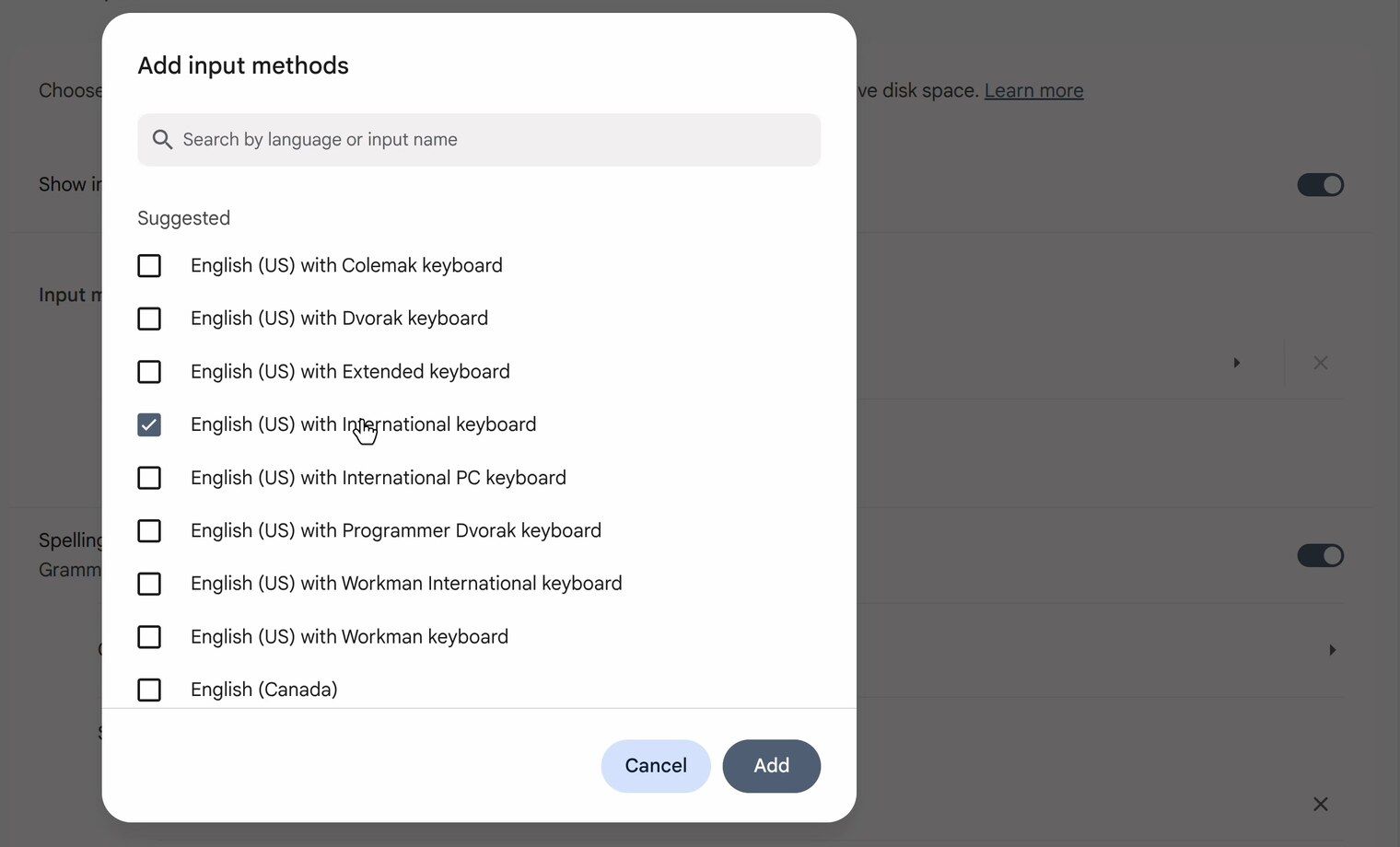
On the Inputs page, under Input methods, click Add input methods. The dialog has a search box (“Search by language or input name”) and a Suggested list. For accented letters on a US keyboard, check English (US) with International keyboard, then click Add. The new layout joins the list on the Inputs page.
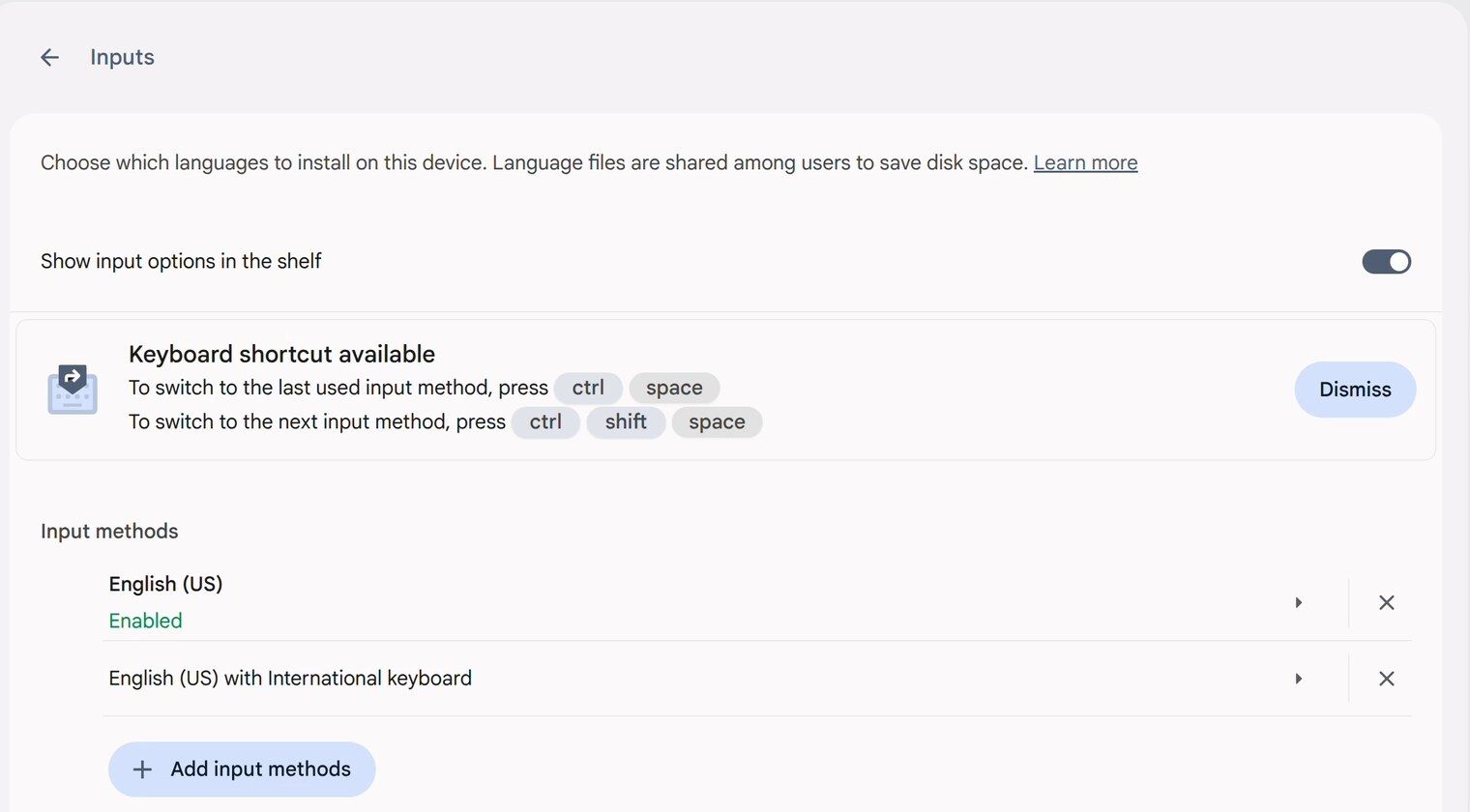
Near the top of the same page, check that Show input options in the shelf is turned on. Without it, the layout menu is gone from the shelf (only a small layout code stays in the time area), and you switch layouts with the keyboard shortcuts instead. With two or more layouts installed, the page also shows a “Keyboard shortcut available” card that lists them.
Switch Layouts and Type an Accent
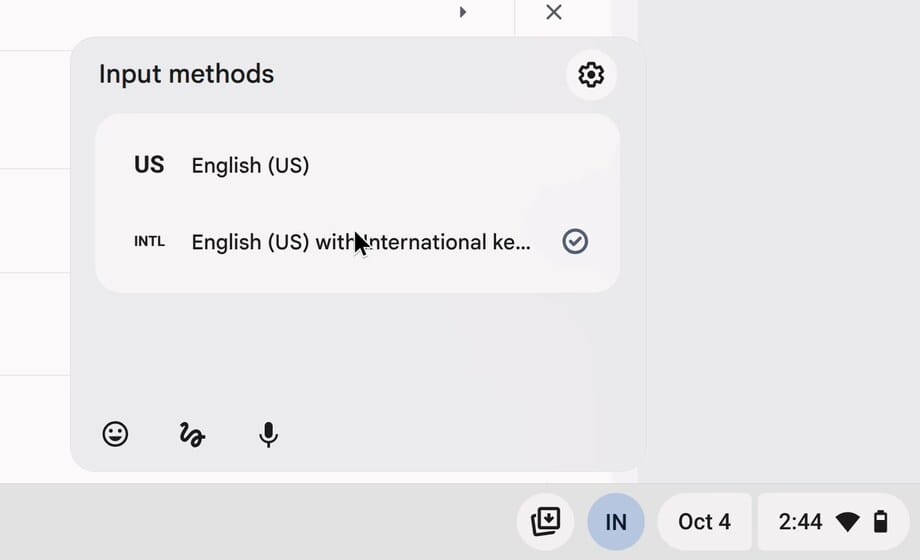
With the shelf option on, a short code next to the date shows the layout in use, such as “US”. Click it to open the Input methods menu, then click the international layout. The menu stays open after you pick, so press esc to close it. The shelf label changes to “IN”.
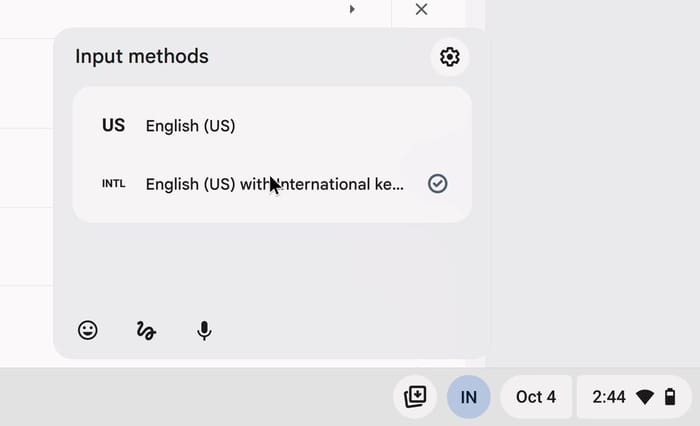
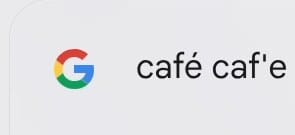
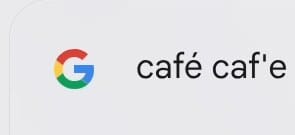
To try the layout, press the search key to open the launcher and type in its search box. Type caf, then ’ , then e . On the International layout, the apostrophe does not type anything by itself. It waits for the next key, and the apostrophe followed by E produces “é”, so you get “café”. Now press ctrl space to switch back to the last layout you used (US), type a space, and press the same keys again. This time you get a plain apostrophe and an E.
Google’s keyboard language help page lists the other accents on this layout. The backtick key followed by a letter gives a grave accent (è), shift 6 then a letter gives a circumflex (ê), and shift ’ then a letter gives an umlaut (ë). The tilde is shift plus the backtick key, then a letter (ñ).
With the International layout active, every apostrophe and quotation mark waits for the next key, which slows down typing in English. If you write mostly in English with the occasional accented word, keep US as your main layout and switch to International with ctrl space only when you need it.
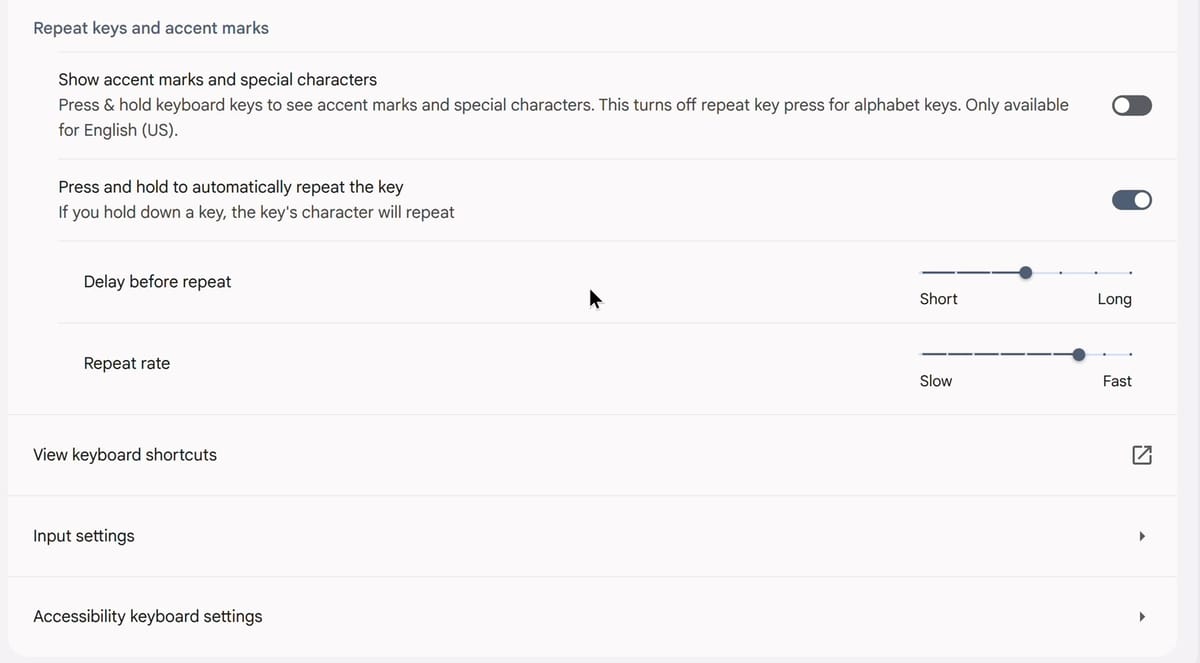
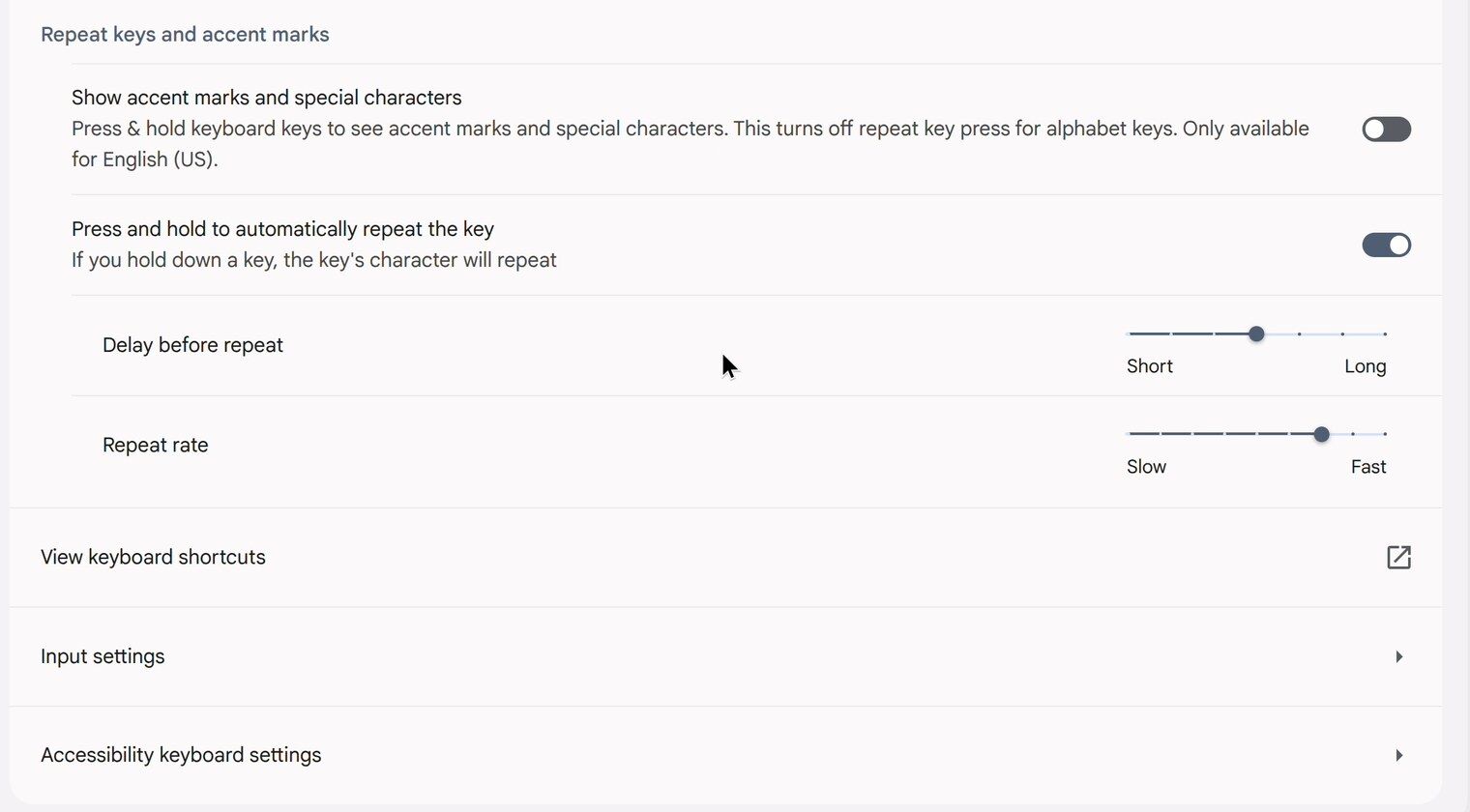
For an occasional accent, you can skip the second layout. On the Keyboard and inputs page, under “Repeat keys and accent marks”, Show accent marks and special characters lets you press and hold a letter key to pick an accented version from a menu. The setting says it works only with English (US), and it turns off key repeat for letter keys while it is on.
Remove a Keyboard Layout
Go back to the Inputs page (Settings, then Device, then Keyboard and inputs, then Input settings). Click the X at the end of the layout’s row. ChromeOS removes it at once, with no confirmation prompt. The X next to the last remaining layout is grayed out, so add the replacement first if you are swapping one layout for another. The gear icon at the top right of the shelf’s Input methods menu opens Settings directly on the Inputs page, so you can skip the trip through Device and Keyboard and inputs.
Troubleshooting
The layout button is missing from the shelf. Turn on Show input options in the shelf on the Inputs page.
Spanish (or another language) is still in Website languages. Confirm and restart adds the new language to the Website languages list on the Languages page and moves it to the top. Switching back to English moves English (United States) to the top again but does not remove the other language; after a switch to Spanish and back, the list reads English (United States), Spanish, English. Websites use that list to pick a language, so remove the extra entry: click the three-dot menu next to it and choose Remove.
The chrome://os-settings address opens the Network page. Check the capital L in osLanguages and the /languages at the end. The shorter chrome://os-settings/osLanguages also opens Settings on Network rather than on the Languages page.
Typing an apostrophe shows nothing. The International layout is active, and the apostrophe is waiting for the next key. Check the shelf label, and press ctrl space to switch back to US.
Related Guides
Keep the chrome://os-settings/osLanguages/languages address somewhere you can find it, and you can switch back to English even when you cannot read the menus. For more ways to get around ChromeOS from the keyboard, see our list of Chromebook keyboard shortcuts. If you are thinking about an external keyboard with a different physical layout, our page on keyboards for Chromebooks covers the options. And if you also need captures for a document or a support request, see how to take screenshots on a Chromebook.


