

Every few weeks, someone on r/chromeos asks the same question: can I dock a 2-in-1 Chromebook to a monitor, pair a Bluetooth keyboard and mouse, close the lid, and use it as my desktop? The answer has been yes for years, but the follow-up question is the interesting one. If the same $400 device works at your desk and in your hands as a tablet, do you still need to buy a laptop and a tablet separately?
Chrome Unboxed recently reviewed the Lenovo Chromebook Plus 2-in-1 and called it “pretty great in a vacuum,” praising its build quality and port selection while noting the Intel Core 3 N355 processor is merely adequate. That “in a vacuum” framing matters here, because the vacuum disappears when you add a monitor and a keyboard. The 2-in-1’s HDMI port, dual USB-C with DisplayPort, and microSD slot suddenly become its strongest argument: this is the Chromebook you do not need a dock for.
ChromeOS Dock Mode: Simpler Than You Think
The biggest surprise for buyers considering a docked Chromebook is how little setup it requires. Connect an external monitor via HDMI or USB-C, close the lid, and ChromeOS automatically disables the internal display and routes everything to the external screen. The default behavior requires no configuration. Reddit user u/0ffCloud explained it plainly: “Once it switched on, you can use the laptop with the lid closed, no setting required, it is called ‘dock mode.’”
This is not a new trick, either. u/MathematicianSlow648 reports using “various Chromebooks this way for years in conjunction with a Logitech Bluetooth keyboard and mouse,” adding a docking station with an external SSD for local backups. And the performance holds up under real workloads: u/chippysteve documented a full day of heavy browser-based work on a Lenovo Duet 3 Gen 9 docked to a 4K external monitor, juggling 20 to 30 tabs alongside Google Sheets and SaaS tools. He reported no productivity drop compared to the Core i5 Chromebook he usually works on and said the Duet “did exceptionally well,” with the only caveat that he could feel it “wasn’t quite keeping up” with him during the busiest stretches.
One practical consideration worth knowing: if your monitor supports USB-C power delivery, a single cable handles both the display connection and charging. If you are using HDMI instead, you will need a separate cable for power. Either way, a USB hub or Bluetooth peripherals round out the setup, and the total accessory cost runs between $30 for a basic USB-C hub and $80 for a name-brand dock.
What Makes a Good Desk Chromebook
Not every 2-in-1 Chromebook works equally well at a desk. The ports matter more than the processor when you are plugging into a fixed setup, because the right port selection means zero adapters and zero frustration. Here is what to look for.
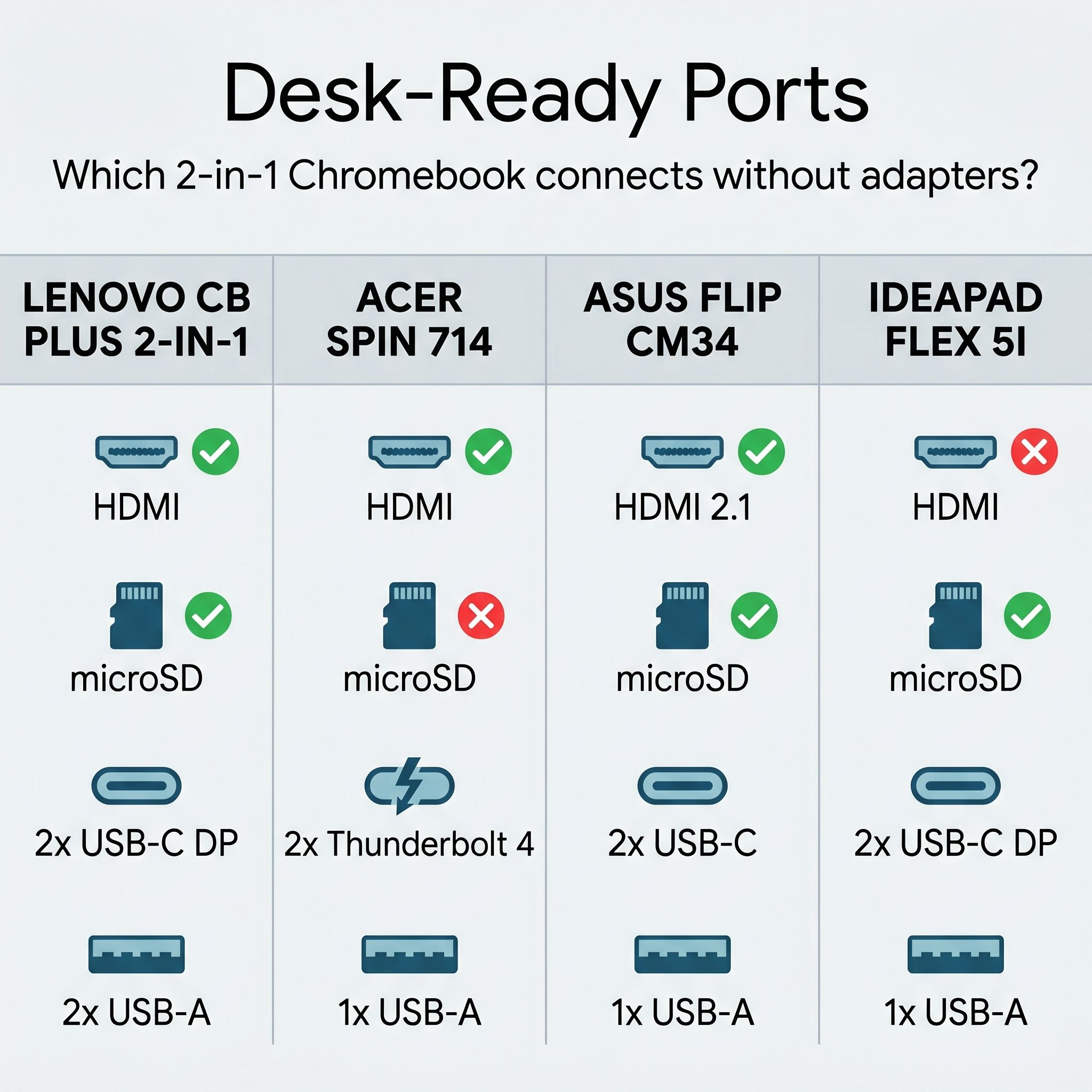
HDMI output lets you connect any monitor directly. Without it, you need a USB-C to HDMI adapter or a dock, which adds cost and a potential failure point. USB-C with DisplayPort is the higher-quality option for 4K monitors, and it can carry power and data simultaneously. A USB-A port matters if your keyboard or mouse uses a USB dongle rather than Bluetooth. A microSD slot adds cheap storage expansion for a Chromebook that ships with only 128GB.
| Feature | Lenovo CB Plus 2-in-1 | Acer Spin 714 | ASUS Flip CM34 | IdeaPad Flex 5i |
|---|---|---|---|---|
| HDMI | Yes (1.4b) | Yes (2.0) | Yes (2.1) | No |
| USB-C (display) | 2x DP 1.4 | 2x Thunderbolt 4 | 2x DP | 2x DP 1.4 |
| USB-A | 2 | 1 | 1 | 1 |
| microSD | Yes | No | Yes | Yes |
| Weight | 3.48 lbs | 3.21 lbs | 4.08 lbs | 3.48 lbs |
| Battery | 10h / 51Wh | 10h | 13h / 63Wh | 10h |
| Processor | Core 3 N355 | Core Ultra 5 115U | Ryzen 3 7320C | Core i3-1315U |
| AUE | June 2035 | June 2034 | June 2033 | June 2032 |
The Lenovo Chromebook Plus 2-in-1 stands out here because it is the only sub-$500 convertible that ships with HDMI, microSD, and dual USB-C DisplayPort without requiring Thunderbolt pricing. The Acer Spin 714 offers Thunderbolt 4 for single-cable docking to a Thunderbolt monitor, but it lacks a microSD slot and lists at $699 (with street prices that have drifted up to around $799 at some retailers). The ASUS Flip CM34 matches the Lenovo on ports and adds HDMI 2.1, but it weighs over four pounds, making it better suited to staying on the desk than moving between rooms. The IdeaPad Flex 5i is the cheapest option but lacks HDMI entirely, which means you start with an adapter purchase.
One note about the Lenovo’s HDMI 1.4b port: it maxes out at 4K/30Hz. If you are connecting a 4K monitor, you will want to use one of the USB-C ports with DisplayPort 1.4 instead, which handles 4K/60Hz comfortably. At 1080p or 1440p, the HDMI port works perfectly, and many buyers in this price range are connecting to an older 1080p monitor anyway.
The Four Convertibles, Matched to Your Desk
Best Value for a Desk Setup: Lenovo Chromebook Plus 2-in-1 14
Lenovo Chromebook Plus 2-in-1 14
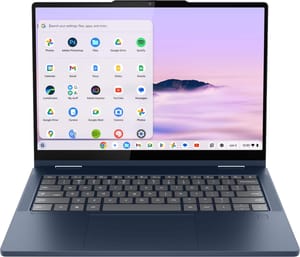
- ✓HDMI + microSD + 2x USB-C DP + 2x USB-A
- ✓MIL-STD-810H build
- ✓$429 sale price
- ✓AUE June 2035
- ✗Core 3 N355 is modest for heavy multitasking
- ✗128GB UFS storage
- ✗8GB RAM soldered
The Lenovo Chromebook Plus 2-in-1 drops to $429 periodically at Best Buy, $150 off the $579 MSRP. At that price, you get the MIL-STD-810H aluminum chassis, the 14-inch WUXGA touchscreen, and that port selection. The Intel Core 3 N355 is not going to win benchmark competitions, but for the web-browsing, Google Workspace, and streaming workloads that define desktop Chromebook use, it handles itself without complaint. Chrome Unboxed’s Robby Payne described it as “fine” for standard multitasking and the built-in Google AI features, while calling out the N355 as “a pretty big downgrade” from MediaTek’s faster Kompanio Ultra in the company’s other Chromebook Plus 14, a plainspoken framing that lands the same way for desk work: the processor is the floor, the rest of the machine is the ceiling.
The 2035 auto-update expiration date is worth noting here. This device will receive ChromeOS security updates for nearly a decade, the longest runway on this list. If you are building a desk setup you want to keep for years, that longevity matters more than a slightly faster processor that loses support sooner. Buyers thinking about how Aluminium OS fits into this timeline will find our Aluminium OS compatibility guide useful context for the years ahead.
Premium Desk Option: Acer Chromebook Plus Spin 714
Acer Chromebook Plus Spin 714
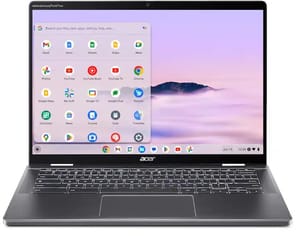
- ✓Thunderbolt 4 for single-cable docking
- ✓Core Ultra 5 115U
- ✓garaged stylus
- ✓1440p webcam
- ✗No microSD slot
- ✗both USB-C ports on same side
- ✗$699 list (often $799 at street)
The Acer Chromebook Plus Spin 714 is the pick when your desk monitor has USB-C or Thunderbolt input. One cable replaces the HDMI cord, the power adapter, and the USB hub. The Intel Core Ultra 5 115U processor is the most powerful on this list, and the garaged USI stylus makes tablet mode useful for note-taking or annotation. The trade-off for desk use is that both Thunderbolt ports sit on the left side, which limits cable routing options, and the absence of a microSD slot means 256GB of NVMe storage is what you get. The list price is $699, though street prices have drifted up to $799 at some retailers, and sale prices have hit a new all-time low of $499 at points in 2026, sometimes narrowing the gap to the Lenovo to the point where the premium processor and Thunderbolt ports come nearly free.
Battery Champion: ASUS Chromebook Plus CM34 Flip
ASUS Chromebook Plus CM34 Flip (CM3401)
- ✓13-hour battery
- ✓HDMI 2.1
- ✓upgradeable M.2 SSD
- ✓garaged stylus
- ✓fingerprint reader
- ✗4.08 lbs makes tablet mode tiring
- ✗Ryzen 3 is the slowest processor here
- ✗fan noise under load
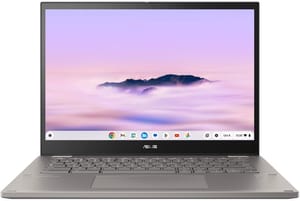
The ASUS Chromebook Plus CM34 Flip has the best HDMI port on this list: HDMI 2.1 drives 4K monitors at 60Hz without needing USB-C, which is a genuine advantage if your monitor only has HDMI input. The 63Wh battery delivers around 13 hours of use, the longest here by a wide margin, which means you can undock in the morning, work all day on battery, and dock again in the evening without ever reaching for the charger. The user-replaceable M.2 SSD is a rarity that lets you upgrade storage down the road, and a fingerprint reader adds biometric convenience for fast logins at the desk.
At 4.08 pounds, this is the heaviest convertible on the list, and tablet mode feels more like holding a textbook than an iPad. If you plan to use it primarily at a desk and only occasionally as a tablet, the weight is less of an issue. If you want a real tablet experience in the evenings, one of the lighter options serves that role better.
Budget Entry: Lenovo IdeaPad Flex 5i Chromebook Plus
Lenovo IdeaPad Flex 5i Chromebook Plus
- ✓Lowest price
- ✓Core i3-1315U is fast for its class
- ✓good keyboard
- ✓Chromebook Plus certified
- ✗No HDMI port
- ✗eMMC storage is slower than SSD
- ✗AUE June 2032 is shortest here
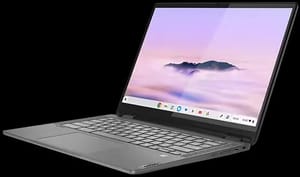
The Lenovo IdeaPad Flex 5i earns its spot as the budget entry because it regularly goes on sale well below its $499 list price. The Intel Core i3-1315U is actually the second-fastest processor on this list by PassMark score, which makes it feel snappier than the Lenovo CB Plus 2-in-1 in daily use. The keyboard is excellent for its price class, and the 16:10 display provides comfortable reading proportions.
The missing HDMI port is the primary desk-setup penalty. You will need a USB-C to HDMI adapter or a USB-C hub, adding $15 to $40 to the total cost. The 128GB eMMC storage is also noticeably slower than the NVMe SSDs in the Acer and ASUS options, though for web-based work the difference rarely surfaces. The June 2032 auto-update expiration is the shortest on this list, giving you about six years of support rather than the Lenovo CB Plus 2-in-1’s nine.
The Math: One Device or Two?
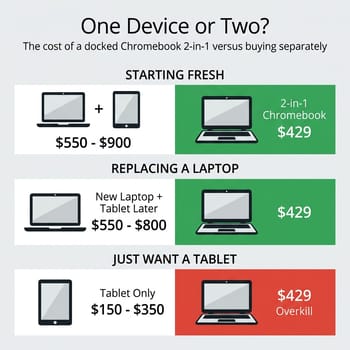
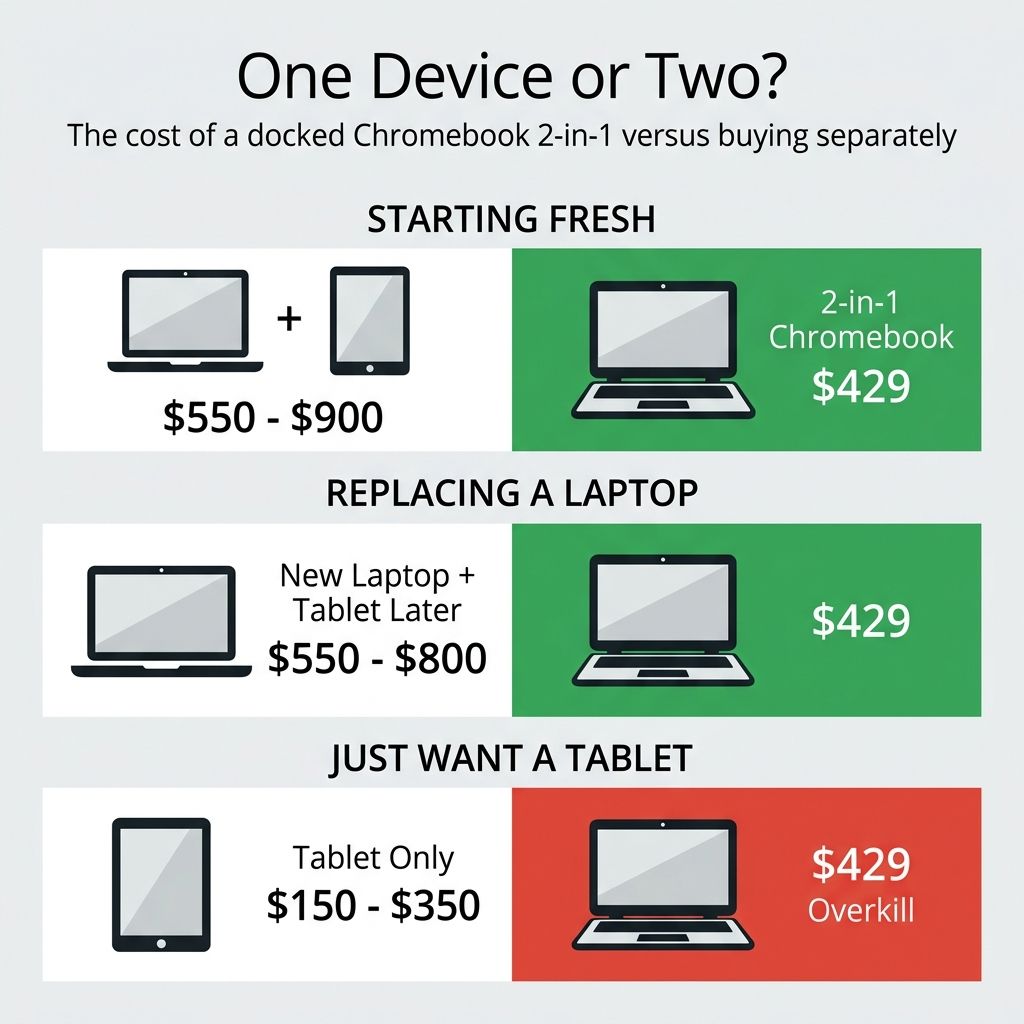
The economics of this decision depend on where you are starting from. The gap between “this saves me hundreds” and “this is overkill” comes down to how many devices the 2-in-1 actually replaces in your life. Three scenarios lay out the spectrum.
Starting from scratch. You need a computer and want a tablet too. A separate Chromebook clamshell runs $400 to $600, and a decent Android tablet adds $150 to $300. Total: $550 to $900 for two devices, two chargers, and two update timelines to track. A Chromebook Plus 2-in-1 at $429 collapses that into one purchase, one charger, and one auto-update date. This is where the math is most compelling, and if you already own a monitor, you skip the desktop purchase entirely.
Replacing an aging laptop. Your current machine is slowing down and you have been thinking about adding a tablet. A convertible lets you replace the laptop and gain tablet functionality without a second purchase, and that tablet side only gets stronger as native Android apps take over from today’s container setup on the next-generation platform. The standalone alternative is buying a new laptop ($400 to $600 for a comparable Chromebook clamshell) and adding a tablet later ($150 to $200 for an entry Android slate), so $550 to $800 in total versus $429 for the 2-in-1. The savings are real but smaller than the from-scratch case, because the tablet was a nice-to-have rather than a planned expense. Still, the consolidation has value beyond the dollar amount: one device to charge, one device to back up, one auto-update timeline to track. If your aging laptop is a Windows machine, the switch to ChromeOS also eliminates the overhead of antivirus software, driver updates, and the biannual Windows feature update that slows everything down for a week.
You already have a working laptop and want a tablet. This is where the 2-in-1 argument weakens. A $150 Galaxy Tab A9 Plus or a $349 iPad is a better pure tablet than any 14-inch Chromebook will ever be in your hands. If your laptop works fine and you just want a couch device, buy the dedicated tablet. The convertible form factor is a compromise that only pays off when it replaces multiple devices.
The docked-desktop angle shifts the first two scenarios further in the 2-in-1’s favor. If you already own a monitor, you are not buying a desktop either. The convertible becomes your desktop, your laptop, and your tablet-or-Chromebook question answered in a single purchase, a proposition no clamshell Chromebook can match.
What the Docked Setup Will Not Do
Honesty matters in a buyer’s guide. A docked Chromebook Plus 2-in-1 handles web browsing, Google Workspace, streaming, video calls, and light Linux development without breaking a sweat. It will not handle photo editing in Lightroom, video editing beyond simple cuts in an Android app, or serious local AI workloads. If those are your requirements, you are shopping for a mini PC or a traditional desktop, not a Chromebook.
The tablet experience on a 3.5-pound, 14-inch convertible is also a compromise. It works for reading on the couch, following a recipe in the kitchen, and sketching notes with a stylus. It does not feel like holding an iPad. The detachable form factor (the Lenovo Chromebook Duet, for example) is better as a handheld tablet, though it sacrifices the keyboard quality and port selection that make the desk setup work. If a true Chromebook Plus detachable interests you, Lenovo’s upcoming Sapphire project is the first device in that category to watch. Your tolerance for holding a 14-inch screen determines whether the convertible replaces your tablet or just supplements it.
Where this setup shines is for the buyer whose computing life fits inside a browser. Students writing papers in Google Docs, remote workers living in Slack and Sheets, retirees who browse, email, and video-call their grandchildren: these are the people who will dock a Chromebook Plus 2-in-1 to a monitor and never miss the Windows machine they retired. Freelancers and small-business owners who run their operations through web apps like QuickBooks Online, Canva, and Trello fit the profile equally well. The common thread is that their most demanding application is Chrome itself, and ChromeOS is built from the ground up to run Chrome extremely well. If you are still working out whether ChromeOS fits your life before committing to a convertible, our 2026 Chromebook buyer’s decision guide covers the broader platform comparison.
Port Selection Wins at the Desk
The Chromebook comparison chart can help you compare specs across the full lineup, but for the specific question of docking a 2-in-1 to a monitor and using it as a desktop, the answer comes down to ports. The Lenovo Chromebook Plus 2-in-1 wins on value because its HDMI, microSD, and dual USB-C combination means you plug in and start working. No adapters, no docks, no fuss. At $429 on sale, the economic argument for collapsing three devices into one is hard to argue with.
If you want the premium version of this setup, the Acer Spin 714 with Thunderbolt 4 gives you single-cable elegance and a faster processor. If you need marathon battery life and upgradeable storage, the ASUS Flip CM34 has no peer on either count. The Pixelbook Replacement Guide covers the premium clamshell side of the Chromebook market if you decide the convertible form factor is not for you.
What none of the tier-1 reviewers are writing about yet is the part that Reddit already figured out: the 2-in-1 is not just a Chromebook with a hinge. Docked to a monitor with a keyboard and mouse, it is the cheapest all-in-one computing setup you can build in 2026. The Chrome Unboxed review called this device “pretty great in a vacuum.” Take it out of the vacuum, put it on a desk, and it is pretty great, period.


