

Listen to this article:
Somewhere in your home there’s a drawer with an old Chromebook in it. Maybe it’s an Acer C720 from 2014, or a Samsung Chromebook 3 that served your kid through middle school, or one of the millions of devices that schools purchased during the pandemic and quietly decommissioned when the Auto Update Expiration date arrived. The screen, keyboard, and battery still work. Google just decided it was finished receiving security updates, and that was that. What Chromebooks can’t do as consumer devices stops mattering once one is a server.
Recycling is better than a landfill. A third option is to turn that expired Chromebook into a home server. It won’t be powerful, and it won’t replace dedicated hardware, but a free, silent server that sips power from the wall can handle useful tasks around your house. One hobbyist even built a four-node Beowulf cluster from discarded Dell Chromebook 11s, stripping them to bare motherboards and networking them with Open MPI. You probably don’t need to go that far, but these devices have more life in them than Google’s update calendar suggests.
One Less Chromebook in the Waste Stream
We’ve written extensively about the Chromebook e-waste crisis and the waves of pandemic-era devices hitting their expiration dates in 2025 and 2026. PIRG estimated that doubling the lifespan of just the Chromebooks sold during 2020 could cut emissions equivalent to taking 900,000 cars off the road for a year, and only a third of Chromebook e-waste gets properly recycled. Google extended update support to ten years for devices released from 2021 onward, which was a meaningful step, but it did nothing for the millions of older machines that were already ticking toward expiration.
Repurposing an expired Chromebook as a server takes a device that was heading for the waste stream and puts it back to work. The hardware hasn’t gotten slower. The processor is the same chip it was the day you bought it. Google just stopped sending it software updates, and for a device running its own Linux installation behind your home firewall, that particular problem disappears entirely.
Check Your Old Chromebook’s Processor and Board Name
The single most important factor is whether the Chromebook has an x86 (Intel or AMD) processor or an ARM processor. The vast majority of Chromebooks that work well for this project use Intel Celeron, Pentium, or Core processors. ARM-based Chromebooks using MediaTek or Rockchip chips are more limited. The firmware flashing tools that make this process straightforward don’t support most ARM models, and even when you can install Linux on them, software compatibility is narrower and community support is thinner.
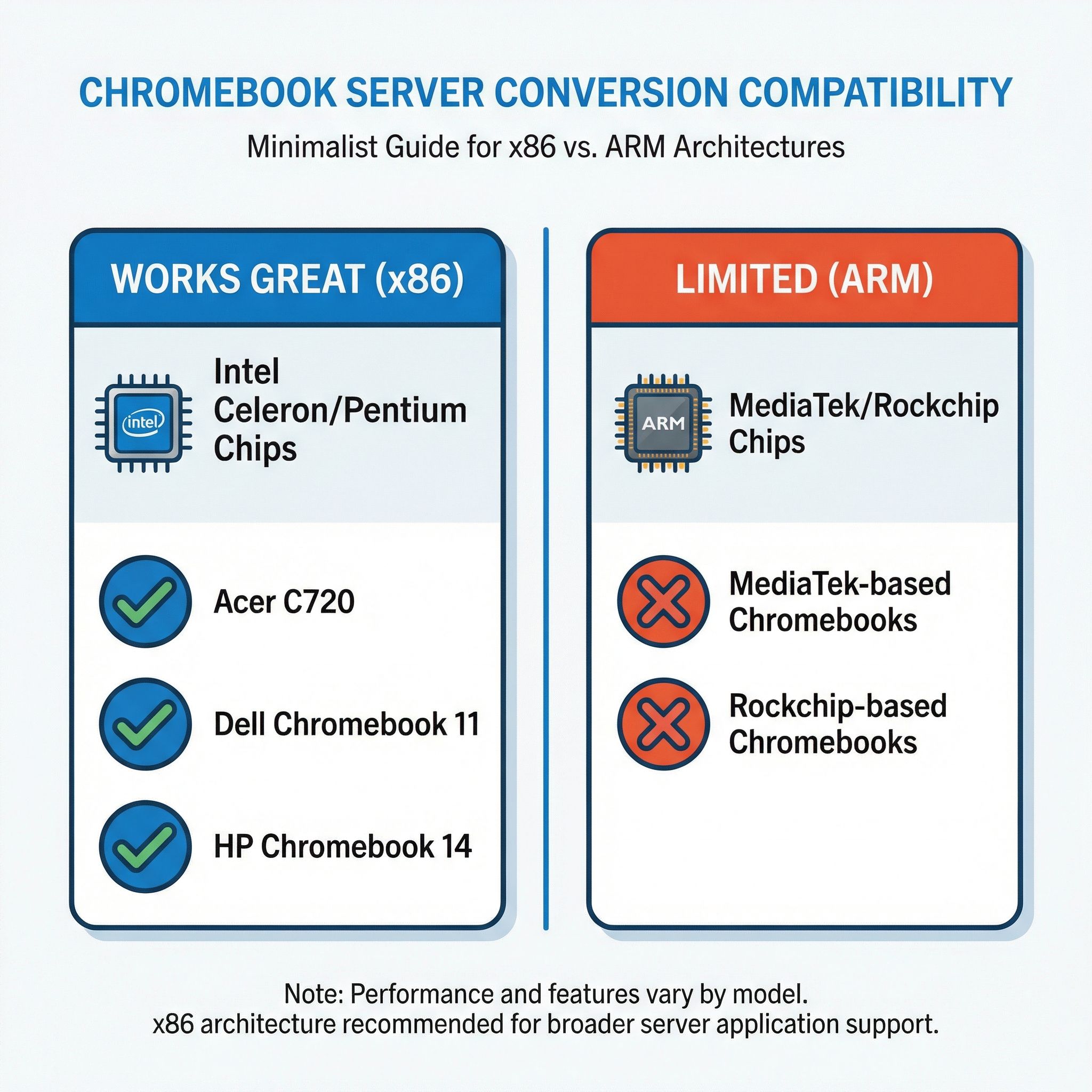
The best way to check is to visit the MrChromebox supported devices page and search for your Chromebook’s board name. You can find your board name by typing chrome://version into your Chromebook’s address bar and looking for the “Platform” line. If your device appears in the list with UEFI Full ROM support, you’re in good shape. If it’s not listed, your options narrow considerably. Popular models that work well include the Acer C720 and C740 series, Dell Chromebook 11, HP Chromebook 14 G4 and G5, Lenovo N21 and N22, and the Samsung Chromebook 3. These are all Intel-based machines that were sold in enormous volumes to schools, which means they’re cheap and plentiful on the used market if you don’t already have one sitting around.
RAM, Storage, and Ethernet Minimums
You want at least 4GB of RAM, though 2GB can work for very lightweight setups. A server stays plugged in, so a tired battery matters less here than it would on a daily driver; if you are deciding between this project and a fresh purchase, our look at battery replacement versus buying new covers the tradeoff.
Storage is less critical because you can attach external USB drives, but having at least 16GB of internal storage gives you room for the operating system and essential services. Ethernet is more stable for a server but most Chromebooks only have Wi-Fi. A USB Ethernet adapter solves this for about ten dollars and is worth the investment if you plan to run DNS services or anything that benefits from a stable wired connection.
Flash UEFI Firmware with MrChromebox, Then Install Linux
Out of the box, ChromeOS isn’t a server operating system. It isn’t designed for persistent background services. The transformation happens when you replace the firmware entirely and install Linux. This is where MrChromebox’s firmware utility comes in. It’s a community project that provides custom firmware, built on coreboot, for ChromeOS devices.
The process involves three main steps. First, you enable Developer Mode on the Chromebook, which is a built-in ChromeOS feature that gives you access to a developer shell. Second, you disable the hardware write-protect, which on older Chromebooks means opening the case and removing a specific screw. On newer models, this can sometimes be done through software commands. Third, you run the MrChromebox firmware utility script, which flashes full UEFI firmware to the device.
Flashing UEFI Full ROM firmware is a one-way door. Once it’s done, ChromeOS is gone. The device will boot like any standard PC, which is exactly what you want for a server, but there’s a small risk of bricking the hardware if something goes wrong during the flash. Recovery from a bad flash requires specialized hardware like a CH341A programmer, which most people don’t have lying around. That said, the risk calculus is different with a device that was otherwise heading to a recycling bin. If the worst happens and you end up with a paperweight, you’ve lost nothing you weren’t already planning to discard. Just make sure the Chromebook is plugged in and don’t interrupt the flashing process.
Once the firmware is flashed, you can boot from a USB drive and install any standard Linux distribution. Ubuntu Server works for beginners because of its extensive documentation and large community. Debian is lighter and arguably more appropriate for a device with limited resources. If you have Linux experience and prefer minimal overhead, Arch or Alpine Linux will leave more RAM and storage for your actual services. Avoid distributions that include heavy desktop environments; a server doesn’t need a graphical interface.
Lightweight Services That Run Well on a Chromebook Server
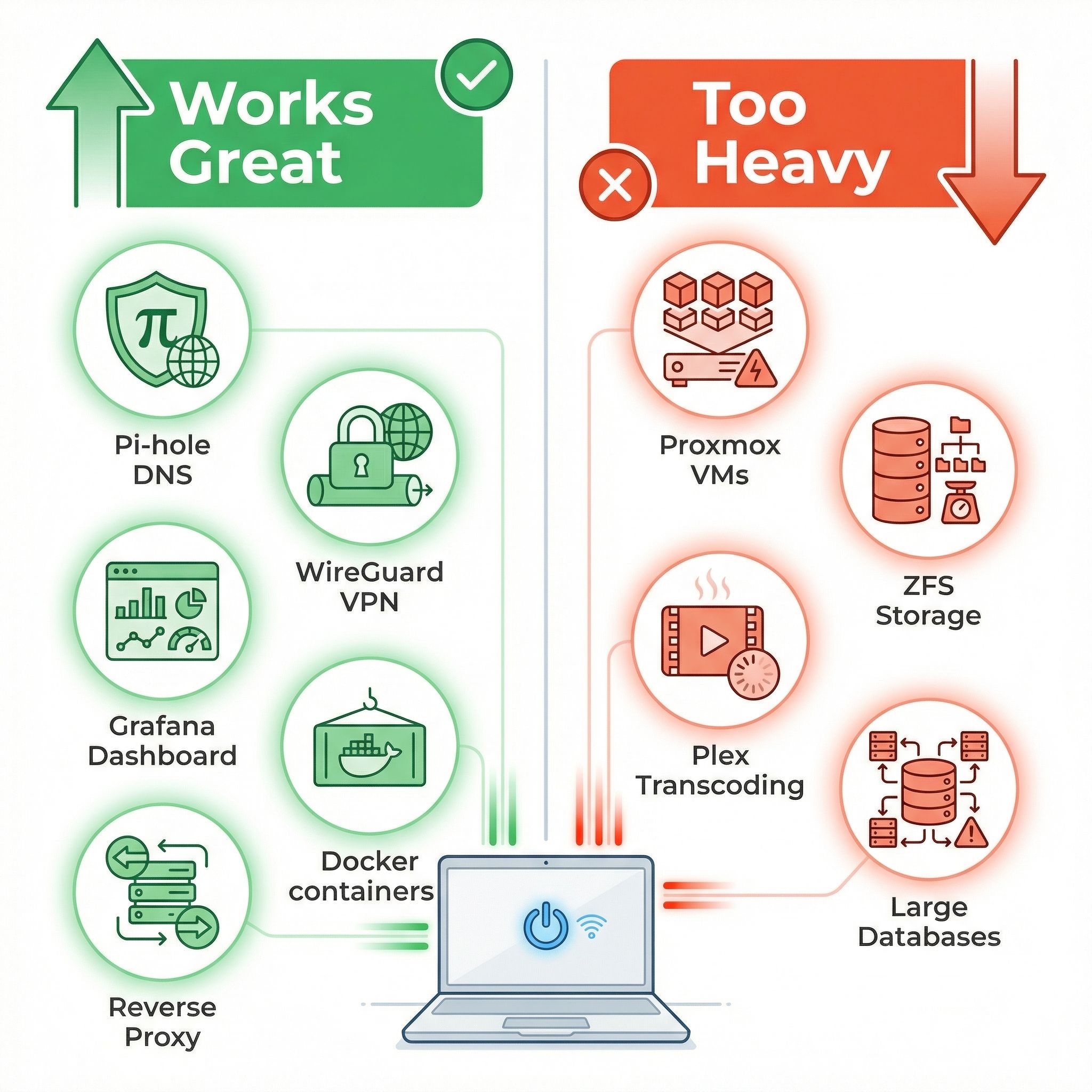
Once you have Linux running, install Docker and Docker Compose. Containers let you run isolated services without worrying about dependency conflicts, and the overhead is minimal compared to full virtual machines. A developer documented their experience running Portainer, Grafana, InfluxDB, and Jenkins CI on an Asus C300 with a low-wattage Celeron processor, and the machine handled it.
Pi-hole blocks ads and trackers across your entire home network by acting as a DNS sinkhole, and its resource requirements are almost comically low. Pi-hole officially needs just 512MB of RAM and a single CPU core, which means even the most modest Chromebook has resources to spare. A WireGuard VPN endpoint is another natural fit. WireGuard is designed to be lean and fast, using minimal CPU even under load, and running it on a home server lets you tunnel your traffic through your own network when you’re away from home. The WireHole project bundles WireGuard, Pi-hole, and Unbound DNS into a single Docker Compose stack that you can deploy in minutes.
Monitoring dashboards like Grafana paired with Telegraf and InfluxDB work well, giving you real-time visibility into your network and server health. Reverse proxies like Nginx Proxy Manager or Traefik let you host multiple web services behind a single IP address with automatic SSL certificates. Personal websites, internal wikis, small Git repositories, RSS aggregators like Miniflux, and bookmark managers like Linkding are all well within a Chromebook server’s capabilities. If you’re exploring the broader world of self-hosting that we covered in our article about the self-hosting renaissance, a Chromebook is a legitimate place to start a home lab.
What Doesn’t Work (And Why)
Heavy virtualization is the biggest non-starter. Proxmox, ESXi, or running multiple virtual machines simultaneously requires substantially more RAM and CPU power than most Chromebooks offer. If you need VMs, you need different hardware. ZFS-based storage is also a poor fit because ZFS is memory-hungry by design, and the eMMC storage found in most Chromebooks lacks the endurance for high-write workloads. Large databases like PostgreSQL or MySQL can technically run, but performance will be poor and write amplification on eMMC storage becomes a concern. Media servers like Jellyfin or Plex that need to transcode video will overwhelm the CPU immediately. And using a Chromebook as a router or firewall appliance is impractical because most models only have Wi-Fi networking, with no second network interface for routing traffic.
The eMMC storage needs its own precautions. Unlike SSDs, which pair NAND flash with multi-channel controllers, DRAM caches, and wear-leveling algorithms, eMMC uses simpler controllers designed for light consumer use like booting ChromeOS and caching web pages. Server workloads that generate lots of writes, like Docker container logs, database journals, and system logging, can wear out eMMC significantly faster. The mitigation is straightforward: mount /tmp as tmpfs (storing temporary files in RAM instead of disk), redirect Docker’s data directory to an external USB SSD, configure aggressive log rotation, and avoid running write-heavy services on internal storage. Some higher-end Chromebooks shipped with actual NVMe or SATA SSDs, and those models are considerably better suited for server duty.
The Power Equation
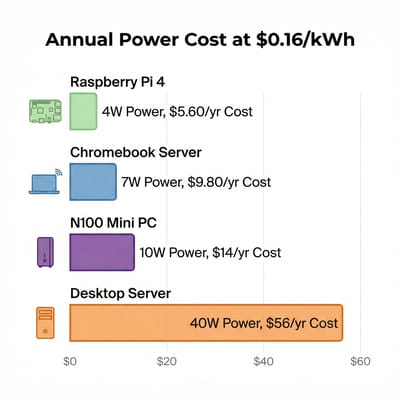
These devices were engineered to run all day on a battery, which translates directly into low wall power when plugged in. Running headless with the lid closed and the screen off, a typical Intel Celeron Chromebook idles at roughly 5 to 10 watts. That’s efficient for an x86 computer with full software compatibility.
A Raspberry Pi 4 or 5 idles at around 2.5 to 4 watts depending on the model, which is lower, but it comes with ARM architecture limitations and less RAM in most configurations. An Intel N100 mini PC idles at 6 to 12 watts while offering substantially more power and expandability. A traditional desktop repurposed as a server pulls 30 to 50 watts at idle, which adds up quickly.
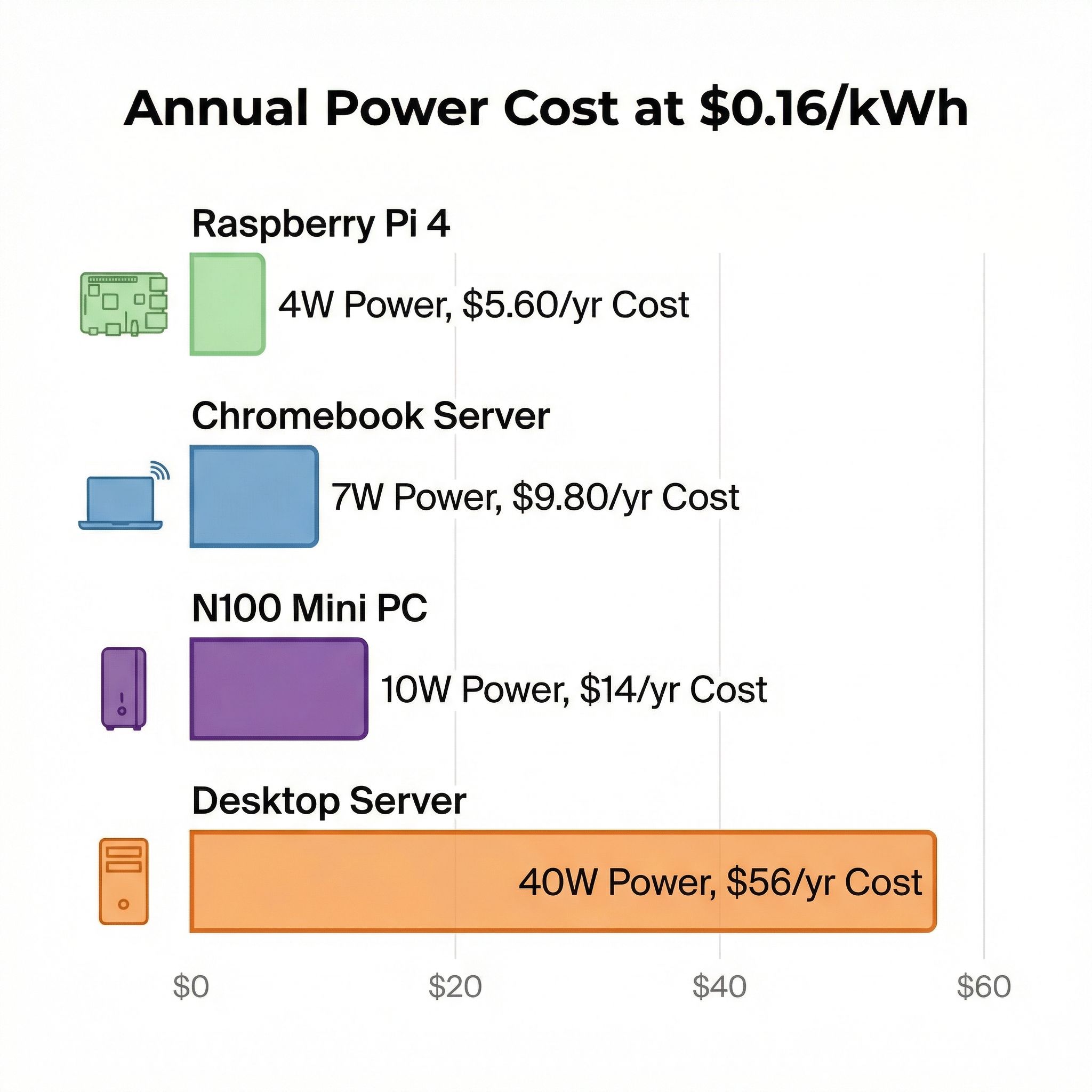
Translated into annual electricity costs at the US average of roughly $0.18 per kilowatt-hour, a 7-watt Chromebook server costs about $11 per year to run around the clock. A Raspberry Pi at 3.5 watts costs about $5.50. An N100 mini PC at 10 watts costs about $16. And a traditional server at 40 watts costs about $63. The Chromebook won’t win an efficiency contest against a Raspberry Pi, but it offers full x86 compatibility and more RAM for just a few dollars more per year. The built-in battery works as an uninterruptible power supply, which no Raspberry Pi offers. If your power flickers, your Chromebook server keeps running. That’s worth something when you’re hosting your home’s DNS resolver.
From Developer Mode to Ubuntu in Seven Steps
The whole process takes an afternoon.
Developer Mode and the UEFI Flash
Step 1: Identify your Chromebook. Check your model against the MrChromebox supported devices list. Note whether you need to physically open the device to disable write-protect.
Step 2: Enable Developer Mode. This is done through a key combination during boot (typically Esc + Refresh + Power). Be aware that enabling Developer Mode wipes all local data on the Chromebook.
Step 3: Flash UEFI firmware. Open the ChromeOS shell (Ctrl+Alt+T, then type shell), and run the MrChromebox firmware utility script. Select the UEFI Full ROM option. This replaces ChromeOS firmware with standard UEFI, making the device boot like any regular PC.
Ubuntu, Containers, and eMMC Protection
Step 4: Install Linux. Create a bootable USB drive with Ubuntu Server 24.04 LTS or Debian 12, boot from it, and follow the standard installation. Choose minimal installation options to conserve resources.
Step 5: Install Docker. Follow the official Docker installation guide for your distribution. Then install Docker Compose.
Step 6: Deploy your first services. Start with Pi-hole for network-wide ad blocking, which takes minutes to set up via Docker. The WireHole project bundles Pi-hole, WireGuard VPN, and Unbound DNS resolver into a single docker-compose.yml that deploys your entire stack in one command.
Step 7: Protect your eMMC. Configure /tmp as tmpfs, move Docker’s data directory to an external USB drive if you plan to run more than basic services, and set up log rotation. These steps are quick and extend the life of your internal storage.
When It’s Time to Graduate
If you find yourself wanting to run more than a handful of containers simultaneously, if you want media transcoding through Jellyfin or Plex, if you need more than 64GB of reliable fast storage, or if you want to experiment with virtual machines, you’ve hit the Chromebook ceiling. The natural next step is an N100 or N150-based mini PC, which offers more capability while maintaining the low power consumption that makes always-on servers practical.
Beelink MINI S12 Pro
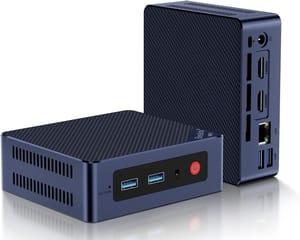
- +Intel N100
- +16GB RAM
- +M.2 slot plus a 2.5-inch SATA bay
- +dual 4K HDMI
- +7 to 10W at idle
- -No USB-C
- -fan always on
- -settles to 2.6 GHz under sustained load
Beelink Mini S13
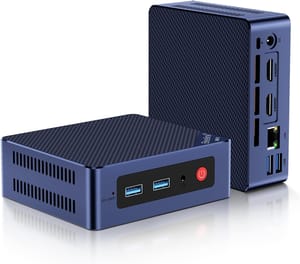
- +Intel N150
- +16GB RAM
- +dual M.2 slots
- +4.25 x 4.01 inch footprint
- +about 7W at idle
- -Ethernet capped at 1Gbps
- -no USB-C
- -RAM tops out at 16GB
But don’t rush to upgrade. If your Chromebook handles your current services without performance issues, it’s doing its job.
Plan B: A Thin Client Instead of a Server
If your Chromebook turns out to be an ARM model that can’t run MrChromebox firmware, or if it only has 2GB of RAM and struggles with server duties, there’s still a role for it. Install ChromeOS Flex or a lightweight Linux distribution with a desktop environment like XFCE, and use it as a thin client to access services running on other hardware. Kevin Tofel at About Chromebooks documented this approach using a mini PC as the server and a Chromebook as the browser-based interface for Nextcloud, OnlyOffice, PhotoPrism, and even Steam game streaming. Nearly every self-hosted service has a web interface, and a Chromebook with a browser is all you need to access it.
This is also a valid setup for an x86 Chromebook that you’ve decided is too limited for server duty but too functional to throw away. A lightweight Linux desktop with a modern browser turns an expired Chromebook into a serviceable computer for web browsing, email, document editing, and accessing your home server’s dashboard.
What One Repurposed Chromebook Is Worth
There’s something satisfying about taking a device that a trillion-dollar company declared obsolete and making it useful again. The experience of building something useful from something discarded is, frankly, pretty great.


