

An N100 mini PC is the right call for a lot of people. The trouble is that “home server” is not one thing. It stretches from a silent little box that backs up your phone photos and holds your passwords, all the way to a virtualization host juggling a dozen virtual machines, a router running your whole network, or a NAS moving large files fast. A single blanket recommendation cannot cover that range.
If you are still deciding whether a mini PC is even the right shape for the job, our look at why self-hosting finally went mainstream covers the case for these little boxes over a Raspberry Pi or a full tower. Assuming you are sold on the form factor, four specifications decide almost everything that matters for a machine that runs day and night, and the processor that listings lead with is not the first of them. The four are idle power draw, the RAM ceiling, the number and speed of network ports, and noise. Two of those four cannot be changed after you buy, so choose for the workload you expect to grow into, not the one you are starting with.
Start with idle power, because your server never turns off
A desktop PC spends most of its life asleep or switched off, so its idle power draw barely registers on your bill. A home server is the opposite: it sits at idle almost all the time, and it does so every hour of every day for years. That inverts which number matters. Peak wattage under full load is close to irrelevant when the machine spends ninety-something percent of its life doing very little, while a few watts of difference at idle compounds into real money and real heat over a year of continuous operation.
A box that idles at 10 watts pulls roughly 88 kilowatt-hours over a year of always-on service. A box that idles at 60 watts pulls closer to 525. That gap is the difference between a rounding error and the better part of a hundred dollars a year on a typical US power bill, and it is also the difference between a cool, silent shelf and a warm one that needs airflow. This is exactly why the low-power x86 chips (Intel’s N100 and N150 and their relatives) became the default home-server recommendation: they deliver enough throughput to run a stack of containers while idling in the single digits to low teens of watts. If you want the full dollars-and-cents breakdown, we ran the numbers in what a mini PC really costs to run 24/7.
Those efficient chips are modest performers. They will not transcode four 4K streams at once or compile large codebases quickly, and if you pile enough heavy services on one it will run out of headroom. Treat idle power as a budget. Figure out the lightest chip that comfortably covers your actual workload, then take the most efficient box in that performance class rather than reflexively buying more machine than the job needs.
How much RAM you can reach
The RAM number printed on the box is the number it ships with, not the number it can hold. Containers are frugal, so a handful of them (photo backup, a password vault, a reverse proxy, a monitoring dashboard) fit happily in 16GB. The moment you move to virtual machines, each with its own full operating system, or you start running a local language model, memory becomes the first wall you hit. A single Windows VM can want as much RAM as your entire container stack did.
Many of the cheapest low-power boxes solder their memory to the board, which means the 16GB it came with is the 16GB it will die with. The machines aimed at people who expect to grow give you one or two SO-DIMM slots instead, so you can start at 16GB and drop in 32, 64, or more later for the price of a memory kit. That upgradeability is often worth more than a faster processor, because a swappable slot lets a cheap box grow into jobs it could not touch on day one, while a soldered box is permanently capped no matter how much CPU headroom it has left.
So before you compare cores or clock speeds, find two facts for any candidate: the maximum RAM it supports, and whether that memory is socketed or soldered. If your plans stop at a few containers, a soldered 16GB box is fine and usually cheaper and more efficient for it. If there is any chance you will run virtual machines or local AI, treat socketed memory and a high ceiling as a hard requirement, not a nice-to-have.
Count the network ports before you count the cores
Three networking details matter: how many wired network ports the box has, how fast each one is, and (for a few roles) whether it has anything faster than ordinary gigabit. For a plain application server that quietly serves web apps to your other devices, a single port is plenty, and the newer 2.5-gigabit ports now common on mini PCs give you headroom for large backups without any real downside.
Router duty and NAS duty change the math. If you want the mini PC to be your router or firewall, running something like OPNsense or pfSense, it needs at least two physical network ports: one facing your internet connection and one facing your home network. That is not a preference; a router with one port cannot do the job, and no amount of CPU makes up for the missing port. Likewise, if the box is going to be a NAS serving big files (video libraries, editing scratch space, backups for several machines), the network port becomes the bottleneck long before the drives do, and this is where 10-gigabit Ethernet stops being overkill and starts being the whole point. A drive array that can read faster than a gigabit link can carry is just waiting on the wire.
The reason to settle this early is that ports are physical. You can add RAM to a socketed box and swap its drive, but you cannot conjure a second network port out of a single-port chassis (short of hanging a USB adapter off it, which works but is exactly the kind of fragile arrangement you do not want a router depending on). Decide whether router duty or fast NAS duty is anywhere in your plans, and if either is, filter your shortlist to dual-port or 10-gigabit machines before you look at anything else. If neither is, a single fast port keeps the box cheaper, cooler, and quieter.
Noise is a spec, even when nobody prints it
Spec sheets seldom list noise, and yet it is the spec you will notice every single day, because a home server usually lives somewhere you also live: a closet off the bedroom, a shelf in the office, the corner of a living room. The dividing line is cooling. A fanless mini PC has no moving parts and makes no sound. An actively cooled box has a small fan, and small fans spinning fast to cool a compact chassis can produce a high-pitched whine that is far more irritating than its decibel rating suggests, especially at 3 a.m. in an otherwise silent house.
Fanless designs and high performance pull in opposite directions. Passive cooling can only shed so much heat, so the silent boxes are almost always the low-power ones; the moment you want a faster chip doing sustained heavy work, you generally accept a fan. A fanless N100 belongs on a shelf in a bedroom and is hopeless as a heavy transcoding server, while a fan-cooled Ryzen box handles the transcoding and belongs in a closet or utility room where its fan will not bother anyone. Match the cooling to the room as deliberately as you match the CPU to the workload, and if the machine has to sit somewhere you sleep, weight silence heavily and let it cap your performance expectations.
The drive it ships with is not the drive you want
Storage is the fifth consideration, and it does not gate the decision the way the four core specs do. Two questions matter: how many drives the box can hold, and how durable the drive it ships with actually is. On capacity, the split is the same as with RAM: budget boxes tend to give you a single M.2 slot, while machines aimed at builders give you two or more, so you can separate your fast application storage from a larger, cheaper bulk drive, or set up redundancy so one drive failing does not take your data with it.
The SSD bundled into a cheap mini PC is usually the least expensive drive the vendor could source, specified for someone opening a web browser, not for a server writing to disk constantly all day. Under a 24/7 workload (a busy media server, a virtualization host, a database) a low-endurance drive can wear out years sooner than you would expect, and it does so quietly until it fails. We walk through how to read a drive’s rated lifespan and when to swap it in our piece on mini PC SSD endurance and TBW. Plan on treating the bundled drive as a starting point, keep real backups regardless, and budget for a higher-endurance replacement if your workload writes hard.
Matching the machine to the job
Lean on the mini PC comparison chart to see current idle-power, RAM-ceiling, and port figures side by side rather than trusting any single model to still be the best option whenever you read this. Think in three tiers, each defined by the workload rather than the brand.
For a first server, or one that will only ever run a stack of containers, a low-power N100 or N150 box is the correct answer and everything above it is wasted money and wasted watts. It idles low, the fanless models make no sound and the rest stay quiet under light load, and it will happily hold photo backup, a password manager, a reverse proxy, and a monitoring dashboard at once.
Beelink EQ14
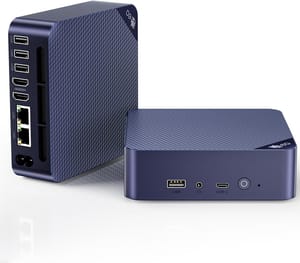
- +Low idle draw
- +2.5-gigabit Ethernet
- +quiet under light load
- +one socketed SO-DIMM slot plus dual M.2 slots
- +inexpensive
- -Modest Intel N150 CPU and a single memory slot
- -so it is a container box rather than a VM host
The middle tier is where you land when you know you need more: several virtual machines, a busier media server that has to transcode, or a local language model that a low-power chip cannot keep up with. A Ryzen-class box gives you the cores and the socketed memory to grow, at the cost of higher idle draw and usually a fan.
Beelink SER8
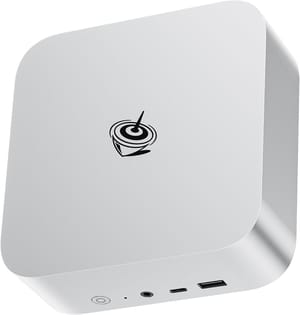
- +Strong multi-core Ryzen performance
- +socketed RAM you can max out
- +handles transcoding and local AI
- -Higher idle power than an N100
- -has a fan
- -so plan its placement accordingly
The top tier is not for most people, and buying it “to be safe” wastes money. It is specifically for router or NAS duty: the machines with two or more network ports, 10-gigabit networking, and multiple drive bays that let you build real infrastructure. If your plan involves being your own router or moving large files fast across your network, this is where the missing ports and drive slots you needed all along finally show up.
MINISFORUM MS-01
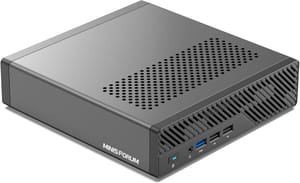
- +Dual high-speed network ports
- +10-gigabit capable
- +multiple NVMe slots for redundant storage
- -Premium price
- -runs hotter and louder
- -overkill for a simple container server
The thread running through all three tiers is the same discipline: decide what the box actually has to do, read the four specs that matter (idle power, RAM ceiling, network ports, noise) against that job, and buy the least machine that clears the bar with a little room to grow. The costly mistake is buying a soldered, single-port box today and discovering next year that the two specs you cannot upgrade are the two you needed.
Frequently Asked Questions
Can a mini PC run 24/7 as a home server?
Yes, and running around the clock is exactly what these boxes are built for. A home server sits at idle almost all the time, every hour of every day for years, so the number that matters is idle power draw rather than peak performance. The low-power boxes most people start with idle in the single digits to low teens of watts, which keeps them cool and cheap to leave on permanently.
How much RAM does a mini PC home server need?
It depends on the workload. A handful of containers (photo backup, a password vault, a reverse proxy, a monitoring dashboard) fit comfortably in 16GB, so a small box is fine if that is all you plan to run. The moment you move to virtual machines or a local language model, memory becomes the first wall you hit, since a single VM can want as much RAM as your whole container stack did. If there is any chance you will grow into those jobs, pick a box with socketed SO-DIMM slots and a high ceiling so you can add more later rather than one with soldered memory you can never change.
Do I need a fanless mini PC for a home server?
Only if it has to live somewhere quiet. A fanless mini PC has no moving parts and makes no sound, so it can serve as an always-on box in a bedroom, office, or living room. The catch is that passive cooling and high performance pull in opposite directions, so the silent boxes are almost always the low-power ones. If you need a faster chip for sustained heavy work, plan to accept a fan and put the machine in a closet or utility room where the noise will not bother anyone.
Can a mini PC work as a NAS?
It can, but only the right one. Serving large files fast is where the network port becomes the bottleneck long before the drives do, so a NAS-duty box wants 10-gigabit Ethernet and multiple drive bays for capacity or redundancy. Those features live in the top tier of mini PCs and are overkill for a machine that will only ever run a few containers. Decide whether fast file serving is in your plans before you buy, because the extra ports and drive slots are physical and cannot be added later.
Does the processor matter most when choosing a mini PC home server?
No. For a machine that runs day and night, four specs decide almost everything: idle power draw, the RAM ceiling, the number and speed of network ports, and noise. The processor that listings lead with is not the first of them. Two of those four (the RAM ceiling and the port count) cannot be changed after you buy, so match them to the workload you expect to grow into rather than the one you are starting with.


