

Sooner or later someone sends you a Word document or an Excel sheet, and you want to edit it on your Chromebook without paying for an office app or staying online. LibreOffice is a free office suite with a word processor (Writer), a spreadsheet (Calc), and a presentation app (Impress). It opens and saves Microsoft Office files, and it runs in the Linux environment that is built into ChromeOS.
Here, LibreOffice comes from Flathub, and the first document is saved in Word’s .docx format. For Chromebooks that cannot run Linux apps, Collabora Office is an Android version from Google Play. The video below shows the same steps, and every command it uses is on this page.
These steps use ChromeOS 154 with Debian 13 as the Linux system, and the Flathub install brings in LibreOffice 26.8.
LibreOffice Gets More Updates Than OpenOffice
LibreOffice started in 2010 as a fork of OpenOffice.org, and the original project lives on as Apache OpenOffice. Apache OpenOffice gets far fewer updates: version 4.1.16 arrived in November 2025, almost two years after 4.1.15. LibreOffice ships a new major version twice a year and fix releases in between, which makes it the better pick for a Chromebook today.
What You Need
LibreOffice for Linux needs the Linux development environment, and Linux has to be turned on first. It is not available on every Chromebook: a school or work administrator can turn it off, and some older models never got it. If you have not set it up yet, follow How to Install Linux on a Chromebook, or watch the Linux setup video on YouTube. If your Chromebook cannot run Linux, skip to the Collabora Office section at the end.
You also need about 3 GB of free space in Linux and an internet connection for the download (about 330 MB for LibreOffice, plus the shared runtime it needs). Flathub builds LibreOffice for Intel and AMD chips and for ARM chips (such as MediaTek), so the same commands work on either kind of Chromebook.
Open the Terminal and Check Free Space
Every command in this guide goes into the Terminal app, so open it first. Press the launcher key, type Terminal, and open the app. On the Terminal’s home page, click penguin under Linux to open a Linux shell.
Check the free space before you start. This command shows the size of the Linux disk and how much of it is free:
df -h /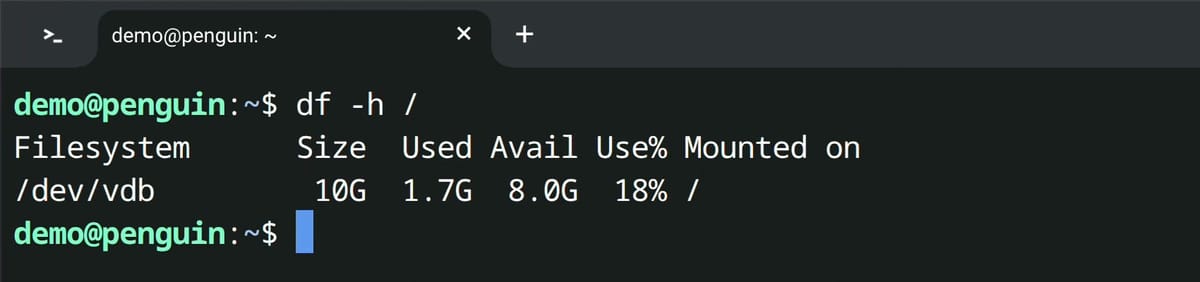
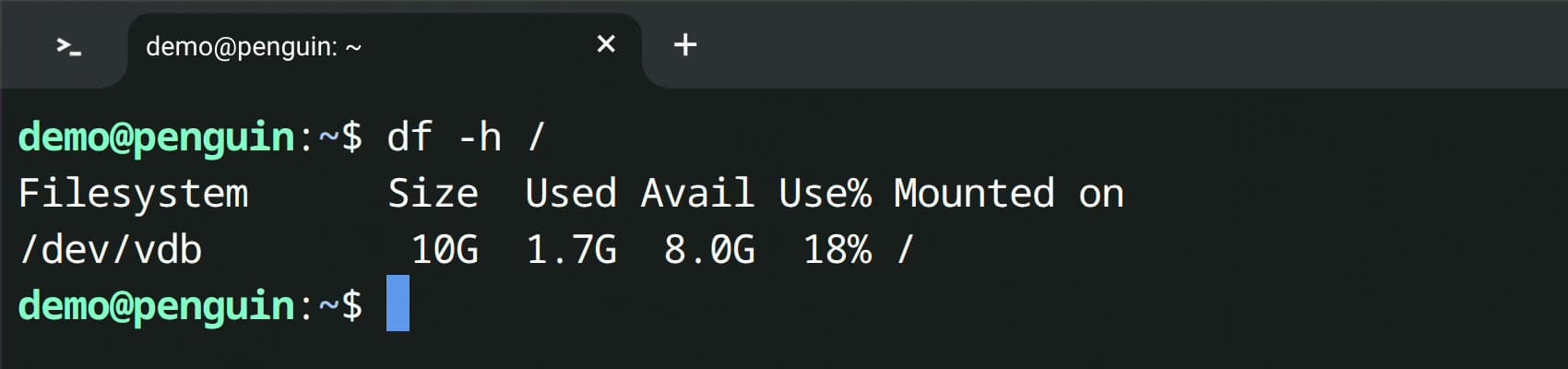
Look at the Avail column. In the screenshot, 8.0 GB is free on a 10 GB Linux disk, which is plenty. If less than about 4 GB is free (3 GB for the install plus room for your files), make the Linux disk bigger first: open Settings, click About ChromeOS, then Developers, then Linux development environment, and click Change next to Disk size.
Flathub Has a Newer LibreOffice Than Apt
Debian, the Linux system on the Chromebook, has its own package manager called apt, and it can install LibreOffice too. You can see which version apt would install with this command:
apt policy libreoffice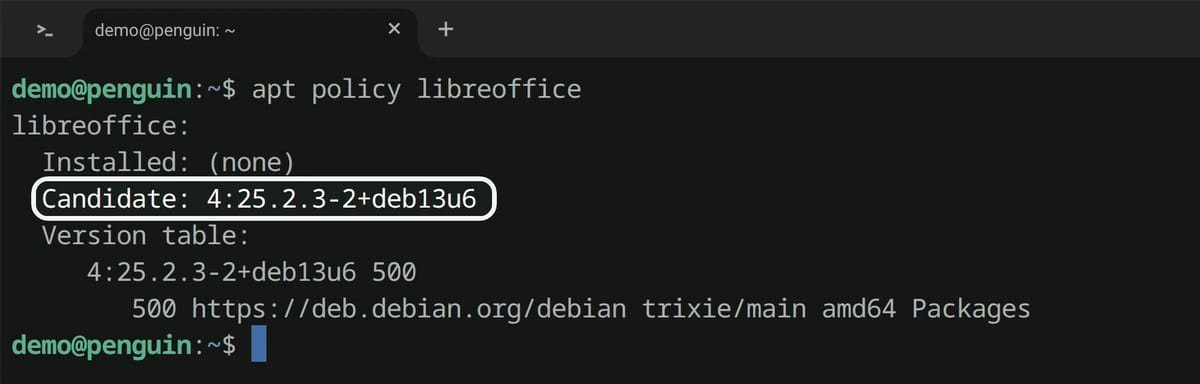
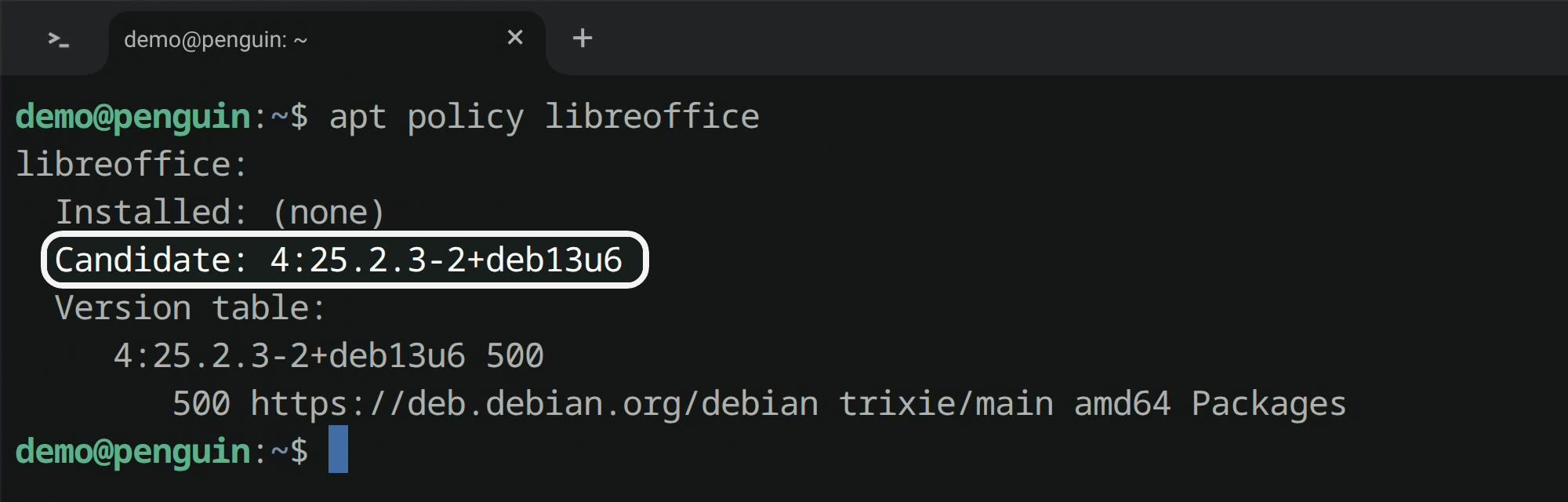
The Candidate line shows version 25.2, from early 2025. Flathub, an app store for Linux, has the current LibreOffice release, 26.8, and it updates the app on its own schedule rather than Debian’s. Flathub takes two extra commands and more disk space, because its apps bring a shared runtime with them, but it keeps LibreOffice current.
If you would rather have one command and a smaller install, the apt version works fine for everyday documents:
sudo apt install libreofficePick one or the other. If you install both, the Linux apps folder shows two sets of LibreOffice icons.
Install LibreOffice From Flathub
First, install Flatpak, the tool that installs apps from Flathub:
sudo apt install flatpakApt lists what it will add and asks Continue? [Y/n]. Type y and press enter .
Next, add Flathub as a source, so Flatpak knows where to download apps from. This is the long line, so copy it rather than typing it:
sudo flatpak remote-add --if-not-exists flathub https://dl.flathub.org/repo/flathub.flatpakrepoThen install LibreOffice. The name at the end is LibreOffice’s app ID on Flathub:
sudo flatpak install flathub org.libreoffice.LibreOfficeFlatpak asks twice before it starts. The first question is whether to install the shared runtime that LibreOffice needs (Do you want to install it? [Y/n]). The second shows the whole list of downloads and asks Proceed with these changes to the system installation? [Y/n]. Type y and press enter each time.
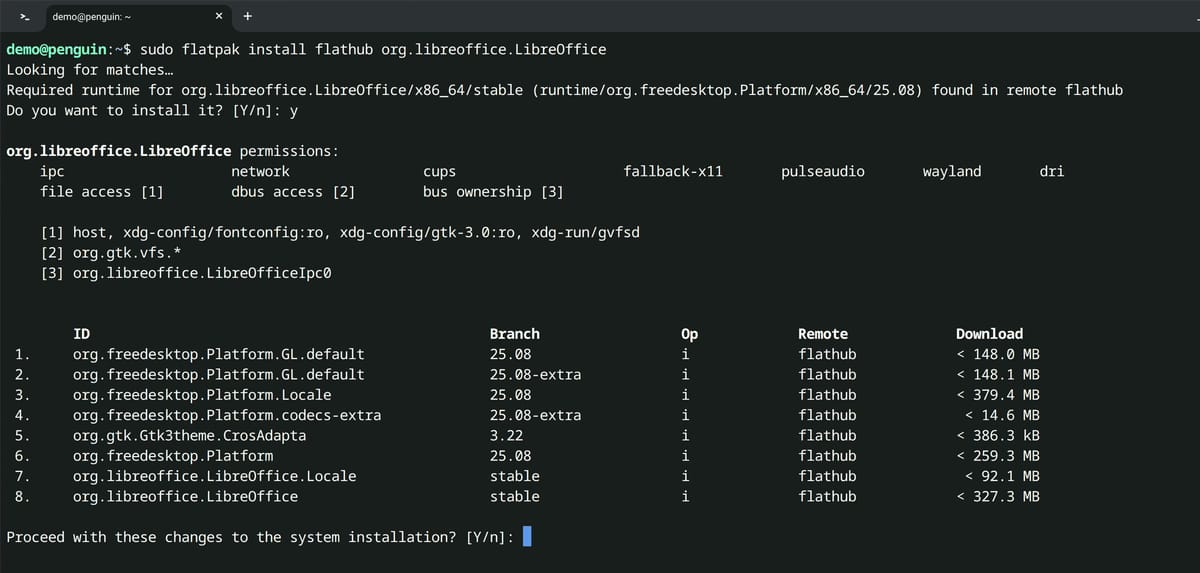
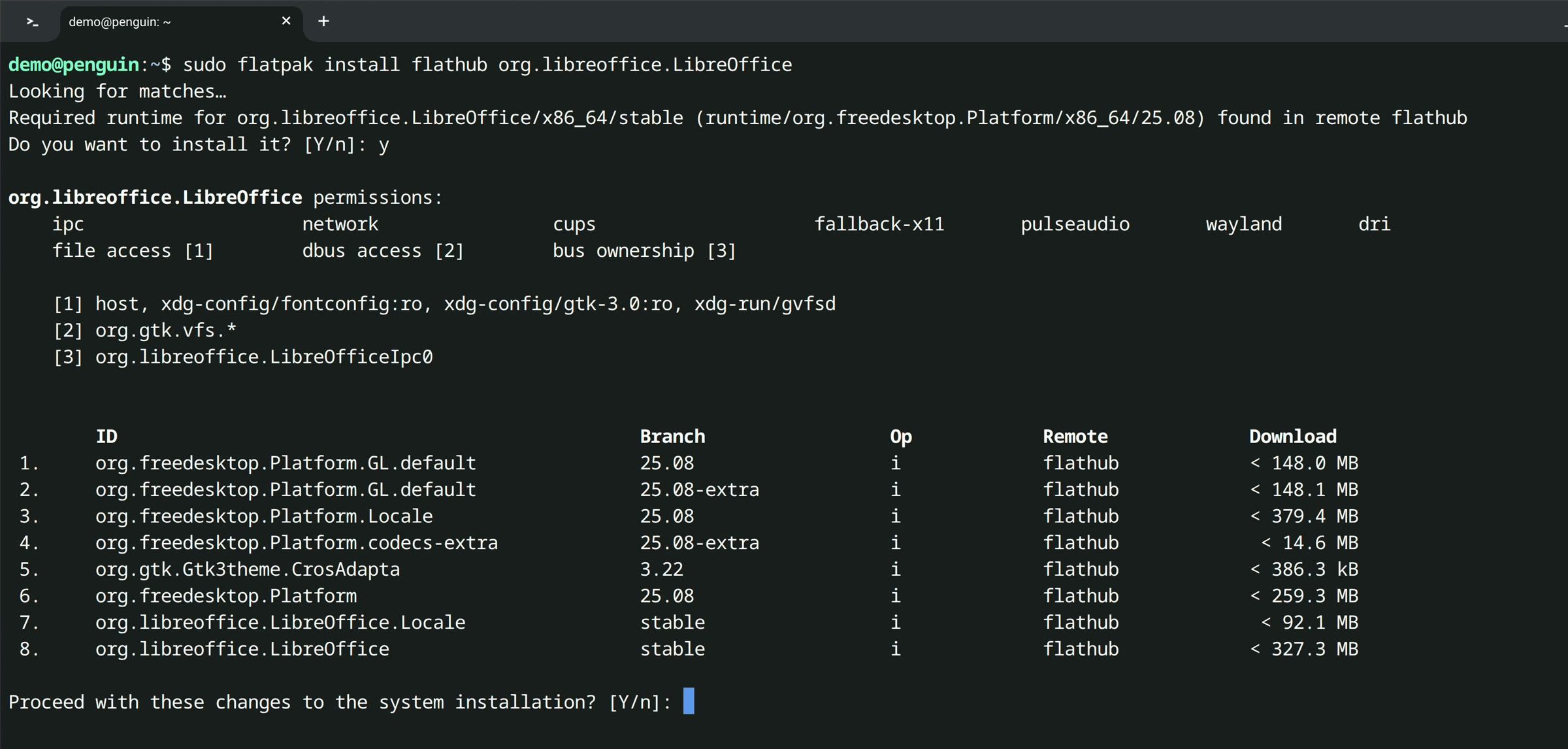
Together with the runtime, the download is about 1.4 GB. The Terminal shows Installation complete. when it is done. To update LibreOffice later, run sudo flatpak update.
Open Writer for the First Time
The new apps appear in the launcher, inside the Linux apps folder. Press the launcher key and open the folder. The names are cut short, so go by the icons: Writer, the word processor, has the blue icon, and Calc, the spreadsheet, has the green one.
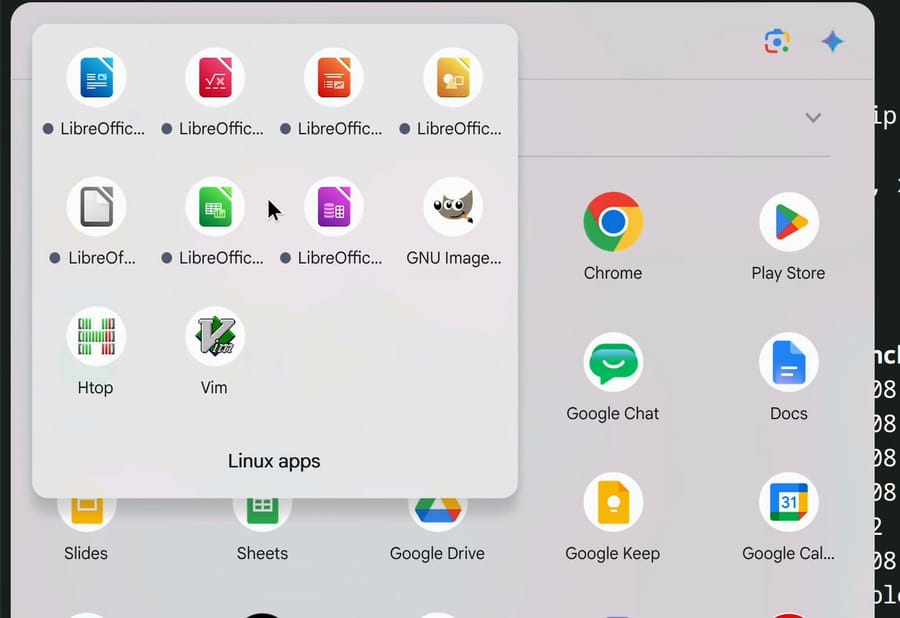
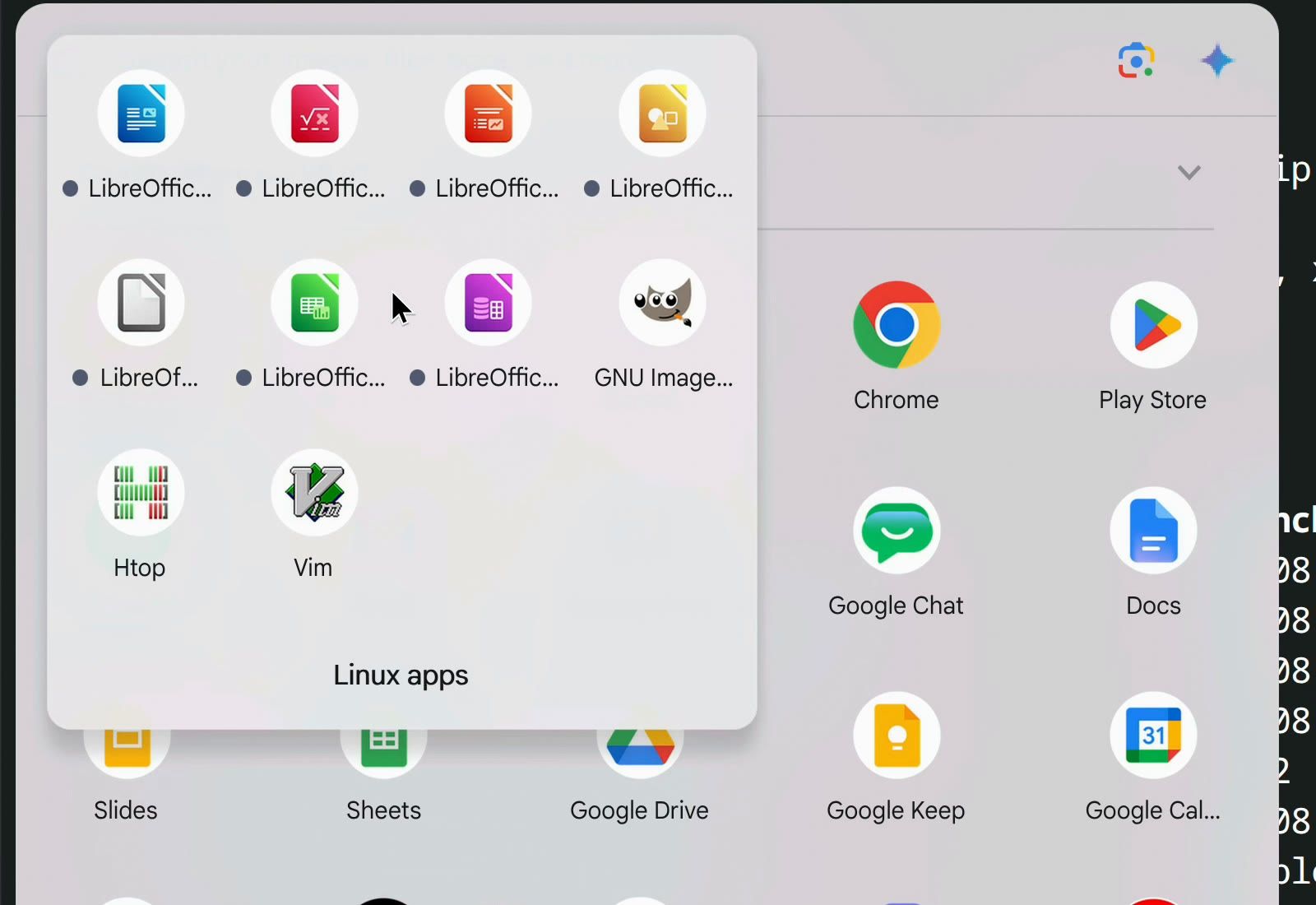
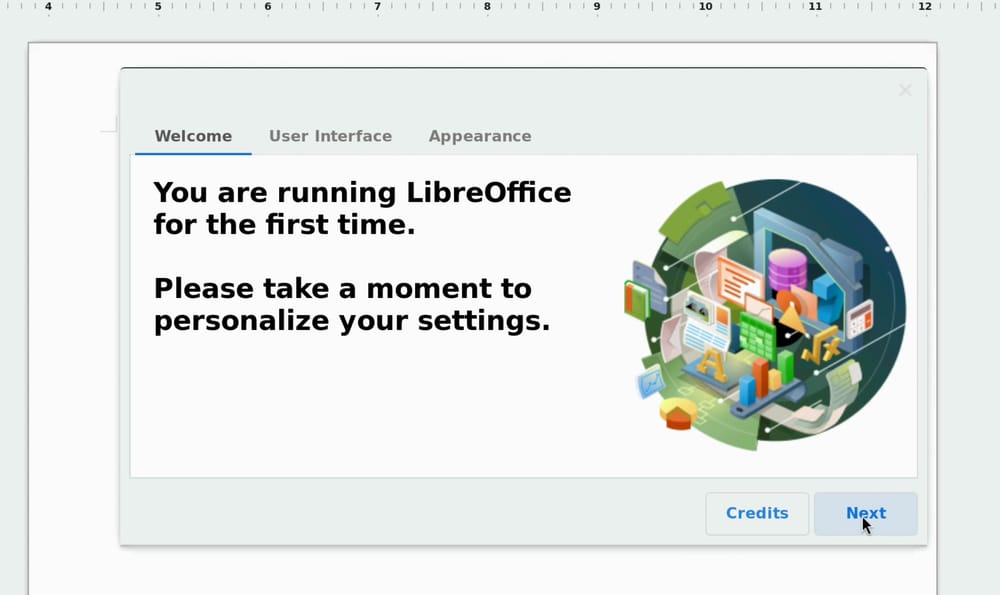
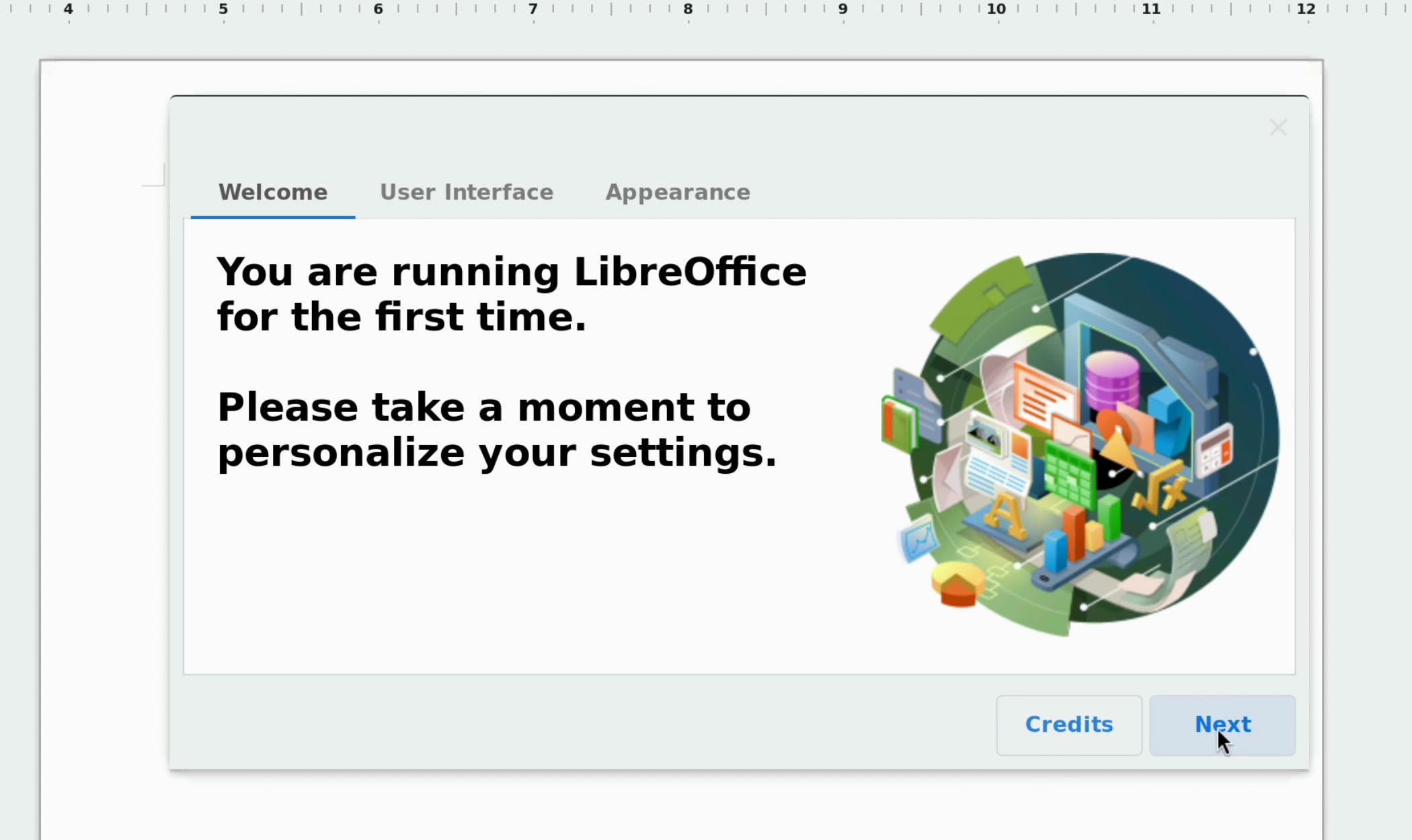
Click the blue Writer icon. The first time, a welcome window opens. Click Next to reach the User Interface page.
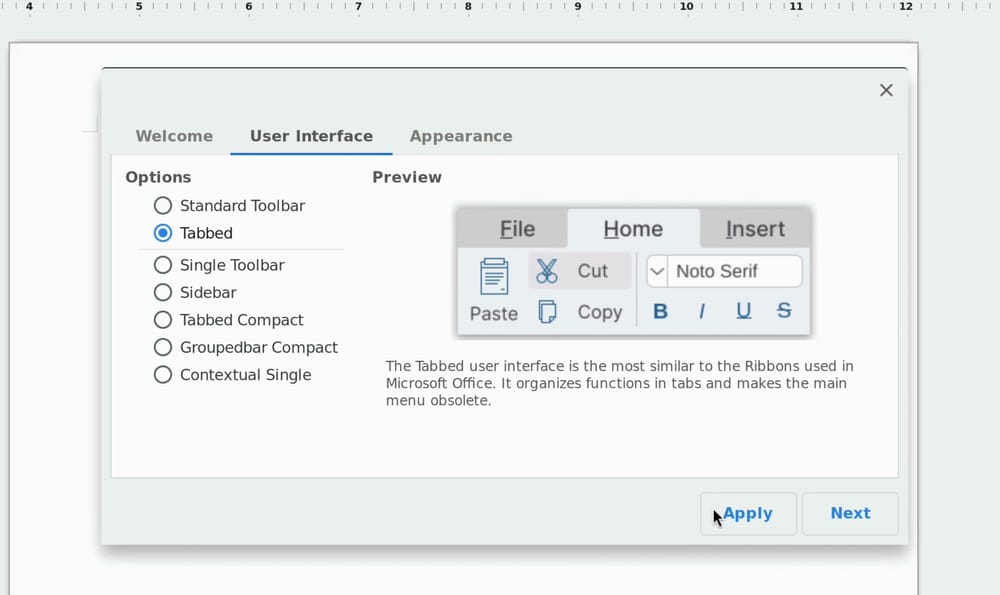
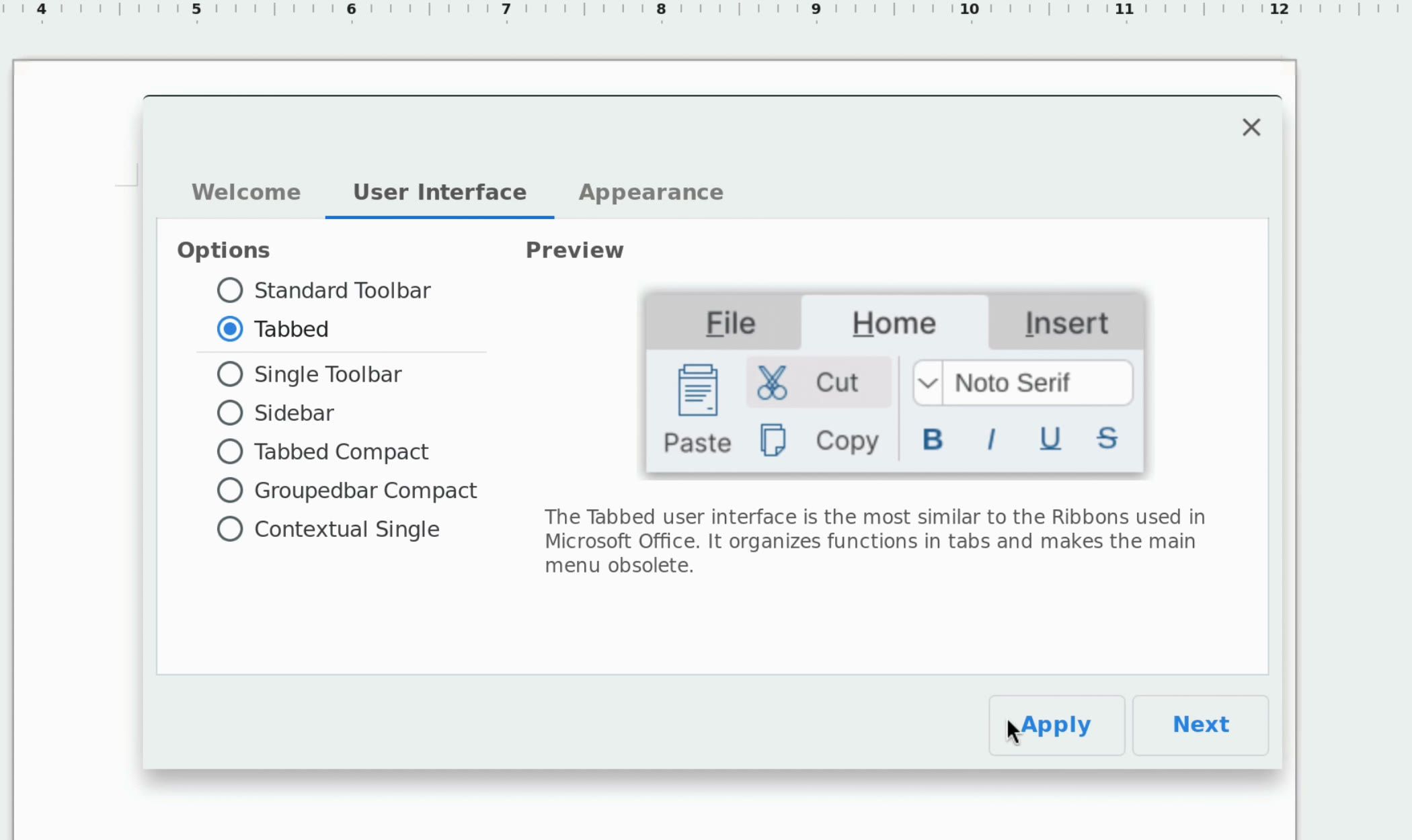
If you are used to Microsoft Word, pick Tabbed on the User Interface page. LibreOffice describes it as the layout most similar to the ribbons in Microsoft Office: the tools sit in tabs such as Home, Insert, and Layout across the top. Click Apply, then close the window. The ribbon stays, and you can switch layouts later from the View menu or tab.
Save a Document in Word Format
LibreOffice saves in its own OpenDocument format (.odt) unless you tell it otherwise. If you plan to send the file to someone who uses Word, save it as .docx. Type your text, then press ctrl shift s to open Save As, and type a name for the file.
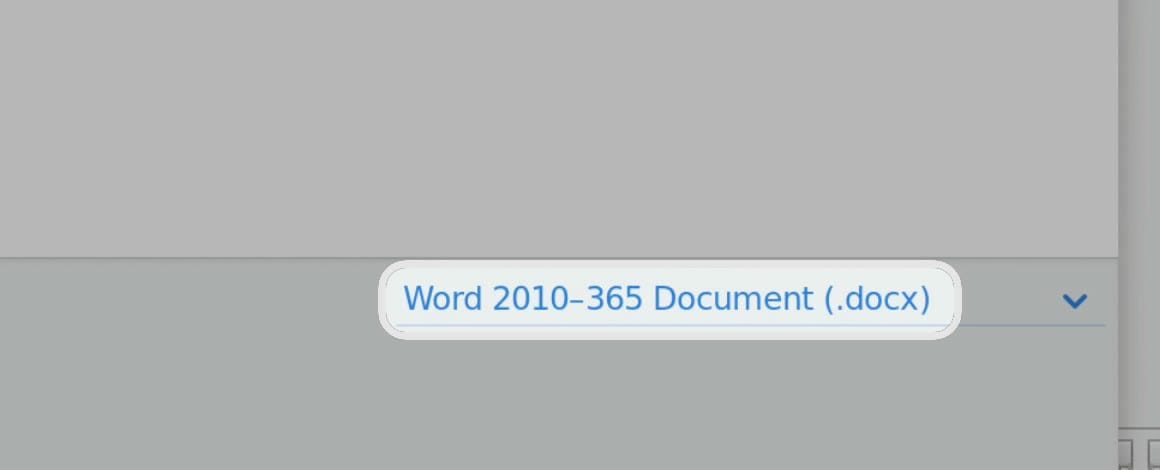
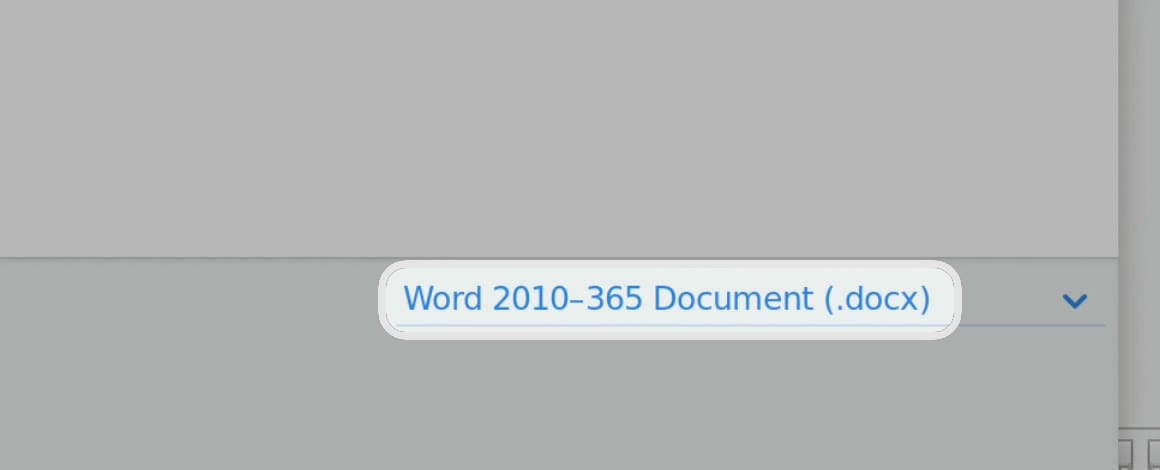
At the bottom right of the Save As window is the file format list. Open it and pick Word 2010-365 Document (.docx), then click Save.
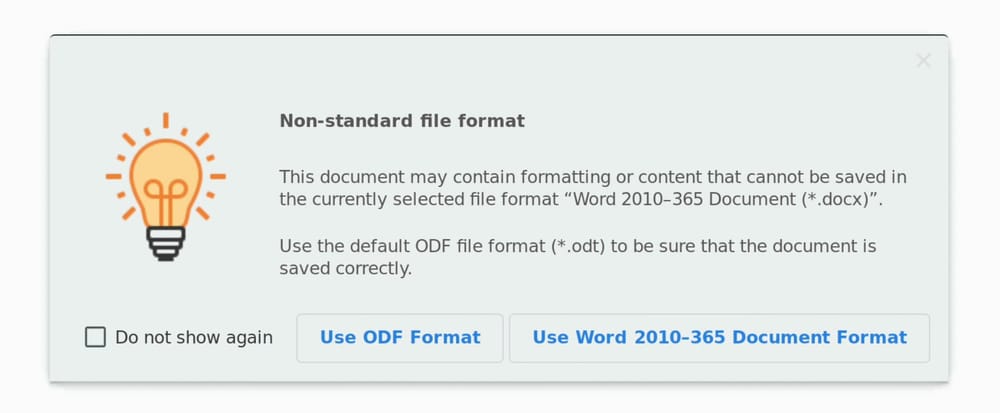
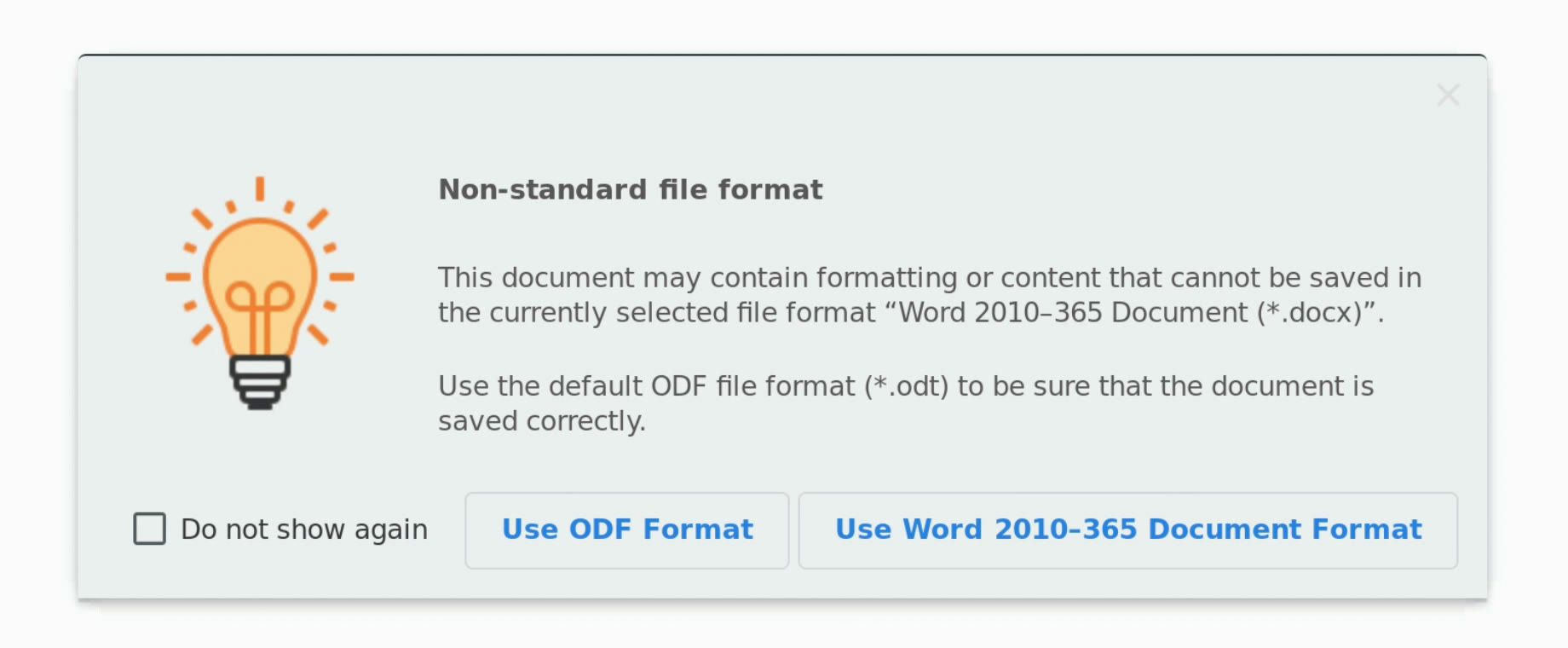
LibreOffice then asks which format to keep, with a note that some formatting may not carry over to the Word format. For a document you are sending to Word users, click Use Word 2010-365 Document Format. Tick Do not show again if you do not want the question each time.
The file lands in your Linux home folder. Open the Files app and click Linux files in the sidebar to find it. From there you can drag it into Google Drive or attach it to an email.
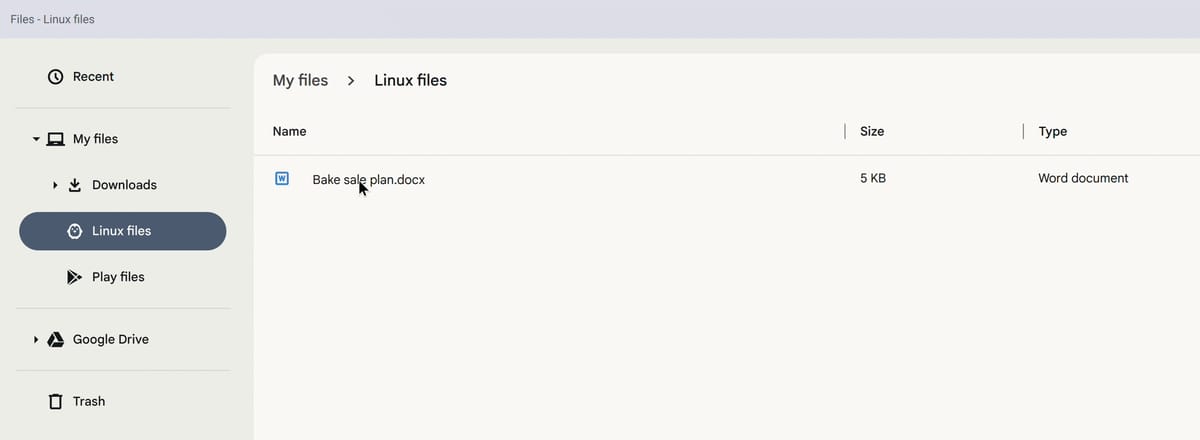
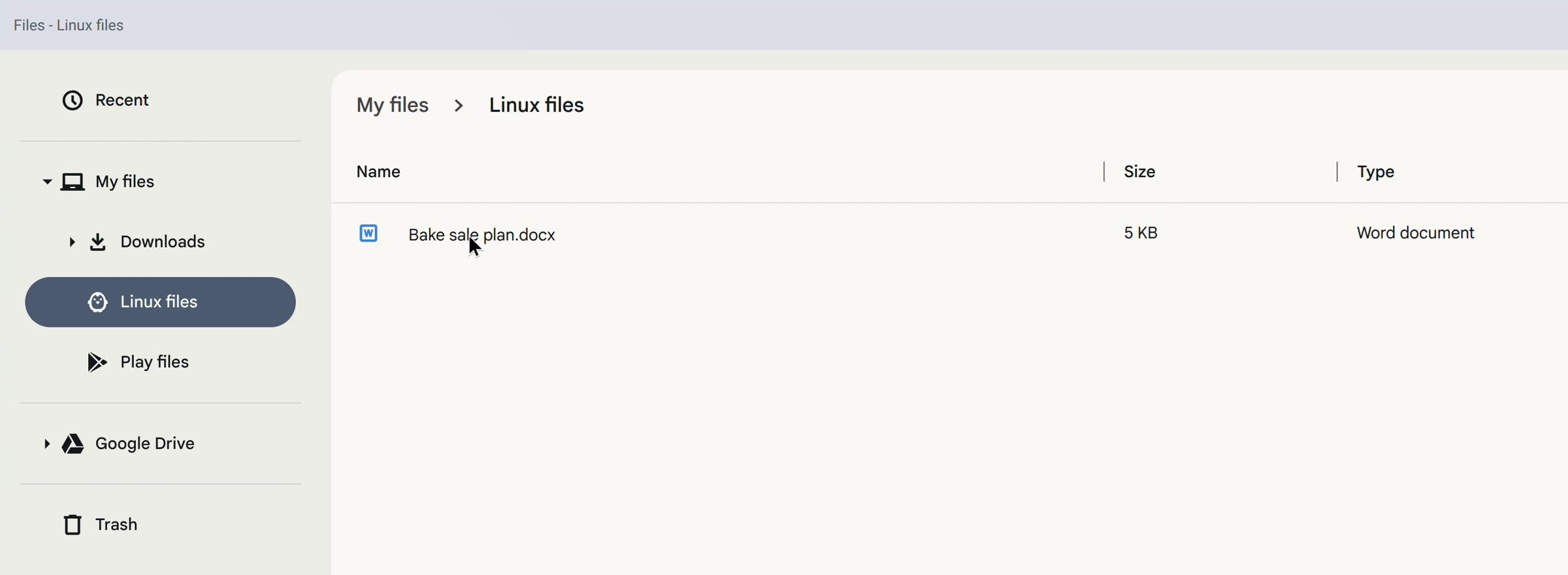
To work on a Word or Excel file that someone sent you, move it into Linux files first, or right-click its folder in the Files app and choose Share with Linux. Then open it from Writer or Calc with ctrl o .
Collabora Office for Chromebooks Without Linux
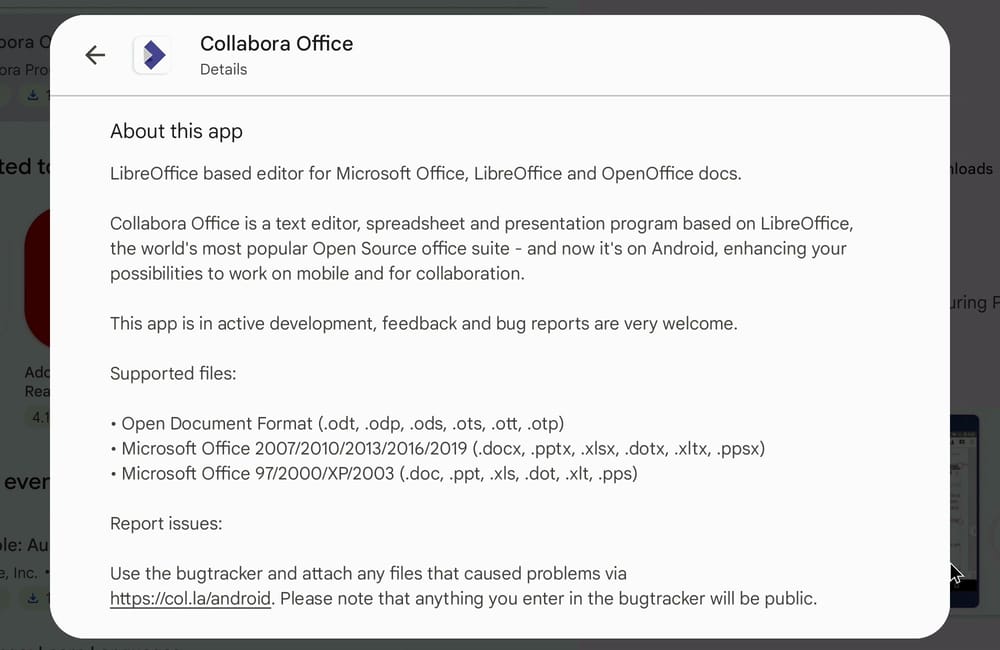
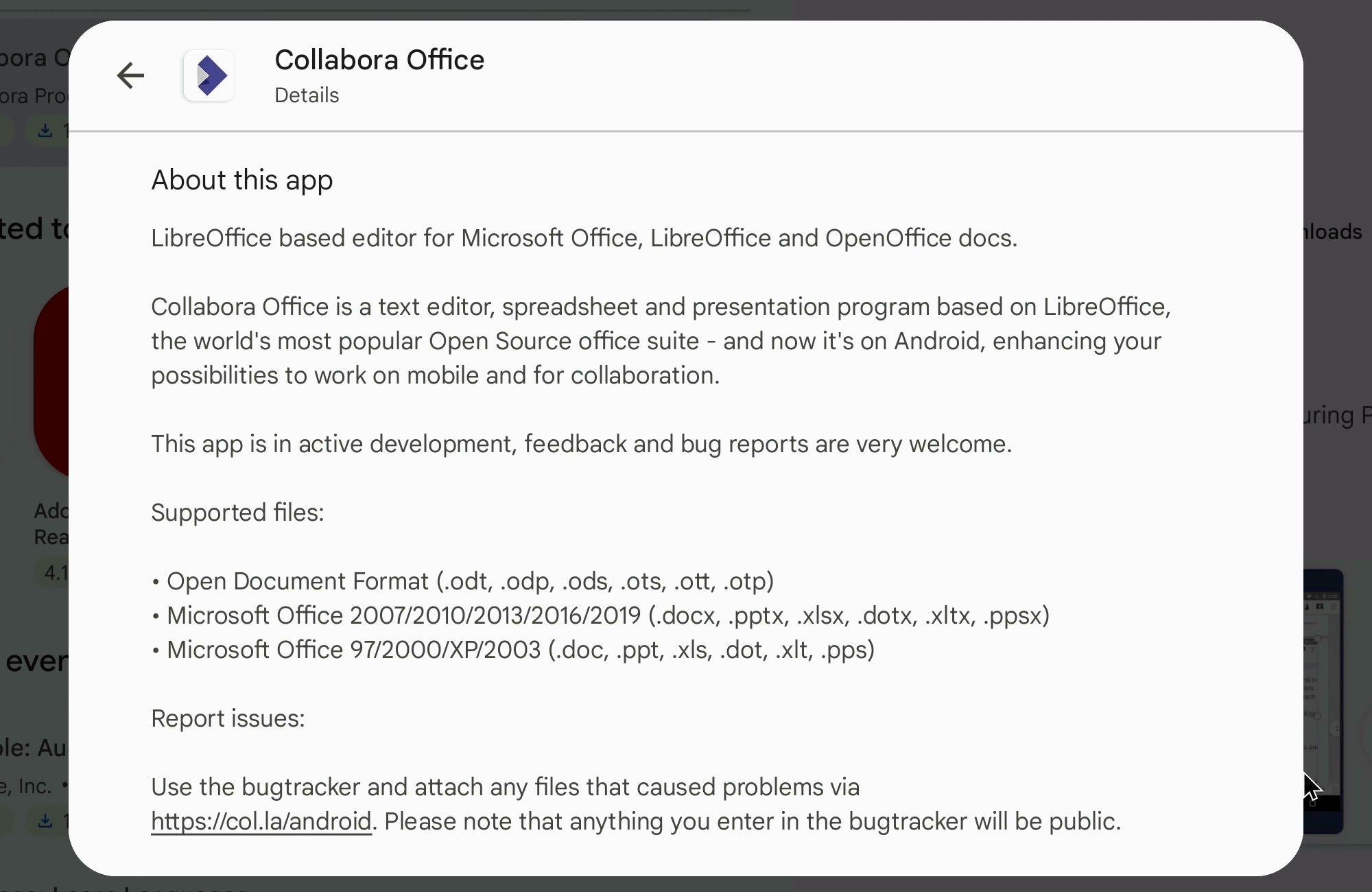
If your Chromebook cannot run Linux apps, look in Google Play instead. Collabora Office is a free Android app built on LibreOffice, from Collabora Productivity. In October 2026, Collabora Office had more than a million downloads on Google Play and a 3.4-star rating on Chromebooks. Search for Collabora Office in the Play Store to find it.
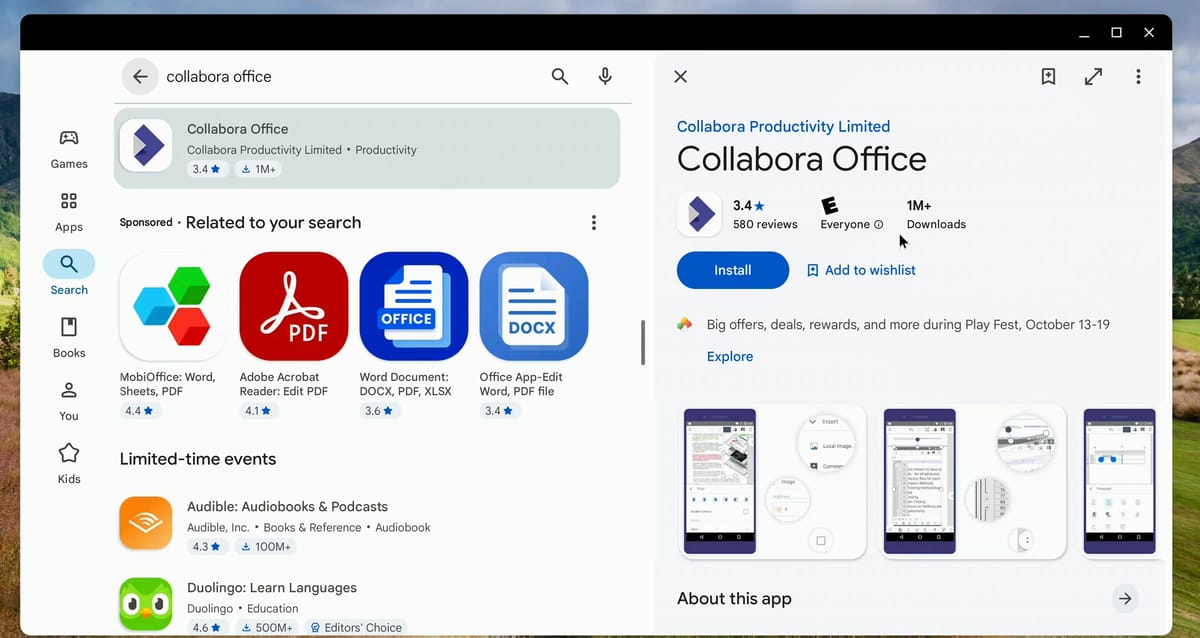
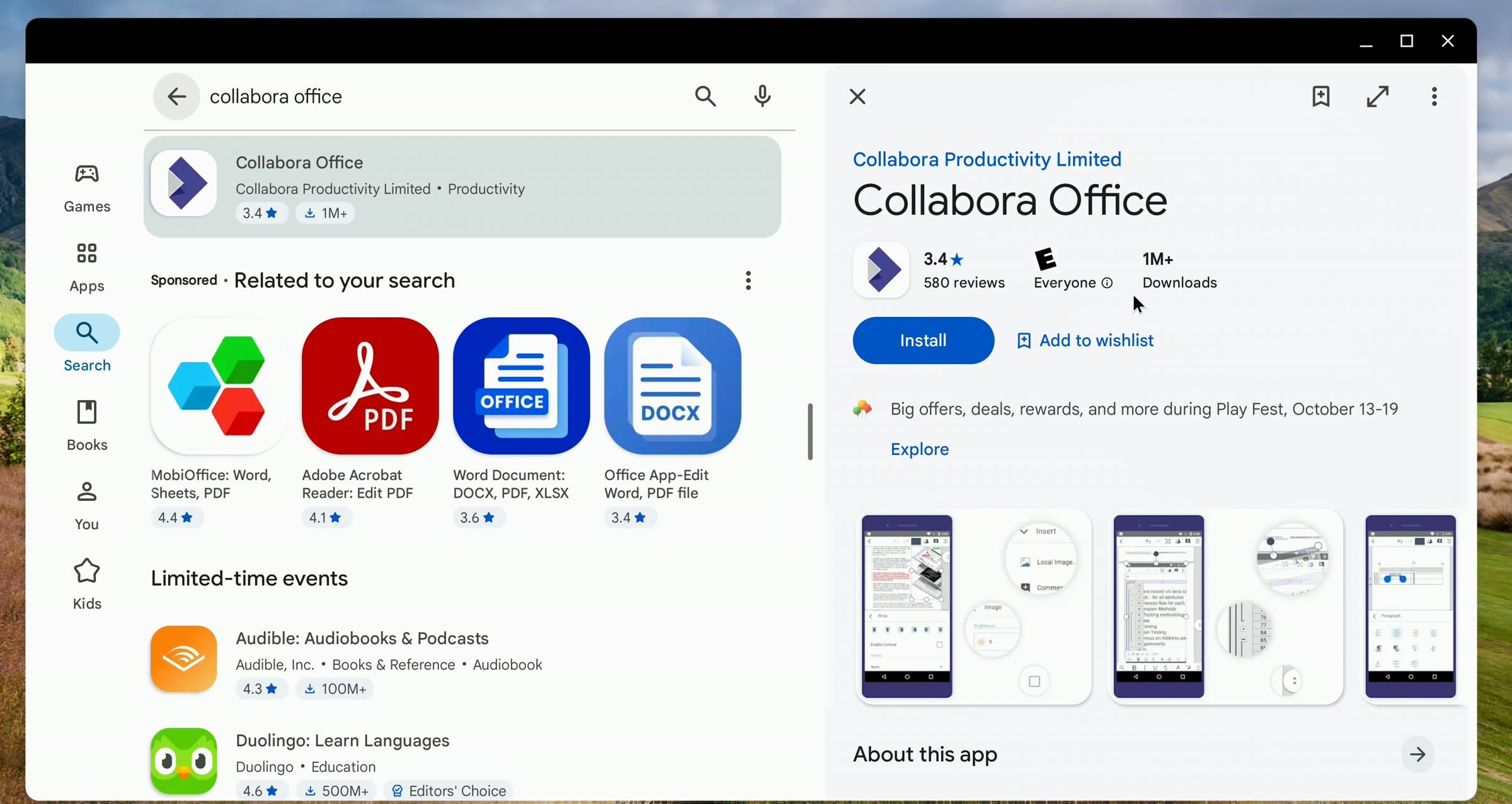
Collabora Office opens Word, Excel, and PowerPoint files (.docx, .xlsx, .pptx) and the older .doc and .xls formats. Because it is an Android app, it needs no Linux setup. It is a separate app from LibreOffice for Linux, with its own menus and its own update schedule through Google Play.
Troubleshooting
The LibreOffice icons do not show up in the launcher. They usually appear as soon as the install finishes. If they do not, restart Linux: right-click the Terminal icon in the shelf, choose Shut down Linux, then open the Terminal again. Flathub’s own ChromeOS setup steps include this restart.
Writer does not seem to open. A Linux app can sometimes open behind a maximized Terminal window. Look for its icon in the shelf at the bottom of the screen and click it to bring the window to the front.
The install stops with a disk space error. Run df -h / again. If less than about 4 GB is free, make the Linux disk bigger under Settings, About ChromeOS, Developers, Linux development environment, then run the install command again. The clear cache and storage guide covers the same Disk size setting and other ways to free space.
You want to remove LibreOffice. Run sudo flatpak uninstall org.libreoffice.LibreOffice to remove the app. Then run sudo flatpak uninstall --unused to remove the runtime it no longer needs.
Related Guides
For more on what a Chromebook can do without a connection, see Can You Use a Chromebook Without Internet?. For running Windows programs, see Can Chromebooks Run Windows Apps?.


