

Somewhere in your house right now, a Chromebook is plugged in because it dies the moment you pull the cable. The screen still works. ChromeOS still updates. The keyboard is fine. But the battery has quietly surrendered after four years of daily use, and you are staring at a decision that did not exist two years ago.
Google now guarantees ten years of automatic updates for every Chromebook. That policy, announced in September 2023, means a device you bought in 2022 will receive security patches and feature updates until 2032. The problem is that lithium-ion chemistry does not read press releases. Most Chromebook batteries degrade meaningfully after 300-500 full charge cycles, which translates to roughly three to five years of daily use. The math collides: your hardware has half a decade of software support remaining, but it cannot leave the power outlet.
The internet is full of tutorials on how to crack open a Chromebook and swap the cell. What it lacks is the strategic question that comes before the screwdriver: should you bother? That depends on four inputs, and once you know them, the decision takes about five minutes.
The Four Inputs
Every battery-or-buy-new decision reduces to the same variables, regardless of manufacturer or model year. You need your device’s Auto Update Expiration date (AUE), the cost of a compatible replacement battery, the price of a comparable new Chromebook, and whether the old device has a useful second life if you retire it from daily service. Other factors (brand loyalty, screen quality, keyboard feel) are real preferences, but they do not change the financial math. These four inputs do.
AUE remaining is the anchor. A Chromebook with six years of updates ahead of it is worth a $50 battery. A Chromebook expiring next June is not worth a $50 battery, because you will face the full replacement question again in twelve months anyway, this time without the option to just swap a cell. You can find your device’s AUE date in Settings > About ChromeOS, or look it up on Google’s official schedule.
Battery cost varies more than you might expect. iFixit stocks Chromebook batteries ranging from $19 for common HP education models to $100 for premium convertibles. The sweet spot for most consumer Chromebooks falls between $30 and $60 for the part itself. Professional service through uBreakiFix runs around $99 including labor and a one-year warranty if you are not comfortable removing a dozen screws and disconnecting a ribbon cable.
New device cost sets the ceiling on what a repair should cost. Entry-level Chromebooks in 2026 start around $150 for basic models and $200-250 for something with a modern processor and 8GB of RAM. If your total repair cost (part plus labor) exceeds 60% of a comparable new device, the math tips toward replacing the whole machine.
Repurposing fit matters because a Chromebook that cannot hold a charge as a portable is not necessarily dead. Plugged into a monitor on a shelf, it can run a home media server, a network-wide ad blocker, or a dedicated security camera viewer. If the device has crossed its AUE date, you can also wipe it and install ChromeOS Flex for a fresh start without the update deadline.
Path 1: Replace the Battery
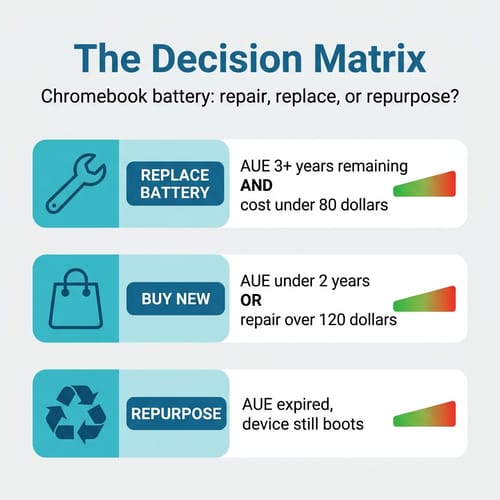
The repair path makes financial sense when your Chromebook has at least three years of AUE remaining and you can source a compatible battery for under $80. That describes a large chunk of mid-cycle Chromebooks right now: the HP Chromebook 11a G8 (AUE June 2029), the Lenovo 3i Chromebook (AUE June 2030), and any 2021-2022 model sitting in the sweet spot between “too old to bother” and “too new to have battery problems yet.”
The practical question is availability. Not every model has a readily available aftermarket battery, and third-party cells do not always match OEM capacity. Reddit threads are full of users reporting that a $45 replacement delivers four hours instead of the original eight. Before you order, check iFixit’s Chromebook battery catalog for your exact model number, read the capacity rating (measured in Wh), and compare it to the original spec. A battery rated at 80% of the original capacity will behave like a two-year-old battery out of the box: functional, but not inspiring.
If your Chromebook has only 4GB of RAM, replacing the battery extends the life of a machine that is increasingly struggling with modern ChromeOS workloads. ChromeOS in 2026 routinely pushes past 3GB of memory use with five or six tabs open, and a 4GB device starts swapping to its eMMC storage to compensate, resulting in visible lag, frozen tabs, and the occasional kernel panic. In that case, the $50 you spend on a battery might buy you another year of frustration rather than another year of comfortable use. The battery is not the only thing aging in a 4GB Chromebook; it is just the most visible symptom.
Path 2: Buy New
The replacement path wins when repair costs climb above $120 (common if you need professional service for a premium model), when AUE is fewer than two years away, or when the device has compounding problems beyond the battery. A cracked hinge, a dim display losing brightness at the edges, a trackpad that registers phantom clicks, or that 4GB RAM ceiling: any of these on top of a dead battery means you are spending money to rehabilitate a device with multiple failing systems. At that point, the repair cost is not the whole picture; the question is whether the repaired device will actually deliver a good experience for the remaining AUE window.
The good news is that the floor for a capable new Chromebook has dropped. A Lenovo 3i with a Celeron N4500 and 8GB of RAM runs around $170-210 depending on the retailer. The Acer Chromebook Plus 514, which gets you an Intel Core 3 processor and a 1920x1200 display, sits near $350 at retail. Both carry AUE dates into the 2030s, which means the battery-versus-buy-new decision will not revisit you for another four to five years minimum.
If you are replacing, think of it as buying the next decade of updates rather than just the next laptop. A device with a June 2033 or June 2035 AUE date gives you seven to nine years before the software question even arises, and the published reliability data suggests a modern Chromebook is likely to reach that window with the rest of its hardware intact. That reframes the purchase from “I need a new computer” to “I am buying myself out of this decision cycle for most of a decade.” For help comparing current options, the Chromebook comparison chart breaks down specs side by side.
Path 3: Repurpose
Repurposing makes sense when the Chromebook has crossed its AUE date or is within a year of it, making both battery replacement and continued daily use questionable investments. The device still boots, the processor still works, and plugged into power it functions exactly as it did on day one. It just cannot travel.
The most common second lives are as a dedicated home server (Pi-hole, Plex, Home Assistant) or as a kiosk device for a kitchen recipe display, a workshop music player, or a child’s video-watching station. The Lenovo 100S Chromebook, which passed its AUE back in 2021, still shows up in home-server threads running Linux via MrChromebox firmware. These devices cost nothing because you already own them, and their low power draw (15-25W) means they cost almost nothing to run 24/7.
For devices past AUE that you want to keep using as a general-purpose computer, ChromeOS Flex on a USB stick can give them a fresh ChromeOS experience with current security updates. The trade-off is losing Android app support, which means no Play Store, no offline Android games for the kids, and no mobile banking apps if you rely on those. For a web-browsing-and-document-editing workflow, though, that trade-off may not register at all; everything you need runs in a browser tab anyway.
Prevention: The ChromeOS 141 Charge Limit
If you are reading this article and your battery is not dead yet, ChromeOS 141 introduced a feature worth enabling today. Under Settings > Device > Power, you will find an option to cap charging at 80%. Lithium-ion batteries degrade fastest when held at full charge for extended periods, and since most Chromebooks spend their lives plugged in on a desk or nightstand, they spend most of their time at 100%, the worst possible state for longevity.
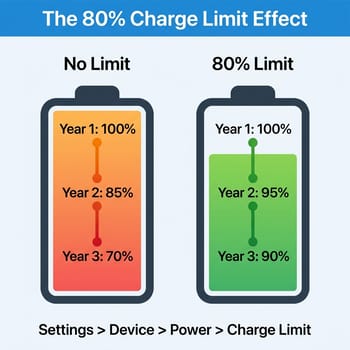
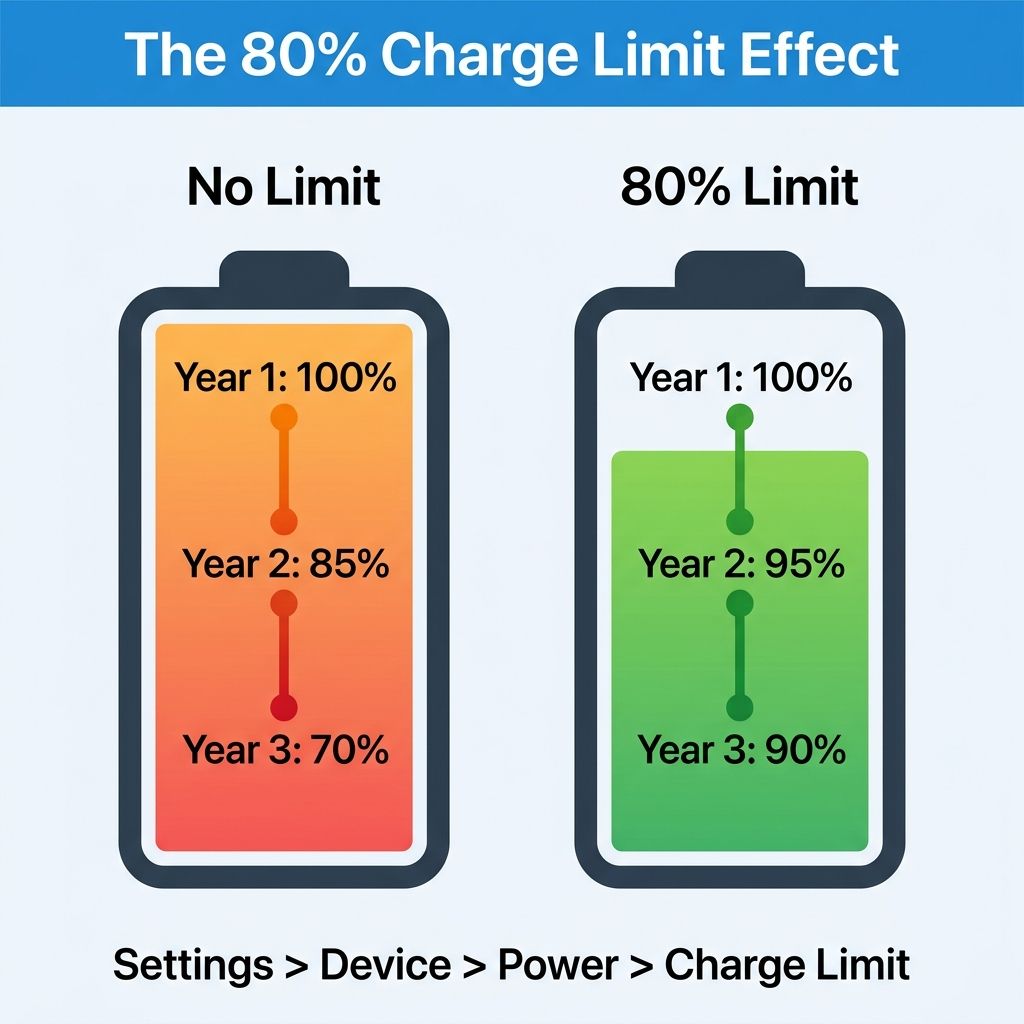
The 80% limit does not fix an already-degraded battery. Think of it as prevention, not cure. Enabling it on a healthy battery can meaningfully extend its useful life, which is the difference between “I need to deal with this now” and “I will deal with this when the next generation of Chromebooks drops.” Not every device supports the feature yet (the Lenovo Chromebook Plus 14 and Acer Chromebook Plus Spin 514 are still waiting for the rollout), but if your Settings menu shows the option, there is no reason not to enable it.
The Pre-2021 Wrinkle
If your Chromebook was released before 2021, Google offers an extended updates option that can push your AUE to the full ten-year mark. Opting in permanently removes access to the Google Play Store and all Android apps. That is a one-way door (you cannot undo it), and for many users, losing Android apps makes the device materially less useful.
This matters for the battery decision because a 2019 or 2020 Chromebook with a dying battery is facing two choices simultaneously: extend updates (losing apps) and replace the battery, or just buy something new that gets the full ten years plus the full app ecosystem. For most people in that situation, a $200-250 new Chromebook with a 2034+ AUE date and full Play Store access is the cleaner path forward.
How to Check Your Battery Health
Before you commit to any path, check what your battery is actually doing. Open the ChromeOS Diagnostics app (search for “Diagnostics” in the launcher) and look at the Battery section. You will see two critical numbers: cycle count and battery health percentage. Cycle count tells you how many full charge-discharge cycles the battery has completed; anything above 300 cycles on a standard Chromebook cell means you are in the degradation zone. Battery health percentage tells you how much of the original capacity remains; a battery at 65% health holds roughly two-thirds of the charge it did when new.
These numbers help you calibrate expectations. A battery at 80% health with a device that has five years of AUE remaining is a good candidate for the charge-limit feature (prevention, not replacement). A battery at 40% health is not going to recover with a settings toggle; that one needs a physical swap or a trip to the “buy new” column. If the Diagnostics app shows your battery is swollen (ChromeOS will warn you), stop using the device immediately and do not attempt a DIY replacement; take it to a professional or recycle it safely. Swollen lithium-ion cells are a fire risk, not a repair project.
Three Worked Examples
The HP Chromebook 11a G8 (AUE June 2029). Three years of updates remaining. iFixit stocks a compatible battery (the HP GH02XL cell) for around $60. If you are comfortable removing a dozen screws and a ribbon cable, that one-time $60 buys you three more years of use from a device you already know. Even with professional installation at $99, the total of $159 lands well under the $200-250 cost of a comparable new Chromebook. Verdict: replace the battery.
The Lenovo 100S Chromebook (AUE September 2021). Already past its update window by nearly five years. No amount of battery investment changes the fact that this device stopped receiving security patches back in 2021, and it has been falling further behind on every passing release. Even if a $40 battery would fix the power problem, you are paying to extend a machine that is no longer current. Verdict: repurpose it as a plugged-in home server or install ChromeOS Flex for a fresh start, and put the $40 toward a new machine instead.
The Lenovo 3i Chromebook (AUE June 2030). Four years remaining, and batteries for this model run $45-55 on iFixit. This one is borderline: it depends on whether the Lenovo has 4GB or 8GB of RAM. If it is an 8GB model, the battery swap makes sense and buys you four solid years. If it is a 4GB model, those four years will feel increasingly cramped as ChromeOS grows heavier. In that case, redirect the $50 toward a $170-210 replacement that solves both the battery problem and the RAM problem simultaneously.
The Quick Decision
You do not need to agonize. Check your AUE date (Settings > About ChromeOS). Price a battery for your specific model on iFixit. If AUE is more than three years out and the battery is under $80, repair it. If AUE is under two years or the repair exceeds $120, buy new. If AUE has already passed, repurpose the device for a stationary role. The broader conversation about Chromebook e-waste and planned obsolescence is real and worth having, but at your kitchen table, with a specific device in front of you, the math is simpler than it looks.


