

Listen to this article:
If you’ve ever spent a holiday weekend remotely troubleshooting your parents’ computer, you know the frustration intimately. The virus that appeared from nowhere. The toolbar that installed itself. The mysterious popup claiming the FBI has locked their computer unless they buy gift cards. For years, helping elderly parents with technology meant an endless cycle of crisis management, each phone call beginning with “I don’t know what happened, I didn’t click anything.”
Chromebooks have quietly become the solution that tech-savvy adult children recommend to each other. Not because they’re the most powerful computers, but precisely because they’re not. When MakeUseOf explored why Chromebooks work for seniors, they identified what many of us discovered independently: simplicity isn’t a limitation for elderly users—it’s the feature. A computer that boots in seconds, updates itself invisibly, and can’t easily be infected with malware isn’t “dumbed down.” It’s exactly what most seniors actually need.
This guide is for you—the adult child who wants to give your parents the gift of stress-free computing. We’ll cover choosing the right Chromebook, setting it up optimally, configuring accessibility features they might not know they need, and establishing remote support so you can help from anywhere. Think of it as a gift guide and setup manual rolled into one, designed to minimize future tech support calls for both of you.
Why Chromebooks Work for Seniors
The genius of ChromeOS for elderly users isn’t any single feature—it’s the elimination of complexity they’ll never need. There’s no antivirus software to update because the operating system verifies its own integrity at every boot. There’s no software to install because everything runs through the browser or as Android apps. There’s no wondering which of the fifteen programs starting at boot is causing slowdowns because ChromeOS simply doesn’t work that way.
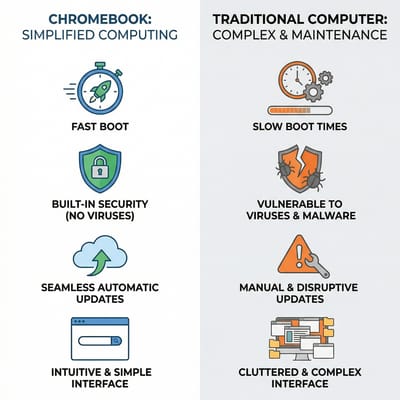
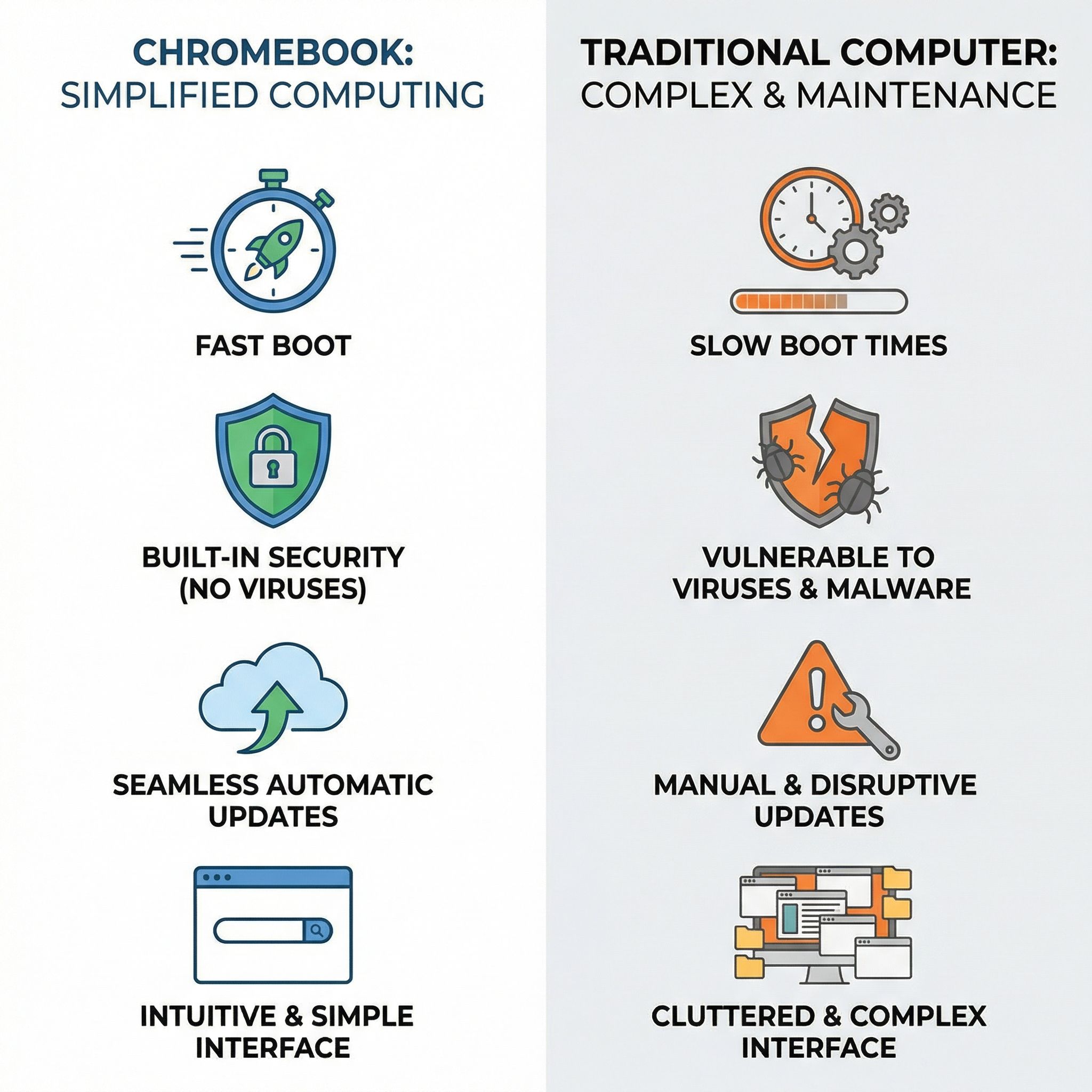
Boot times matter more than specs might suggest for users who find technology intimidating. When a computer takes two minutes to become usable, that’s two minutes of uncertainty—is it working? Did I break something? Should I click again? Chromebooks boot in eight to twelve seconds, presenting a login screen almost immediately. This responsiveness builds confidence. The computer does what it’s told, when it’s told, every time. For someone who’s internalized the lesson that computers are unpredictable and hostile, this consistency is genuinely reassuring.
Updates happen automatically, invisibly, and without requiring restarts that lose work. ChromeOS downloads updates in the background and applies them on the next boot—no popup interruptions asking to restart now or later, no fifteen-minute waits while updates install, no anxious wondering if it’s safe to turn off the computer. Senior users don’t need to understand the difference between security patches and feature updates. They don’t need to understand updates at all. The computer simply stays current, protected, and working.
The virus-free reality of ChromeOS deserves emphasis because it addresses the single biggest source of tech support calls from elderly parents. The sandboxed architecture means even if someone clicks a malicious link, the damage is contained and eliminated on restart. Those fake virus warnings that trick seniors into calling scam phone numbers? They can’t actually do anything on a Chromebook. This doesn’t mean seniors should click blindly on everything—phishing still works on any platform—but the catastrophic “your computer is ruined” outcomes that terrify elderly users simply don’t occur.
Choosing the Right Model: What Actually Matters
Screen size matters more than processor speed for elderly users. While tech reviewers obsess over benchmark scores, seniors benefit most from displays large enough to see comfortably without straining or leaning forward. A 15.6-inch screen provides generous real estate for reading email, watching video calls, and browsing websites without constantly zooming. The larger form factor also means a full-size keyboard with a number pad—important for users who learned to type on desktop keyboards and find cramped laptop layouts disorienting.
Anti-glare screens reduce eye strain in ways seniors particularly appreciate. Many older users have developed sensitivity to harsh lighting, and screens that reflect windows or overhead lights create discomfort they might not articulate but definitely experience. Look for displays described as “matte” or “anti-glare” rather than glossy finishes. IPS panels offer better viewing angles, meaning the screen remains readable when not positioned perfectly head-on—helpful when a grandchild wants to look at photos together.
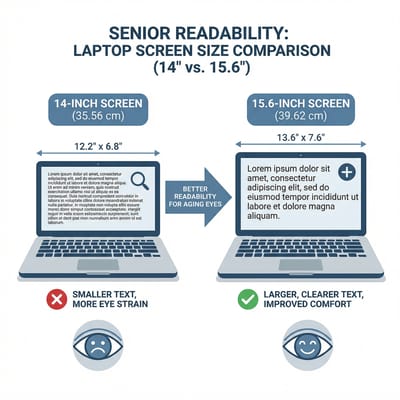
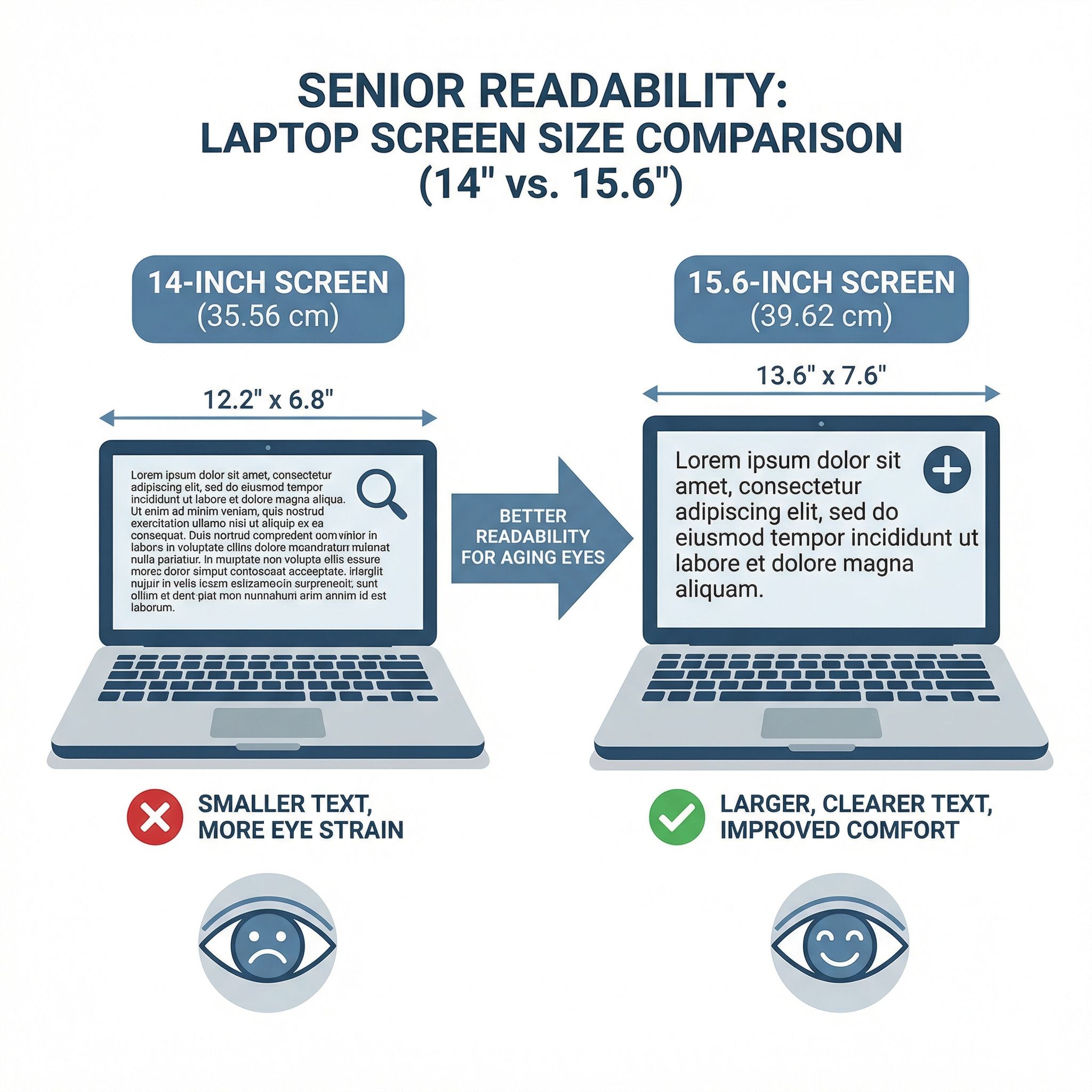
Weight becomes a factor if your parent might move the laptop between rooms or take it traveling. Larger 15.6-inch Chromebooks typically weigh between 3 and 4 pounds—noticeable but manageable. If mobility is a concern, consider whether a 14-inch model might offer a better balance between screen size and portability. The difference of half a pound matters more when arthritic hands are lifting the device daily. That said, most seniors use their laptop in one or two locations; the weight only matters during initial placement and occasional moves.
Touchscreens are optional but worth considering for users who’ve become comfortable with tablets or smartphones. The ability to tap directly on what they want, rather than translating intention through a trackpad, can feel more intuitive for some seniors. Others find the trackpad perfectly fine and never touch the screen. Don’t pay a significant premium for touch capability unless you know your parent specifically wants it. The touchscreen adds cost and, typically, weight and glossier screens—tradeoffs that may not be worthwhile.
Auto Update Expiration (AUE) dates matter enormously for a purchase intended to last years. Every Chromebook has a date after which Google stops providing security updates. Buying a Chromebook with only two years of support remaining means replacing it soon; buying one with eight years of support means not thinking about it again. Check the Google Chrome Enterprise AUE list before purchasing, and prioritize models with dates extending to 2033 or later.
Recommended Models for Seniors
The Samsung Galaxy Chromebook Plus 15.6” represents the premium option for parents who deserve something special. At 2.58 pounds, it’s remarkably light for its screen size—light enough that mobility concerns largely disappear. The AMOLED display offers exceptional clarity and contrast, making text and images pop. Software support extends through June 2034, meaning eight years before obsolescence becomes a concern. The backlit keyboard helps in lower-light conditions, and the 1080p webcam ensures clear video calls with grandchildren. At around $700 from Best Buy, it’s an investment, but one that will serve reliably for nearly a decade.
The Acer Chromebook Plus 515 hits the mid-range sweet spot for most families at around $380. This Chromebook Plus certified model delivers everything seniors need: a 15.6-inch Full HD touchscreen that responds to taps like a tablet, a backlit keyboard for evening use, and an Intel Core i3 processor that handles video calls and web browsing without hesitation. The touchscreen is particularly valuable for seniors who’ve grown comfortable with smartphones and tablets—pointing directly at what they want feels more natural than trackpad navigation. Software support extends through June 2032, and the inclusion of HDMI means connecting to a larger TV or monitor requires a single cable rather than adapters. This is our top pick for most senior gift purchases given its wide availability on Amazon and strong customer reviews.
For budget-conscious purchases, the Acer Chromebook 315 delivers the essentials at around $300-350. The 15.6-inch IPS display provides comfortable viewing, the full-size keyboard includes a number pad, and the 12.5-hour battery life means forgetting to charge overnight isn’t a crisis. Support extends through June 2033, providing seven years of worry-free updates. The main tradeoff is a non-backlit keyboard, which may matter for evening use—consider whether your parent typically computes in well-lit conditions.
Initial Setup: The First Hour
Setting up a Chromebook for someone else requires thinking through decisions they’d struggle to make themselves. Start by creating a Google account specifically for your parent if they don’t already have one. Use an email address format they can remember and spell—typically firstname.lastname@gmail.com rather than clever handles. Write down the password somewhere physical they can find it, and somewhere digital you can reference when they inevitably forget.
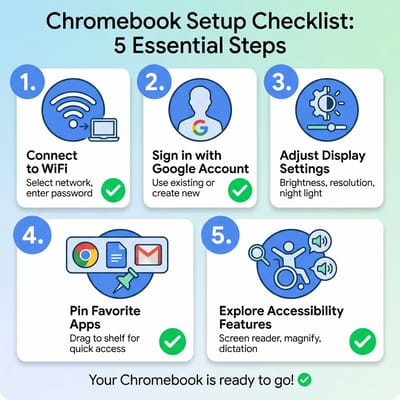
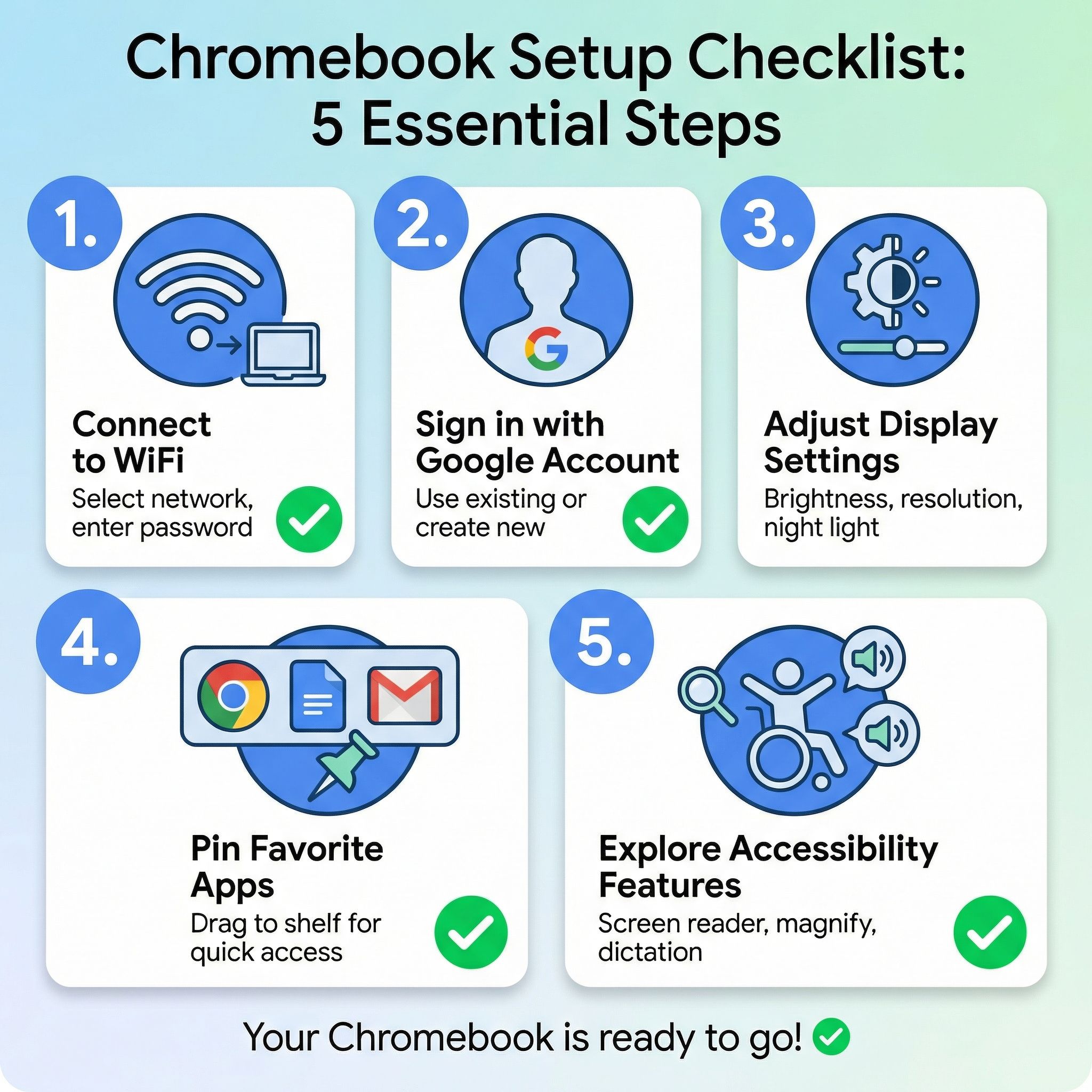
During initial Chromebook setup, the device asks about language, keyboard layout, and WiFi. Choose these carefully—a wrong language setting creates confusion that’s hard to undo without your help. Connect to their home WiFi during setup rather than skipping this step. When prompted to sign in, use the Google account you created or your parent’s existing one. Decline offers for trial subscriptions and optional features; these create confusion and potential future charges.
After reaching the desktop, immediately configure a few essentials. Open Settings (click the time in the bottom-right corner, then the gear icon) and navigate to Display. Increase the display size to 125% or 150% depending on your parent’s vision—this makes everything larger without changing resolution. In the Personalization section, consider setting a photo they’ll enjoy as the wallpaper rather than abstract ChromeOS defaults. Small touches like this make the computer feel welcoming rather than alien.
Pin the apps they’ll actually use to the shelf (the taskbar at the bottom). For most seniors, this means Chrome, Gmail, Google Photos, and perhaps Google Meet or Zoom for video calls. Remove pins for apps they won’t use—fewer icons means less confusion. Each pinned app should represent something they’ll do regularly. If they won’t use the Google Play store independently, don’t pin it; if they will, pin it prominently.
Consider whether to enable Guest Mode for visitors. In Settings under People, you can allow others to use the Chromebook without accessing your parent’s files or accounts. This is useful if grandchildren visit and want to play games without risking accidental changes to Grandma’s setup. The guest session wipes completely on logout, so nothing guests do persists.
Accessibility Features: What You Might Not Know They Need
ChromeOS includes robust accessibility features that many seniors don’t know exist, and wouldn’t think to enable themselves. These aren’t just for users with disabilities—many address the normal vision and motor changes that accompany aging. Spending fifteen minutes configuring these during initial setup saves countless squinting sessions later.
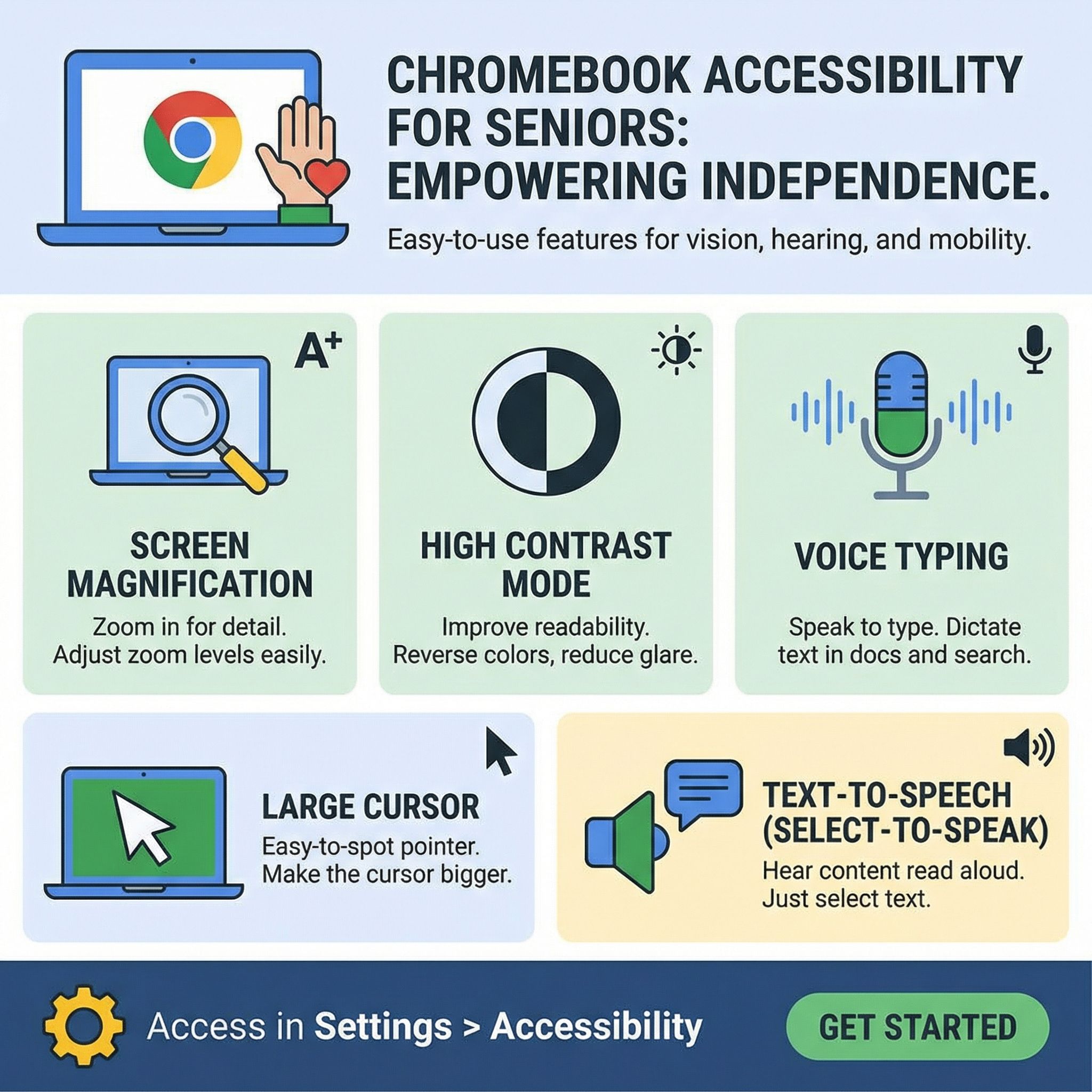
Screen magnification offers four different approaches to making content larger. Full-screen magnification enlarges the entire screen up to 20x, following the cursor as it moves. The Google Chromebook accessibility page explains how the docked magnifier keeps magnification in the top third of the screen while displaying unmagnified content below—useful for users who need enlargement only occasionally. Browser zoom (Ctrl and +) increases just the webpage content. Display scaling in Settings makes the entire interface larger. Try each with your parent present to determine which feels most natural.
High contrast mode inverts colors so light text appears on dark backgrounds—a simple change that can dramatically reduce eye strain for some users. Enable it quickly with Ctrl+Search+H, or permanently through Settings. Some seniors find this easier on their eyes; others find it disorienting. The only way to know is trying it together. The option exists in Accessibility settings and can be toggled off just as easily if it doesn’t work for them.
ChromeVox, the built-in screen reader, reads aloud whatever’s on screen. While designed for blind users, it can help seniors with severe vision impairment or those who process information better through hearing than reading. Toggle it with Ctrl+Alt+Z. Less comprehensive but often more useful is Select-to-Speak: enable it in Accessibility settings, then press Search+S and click-drag over text to hear it read aloud. This works well for long articles or emails that strain tired eyes.
Cursor size adjustments prevent losing track of the pointer on large screens. In Settings under Accessibility, increase the cursor size until it’s easy to spot at a glance. For users with tremors or reduced fine motor control, enable “automatically click when the cursor stops” (dwell clicking) so they don’t need to physically press trackpad buttons. The automatic click delay can be adjusted to prevent accidental clicks while still responding when they intend to select something.
Voice typing allows dictation instead of typing, helpful for seniors with arthritis or unfamiliarity with keyboards. In any text field, press Search+D to begin dictation. The accuracy is impressive for clear speech, though background noise and strong accents can cause issues. Practice with your parent to establish whether this feature helps their particular situation—for some it’s liberating, for others it’s more frustrating than simply typing slowly.
Essential Apps: Keep It Simple
The temptation when setting up a computer for someone else is installing everything they might possibly need. Resist this. Every app added is another icon to confuse, another potential source of “I don’t know what happened.” Start minimal and add only what’s actually necessary.
Email already works through Gmail in the browser—no app installation needed. Open gmail.com, sign in with their account, and bookmark it prominently. Show them how the inbox works, how to compose a message, how to reply. If they’re coming from a desktop email client like Outlook, the transition to webmail may feel unfamiliar; spend extra time demonstrating that their email isn’t “in the computer” but accessible from anywhere.
Video calling deserves special attention because seeing grandchildren may be the primary reason for having a computer at all. Google Meet works entirely in the browser with no installation. Zoom requires the Android app from the Play Store but runs well on Chromebooks. Install whichever their family uses, create a test call with yourself to verify audio and video work correctly, and bookmark the launching point prominently. Consider printing simple instructions: “Click this to call [grandchild’s name].”
Photo viewing and sharing connects many seniors to family life. Google Photos automatically backs up pictures from connected phones and allows viewing and sharing across devices. If your parent takes photos on their phone, setting up Google Photos sync means those pictures appear on the Chromebook too. Show them how to view photos, how to share a photo with family, and how to create albums for specific events.
Streaming services like Netflix, YouTube, and Amazon Prime Video work through the browser or Android apps. Install only the services they actually subscribe to—don’t create accounts for services they’ll never use. YouTube deserves particular mention because it’s free and contains endless content on topics that interest seniors: cooking shows, how-to videos, travel documentaries, old movies, religious services. A simple YouTube bookmark can provide more entertainment than cable television.
Beyond these essentials, wait. If they later need a word processor, Google Docs works in the browser. If they want games, the Play Store offers them. Adding apps should be reactive—responding to genuine needs—rather than proactive. The cleanest setup is the most usable setup.
Setting Up Remote Support: Help From Anywhere
Chrome Remote Desktop transforms tech support for elderly parents. Instead of trying to diagnose problems over the phone (“Is there a button that says… no, not that one…”), you simply see their screen and control their computer as if sitting beside them. The setup takes minutes and the capability saves hours of frustration over the device’s lifetime.
On the parent’s Chromebook, navigate to remotedesktop.google.com/access and sign in with their Google account. Click the download button and install Chrome Remote Desktop from the Chrome Web Store. Choose a name for the computer (something recognizable like “Mom’s Chromebook”) and create a PIN. This PIN authorizes future connections—choose something they can remember if needed, but primarily something you’ll remember since you’ll be the one connecting.
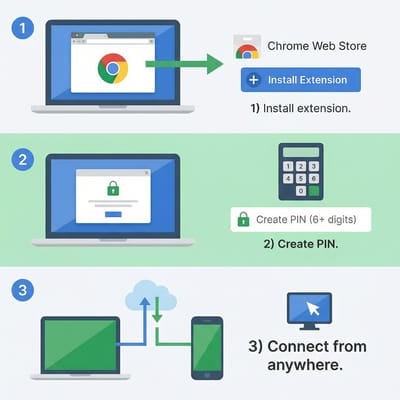
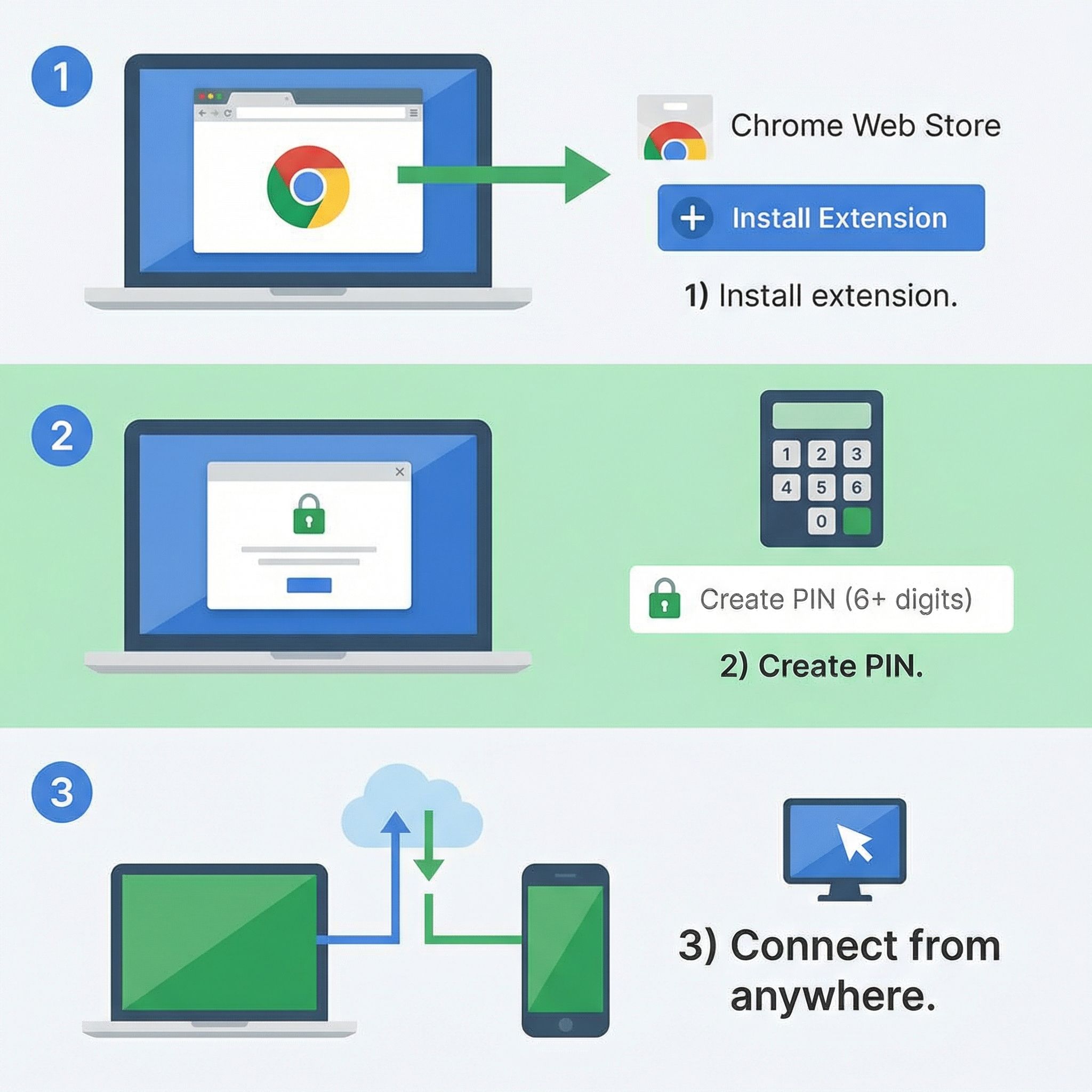
From your own computer or phone, visit the same site and sign into the same Google account. The parent’s Chromebook appears as an available computer. Click it, enter the PIN, and you’re seeing their screen. Move the cursor, click, type—everything works as if you were physically there. You can resize windows, adjust settings, install apps, fix problems, all without driving across town or talking them through steps they can’t follow.
For one-time support without setting up permanent access, Chrome Remote Desktop offers a session-based option. On the Chromebook, visit remotedesktop.google.com/support and click “Generate Code.” They read you the resulting twelve-digit number. You enter it on your computer to connect. This approach requires them to initiate the session and read the code—more steps than permanent access, but useful when helping relatives whose computers you haven’t previously configured.
One important note: Chrome Remote Desktop requires the target computer to be powered on and connected to the internet. Advise your parent to leave the Chromebook plugged in and open (not shut) when they’re not using it, perhaps on a desk or counter. The screen will sleep, but the connection remains available. If they habitually close the lid and store it in a drawer, remote support won’t work when they need it—precisely the moment they call for help.
What Not to Do: Common Setup Mistakes
The most common mistake when setting up a computer for elderly parents is over-configuration. Tech-savvy children install their favorite apps, set up elaborate organizational systems, and create folder structures the parent never requested and won’t maintain. The result looks impressive during the “look what I did!” demonstration but creates confusion the moment the parent uses it alone. Remember: the goal is a computer they can use independently, not a showcase of your preferences.
Avoid installing apps preemptively. “They might want to edit documents someday” doesn’t justify installing LibreOffice today. Each additional app icon is visual clutter that makes the essentials harder to find. If they need something later, you can install it remotely in minutes. Starting minimal and adding as needed creates a computer that grows with their actual usage rather than one that overwhelms from day one.
Don’t set up multiple Google accounts or complex account structures. One Google account, used everywhere, creates the simplest possible mental model. If they already have personal Gmail, use that. If they need a new account, create exactly one. Switching between accounts, logging out and in, remembering which account is signed in where—these confuse users who find technology challenging. Simplify ruthlessly.
Resist enabling experimental features or beta programs. Developer mode, beta channel updates, experimental flags—these might interest you but create instability and unfamiliar interfaces for parents. Keep the Chromebook on the stable channel with default configurations. Boring and predictable beats exciting and confusing.
Finally, avoid the temptation to explain everything. An hour-long demonstration covering every feature guarantees they’ll remember nothing. Show them the three or four things they’ll do daily: check email, make video calls, look at photos. When they master those, they’ll naturally discover more. Learning happens through use, not through lectures.
The Transition From Windows: What to Expect
If your parent is moving from a Windows computer, expect some disorientation. Decades of muscle memory don’t transfer instantly, and features they took for granted work differently or don’t exist. Acknowledging this upfront—“This will feel different at first, but you’ll get comfortable”—sets realistic expectations and prevents discouragement when things don’t immediately click.
The biggest mental adjustment involves files and storage. Windows trains users to think of files as living “in the computer” in folders they must organize and maintain. ChromeOS emphasizes cloud storage, where files exist in Google Drive and appear on any device. This is actually simpler once understood, but the transition can feel disorienting. Spend time showing how Drive works, how files saved there appear everywhere, how the computer itself is just a window into their stuff rather than the container of their stuff.
Installed programs don’t exist the same way on ChromeOS. There’s no equivalent to running a .exe installer or managing programs through Control Panel. Apps come from the Play Store or web store and install with a single click. More importantly, many tasks that required software on Windows—word processing, photo editing, email—simply happen in the browser on Chrome. “Where’s Word?” becomes “You write in Google Docs, which is this website.”
Printing often causes confusion. ChromeOS can print directly to most network and USB printers without additional drivers, but the process differs from Windows. If printing matters to your parent, configure it during setup and verify it works. If they rarely printed before, don’t bother—the capability exists if needed later. Many seniors discover they can share documents and photos digitally rather than printing, reducing paper and complexity.
Long-Term Success: Setting Expectations
A well-configured Chromebook can operate for years with minimal intervention, but “minimal” isn’t zero. Prepare your parent for the reality that occasional updates will change small things—button positions might shift, menu names might change, new features might appear. These changes are generally improvements, but any change can disorient users who memorized specific steps. Reassure them that when things look different, it doesn’t mean they broke something.
Establish how they should contact you when confused. A phone call is fine for quick questions. Chrome Remote Desktop handles problems requiring visual context. Some families create a shared Google Doc where the parent records questions and the child answers during scheduled calls—this prevents interruptions while ensuring nothing gets forgotten. Whatever system you choose, be patient. The goal is independent use, but independence develops gradually.
Consider scheduling periodic check-ins even when nothing’s wrong. A monthly video call to review how they’re using the computer reveals habits that could be simplified and features they’d benefit from knowing. These proactive conversations prevent problems from festering into frustrations and maintain the relationship as one of helpful support rather than crisis intervention.
Finally, celebrate their successes. Learning technology in your seventies or eighties takes courage. When they successfully video call a grandchild, share photos with friends, or research a recipe online, acknowledge the accomplishment. The Chromebook is just a tool; the real achievement is their willingness to keep learning.


