

The question arrives in my inbox at least once a month: “I have a Chromebook and I want to make music. Is that even possible?” The answer is yes, with some important caveats that I’m going to be completely honest about. You can produce surprisingly decent music on a Chromebook, but only if you go into this with realistic expectations about what these machines can and cannot do. If you’re expecting the full Pro Tools or Logic Pro experience, you’re going to be disappointed. If you’re a student learning production basics, a hobbyist capturing ideas, or someone who wants to collaborate with other musicians online, Chromebooks offer genuinely useful options that cost nothing to try.
Let me be clear about something upfront: professional music producers aren’t switching to Chromebooks. The limitations are real and significant for anyone doing serious production work. But the definition of “serious” matters here. If you’re a teenager learning to produce beats in your bedroom, a teacher running a music class with twenty Chromebooks, or someone who wants to sketch out song ideas while traveling, the cloud-based and mobile DAWs available on Chrome OS have matured into surprisingly capable tools. The gap between “possible” and “practical” that plagued Chromebook music production for years has narrowed considerably.
The Cloud DAW Revolution: BandLab and Soundtrap
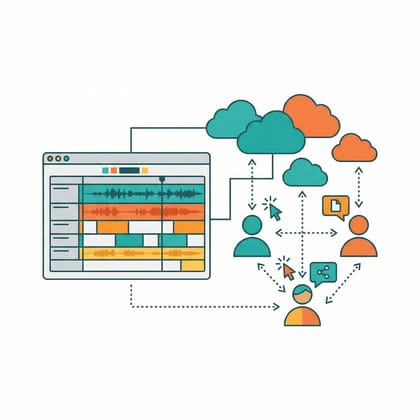
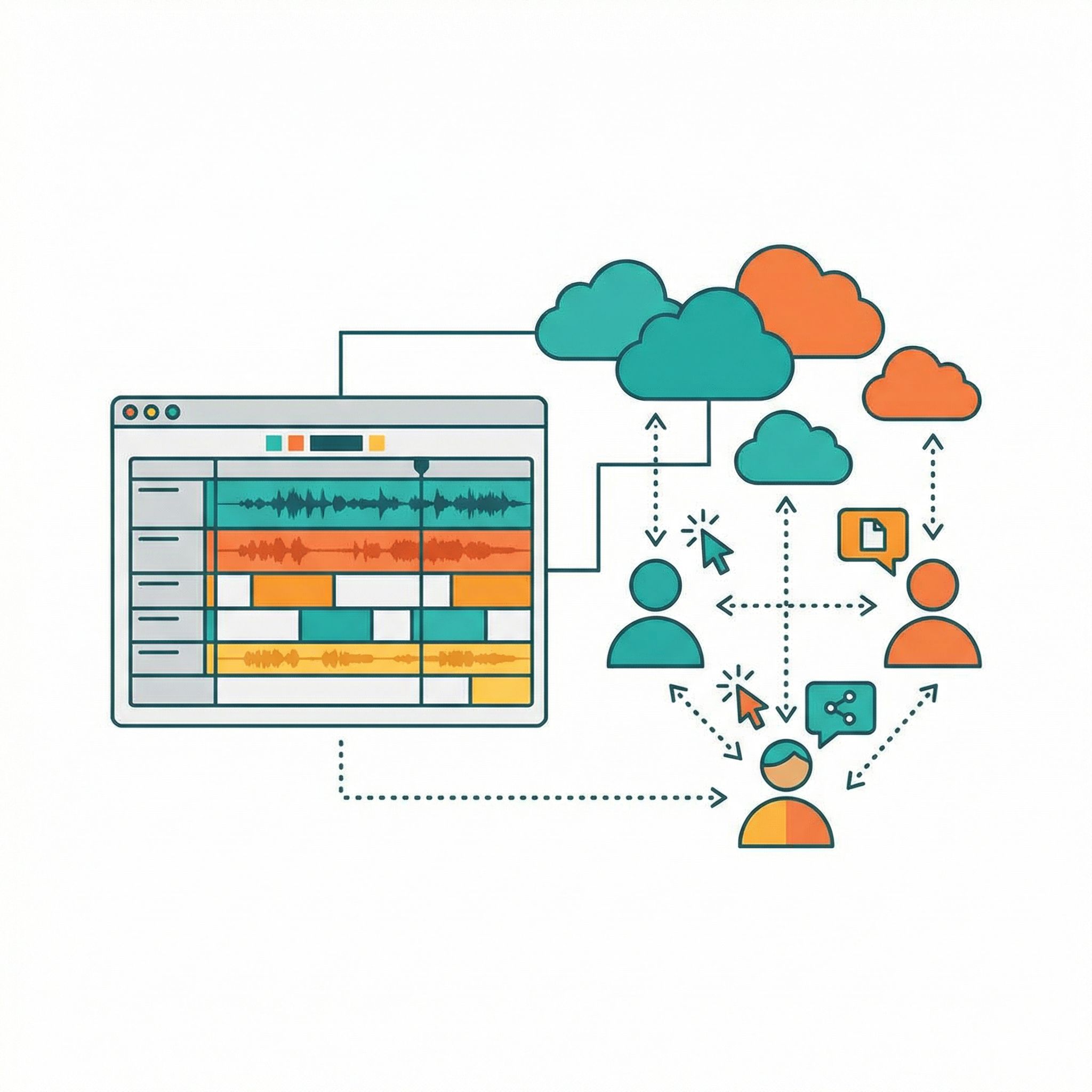
The most practical path to music production on a Chromebook runs through your browser. BandLab and Soundtrap represent the current state of the art in cloud-based digital audio workstations, and both run identically on Chrome OS, Windows, Mac, and Linux. No installation required, no compatibility worries, and in BandLab’s case, no cost whatsoever. You open a browser tab and start making music.
BandLab deserves special attention because it’s genuinely free with no catches. Not “free with limitations that push you toward a subscription” but actually, completely free. You get unlimited projects, unlimited cloud storage for your music, access to over 200 virtual instruments and effects, and even free AI-powered mastering for your finished tracks. The interface feels modern and intuitive, with a multi-track editor that anyone who’s used a DAW before will find immediately familiar. Recording works directly through your browser using your Chromebook’s built-in microphone or a USB audio interface, and MIDI controllers connect without any special configuration on most devices.
The collaboration features set BandLab apart from traditional DAWs. You can share a project link with other musicians anywhere in the world and work on the same track simultaneously, which transforms music production from a solitary activity into something genuinely social. For classroom environments where students need to collaborate on projects, this capability alone makes BandLab worth considering. The platform has built a substantial community around these features, with millions of users sharing work and providing feedback.
Soundtrap takes a slightly different approach as a Spotify-owned platform that emphasizes its education-focused features and integration with popular streaming. The free tier is more limited than BandLab’s, but the paid subscriptions starting at around $8 monthly unlock Antares Auto-Tune integration, more loops and samples, and additional virtual instruments. Like BandLab, Soundtrap runs entirely in your browser with full support for recording, MIDI editing, automation, and real-time collaboration. The interface feels slightly more polished than BandLab’s, and the loop library tends toward more contemporary sounds that align with current chart production styles.
Both platforms share the same fundamental limitations that come with browser-based audio production. You cannot use VST plugins, the industry-standard format for software instruments and effects that professional producers rely on. There’s no way around this limitation. Chrome OS doesn’t support VST plugins, and web browsers can’t load them either. You’re limited to whatever instruments and effects the platform provides, and while both BandLab and Soundtrap offer substantial built-in libraries, professional producers accustomed to specific plugin chains will find the options constraining. The synthesizers lack deep editing capabilities like ADSR envelopes that experienced producers expect, and the effect options, while serviceable, can’t match dedicated plugins.
Mobile DAWs: FL Studio Mobile and Cubasis
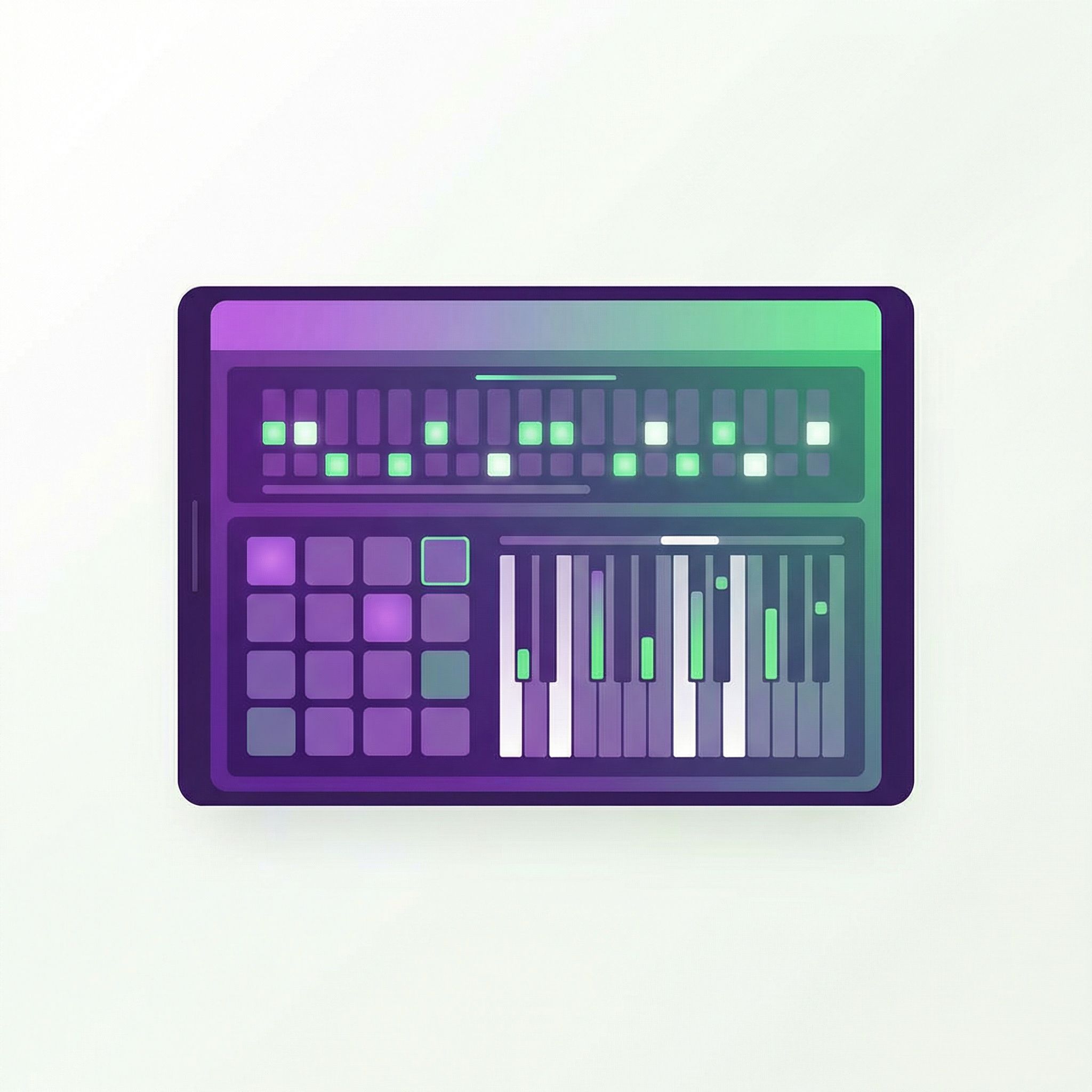
Android apps extend your options beyond browser-based tools, and two stand out for serious music production work. FL Studio Mobile brings the familiar FL Studio workflow to Chrome OS through the Google Play Store, while Cubasis 3 from Steinberg offers a more traditional linear DAW experience. Both cost money upfront rather than operating on subscription models, and both offer substantially more power than the free cloud options.
FL Studio Mobile costs around $15 as a one-time purchase and delivers a surprisingly complete production environment. The step sequencer workflow that made the desktop FL Studio famous translates well to the mobile version, making it particularly suited to electronic music production, hip-hop beats, and any genre built around patterns and samples. You get a genuine multi-track arrangement view, a mixer with per-track effects, built-in synthesizers and samplers, and the ability to import and export projects that can open in the full desktop FL Studio. For producers who already know FL Studio’s workflow, the mobile version feels immediately familiar despite the different interface.
The key advantage of FL Studio Mobile over cloud DAWs is that it runs locally without requiring an internet connection. You can produce music on an airplane, in a coffee shop with spotty Wi-Fi, or anywhere else you happen to be with your Chromebook. The app stores everything locally, which also means your works in progress aren’t dependent on a cloud service that might change its terms or go offline. For the paranoid among us who prefer controlling our own files, this matters.
Cubasis 3 runs around $50 and offers a workflow that feels more like traditional desktop DAWs such as Cubase, Logic Pro, or Pro Tools. If the pattern-based approach of FL Studio doesn’t match how you think about music, Cubasis provides a linear multi-track timeline with more conventional recording and arrangement tools. The audio engine handles complex projects smoothly on Chromebooks with capable processors, though you should note that Cubasis has higher system requirements than FL Studio Mobile. It won’t run well on every Chromebook, and budget models with ARM processors may struggle.
One important consideration: not every Chromebook runs Android apps equally well. The experience varies significantly based on your specific hardware. Intel and AMD processors generally handle these apps better than ARM-based chips, and you’ll want at least 8GB of RAM for comfortable multi-track production. If you’re considering a Chromebook primarily for music production, the Acer Chromebook Spin 714, ASUS Chromebook Plus CX34, or Lenovo IdeaPad Flex 5i Chromebook Plus will deliver a noticeably better experience than budget models.
The Linux Route: Reaper via Crostini
If you’re technically inclined and willing to accept significant compromises, running Reaper through Chrome OS’s Linux container opens access to a genuine professional-grade DAW. This is not a path I recommend for most users, but it exists and deserves honest discussion for those willing to tackle it.
Chrome OS includes a Linux subsystem called Crostini that can run many Linux applications. Reaper offers a Linux version, and it installs relatively easily through Flatpak once you’ve enabled Linux on your Chromebook. The process involves opening Settings, enabling the Linux development environment, and then running a few terminal commands to install Flatpak and add the Flathub repository. Guides exist online that walk through the specific steps, and for someone comfortable with command-line operations, the installation takes about twenty minutes.
Here’s where I need to be very honest: the experience once you get Reaper running ranges from workable to frustrating depending on your specific hardware and expectations. Audio latency can be problematic because Chrome OS wasn’t designed with real-time audio processing as a priority. The Linux container adds overhead, and USB audio device routing doesn’t always work smoothly. Some users report acceptable performance with ALSA or JACK audio configurations, while others find the latency intolerable for anything involving recording in real time. You might achieve sub-10ms latency with the right configuration, or you might struggle with 50ms delays that make recording instruments unusable.
ARM-based Chromebooks add another complication. Many budget and mid-range Chromebooks use ARM processors rather than Intel or AMD chips, and Reaper works best on Intel/AMD systems. While ARM support exists, compatibility and performance are less reliable. If you’re specifically buying a Chromebook with the intention of running Reaper or other Linux audio software, prioritize Intel or AMD processors.
The honest assessment of the Linux route: it’s experimental, not a reliable daily workflow for most users. Some technical users have made it work and report reasonable results. Others have spent hours troubleshooting only to end up frustrated with latency or compatibility issues. If you already own a Chromebook and want to experiment, the attempt costs nothing but time. If you’re buying a computer specifically for music production and considering a Chromebook because you want to run Reaper through Linux, buy a used Windows laptop instead. You’ll save yourself significant headaches.
The USB Audio Interface Question
Hardware connectivity represents one of the most significant limitations for serious music production on Chromebooks. Most USB audio interfaces will connect and function at a basic level because they operate as USB class-compliant devices that Chrome OS can recognize. PreSonus specifically documents Chrome OS compatibility for their interfaces, and many users report success with devices from Focusrite, MOTU, and other manufacturers.
However, Chrome OS limits USB audio to two channels in and two channels out. If you have a multi-channel interface designed for recording drums with eight microphones simultaneously, only two of those channels will work on a Chromebook. The operating system simply doesn’t support multi-channel audio the way Windows and macOS do. For recording a single vocal or instrument, this limitation doesn’t matter. For anyone needing more complex recording setups, it’s a dealbreaker that no workaround can address.
MIDI controllers generally work better than audio interfaces. Most USB MIDI keyboards and drum pads connect without issues and are recognized immediately by both cloud-based DAWs and Android apps. I’ve tested several controllers including M-Audio and Akai devices with reasonable success, though I’ve also encountered keyboards that Chrome OS refused to recognize for no apparent reason. If you’re buying a MIDI controller specifically for Chromebook use, check online forums for compatibility reports with your specific device.
Bluetooth audio introduces latency problems that make real-time monitoring effectively impossible. Even with modern Bluetooth codecs, the delay between playing a note and hearing it through Bluetooth headphones or speakers creates a disconnect that makes performance unworkable. Always use wired audio connections for music production, whether through your Chromebook’s headphone jack or a USB audio interface.
Who Should Actually Make Music on a Chromebook


After spending time with these tools and talking to users who actually produce music on Chromebooks, clear patterns emerge about who benefits from this approach and who should look elsewhere.
Students learning music production for the first time represent the ideal use case. BandLab and Soundtrap teach the fundamentals of multi-track recording, MIDI sequencing, mixing, and arrangement without requiring any software investment. The free access means students can experiment without financial commitment, and the collaborative features enable classroom projects that would be complicated with traditional DAWs. If you’re a music teacher with a classroom full of Chromebooks, these platforms let you teach real production skills with tools that work on the hardware you already have.
Hobbyists who want to capture ideas without investing in expensive equipment also find value here. A Chromebook with BandLab gives you a complete recording and production environment for the cost of the Chromebook itself. You can record demos, experiment with beat-making, and explore music creation without committing to professional equipment before you know whether music production will become a serious pursuit. If the hobby deepens into something more serious, you’ll eventually want better tools, but Chromebooks provide a legitimate entry point.
Collaborators working with musicians in other locations benefit from the real-time features of cloud-based DAWs. The ability to share projects, work simultaneously on the same track, and communicate while producing creates workflows that desktop DAWs don’t easily replicate. For bands with members in different cities or producers working with vocalists remotely, these collaboration features offer genuine value.
The sketchpad workflow deserves special mention. Some producers use Chromebooks specifically as idea capture devices, not as their primary production environment. You sketch out ideas on the Chromebook while traveling or away from your main setup, then transfer those ideas to a more capable system for final production. This approach treats the Chromebook’s limitations as intentional constraints rather than frustrations, focusing on capturing inspiration quickly rather than producing finished tracks.
Who Should Look Elsewhere
Professional music producers who need VST plugins, low-latency recording, and complete control over their audio signal chain should not buy a Chromebook for production work. The limitations aren’t going away, and no workaround will provide the experience these users need.
Anyone recording multiple microphones simultaneously faces the two-channel limitation that Chrome OS imposes. If your workflow involves tracking drums, recording a full band live, or any scenario requiring more than stereo input, a Chromebook cannot accommodate your needs regardless of which DAW you choose.
Users who need specific professional software such as Pro Tools, Logic Pro, Ableton Live, or Cubase should purchase the platforms those applications actually run on. These are Windows and macOS applications with no Chrome OS versions and no realistic prospects of Chrome OS versions appearing. The development economics don’t support it.
Producers who require extremely low latency for real-time monitoring during recording will find Chrome OS frustrating. The audio subsystem wasn’t designed with the same priority on latency that Windows and macOS audio stacks receive, and even with optimization, you’ll likely experience more delay than you’d find on a traditional laptop of equivalent price.
Making the Decision
The Chromebook music production question ultimately comes down to matching your actual needs with what these devices can realistically deliver. If you’re learning, experimenting, collaborating, or capturing ideas on a budget, cloud-based DAWs and mobile apps provide surprisingly capable tools that cost little or nothing to try. Start with BandLab tomorrow, with the Chromebook you already own, and see whether the limitations matter for how you want to work.
If you’re considering buying a new computer specifically for music production, the calculus changes. For approximately the same price as a capable Chromebook, you can find used Windows laptops that run full desktop DAWs including Reaper, which offers a generous free trial and costs only $60 for a personal license. The Windows machine will provide a more complete production experience with VST support, lower latency, and broader software compatibility.
But maybe you already own a Chromebook and you’re curious whether music production is something you want to pursue. Maybe you’re a student whose school issues Chromebooks and you want to explore creative outlets. Maybe you’re drawn to the collaboration features that make cloud-based production uniquely social. In these cases, the limitations become less relevant than the opportunity to start making music today with no additional investment. BandLab and Soundtrap have enabled thousands of people to create their first tracks on devices that weren’t designed for music production, and that accessibility matters more than theoretical capability for someone just getting started.
The Chromebook won’t replace a proper production setup for serious work. But it might be exactly where your production journey begins.


