

Every week on r/chromeos and the Google Help forums, the same confused post surfaces with a different device name attached. Someone bought a 64GB Chromebook, opened Settings, checked the storage breakdown, and discovered that “System” is already claiming 17, 20, sometimes 25 gigabytes before they have saved a single file. The Google Help threads keep growing, the volunteer Product Experts keep giving the same answer, and community volunteers have repeatedly asked for more detail about what lives inside that “System” category. Google has not obliged. If you read the 4GB Chromebook RAM trap and thought the budget-tier surprises ended at memory, the storage side of the spec sheet has its own version of the same story.
The Storage Math: ChromeOS Leaves About 47GB on a 64GB Drive
ChromeOS is not a thin operating system sitting on top of a browser anymore. The base system, including the kernel, the dual A/B root filesystem images that enable background updates, the recovery partition, and the reserved blocks for encryption and integrity verification, takes up roughly 17GB on a fresh install. The Chromium OS disk format documentation explains why: dual A/B root partitions for background updates, a recovery image, kernel pairs, and reserved metadata blocks. The resulting overhead lines up with what users consistently report in Google Help threads: a Quora user measured 15.6GB on a clean 32GB device, and another Google Help thread reported 21GB after a few months of use.
On a 64GB Chromebook, 17GB of system overhead leaves you with roughly 47GB of usable space on day one. That sounds like enough for a web-first machine, and for a buyer who only browses the web and stores everything in Google Drive, it might be. But ChromeOS in 2026 does more than browse, and every feature Google has added to make Chromebooks more capable also makes them hungrier for local storage.
The Invisible Storage Tax
The baseline 17GB is just the starting line. Three features that Google promotes as reasons to buy a Chromebook each claim significant additional space, often without any visible notification that they have done so.
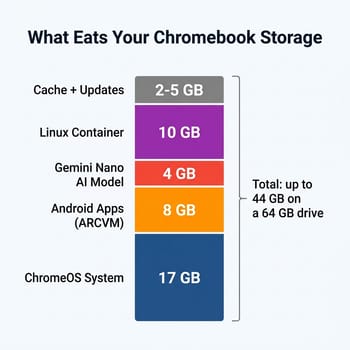
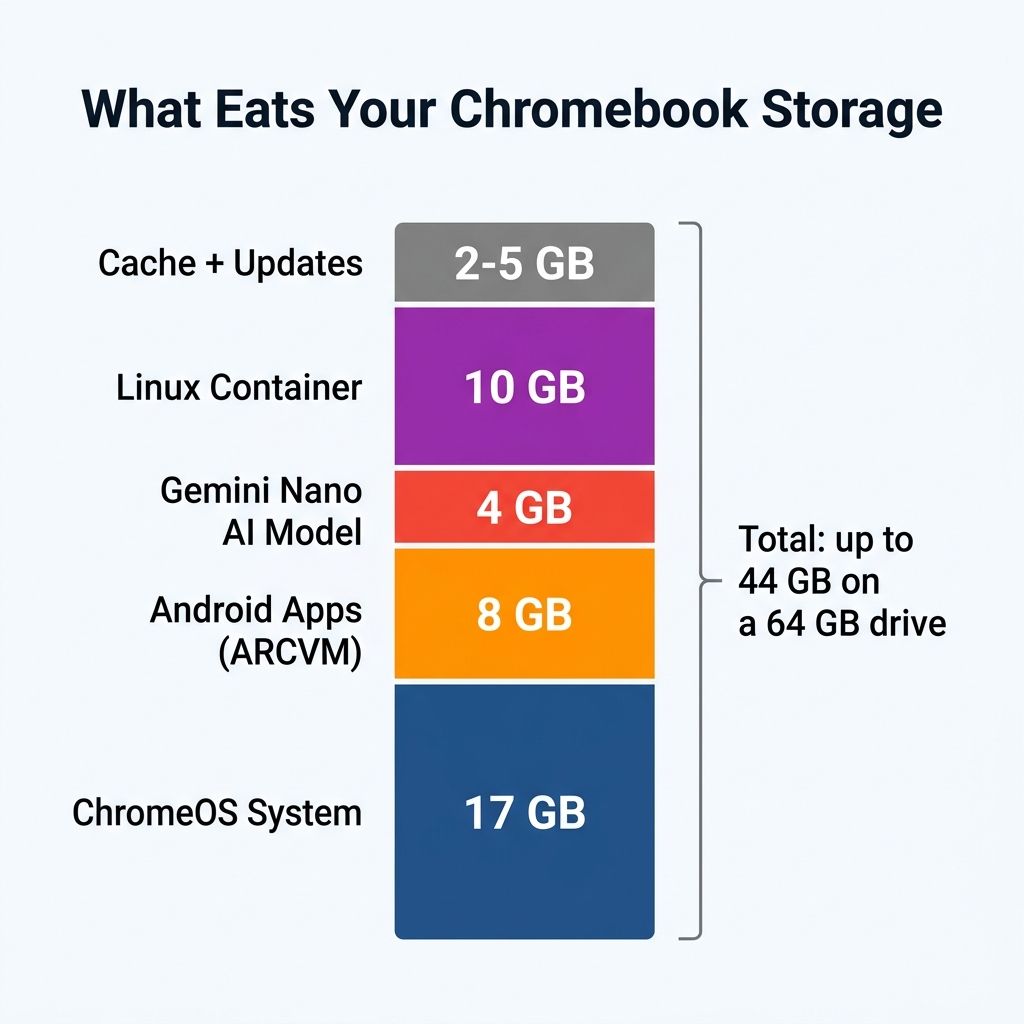
Android apps and the ARCVM runtime. Every modern Chromebook ships with Android app support enabled by default. The Android subsystem runs inside a full virtual machine called ARCVM, and users in the Google Help forums consistently report the runtime, container images, and app cache together consuming roughly 8GB (with a range of 5 to 10GB depending on installed apps) once a handful of titles are installed from the Play Store. Even if you never consciously open the Play Store, the subsystem reserves space. The overhead has grown over successive ChromeOS updates as Google expanded the ARCVM feature set.
The Linux development environment. ChromeOS’s Linux container, Crostini, is one of the platform’s most compelling features for developers and students learning to code. But enabling it asks you for a disk size, and the slider commonly lands around 10GB on devices with limited free space. On a 64GB device, that single toggle drops your usable space from roughly 47GB to 37GB or less if you accept a larger allocation. A Framework Chromebook community thread that initially looked like a 60GB system-storage horror story turned out to be a user misreading partition tools (the lsblk command shows allocated partition sizes, not consumed space). But the underlying reality it revealed was real: Crostini’s reservation is large enough to materially change the storage picture on a 64GB drive.
Chrome’s 4GB Gemini Nano download. This is the one most buyers will never see coming. Since 2024, Chrome has been silently downloading a roughly 4GB Gemini Nano AI model to devices via its component update system. The file, called weights.bin, powers Chrome’s on-device AI features for text summarization and writing assistance. Google added a user-facing toggle to disable it in February 2026; if you’d rather reclaim the space for good, our walkthrough of disabling AI features entirely shows where that toggle lives. The file is supposed to auto-delete when free space drops below a threshold. But the default behavior is to download it, and on a 64GB Chromebook that is already tight on space, 4GB is not a rounding error.
Stack these up. Start with 64GB advertised. Subtract 17GB for the system. Subtract 8GB if you use Android apps. Subtract 4GB for the Gemini Nano model Chrome quietly fetched. You are at 35GB before you have saved a single photo, downloaded a single document, or installed a single app from the Play Store. Enable Linux and you are at 25GB. A buyer who purchased a “64GB” Chromebook now has less usable space than the device’s spec sheet suggested they would have in total.
The Real Numbers by Tier
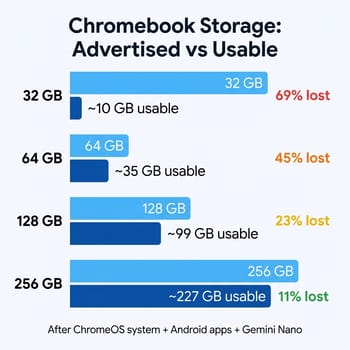

The system overhead is roughly flat across storage tiers, which means the percentage it consumes is dramatically worse on cheaper devices. A 256GB Chromebook loses the same 17GB to the system, but that is only 7% of the drive. On a 32GB device, the same overhead is over 50%.
Here is what you actually get at each tier after ChromeOS takes its cut, based on the baseline system overhead plus a typical Android subsystem installation:
| Advertised | Day-one usable | With Android + Gemini Nano | System % |
|---|---|---|---|
| 32GB | ~15GB | ~10GB | 53-69% |
| 64GB | ~47GB | ~35GB | 27-45% |
| 128GB | ~111GB | ~99GB | 14-23% |
| 256GB | ~239GB | ~227GB | 7-11% |
The pain point sits squarely at 64GB. At 128GB, the system overhead is a manageable fraction and you have genuine room for apps, files, and features. At 64GB, every feature you enable takes a visible chunk out of what is already a thin margin. And at 32GB, which some education Chromebooks still ship with (the Dell Chromebook 11 3100 is a common example), you are in triage mode from the moment you sign in.
Google Already Drew the Line
Google’s own product strategy tells you where the company thinks the storage floor should be. The Chromebook Plus certification program requires a minimum of 128GB of storage. Every Chromebook that earns the Plus badge, unlocking Gemini AI features, enhanced video calling, and Google’s premium app experiences, ships with at least twice the storage of a typical budget model. Google is not being subtle: the company that builds the operating system decided that 64GB is not enough for the experience it wants to deliver.
The same signal shows up in the migration picture for Googlebook, the new platform Google officially unveiled on May 12. Google has not published a minimum-spec list for the Android-based laptops yet, but VP John Maletis has committed to publishing one before the fall 2026 launch, and the hardware floor we mapped out in March still looks right: at least 8GB of RAM and 128GB of storage as the practical eligibility threshold, with 64GB as the absolute hard floor that may or may not make the cut. A 64GB Chromebook bought today will continue receiving ChromeOS security updates through its Auto Update Expiration date, but it is increasingly unlikely to make the jump to Googlebook.
Who Can Still Get Away With 64GB
This is not a blanket warning against every 64GB Chromebook. If your use case fits inside a tight envelope, 64GB works. A dedicated browsing machine for a grandparent who stores photos in Google Photos and documents in Google Drive. A classroom device locked down to web apps and Google Workspace. A kitchen laptop for recipes and Spotify. These use cases will not hit the wall because they never enable the features that eat into the margin.
The trap is buying a 64GB Chromebook expecting to use it as a general-purpose computer: expecting to install a handful of Android games for the kids, enable Linux for a coding class, or let Chrome’s AI features run as Google intended. Each of those reasonable expectations takes another bite out of a storage budget that was already thinner than the spec sheet suggested.
What to Buy Instead
128GB is the practical minimum for a Chromebook you plan to keep for more than a year in 2026. It is the floor for Chromebook Plus, the threshold where system overhead drops below 15% of the drive, and the point where enabling Android apps, letting Gemini Nano do its thing, and storing a reasonable number of local files can all coexist without constant storage management.
The good news is that 128GB Chromebooks are not exclusively expensive. The HP Chromebook 14a with Intel N100 lists at $229 in its 8GB/128GB configuration and sits near the top of our best Chromebook under $300 roundup. It is not a Chromebook Plus model, so you will not get Google’s AI features, but the 8GB of RAM and 128GB of storage hit both thresholds you need to avoid the budget traps.
If you already own a 64GB Chromebook and cannot replace it, the most effective immediate steps are to disable the Gemini Nano download in Chrome settings (look for the AI model toggle, or search for “Optimization Guide On Device Model” in chrome://flags), check whether you are actually using the Linux container and disable it if not, and move files to Google Drive rather than storing them locally. An SD card slot, if your model has one, provides an escape hatch for photos and media files. Our Chromebooks with upgradeable storage guide covers models with expansion options.
Before you shop the budget tier, check two numbers: RAM and storage. If it says 4GB of RAM, read why that is a problem. If it says 64GB of storage, you just read why that is a problem too. The $50 to $75 premium for a 128GB model buys you the difference between a machine that runs out of room in three months and one that lasts the full life of its Auto Update Expiration window. On a Chromebook you plan to keep for five to seven years, that is not a close call. Check our Chromebook comparison chart and filter for 128GB or higher before you click buy.


