

The Lenovo Chromebook Duet 5 launched in September 2021 with a 13.3-inch OLED touchscreen and a $429 price tag. Four and a half years later, LaptopMag’s Editor’s Choice review still reads positively, the Notebookcheck review from launch reads the same way it did four years ago, and a search through r/chromeos threads turns up no widespread pattern of owners reporting burn-in. That is the empirical anchor for everything that follows. The longevity question is real, but the answer is grounded in a panel that has been in consumer hands long enough for problems to surface, and they have not surfaced in numbers.
OLED Chromebooks are no longer a curiosity. The Duet 5 anchors the $429 to $499 detachable tier. The Lenovo Chromebook Plus 14 OLED launched in mid-2025 at $649 starting and $749 for the 16GB / 256GB touchscreen, with a 14-inch 1920x1200 OLED panel and MediaTek’s Kompanio Ultra 910 processor. The Samsung Galaxy Chromebook Plus lists at $774.99 on Samsung US (model XE550XGA-KC1US) and is frequently discounted below MSRP at major retailers, with a 15.6-inch 1920x1080 AMOLED display. A reader about to spend that kind of money on a Chromebook deserves a real answer to a real question: will the OLED panel outlive the Auto Update Expiration date that determines when the rest of the machine becomes a security risk? The short version, with all the caveats applied, is probably yes, but the manufacturer is not going to back that claim up.
The mechanism, sized correctly
OLED works because each subpixel is a tiny organic light-emitting diode that produces its own light. There is no backlight, which is why OLED blacks are black and the contrast looks like nothing an LCD can match. The trade-off, the one that has been the source of every burn-in story since the technology shipped in TVs in 2013, is that organic emitters age with use. Push a blue subpixel hard for thousands of hours and it dims. Do the same to its red and green neighbors and you get pure color shift. Do it unevenly across the screen, with bright regions running constantly next to dim regions, and you end up with a faint ghost of whatever was there: the news ticker, the logo, the taskbar.
ChromeOS does present some persistent visual furniture. The shelf at the bottom of the screen, the time and battery indicator in the bottom-right, the browser tab bar at the top, the Workspace document toolbars: all of these sit in roughly the same screen position for hours of the workday. On a typical 1920x1080 panel, the default shelf and status area together occupy somewhere around 4 to 5 percent of the screen, and the browser chrome (tabs, address bar, bookmarks bar) adds another 6 to 8 percent at the top. Call it 10 to 13 percent of pixels that are looking at near-identical content during 80 percent of an active session.
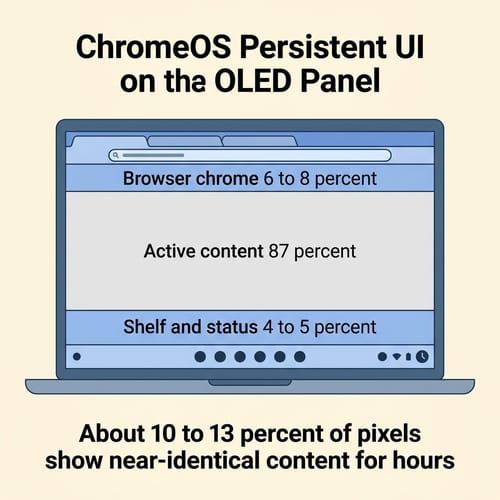
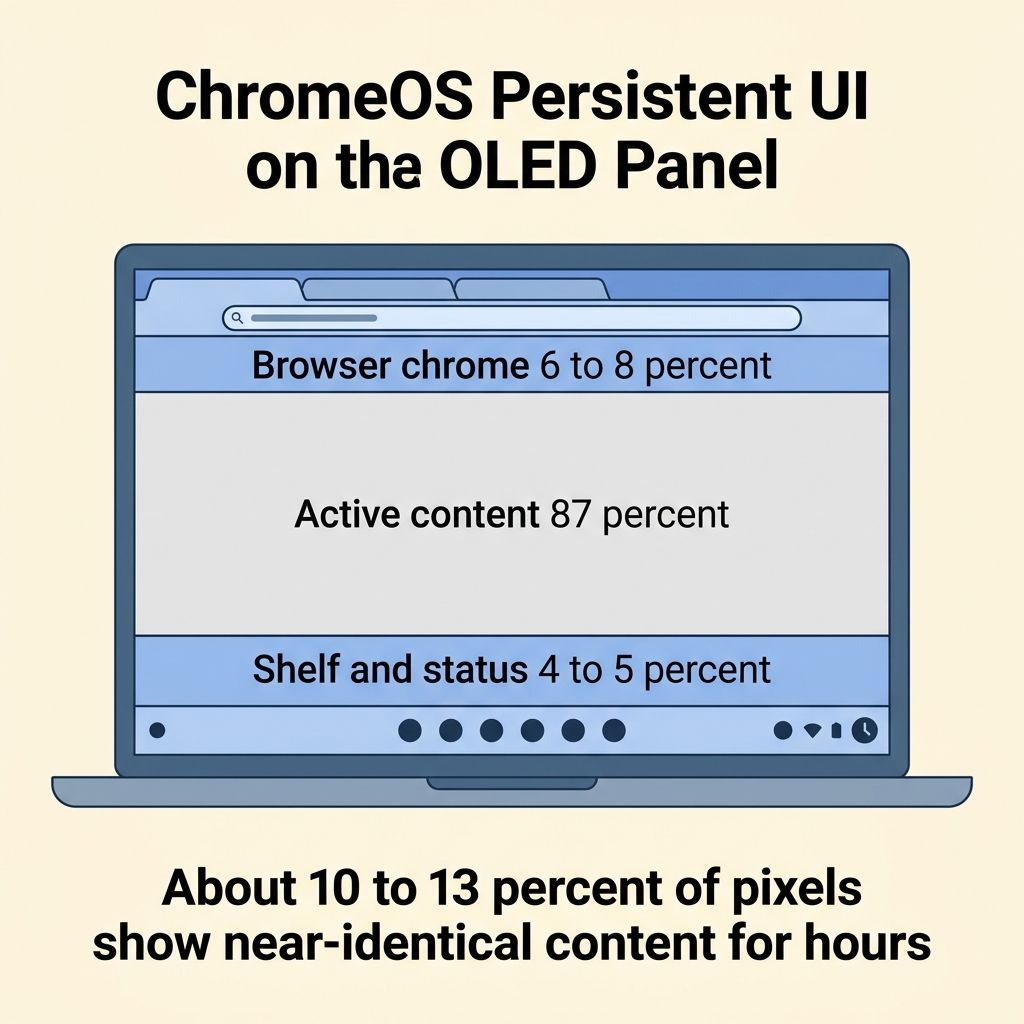
That is the structural worry. It is also, in practice, where the modern mitigations have the most effect. Pixel shift, which has been standard on AMOLED smartphone panels for nearly a decade and is now standard on laptop AMOLED panels including the ones in current Chromebooks, slides the entire image by one or two pixels every few minutes. The visible content does not change, but the exact subpixels lighting the shelf at 2pm are not the same subpixels lighting it at 10am. Panel-refresh cycles run during idle periods (sleep, screensaver, lid-closed) to even out subpixel age. None of this is magic, but RTINGS’ long-running OLED burn-in test on TVs shows the meaningful burn-in cases occurring after thousands of hours of high-brightness static content. Translating that to a laptop AMOLED panel run at lower brightness for shorter daily sessions is not a direct one-to-one mapping. The mechanism is real, but the test is TV-shaped.
The mitigation stack that already ships
The version of ChromeOS shipping in mid-2026 includes three settings any OLED Chromebook owner should change on the first boot. The shelf auto-hide setting, available by right-clicking the shelf and selecting Autohide shelf, removes the single largest piece of persistent UI from the screen except when the cursor approaches the edge. Dark mode, which any owner can enable in Settings, Wallpaper and style, drops the average brightness of the browser chrome and the system UI by roughly 60 percent and disproportionately reduces stress on the blue subpixels that age fastest. Screen-off timeout, which Google ships at 8 minutes by default, can safely drop to 5 with no real workflow impact.
The harder lever is brightness. ChromeOS does not surface SDR brightness in nits the way Windows 11 does, so the user is choosing on a 0-to-100 percent slider without knowing what those numbers translate to. The Samsung Galaxy Chromebook Plus measures around 421 nits at maximum in Notebookcheck’s lab, the Lenovo Chromebook Plus 14 lands in the same 400-nit range, and the Duet 5 hits a similar number. Running those panels at 100 percent for eight hours a day is the OLED equivalent of running a car engine at redline: it works, but it accelerates wear non-linearly. Most users park around 50 to 70 percent for indoor work without any visible loss of legibility, and that is the single most effective lever for extending panel life. Treat 100 percent as a setting for sunlight, not a default.
Standard warranties leave buyers exposed to burn-in risk
This is the part most coverage skips. Every Chromebook on the market in mid-2026 ships with a one-year limited manufacturer warranty as the default: 12 months on Lenovo, 12 months on Samsung, 12 months on Acer, with extensions available at purchase. The word “burn-in” does not appear in the standard Lenovo limited warranty for Chromebooks. Samsung’s US standard limited warranty explicitly excludes “burned-in images resulting from viewing an image on the display screen for an extended period of time” as an outside-of-coverage condition. Acer has no Chromebook-specific burn-in coverage clause that we have been able to find as of May 2026. The interesting part is that all three companies do know how to write burn-in coverage when they want to: ASUS, Acer, and MSI each offer a 3-year burn-in warranty on their OLED MONITOR lines as of 2024 and 2025. None of those policies extends to laptops, and none extends to any Chromebook OEM. The asymmetry is the point: the OEMs have a working blueprint for OLED burn-in coverage; they have just not applied it to the Chromebook category.
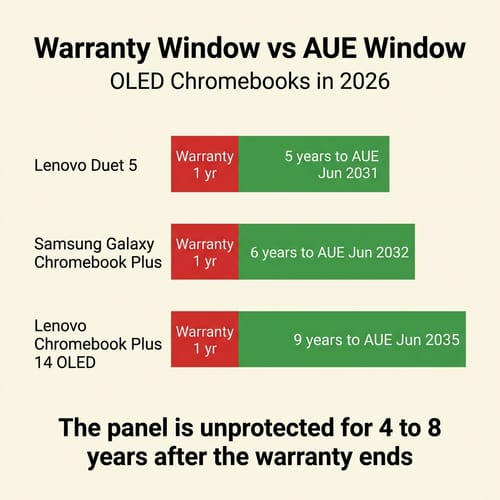
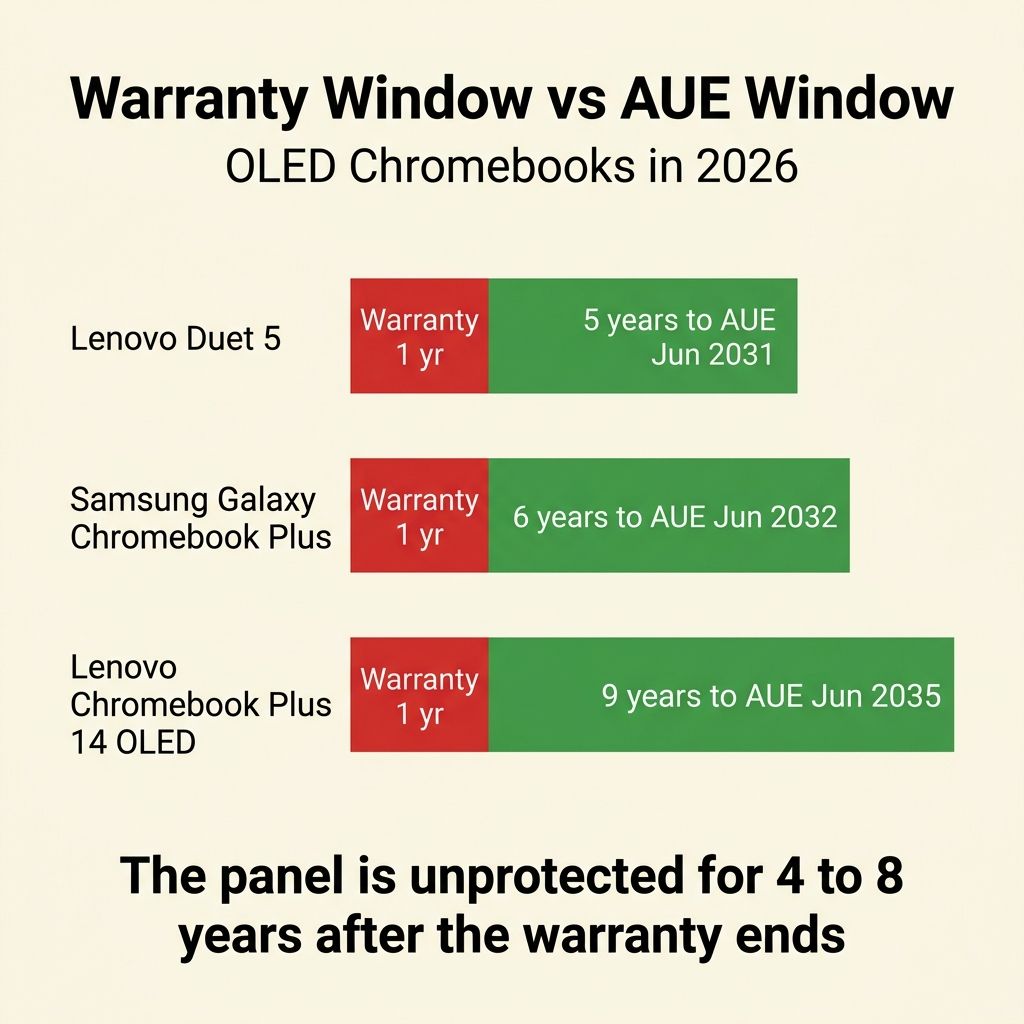
The numbers turn the asymmetry into something concrete. The Lenovo Chromebook Duet 5 carries an AUE date of June 2031, which is roughly five years of security updates from the time you read this. The Samsung Galaxy Chromebook Plus runs to June 2032. The Lenovo Chromebook Plus 14 OLED runs to June 2035, a full nine years. The warranty window on all three closes 12 months after purchase. Between month 13 and month 60-108, any panel failure, including any burn-in pattern that develops, is the owner’s problem. That is the buyer’s actual exposure. It is not a defect in the panel design and it is not a reason to skip OLED. It is the line item to read before clicking buy.
The replacement panel reality
The follow-up question is what happens if a burn-in pattern does develop in year three or four. The candid answer for any Chromebook, not just OLED ones, is that the panel-replacement market is thin compared to ThinkPads or Dells. iFixit guides for the Duet 5 and the Chromebook Plus 14 are not as deep as their Windows-laptop catalog, and OEM service parts for Chromebooks have historically dried up faster than for business-class Windows machines. A reasonable assumption for budgeting purposes: if the panel is going to develop a problem, it will probably be after the OEM service-parts window has closed, and the cost of an aftermarket replacement panel plus labor at year five will be a significant fraction of the price of a new Chromebook. Anyone planning to keep an OLED Chromebook deep into its AUE window should treat this as part of the total cost of ownership, not an unexpected disaster. It is the same kind of spec-sheet gotcha we flagged in the 64GB Chromebook storage trap: the headline number is not the number that determines how long the machine stays pleasant to own.
Who should think twice
This is where the verdict actually lives. For a reader who uses a Chromebook the way most people use Chromebooks (multiple tabs, mixed content, video, document editing, occasional Linux or Android apps, the lid closed every night), an OLED panel will look spectacular for the full AUE window and almost certainly outlive the support cliff. The real-world Duet 5 evidence supports that. The mitigation stack supports that. There is no good reason to scare anyone in that profile away from a $649 Lenovo Chromebook Plus 14 OLED or a Samsung Galaxy Chromebook Plus during a sale.
The narrow profile that should think twice has three characteristics that compound: the screen is running 8-plus hours a day at high brightness, the same UI elements sit in the same screen position for the entire session (kiosk mode, single-app workflows, POS terminals, dashboard displays), and the buyer has no plan to ever pay out of pocket for a replacement panel. That combination, but only that combination, is where the warranty gap matters enough to push toward an IPS Chromebook. The Acer Chromebook Plus Spin 514 CP514-4HN and several other Chromebook Plus models in the same price range ship with IPS panels that have no burn-in mechanism at all and would not blink at that workload.
Buying advice by tier
For the detachable tablet buyer at $429 to $499, the Duet 5 is the proven OLED Chromebook with four-plus years of consumer ownership behind it.
Lenovo Chromebook Duet 5
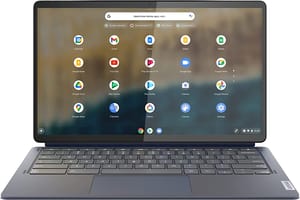
- ✓13.3-inch OLED
- ✓detachable form factor
- ✓15-hour battery
- ✓AUE through June 2031
- ✓four-plus years of consumer track record
- ✗Snapdragon 7c Gen 2 is modest by 2026 standards
- ✗no fingerprint reader
- ✗fanless thermal limits sustained loads
For the premium clamshell buyer at $649 to $749, the Lenovo Chromebook Plus 14 OLED is the first Kompanio Ultra 910 device and the longest AUE runway on any current OLED Chromebook.
Lenovo Chromebook Plus 14" OLED
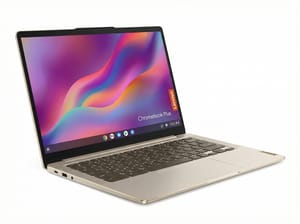
- ✓14-inch 1920x1200 OLED touchscreen
- ✓MediaTek Kompanio Ultra 910 with 50 TOPS NPU
- ✓17-hour battery
- ✓fanless
- ✓AUE through June 2035
- ✗ARM compatibility caveats remain for some Linux apps
- ✗256GB UFS storage is not user-upgradeable
- ✗no HDMI
If you are deciding between a Chromebook Plus and a premium Android tablet at this price tier, our Chromebook Plus vs Android tablet breakdown walks through how the two platforms compare in 2026.
For the 15-inch screen-area buyer at the Galaxy Chromebook Plus tier ($774.99 list, often less in retail), the Samsung Galaxy Chromebook Plus pairs a 15.6-inch AMOLED panel with the thinnest 15-inch Chromebook chassis available.
The protect-yourself checklist
The settings that matter, in the order you should change them on a new OLED Chromebook. Auto-hide the shelf (right-click the shelf, select Autohide shelf). Turn dark mode on if it is not on already (Settings, Personalization, Dark theme). Drop the screen-off timeout to 5 minutes (Settings, Device, Power). Park brightness at 50 to 70 percent for indoor work and only push higher in direct sunlight. Do not leave the same browser tabs in the same positions for hours on end; close and reopen workspaces between long sessions. None of this is going to make a measurable difference in week one, week ten, or week fifty. It will probably make a difference somewhere in year three or four, which is exactly when the warranty stopped covering the panel and the AUE date is still years away.
That is the OLED Chromebook longevity story in 2026, with the doom framing stripped out. The technology works. The track record is real. The mitigations exist and are mostly automatic. The buyer’s actual exposure is a one-year warranty against a five-to-nine-year support runway, and the most useful thing anyone can do about it is auto-hide the shelf and drop the brightness. The screen will almost certainly outlive the AUE. Buy what you want.
To compare specs across the full Chromebook lineup side by side, the Chromebook Comparison Chart is the fastest way to filter by display type, AUE date, and price.


