
Codex is OpenAI’s coding agent for the terminal. You describe what you want in plain words, and it writes the code and runs the commands in the folder you started it in. ChatGPT is OpenAI’s chat app. Neither has a ChromeOS version. Codex runs in the Chromebook’s Linux environment, and ChatGPT runs in Chrome or as a Linux desktop app.
This guide installs Codex, signs in with a ChatGPT account, and has Codex build a small solar system web app that opens in Chrome. Then it installs ChatGPT from Chrome so it gets its own window and shelf icon. The last part sets up OpenAI’s ChatGPT desktop app for Linux, which needs much more disk space than the rest. Every step was done on an HP Dragonfly Pro Chromebook.
What You Need
Linux turned on, for Codex and the desktop app. Linux is off by default, and it is not available on every Chromebook. On a Chromebook from school or work, the administrator can block it, as Google’s Linux help page explains. If Linux is not set up yet, follow our guide to installing Linux on a Chromebook, or watch the video version on YouTube. The ChatGPT web app in Chrome does not need Linux.
A paid ChatGPT plan, or an OpenAI API key, for Codex in the terminal. The Codex sign-in screen says usage is included with Plus, Pro, Business, and Enterprise plans. The other choice is your own API key, which bills per use. OpenAI’s Codex pricing page lists Codex for Free and Go plans too, but only in the desktop app and “subject to rollout”.
Free Linux disk space. Codex itself is small. The ChatGPT desktop app needs about 3.4 GB of free space, because apt installs about 1.7 GB and the first launch unpacks another 1.7 GB. The Linux settings page shows the size of your Linux disk and has a Change button to make it bigger.
Install Codex
Codex runs in Linux, so Linux has to be turned on for this part. Linux is not available on every Chromebook; if yours is not set up yet, follow our guide to installing Linux on a Chromebook first. Open the launcher, type terminal, and press enter . On the Terminal app’s start page, click penguin, which is the Linux container, to get a Linux prompt. Then run the install command from OpenAI’s Codex page on GitHub:
curl -fsSL https://chatgpt.com/codex/install.sh | shThe script detects the platform, downloads the latest release, and installs it. It needs no other tools first: Node.js and npm do not have to be installed. On our Chromebook, it resolved version 0.163.0 and finished in about 5 seconds. OpenAI releases new versions often, so your version number may be newer.
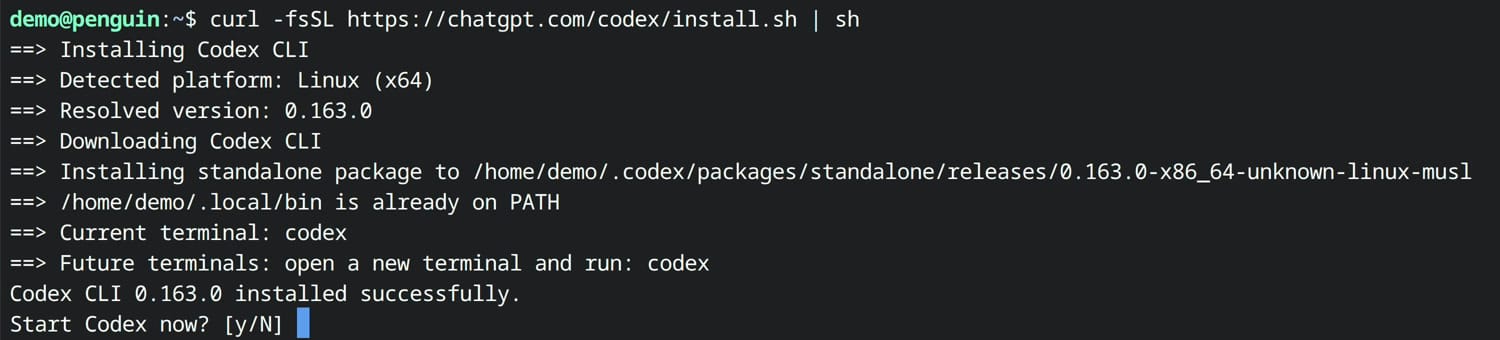
At the end, the installer asks “Start Codex now? [y/N]”. Press enter to answer no. A project should get its own folder, because Codex works on the files in the folder you start it from. Make a folder and move into it:
mkdir solar-system && cd solar-systemSign In With a Device Code
Type codex and press enter . The first screen offers three ways to sign in. Sign in with ChatGPT opens a browser for the sign-in. Sign in with Device Code lets you finish on your phone or another computer. Provide your own API key is the pay-per-use option.
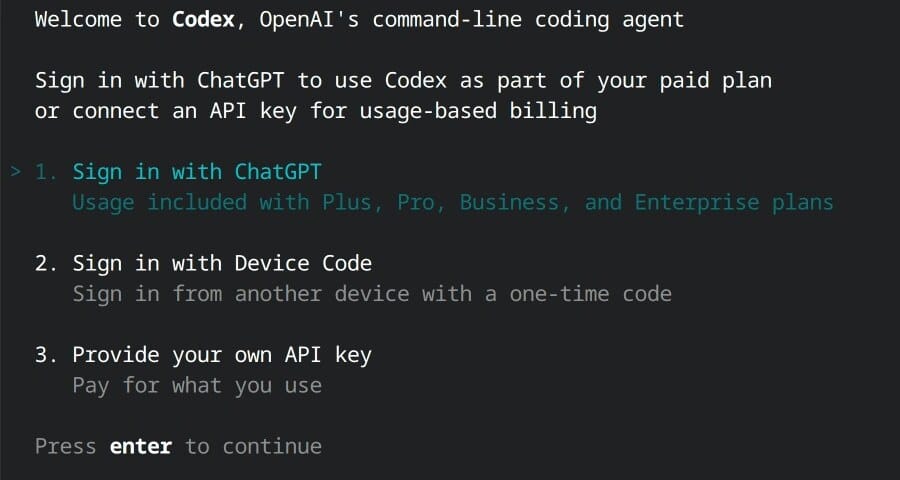
Device code sign-in has to be turned on before you use it. OpenAI’s Codex authentication page says to enable it in your ChatGPT security settings for a personal account; for a workspace account, an admin turns it on in the workspace permissions. Then press to select Sign in with Device Code and press enter . Codex shows a web address and a one-time code that expires in 15 minutes. Open the address on your phone or another computer, sign in to ChatGPT, and type the code.
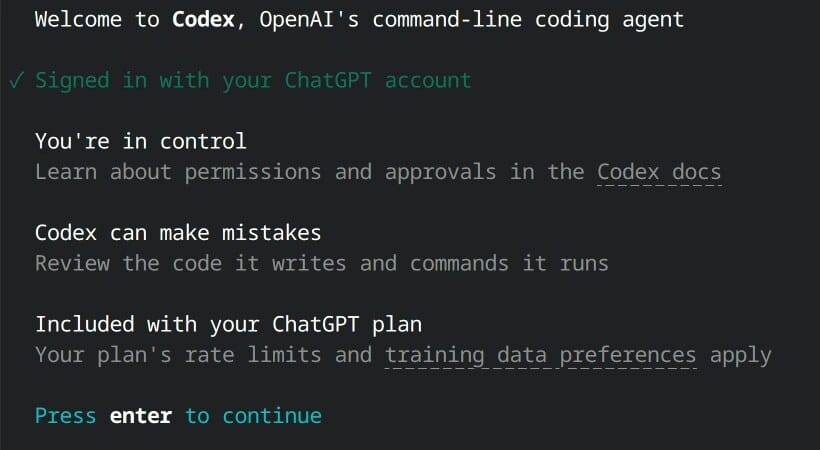
The terminal then says “Signed in with your ChatGPT account”. It also reminds you that Codex can make mistakes, so review the code it writes and the commands it runs. Press enter to continue. Codex keeps the sign-in in ~/.codex/auth.json (or in the system credential store, if one is set up), so you sign in only once.
Give Codex a First Task
Codex now opens in the solar-system folder. The line under the prompt box shows the default model and the folder. This is the request we typed:
Build an interactive solar system web app in this folder with plain HTML, CSS, and JavaScript, no libraries. Animate the sun and the eight planets orbiting on a canvas, add a speed slider, and show a fact card when I click a planet. Tell me how to open it in Chrome when you're done.Codex planned the work, then wrote the files on its own. It did not stop to ask for approval, because it only changed files inside the project folder. The run took 1 minute 47 seconds and left three files in the folder: index.html, styles.css, and app.js. At the end, Codex summed up what it built and said how to open the page: press ctrl o in Chrome and select index.html. Codex output changes from run to run, so your app will look different from ours.


Open the App in Chrome
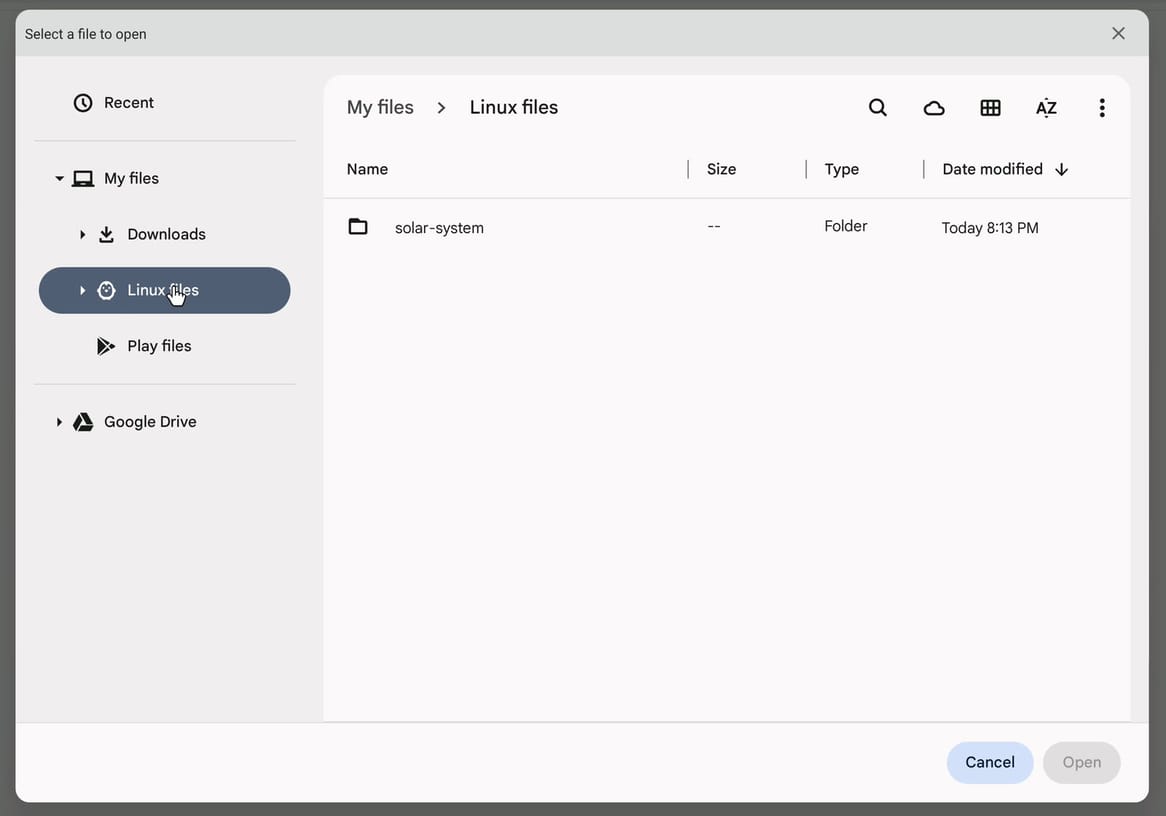
In Chrome, ctrl o opens a file picker. It starts in Downloads, but the sidebar also has Linux files, which is your Linux home folder. Click Linux files, double-click solar-system, then double-click index.html.
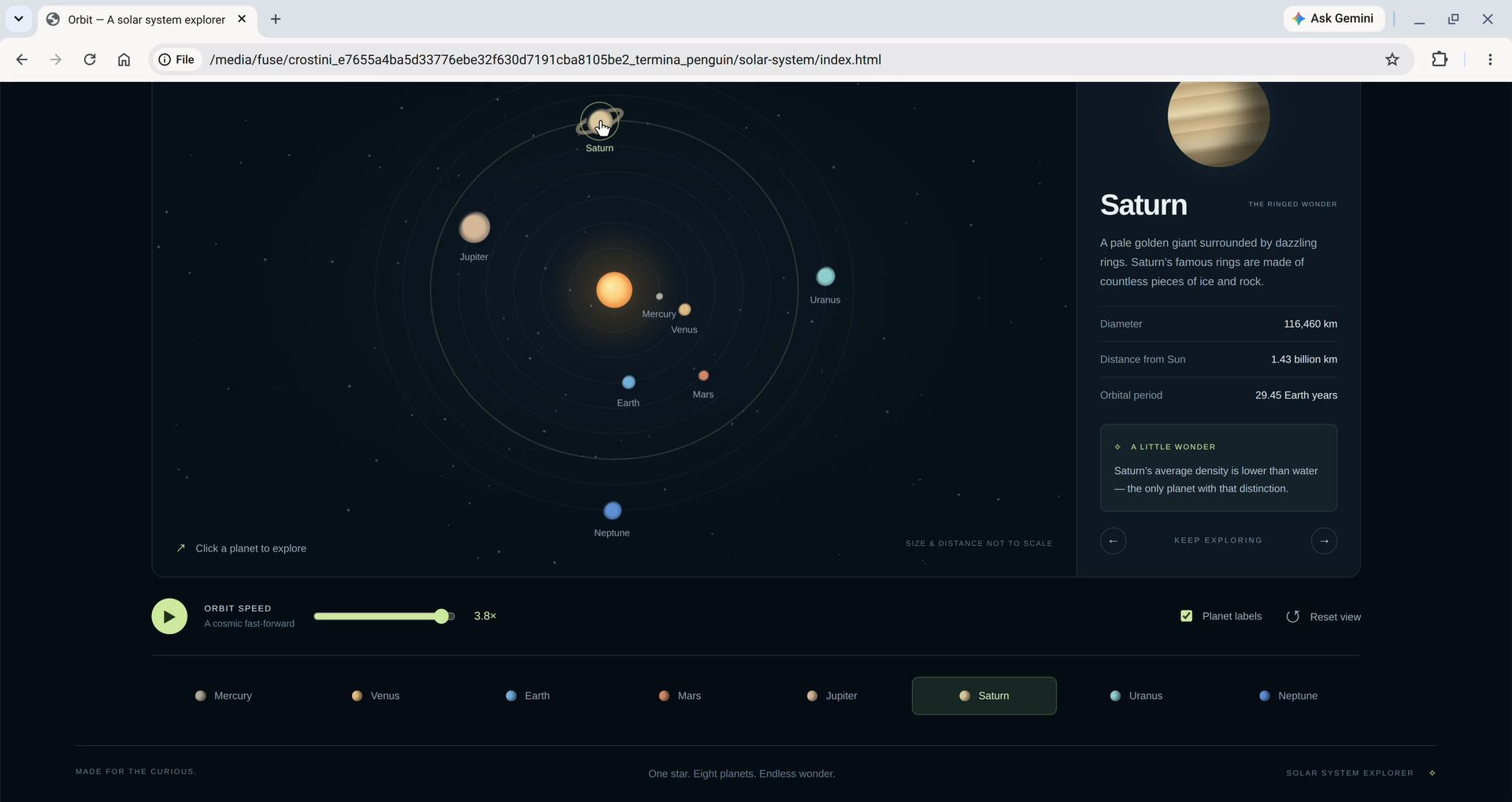
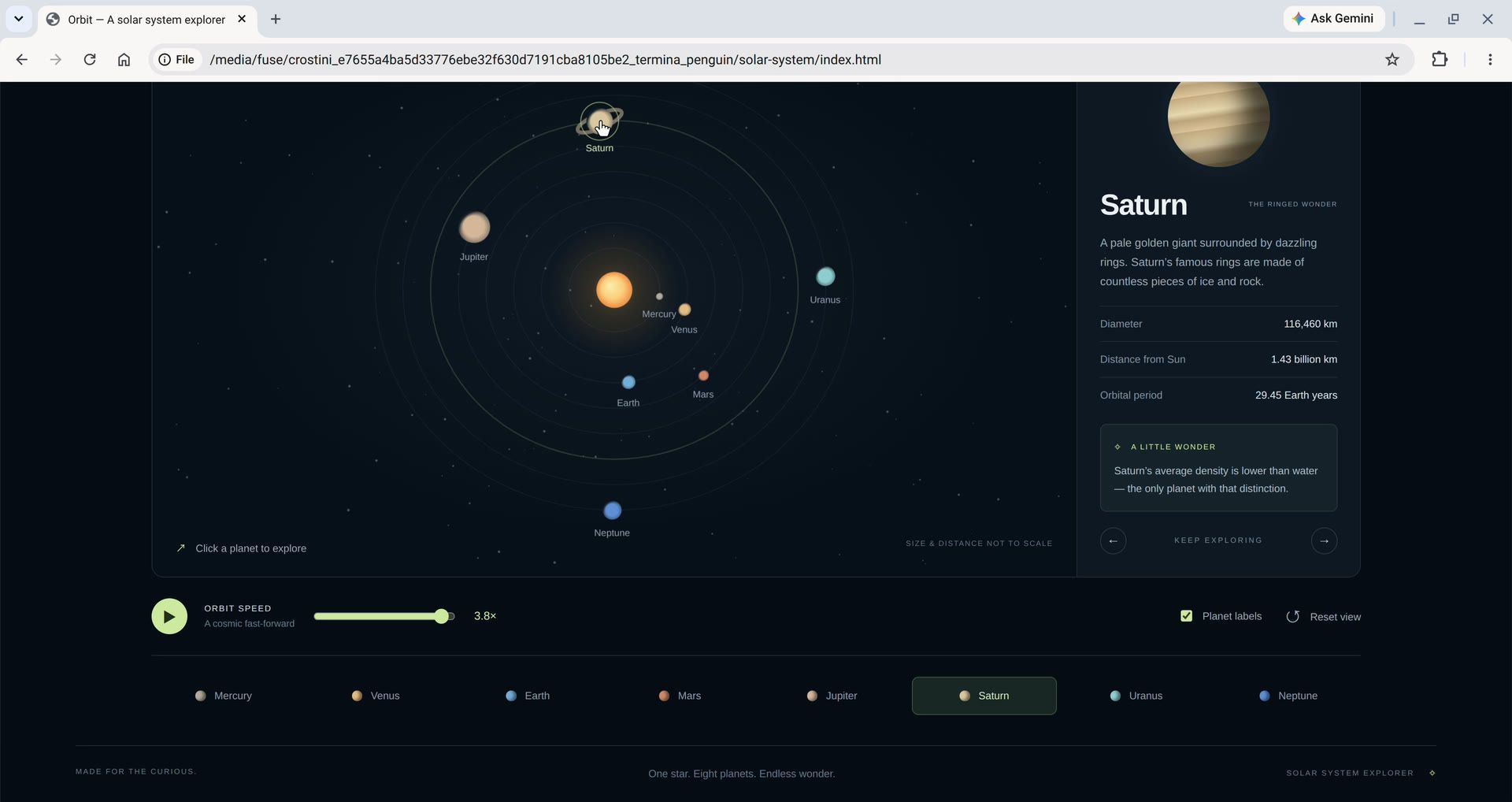
The page opens with the planets moving around the sun. The speed slider changes how fast they orbit, and the pause button stops them, which makes a planet easier to click. Clicking Saturn opened its fact card with its diameter, orbital period, and distance from the sun. The address bar shows a long /media/fuse/... path; that is how Chrome reaches files in Linux.
Install ChatGPT From Chrome
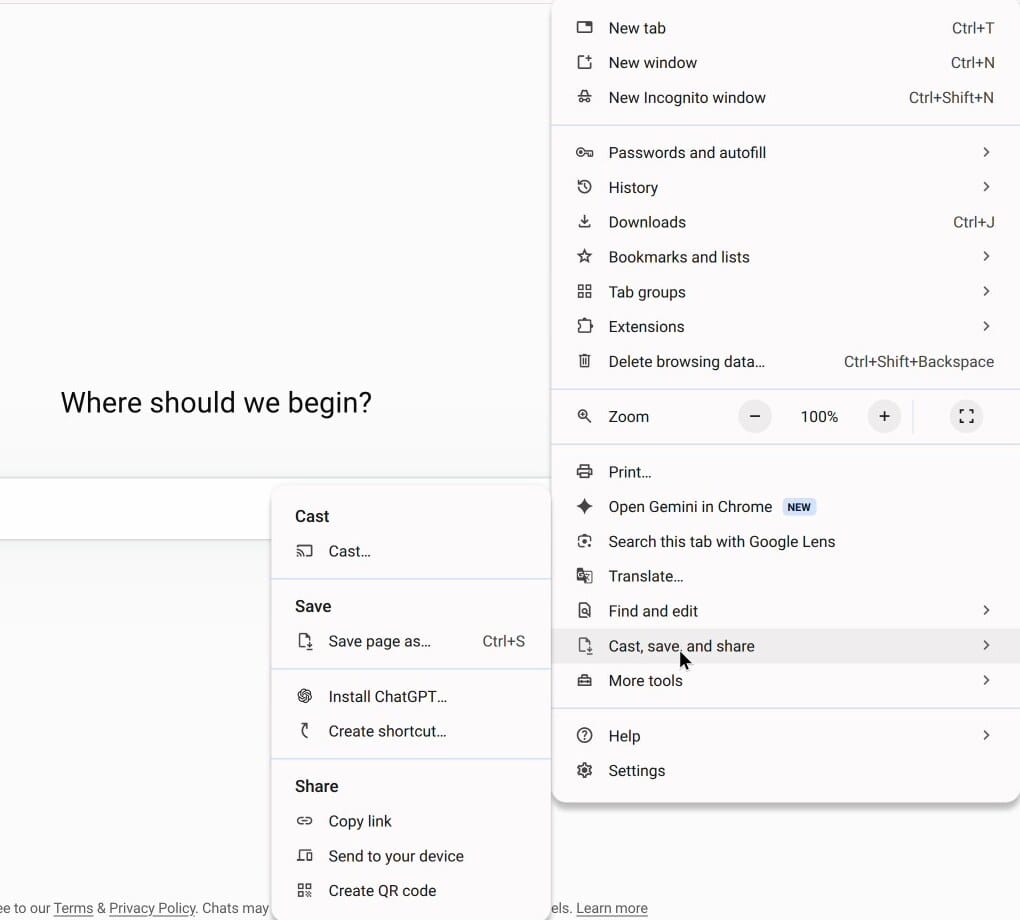
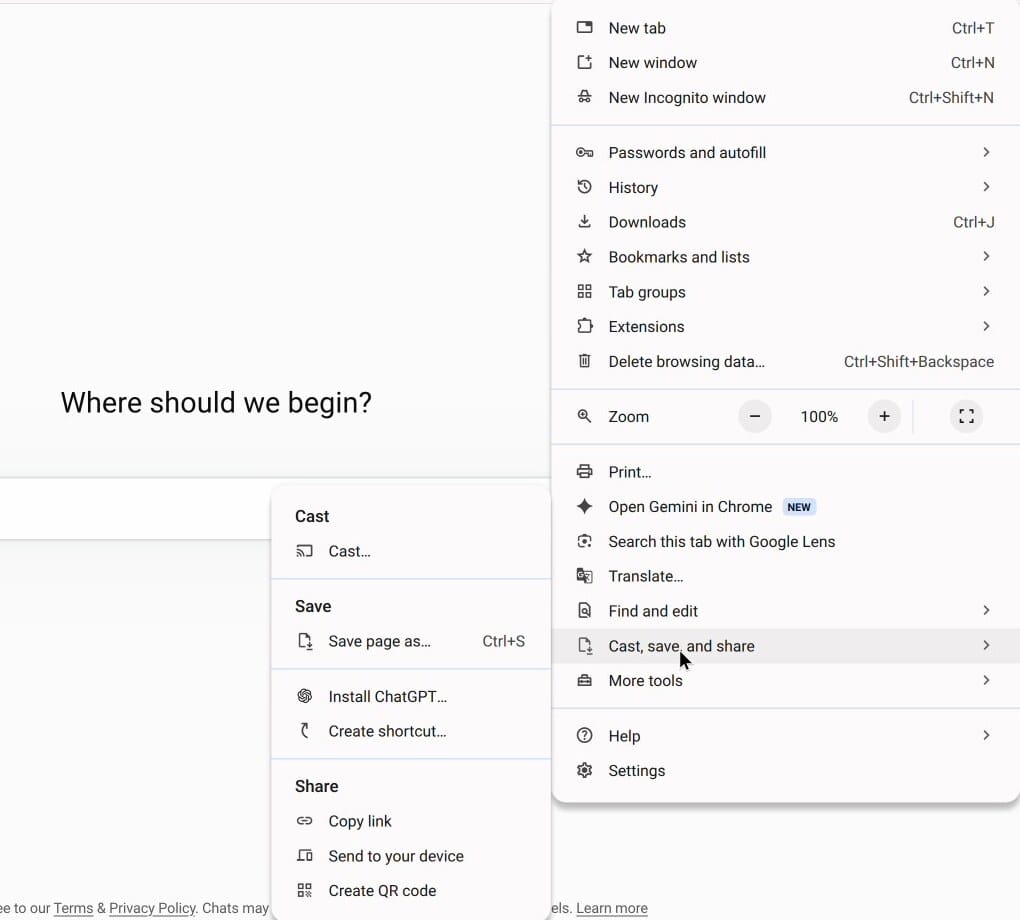
ChatGPT itself runs in Chrome at chatgpt.com, and that part needs no Linux. You can chat without an account, or log in to keep your history. To put ChatGPT in its own window, open the Chrome menu (the three dots at the top right), point to Cast, save, and share, and click Install ChatGPT….
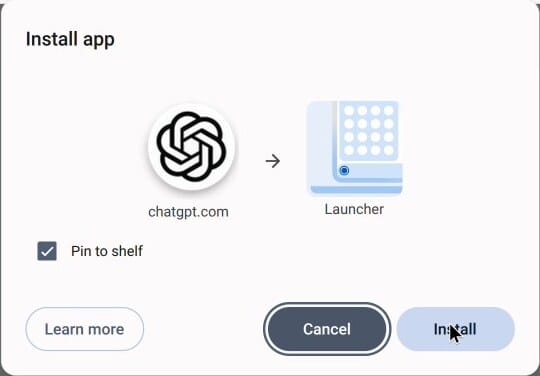
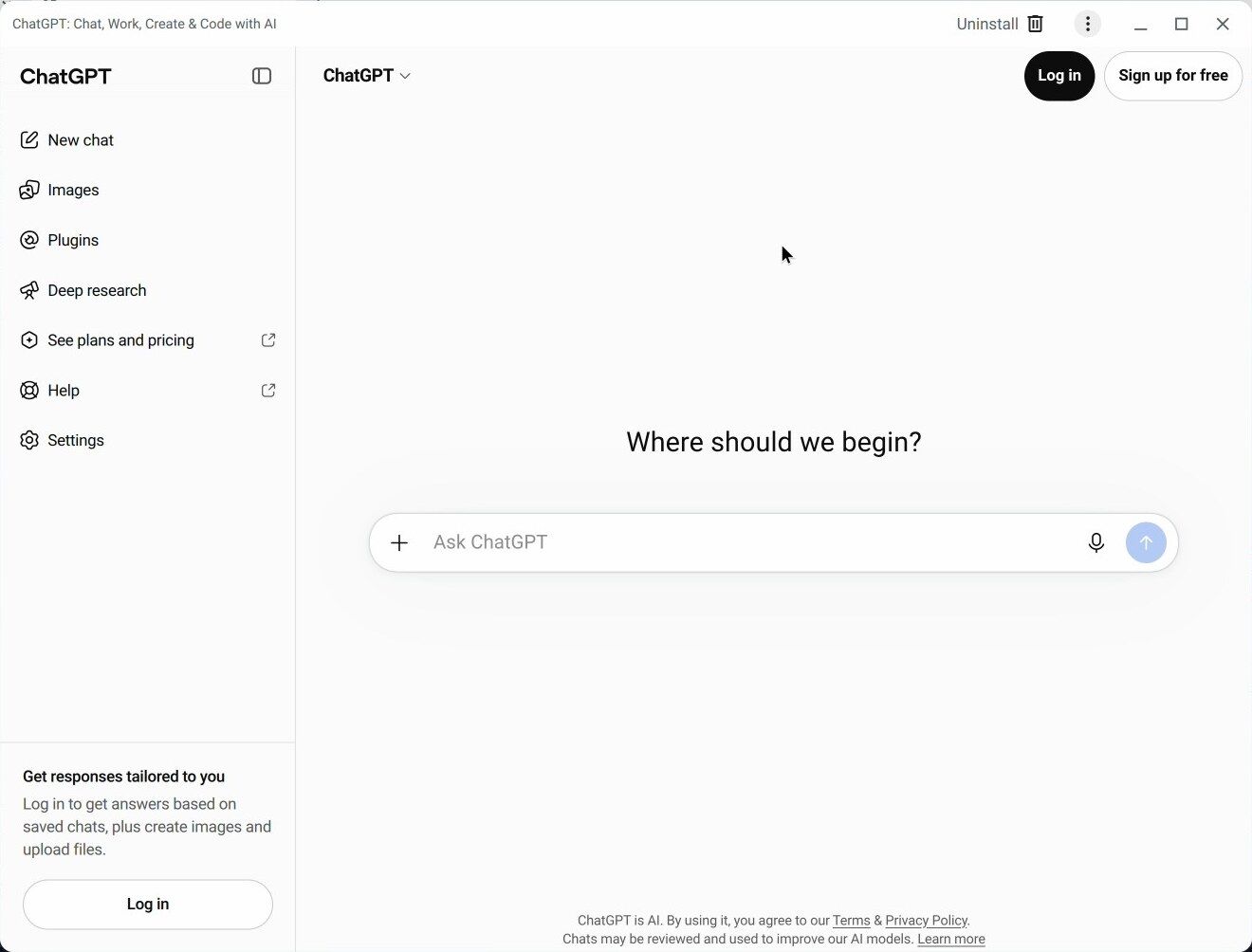
A short dialog opens. Click Next. On the second step, Pin to shelf is already ticked; click Install. The app now opens from the launcher too. Chrome then offers Open tab in app, which moves ChatGPT into its own window with its own icon on the shelf. If you would rather use an Android app, ChatGPT is also on Google Play, on Chromebooks that support Android apps.
Without signing in, we asked it for three fun facts about Saturn for a fifth grader. The answer came back as three short facts under a heading, with pictures.
Install the ChatGPT Desktop App for Linux
OpenAI also makes a ChatGPT desktop app for Linux, with Codex built in. It is a public preview, and OpenAI’s Linux install page lists Ubuntu, Debian 13, Fedora, and Arch Linux; Chromebook Linux is Debian. The app installs in the Linux environment like Codex, so this part also needs Linux, which not every Chromebook offers; our video on installing Linux on a Chromebook shows the setup.
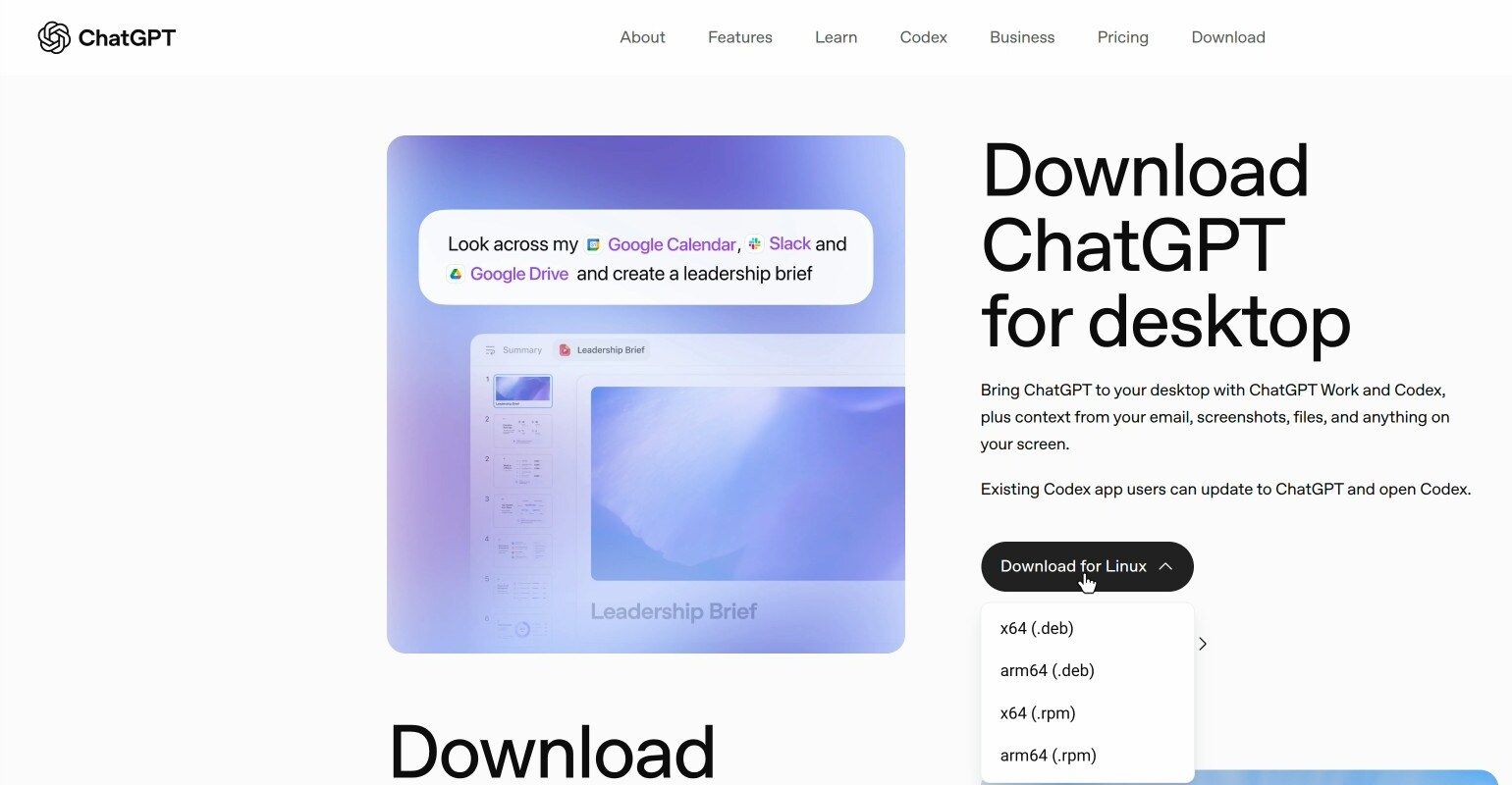
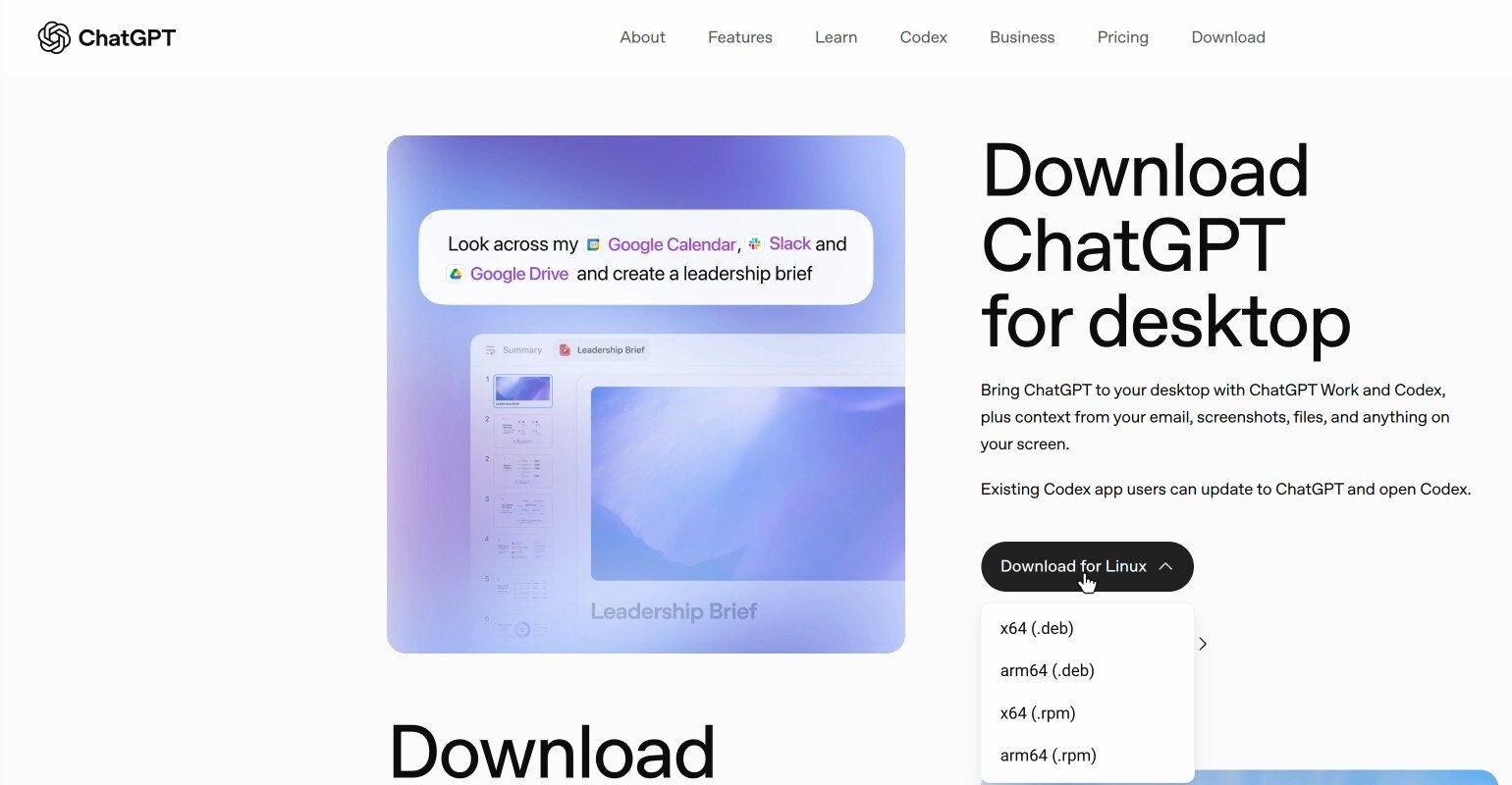
Open chatgpt.com/download in Chrome. On a Chromebook, the page shows a Download for Linux button, and it lists four files: x64 (.deb), arm64 (.deb), x64 (.rpm), and arm64 (.rpm). Our Chromebook has an Intel chip, so x64 (.deb) is the right file. A Chromebook with an ARM chip needs arm64 (.deb). If you are not sure which chip you have, run uname -m in the Terminal: x86_64 means x64, and aarch64 means arm64.
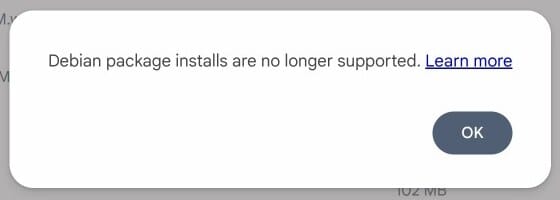
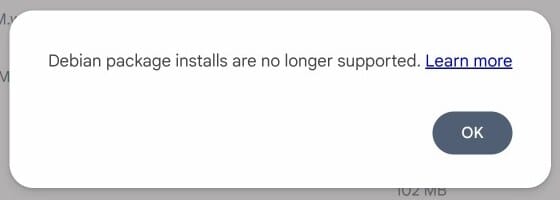
Chrome saves chatgpt_amd64.deb (about 500 MB) to Downloads. The Files app on ChromeOS 154 no longer installs a Debian package when you double-click it; it shows “Debian package installs are no longer supported” instead.
So move the file into Linux. In Files, open Downloads, click chatgpt_amd64.deb, press ctrl x , click Linux files in the sidebar, and press ctrl v . Then install it from the Terminal:
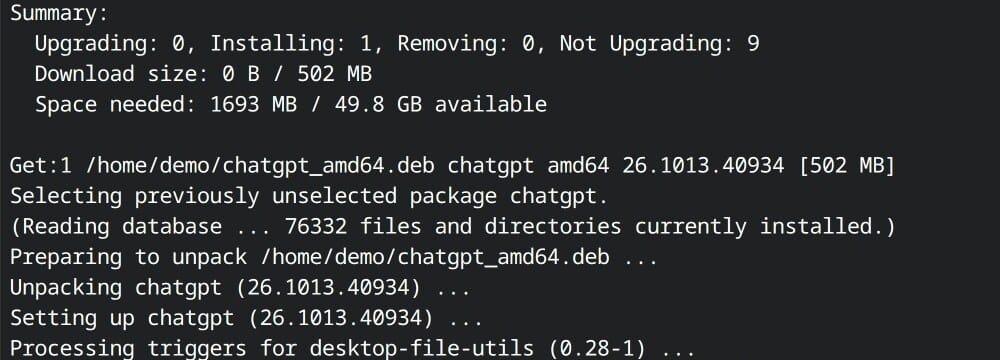
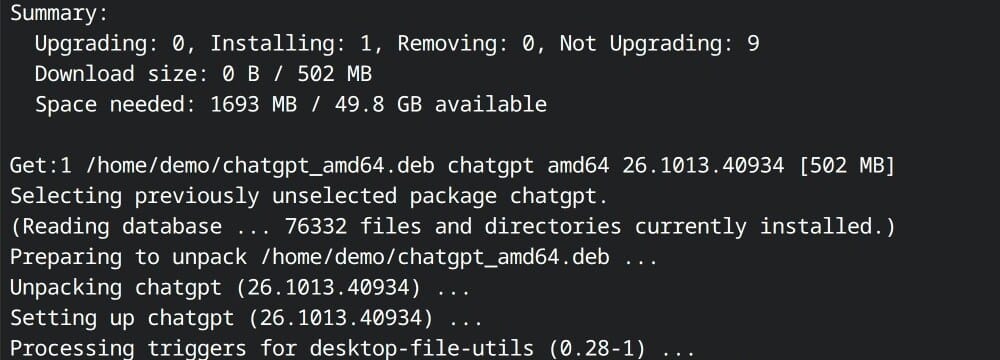
sudo apt install ./chatgpt_amd64.debBefore it installs, apt says how much space the app needs: 1693 MB for version 26.1013.40934. The install took about 15 seconds on our Chromebook. The package also adds OpenAI’s apt repository, so later versions arrive with your regular Linux updates (sudo apt update && sudo apt upgrade).
Open the Desktop App
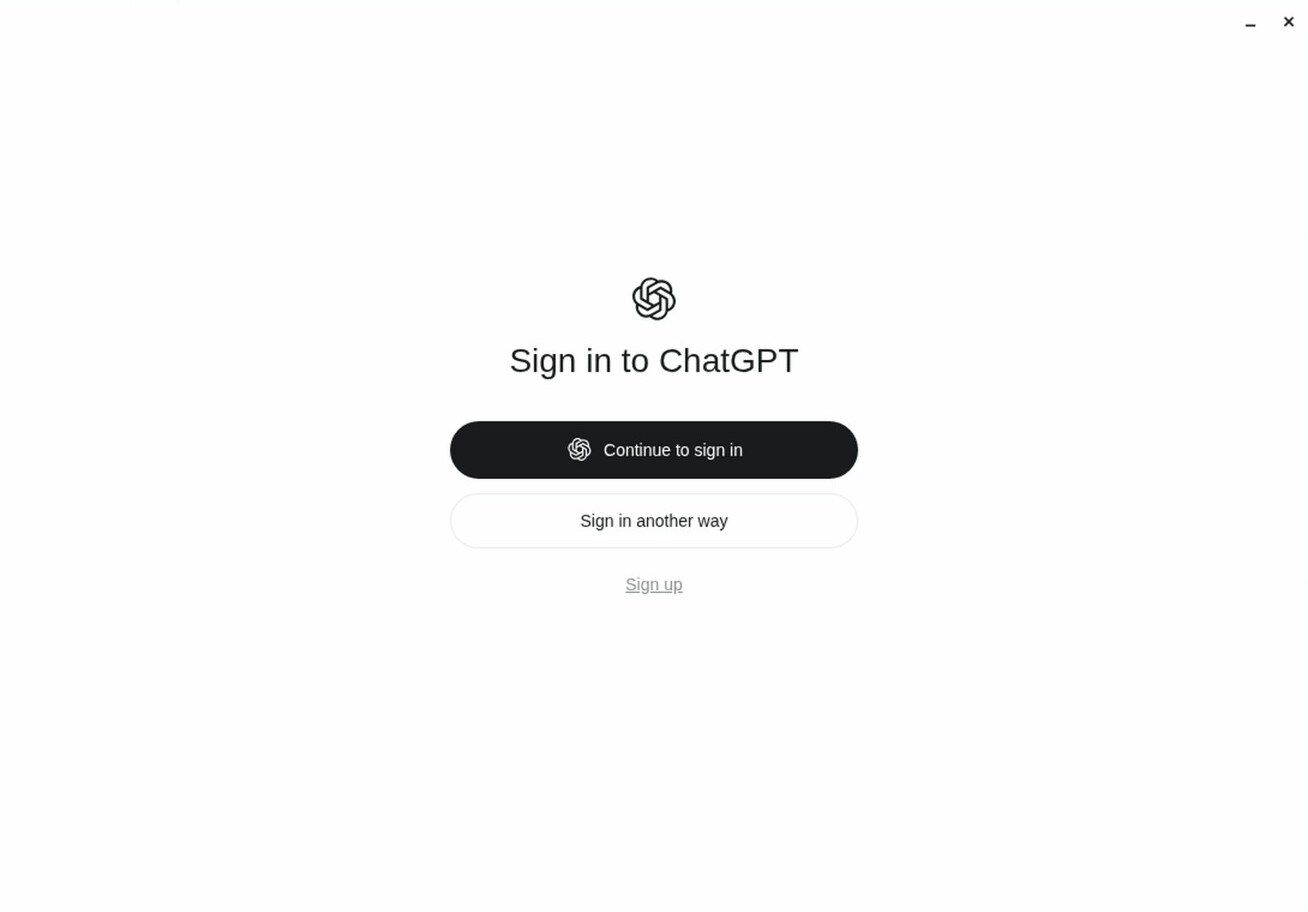
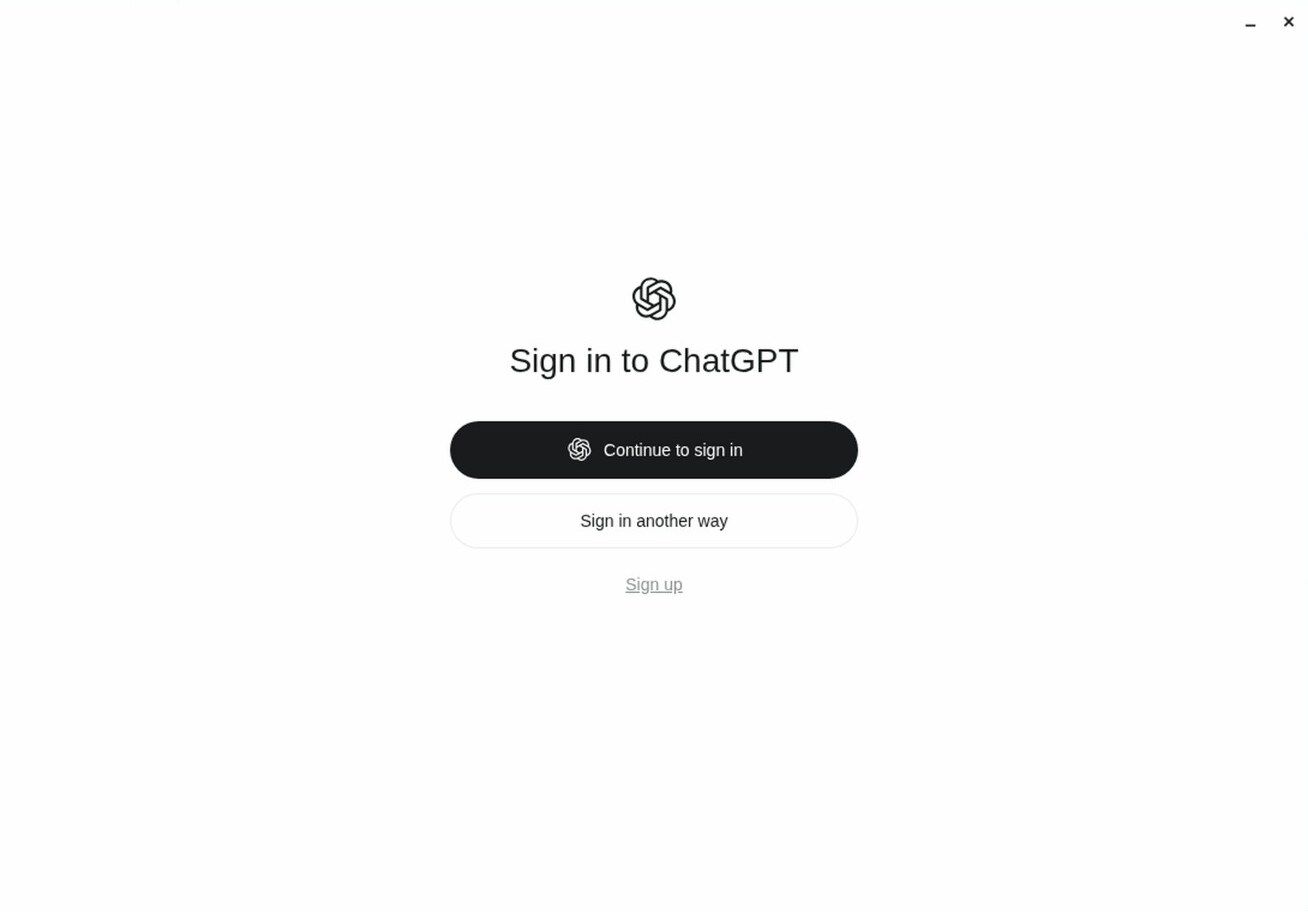
Open the launcher and search for ChatGPT. The Linux app is a separate row from the Chrome app you installed earlier. In our test, the first launch showed the sign-in screen about 6 seconds after the click. A signed-out app opens on the Sign in to ChatGPT screen, with Continue to sign in, Sign in another way, and Sign up. OpenAI’s authentication page says Sign in another way is where an API key goes.
In our test, the desktop app shared its sign-in with Codex in the terminal: both use ~/.codex/auth.json. If you signed in to Codex first, the app opens already signed in to that account, with your Codex task history in the sidebar. On a Chromebook that other people use, anyone who opens the app works in your ChatGPT account and sees your Codex tasks.
Make Room on the Linux Disk
On its first launch, the desktop app unpacked about 1.7 GB of files into ~/.cache/codex-runtimes. Together with the 1.7 GB install, it needs about 3.4 GB of free Linux disk space. On our first try, with a 10 GB Linux disk, that first launch filled the disk, and the app crashed with “No space left on device”. ChromeOS showed a warning that Linux disk space was critically low. To see how much room you have, run:
df -h /To give Linux more room, click the time at the bottom right, click the gear to open Settings, then click About ChromeOS and find the Developers section. Open Linux development environment. The Disk size row has a Change button that lets you pick a bigger size. The same app ran without trouble on an 80 GB Linux disk.
Troubleshooting
codex: command not found. The installer puts the codex command in ~/.local/bin. If that folder was not on your PATH yet, the installer adds it, but a Terminal tab that was already open does not see the change. Open a new tab, cd into your project folder, and run codex again.
Device code sign-in fails or falls back to the browser. Device code login is off until you turn it on. Enable it in your ChatGPT security settings, or ask your workspace admin to allow it, then run codex login --device-auth.
The desktop app closes right after it starts. Check the free space with df -h /. If the Linux disk is nearly full, the first launch cannot finish unpacking. Make the disk bigger as shown above, delete the half-written ~/.cache/codex-runtimes folder, and start the app again.
Files says “Debian package installs are no longer supported”. Move the file into Linux files and install it with sudo apt install ./chatgpt_amd64.deb, as shown above.
Remove the Desktop App
To remove the desktop app and the files it leaves behind:
sudo apt purge chatgpt
sudo rm /etc/apt/sources.list.d/chatgpt.sources
rm -rf ~/.cache/codex-runtimes ~/.cache/Codex ~/.config/Codex
The second line removes OpenAI’s apt repository, and the last line removes the unpacked runtime files and the app’s settings. apt purge leaves the folders in your home directory alone, which is why the last line is needed. Your Codex sign-in in ~/.codex stays, so Codex in the terminal keeps working.
Which One to Use
The ChatGPT desktop app is worth its 3.4 GB only when you want ChatGPT and Codex in one window and your Linux disk has room for it. Codex in the terminal takes little space, and the ChatGPT app from Chrome needs no Linux at all.
If you also use Anthropic’s tools, our guide to installing Claude Code and Claude Desktop on a Chromebook follows the same Linux steps. Our guide to clearing the cache and freeing up space on a Chromebook helps when the Linux disk runs low. These steps were tested on ChromeOS 154 with Codex CLI 0.163.0 and ChatGPT desktop 26.1013.40934 (preview) on Debian 13.


