
Most Chromebooks put action keys where the F keys would be on a Windows laptop: Back, Refresh, full screen, brightness, and volume. That works well for everyday use, but some apps and websites still expect real function keys. Chrome uses f3 to find text on a page, f5 to reload, f11 for full screen, and f12 for the developer tools, and plenty of web apps and Linux programs have F-key shortcuts of their own.
ChromeOS gives you three ways to get F keys from the Chromebook’s own keyboard, and a separate pair of settings for an external keyboard. The settings labels below are from ChromeOS 154.
What You Need
You need a Chromebook, plus an external keyboard with an F-key row if you want to set one up. On the built-in keyboard, the key you hold is the Search key (a magnifying glass) or, on newer models, the Launcher key (a circle). Google’s Chromebook keyboard shortcuts page says both keys work the same for these shortcuts. On a Windows keyboard, the Windows key takes the place of Search or Launcher, and on a Mac keyboard, the Command key does.
Hold Search or Launcher for F1 to F10
This method needs no settings at all, so start here if you only need an F key now and then. Hold search (or launcher ) and press a key in the top row. On most Chromebooks, counting from the left after esc , the top-row keys give you f1 through f10 . The first of those keys is usually Back, so search back sends f1 and search refresh sends f2 . Google lists this as “Use function keys” on its keyboard shortcuts page. On a Chromebook keyboard with fewer than 12 top-row keys, F11 and F12 have no key of their own, but Settings lets you give each one a shortcut.
Make the Top Row Send F Keys All the Time
If you press F keys more often than brightness and volume, holding a second key every time gets old. A switch in Settings swaps the two layers, so the top row sends F keys and the actions move to the second layer.
Click the time at the bottom right of the screen, then click the gear icon to open Settings. Click Device in the sidebar, then Keyboard and inputs. Under the Built-in Keyboard heading, turn on Treat top-row keys as function keys. Its subtitle on ChromeOS 154 reads “Hold the Launcher key to switch the behavior of the top-row keys.” With the switch on, the top row sends F1 to F10, and holding launcher (or search ) plus a top-row key gives you the brightness, volume, or other action printed on the key. Google’s keyboard settings help describes the same switch under Built-in keyboard.
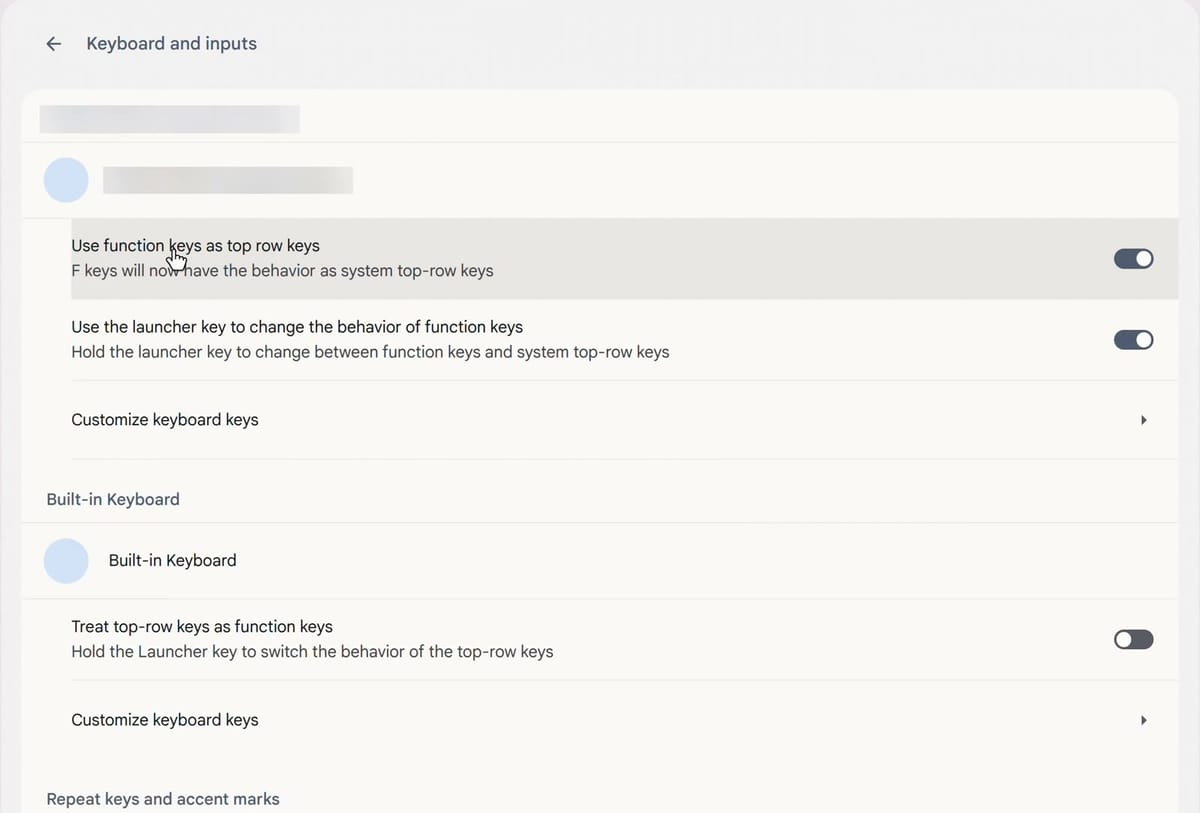
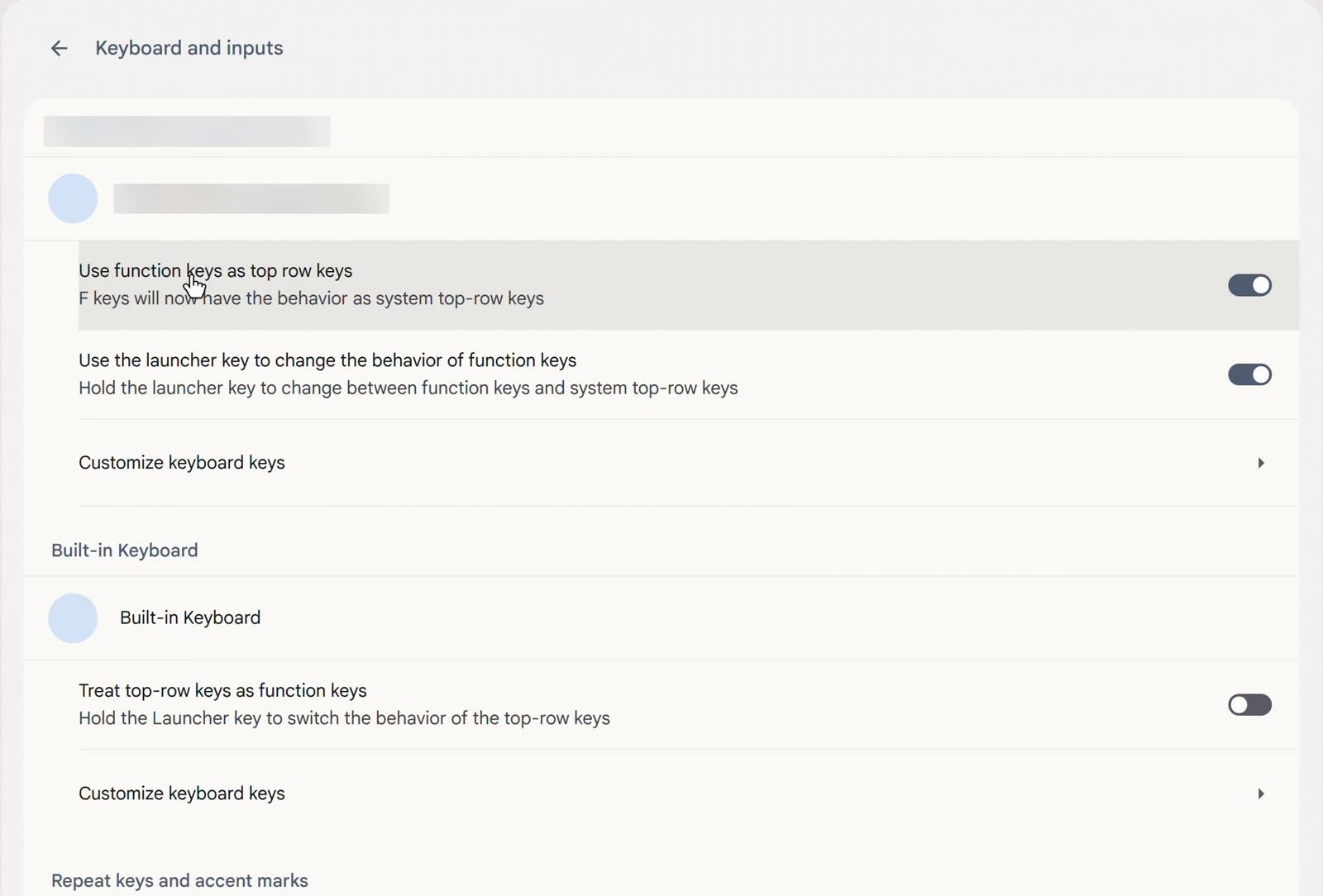
The Built-in Keyboard section shows only while the Chromebook’s own keyboard is in use. With the lid closed, the page lists only the external keyboards.
Add F11 and F12 With Customize Keyboard Keys
According to the F11 and F12 section of Google’s shortcuts page, both are disabled until you pick a shortcut for each. On the same Keyboard and inputs page, under Built-in Keyboard, click Customize keyboard keys. Next to F11 and F12, pick a shortcut from the drop-down menu. Google gives these shortcuts for keyboards with fewer than 12 top-row keys, and they assume Back is the first key of the top row and Refresh the second. The choices depend on the top-row switch from the previous section:
- With Treat top-row keys as function keys on: shift back , alt back , or ctrl shift back for F11, and the same three with refresh for F12.
- With it off: the same shortcuts with search added, such as search shift back for F11 and search shift refresh for F12.
Find the External Keyboard Settings
An external keyboard has its own F1 to F12 keys, but ChromeOS does not use the built-in switch for it. Each external keyboard gets its own section with its own settings, at the top of the same page.
Click the time at the bottom right, then the gear icon to open Settings. Click Device in the sidebar, then Keyboard and inputs. On ChromeOS 154, an external keyboard’s section has these rows:
- Use function keys as top row keys, with the subtitle “F keys will now have the behavior as system top-row keys”
- Use the launcher key to change the behavior of function keys, with the subtitle “Hold the launcher key to change between function keys and system top-row keys”
- Customize keyboard keys
Google’s Create input shortcuts page still calls the first two “Convert F keys to ChromeOS top-row keys” and “Enable System/Launcher key to switch the behavior of the top-row keys.” They are the same settings under older names.
Hold Launcher to Flip What an F Key Does
With Use function keys as top row keys on, the external keyboard’s F keys act like a Chromebook’s top row. Press f5 in Chrome, and instead of reloading the page, ChromeOS opens Show windows, the overview of every open window. Press esc to go back to the page.
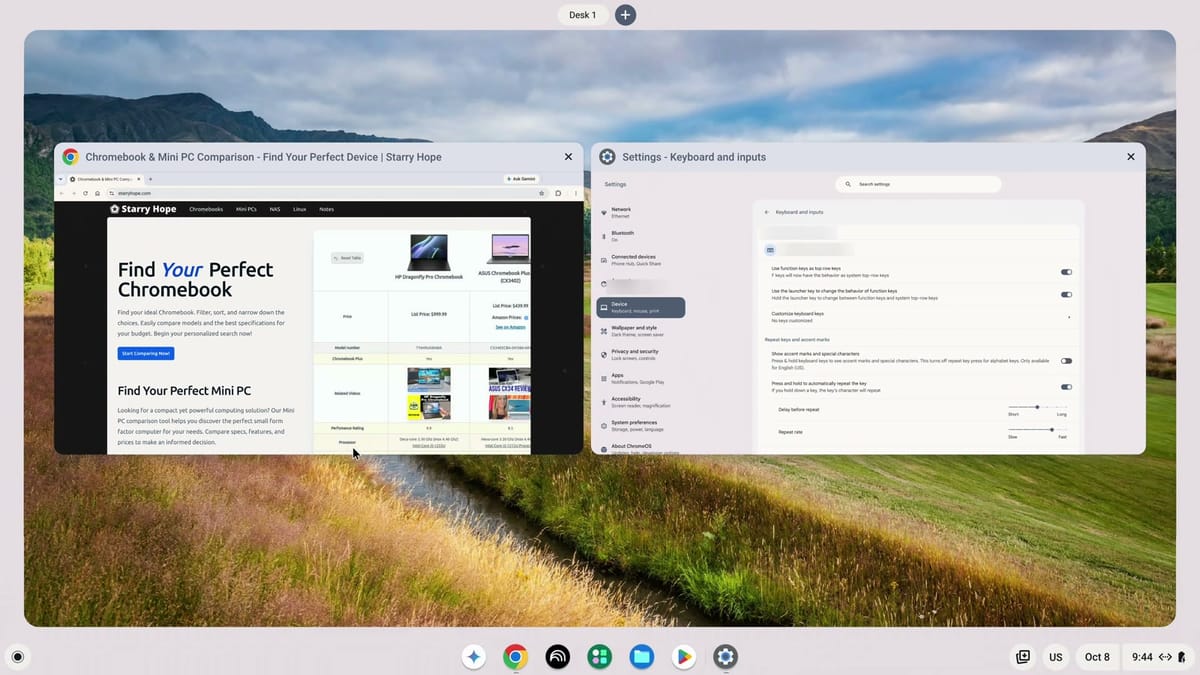
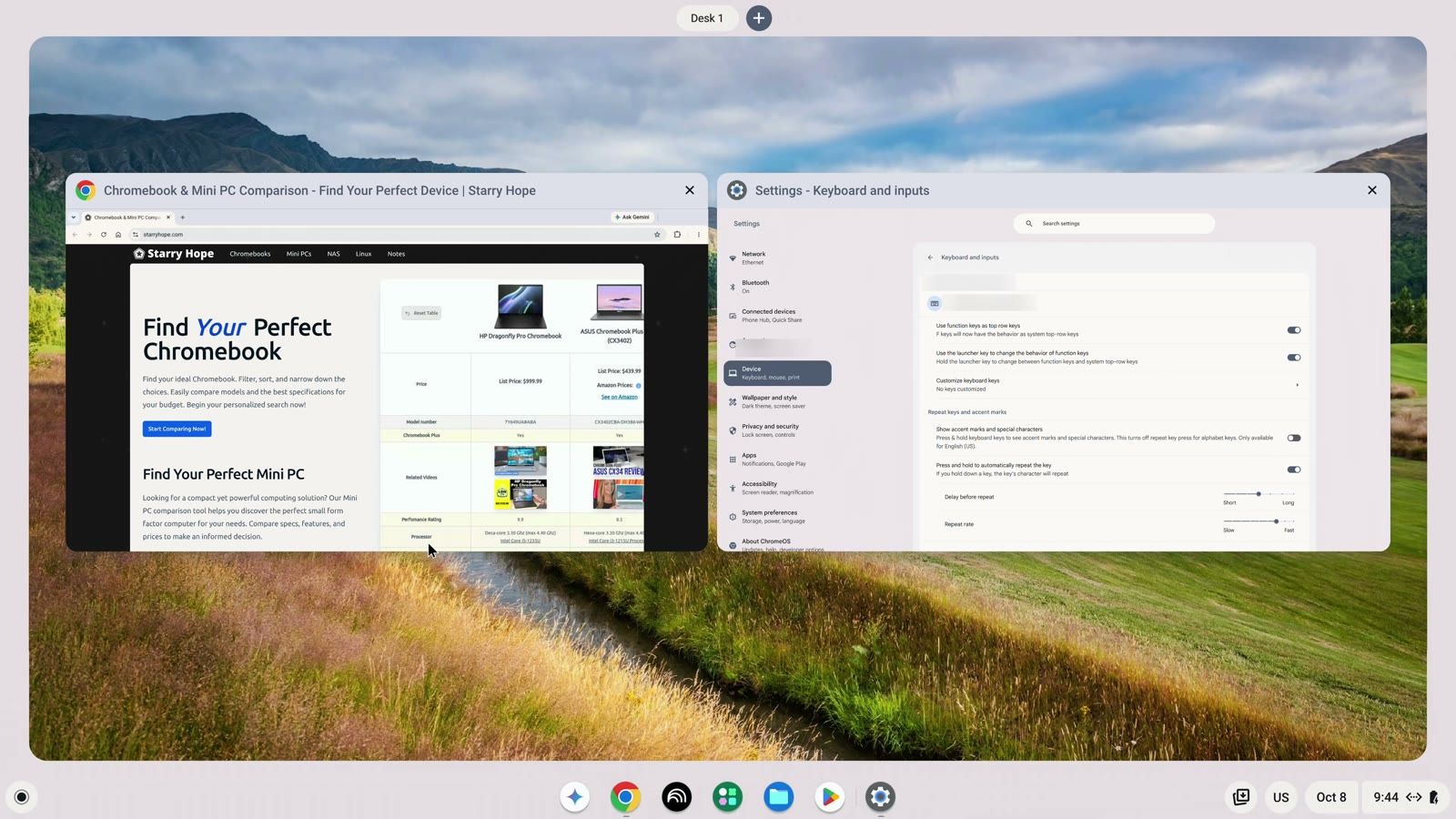
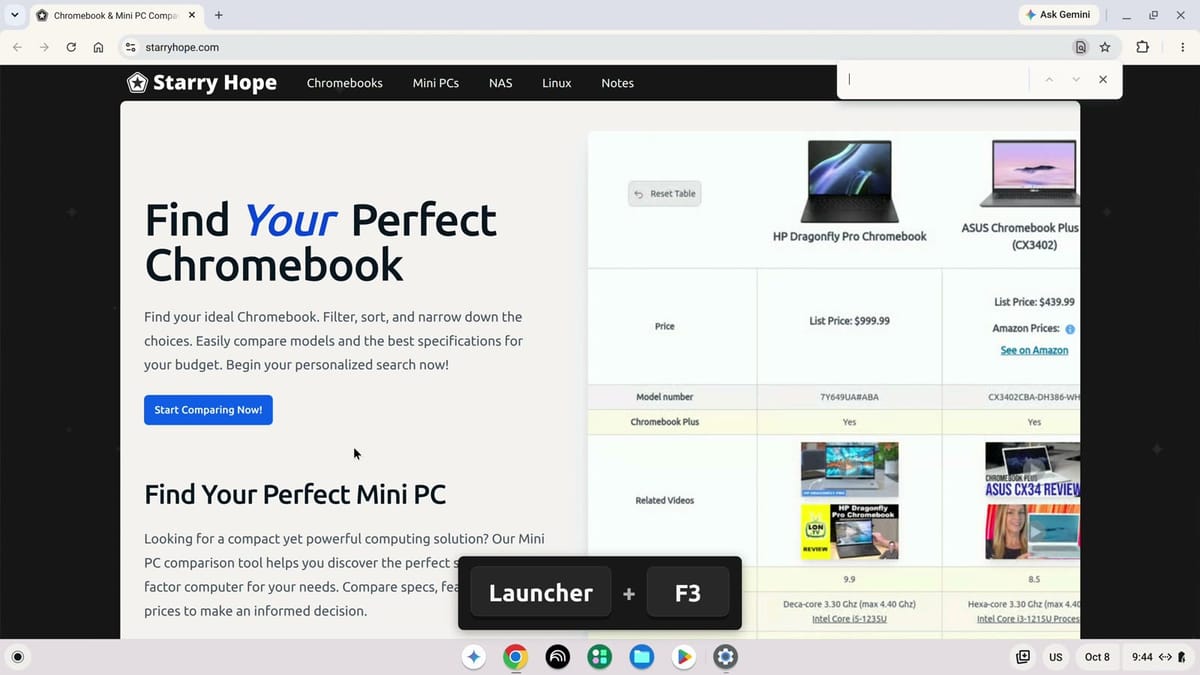
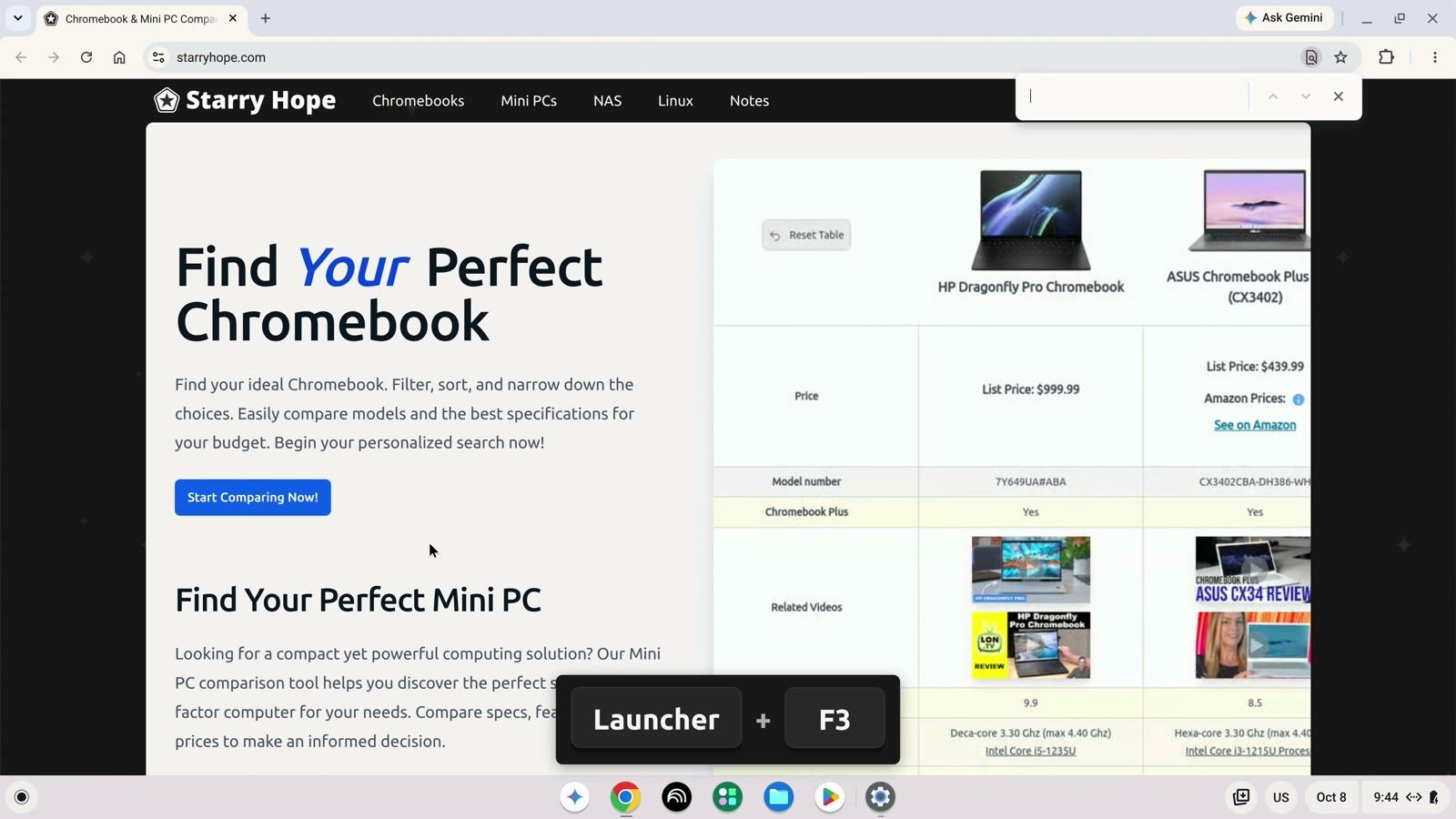
With Use the launcher key to change the behavior of function keys on, hold launcher and press an F key, and ChromeOS skips the top-row action and sends a plain F key. On a Windows keyboard, the Windows key is the Launcher key, so the Windows key plus f3 works too. In Chrome, launcher f3 sends a plain F3, and the find bar opens at the top right of the window. Press esc to close it.
Turn Off the First Switch for Plain F Keys
For F keys that behave the way they do on a Windows PC, go back to Settings, then Device, then Keyboard and inputs, and turn off Use function keys as top row keys in the external keyboard’s section.
Now the F keys send F keys. In Chrome, f3 opens the find bar on its own, and esc closes it. Holding launcher now gives you the top-row action instead, because the second switch works the other way around: launcher f5 opens Show windows, and esc returns you to Chrome.
F11 and F12 Work the Same Either Way
On an external keyboard, F11 and F12 are not top-row keys, so the first switch does not change them. f11 puts Chrome in full screen with the switch on or off, and a second press brings the window back. f12 opens Chrome’s developer tools the same way, and pressing it again closes them.
Troubleshooting
The built-in switch does nothing on an external keyboard. Treat top-row keys as function keys applies only to the Chromebook’s own keyboard. Change the external keyboard in its own section on the Keyboard and inputs page.
The F keys on an external keyboard change brightness and volume. Use function keys as top row keys is on for that keyboard. Turn it off for plain F keys, or hold launcher (the Windows key on a Windows keyboard) while you press the F key.
There is no Built-in Keyboard section. The section shows only while the Chromebook’s own keyboard is in use. Open the lid, then go back to Device, then Keyboard and inputs.
Related Guides
Our list of Chromebook keyboard shortcuts covers more of ChromeOS from the keyboard, and keyboards for Chromebooks helps you choose an external one. To switch keyboard layouts, see how to change the language and keyboard layout on a Chromebook, and to capture the screen, see how to take screenshots on a Chromebook.


