
Three settings can make a Chromebook screen look too big: page zoom in Chrome, the display size, and the magnifiers. Each one has a keyboard shortcut that puts the screen back to normal. To pick the right one, look at what grew. If only the web page is bigger, it is page zoom. If the shelf and the tabs grew too, it is the display size. If the screen follows the pointer around, or the top part shows a big copy, a magnifier is on.
These steps match ChromeOS 154 (October 2026). ChromeOS Settings writes the Launcher key as Search, so a row that says “Search + Ctrl + M” means the same keys as ctrl launcher m here. Google’s help page lists these shortcuts with either the Search key or the Launcher key, depending on the keyboard.
Reset page zoom in Chrome with Ctrl + 0
Page zoom changes the size of one website in Chrome. ctrl + makes the page bigger, and ctrl - makes it smaller. While a page is zoomed, a zoom icon shows up near the right end of the address bar. Click it to see the zoom level, a minus and a plus button, and a Reset button.
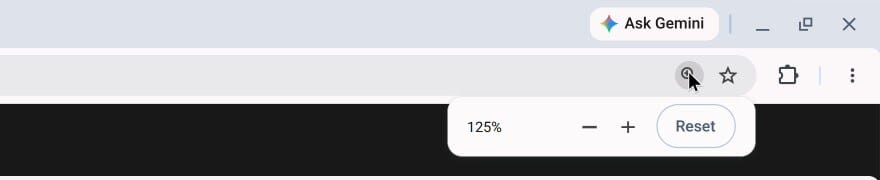
Click Reset, or press ctrl 0 on the keyboard. The page goes back to its normal size and the zoom icon goes away.
Chrome remembers the zoom for each site. If one site opens zoomed in every time, open that site and press ctrl 0 . To clear the saved zoom for many sites at once, Google’s Chrome help page points to Chrome Settings, Privacy and security, Site settings, Additional content settings, Zoom levels.
Reset the display size with Ctrl + Shift + 0
The display size changes everything on the screen, including the shelf and the tabs. ctrl shift - makes everything one step smaller, and ctrl shift + makes it one step bigger. ChromeOS shows no number when you press these keys; only the layout changes.
To go straight to your screen’s default size, press ctrl shift 0 . The default depends on the screen, so it may look smaller or larger than what you had. Press ctrl shift + or ctrl shift - to step the size up or down, one press at a time, until it suits you. At the largest size, more presses do nothing.
Google’s help page calls these keys “increase resolution” and “decrease resolution”. On ChromeOS 154 the screen keeps its full resolution, and only the size of everything changes. The setting with the slider is Display and text size, under Device, Display in Settings. Search Settings for “display size” to jump to it.
Turn the full-screen magnifier off with Ctrl + Launcher + M
The full-screen magnifier zooms in on the whole screen, and the view moves with the pointer. Press ctrl launcher m to turn it on or off. Turning it off happens at once, with no dialog. The first time you turn it on with the keys, a Full-screen magnifier is on dialog may appear with Turn off and Keep it on buttons. The shelf is out of view while the magnifier is on, so use the shortcut to turn it off.
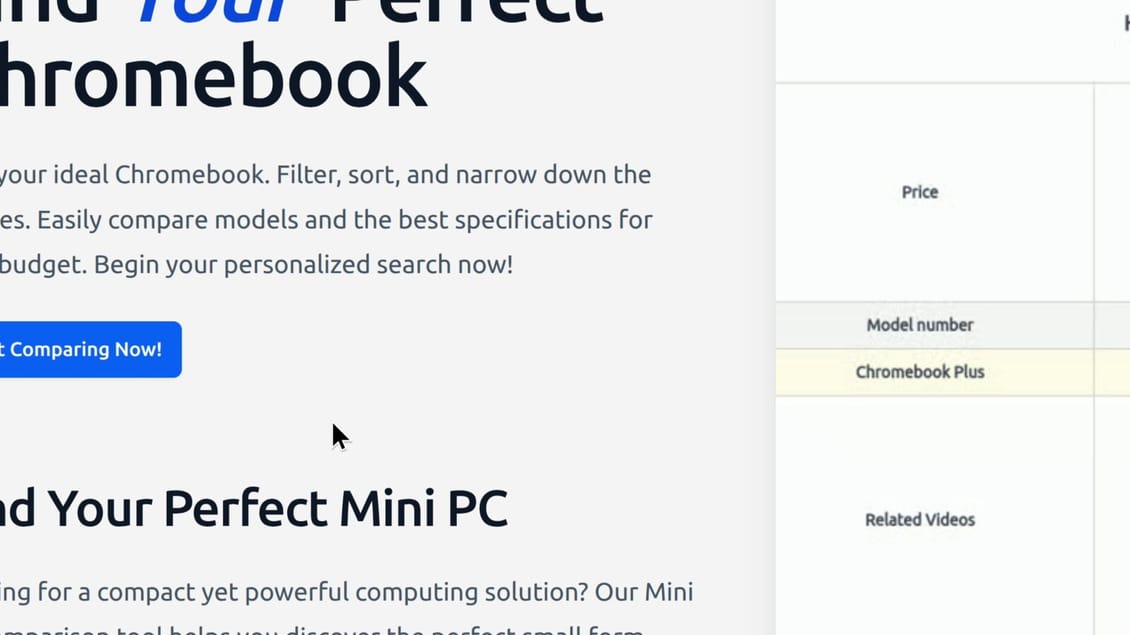
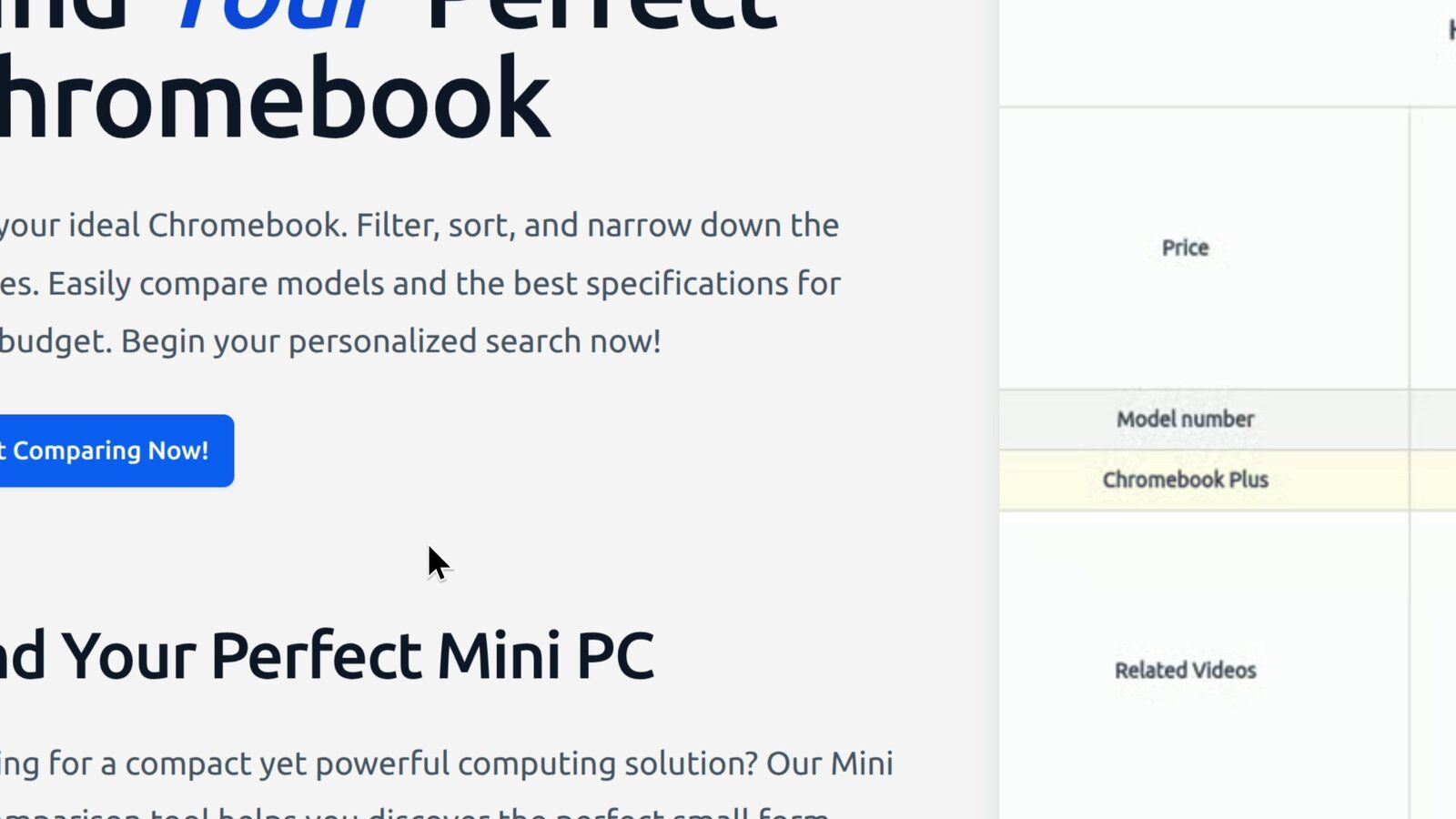
While it is on, ctrl alt with the arrow keys ( ctrl alt , ctrl alt , and so on) moves around the magnified screen. To change how much it magnifies, hold ctrl alt and scroll up to zoom in more, or scroll down to zoom back out. Google’s help page lists two more ways: ctrl alt brightness and ctrl alt brightness , or hold ctrl alt and scroll with two fingers on the touchpad.
Turn the docked magnifier off with Ctrl + Launcher + D
If only the top part of the screen shows a big copy, the docked magnifier is on. The copy shows the area around the pointer, so it changes as you move. It fills the top third of the screen, and your normal screen sits underneath.
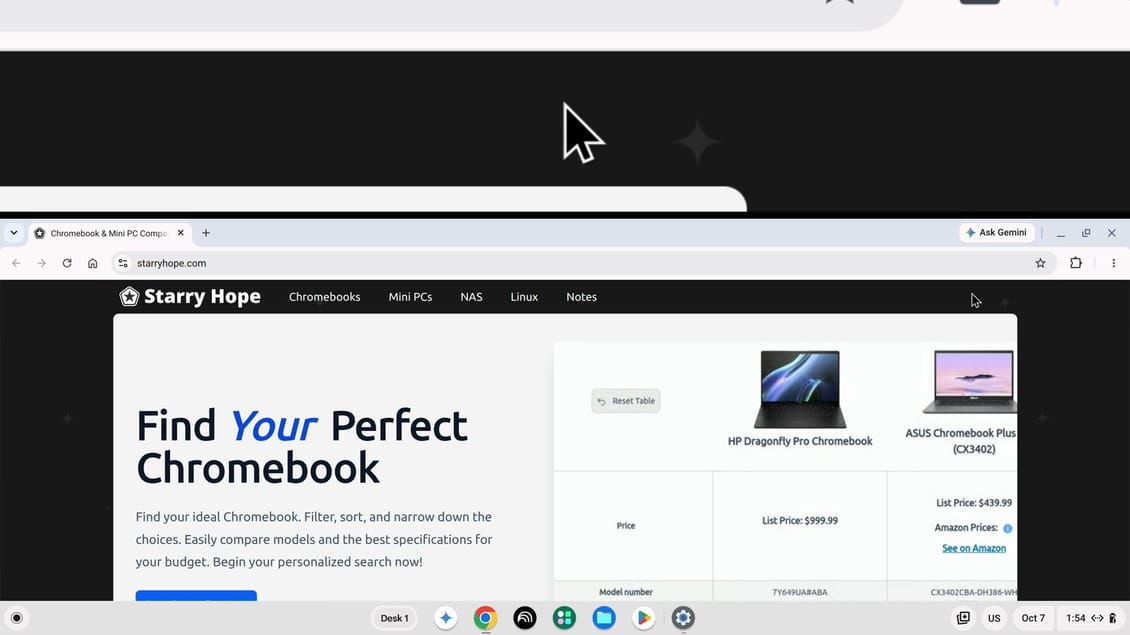
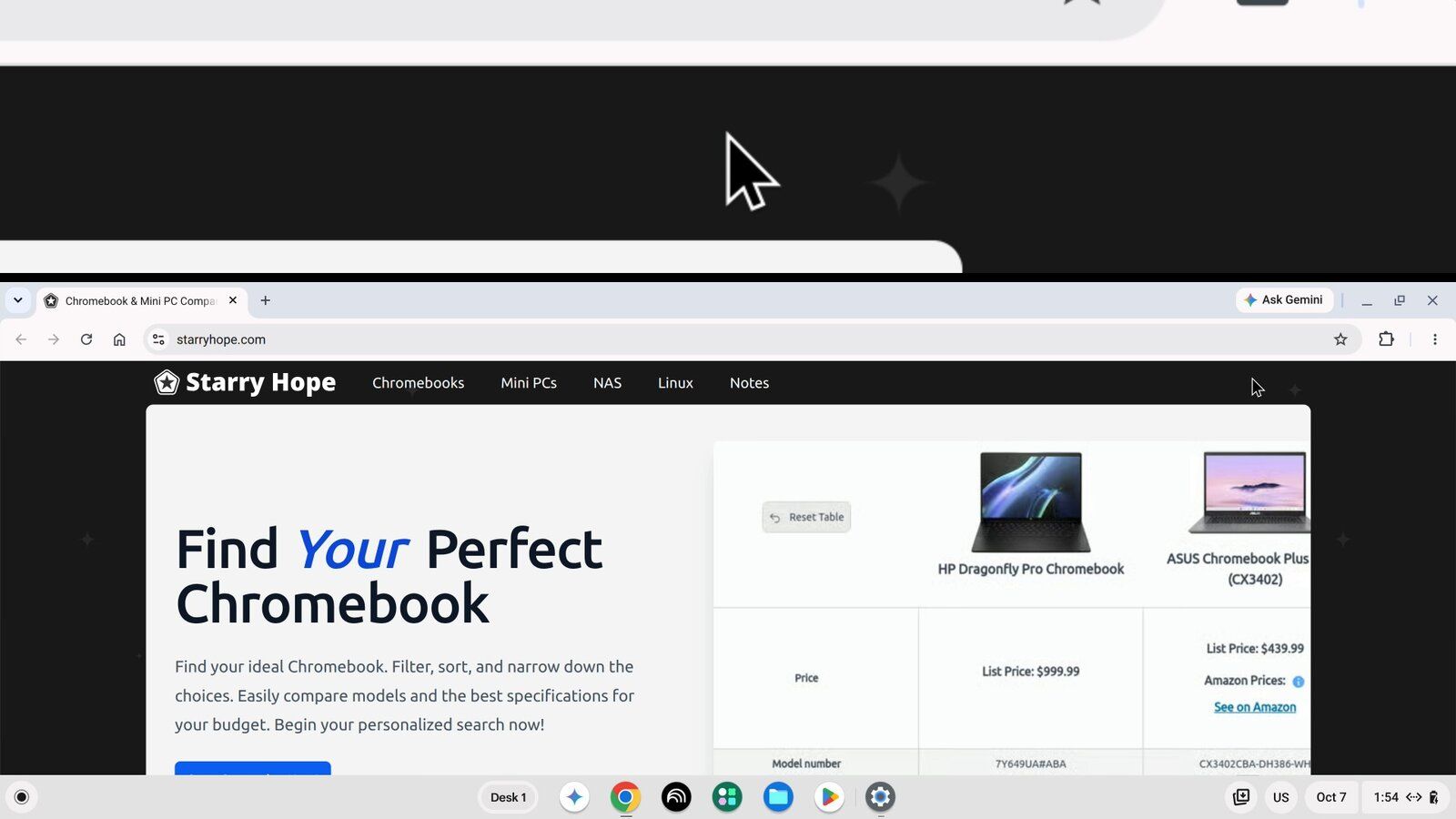
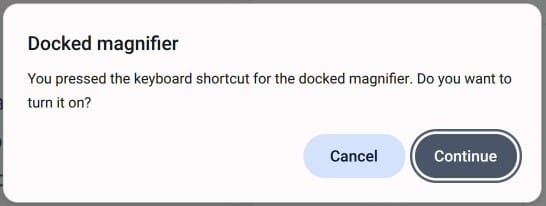
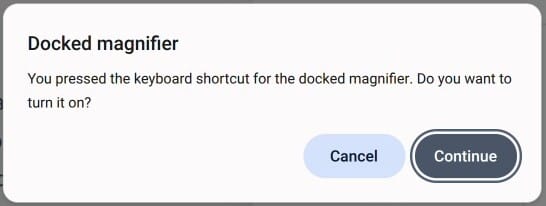
Press ctrl launcher d to turn it on or off. The first time you use the shortcut, a Docked magnifier dialog may ask you to confirm: “You pressed the keyboard shortcut for the docked magnifier. Do you want to turn it on?” Click Continue to turn it on, or Cancel to leave it off. Turning it off with the same keys does not show the dialog.
Find both magnifier switches in Settings
Click the clock at the bottom right to open quick settings, then click the gear button to open Settings. Type “magnifier” in the search box at the top, then pick Display and magnification from the results.
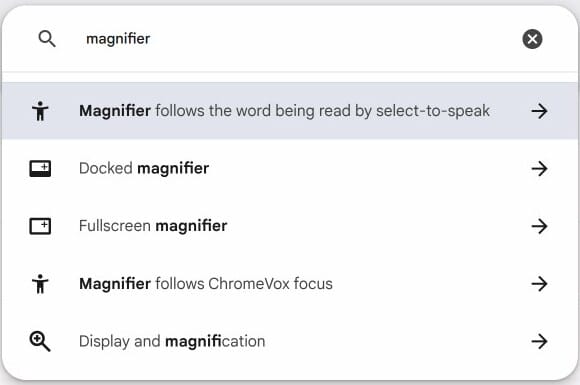
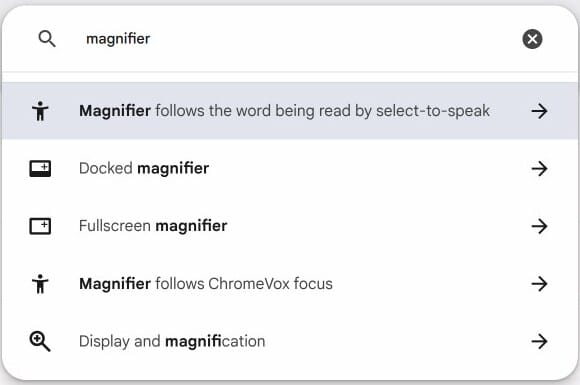
The page opens under Accessibility. The Full-screen magnifier and Docked magnifier rows each have a switch, and each row names its shortcut: “Use Search + Ctrl + M” and “Use Search + Ctrl + D”. If a magnifier is still on after you press the keys, turn its switch off here.
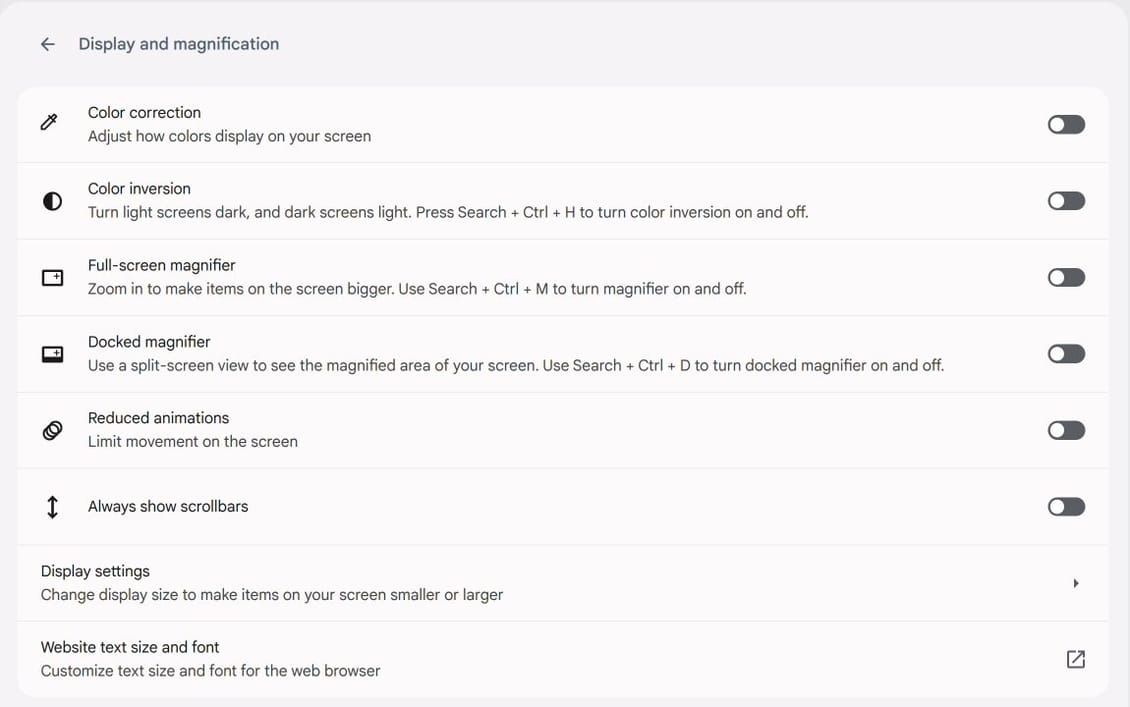
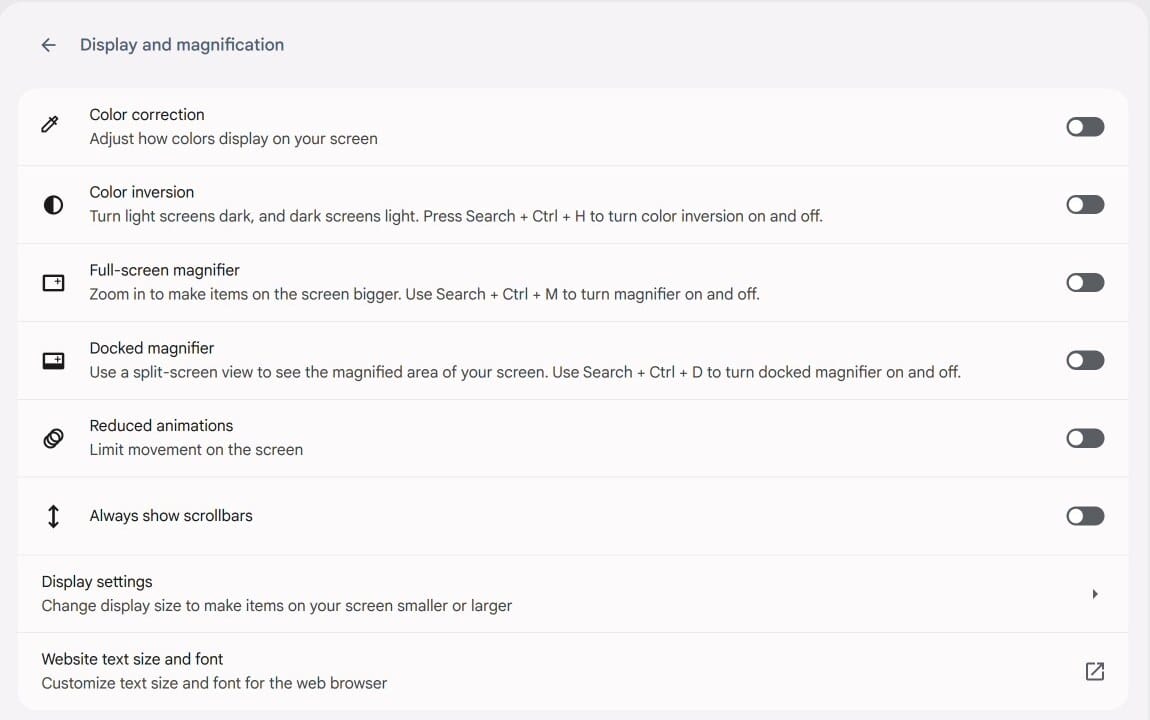
The Display settings row further down opens the slider for the display size. The Color inversion row on the same page names its own shortcut, Search + Ctrl + H ( ctrl launcher h ), in case the colors on your screen look reversed rather than bigger.
Change Chrome’s font size and page zoom for every site
The last row on the Display and magnification page, Website text size and font, opens Chrome’s own font size and page zoom settings. Those apply to every website. If every page in Chrome looks too big but the shelf and Settings look normal, check Page zoom there and set it back to 100%. Google’s Chrome help page has the same settings under Chrome Settings, Appearance.
For the rest of the ChromeOS keys, see our Chromebook keyboard shortcuts guide. If you are setting up a Chromebook for someone who needs larger text, our Chromebook setup guide for seniors walks through the display size and the magnifiers as part of a full setup.
Frequently Asked Questions
How do I get my Chromebook screen back to normal size?
Press ctrl shift 0 to reset the display size to your screen’s default. If only the web page in Chrome is too big, press ctrl 0 instead. If the screen follows the pointer or the top part shows a magnified copy, press ctrl launcher m or ctrl launcher d to turn off the magnifier.
What is the shortcut to zoom out on a Chromebook?
In Chrome, ctrl - makes the page smaller. To make everything on the screen smaller, including the shelf and tabs, press ctrl shift - .
Why is only the top of my Chromebook screen magnified?
The docked magnifier is on. It shows a magnified copy of the area around the pointer in the top part of the screen. Press ctrl launcher d to turn it off, or turn off Docked magnifier in Settings, Accessibility, Display and magnification.
How do I turn off the magnifier on a Chromebook?
Press ctrl launcher m for the full-screen magnifier or ctrl launcher d for the docked magnifier. Both also have switches in Settings, under Accessibility, Display and magnification.
Why does one website always open zoomed in?
Chrome remembers the zoom level for each site. Open the site and press ctrl 0 , or click the zoom icon in the address bar and click Reset.


