
On a Chromebook Plus, right-click a word on a web page and a Help me read card opens above the menu, with an offer to summarize the page. Chrome also puts an Ask Gemini button at the top right of the window. The Help me read card belongs to ChromeOS and turns off in the Settings app; the Ask Gemini button belongs to Chrome and turns off from Chrome’s tab strip. The steps below follow the video.
We checked these steps on ChromeOS 154 on an HP Dragonfly Pro Chromebook, a Chromebook Plus, in October 2026. Google renames settings from time to time, so a label on your Chromebook may differ a little from the names here.
Which Chromebooks have these switches
Google’s help pages list Help me read and Help me write as Chromebook Plus features, and Google’s Chromebook Plus page lists creating images with the Quick Insert key. Gemini in Chrome also needs a Chromebook Plus. If you are not sure which kind you have, our Chromebook Plus explainer covers what the label means and how to tell.
None of these steps deletes anything. Every switch turns back on from the same place, and the Ask Gemini button pins back with one click.
Find the Google AI switches in Settings
Click the clock at the bottom right of the screen to open quick settings, then click the gear button to open Settings. The search box at the top is ready for typing, so type ai and pick Google AI from the results. Settings opens System preferences and scrolls to a section called Search and suggestions. (Google’s help pages call this section Search and Assistant. On ChromeOS 154 its title is Search and suggestions.)
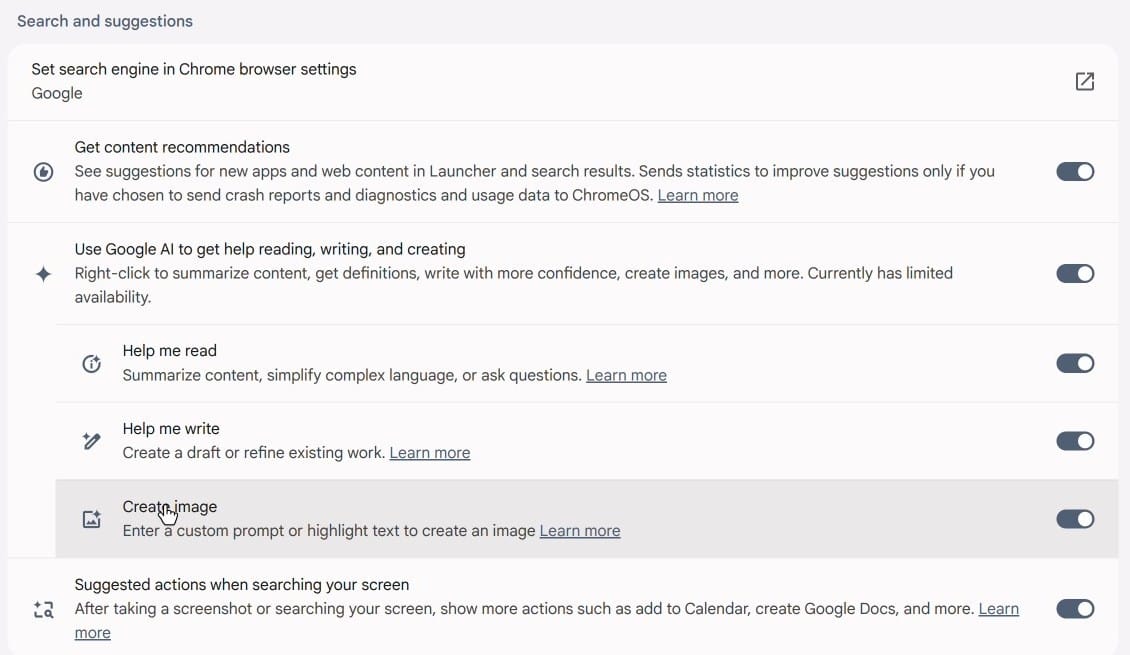
The row you want is the main switch, Use Google AI to get help reading, writing, and creating. Its description says it lets you right-click to summarize content, get definitions, write with more confidence, and create images. Under it are three features, and each one has its own switch.
Turn off one feature or all three
Help me read summarizes a page, simplifies hard language, or answers questions about what you are reading. Help me write creates a draft or refines writing you already have. Create image makes a picture from a prompt you type or from text you highlight. Click the switch at the right of a row to turn that one feature off and keep the others. For example, you can keep Help me write for documents and turn off only Help me read, so its card no longer opens when you right-click.
To turn off all three at once, turn off the main switch at the top instead. The three rows fold away under it. Turning off the three sub-switches one by one does not turn off the main switch, so it stays on until you click it. If you turn the main switch back on later, the three rows come back with the states they had before.
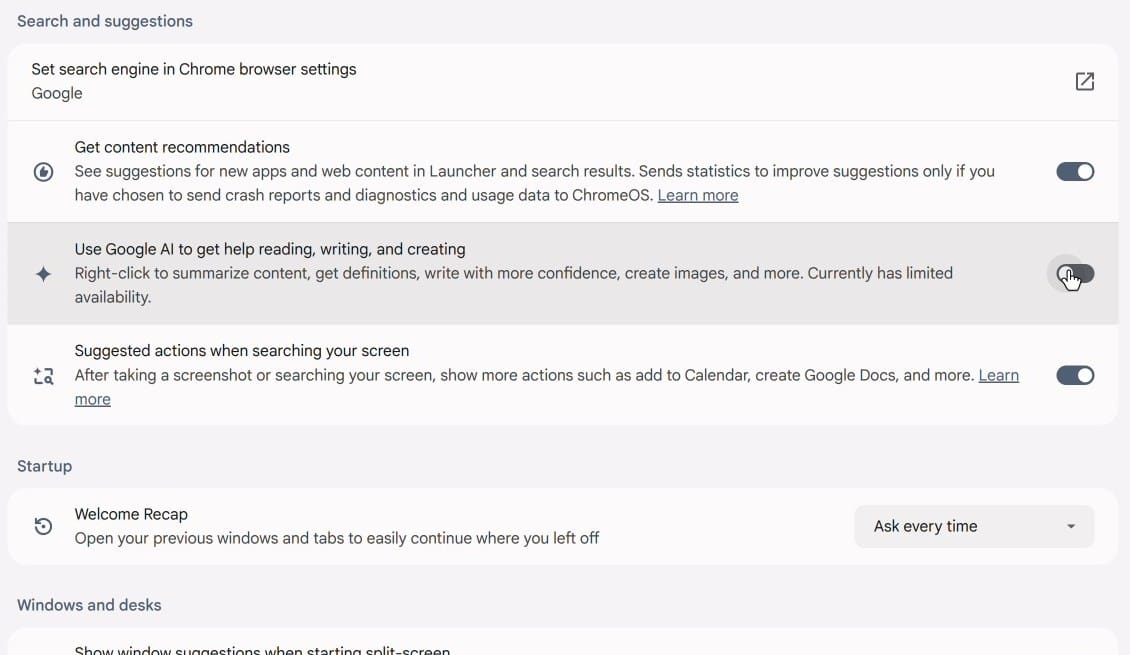
The next row down, Suggested actions when searching your screen, has its own switch and is not part of the main switch. After you take a screenshot or search your screen, it shows extra actions such as adding an event to Calendar or creating a Google Doc. The video leaves it on. Turn it off here too if you want those suggestions gone.
Check the right-click menu
Close Settings, go back to a web page in Chrome, and right-click a word. Before the change, the menu had a Help me read card on top, with a Define button for the word and a Summarize with Help me read row. With Help me read off, both are gone.
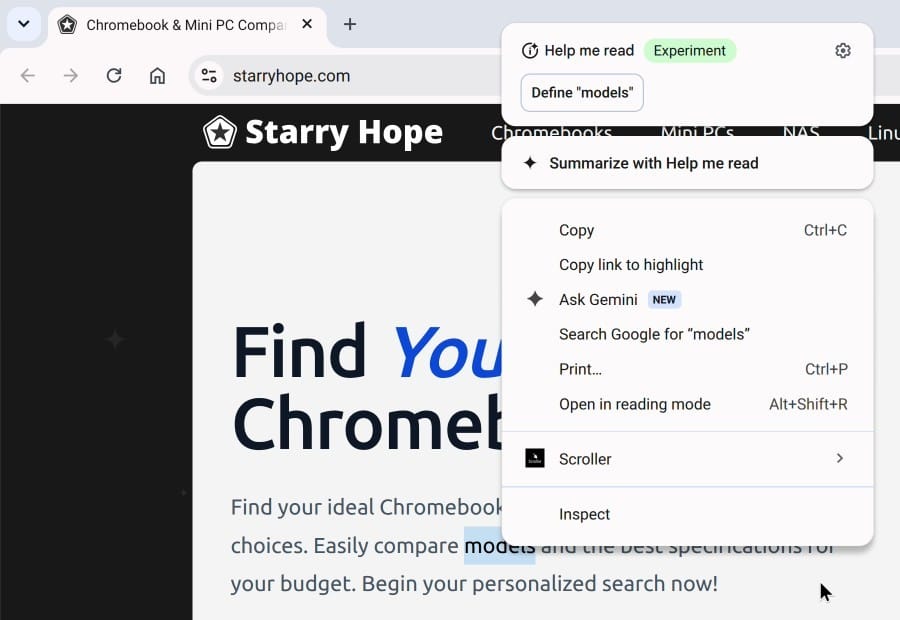
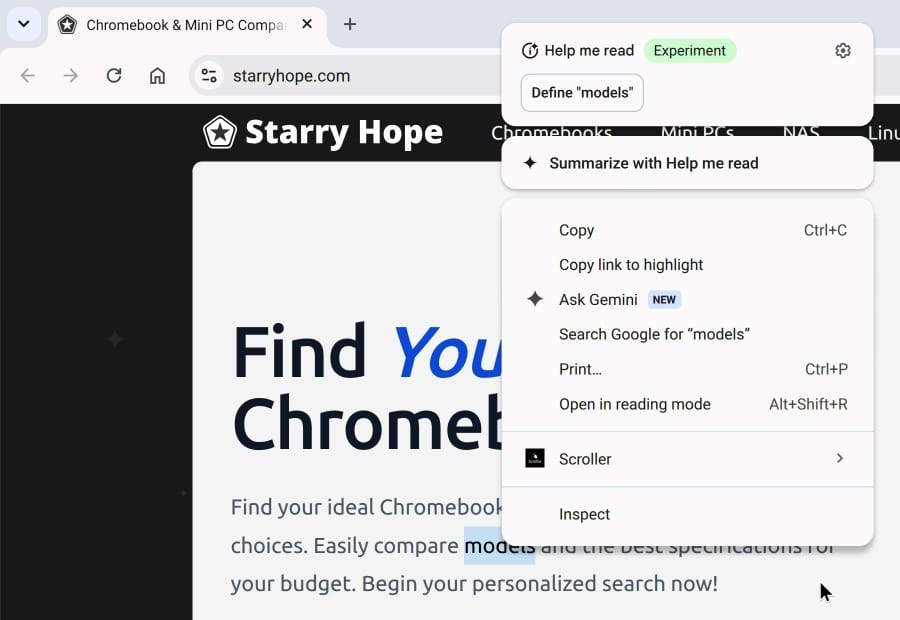
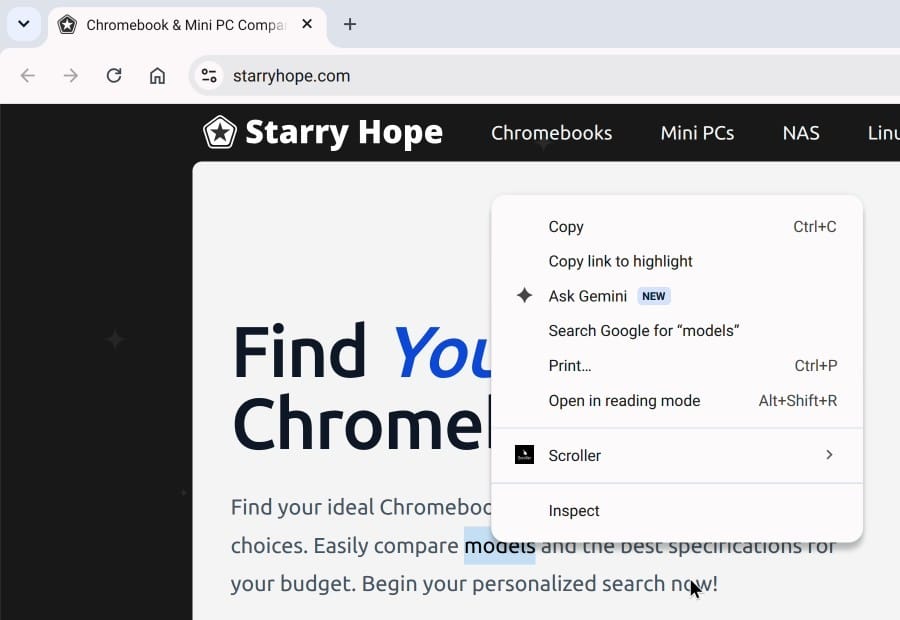
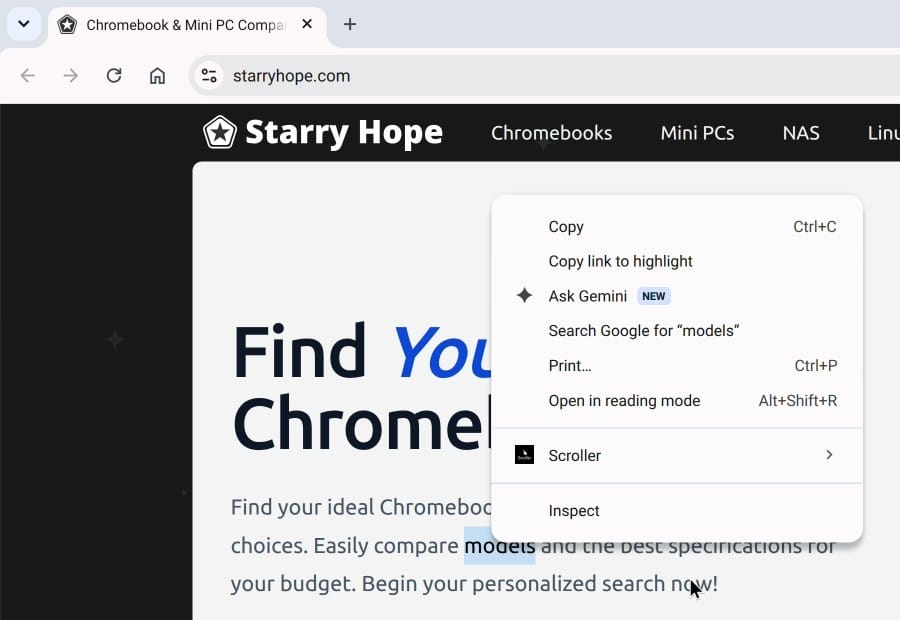
The Ask Gemini row stays in the menu. It belongs to Chrome’s own Gemini, not to the ChromeOS switches, so the Settings app does not remove it.
Unpin the Ask Gemini button in Chrome
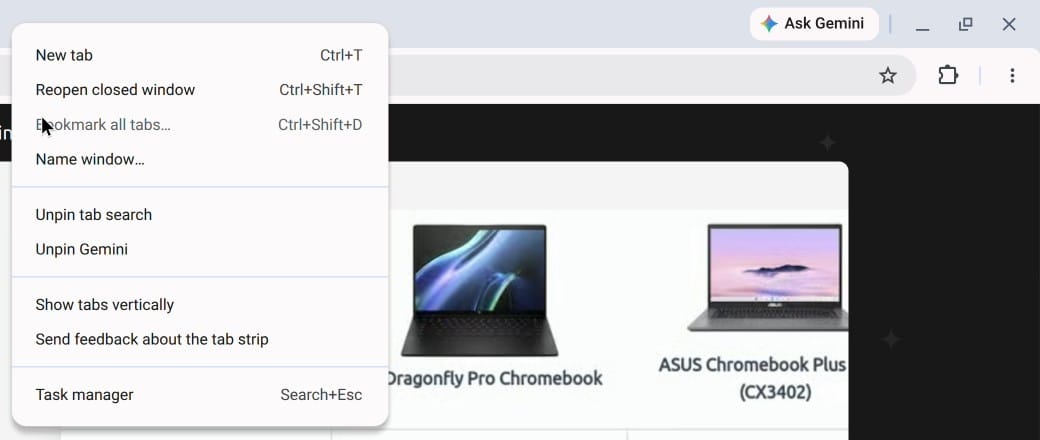
Right-click an empty spot at the top of the Chrome window, next to your tabs. The menu that opens has a row called Unpin Gemini. Click it, and the Ask Gemini button disappears from the top right of the window. You can also right-click the Ask Gemini button itself, which shows a single Unpin option.
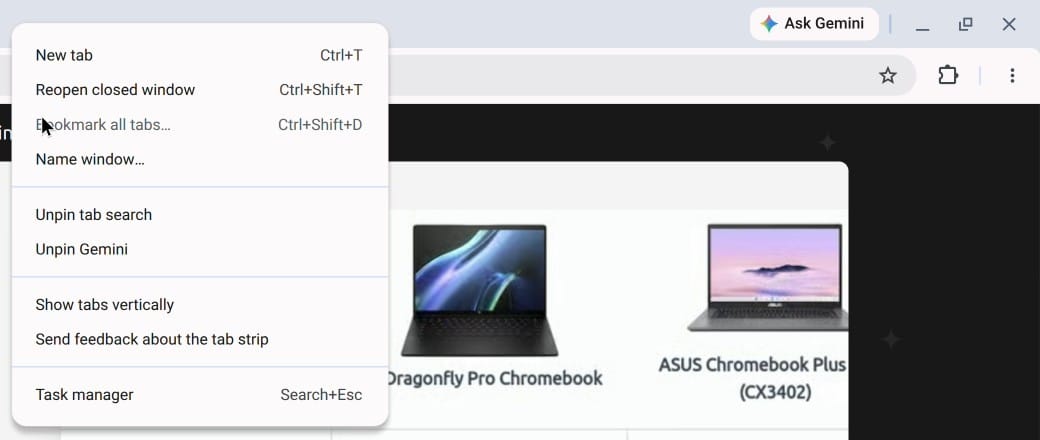
Unpinning hides the button only. Ask Gemini stays in the right-click menu on a web page, and Chrome’s three-dot menu still lists Open Gemini in Chrome. Google’s help page says Gemini in Chrome also has its own preferences under Chrome Settings, in the AI innovations section, including a “Show Gemini at the top of the browser” switch. The same page says you opt in the first time you use Gemini in Chrome. On our test Chromebook, which never opted in, those preferences did not show. The tab strip menu works either way.
The Gemini app on the shelf at the bottom of the screen is separate again. Right-click its icon and the menu has New window, Unpin, and App info. Unpin removes the icon from the shelf.
Pin the button back
To bring the Ask Gemini button back, right-click the empty spot next to your tabs again. The row now reads Pin Gemini, and clicking it puts the button back where it was. To bring back Help me read, Help me write, or Create image, open Settings, search for ai again, and turn the switches back on.
Chrome’s AI innovations page (open Chrome’s three-dot menu, then Settings, then AI innovations) has a few more AI settings that the ChromeOS switches do not touch. On ChromeOS 154 it lists History search, powered by AI, and an On-device AI switch. Look there if you want to go further than the Settings switches and the button.
On a Mac, Windows PC, or Linux
This guide is only about ChromeOS. For the same job on other systems, our guide to turning off AI on a Chromebook, Mac, Windows PC, or Linux covers Apple Intelligence on macOS, Copilot and Recall on Windows 11, and Linux desktops. For what the Gemini features on a Chromebook Plus do when you leave them on, see our Gemini on Chromebook Plus guide.


