
Apple’s Foundation Model is the language model behind Apple Intelligence, and the on-device version runs on the Mac’s own chip. Starting with macOS 27, Apple ships a command-line tool called fm that talks to it. Apple’s WWDC26 session on the fm CLI puts it plainly: “The fm command line tool comes pre-installed with macOS 27.”
This guide covers the whole tool: one-off questions, a chat in Terminal, text piped in from other commands, screenshots, the two built-in tools for text and barcodes, structured JSON, three Raycast hotkeys, offline use, and a small local server. Every command in the code blocks below ran on a Mac mini with an M4 chip on macOS 27.2. Answers from a language model change from run to run, so your output will not match ours word for word.
What you need
You need a Mac with Apple silicon on macOS 27. Apple’s page on how to get Apple Intelligence lists the Macs, languages and regions that support the on-device models. The quickest check is the command itself: run fm models (below) and look for a check mark beside system.
The on-device model needs no Apple Account. Our Mac was not signed in to one at all, and the system model answered every prompt. Apple’s larger cloud model, Private Cloud Compute (pcc in the tool), is different: it needs an iCloud account, and Apple says it has usage limits.
Check that fm works
Open Terminal (in Applications, Utilities) and type fm on its own. It prints its list of commands: respond, chat, schema, serve, models, count-tokens, quota-usage, config and license.
The first time, any other command stops with a notice that the license has not been agreed. Run the command it names and enter your password:
sudo fm licenseIt shows Apple’s terms for the Foundation Models CLI and asks you to agree. Agreeing applies to every user on the Mac, which is why it needs sudo. The help for fm license says you are asked once, and again only if the terms change. After our Mac updated to macOS 27.2, fm asked again, this time for version 1.1 of the terms. To see where you stand without a prompt, run:
fm license --statusOurs printed “Agreed to license FM1 version 1.1 on Nov 4, 2026 at 11:48 AM.” Then list the models:
fm models

The check beside system (AFM 3 Core Advanced) means the on-device model is ready. The cross beside pcc is the cloud model, which wants an iCloud sign-in. Every command in this guide uses system, the default. fm quota-usage reports “not applicable” for the system model, since quotas apply only to the cloud one.
Ask a question with fm respond
fm respond takes a prompt in quotes and prints the answer:
fm respond "Give me three names for a grey cat."
fm respond "Write a haiku about a Mac mini living in a closet."
Our Mac answered “1. Shadow 2. Ash 3. Slate” for the first. The haiku came back as “Silent in the dark, / Dust dances on metal wings / Dreams of macOS.” Short prompts like these answered in under a second once the model was warm. The first prompt after the Mac has been idle for a while can take about four seconds.
-i (short for --instructions) tells the model how to answer. Keep the instructions and the question as two separate quoted arguments; with only the instructions, fm prints its help and “Missing prompt.”
fm respond -i "You are a grumpy pirate. Two sentences at most." "What does the chmod command do?"That gave: “Arrr, it changes file permissions, ye scurvy dog! It lets ye decide who can read, write, or execute.” Add -g (greedy sampling) when you want the same answer each time you repeat a prompt.
Chat in Terminal with fm chat
fm chat opens a full-screen conversation inside Terminal, and the model remembers earlier turns. We asked for three names for a grey cat (Ash, Slate, Mochi), then typed “Now make them sound like a pirate.” It kept the same three names: “Arrr, Ash the Grey!”, “Ye Olde Slate-Beast!” and “Mochi the Storm-Cat!”
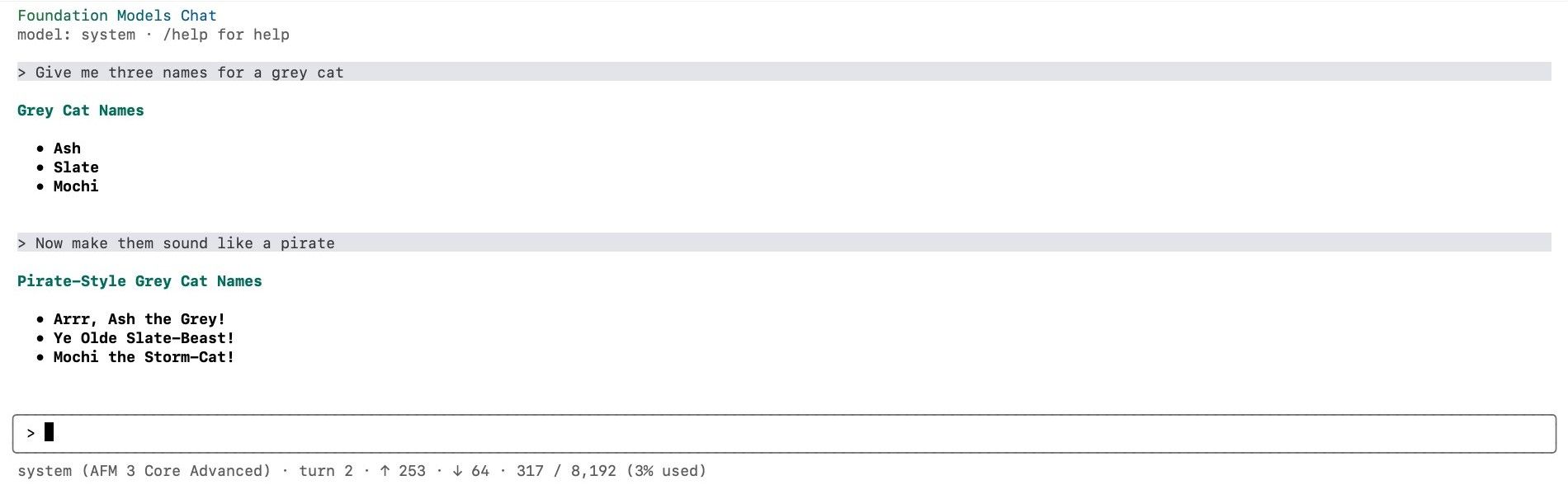
The line under the prompt box shows the model, the turn number, and how much of the context the chat has used: “317 / 8,192 (3% used)” here. That 8,192-token limit covers the whole conversation, so a long chat or a long document fills it.
Commands inside the chat start with a slash. /help lists them ( esc closes the list), /sessions lists saved chats, and /quit leaves. Chats save themselves under ~/.fm/sessions/ with a name taken from the answer; ours was saved as grey-cat-names. /quit prints the command to pick it up again, fm chat --resume grey-cat-names. We used the other route: start fm chat and type /resume grey-cat-names, which reopens the chat and redraws both earlier turns. The man page also lists fm chat --continue, which reopens the most recent chat.
The model miscounts letters and gets dates and arithmetic wrong
The model is small, and it states wrong answers as calmly as right ones. Three prompts went wrong on every run we tried:
fm respond "How many r's are in strawberry?"
fm respond "What year is it?"
fm respond "What is 4827 times 6391?"
It said “There are two r’s in strawberry.” (there are three) and that the year is 2024. The multiplication gave 31,813,807, and the same question again gave 31,991,797. The right answer is 30,849,357. The model has no clock and no calculator, and it does not count letters. Use it for words, and check any number or date that matters.
It is also a poor shell command writer. Asked for a command to find files larger than 1 GB in a home folder, it either stopped at its safety guardrails or gave commands that do not work. Do not pipe its output into a shell.
Pipe text into fm from other commands
fm respond reads piped text, so other commands can feed it. Put your request after -i:
cat error.txt | fm respond -i "Explain this error and give the fix in one short sentence."error.txt held one line, zsh: permission denied: ./deploy.sh. It answered “The error occurs because the ./deploy.sh script lacks execute permissions; fix by running chmod +x deploy.sh.” A small diff that raised a timeout from 30 to 90 turned into a commit message:
cat change.diff | fm respond -i "Write a one-line git commit message for this change."It wrote “Update server timeout to 90 seconds.” The clipboard works the same way, through pbcopy and pbpaste:
pbcopy < article.txt
pbpaste | fm respond -i "Summarize the text in three short bullet points."
The text was a short notice about a library closing its reading room for roof repairs. All three bullets matched it: the three-week closure in January, returns at the side door with the children’s room moving to the community center, and holds at the front desk with the reopening on February 9.
The prompt argument drops piped text
If you pipe text in and also give a prompt in quotes without -i, fm uses the prompt and ignores the piped text, with no warning:
pbpaste | fm respond "Summarize this in one sentence."With the library notice on the clipboard, that answered “A user asks about the model’s identity.” The model never saw the notice. Put the request in -i whenever you pipe text in.
Ask questions about screenshots
--image adds a picture to the prompt. We showed it a meeting slide:
fm respond --image "screens/Screenshot 2 meeting slide.png" "Who owns the support docs, and when is launch day?"It answered “The support documents are owned by Dana, and launch day is December 2.” Both were right. A loop in zsh does a whole folder and writes one Markdown file of notes beside each screenshot:
for f in screens/*.png; do fm respond --image "$f" "Turn this screenshot into short Markdown notes." > "${f%.png}.md"; doneFour screenshots took about eight seconds. The notes for a battery settings screen came out as a “Battery” heading with five bullets (Low Power Mode, Battery Health, Maximum Capacity 94%, Cycle Count 212, Optimized Charging), and every value matched the screenshot.
Read small text and codes with the built-in tools
fm respond has two built-in tools the model can call: --tool ocr reads text in an image, and --tool barcode reads QR codes and barcodes. They are listed in fm respond --help.
The text tool matters when the text is small and the image is large. Our test image was a full 4K screen with a twelve-line memo in small type in one corner. Asked to write out the text with no tool, the model invented a passage about 37 photos taken through the week and repeated two of its lines. With the tool, the prompt has to name it, or the model may skip the tool and invent text anyway:
fm respond --tool ocr --image memo.png "Use the getText tool, then print the text it returns."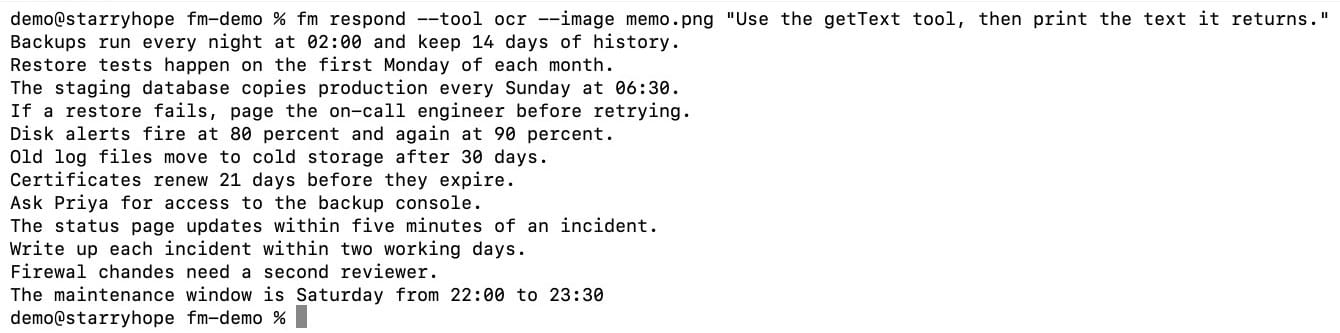
All twelve lines came back in order. One line had two slips: “Firewal chandes need a second reviewer.” where the memo says “Firewall changes.” The OCR tool reads the text, but the model retypes it, so a letter can change. A plain question works with the tool too: “What time does the maintenance window start?” got “The maintenance window starts at 22:00.”, which was right. The first OCR call took about 30 seconds on our Mac; later calls took about four.
QR codes need their tool too. With no tool, the model said “This QR code does not contain any text.” With the tool, it read the address:
fm respond --tool barcode --image qr.png "What does this QR code say?"
fm respond --tool barcode --image barcode.png "What does this barcode say?"
The QR code gave https://www.starryhope.com/ and the barcode gave SH-48213-7, both right. Keep the prompt plain. When we added “Print only the text.”, the model once skipped the barcode tool and printed digits until we stopped it with control c .
Turn receipts into a spreadsheet with —schema
--schema makes the model answer in JSON that matches a schema, so a script can read the output. fm schema object writes the schema file for you. This one asks for a store name, a date and a total:
fm schema object --name Receipt --string store --string date --double total > receipt.json
fm respond --schema receipt.json --image receipts/r1.png "Read this receipt."
The number type is --double, not --number. The answer was {"store": "CEDAR HARDWARE", "date": "10/28/2026", "total": 17.9}. A loop reads a folder of receipts into one file with one JSON object per line, and jq, which comes with macOS, turns that into a CSV:
for r in receipts/*.png; do fm respond --schema receipt.json --image "$r" "Read this receipt."; done > receipts.jsonl
jq -r '[.store, .date, .total] | @csv' receipts.jsonl > receipts.csv
open -R receipts.csv
open -R shows the file in Finder. Select it and press space , and Quick Look draws the CSV as a table.
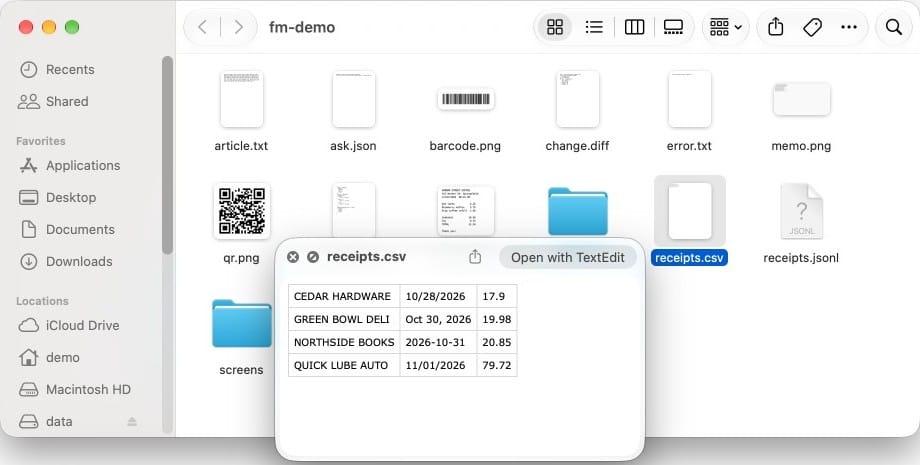
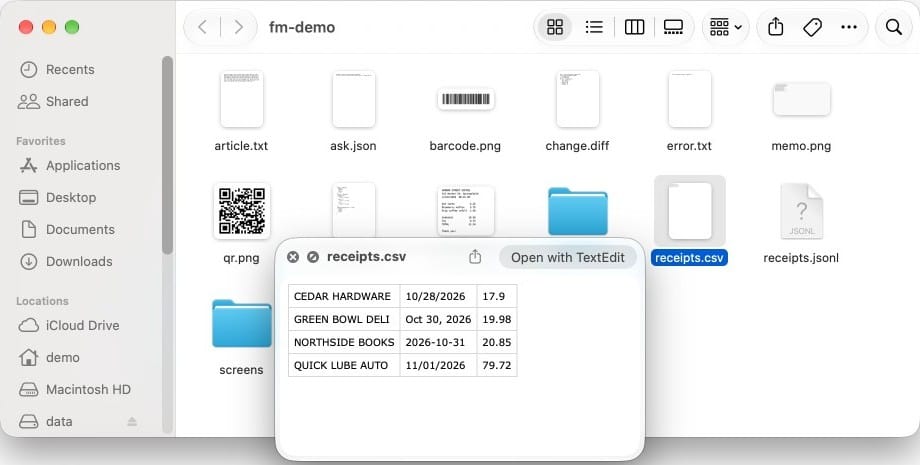
All four stores, dates and totals matched their receipts. Each date kept the format its receipt printed (10/28/2026, Oct 30, 2026, 2026-10-31), so add a date format to the prompt if you need one style. The totals lose trailing zeros (17.9), because the schema stores them as numbers.
Those were clean images made on a computer. Asked for the total on a photo of a crumpled paper receipt, the model said 120.00 euros. The slip says 120.60, in South African rand. Check totals from photos by hand.
Bind fm to hotkeys with Raycast
Raycast is a launcher for the Mac, and its Script Commands feature runs your own shell scripts from the launcher or from a keyboard shortcut. A script command is an ordinary script with a few # @raycast. comment lines at the top that give it a title, an output mode, and optional arguments such as a dropdown menu. Script commands and hotkeys worked without signing in to Raycast. Our Raycast AI guide covers Raycast’s own cloud AI features, which need the paid Pro plan; nothing here uses them.
The Raycast links on this page are affiliate links; Starry Hope may earn a commission if you buy Raycast Pro through them. See our FTC Disclosure.
To set it up, make a folder for the scripts (we used ~/fm-scripts), save the three scripts below in it, and make them executable with chmod +x ~/fm-scripts/*.sh. In Raycast, search for Script Commands, choose Add Script Command Folder, and pick the folder. Then give each command a hotkey in Raycast’s settings, under Extensions. We used control option c , control option s and control option t .
Each script runs fm through perl -e 'alarm 40; exec @ARGV'. macOS has no timeout command, and this line stops fm after 40 seconds if the model starts repeating itself on dense text.
Copy text from the screen
#!/bin/zsh

# @raycast.schemaVersion 1
# @raycast.title Copy Text from Screen
# @raycast.mode silent
# @raycast.packageName Mac Model

f=$(mktemp -t screen).png
screencapture -i "$f"
[ -s "$f" ] || exit 0
perl -e 'alarm 40; exec @ARGV' fm respond --tool ocr --image "$f" \
  -i "Print only what the getText tool returns, with nothing added." \
  "Use the getText tool." | pbcopy
rm -f "$f"
echo "Text copied"
The hotkey turns the pointer into a crosshair. Drag over any part of the screen, and the text in that area lands on the clipboard. On a slide with five lines, the clipboard held all five, in order. The first run asks for Screen Recording permission for Raycast; turn it on in System Settings, under Privacy & Security, Screen & System Audio Recording, then quit and reopen Raycast. macOS may also ask once more to let Raycast bypass the system window picker; click Allow.
Summarize the clipboard
#!/bin/zsh

# @raycast.schemaVersion 1
# @raycast.title Summarize Clipboard
# @raycast.mode fullOutput
# @raycast.packageName Mac Model
# @raycast.argument1 { "type": "dropdown", "placeholder": "Length", "data": [{"title": "One line", "value": "one sentence"}, {"title": "Three bullets", "value": "three short bullet points"}, {"title": "A paragraph", "value": "one short paragraph"}] }

pbpaste | perl -e 'alarm 40; exec @ARGV' fm respond -i "Summarize the text in $1."
Copy some text, press the hotkey, and pick a length from the menu. The summary opens in Raycast’s own window.
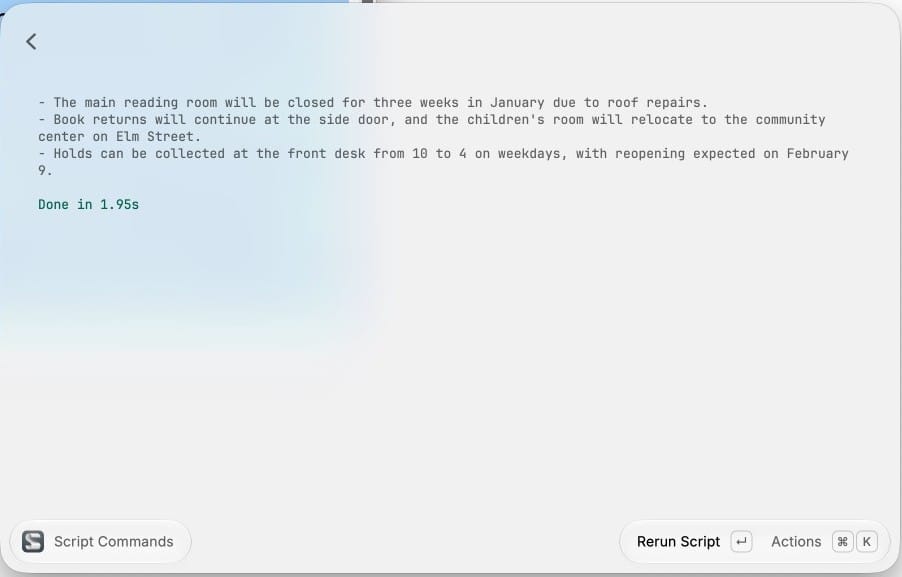
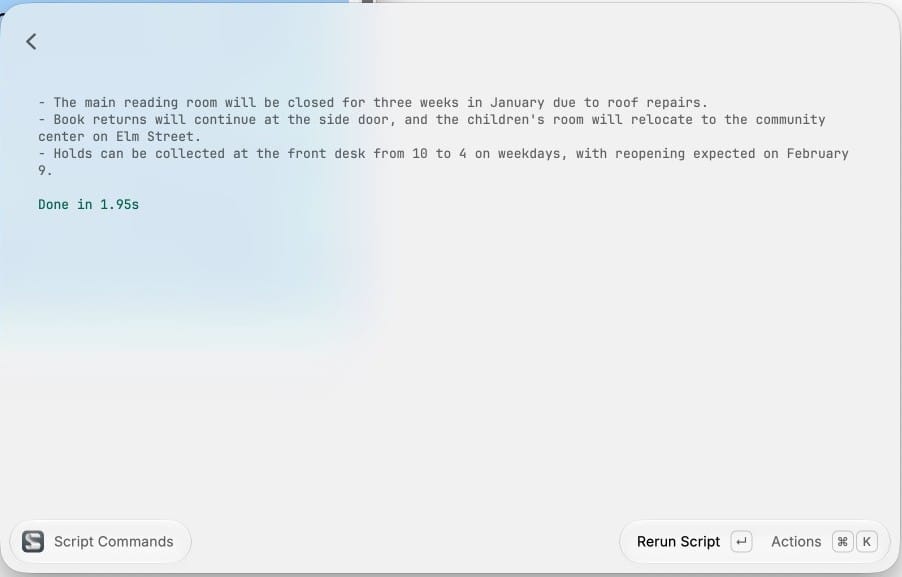
Three bullets on the library notice took 1.95 seconds, and each one matched the text.
Translate the clipboard
#!/bin/zsh

# @raycast.schemaVersion 1
# @raycast.title Translate Clipboard
# @raycast.mode fullOutput
# @raycast.packageName Mac Model
# @raycast.argument1 { "type": "dropdown", "placeholder": "Language", "data": [{"title": "Spanish", "value": "Spanish"}, {"title": "French", "value": "French"}, {"title": "German", "value": "German"}, {"title": "Japanese", "value": "Japanese"}] }

pbpaste | perl -e 'alarm 40; exec @ARGV' fm respond -i "Translate the text to $1. Print only the translation."
The menu picks the language. The library notice came back in Spanish in 3.12 seconds, starting “La biblioteca del pueblo cerrará su sala de lectura principal durante tres semanas en enero”. Edit the data list to add other languages. All three hotkeys work from any app, since they read only the screen or the clipboard.
Use it with the network off
The system model runs on the Mac, so it keeps working offline. To try it, turn off every network connection: Wi-Fi, and Ethernet if the Mac has one (both are in System Settings, Network). With ours off, we checked:
ping -c 2 -t 3 apple.com
fm respond "Give me a name for a coffee shop run by cats."
ping printed “cannot resolve apple.com: Unknown host”, and the model answered “Purr & Pour.” The hotkeys above call the same on-device model, so they should work offline too.
The Raycast translate script uses fm, and fm translates with the network off (below). Apple also has a separate Translation framework for developers, with its own translation models, so it does not depend on the Foundation Model. This short Swift program uses it from the command line:
import Foundation
import Translation
@main struct M { static func main() async throws {
 let tgt=CommandLine.arguments[1]; let text=CommandLine.arguments.dropFirst(2).joined(separator:" ")
 let s=TranslationSession(installedSource:Locale.Language(identifier:"en"),target:Locale.Language(identifier:tgt))
 let r=try await s.translate(text); print(r.targetText)
}}
Save it as tr.swift and build it with the Swift compiler, which comes with Xcode or the Command Line Tools (xcode-select --install):
mkdir -p ~/bin
swiftc -parse-as-library tr.swift -o ~/bin/translate
~/bin/translate fr "Where is the nearest train station?"
With the network off, it printed “Où se trouve la gare ferroviaire la plus proche ?” The program translates from English, and it works offline only for languages already on the Mac. Translation Languages, under System Settings, General, Language & Region, shows them and downloads more. Apple’s Mac User Guide says offline translations may be less accurate than ones processed on Apple’s servers. fm can translate too, with no extra program:
fm respond -i "Translate to French." "Where is the nearest train station?"It gave “Où se trouve la gare la plus proche ?”
Run a local server with fm serve
fm serve runs the model behind a small web server that speaks OpenAI’s Chat Completions format, so programs written for that API can use the on-device model.
fm serveIt listens on http://127.0.0.1:1976 with “access loopback-only”, which means only programs on the same Mac can reach it. It has no password or API key. --host and --port change where it listens; leave it on 127.0.0.1 unless you have a reason and a firewall in front of it.
From a second Terminal tab ( command t ), save a request in ask.json:
{"model":"system","stream":false,"messages":[{"role":"user","content":"Name three uses for a paperclip."}]}Then send it:
curl -s localhost:1976/v1/chat/completions -H "Content-Type: application/json" -d @ask.json | jq -r ".choices[0].message.content"The answer was “1. Holding papers together 2. Organizing cables 3. Labeling folders”. The Content-Type header is required; without it the server answers 403 with a CSRF error. "stream":false returns one JSON reply instead of a stream of chunks, which is what makes the jq line work.
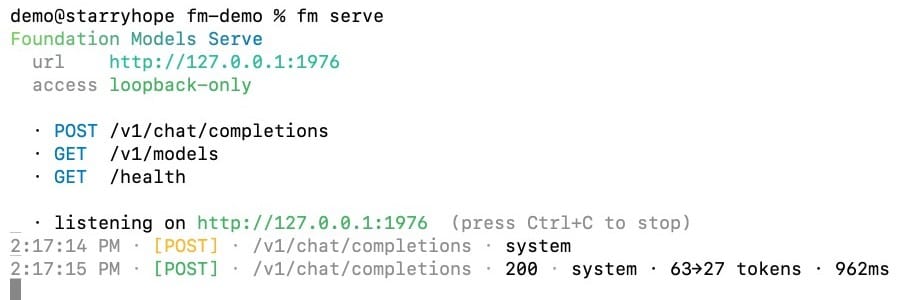
The server’s log shows each request with its status, model, token counts and time. Press control c in that tab to stop it.
Troubleshooting
Every command prints a license notice. Run sudo fm license and agree. A macOS update with new terms asks again, so run fm license --status after an update if fm stops working.
The answer ignores the text you piped in. You gave the request as a quoted prompt. Move it into -i "...", as in the pipe section above.
“The model’s safety guardrails were triggered.” The system model stops on some topics, sometimes partway through a sentence. A question about mixing bleach and ammonia stopped this way. For a summary or rewrite of text you supply, --guardrails permissive-content-transformations relaxes the check.
An error about the context size. The model holds 8,192 tokens, prompt and answer together. A long document fails with a message that it exceeded the model’s context size. fm count-tokens shows how long a prompt is; split long text into parts.
The output repeats or runs on. Dense images, such as a full screen of log lines, can send the model into an endless list. Press control c , and use a time limit (the perl line from the Raycast scripts) in loops and hotkeys.
pcc has a cross in fm models. The cloud model needs an iCloud account. Sign in under System Settings, or stay on system.
Where to start
The model behind fm is small, so it suits short jobs such as summaries, short translations, commit messages and reading clean screenshots. Check any number, date, or total from a photo yourself.
To try it, run fm models and look for the check beside system. If you prefer Raycast’s cloud models for longer work, our Raycast AI guide walks through those. To test scripts in a Mac you can delete afterwards, our Tart guide sets up throwaway macOS VMs.


