
Tart makes and runs virtual machines (VMs) on a Mac with Apple silicon. A VM is a second computer that runs as a program on your Mac, with its own disk, apps and settings. Tart has no app for managing VMs: you make, start, copy and delete them with Terminal commands, and each running VM opens in its own window.
That makes it a quick way to get a throwaway Mac. You download a ready-made macOS image once, copy it in a fraction of a second, and try an app or a risky change in the copy. When the test is over, tart delete removes the copy and the image stays for the next one. The steps below are for Tart 2.41.1 with a macOS 27 image, and they also cover a Debian Linux VM that you reach over SSH.
Cirrus Labs made Tart and in 2026 agreed to join OpenAI; OpenAI maintains Tart now. It is free to use, and its source code is on GitHub. The license is the Functional Source License (FSL-1.1-ALv2): you may use it for any purpose except offering it to others in a commercial product or service that does the same job as Tart, and each release moves to the Apache 2.0 license two years after it ships. So Tart is source-available, not open source in the strict sense.
What you need
You need a Mac with Apple silicon (M1 or later). Tart itself runs on macOS 13 Ventura or later, but the macOS 27 images use Apple’s ASIF disk format, which needs a host on macOS 26 Tahoe or later. You also need Homebrew.
Plan for disk space. The plain macOS 27 image was a 29.9 GB download when we pulled it and took about 32 GB of the Mac’s free space. Each VM you use for a while adds a gigabyte or two on top of that. Tart runs macOS and Linux guests only; for Windows, see our comparison of UTM, Parallels Desktop, and VMware Fusion for Windows 11 on a Mac.
Install Tart with Homebrew
Tart installs from OpenAI’s own Homebrew tap, openai/tools. A tap is an extra collection of Homebrew packages. Tart needs a second package from the same tap, softnet, and Homebrew 7 refuses to load it from a tap you have not trusted. Trust the tap first, then install:
brew trust openai/tools
brew install openai/tools/tart
tart --version
brew trust prints Trusted tap: openai/tools, and tart --version prints 2.41.1. Trusting a tap lets Homebrew run that tap’s install recipes on your Mac. If you are unsure about a tap, read its formulas on GitHub, or ask an AI coding agent to read them for you, before you trust it.
Older guides and the tart.run website still give brew install cirruslabs/cli/tart. That tap stops at version 2.32.1 from April 2026, so use openai/tools.
Download a macOS image
A new VM starts from an image: a ready-made VM that you download once and then copy. Cirrus Labs publishes images on GitHub’s container registry and rebuilds them from time to time, so the latest tag moves and the sizes below change. Two of them matter here:
ghcr.io/cirruslabs/macos-golden-gate-vanilla:latestis macOS 27 with auto-login and nothing extra installed. It was a 29.9 GB download on November 1, 2026.ghcr.io/cirruslabs/macos-golden-gate-base:latestadds Homebrew,gh,jq, Node, Ruby, Rosetta, and the Tart Guest Agent, which shares the clipboard with your Mac and letstart execrun commands in the VM. It was a 34.1 GB download on October 30, 2026.
For a clean Mac to test apps in, the vanilla image is the better start, and it is the one the steps below use. For macOS 26, the names are macos-tahoe-vanilla and macos-tahoe-base. Both macOS images log in as admin with the password admin.
Pull the image ahead of time, because it is large; on a fast wired connection the pull takes several minutes:
tart pull ghcr.io/cirruslabs/macos-golden-gate-vanilla:latest
tart list
tart list shows the image twice, once under its latest tag and once under its sha256 digest. Both rows are the same download.
Clone and start a macOS VM
tart clone makes a VM from the image. Here the VM is called sandbox:
df -h /
tart clone ghcr.io/cirruslabs/macos-golden-gate-vanilla:latest sandbox
tart list
df -h /
The clone took 0.03 seconds and printed nothing. tart list shows sandbox at the same 35 GB size as the image (the size of its virtual disk contents), but df shows the same free space as before. A clone shares the image’s data on the Mac’s disk, and only what changes inside the VM takes new space. For that reason the sizes in tart list do not add up to the space your VMs use; check df -h / instead.
Start the VM:
tart run sandboxA window opens with the Apple logo, and about 20 to 25 seconds later macOS is signed in to the admin account with no setup screens. tart run keeps the Terminal busy until the VM stops, so open a second Terminal tab for other commands.
Open and try an app inside the VM
Inside the window is a separate Mac. Its Dock and menu bar belong to the VM. command space normally opens Spotlight on your own Mac, not in the VM. To open apps in the VM, use the VM’s own Finder (the Applications folder) or click the magnifying glass in the VM’s menu bar. To send system shortcuts to the VM instead, start it with tart run --capture-system-keys sandbox, and shortcuts like command tab go to the VM.
The example app here is Stats, a free system monitor that lives in the menu bar. In the VM’s Safari, open the Stats releases page and click Stats.dmg. Safari asks once whether release-assets.githubusercontent.com may download files; click Allow. Open the disk image and drag Stats to the Applications folder.
When you open Stats, macOS shows its usual warning for a downloaded app:
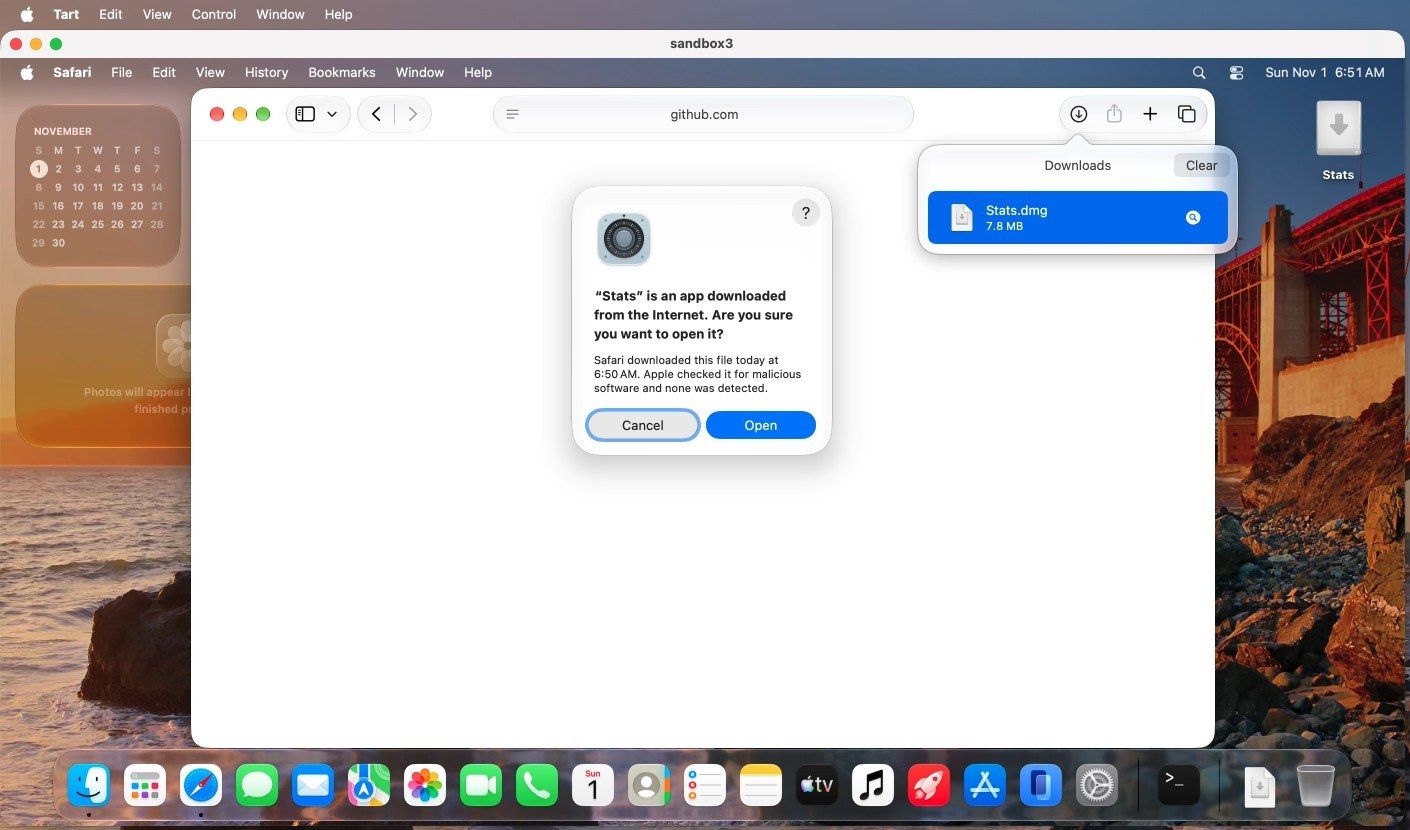
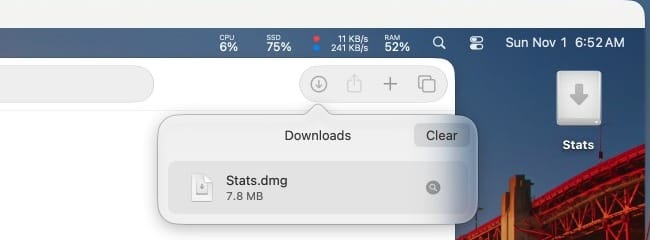
On your own Mac, check where the app came from before you click Open. In the VM, Stats sees only the VM’s disk, so click Open. The Cirrus Labs macOS images turn Gatekeeper off, so this dialog is macOS’s quarantine prompt for downloaded files, not a full Gatekeeper check; do not treat the VM’s warnings as protection. After a short setup, the VM’s menu bar shows CPU, disk, network and memory readouts.
Keep the VM away from your network and files
An app in the VM cannot see your Mac’s files unless you share a folder with it. It can still use the network. With Tart’s default shared (NAT) network, a VM can reach your home router, other computers on your network, and the internet.
For an app you do not trust, start the VM with these settings (stop it first if it is running):
--net-softnetlimits the VM to addresses on the internet and the VM gateway, so it cannot reach other devices on your home network. It needs macOS 26 or later. The first time, Tart printsSoftnet requires a Sudo password to set the SUID bit on the Softnet executable, please enter it below.and asks for your Mac password once.--no-clipboardturns off clipboard sharing. For macOS VMs, it matters only with the base images, which include the Guest Agent.- Add
:roto a shared folder (below) so the VM can read it but not change it.
tart run --net-softnet sandboxThese flags limit what the VM can reach; they do not seal it off. Keep passwords and personal files out of a test VM.
Throw the VM away and start clean
Close the VM window to stop it (the Terminal prints Stopping VM...), or run tart stop sandbox from another tab. Then delete it and make a fresh one:
tart delete sandbox
tart clone ghcr.io/cirruslabs/macos-golden-gate-vanilla:latest sandbox
tart delete removes the VM with Stats and everything else done inside it, and gives back only the space that VM wrote. The image stays in tart list, untouched, so the next clone is ready as fast as the first one and starts clean.
Run a Debian VM over SSH
Cirrus Labs also publishes Linux images for Debian, Ubuntu and Fedora. They are server images with a text console and no desktop. The Debian 13 image is a 0.6 GB download, so tart clone can download it during the copy; ours took 7 seconds:
tart clone ghcr.io/cirruslabs/debian:latest deb
tart run --no-graphics deb &
ssh admin@$(tart ip --wait 60 deb)
--no-graphics starts the VM headless, with no window, and the & keeps it running in the background. tart ip prints the VM’s network address; --wait 60 gives it up to a minute to get one. The first time, SSH asks you to confirm the VM’s key: type yes. The password is admin. Anyone can look that up, so change it with passwd if you keep the VM.
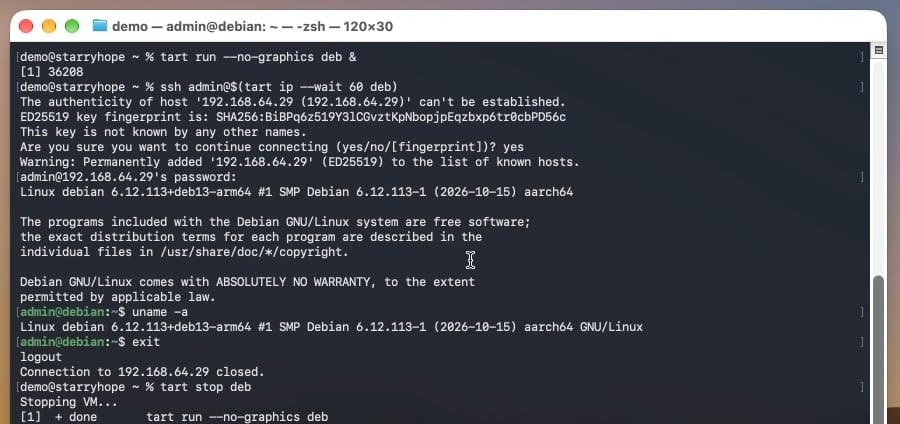
uname -a in the VM shows the ARM (aarch64) build of Debian, which is what runs on Apple silicon. Type exit to leave SSH, and tart stop deb to stop the VM.
Share a folder with the VM
A shared folder is set when the VM starts. With the VM stopped, start it again with --dir, which takes a name and a folder on your Mac. Here the folder holds one note to read from Debian:
mkdir -p ~/tart-share
echo hello > ~/tart-share/hello.txt
tart run --no-graphics --dir=share:$HOME/tart-share deb &
SSH in again with ssh admin@$(tart ip --wait 60 deb), then mount the shared folders in Debian and read the file from your Mac:
sudo mkdir -p /mnt/shared
sudo mount -t virtiofs com.apple.virtio-fs.automount /mnt/shared
cat /mnt/shared/share/hello.txt
Each shared folder appears under /mnt/shared by the name you gave it. In a macOS VM, shared folders appear by themselves in /Volumes/My Shared Files/. The VM can change files in a shared folder, so share only what it needs, or add :ro to make it read-only: --dir=share:$HOME/tart-share:ro.
Limits and cleanup
Apple allows two macOS VMs to run at once on one Mac. A third one fails with The number of VMs exceeds the system limit (other running VMs: sandbox2, sandbox). The limit counts running VMs, not VMs on disk, and Linux VMs do not count toward it: our Debian VM started and answered with two macOS VMs already running.
When you are done with Tart, type exit to leave SSH, then stop and delete your VMs and delete the images by their full names:
tart stop deb
tart delete deb
tart delete sandbox
tart delete ghcr.io/cirruslabs/macos-golden-gate-vanilla:latest
tart delete ghcr.io/cirruslabs/debian:latest
tart list
Deleting an image by its tag also removes its digest row. To clear out old images without naming them, tart prune --older-than=7 removes cached images not used in seven days.
Troubleshooting
The install stops with an untrusted tap error. Without brew trust openai/tools, Homebrew 7 trusts only the Tart formula and stops with: Error: Refusing to load formula openai/tools/softnet from untrusted tap openai/tools. Run brew trust openai/tools, then brew install openai/tools/tart again.
tart ip prints no address. It waits zero seconds by default, so right after tart run the VM may not have an address yet. Add --wait 60.
SSH warns that the remote host identification has changed. A fresh clone gets a new SSH key, and it may get the same IP address as an older, deleted VM. Remove the old entry with ssh-keygen -R <ip> and connect again.
A third macOS VM will not start. Stop one of the two running macOS VMs first. Linux VMs can keep running.
ls -la /mnt/shared prints “Operation not permitted” in Debian. That line is about the mount point itself. List or read the shared folder by name instead, for example ls /mnt/shared/share.
When an app suits you better
Everything except the VM window happens in the Terminal. If you would rather manage VMs in an app, or need Windows, our UTM, Parallels Desktop, and VMware Fusion comparison covers the app route. If the images fill your internal drive, an external SSD for a Mac mini is a cheaper place for them than more Apple storage; set TART_HOME to a folder on that drive and Tart keeps its VMs and images there.


