
Raycast is a launcher app. On a Mac, option space opens a search box over any app, and a few typed letters find an app, a file, or a command. The paid Pro plan adds Raycast AI: models from Anthropic, OpenAI, Google and other companies, available from that same box. These steps are for Raycast 2.9.
The Raycast links on this page are affiliate links; Starry Hope may earn a commission if you buy Raycast Pro through them. See our FTC Disclosure.
What you need
Raycast 2 for Mac needs macOS Tahoe on a Mac with Apple silicon, per the Raycast manual. Raycast makes versions for macOS, Windows, and iOS, but not for Linux.
AI is not part of the free plan. Raycast’s pricing page says “AI isn’t available on the Free plan,” so every step below needs Pro or a higher plan. Signing in to Raycast starts a free 7-day Pro trial, and the Raycast manual says it needs no credit card. Each account gets one trial.
option space is the default Raycast hotkey in version 2. If it opens slowly or not at all, check whether Siri’s keyboard shortcut is set to hold Option Space, and change that Siri shortcut. Raycast also needs Accessibility access (System Settings, Privacy & Security) for its hotkeys.
Ask a quick question with Quick AI
Press option space , type the question, and press tab . Tab sends the text to Quick AI instead of searching for an app. The launcher turns into an answer panel, with the chat’s title on top and the model’s name under it.
We asked what the --delete flag does in rsync. The answer arrived in about nine seconds. It said the flag removes files at the destination that are not in the source, so the two sides match. Its notes suggested a dry run (--dry-run) first, which lists the changes without making them.
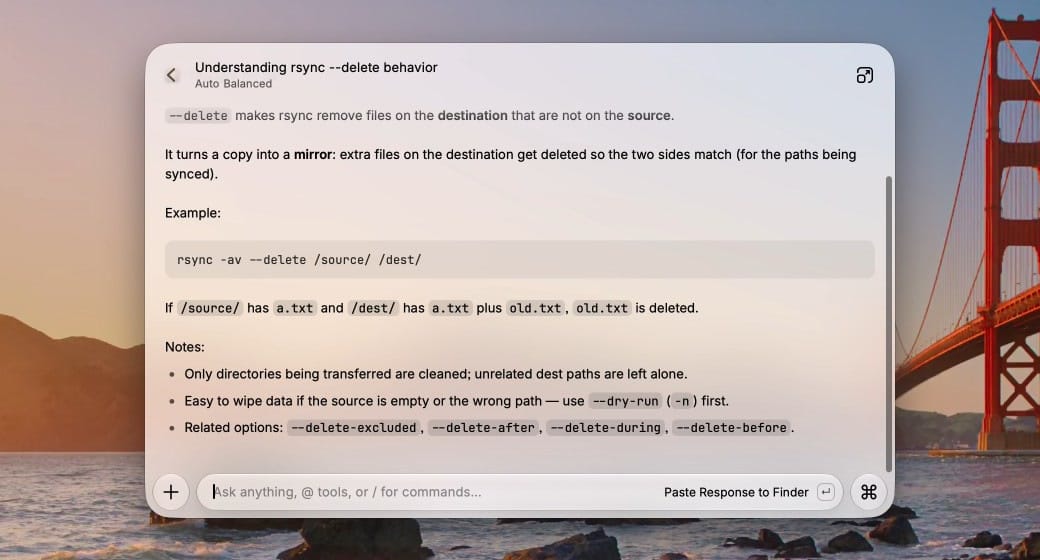
The message field at the bottom offers Paste Response, which pastes the answer into the app in front. For a longer conversation, press command j . That moves the chat into the AI Chat window and keeps the answer, the model, and any attachments.
Pick a model in AI Chat
Longer conversations go in the AI Chat window, which keeps past chats in a sidebar on the left. To open it without Quick AI, type AI Chat in the launcher and press enter ; the command has no hotkey until you set one.
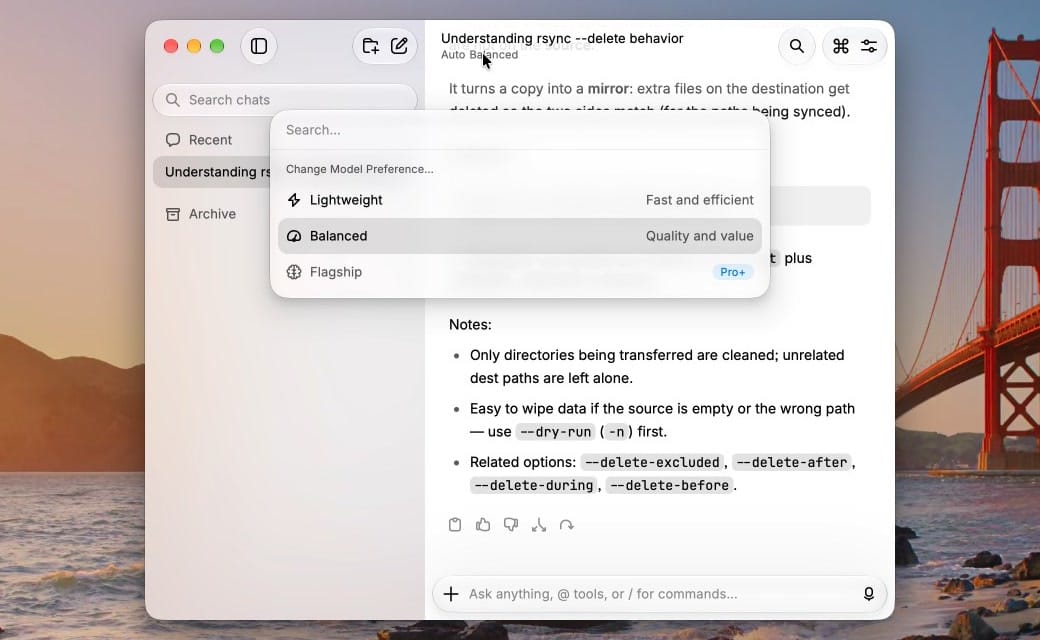
The line under the chat title names the model. “Auto Balanced” means Raycast’s Auto Model on its Balanced preset: for each request, Auto picks one of the models Raycast hosts. Click that name to see the three presets. Lightweight answers fastest, Flagship is the most capable, and Balanced, the default, “uses about 70% fewer credits than Flagship,” per the Raycast changelog for version 2.6. Flagship carries a Pro+ badge because it needs the Plus or Max plan.
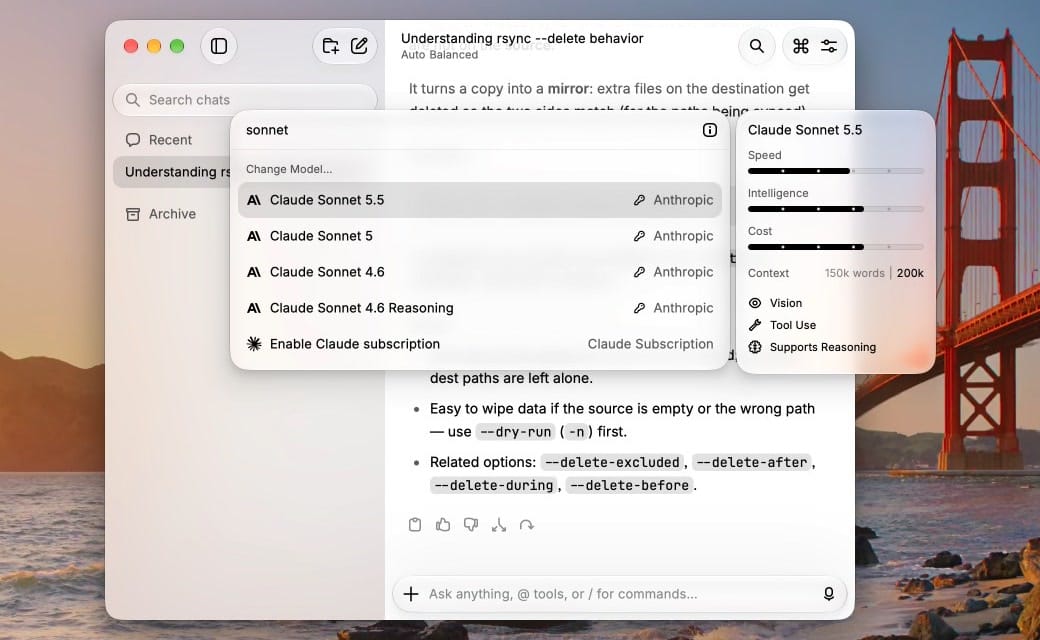
The full model list opens with shift command m . Typing / in the message field also opens it. Models are grouped by company, and typing filters the list. A side panel rates the highlighted model for speed, intelligence, and cost, and shows its context size and whether it handles images and tools.
How credits work
Models that Raycast hosts spend AI credits. Pro includes 500 credits a month. What a request costs depends on the model and on how much text goes in and comes out, so one message can cost more than one credit. Raycast publishes no fixed number per message. In our test, one short Quick AI question on Auto Balanced cost 1 credit.
To see your balance, type /usage in the AI Chat message field and press enter . A usage card shows how many credits you have used this month.
Add your own API key
Raycast can also run models on your own key from Anthropic, OpenAI, Google, or OpenRouter, as its bring-your-own-key page lists. The provider then bills you at its own rates. Raycast’s credits page says credits “apply only to inference provided by Raycast AI,” and in our test, chats and tool calls on our own Anthropic key left the credit count where it was.
Your own key does not replace the subscription. Since version 2.2, bring-your-own-key, local models, and custom providers all need Raycast Pro.
To add a key:
- Open Raycast Settings and choose AI in the sidebar.
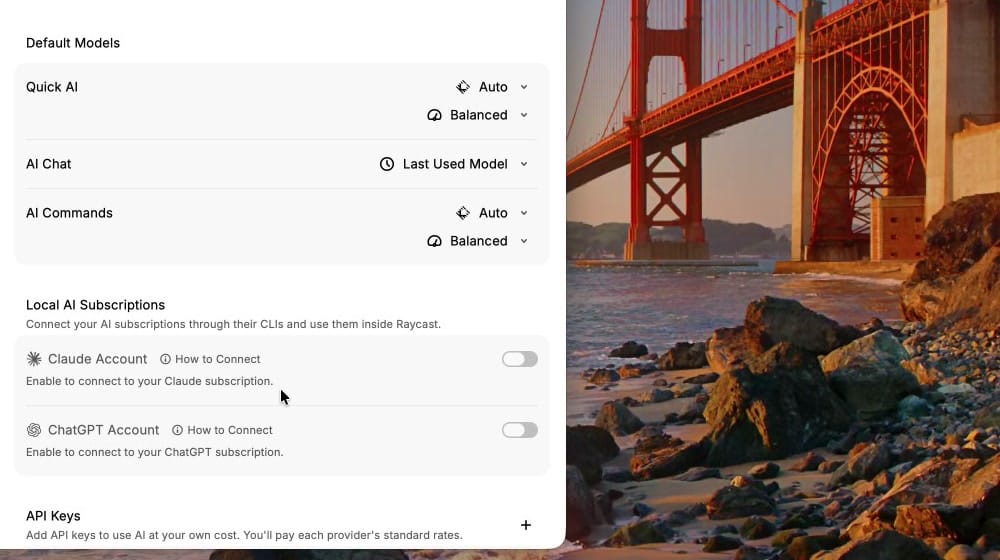
- Open Models & Providers and scroll to API Keys.
- Click the plus button, pick the provider, paste the key, click Verify, then click Save.
An Anthropic key must belong to a workspace. When you create it in the Anthropic Console, pick a workspace for it. A key without a workspace failed Verify with “API key is invalid” when we tried it.
Once the key is saved, each Claude model in the picker’s Anthropic group shows a small key icon. That icon means the model runs on your key and your Anthropic bill. Pick one, and the line under the chat title shows the model name with the same icon. The chat keeps its history when you switch, so a follow-up can build on an answer from another model.
A new chat starts on the default model again. To change that, set the default for Quick AI, AI Chat, and AI Commands under Default Models on the same settings page.
Send a Raycast note to AI Chat
Raycast Notes keeps short Markdown notes inside Raycast. Version 2.9, released October 22, 2026, added a Send to AI Chat action to Search Notes and the Notes window.
- In AI Chat, press command n for a new chat. The note goes into the chat that is open, so start a fresh one first.
- Open the launcher, type Search Notes, and press enter . Search Notes looks through note titles and their text.
- Select the note and press command k for the Action Panel. Send to AI Chat is listed with its shortcut, command j .
- Press command j .
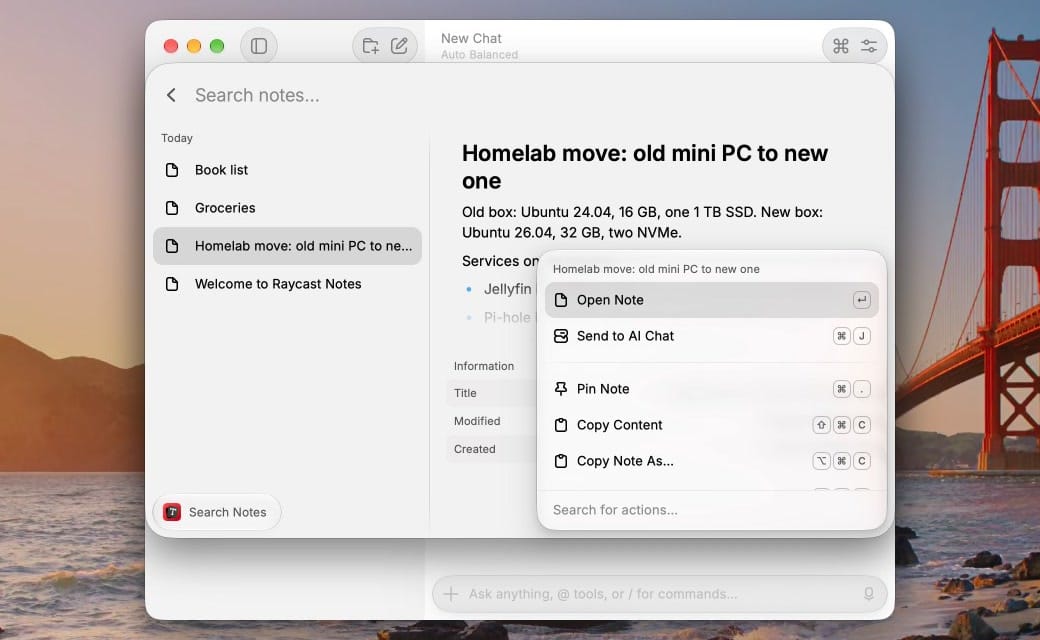
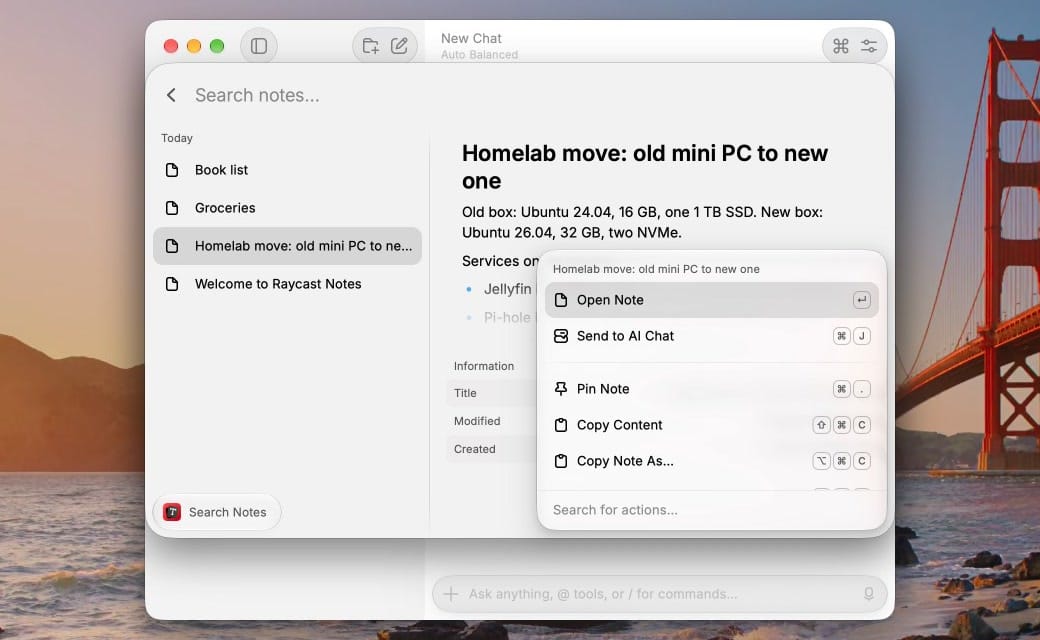
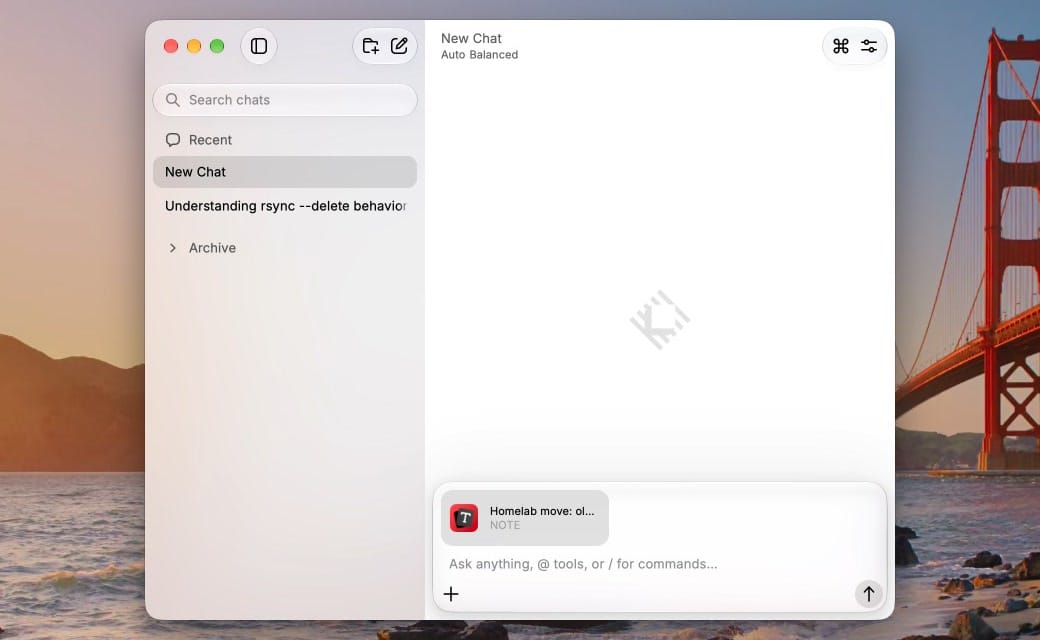
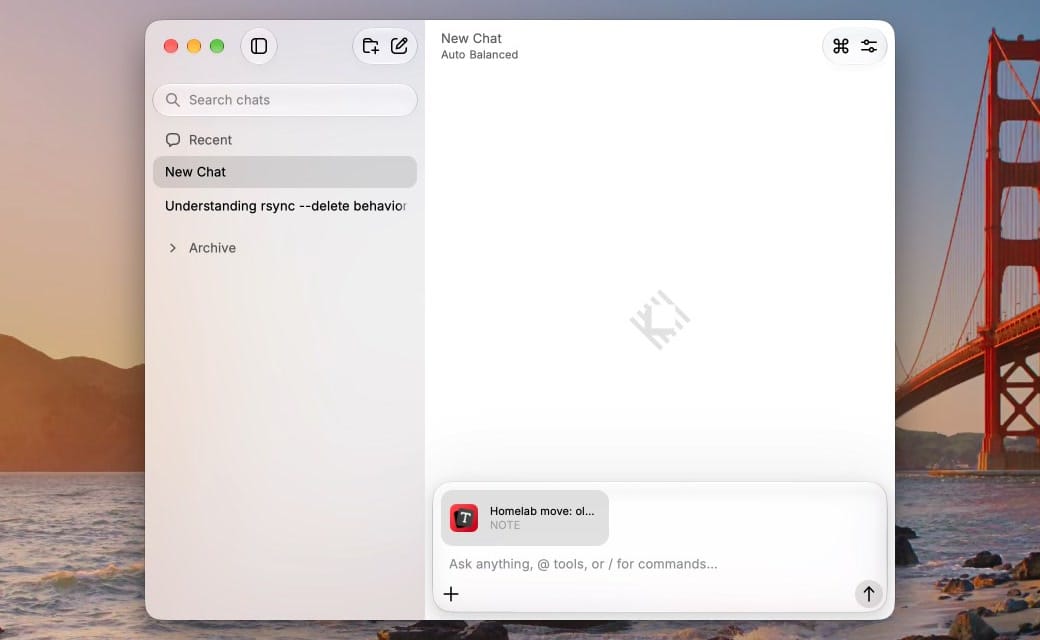
The note appears as an attachment above the message field. It is not sent yet: the Notes manual says the note “isn’t sent as a message, so you can add your prompt before you send it.” Switch the model if you want one other than the default, type what you want done with the note, and press enter .
Our note was a rough plan for moving home server apps to a new mini PC. We asked Claude for an ordered checklist that marks anything that could take a service down. The answer took about twenty seconds and ran many screens long. It moved one service at a time, marked each risky step with a warning sign, and left Pi-hole for last, since the whole house’s DNS depends on it.
Let the model use tools with AI Extensions
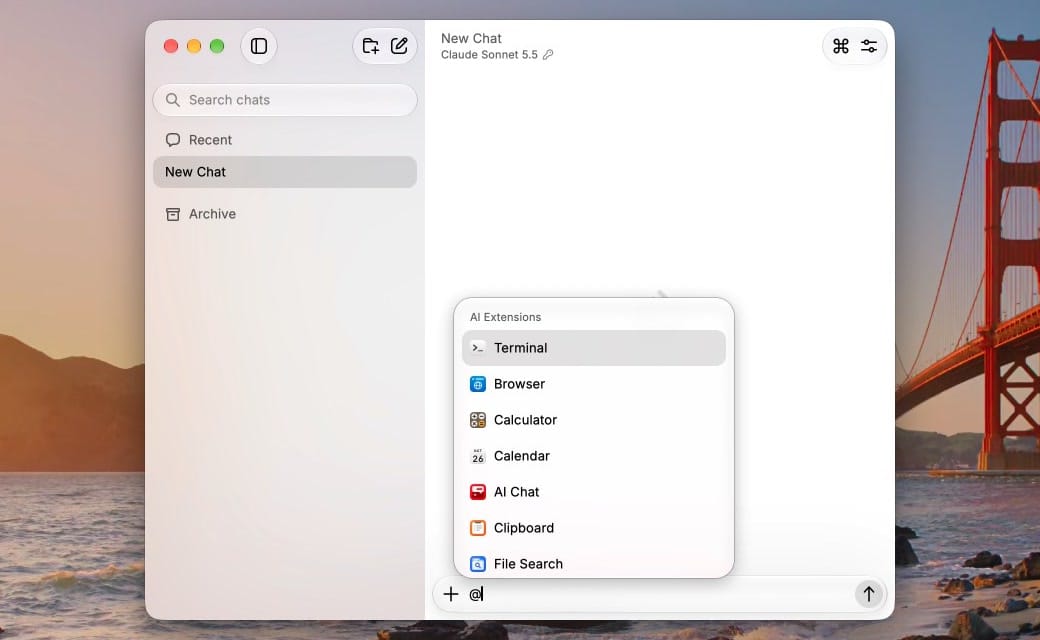
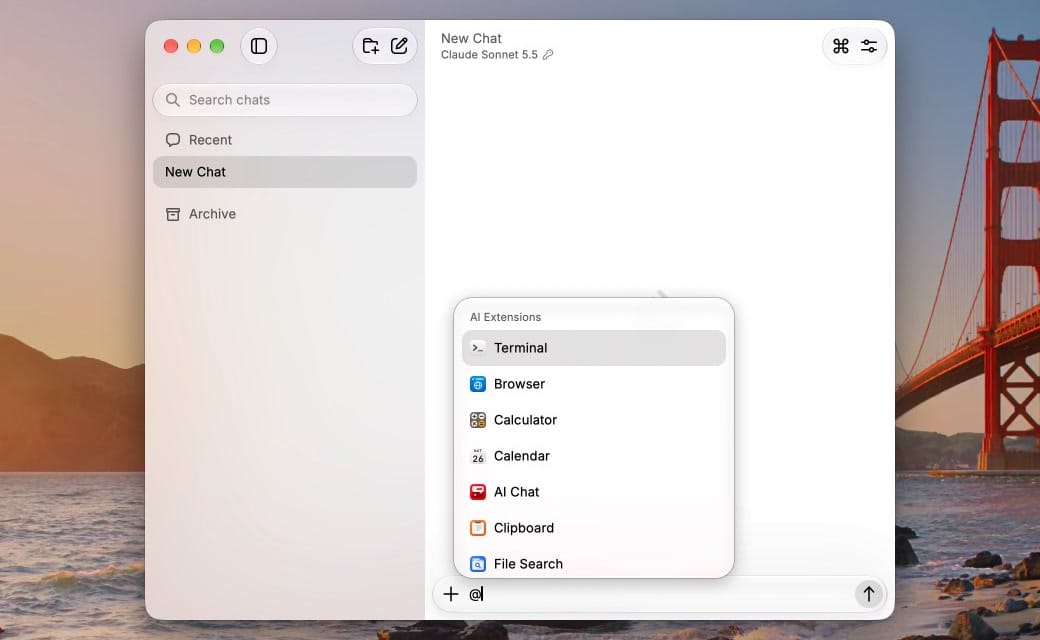
Type @ in the AI Chat message field to list the tools the model can run while it answers, under the heading AI Extensions. The list includes Terminal, Calculator, Calendar, File Search, Web, and Weather, among others. Pick one, then write the request after it.
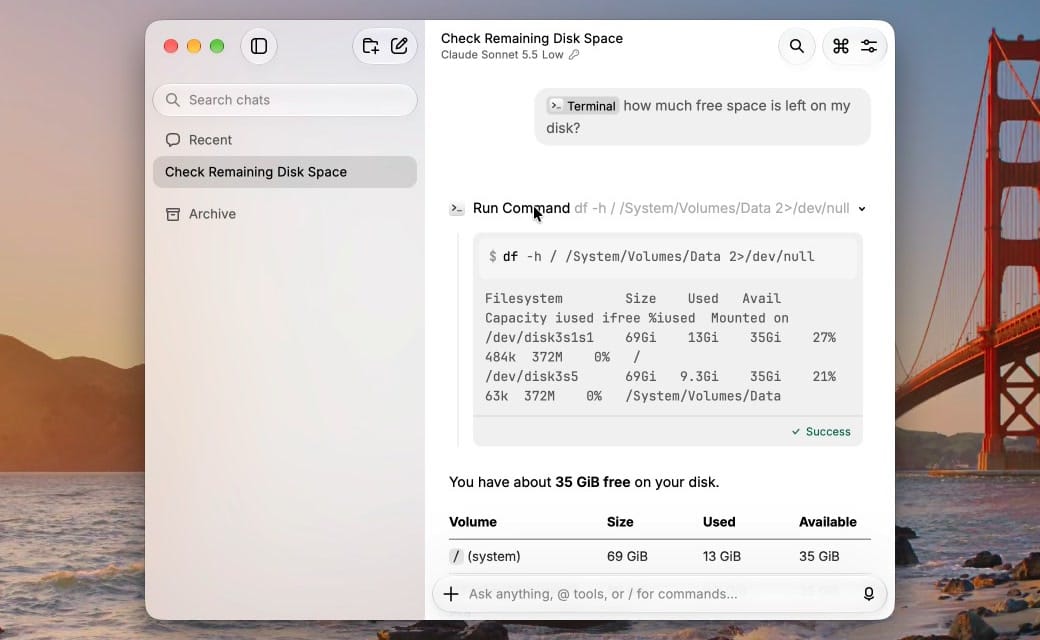
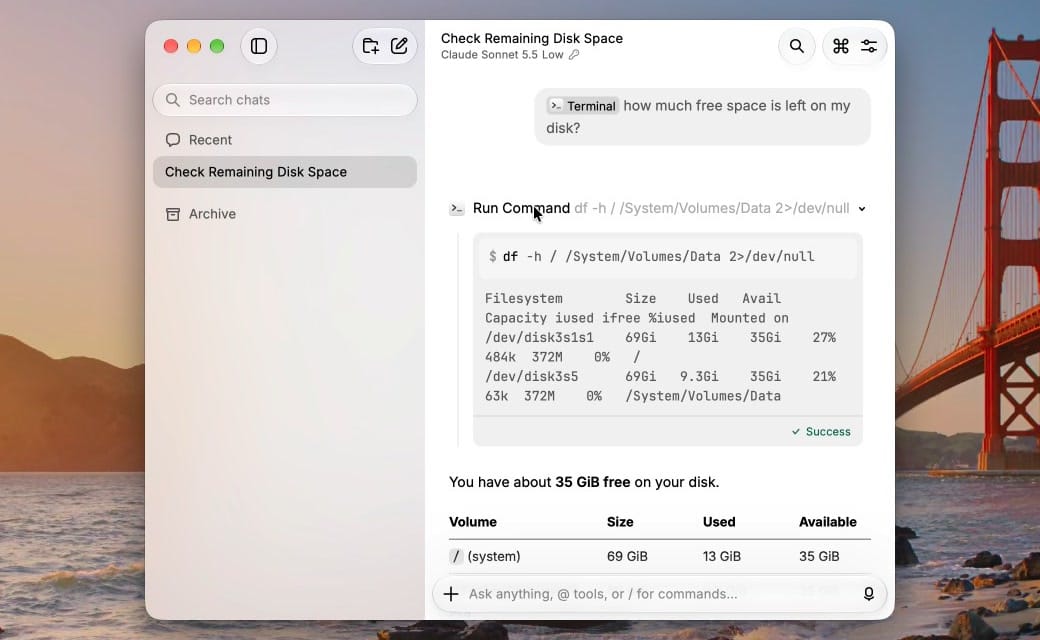
With the Terminal tool, we asked how much free space was left on the disk. Claude ran df, the built-in disk free command, and answered from its output with a table of volumes. Click the Run Command row above the answer to see the exact command, its raw output, and a green Success mark. That row shows what ran on your Mac, separate from the model’s summary.
Tool permissions live in Settings, AI, Tools. The default on paid plans is Auto, which runs safe actions on its own and asks before destructive actions or reading credentials, according to the manual’s AI Extensions page. Auto also created a folder for us without asking, so read the Run Command rows when a tool changes files. A Terminal request that looks inside your home folder can raise macOS prompts for Raycast to read Desktop, Documents, and Downloads.
Fix selected text with AI Commands
An AI Command is a saved prompt that runs on text you select in any app, without opening AI Chat. Raycast ships several built-in AI Commands, including Improve Writing, Fix Spelling and Grammar, Explain This in Simple Terms, and Change Tone to Friendly.
- Select a paragraph in another app, for example Apple Notes.
- Press option space , type fix spelling, and press enter on Fix Spelling and Grammar.
- Read the result. Each change is marked in green.
- Press enter to run Paste Response, which replaces the selected text with the fixed version.
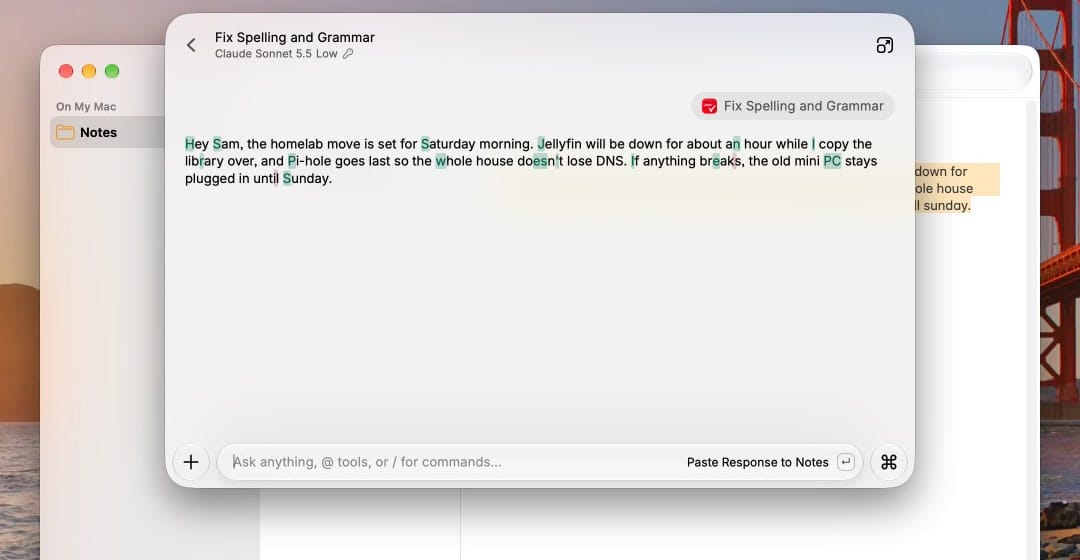
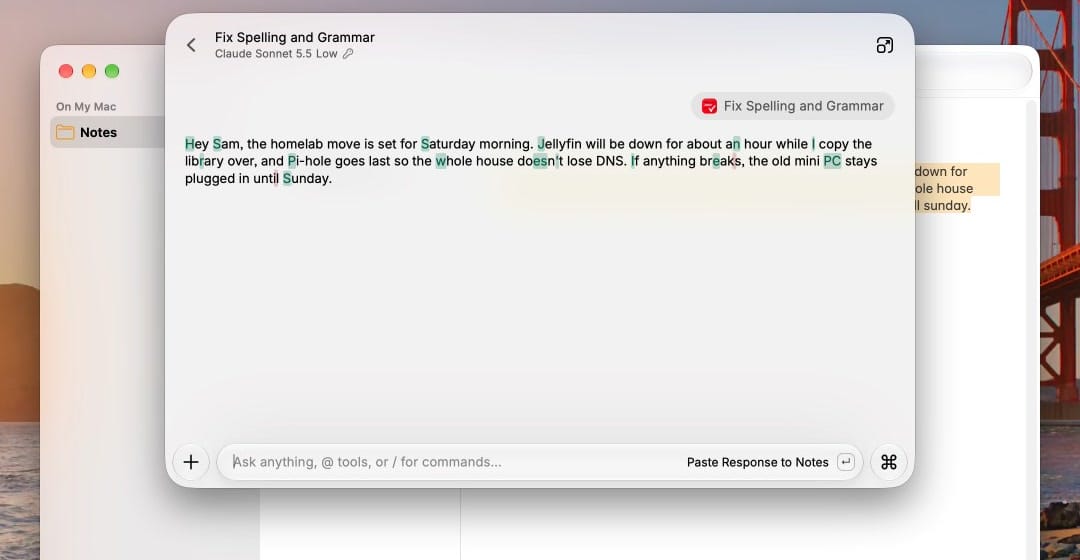
Our paragraph came back in about two seconds, with fixes such as “a hour” to “an hour” and “the hole house dont” to “the whole house doesn’t.” AI Commands have their own default model under Default Models in Raycast’s AI settings. We set ours to a Claude model on our own key, so the command spent no Raycast credits. The same command on Auto Balanced cost 1 credit.
AI Commands read the selected text from the other app. If the command fails with a “Failed to run” message, turn Raycast on in System Settings, Privacy & Security, under Accessibility (named Device Control and Data Access on newer macOS releases). macOS asks for your password or Touch ID to allow it.
What Raycast AI costs
| Plan | Monthly | Yearly | AI credits a month |
|---|---|---|---|
| Free | $0 | $0 | No AI |
| Pro | $10 | $96 | 500 |
| Plus (Pro+ in the app) | $20 | $192 | 3,000 |
| Max | $50 | $480 | 7,500 |
Prices and credits are from Raycast’s pricing page on October 26, 2026. Pro covers Quick AI, AI Chat, AI Commands, and AI Extensions, and is the plan your own key and local models need. Plus and Max add more credits and the top models, such as the Flagship preset. Unused monthly credits roll over for one extra month, and you can buy top-ups on a paid plan but not during the trial, per the manual’s credits page.
If most of your chats run on your own key, Pro is the plan to look at: the key covers the model costs, and the 500 credits cover Auto and anything Raycast hosts, such as its image models. If you want local models instead of cloud ones, our look at cloud versus local AI hardware for Ollama covers what a local setup needs, and our AI section has more.
Shortcuts
| Shortcut | Where | What it does |
|---|---|---|
| option space | Anywhere | Opens the Raycast launcher |
| tab | Launcher, after typing | Sends the text to Quick AI |
| command j | Quick AI | Moves the chat into AI Chat |
| command n | AI Chat | Starts a new chat |
| shift command m | AI Chat | Opens the full model picker |
| command k | AI Chat, Search Notes | Opens the Action Panel |
| command j | Search Notes | Attaches the note to AI Chat |
| @ | AI Chat message field | Lists AI Extensions |
/usage | AI Chat message field | Shows the credits you have used |
| enter | AI Command result | Pastes the result back into the app |
Troubleshooting
Option Space reopens the last Quick AI answer. Raycast returns to the last view if you reopen it soon after closing it. In Settings, Launcher, set Pop to Root Search to Immediately, and the launcher always opens on a blank search.
A new chat is back on Auto. New chats start on the default model. Set AI Chat’s default under Settings, AI, Models & Providers, Default Models, or pick Last Used Model there.
The key fails Verify. For Anthropic, create the key inside a workspace in the Anthropic Console, then paste and verify it again.
/usage shows nothing. The usage card did not appear for us in a chat set to a model on our own key. Start a new chat on Auto and type it there.
Where to start
Raycast AI works best as a shortcut to a model you already pay for, or to Raycast’s own credits for short questions. Start with the 7-day trial on Raycast’s site, add your own key if you have one, and check /usage after a few days to see how fast the 500 credits go. More Mac app guides are in our Mac section.


