
A virtual machine runs Windows 11 in a window on your Mac, with no second computer and no restart. We set up the same Windows 11 in three apps that do this: UTM, Parallels Desktop, and VMware Fusion. Then we ran the same tests in each, on the same M4 Mac mini with 16 GB of memory.
The Parallels Desktop links on this page are affiliate links; Starry Hope may earn a commission if you buy through them. See our FTC Disclosure.
The versions in this guide are UTM 5.0.8, Parallels Desktop 27.0.3, and VMware Fusion 26H1u1 (app version 26.0.1), on macOS 27. The Windows image is Windows 11 Pro version 26H2 for Arm.
What a Mac needs to run Windows 11
Macs with Apple’s own chips (M1 and later) use the Arm design, so every app on this page runs the Arm version of Windows 11, not the usual PC version. Microsoft publishes it as a free disc image on its Windows 11 Arm64 download page. We used that one file in all three apps. The download link Microsoft gives you expires after 24 hours, so save the file once and reuse it.
Most Windows programs are still built for Intel and AMD chips. Windows translates them on the fly with Prism, Microsoft’s translation layer. Prism is part of Windows, so all three apps use the same translator.
A Windows virtual machine works well with 4 cores and 8 GB of memory. We used 4 of the Mac mini’s 10 cores and 8 GB of its 16 GB of memory in every app, which left the Mac half of its memory. Windows needs about 30 GB of disk after setup; all three apps grow the virtual disk as Windows fills it, so a 256 GB virtual disk does not take 256 GB on the Mac.
Each virtual machine also needs its own Windows license; Windows 11 Pro is $199.99 in Microsoft’s US store. Windows installs and runs before you enter a product key, but with limits. The Personalization settings stay locked, and Windows may add an “Activate Windows” watermark to the desktop, as it did in our VMware Fusion virtual machine.
The three apps compared
| UTM 5 | Parallels Desktop 27 | VMware Fusion | |
|---|---|---|---|
| Price | Free, or $9.99 on the Mac App Store | Standard $99.99 a year or $219.99 once; Pro $119.99 a year | Free |
| Account to download | None | Parallels account for the trial | Broadcom account and a short profile |
| Gets Windows for you | No (a link to CrystalFetch) | Yes | Yes |
| Windows setup | Mostly answered by UTM’s guest tools disc | Fully automatic | The full Windows setup, plus a network-page workaround |
| Files from the Mac | Shared folder button | Drag and drop, shared folders | Drag and drop |
| Windows apps as Mac windows | No | Coherence | No |
| DirectX | Experimental 3D driver | DirectX 11 | DirectX 11 |
| Other guests | Linux, macOS, emulated PCs | Linux, macOS | Linux |
| Snapshots | On request | On request, or on a schedule with SmartGuard | On request, or on a schedule with AutoProtect |
| Linked clones | No (full copies) | Pro edition | Not for a Windows 11 virtual machine (encrypted for the TPM) |
Prices are US list prices from each maker’s site in October 2026.
Set up Windows 11 in UTM
UTM is a free, open source app that runs other operating systems on a Mac. Download it from getutm.app with no account. The Mac App Store copy costs $9.99, has the same features, and updates itself.
Click Create a New Virtual Machine. UTM first asks how to run the system. Virtualize runs it directly on the Mac’s chip, which is the fast choice for Arm Windows. Emulate is slower but runs systems built for other processors, such as Windows for Intel PCs.
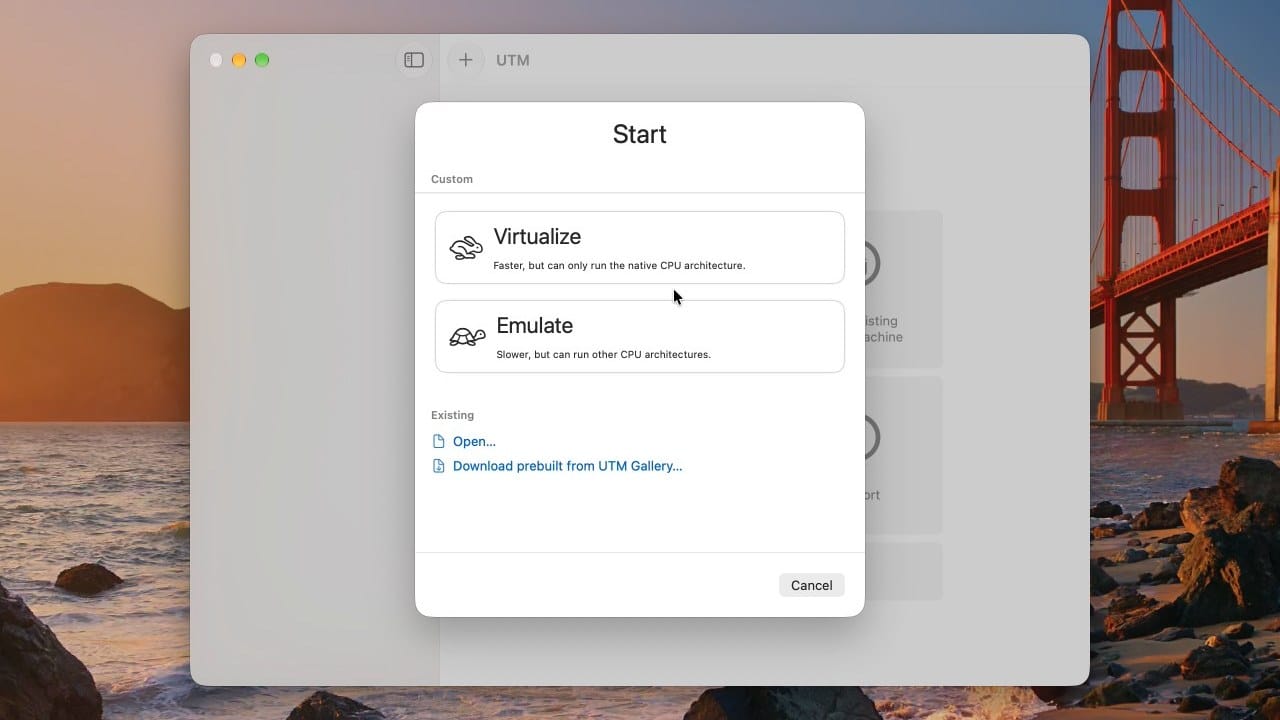
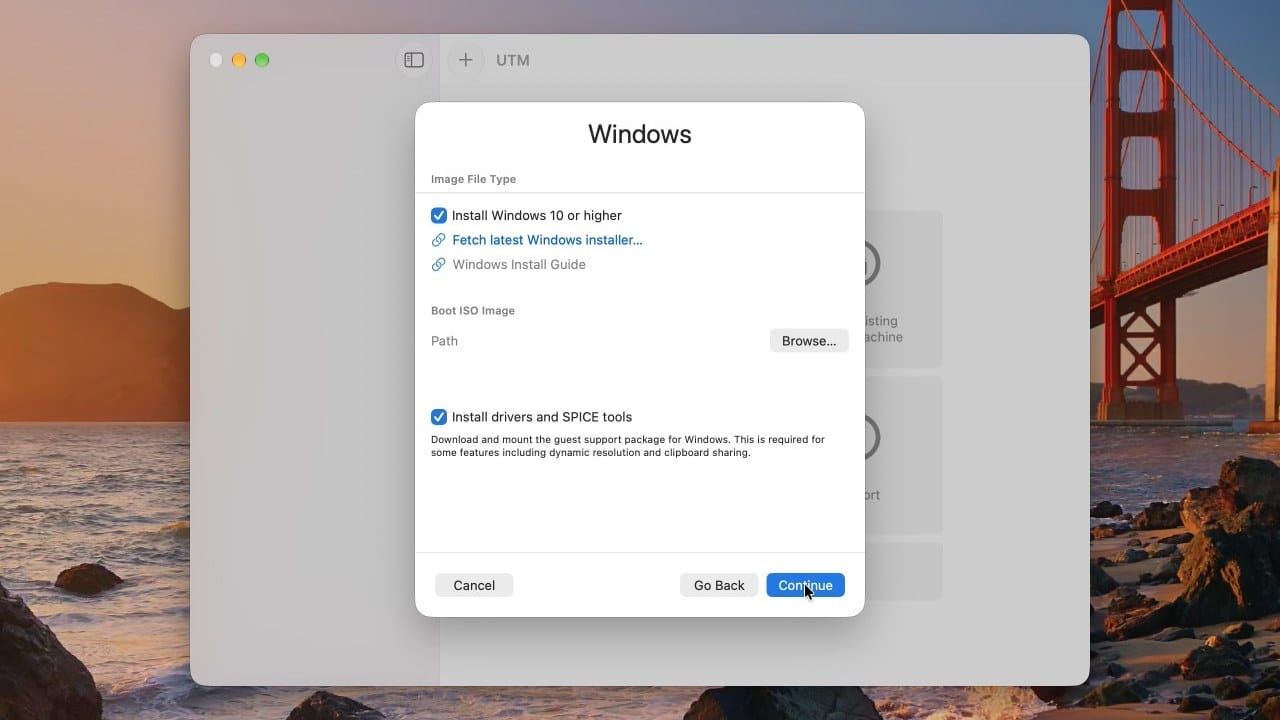
Pick Virtualize, then Windows. On the Hardware page, UTM suggests 4096 MiB of memory; we typed 8192 and set 4 CPU cores. The next page has two boxes that are on by default: “Install Windows 10 or higher” and “Install drivers and SPICE tools”. Leave both on. The second one downloads UTM’s guest tools and attaches them as a second disc, and that disc answers most of the Windows setup pages for you.
The “Fetch latest Windows installer…” link on that page opens CrystalFetch (or its download page if it is not installed), a separate free app from the UTM developers that builds a Windows installer image. You do not need it if you already have Microsoft’s Arm64 file: click Browse… and pick that file instead.
UTM offers a 64 GiB disk, which fills up fast once Windows updates arrive. We set 256 GiB. The Shared Directory page can stay empty, and the Summary page has the name field. UTM adds the virtual TPM security chip that Windows 11 requires on its own.
Press a key at the first start
When you click Play, UTM’s window shows “Press any key to boot from CD or DVD” for about five seconds. Click into the window and press space right away. If you miss it, the virtual machine drops to a black UEFI Shell screen with a Shell> prompt. To recover, type exit and press enter , choose Boot Manager, and pick the first “UEFI QEMU QEMU USB HARDDRIVE” entry, which is the Windows disc. Then press space again when the prompt comes back.
Windows setup asks for a language, a keyboard, and a product key (choose “I don’t have a product key”), then the edition. Pick Windows 11 Pro or Home to match the license you plan to buy. After the license terms and the disk page, the install took about 4 minutes 40 seconds.
UTM’s guest tools disc carries an answer file that Windows setup reads. It skips the Microsoft account and Wi-Fi pages, so after the region and keyboard, Windows asks for a name and an optional password and makes a local account.
At the first sign-in, the UTM Guest Tools installer opens by itself. Install it first: until it is in, Windows has no network and a small 800x600 screen. One page in the installer offers an experimental 3D graphics driver; leave it unticked for the stable display driver unless you want to test games (see the graphics section). The install takes under a minute and needs no restart.
Using Windows in UTM
The Windows screen resizes to fit the window, and copied text moves both ways. Dragging a file from Finder into Windows does not work in UTM. Instead, click the folder icon in the virtual machine window’s toolbar and pick a Mac folder: Windows shows it as drive Z: right away. The pick lasts until the virtual machine shuts down.
Windows looks soft on a high-resolution Mac screen at UTM’s default settings. Turn on Retina Mode in the virtual machine’s settings under Display, then set Windows scaling to 200 percent for sharp text at a normal size.
UTM 5 adds a Snapshots tab, which saves the virtual machine’s state in a couple of seconds so you can roll back after a bad change. UTM’s clone button makes a separate full copy of the virtual machine.
Set up Windows 11 in Parallels Desktop
Parallels Desktop is a paid app with a 14-day trial that includes the Pro edition’s features. Version 27 runs only on Macs with Apple silicon. (Parallels’ Chromebook version has ended; see whether Chromebooks can run Windows apps.) Download it from Parallels’ site; the trial needs a Parallels account.
Parallels opens on an offer to download Windows 11 from Microsoft and install it. To use a file you already have, click Other Options…, choose “Install Windows, Linux, or macOS from an image file”, and pick it. Leave “Install operating system manually” unticked so Parallels runs the setup for you. Parallels then asks for an edition (it recommends Home) and what you will mostly use Windows for; Productivity is the default and works on the Standard edition.
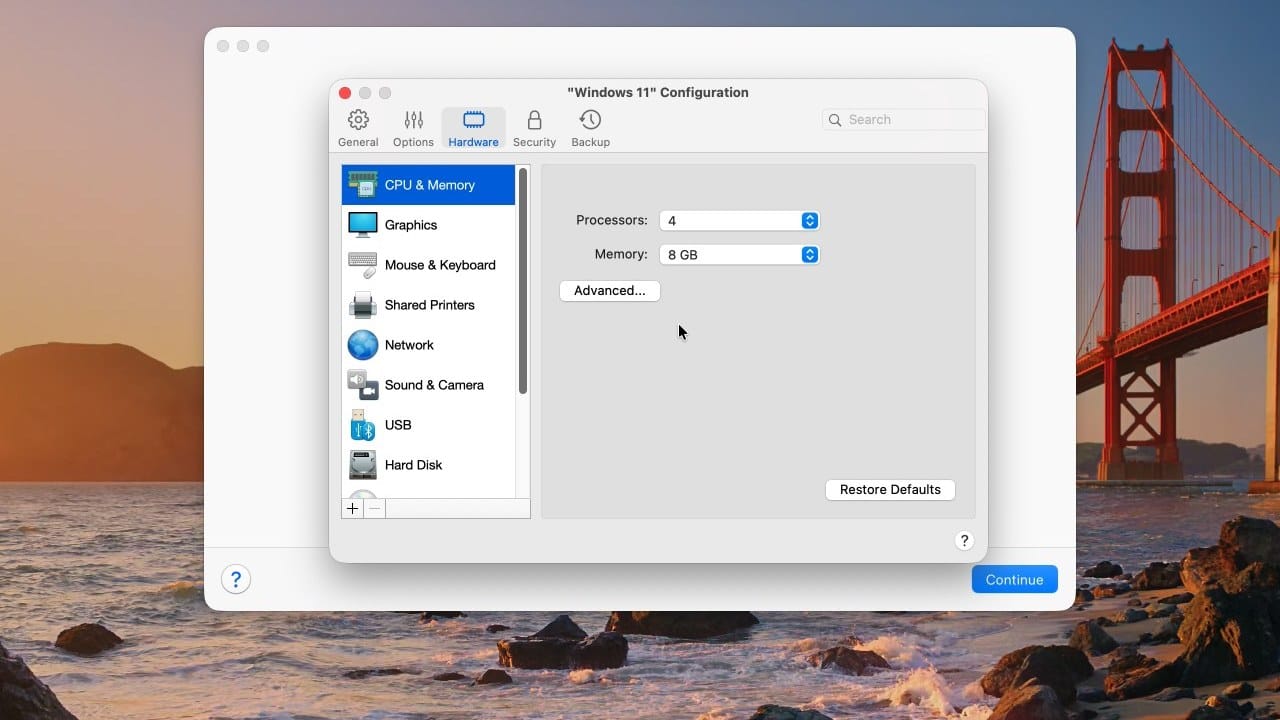
Tick “Customize settings before installation” on the Name and Location page. Parallels’ own pick on our 16 GB Mac was 4 cores and 6 GB of memory; we raised the memory to 8 GB under Hardware, CPU & Memory. The Standard edition caps each virtual machine at 4 cores and 8 GB, and Parallels marks the larger core counts PRO in this menu.
Check the sharing settings first
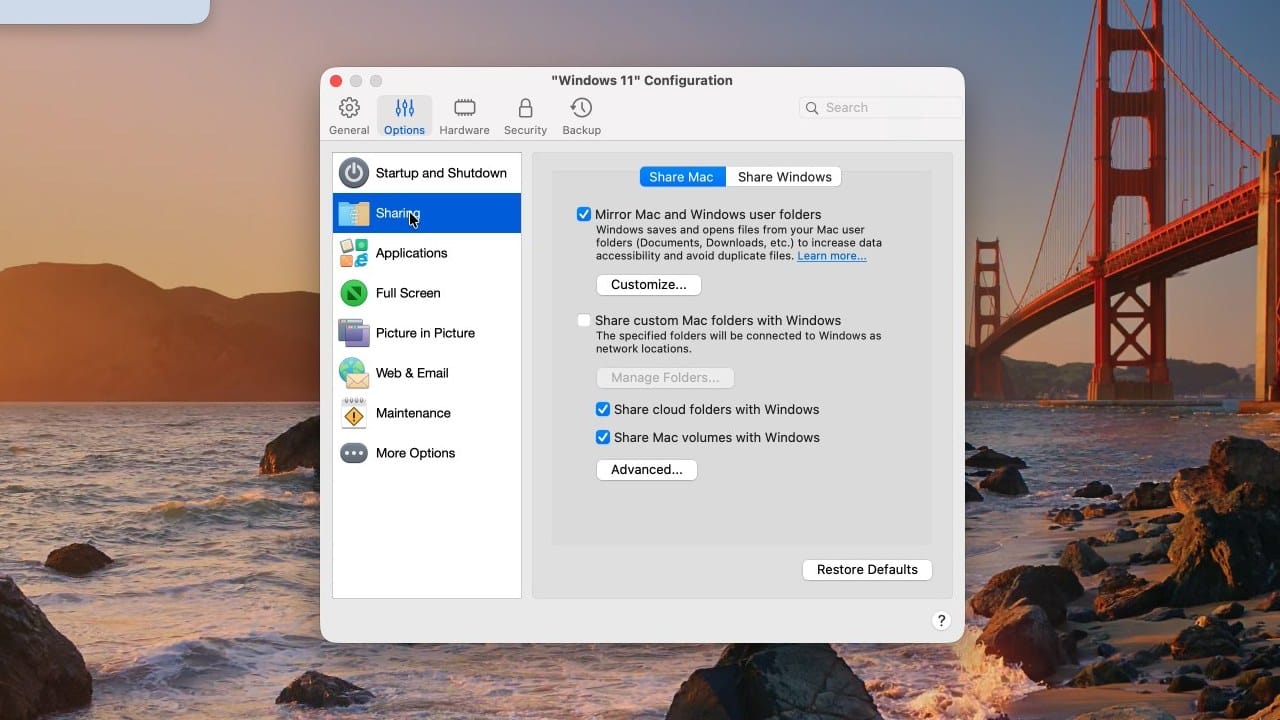
By default, Parallels mirrors your Mac’s Desktop, Documents, and Downloads folders into Windows, shares your cloud folders, and maps every Mac drive into Windows, including your whole home folder. That is convenient, but it also lets any Windows program read those files. To limit it, open the virtual machine’s Configuration, go to Options, then Sharing, and untick “Mirror Mac and Windows user folders” and “Share Mac volumes with Windows”. “Share custom Mac folders with Windows” shares only the folders you pick.
The install runs by itself
It took 7 minutes 49 seconds from Continue to a finished desktop on our Mac. Parallels makes a local account named after your Mac user, with no Microsoft account and no password. Its Parallels Tools (the drivers and the clipboard and file sharing) go in during the install, so there is nothing to run afterward. The one page left is Parallels’ copy of Microsoft’s license terms, which you accept to reach the desktop.
macOS asks a few permission questions on the first start: access to a removable drive if you saved the virtual machine on one, the camera and microphone, and devices on the local network. Each trial start also shows a “Your Parallels Desktop trial expires in…” sheet that you click through with Continue Trial; a bought copy does not show it.
Using Windows in Parallels Desktop
Parallels runs Windows at full Retina sharpness by default. Files drag straight from Finder onto the Windows desktop; the first drag asks whether to give Windows access to your Mac files and folders, and answering No still copies the file. Running Windows apps also show up in the Mac’s Dock.
Coherence mode hides the Windows desktop and shows each Windows app as its own Mac window, next to your Mac apps. Press ctrl command c (or View, Enter Coherence) to turn it on, and press it again to get the Windows desktop back. Neither UTM nor Fusion has a mode like this; VMware removed its Unity mode in Fusion 13.6 in 2024.
Set up Windows 11 in VMware Fusion
VMware Fusion is free for personal and commercial use from Broadcom, the company that now owns VMware. The download is on Broadcom’s support portal and needs a Broadcom account plus a short profile and trade compliance form; Broadcom’s download steps walk through it. No license key is needed.
Fusion opens on “Select the Installation Method”. It can also get Windows from Microsoft for you. To use your own file, drag it onto the “Install from disc or image” box, or click Continue and use “Use another disc or disc image…”. Fusion recognizes it as Windows 11 64-bit Arm and picks UEFI firmware.
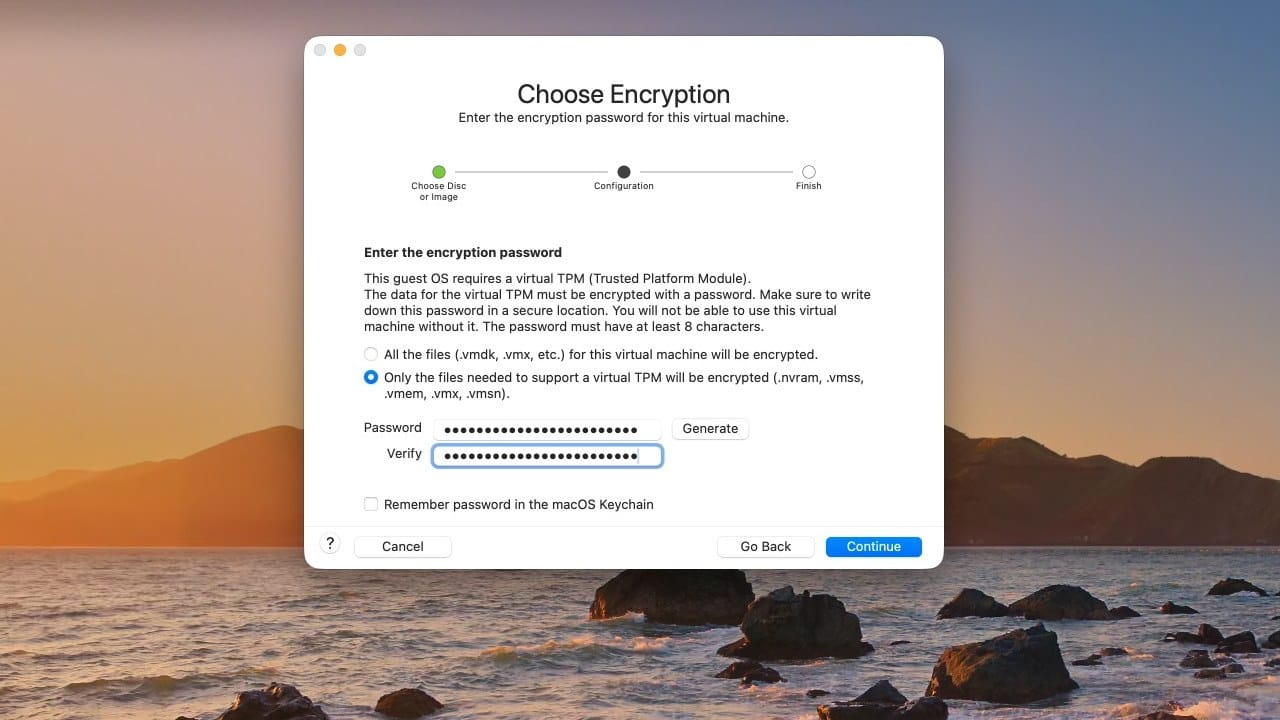
Fusion asks for a TPM encryption password
The default choice on this page encrypts only the files the virtual TPM needs, which keeps the virtual disk itself unencrypted and fast. The password you choose here locks those files. Write the password down: Fusion’s own warning says the virtual machine cannot be used without it. “Remember password in the macOS Keychain” is ticked by default (unticked in the screenshot below), so macOS keeps the password for you.
The Finish page suggests 2 cores, 4 GB of memory, and a 64 GB disk. Click Customize Settings, then raise them under Processors & Memory and Hard Disk. We used 4 cores, 8192 MB, and 256 GB.
Setup stops at a network page
When you click Play, Fusion shows the same “Press any key to boot from CD or DVD” prompt as UTM, so click into the window and press space quickly. If you miss it, use Virtual Machine, Restart, and try again. The window captures the pointer when you click into it; ctrl command releases it.
Windows setup runs through all its usual pages, including one that asks you to confirm the empty virtual disk will be erased. After the install and the region and keyboard questions, setup stops on “Let’s connect you to a network” with Next greyed out. Windows has no driver for Fusion’s network adapter until VMware Tools go in, and there is no “I don’t have internet” link on this build.
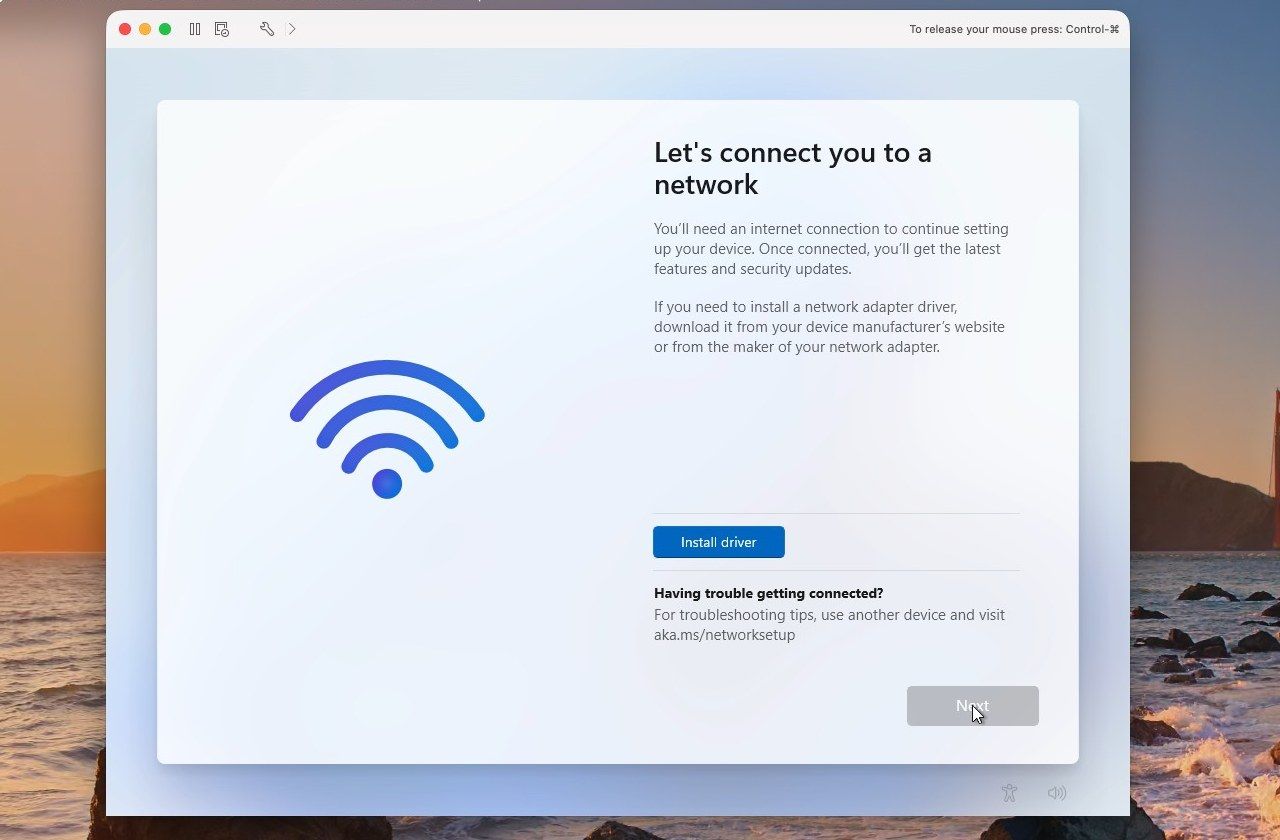
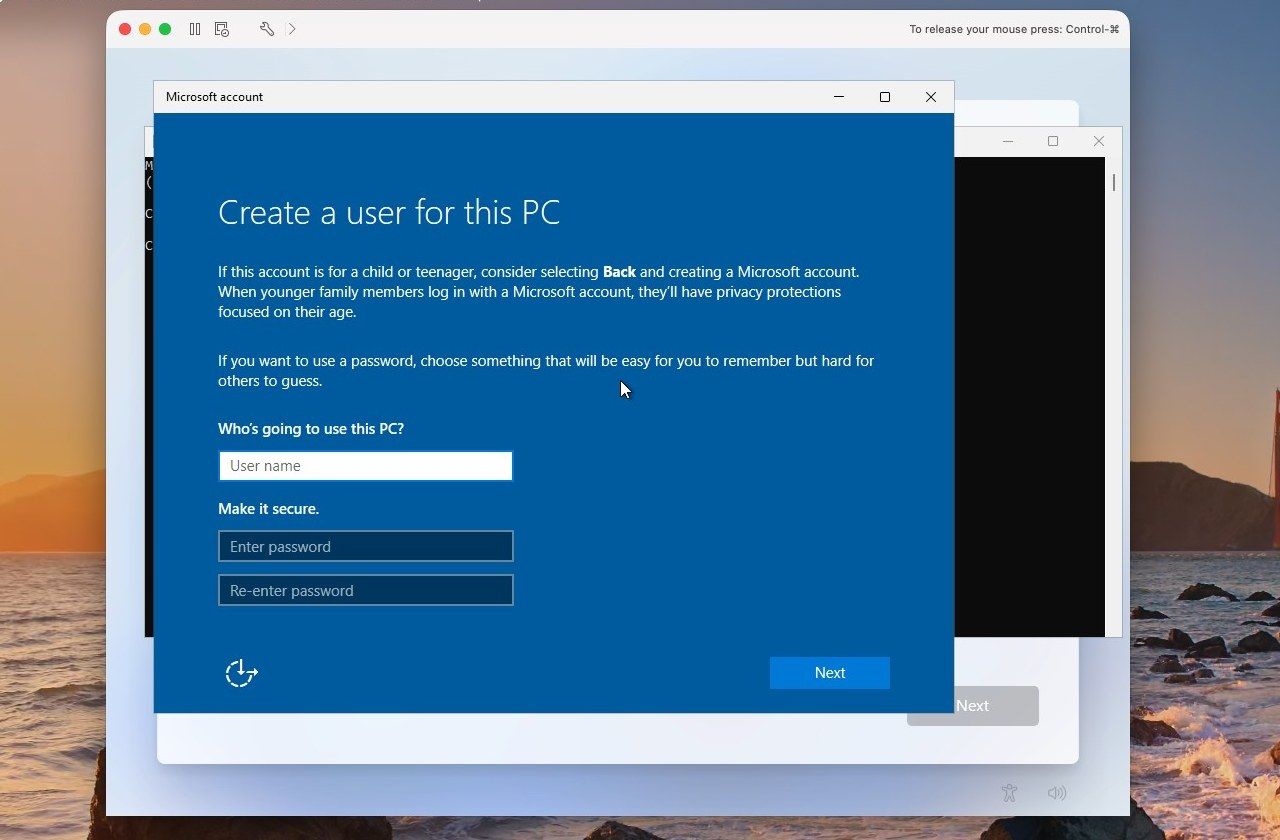
Press shift f10 to open a Command Prompt over that page. Click into it, type this command, and press enter :
start ms-cxh:localonlyA “Create a user for this PC” window opens. Type a user name, add a password or leave both password boxes empty, and click Next. Windows makes a local account and moves on to the privacy settings, then the desktop. Our Fusion install took about 9 minutes from the Install click to the desktop.
Install VMware Tools
Fusion’s guest tools, VMware Tools, add the network and display drivers Windows is still missing. Choose Virtual Machine, Install VMware Tools, and click Install. That puts the Tools disc in the virtual CD drive, but the installer does not start by itself. Press the Windows key plus r , type D:\setup.exe, and press enter . Choose Typical, then restart when asked.
After the restart, check that the Tools service runs. In our install, the drivers went in but the “VMware Tools Service” was missing, so the window did not resize and copy and paste did not work. If Get-Service VMTools in PowerShell finds nothing, open PowerShell as administrator and run these commands. They register and start the Tools service, then add and start the Tools user process that handles resizing and the clipboard in your session (the installer normally sets both up):
& "C:\Program Files\VMware\VMware Tools\vmtoolsd.exe" -i
Start-Service VMTools
New-ItemProperty -Path "HKLM:\SOFTWARE\Microsoft\Windows\CurrentVersion\Run" -Name "VMware User Process" -Value '"C:\Program Files\VMware\VMware Tools\vmtoolsd.exe" -n vmusr'
Start-Process "C:\Program Files\VMware\VMware Tools\vmtoolsd.exe" -ArgumentList "-n vmusr"
Windows resized to the window at once after that. Set the Windows time zone too. Windows setup chose Pacific time because it had no network during setup, and the taskbar clock was three hours behind until we changed it in Settings, Time & language.
Using Windows in Fusion
Fusion turned on “Use full resolution for Retina display” by itself once VMware Tools were running, so Windows came up sharp and scaled. Dragging a file from Finder copies it into Windows. Fusion has no shared folders for Windows on Apple silicon (Broadcom lists them for Linux guests only), so dragging is the way files get in.
Fusion’s AutoProtect takes snapshots on a schedule. Open Virtual Machine, Snapshots, and click the clock icon at the top right of the Snapshots window. AutoProtect is off by default; turn it on, pick every 30 minutes, every hour, or every day, and set how many snapshots to keep (3 by default). Once it reaches that number, it deletes the oldest one. Parallels Desktop has a similar scheduled feature, SmartGuard.
Fusion can also make linked clones, copies that share the first virtual machine’s disk, but not of a Windows 11 virtual machine. Create Linked Clone stays grey for it, because the virtual TPM keeps the virtual machine encrypted. Create Full Clone is still offered; it copies the whole virtual machine.
Speed test results
Every app ran the same tests on the same Mac, one virtual machine at a time, with nothing else open. Each virtual machine had 4 cores and 8 GB. Geekbench 6 and Cinebench 2026 run as native Arm programs; 7-Zip runs as the usual x64 PC program through Prism. Higher scores are faster; for times, lower is faster.
| Test | UTM 5.0.8 | Parallels Desktop 27.0.3 | VMware Fusion 26H1u1 |
|---|---|---|---|
| Start to usable desktop | 21 s | 8 s | 7 to 10 s |
| Cinebench 2026, multi-core | 2,153 | 2,154 | 2,174 |
| Geekbench 6, single-core | 3,144 | 3,141 | 3,113 |
| Geekbench 6, multi-core | 8,788 | 7,958 | 8,725 |
| 7-Zip x64, compress 1 GB (Prism) | 24 to 25 s | 19 to 20 s | 19 to 20 s |
| Mac CPU use with Windows idle (two-minute average) | 2.9% of one core | 2.6% of one core | 7.4% of one core |
| YouTube 1080p60 in Edge | smooth, 0 dropped of 8,025 frames | smooth, 20 dropped of 6,936 | smooth, 29 dropped of 8,472 |
The processor scores were close, with no overall winner. Cinebench, which renders a 3D scene for about 20 minutes, came out within about 1 percent in all three apps. Geekbench’s single-core scores were within about 1 percent too. Its multi-core score in Parallels was about a tenth below UTM and Fusion, from one clean run in each app. The translated 7-Zip test took 19 to 20 seconds in Parallels and Fusion and 24 to 25 seconds in UTM.
Fusion’s first Geekbench and Cinebench runs came out lower while Windows Defender ran its first scans on the fresh install. The table uses the runs after Windows went quiet. On a new virtual machine in any of the three apps, let Windows finish its first scans and updates before you judge its speed.
Parallels and Fusion both started Windows in about 10 seconds or less, and UTM in about 20. The times run from the click that starts the virtual machine (in the Parallels trial, the Continue Trial click) to a desktop with a working taskbar. UTM’s 21 seconds include a few seconds of blank screen while the display driver takes over.
The idle row is the Mac’s processor use by each app’s virtual machine process, averaged over two minutes with Windows sitting untouched at the desktop. We measured it in a separate session, with each app’s Retina display setting on. All three were low: UTM and Parallels about 3 percent of one Mac core, and Fusion about 7. On a MacBook, less work at idle means a longer battery life. Suspend or shut down Windows when you are done with it.
Disk speed numbers measure the Mac’s cache
We also ran CrystalDiskMark in all three virtual machines. Sequential reads and writes came out at 20,773 and 20,136 MB/s in Parallels, 14,007 and 15,280 MB/s in UTM, and 13,178 and 9,853 MB/s in Fusion, several times faster than the Mac mini’s internal SSD can go. Inside a virtual machine, those numbers measure the Mac’s file cache in memory, which holds the test file, not the drive. The small random reads and writes (RND4K Q1T1) were 104 and 104 MB/s in Parallels, 74.7 and 72.1 MB/s in UTM, and 80.8 and 76.6 MB/s in Fusion; they are closer to real use but still pass through the same cache. We left disk speed out of the comparison for that reason.
Graphics and games
Windows games use DirectX, the graphics system built into Windows. In our tests, Parallels Desktop and VMware Fusion both stopped at DirectX 11. Windows’ own DirectX diagnostic tool (dxdiag) shows the limit: feature levels stop at 11_1 in Parallels and 11_0 in Fusion, so games that need DirectX 12 do not run in either.
Unigine Heaven 4.0, a free DirectX 11 benchmark, ran smoothly in both, above 100 frames per second on average, with the Medium preset and tessellation and anti-aliasing off. Parallels averaged 105.2 frames per second (score 2,651) in a 1280x687 window, and Fusion 116.1 (score 2,924) in a 1191x720 window. Windows clipped the 1280x720 window to a different size in each app, so the two results do not rank the apps.
UTM 5 adds an experimental 3D driver for Windows guests, offered on a page of its guest tools installer. With it, dxdiag reports DirectX 12 feature levels. In our test, though, Heaven opened a black window and never drew a frame, and once the whole guest froze and needed a forced stop. UTM’s own notes say game compatibility is limited and the driver may cause instability. None of the three ran GPU compute tests: Geekbench’s GPU section found no compatible device in every virtual machine, and Cinebench’s GPU test was greyed out.
What runs besides Windows 11
UTM runs the most kinds of guest systems. Besides Arm Windows, its wizard makes macOS and Linux virtual machines, and Emulate mode runs systems built for other processors, including Windows for Intel PCs. Emulation is much slower than virtualization, and UTM uses a single core for it by default.
Parallels Desktop makes macOS and Linux virtual machines too. Its Pro edition, which the trial includes, has an early emulator for Intel Windows that is limited to one core, and new Intel virtual machines are limited to Windows 10 and Windows Server 2019 or 2022.
VMware Fusion runs Arm Windows and Linux on Apple silicon. It cannot run macOS guests or Intel versions of Windows on these Macs.
Windows features that need nested virtualization (WSL 2, Windows Sandbox, and anything built on them) do not work inside Parallels or Fusion on Apple silicon, according to Parallels and Broadcom. Parallels notes that WSL 1 still runs.
Cost
UTM costs nothing from its website. The $9.99 App Store copy is the same app with automatic updates, and buying it supports the developers. VMware Fusion is free for every use, with community support only. Add a Windows 11 license to any of the three apps, one per virtual machine.
Parallels Desktop Standard is $99.99 a year, or $219.99 to buy once, and caps each virtual machine at 4 cores and 8 GB, the same size as the virtual machines in this guide. Pro is $119.99 a year and lifts that cap; it also adds linked clones, the command-line tools, and the Intel Windows emulator. Business is $149.99 a year. Parallels’ trial lasts 14 days and cannot be extended.
Which one fits
On our M4 Mac mini, native Arm programs scored close in all three apps, and all three used little Mac processor time at idle. UTM took about 5 seconds longer on the translated 7-Zip test. They differ most in setup, file sharing, Coherence, and price.
Parallels Desktop asks the least of you. It downloads and installs Windows without a single setup page, and Coherence puts Windows apps next to your Mac apps. If you will use Windows every day, the yearly price buys that setup and Coherence. Try it with the 14-day trial first, and check its default file sharing before you install anything.
With UTM you pay nothing and need no account, and its guest tools answer most of Windows setup for you. Remember the boot key at the first start and turn on Retina Mode. It also makes macOS and Linux virtual machines, and its Emulate mode runs systems built for other processors, from Intel PCs to old PowerPC Macs, so it suits people who want one app for several systems.
VMware Fusion is free as well, and its DirectX 11 graphics ran Heaven where UTM’s driver did not. It asks the most during setup: a Broadcom account to download, an encryption password, the network-page command, and a check that VMware Tools started. AutoProtect can take snapshots on a schedule, so a bad change is easy to undo.
Windows needs about 30 GB after setup and grows from there with updates and apps. If your Mac is short on space, see whether an external SSD beats Apple’s storage on the Mac mini.


