Search for “best computer for seniors” and you will find page after page of laptop recommendations. AARP lists laptops. Wirecutter lists laptops. Tom’s Guide, PCMag, The Senior List: all laptops. The editorial default is so deeply embedded that nobody questions it, even though the person actually reading these articles is almost never the senior. It is usually their adult child, trying to figure out what to buy Mom or Dad before the next laptop gives out.
That distinction matters more than any spec comparison. When you are the one answering the phone at 9 PM because “the screen is doing something weird” or driving two hours to troubleshoot a printer that was working yesterday, the computer you want your parent to have is not the one with the best battery life or the thinnest bezel. It is the one that causes the fewest support calls and is easiest to fix when something inevitably breaks. Once you start evaluating computers from that angle, the laptop stops looking like the obvious answer.
Integration Makes Laptop Failures a Whole Machine Problem
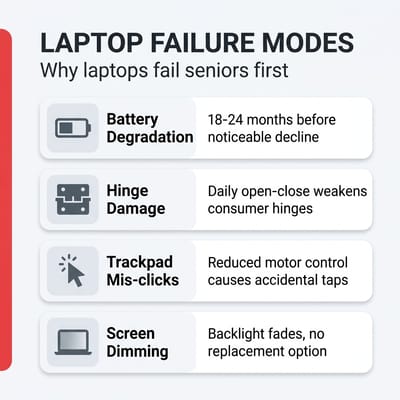
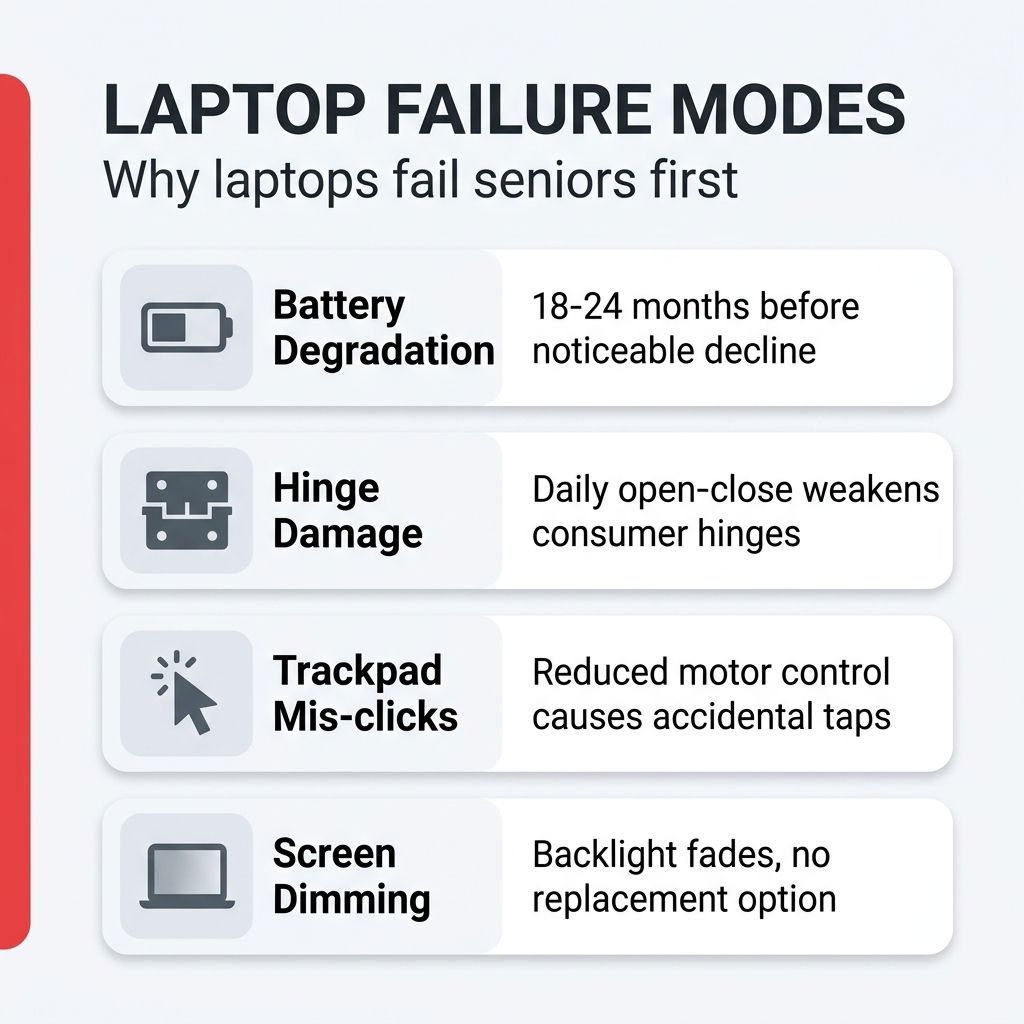
Laptops are beautifully integrated machines. That integration is also their biggest weakness for long-term, low-maintenance computing. Every component is locked into a single chassis, and when one piece fails, the whole thing becomes a problem. You cannot swap out just the screen, just the keyboard, or just the battery without specialized tools and a willingness to void whatever warranty remains.
Batteries are the silent killer. After 18 to 24 months of daily charging, most laptop batteries hold noticeably less charge. By year three, a laptop that once lasted six hours might manage two. For a parent who keeps their laptop plugged in on the kitchen table, the battery swells, the trackpad stops clicking properly, and suddenly you are looking at a $200 repair on a machine that cost $500. On a mini PC, there is no battery. It plugs into the wall and runs until the power goes out, the same way a toaster does. One fewer thing to fail.
Hinges are another quiet disaster. Consumer laptops in the $400 to $600 range use hinges that weaken with daily open-close cycles. Once a hinge cracks, the screen wobbles, the ribbon cable frays, and the repair cost approaches the original purchase price. Parents who grew up opening and closing books are rarely gentle with laptop lids, and there is no amount of nagging that changes a lifetime of muscle memory. The hinge is a mechanical part under constant stress, and in budget consumer machines it is often the first thing to go.
Then there is the trackpad problem. For someone with reduced fine-motor control (arthritis, tremor, or simply the natural loss of precision that comes with aging), a trackpad is an exercise in frustration. Accidental taps register as clicks. Two-finger gestures fire when they should not. The cursor drifts during a right-click. A desktop setup with a full-size mouse on a proper surface eliminates all of this overnight, and it is one of the single biggest quality-of-life improvements you can make for a parent who “just cannot get along with computers.” The mouse is not a step backward; it is an ergonomic upgrade.
The Economics of Separable Parts
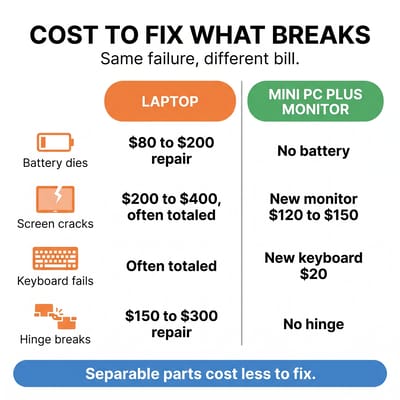
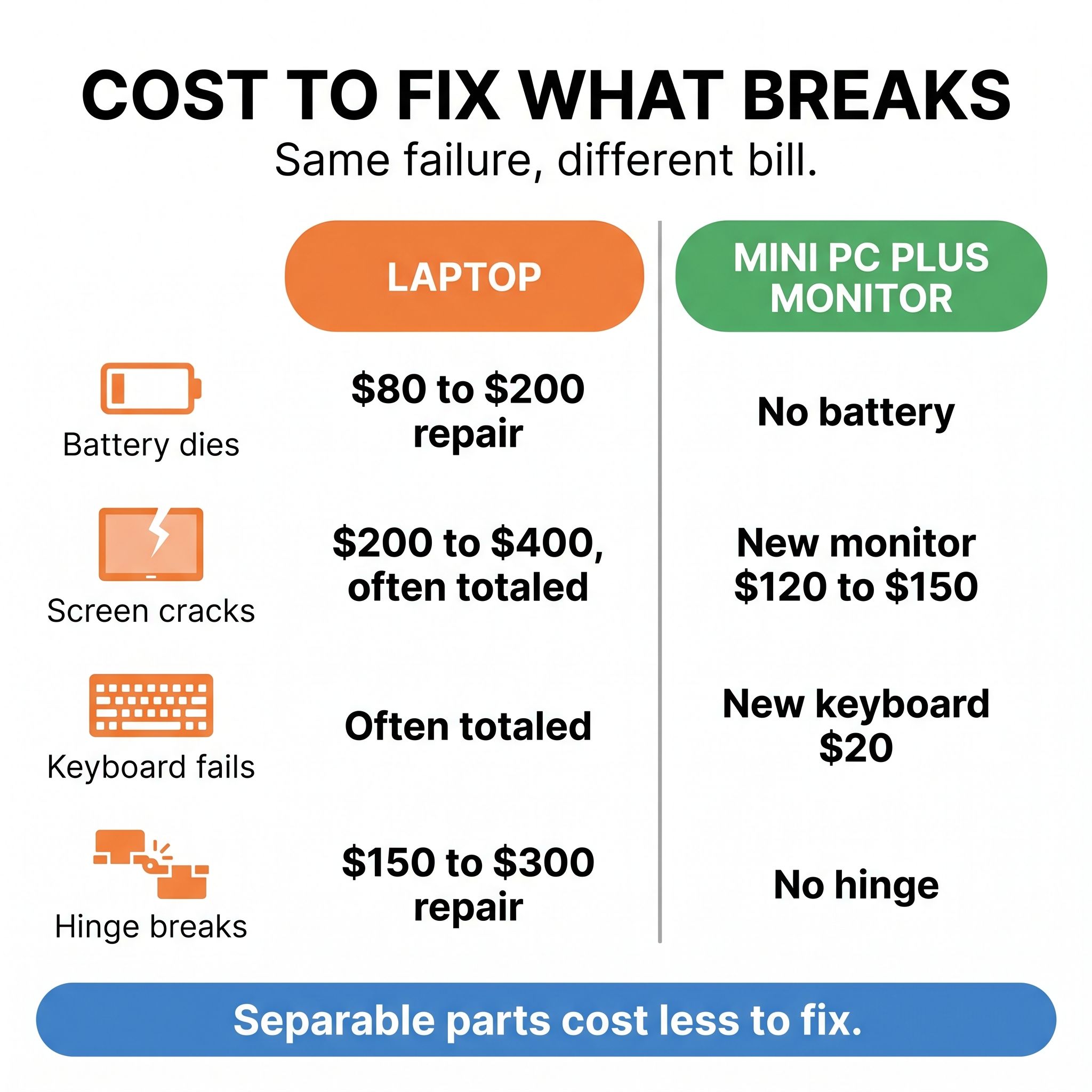
A 15-inch laptop screen cracks. Maybe it got knocked off the table, maybe the cat sat on it, maybe the hinge finally gave way. Either way, you are looking at a repair bill north of $200 if you can even find a service center, or you are buying a new laptop entirely. The laptop is effectively totaled because the cost of fixing it approaches the cost of replacing it.
Now consider the same scenario with a mini PC setup. The monitor cracks. You drive to Costco or order one online, pick up a 24-inch monitor for around $120, plug it in, and everything works exactly as it did before. The computer itself, the part that stores all the bookmarks and passwords and desktop shortcuts, never moved. No data migration, no reinstalling apps, no “where did my email go” phone call at dinner. The separability of the components is the whole point.
The math of separable parts shows up clearest when something breaks. A Beelink Mini S13 runs around $220 for an Intel N150 with 16GB of RAM and a 512GB SSD. Add a $130 monitor and a $30 wireless keyboard-and-mouse combo and you are at $380 up front, comparable to a $450 to $550 budget laptop. The two paths diverge in the repair column. Crack a laptop screen and you are looking at a $200 to $400 service bill, and on a $500 laptop that often means the unit is totaled. Crack the monitor on the mini PC setup and a $120 replacement walks out of Costco; the computer itself never moved. The same logic applies to keyboards, batteries, and hinges: components on the mini PC side are $20 to $150 swaps, while the laptop side either approaches the cost of replacement or cascades into a new machine.
This is not a hypothetical advantage. On forums where adult children compare notes on buying computers for parents, the pattern repeats: the people who switched to a desktop-style setup report fewer emergency calls and lower total spending over time. The most common regret is not switching sooner.
A Big Monitor Is an Accessibility Feature
Here is something the laptop-recommendation crowd consistently overlooks: a 15-inch laptop screen, even at full brightness, is not enough screen for someone whose eyesight is declining. Parents squint. They lean forward. They increase the zoom in Chrome to 150% and then wonder why every website looks broken. A bigger screen is not a luxury for this audience; it is a functional necessity.
A 24-inch or 27-inch monitor at proper desk height, paired with a real keyboard at a comfortable distance, changes the experience completely. Text is larger without zoom hacks. The viewing angle is natural, not hunched. And because Windows 11 includes Magnifier (up to 1600% zoom), Narrator for screen reading, and Live Captions that process audio entirely on-device, every accessibility tool works the same regardless of whether the computer is a tower, a mini PC, or a laptop. The form factor does not limit the software. But the screen size limits everything.
This matters for video calls, too. A parent who can see their grandchildren’s faces clearly on a 24-inch monitor is a parent who actually wants to make video calls. The same grandchild on a dim 15-inch laptop screen, held at an awkward angle because the webcam is in the lid, is a parent who says “I just do not like those video things.” A simple external webcam on top of a proper monitor, pointed at eye level, makes the call feel like a conversation rather than a chore.
Remote Support and the Ship-Back Option
If you have ever tried to talk a parent through a tech problem over the phone, you already know why remote desktop software matters more than processor benchmarks. Chrome Remote Desktop is free, works in any Chrome browser, and lets you see and control your parent’s screen from anywhere. Windows Quick Assist is built into Windows 11 and requires no additional installation. Both work identically on a mini PC and a laptop, so the form factor does not change your remote-support capabilities at all.
Where the mini PC has a quiet advantage is in the worst-case scenario. When remote software cannot fix the problem (a corrupted Windows installation, a hardware failure, a malware infection that locks the screen), a laptop is a 5-pound, oddly-shaped thing that is difficult to pack and expensive to ship. A GMKtec G3 Plus weighs under a pound and fits in any old leftover Amazon box. Your parent unplugs one power cable and one HDMI cable, drops it in the box you pre-addressed, and mails it to you. You fix it at your desk with your own monitor and keyboard, mail it back, and they plug in the same two cables. The monitor, keyboard, and mouse never moved.
This is not the primary selling point, and most people will never need to do it. But when you are the designated tech-support person for a parent who lives 800 miles away, the difference between “ship me the whole computer” and “we need to find a local repair shop you trust” is real. Even knowing you could do it if you had to changes the calculus.
Scams, Malware, and the Security Angle
One factor that rarely appears in “best computer for seniors” articles but dominates the daily reality of adult children doing tech support: online scams. Seniors are disproportionately targeted by tech-support scams, phishing emails, and malware-laden pop-ups. The American Bar Association has documented the vulnerability, and anyone who has fielded a panicked call from a parent about a “Microsoft security warning” that appeared in their browser knows it firsthand.
This is primarily a software problem, not a hardware one, but the initial setup of the machine matters enormously. A Windows mini PC configured with a non-administrator account, a good ad blocker, and Chrome Remote Desktop gives you a fighting chance. Your parent cannot install the “PC Cleaner Pro” that a fake pop-up told them to download because the non-admin account blocks it. The ad blocker prevents most of those fake pop-ups from appearing in the first place. And when something does get through, you can remote in and clean it up before any real damage is done.
The ChromeOS Question
If you have read this far and thought “this all sounds great, but Windows is still Windows,” you are right to wonder about Chromebooks and Chromeboxes. ChromeOS is dramatically simpler to maintain than Windows. It updates silently, resists malware by design, and resets to factory state in minutes. For a parent who uses email, browses the web, makes video calls, and occasionally edits a photo, a Chromebox does everything a Windows mini PC does with fewer support headaches. We have a full setup guide for seniors on ChromeOS that covers the details.
The reason this article focuses on Windows mini PCs is that most parents already have a library of Windows habits: they know where the Start menu is, they have specific programs they rely on, and the idea of learning a new operating system at 75 is not appealing. ChromeOS is the right answer for some families, particularly when the parent has no strong attachment to Windows software. But for the majority, a Windows mini PC preserves familiarity while eliminating the hardware failure modes that cause the most grief.
What to Set Up Before You Hand It Over
The difference between a mini PC that causes weekly support calls and one that runs quietly for years is almost entirely in the initial setup. Spend an afternoon configuring the machine before your parent ever touches it, and you will save yourself dozens of hours of phone support over the next three to five years.
Start with remote access and security. Install Chrome Remote Desktop and configure unattended access so you can connect without your parent needing to do anything on their end. Create a standard (non-administrator) user account for daily use so your parent cannot accidentally install toolbars or approve system changes. Install uBlock Origin in their browser, which eliminates an enormous category of “I clicked on something and now my computer is weird” support calls.
Then handle the comfort and accessibility settings. Increase the default text size in Windows Settings to 125% or 150%. Set the display scaling to match the monitor size so everything is readable at arm’s length. Enable automatic Windows updates and set active hours to overnight so the machine stays current without interrupting your parent’s afternoon email routine.
Finally, simplify the interface. Pin the three or four apps they actually use to the taskbar and remove everything else. Set up a password manager and store their important logins. Configure their email client and make sure their bookmarks are imported. The goal is a machine that does what they need without presenting choices they do not understand. Every icon on the desktop that your parent does not recognize is a future support call.
When a Laptop Is Still the Right Choice
None of this means laptops are wrong for every parent. If your mother travels regularly and needs a computer at the hotel, a laptop is the obvious answer; a mini PC setup does not fit in carry-on luggage. If your father lives in a small apartment with no room for a desk, a laptop on the couch is the practical reality. If your parent splits time between two homes, a laptop is easier to carry than duplicating a desktop setup in both locations. And if your parent already has a working laptop they are comfortable with, the best tech-support move is often to leave it alone. The familiarity of a known machine is worth more than the theoretical durability of a new one.
The case against a laptop is not absolute. It is specific to the most common scenario that nobody writes about: an adult child buying a new computer for a parent who does not travel with it, uses it at a fixed location, and will rely on that child for support when something goes wrong. For that scenario (which is most of the people asking “what computer should I get my parents” on Reddit and in forums), a mini PC paired with a proper monitor is the less obvious but better-reasoned choice.
The big laptop recommendation sites will not tell you this, because recommending a $200 mini PC plus a $130 monitor generates less affiliate revenue than recommending a $700 laptop. That is not a conspiracy; it is just the economics of tech publishing. But you are not here for the recommendation that makes someone else the most money. You are here because Mom’s laptop is dying again, and you want to buy her something that will not put you back in this position in two years.