
ThinkCentre Chromebox
Updated on

Note: The Lenovo ThinkCentre Chromebox has been discontinued and is no longer available for purchase. Chrome OS support ended in June 2021 (see Google’s Auto Update Expiration policy for what that means for owners). This page is maintained for historical reference and for owners researching their existing hardware.
The Lenovo ThinkCentre Chromebox arrived in 2015 as one of the first business-focused Chrome OS desktops. Its standout feature was the 1-liter “Tiny” form factor, measuring just 7 x 7.2 x 1.65 inches and weighing around 2 pounds. Lenovo designed this specifically for education and enterprise environments where simplified management and compact footprints matter more than raw processing power. What made the ThinkCentre Chromebox unique was its integration with Lenovo’s ThinkVision Tiny-in-One monitors. The Chromebox could slide into a dedicated slot on the back of compatible displays, essentially creating a Chrome OS all-in-one computer without the typical all-in-one limitations.
Unlike a Chromebook, this is a Chromebox: a small desktop with no built-in screen, keyboard, or battery. It plugs into a monitor over HDMI or DisplayPort, takes its keyboard and mouse over USB or Bluetooth, and draws power from the wall rather than a battery. That makes the form factor very different to research than a clamshell laptop: the things owners and IT buyers cared about in 2015 were rack-mount and VESA mount options, the number of USB ports for receipt printers and signature pads, video output for digital signage screens, and whether the box could be locked to a desk or hidden behind a monitor. The ThinkCentre Chromebox was Lenovo’s first serious entry in that category, alongside the contemporaneous Asus Chromebox and HP’s first-generation Chromeboxes. Owners revisiting this page today are typically either trying to identify what they have, decide whether it is worth keeping post-AUE, or hunt down a part number for a replacement power supply or VESA bracket.
| Pros | Cons |
|---|---|
| Extremely compact 1L form factor with VESA mount compatibility | Bluetooth 4.0 had documented connectivity issues |
| Unique Tiny-in-One monitor integration for all-in-one setups | Limited to 16GB SSD storage with no card reader |
| Four USB 3.0 ports for peripherals | Chrome OS support ended June 2021 |
| Included wired keyboard and mouse in the box | External WiFi antenna required for wireless |
| Fast boot times (5-10 seconds to usable desktop) | No internal speakers |
| Gigabit Ethernet and DisplayPort for enterprise use | Basic Celeron processor limits multitasking |
Related Videos
Hardware and Connectivity
The base model shipped with an Intel Celeron 3205U processor at 1.5GHz, while higher-end configurations offered an Intel Core i3-5005U at 2.0GHz. Both are dual-core Broadwell-generation 15W chips: the Celeron 3205U has no Turbo Boost and runs at a flat 1.5GHz, while the Core i3-5005U holds 2.0GHz but adds Hyper-Threading for four addressable threads. Neither part has the AVX2 instruction set fused on, which limited even modest video encoding work at the time and matters today for anyone trying to run a current Linux distribution on the hardware. RAM options included 2GB or 4GB of DDR3, and all variants came with 16GB of SSD storage. The limited local storage was by design, since Chrome OS relied heavily on Google Drive’s 100GB cloud allocation that came bundled with the device. The RAM slot is a single SO-DIMM, and the SSD is a standard 2.5-inch SATA part: both are physically replaceable, which is part of why the chassis still has a small aftermarket among homelab and signage tinkerers.
Port selection was generous for a Chrome OS device of this era. Four USB 3.0 ports provided connectivity for peripherals, with one port offering enhanced charging power for devices like phones and tablets. Video output came via both HDMI and DisplayPort, the latter being a clear signal of Lenovo’s enterprise targeting since most consumer devices omitted DisplayPort entirely. Gigabit Ethernet provided reliable wired networking without needing a separate Ethernet adapter, while an external screw-on antenna handled 802.11n WiFi. The wired keyboard and mouse Lenovo bundled in the box were the same ThinkCentre-branded peripherals that shipped with the Windows-based ThinkCentre Tiny line, which made the Chromebox feel like a drop-in replacement on existing enterprise desks.
The Tiny-in-One Trick
The reason this product still gets searched for, more than a decade after launch, is the Tiny-in-One monitor system. Lenovo sold a line of ThinkVision displays (the TIO22, TIO24, and later TIO27) with a hollow bay built into the rear of the panel. Any “Tiny” form-factor ThinkCentre, including this Chromebox, could slide into that bay, latch into a passive connector that carried DisplayPort video and USB peripheral signal, and present itself to the user as a Chrome OS all-in-one with a clean back. From the front, there were no cables and no visible computer; from the back, the Chromebox slid in and out for swaps or repairs in seconds without disturbing the monitor’s mount.
This was an unusual design choice in 2015 and remains rare today. It let an IT department keep a single monitor inventory across Windows and Chrome OS deployments, swap the compute module without touching the desk, and replace a failing display without losing the user’s machine. The same Tiny module could move from a kiosk to a meeting-room signage screen to a back-office terminal without redeployment. For owners reading this page in 2026, it also means a working ThinkCentre Chromebox combined with a working Tiny-in-One monitor is still a coherent, if obsolete, all-in-one system, and the monitor itself can usually be repurposed with any modern Tiny-form-factor PC if the Chromebox is finally retired.
Reviewer Insights
Android Authority’s testing uncovered a significant Bluetooth issue that plagued some units. Bailey Stein reported experiencing cursor flickering and random keyboard disconnections when using Bluetooth peripherals, eventually disabling Bluetooth entirely and relying on the included wired keyboard and mouse. The reviewer noted: “Hopefully Lenovo can resolve these issues in the future so that users can use Bluetooth reliably.”
Performance-wise, BJTechNewsHD documented boot times of approximately 7 seconds and achieved an Octane benchmark score of 17,003 on the Core i3 variant. For Chrome OS workloads like document editing, email, and web browsing, reviewers found the performance more than adequate.
CNET’s Dan Ackerman positioned the device as “not the most exciting computer in the world” but acknowledged it served its purpose well: getting people online affordably with minimal IT overhead. At $200 for the base Celeron model and $235-$340 for Core i3 configurations, the pricing was competitive for enterprise and education deployments.
BizTech Magazine and EdTech Magazine both emphasized the management benefits for IT departments. Automatic OS updates, centralized device management through Google Admin Console, and inherent malware resistance made the Chromebox attractive for organizations tired of maintaining traditional Windows desktops.
Where It Fit: The 2015 Chromebox Push
To understand why Lenovo built this product at all, it helps to remember where Chrome OS sat in 2015. Chromebooks were finally outselling MacBooks in US K-12 education, Google was actively courting enterprise IT with the Chromebox for Meetings reference design (launched 2014), and the broader category of “Chromebox for everything else” was just opening up. The first wave of small-form-factor Chrome OS desktops came from Asus, Acer, and HP. Lenovo joined slightly later, in 2015, and chose to lean on its existing ThinkCentre brand and the Tiny chassis it had been refining for the corporate Windows market since 2013. An IT department already running ThinkCentre Tinys for staff could add Chromeboxes to the same desks for kiosk users, signage, or call-center stations without changing mounting, cabling, or monitor inventory.
In practice, ThinkCentre Chromeboxes ended up in three deployment patterns. Education sites used them as fixed library and lab terminals, paired with the Google Admin Console for fleet management. Retailers and quick-service restaurants ran them as digital signage and self-service kiosks, taking advantage of Chrome OS’s managed kiosk mode for a locked-down single-app experience. And call centers and back-office teams used them as thin-client style web-app terminals, where every business application already lived in a browser and there was no Windows software left to install. None of those deployments needed more than the Celeron-class hardware Lenovo shipped, which is why the slow processor was acceptable in context even though it reads as anemic on a 2026 spec sheet.
The Chromebox category itself did not become the volume seller Google had hoped for. By the end of the decade, Chromebooks dominated Chrome OS sales and Chromeboxes settled into a narrow but stable role: a few units per organization for the specific workflows above. Lenovo continued the line with the much later ThinkCentre M60q Chromebox, which carries the same brand identity into the Comet Lake era.
After AUE: What Owners Can Still Do
Chrome OS reached its Auto Update Expiration date for this device in June 2021. Past AUE, Google stops shipping security updates, browser updates, and policy enforcement for the device. The device keeps booting and keeps running the last version of Chrome OS it received, but the browser will fall progressively further behind in TLS support, web platform features, and patched vulnerabilities. For any task involving a logged-in account, a payment method, or sensitive data, an out-of-support Chromebox should be treated as you would treat an unsupported Windows machine: usable for narrow offline tasks, not for general browsing.
Owners with a still-working ThinkCentre Chromebox have a few realistic options. The most common is to retire it and recycle responsibly: small-form-factor Chromeboxes with no monitor have very little resale value, but local e-waste programs and corporate take-back schemes accept them. A more interesting option, given the standard 2.5-inch SATA bay and replaceable SO-DIMM, is to reinstall the hardware with a lightweight Linux distribution. Because this is a desktop Chromebox rather than a clamshell Chromebook, repurposing is unusually straightforward: there is no battery management to fight, no proprietary keyboard or trackpad firmware to wrangle, and the standard Intel video and Ethernet are well supported by mainline kernels. A Broadwell-era dual-core box with 4GB of RAM is more than enough for a kiosk-style signage display, a Pi-hole or local DNS appliance, or a basic Linux terminal for a child or older relative. The Chrome OS to Linux conversion guide covers the general approach, with the caveat that desktop Chromeboxes are easier targets than Chromebooks for this conversion because there is no embedded controller firmware standing between the user and the BIOS.
ChromeOS Flex, Google’s own pathway for reviving older x86 hardware, is technically possible to try on this chassis given the 64-bit Broadwell CPU and 4GB RAM upper variant, but the ThinkCentre Chromebox is not on Google’s certified-models list, so behavior is unsupported and audio, sleep, or USB peripheral quirks should be expected. For most owners, a small Linux distribution will be a calmer landing place than Flex.
For broader context on this category, the collection of all current and historical Chromeboxes includes contemporaries like the Asus Chromebox and HP Chromebox G4, as well as the modern successors that replaced this generation.
For those evaluating current options, the Chromebook Comparison Chart lets you filter and sort across the full catalog to find a model that fits your workflow today.
ThinkCentre Chromebox Comparison Chart
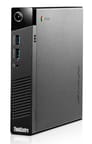 ThinkCentre Chromebox | ThinkCentre Chromebox | |
| Price | List Price: $229.99 Amazon Prices: | List Price: $199.99 Amazon Prices: |
| Model number | 10H50003US | 10H50005US |
| Performance Rating | 2.7 | 2.2 |
| Chromebook Plus | No | No |
| Processor | Dual-core 1.50 Ghz Intel Celeron 3205U | Dual-core 1.50 Ghz Intel Celeron 3205U |
| RAM | 4 GB | 2 GB |
| Internal Storage | 16 GB SSD (upgradable) | 16 GB SSD (upgradable) |
| Screen Size | No Screen | No Screen |
| Screen Resolution | No Screen | No Screen |
| Screen Type | No Screen | No Screen |
| Touch Screen | No | No |
| Stylus / Pen | No Stylus Support | No Stylus Support |
| Dimensions width x length x thickness | 7 x 7.2 x 1.65 inches (177.8 x 182.88 x 41.91 mm) | 7 x 7.2 x 1.65 inches (177.8 x 182.88 x 41.91 mm) |
| Weight | unknown | unknown |
| Backlit Keyboard | No | No |
| Webcam | No Webcam | No Webcam |
| WiFi | 802.11 b/g/n | 802.11 b/g/n |
| Bluetooth | Bluetooth 4.0 | Bluetooth 4.0 |
| Ethernet | Yes | Yes |
| Cellular Modem | No | No |
| HDMI | Full-Size HDMI | Full-Size HDMI |
| USB Ports | 4 USB 3 | 4 USB 3 |
| Thunderbolt Ports | No | No |
| Card Reader | No Card Reader | No Card Reader |
| Battery | No Battery | No Battery |
| Battery Life | 0.0 hours | 0.0 hours |
| Fanless | No | No |
| Auto Update Expiration Date | June, 2021 | June, 2021 |
Related Chromebooks
-
 ASUS Chromebox 5The ASUS Chromebox 5 is a Chrome OS desktop with 12th Gen Intel processors, Thunderbolt 4, Wi-Fi…
 -
 Lenovo 3i ChromebookThe Lenovo 3i Chromebook offers a large 15.6-inch anti-glare FHD display with a numeric keypad,…
 -
 Lenovo Chromebox MicroThe Lenovo Chromebox Micro is a fanless 6.4 x 3.1 x 0.8 inch ChromeOS desktop built on the Intel…
 -
 Lenovo IdeaPad 3i ChromebookThe Lenovo IdeaPad 3i Chromebook is a 15.6-inch Full HD Chromebook with an Intel Celeron N4500 and…
 -
 Acer Chromebox CXI5A compact Chrome OS desktop with 12th Gen Intel processors, USB-C with DisplayPort output, and…
 -
 Acer Chromebook 311 (AMD)The Acer Chromebook 311 (CB311-10H) is an 11.6-inch ChromeOS laptop on an AMD A4-9120C with 4GB of…
Frequently Asked Questions
When did the Lenovo ThinkCentre Chromebox reach end of life?
The Lenovo ThinkCentre Chromebox reached its Auto Update Expiration (AUE) date in June 2021, per Google’s official AUE schedule. After this date, Google stopped providing security and feature updates for the device. Using an unsupported Chrome OS device carries security risks for any account-logged-in or payment activity.
What processor did the ThinkCentre Chromebox use?
The base model used an Intel Celeron 3205U at 1.5GHz, while higher-end models featured an Intel Core i3-5005U at 2.0GHz. Both were dual-core processors from Intel’s Broadwell generation designed for low-power desktop use.
Could the ThinkCentre Chromebox connect to any monitor?
Yes, the Chromebox could connect to any monitor via HDMI or DisplayPort. However, it also featured unique integration with Lenovo’s ThinkVision Tiny-in-One monitors, where the Chromebox could slide into the back of the display to create an all-in-one configuration.
What were the main issues with the ThinkCentre Chromebox?
Reviewers documented Bluetooth connectivity problems including cursor flickering and random disconnections. Android Authority recommended using the included wired peripherals instead of Bluetooth devices. The 16GB storage was also limiting, and there was no memory card reader for expansion.
Is the Lenovo ThinkCentre Chromebox still worth buying?
No. The ThinkCentre Chromebox stopped receiving Chrome OS updates in June 2021, making it unsuitable for secure use as a daily browser. Owners can still keep one running offline as a kiosk or media display, or reinstall it with a small Linux distribution for low-stakes desktop tasks. For a current Chromebox, the Lenovo ThinkCentre M60q Chromebox is the direct successor in this product line.