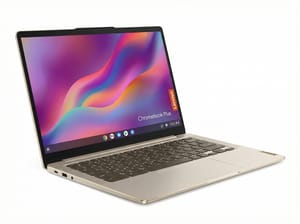
A Chromebook plays games four different ways, and those four ways have different requirements and different libraries. You are not going to install a boxed copy of the latest blockbuster and run it off a local graphics card.
Cloud gaming streams full console and PC titles from a distant server, while Android games come from the same Play Store your phone uses. Browser games ask nothing of your hardware at all. And the built-in Linux environment lets a curious owner install desktop Linux games directly. The right choice depends far more on what you want to play, and on how good your internet is, than on which Chromebook you happen to own.
Cloud gaming runs demanding games on modest hardware
Cloud gaming is the answer for anyone who wants to play current, demanding games and does not want to think about hardware. The game runs on a beefy server in a data center, and all that travels to your Chromebook is a video stream, the same way a movie does. Your keypresses go up, the video comes down, and the Chromebook only decodes video. That is why a modest fanless machine can run titles that would choke a much more expensive laptop trying to do the work locally. The big services here are NVIDIA GeForce NOW, Xbox Cloud Gaming, and Amazon Luna, and all three run well on ChromeOS. GeForce NOW is especially appealing because it hooks into the game library you already own on Steam and other stores, so you are not re-buying anything to play it in the cloud. If you want the specifics of one of these offers, our look at GeForce NOW on a Chromebook digs into what a session feels like.
Cloud gaming depends entirely on your internet connection. You need a fast, stable, low-latency link, ideally wired or on solid Wi-Fi, because every stutter in your connection becomes a stutter in the game. On a great connection it is close to indistinguishable from local play; on a flaky one it is miserable. There is also the subscription question, since the better tiers cost a monthly fee, and the reality that you never hold a local copy of the game. If your household internet is good, none of that will bother you. If it is not, cloud gaming is the wrong lane and you should be candid with yourself about that before subscribing.
Cloud gaming is also why the end of native Steam on ChromeOS turned out to matter far less than the headlines suggested. Google spent a few years running a native Steam beta on Chromebooks and then retired it, leaving no supported native Steam client on the platform. That sounds like a loss, but streaming had quietly become the better answer for most people anyway, and it does not ask the Chromebook to run the game at all. We covered the whole arc in what the end of Steam means for Chromebook gaming.
Android games from the Play Store
Any reasonably modern Chromebook can run Android apps, which means the same enormous catalog of mobile games that runs on your phone also runs on your laptop. Turning it on is a one-time trip through Settings, into the Apps section, where you enable the Google Play Store and accept the terms. After that, installing a game is exactly like installing one on a phone, and you get everything from quick casual puzzles to surprisingly ambitious mobile role-playing and strategy titles. If you want the full walkthrough and the compatibility details, our guide to running Android apps on a Chromebook covers the setup and the quirks.
Where this lane gets frustrating is that a lot of Android games were built for a phone held in one hand, not a laptop with a keyboard and trackpad. Some assume a portrait screen and a touchscreen, so on a landscape Chromebook without a touch display they can feel awkward or refuse to rotate sensibly. A smaller set of games with strict anti-cheat or hardware checks will not run on ChromeOS at all. And performance depends on the machine, because Android games run locally rather than in the cloud, so RAM and processor speed matter here in a way they do not for streaming. This is where the Chromebook Plus tier earns its name: the extra memory and a faster chip make heavier Android games far more comfortable.
Games that run right in the browser
The third path, browser games, runs on any Chromebook regardless of age or price. A huge amount of gaming now happens inside a browser tab, from long-running browser game portals to modern HTML5 titles that load instantly with nothing to install. Because these games ask nothing of your local hardware beyond a working browser, a five-year-old budget Chromebook plays them just as well as a brand-new premium one. Many of the cloud services mentioned above also run through the browser rather than a separate app, so the browser lane and the cloud lane overlap.
Browser games skew casual and lightweight by nature, and quality varies wildly from great to barely-a-game, so you do more sorting through junk than you would in a curated store. You are also unlikely to find the latest big-budget release living in a browser tab in any form other than a cloud stream. But zero setup, zero cost, and instant play on any Chromebook are a big part of why gaming has fallen off the list of things Chromebooks can’t do.
Linux desktop gaming (a project, not a shortcut)
ChromeOS is Linux underneath, and it ships with a built-in Linux development environment you can switch on to run real desktop Linux software. That includes the desktop Linux version of Steam and native Linux games, which you can install yourself if you are comfortable spending time in a terminal. When it works, it is a satisfying way to play, and it is the closest a Chromebook gets to the old install-and-run desktop model.
Be realistic about the results before you invest an evening in it, though. Graphics acceleration inside that Linux environment is limited, so you are mostly looking at older, lighter, or natively-Linux titles rather than anything modern and demanding. It is a fun tinkering project and a legitimate way to squeeze more out of the hardware you already have, but it is not a smooth road to AAA gaming, and anyone expecting one will be disappointed. Our deeper piece on installing Steam on a Chromebook lays out exactly what to expect and where the limits bite.
Picking the right lane (and the right Chromebook)
The reason all four of these coexist is that they answer different questions. If you want to play the big, current games and your home internet is solid, cloud gaming is the clear starting point, and the quality of your connection matters far more than the price of your Chromebook. If you mostly want casual games to fill spare time, the Play Store and the browser will keep you busy for years without a subscription or a fast connection. The Linux environment is there to be explored when the fun for you is in the setup as much as the play. You will probably end up using two or three of these at once without ever thinking of them as separate systems.
That also reshapes how you should shop. Because cloud and browser gaming push the hard work off the device, a bargain entry-level Chromebook is perfectly capable in those lanes, which is the opposite of how gaming laptops usually work. It is only local Android gaming that rewards a faster processor and more memory, so if that is your main interest, the Chromebook Plus tier is the sensible target. When you are comparing specific models, the Chromebook comparison chart lets you line up processors, memory, and support windows side by side, and a machine built with streaming in mind, like the Acer Chromebook Plus 516 GE with its high-refresh screen and fast Ethernet, shows what a Chromebook designed around cloud gaming looks like. A Chromebook is a perfectly good place to play, as long as you play to its strengths.
Three Chromebooks to start with
None of these lanes demand an expensive machine, but a few Chromebooks make gaming noticeably better, whether that is a high-refresh screen for cloud streaming or extra memory for Android titles. Here are three.
ASUS ExpertBook CX54 Chromebook Plus
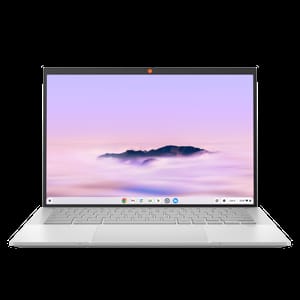
Acer Chromebook Plus 515
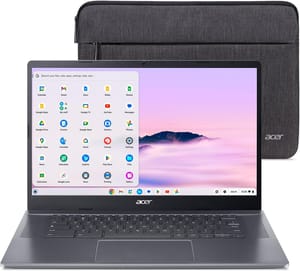
Lenovo Chromebook Plus 14" OLED