

You open the lid, join a Google Meet call, keep a dozen Chrome tabs going, drop into a Google Doc, and let Spotify play from the Play Store in the background. Twenty minutes later the keyboard deck is warm, the cursor lags behind your typing, and the whole machine feels like it is wading through mud. Nothing crashed. Nothing is broken. Your budget Chromebook is simply doing the “Chromebook workload” the marketing implied it could handle, and it cannot keep up.
That combination is exactly what pushes a low-cost machine past its cooling limit. About Chromebooks, writing in late 2025, put the everyday version of this plainly: “Opening multiple tabs, streaming video, running complex applications, and gaming sessions all demand processor power,” and on a modest budget chassis, “Your Chromebook can’t dissipate heat fast enough when constantly under heavy load.” When a processor gets that hot, it protects itself by slowing down. That self-defense slowdown is the lag you feel, and it has a name: thermal throttling.
The first question a support expert asks
Search the Google Chromebook Community and the overheating threads run for pages. One owner reported that while running Chrome, “At one point it reached 71 degrees Celsius.” What is telling is not the temperature; it is the first thing a volunteer Product Expert asked in reply. Before anything about tabs, updates, or settings, the expert wanted to know one hardware fact: “Do you know if it has a fan, or is it fanless?”
That is the question this whole article is built around, because it is the one question that is easy to skip at the store. A Chromebook’s spec sheet lists screen size, memory, and storage in bold, and buries the cooling design in the fine print. Yet whether a machine has a fan tells you more about how it will behave under your real workload than almost any other single line on that sheet.
A fan lets a chip stay fast longer
A fan does not make a chip faster. What it does is let a chip stay fast for longer. Every processor has a thermal ceiling, and when it approaches that ceiling it steps its clock speed down to cool off. Active cooling, a small internal fan pulling air across a heatsink, raises the amount of sustained work a chip can do before it has to back off. Passive cooling, where the chassis sheds heat on its own with no fan, sets a lower ceiling.
Independent testing shows how this plays out on real Chromebooks. When NotebookCheck reviewed the fanless Lenovo IdeaPad Slim 3 Chromebook built on a MediaTek Kompanio 520, its lab found that “the Stress Test app revealed that the CPU was slightly throttled and under longer NPU load, it was throttled more severely.” In everyday use, the same review noted, “Loading websites is a bit laggy and pages load quite a bit slower than on faster systems.” The tradeoff runs the other way too: because that gentle ARM chip sips power, the reviewers measured a surface hotspot of only 33 degrees Celsius, and “As the small MediaTek processor is cooled passively, the Lenovo Chromebook remains silent even under full load.”
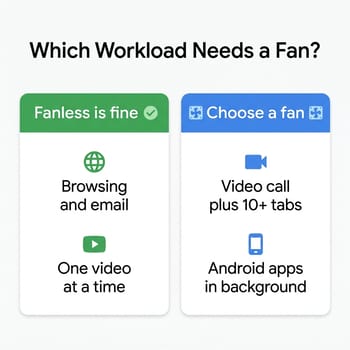
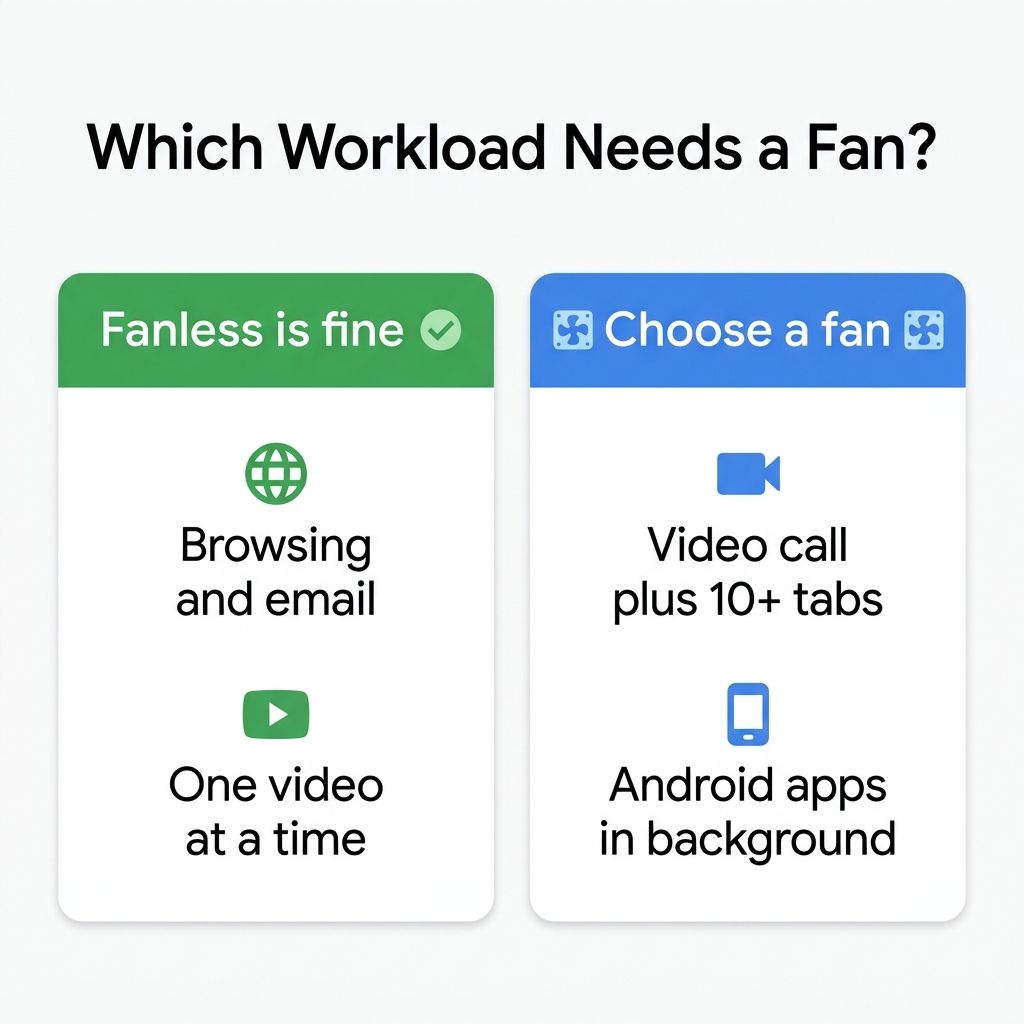
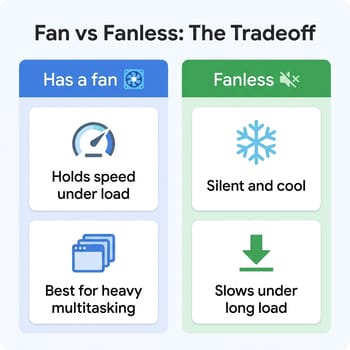
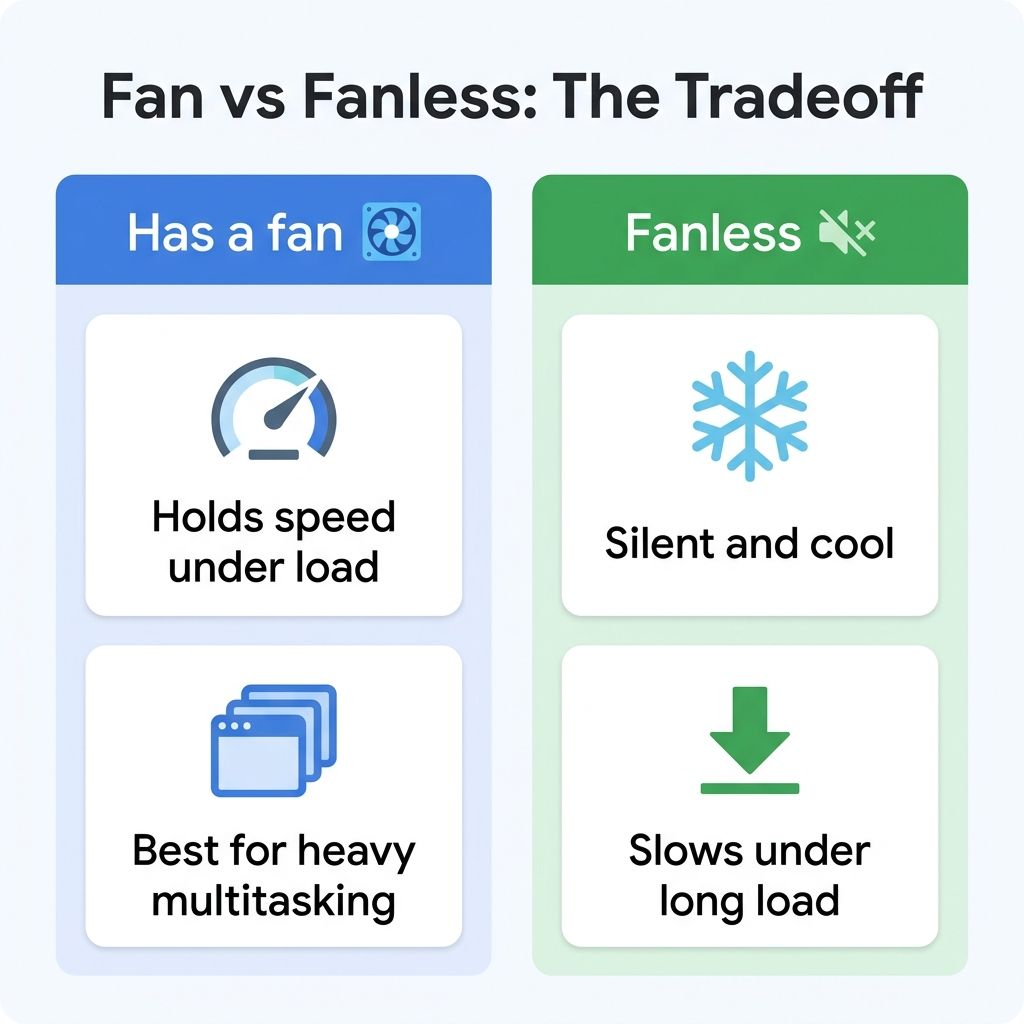
So the real picture is not “fanless Chromebooks burn hot.” A low-power fanless machine can run cool to the touch. The catch is that it buys that silence and low heat by leaning on a gentler processor that slows down under exactly the sustained, multitasking load that made you reach for a Chromebook in the first place. A fanned budget model with a stronger chip, by contrast, can push through a longer stretch of that work before it has to throttle. Which one is right for you depends entirely on how hard you push the machine, and the infographic here maps the split.
Why the check has to be done on the exact model
Here is the part that trips people up. Cooling is not a fixed property of a brand or even of a product name. The same Chromebook line often ships in an actively cooled Intel version one year and a fanless ARM version the next, under a nearly identical name. The list of fanless models keeps growing as newer ARM chips arrive, as NotebookCheck’s own 2026 roundup of silent laptops observed: “Some Chromebooks were released in recent years with no active cooling fan, too.”
That is why the reliable rule is not “buy Intel, avoid ARM.” It is: confirm the cooling design of the specific SKU in front of you, by model number, before you pay. A 15-inch Chromebook with a given family name might be a fanned Intel N100 machine in one configuration and a fanless MediaTek build in another, and only the model number tells them apart. The buyer-protection version of the mini PC fanless-versus-active question that Starry Hope readers know from the desktop side applies just as cleanly to Chromebooks: silent and cool is a feature for light use and a liability for heavy use, and you decide which you are buying.
Which budget models ship with a fan
At the budget tier, several current models pair a capable Intel chip with active cooling, and they do not cost meaningfully more than their fanless neighbors. The HP Chromebook 14a with the Intel N100 is the value anchor here: an actively cooled quad-core N100 that lists around $230 in its 8GB configuration, which is the cheapest fanned N100 Chromebook we track.
HP Chromebook 14a (14a-nf series)
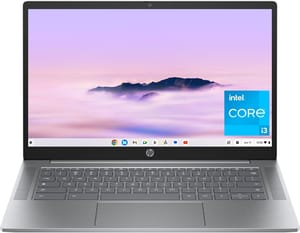
- ✓Actively cooled Intel N100
- ✓holds speed under sustained load
- ✓8GB configuration available
- ✓lists around $230
- ✗14-inch 1366x768 TN panel on the N100 SKU
- ✗plastic chassis
- ✗no premium extras
The N100 is a quad-core chip, and that headroom is the point. Where a passively cooled entry board would step its clock down partway through a long call, the 14a has a fan to keep the N100 near its rated speed while you keep working. It is a plain plastic machine with a modest 14-inch screen, so nobody is buying it for the finish. What you are buying is a cooling design that matches the workload, at a price that sits right alongside the fanless options.
If you want a larger screen for the same money, the Lenovo IdeaPad 3i Chromebook is a fanned 15.6-inch machine on an Intel Celeron N4500 that lists around $250. It is a step gentler than the N100 on raw speed, so it is the better fit for a reader whose heavy moments are occasional rather than constant. The active cooling still earns its keep, though: a bigger screen quietly encourages you to keep more windows open, and the fan is what keeps that habit from turning into a stutter halfway through the afternoon. For a family machine that lives on a desk rather than a lap, the extra size and the fan together make a sensible pairing.
Lenovo IdeaPad 3i Chromebook
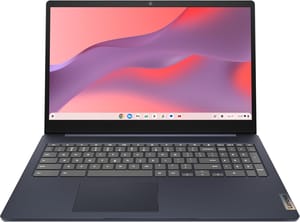
- ✓Actively cooled
- ✓roomy 15.6-inch Full HD screen
- ✓comfortable full keyboard
- ✓lists around $250
- ✗Celeron N4500 is entry-level
- ✗heavier than a 14-inch
- ✗plain design
The Acer Chromebook 315 rounds out the fanned group in its N100 model numbers, the CB315-5H family, another actively cooled 15.6-inch option running the same quad-core chip as the HP 14a. Note the phrasing carefully, because it is the whole lesson of this article in one product: it is the specific N100 SKU that carries the fan. Acer has used the “315” name across several years and several chips, so the model number, not the shelf label, is what tells you which cooling design you are actually holding. Confirm you are looking at a CB315-5H before you assume it has the fan described here.
| Model | Cooling | Chip | Best for |
|---|---|---|---|
| HP Chromebook 14a (14a-nf, N100) | Fan | Intel N100 | Heavy multitasking on a budget |
| Lenovo IdeaPad 3i Chromebook | Fan | Celeron N4500 | Big screen, long sessions |
| Acer Chromebook 315 (CB315-5H) | Fan | Intel N100 | Big screen with more headroom |
| Lenovo IdeaPad Slim 3 Chromebook | Fanless | Kompanio 520 | Silent, light, cool-running |
| Lenovo Chromebook m 14 | Fanless | Kompanio 540 | Silent everyday browsing |
Fanless is a real choice, not a downgrade
None of this makes a fanless Chromebook a bad buy. For a reader whose day is browsing, email, a single video, and a Google Doc, a passively cooled machine is silent, has no fan vent to clog, stays cool on a lap, and often runs longer on a charge. The Lenovo Chromebook m 14 is a good example of how this category is improving: it runs on the newer MediaTek Kompanio 540, a step up from the 520 generation that NotebookCheck measured throttling on, and that newer silicon narrows the sustained-load gap that older fanless boards struggled with. If you have been reading Starry Hope’s coverage of Kompanio 540 student Chromebooks, you already know the ARM side of the budget market is getting more capable.
Lenovo Chromebook m 14
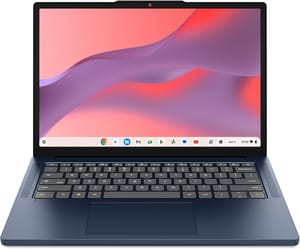
- ✓Silent fanless design
- ✓newer Kompanio 540 chip
- ✓8GB RAM
- ✓14-inch 1920x1200 display
- ✓updates through June 2036
- ✗Still an entry-level chip
- ✗only 64GB of storage
- ✗not Chromebook Plus certified
- ✗no backlit keyboard
Memory is the other half of the story
Before you pin every stutter on cooling, weigh the other budget-tier trap that produces the same symptom. Under that same video-call-plus-a-dozen-tabs load, a 4GB machine runs out of memory and starts swapping long before heat becomes the bottleneck, and the lag feels identical from the driver’s seat. Starry Hope covered this in detail in the 4GB Chromebook RAM trap, and the takeaway pairs neatly with this one: an 8GB configuration and a fan together are what let a budget Chromebook carry a real multitasking day. It is also worth reading the 64GB storage trap piece, since the cheapest configurations tend to skimp on all three at once.
How to confirm the cooling design before you buy
The spec you are looking for rarely appears in the retailer’s bullet list, so you have to go one layer deeper. Start with the manufacturer’s own product page for the exact model number and look for the words “fan,” “fanless,” or “active cooling” in the detailed specifications. HP, Lenovo, Acer, and ASUS all publish this on their spec pages, even when the shopping listing leaves it out. If the page is silent on cooling, the processor is a strong tell: budget models built on Intel’s N-series parts such as the N100 almost always ship with a fan, while the passively cooled machines tend to be the ARM MediaTek Kompanio builds. That is a guideline, not a guarantee, which is exactly why the model number matters.
A second, faster route is to cross-reference an independent review of that specific model. Testing outlets note the cooling design as a matter of course, and the good ones measure how performance holds up over a sustained run rather than a quick benchmark. NotebookCheck’s individual Chromebook reviews, for instance, state the cooling type in the spec box and report throttling behavior under load, which is the piece a spec sheet cannot give you. Reading one review of the model you are about to buy tells you both whether it has a fan and whether that fan, or the lack of one, actually matters for the way you work.
If a machine already feels slow, confirm which limit it is hitting before you blame the cooling. A quick way to tell them apart is timing. Memory pressure shows up the instant you open too many tabs, while thermal throttling builds over minutes of sustained load as the chip heats up. If the lag arrives early and stays flat, look at the memory tier first. If it creeps in after a long call and eases once you close things down and let the machine cool, that is the thermal ceiling talking.
If a fanless model is what you can afford
The lowest prices in this tier often belong to the fanless machines, so “just buy the fanned one” is not always an option. If a passively cooled Chromebook is what fits the budget, or is what you already own, you can keep it usable by working with its limits rather than against them. Close the Android background apps you are not actively using, since a Play Store music or messaging app running behind a video call is a common hidden load. Keep your tab count in check during calls. Use the machine on a hard surface such as a table rather than a bed or blanket, because even a fanless chassis needs its underside clear to shed heat. Those habits will not turn an entry chip into an N100, but they keep a fanless model from hitting its ceiling as often.
The two-line check before you buy
The whole point of this piece is a check you can run in under a minute. First, find the exact model number of the Chromebook you are about to buy, not just the family name, and search that model number together with the word “fanless” or look for the cooling line on the manufacturer spec sheet. Second, if it is fanless and your real workload is the heavy kind (video calls, many tabs, Android apps running at once), cross-reference a review that actually measured sustained performance before you commit. The fan question hides in plain sight on the spec sheet. Once you know to look for it, a throttled machine stops being a surprise you discover after the return window closes.


