

Darktable is a free, open-source RAW photo editor that runs natively on Linux. Adobe makes no Linux version of Lightroom, and darktable is the native Linux editor closest to it: it keeps a library of your photos, edits without touching the original file, and exports finished JPEGs. Our look at running Adobe Lightroom on Linux covers the Wine route and why darktable is the safer choice.
This is the written companion to our darktable video. It uses the same steps and values as the video: install darktable from Flathub on Ubuntu 26.04 LTS, go through the first-run setup guide, import a RAW photo, make five edits, and export a JPEG. The video shows darktable 5.6.1; Flathub now has the 5.6.2 bug-fix release, and the steps are the same in it.
What you need
You need Ubuntu 26.04 LTS, an internet connection, and at least 2 GB of free disk space (the download is roughly 500 MB, less if another Flatpak app already installed the same runtime). If you are not sure which release you run, our guide to checking your Ubuntu version shows four ways to find out. You also need a RAW file from your camera. The photo in the video is a Sony a7R RAW file of red rock buttes and a creek, a public domain (CC0) sample from raw.pixls.us. Your own photo will need different values, but the steps are the same.
Ubuntu’s archive has darktable 5.4.1, and Flathub has 5.6.2
Open a terminal with ctrl alt t and check which version Ubuntu’s own archive offers:
apt policy darktable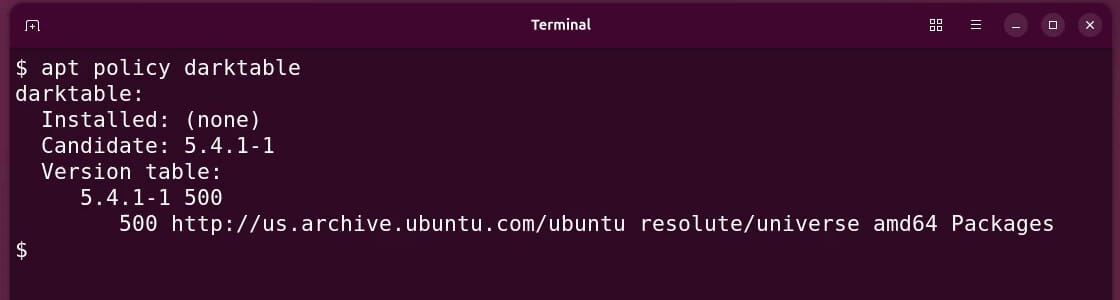
The candidate is 5.4.1-1, from the universe section of the resolute archive. The current release is darktable 5.6.2, a bug-fix release from October 4, 2026, and Flathub has it. The 5.6 series added the first-run setup guide shown below. If you would rather stay with Ubuntu’s package, sudo apt install darktable installs 5.4.1, and the editing steps in this guide work the same way in it.
The Flathub build leaves out darktable’s AI features, as darktable’s download page notes. Nothing in this guide uses them.
Set up Flatpak and Flathub once
Ubuntu does not include Flatpak, so it needs a one-time setup. These are the two commands from Flathub’s Ubuntu setup page that you need. The first installs Flatpak, and the second adds Flathub as a source of apps:
sudo apt install flatpak
flatpak remote-add --if-not-exists flathub https://dl.flathub.org/repo/flathub.flatpakrepo
Then log out and back in, so that apps from Flathub show up when you search for them. Flathub’s page says to restart, which works too. You only do this once; later Flatpak apps install with one command.
Install darktable from Flathub
Type the install command and press enter :
flatpak install flathub org.darktable.DarktableFlatpak first says that darktable needs a runtime from Flathub and asks “Do you want to install it? [Y/n]”. Type y and press enter . Next it lists darktable’s permissions and the items it will download, then asks “Proceed with these changes to the system installation? [Y/n]”. Another y and enter start the download. If Ubuntu asks for your password, type it to continue.
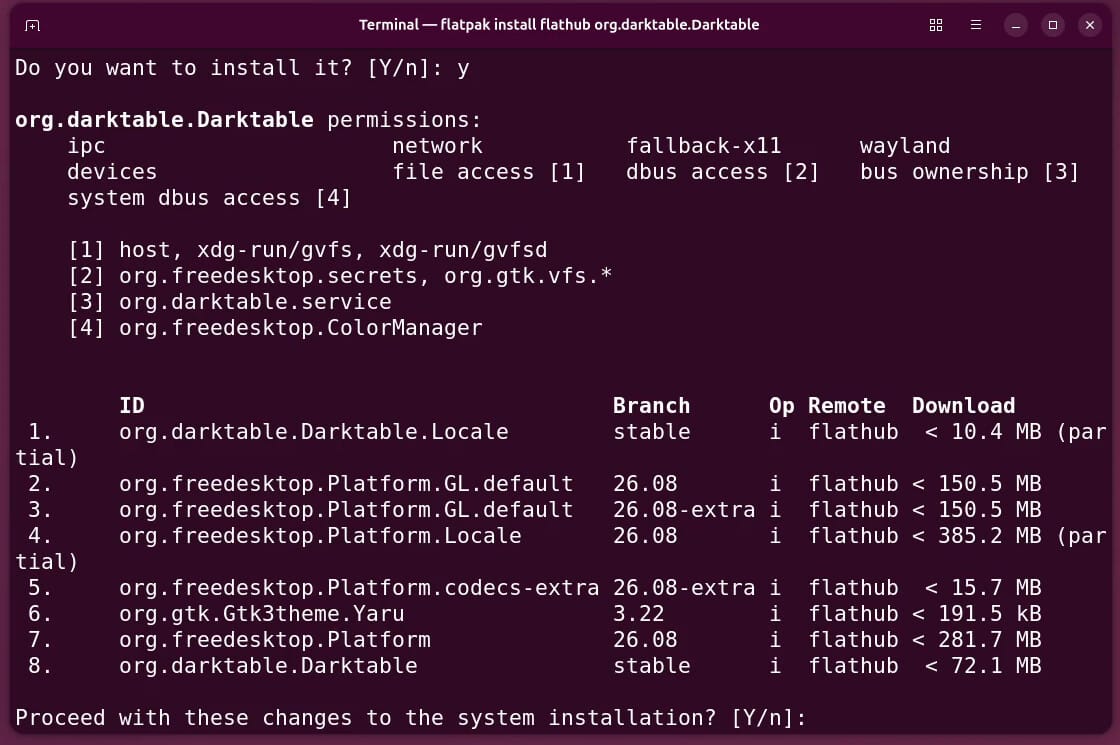
The screenshot shows the list from when the video was recorded. Flathub has since moved darktable to a newer runtime, so the items in your list will differ. The terminal says “Installation complete.” when it is done. Type exit to close it.
To open darktable, press super (the Windows key on most keyboards), type darktable, and press enter . You can also start it from a terminal with flatpak run org.darktable.Darktable.
Keep the defaults in the first-run setup guide
The first time it opens, darktable shows a short setup guide titled “Welcome to darktable!” Click next to begin. The first choice is “auto-apply pixel workflow defaults”, which sets how darktable renders a RAW file before you change anything. Keep the default, scene-referred (sigmoid).
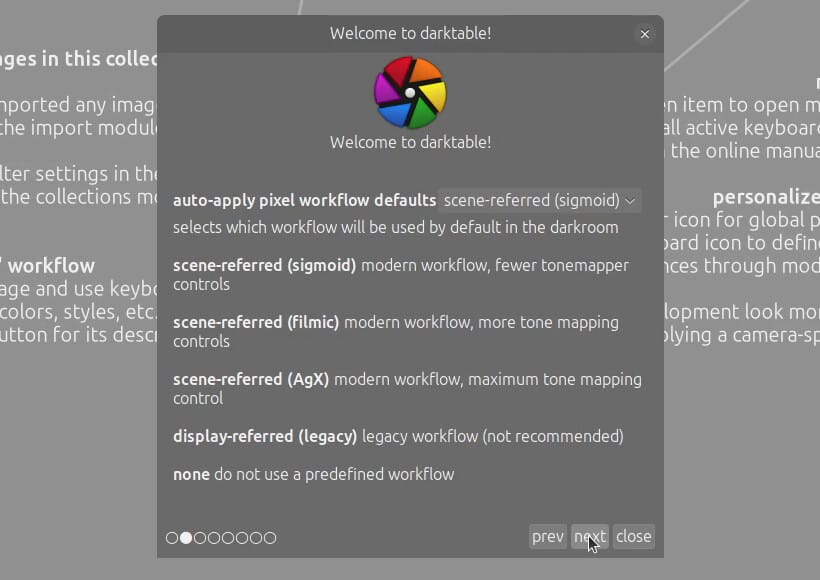
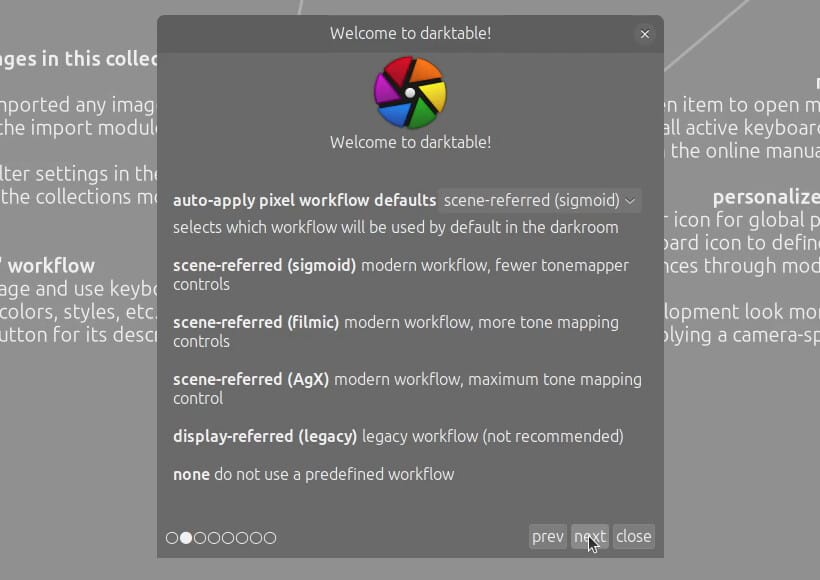
Click close. The guide applies the defaults for its other pages when you close it, and they suit a first try: darktable writes an XMP file for each photo when you import it, and uses the grey theme.
Import a RAW photo
Darktable opens in the lighttable, its version of the Library module in Lightroom Classic. Click import in the left panel, then click add to library…. In the dialog, pick the folder where your photos live under folders. The RAW file appears in the list on the right. Click add to library to finish.
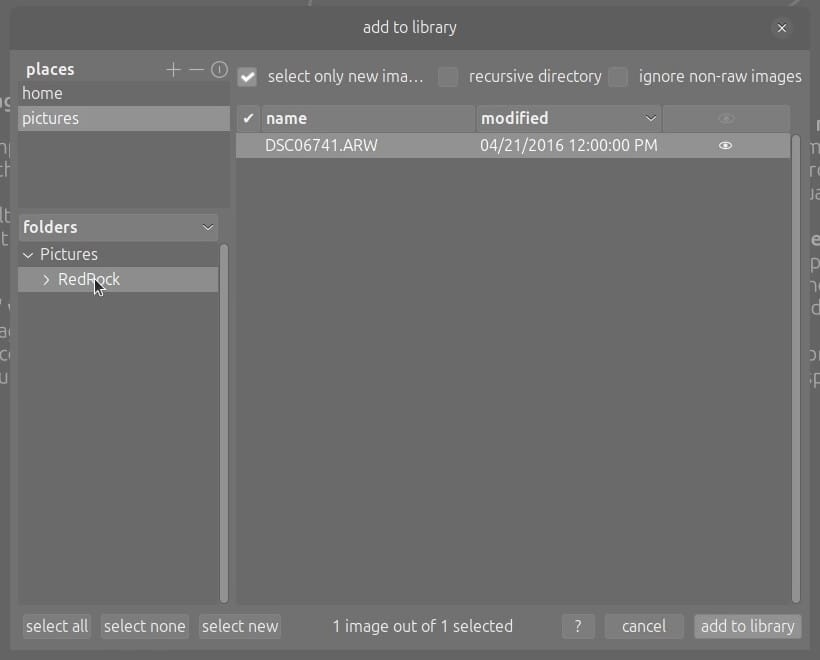
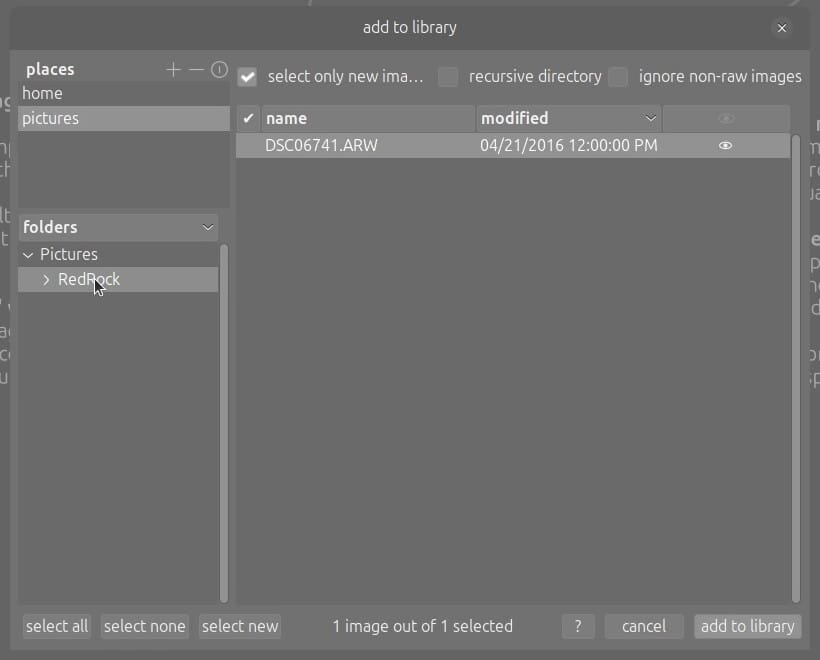
“Add to library” leaves your files where they are; the other button, “copy & import”, copies them to a new folder first. With a single photo, darktable opens it straight in the darkroom, its version of the Develop module.
Five edits in the darkroom
Each edit lives in a module. The search box at the top of the right panel (“search modules by name or tag”) finds any module by name, and a click on a module opens it. To set an exact value, right-click a slider, type the number, and press enter .
Raise exposure to +1.00 EV
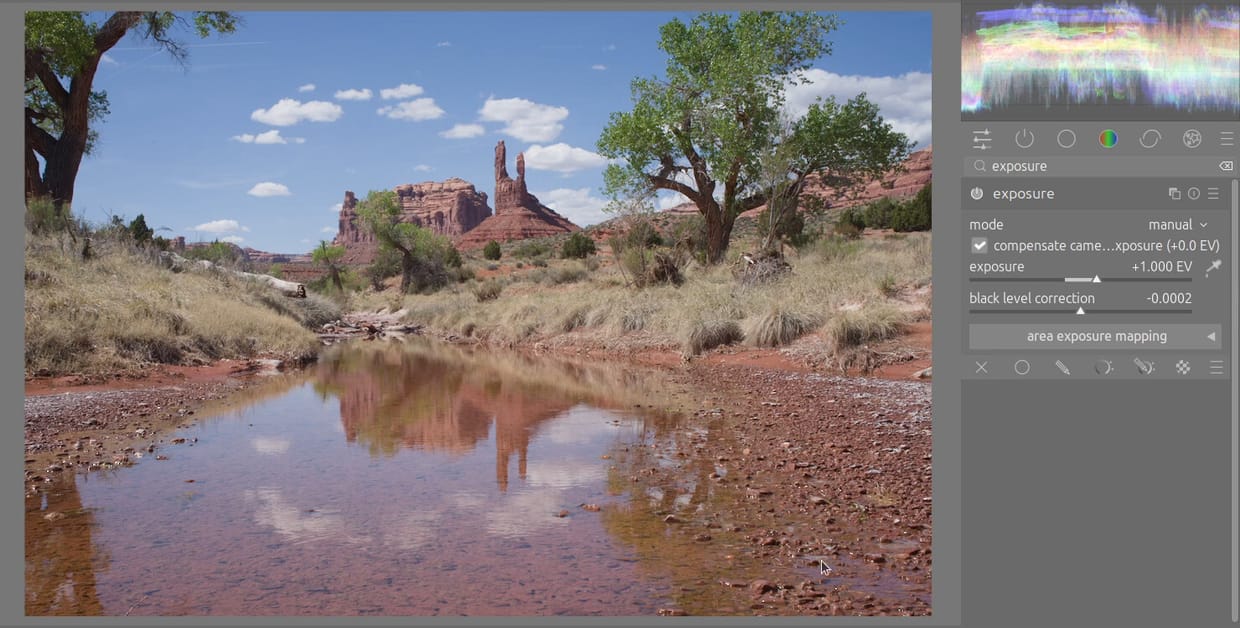
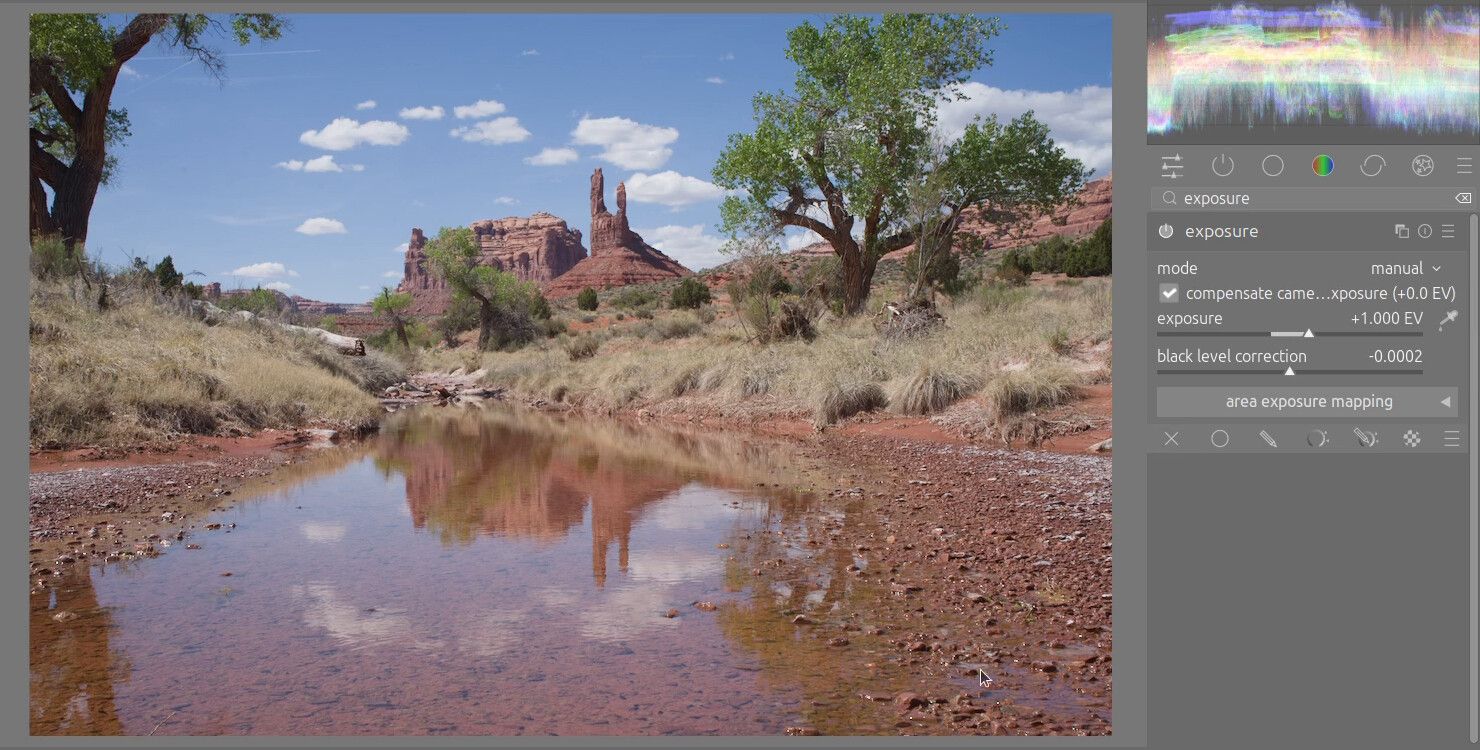
Search for exposure and click the exposure module to open it. Right-click the exposure slider, type 1, and press enter . The slider reads +1.000 EV. The creek and the shadows get brighter, and so does the sky; the fifth edit darkens the sky again.
Set sigmoid contrast to 1.8
Darktable does tone mapping in a module called sigmoid. Search for sigmoid and click it to open the module. Right-click the contrast slider, which starts at 1.5, type 1.8, and press enter . The red rock and the trees gain contrast.
Add vibrance and saturation in color balance rgb
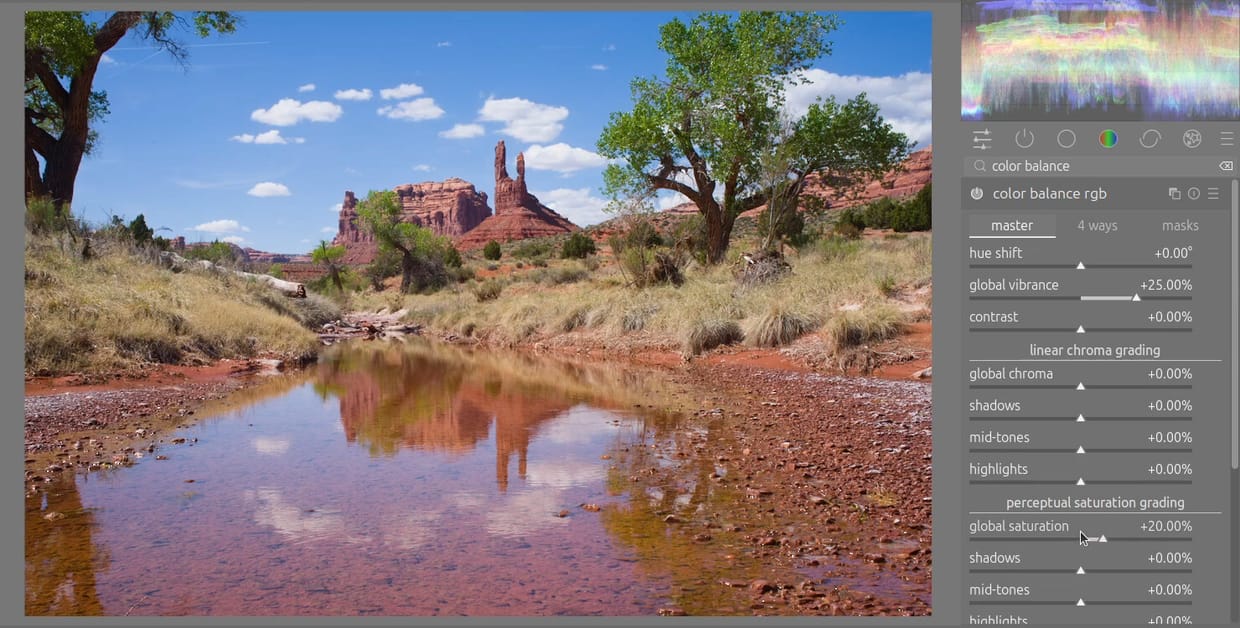
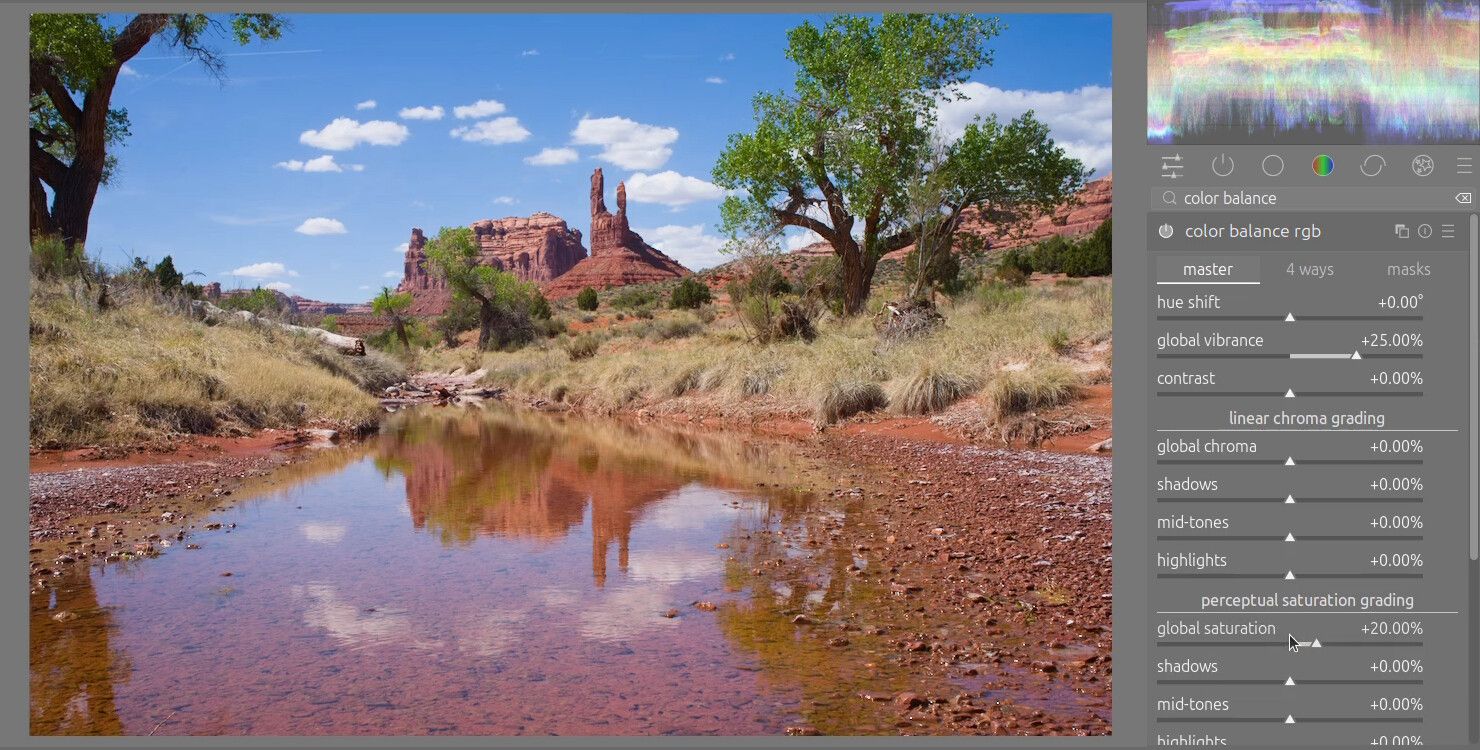
Type color balance into the search and click color balance rgb. On its master tab, set global vibrance to 25% and global saturation to 20%. They work much like Vibrance and Saturation in Lightroom. The sky turns a deeper blue, and the rock a richer red.
Crop to 16:9
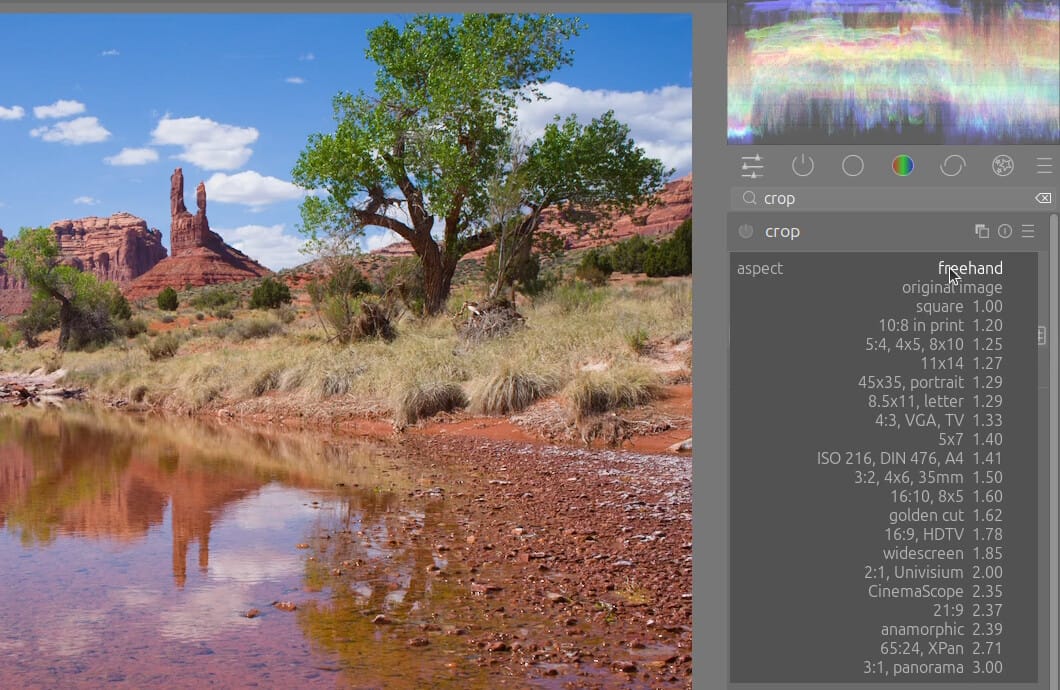
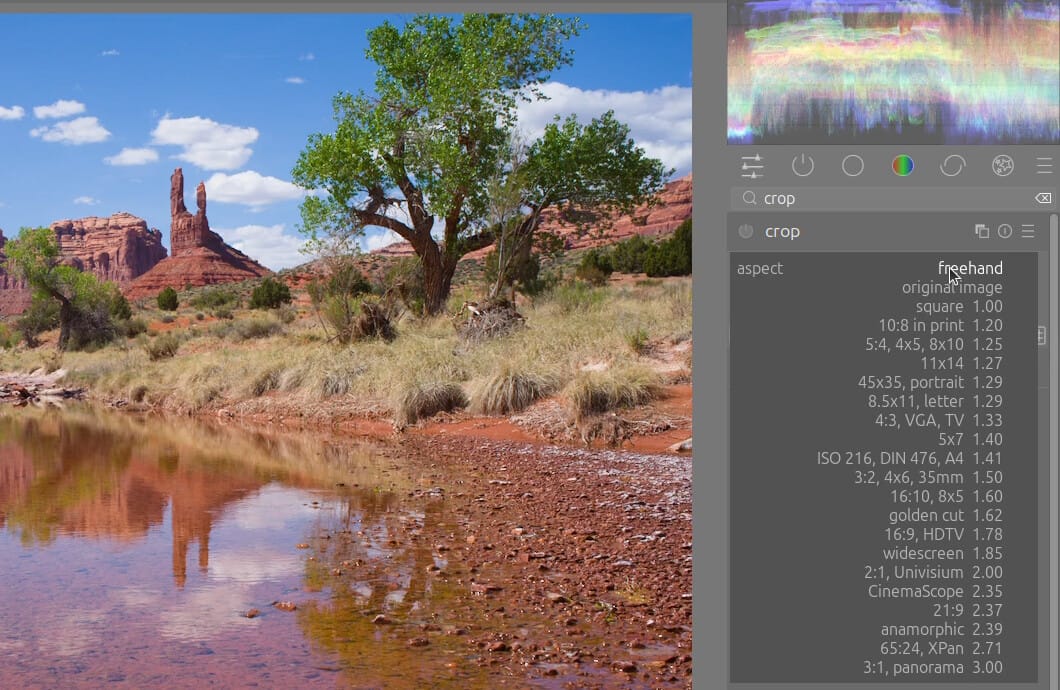
Search for crop and click crop to open it. Click the aspect menu, which starts at “freehand”, and pick 16:9, HDTV 1.78. Drag a corner of the frame inward a little to trim the edge; the frame keeps its 16:9 shape. Click the module name to close it, and darktable applies the crop.
Darken only the sky with a gradient mask
Darktable can run the same module more than once, each copy with its own settings, so a second exposure module can darken the sky alone.
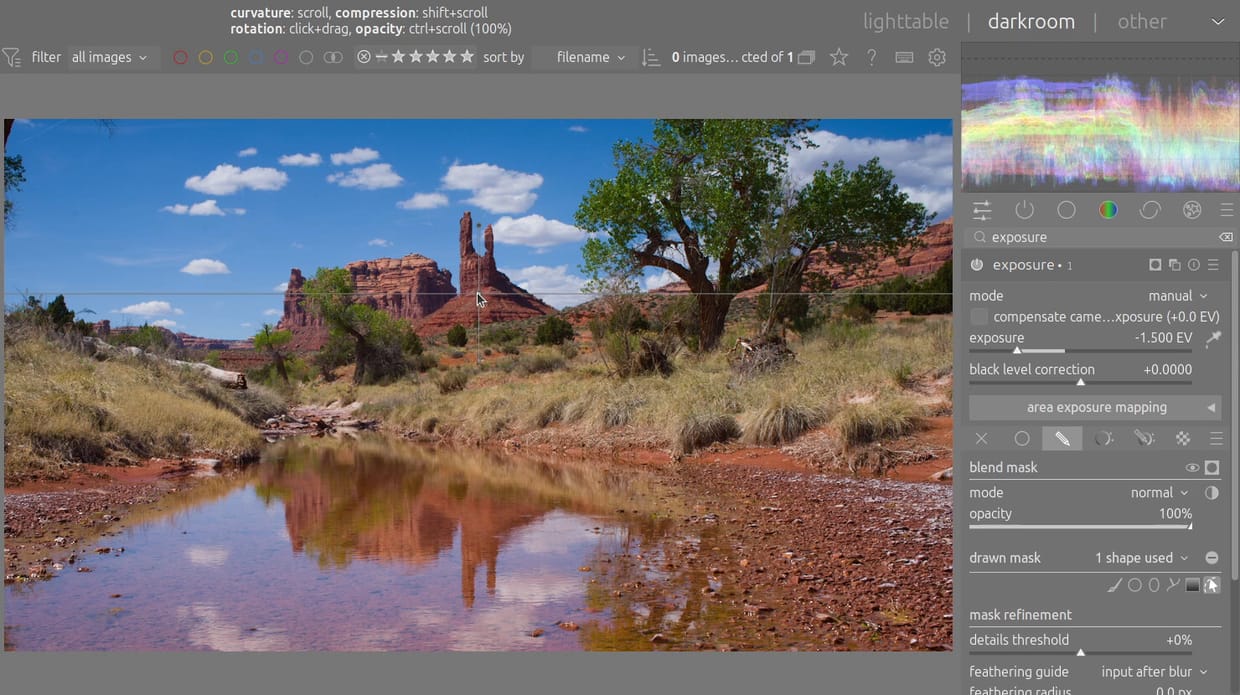
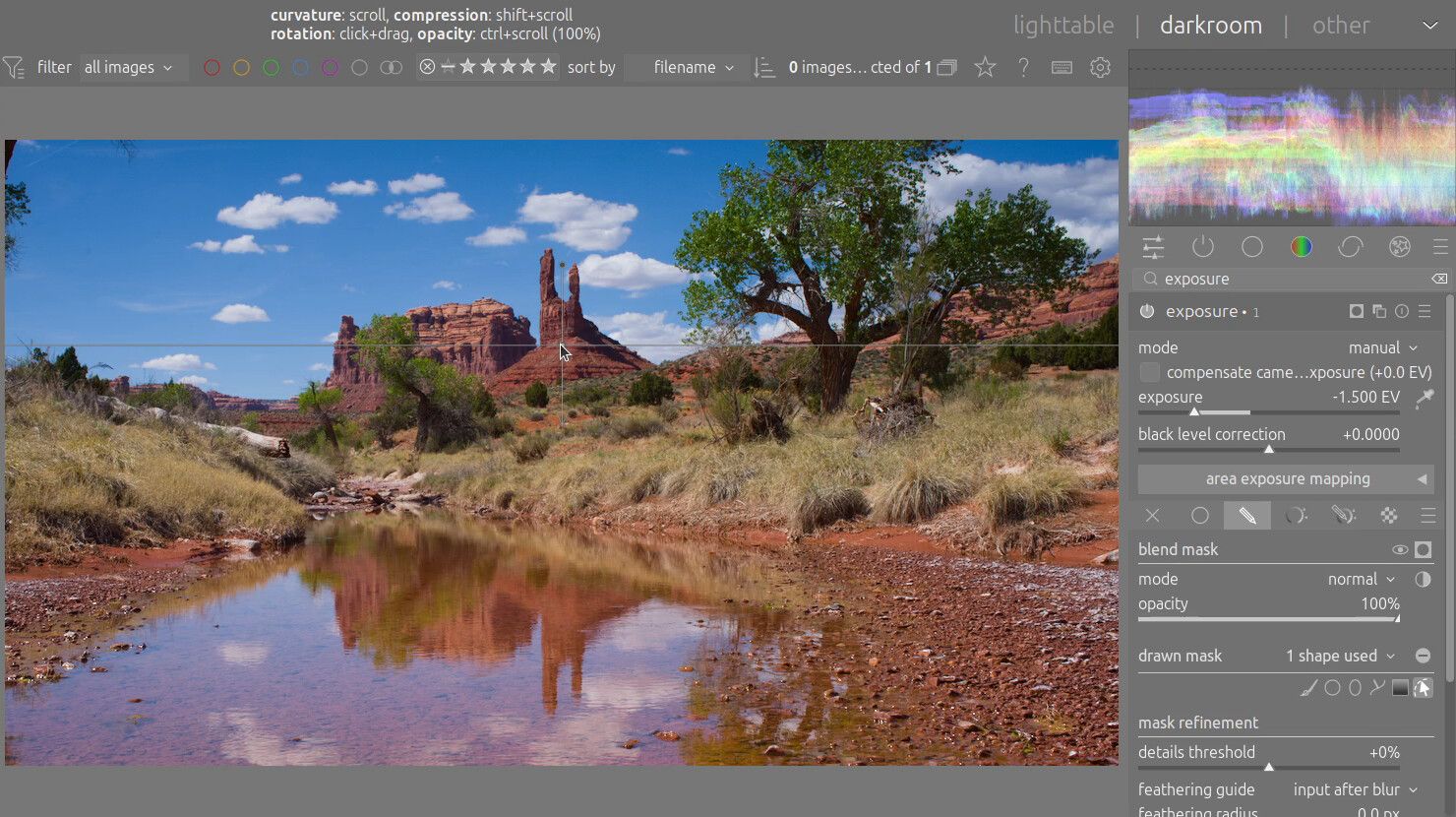
Search for exposure again. In the exposure module’s header, click the icon with two squares (multiple instances) and choose new instance. The copy appears as “exposure 1”. Set its exposure slider to -1.5 the same way as before. For now, the whole photo goes dark.
To limit it to the sky, click the drawn mask icon in the row of icons under the module’s sliders. Pick the gradient shape from the shapes that appear, then click once on the horizon in the photo. Now only the sky above the line darkens, and the creek stays bright. It does the same job as a Linear Gradient in Lightroom. The hint line at the top of the window lists the controls for adjusting the gradient: drag to rotate it, and scroll to change its curvature.
Compare before and after in the history panel
Open history in the left panel. Every step is listed there, from “original” at the bottom to the newest edit at the top. Click an early line, such as line 11 (sigmoid, the last line marked “scene-referred default”), and the photo shows the look before your edits. Click the top line, and the edits come back.
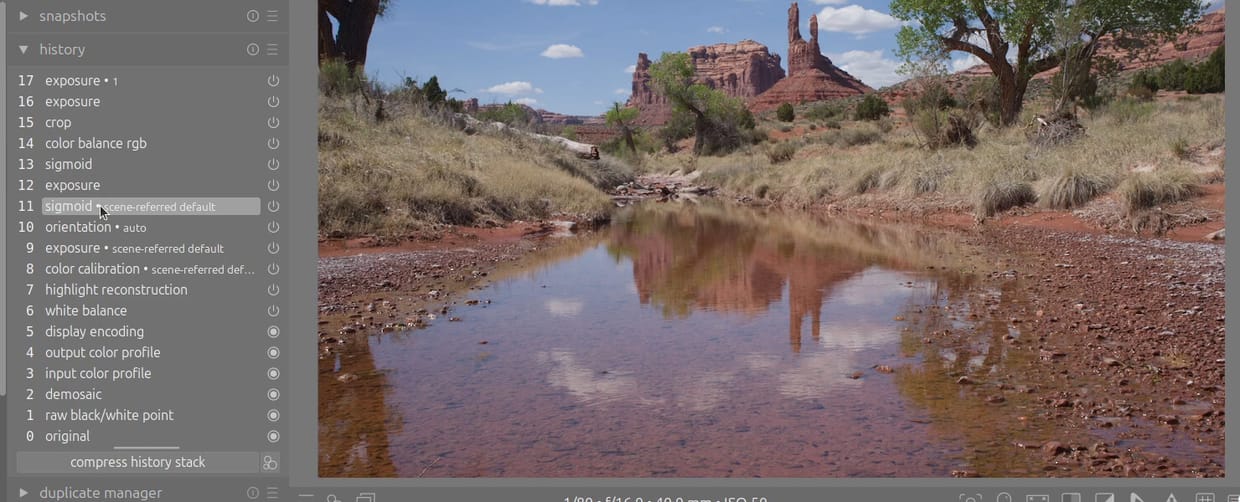
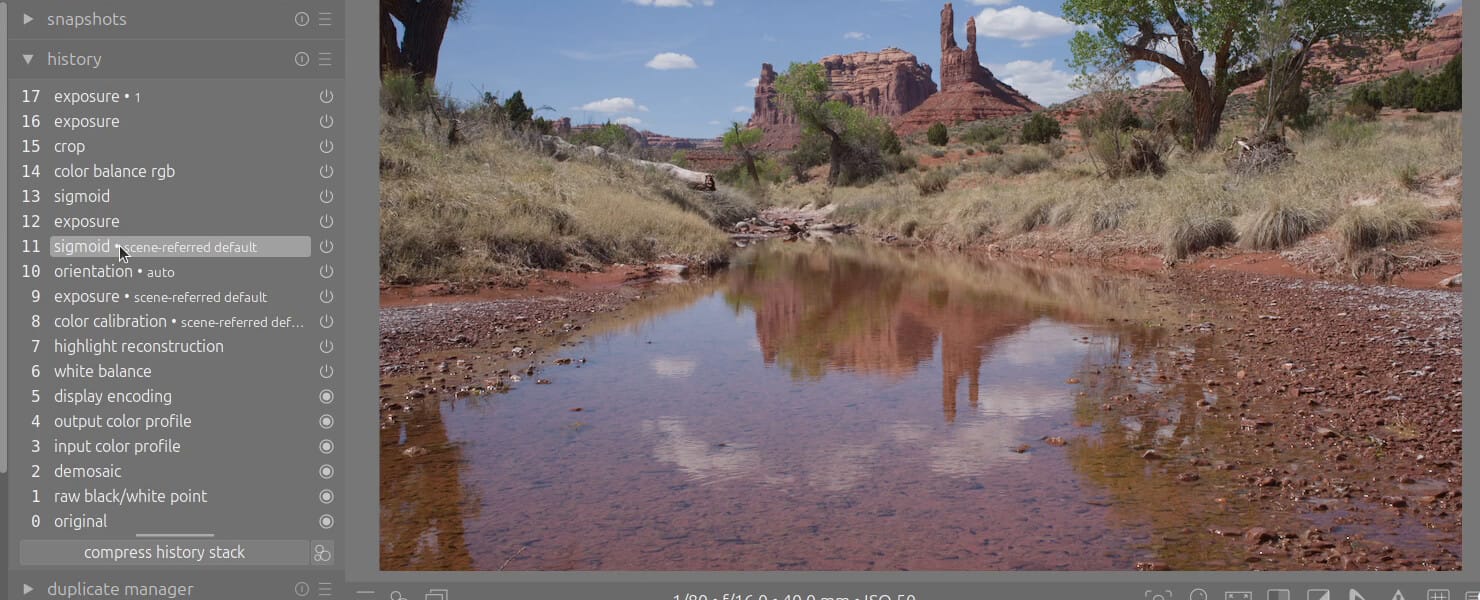
Click the top line before you make another change. If you edit while an earlier line is selected, darktable discards every step above it; ctrl z usually undoes that, as the history stack page of darktable’s manual explains.
Darktable never changes the RAW file. The edits sit in a small XMP file next to it, named after the RAW file with .xmp added (DSC06741.ARW.xmp for our photo).
Export a JPEG
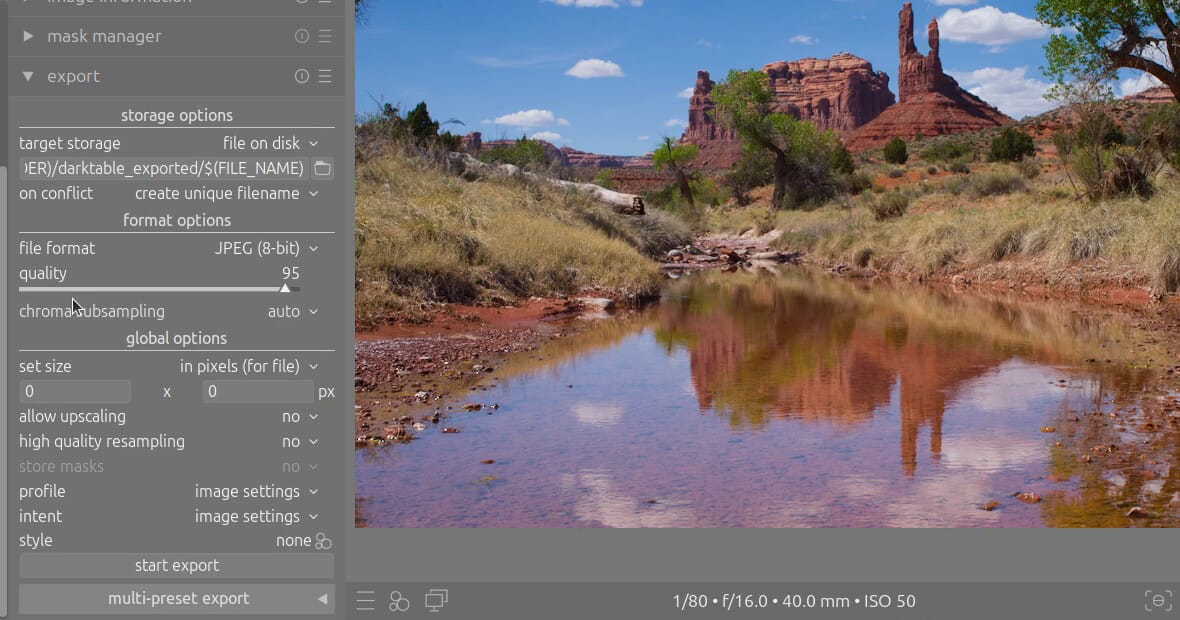
Close history with another click, then click export in the left panel to open that module. The defaults save a JPEG at quality 95 to a folder called darktable_exported next to the RAW file, with the RAW file’s name. Click start export.
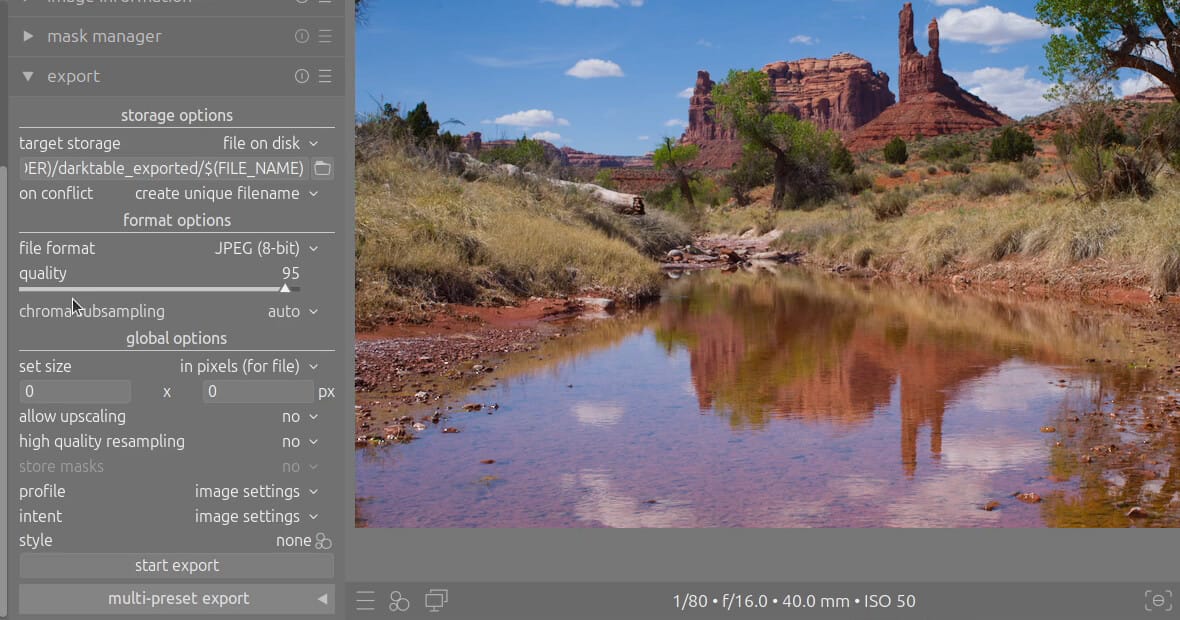
Our JPEG landed at ~/Pictures/RedRock/darktable_exported/DSC06741.jpg. Click lighttable at the top of the window to go back to the library; the thumbnail now shows the finished photo.
Troubleshooting
Darktable does not show up when you search for it. The first Flatpak app often needs a fresh login before it appears in the app search. Log out and back in, or start it with flatpak run org.darktable.Darktable.
flatpak install cannot find flathub. The Flathub remote was not added. Run the flatpak remote-add command from the setup section, then try the install again.
No setup guide appears. The guide is new in darktable 5.6, so the 5.4.1 package from Ubuntu’s archive does not show it. Check which one you opened: the version number sits under the darktable logo in the top left corner.
A value went into the wrong slider. The right-click goes to the slider under the pointer, so a slightly wrong position changes its neighbor. In the exposure module, the black level correction slider sits just below exposure, and a large value there turns the photo black. Press ctrl z to undo the change and try again.
Change the edits later or copy them to other photos
The edits stay in the XMP file, so you can open the photo in the darkroom again later and change any of them. To reuse a finished edit on other photos from the same shoot, the history stack module in the lighttable’s right panel copies the edits from one photo and pastes them onto others.
If you are deciding whether to move your photo work to Linux, our article on Adobe Lightroom on Linux covers what transfers from a Lightroom catalog and what does not. To shrink the exported JPEG for the web, our guide to compressing images on Linux covers Trimage, a lossless compressor, along with command-line tools.


