
Ubuntu 26.10, code-named Stonking Stingray, came out on October 15, 2026, as planned in Canonical’s release schedule. It is the first release after 26.04 LTS. Its biggest desktop change is a layout picker that slides down from the top of the screen when you drag a window and snaps it into a half, a quarter, or full screen. The release also brings GNOME 51, Linux 7.3, new wallpapers, a hardware certification check in Settings, and Rust versions of the last few basic file commands.
This guide is the written companion to the video embedded above, with the exact labels you will see on screen. It ends with the upgrade from Ubuntu 26.04 LTS, which needs one line in a system file changed from Prompt=lts to Prompt=normal.
The layout picker snaps windows into halves and quarters
When you start dragging a window by its title bar, a small white bar peeks out under the top bar. Moving the pointer up into that bar slides it down as the layout picker. It has four icons: top and bottom halves, left and right halves, quarters, and full screen. Each icon is split into zones, so the top part of the first icon means the top half and the left part of the second means the left half. As you hover over a zone, an orange preview shows where the window will land. The window snaps there when you let go of the mouse button.
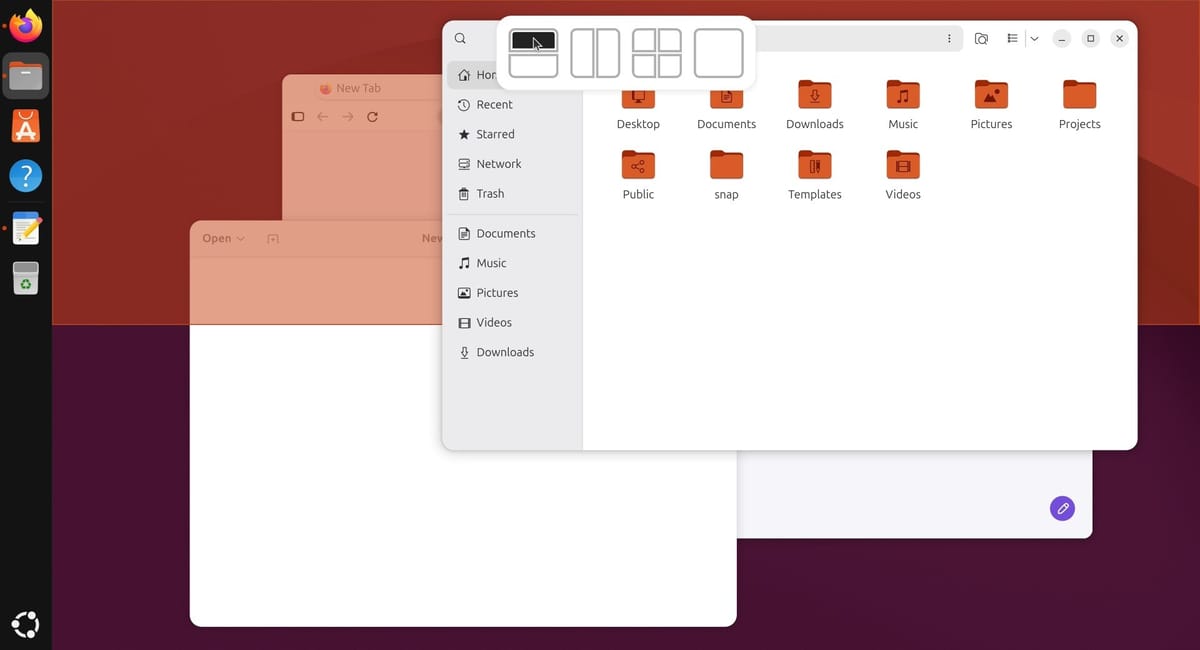
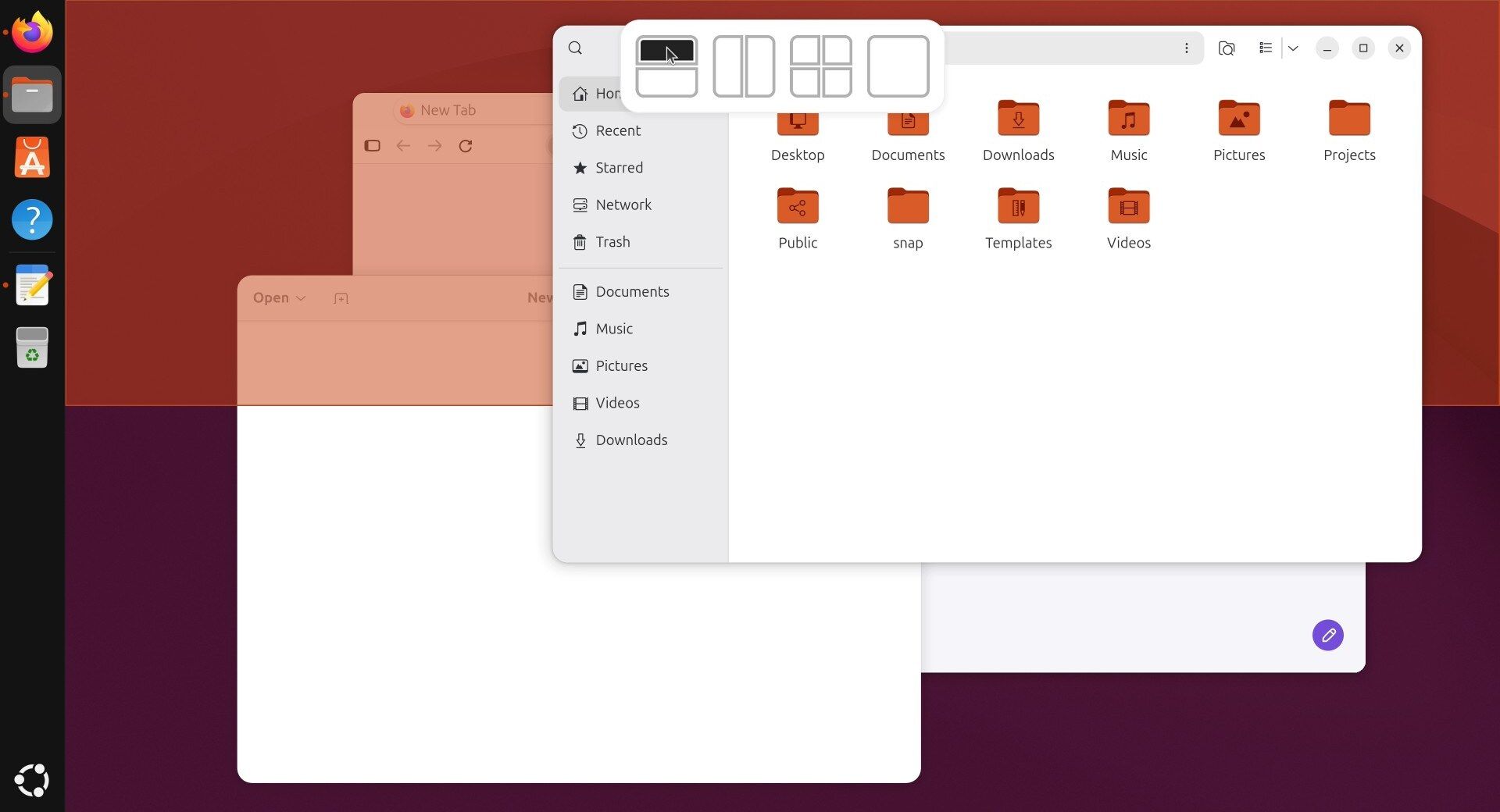
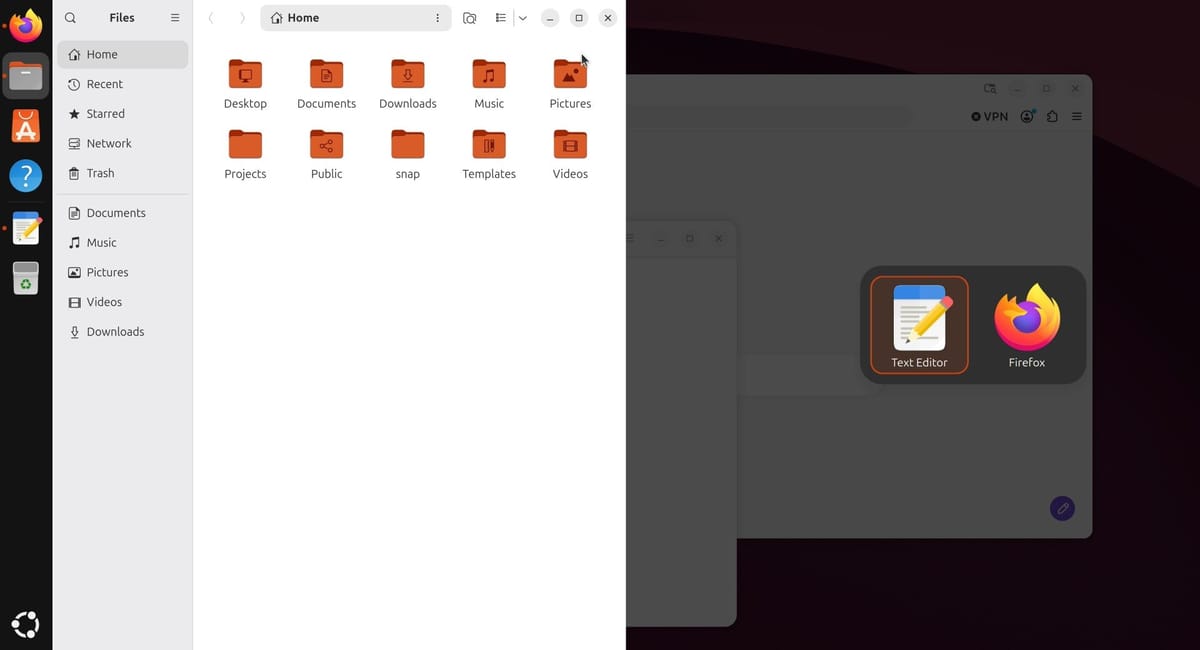
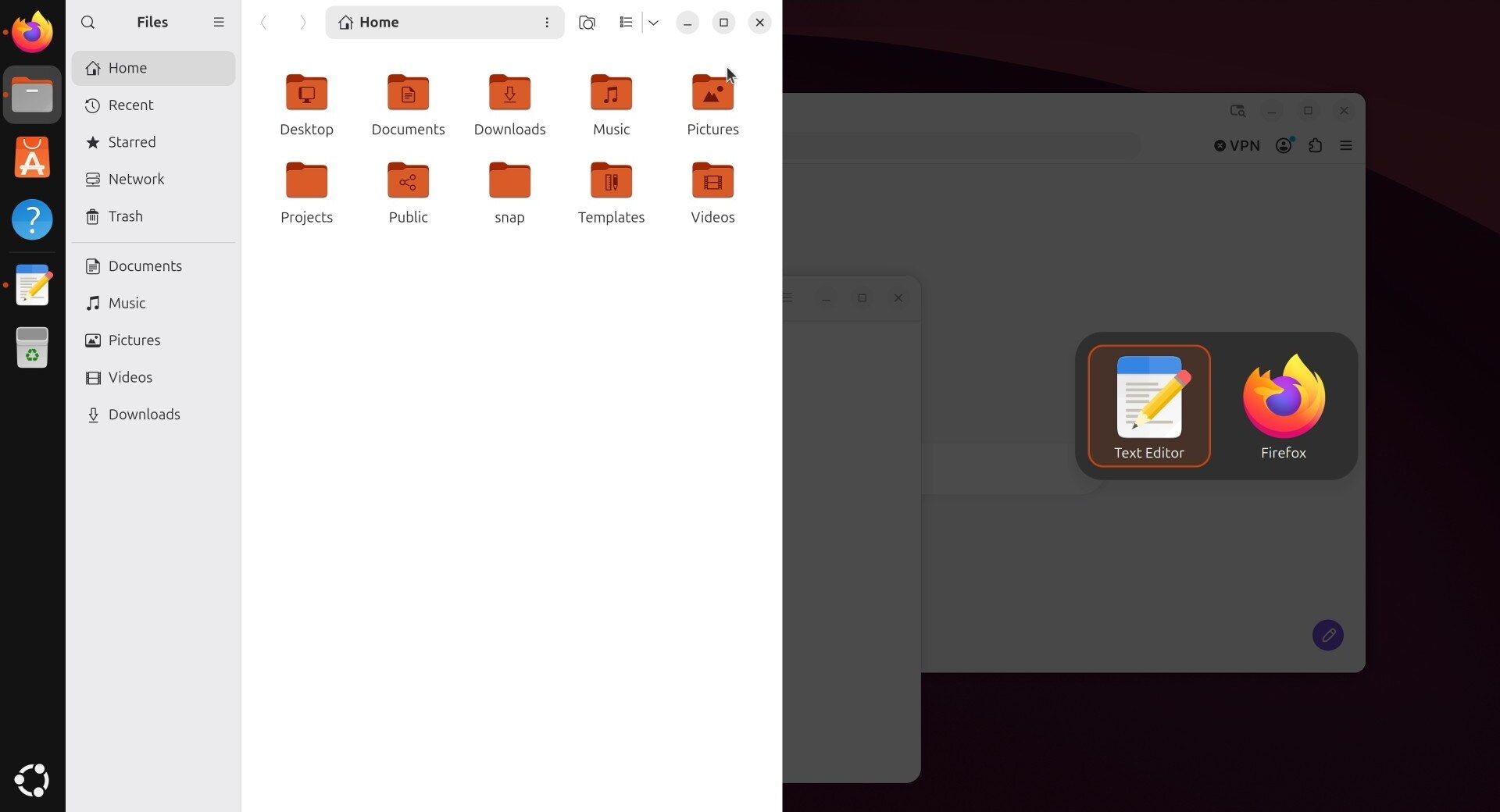
After a window snaps, Ubuntu offers your other open windows for the empty space. A dark box shows their icons and names, with the most recently used one selected. Click one, or press enter to take the selected one, and it fills the other half. Quarters work like the halves, and full screen is the fourth icon. Dragging a full-screen window down brings the picker back, so you can move it straight into a half.
The picker offers the halves, quarters, and full screen that Tiling Assistant already offers. It does not add new sizes, and you cannot make your own layouts. It shortens the distance your pointer travels, since you no longer have to push a window into a corner of a large monitor to get a quarter. Joey Sneddon at OMG! Ubuntu found it on his test install and noted that it arrived late in the cycle, after the user-interface freeze.
How to turn off the layout picker
The picker is part of Tiling Assistant, the window-snapping extension that Ubuntu ships and turns on by default. Its switch is not in Settings: Settings > Ubuntu Desktop has the Enhanced Tiling options, but no picker setting. The switch is in the extension’s own preferences window, which you can open from a terminal. Press ctrl alt t and run:
gnome-extensions prefs tiling-assistant@ubuntu.comOn the General page, under Layout Picker, turn off Show Layout Picker. The description under it reads “When moving a window, reveal a menu at the top of the screen to pick a tile (halves, quarters or maximize) with the pointer.”
This command turns off the same setting:
gsettings set org.gnome.shell.extensions.tiling-assistant enable-layout-picker falseChange false to true to bring it back. To manage extensions with a window instead, install Extension Manager with sudo apt install gnome-shell-extension-manager, find Tiling Assistant in its list, and click the gear button next to it to open the same preferences.
New wallpapers drawn for Stonking Stingray
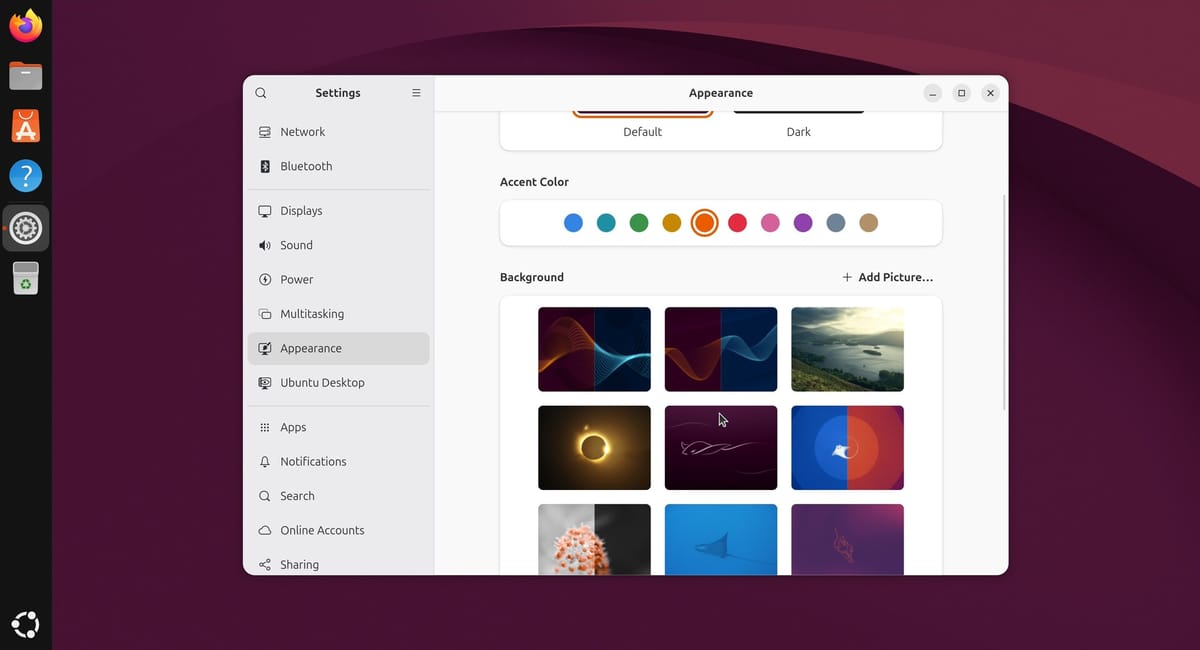
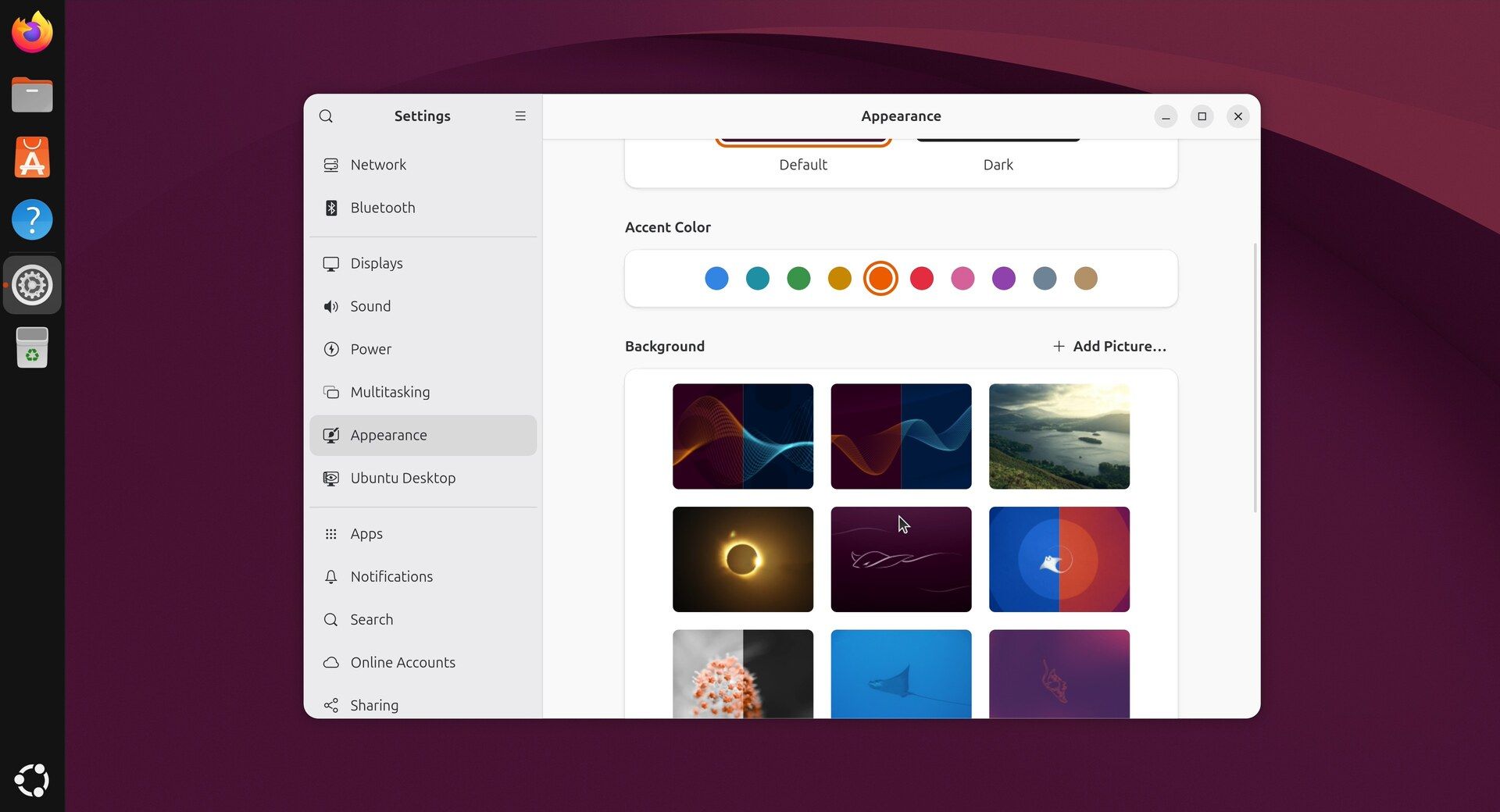
Open Settings and go to Appearance. The new default wallpaper is a purple wave with a small stingray emblem in the middle, and it is what you see behind the Settings window on a fresh install. Scroll down in the Background section to find a set of stingray designs drawn for the release’s code name. Clicking one changes the desktop right away, and an orange check mark on the thumbnail shows which wallpaper is in use.
Check if this computer is Ubuntu Certified
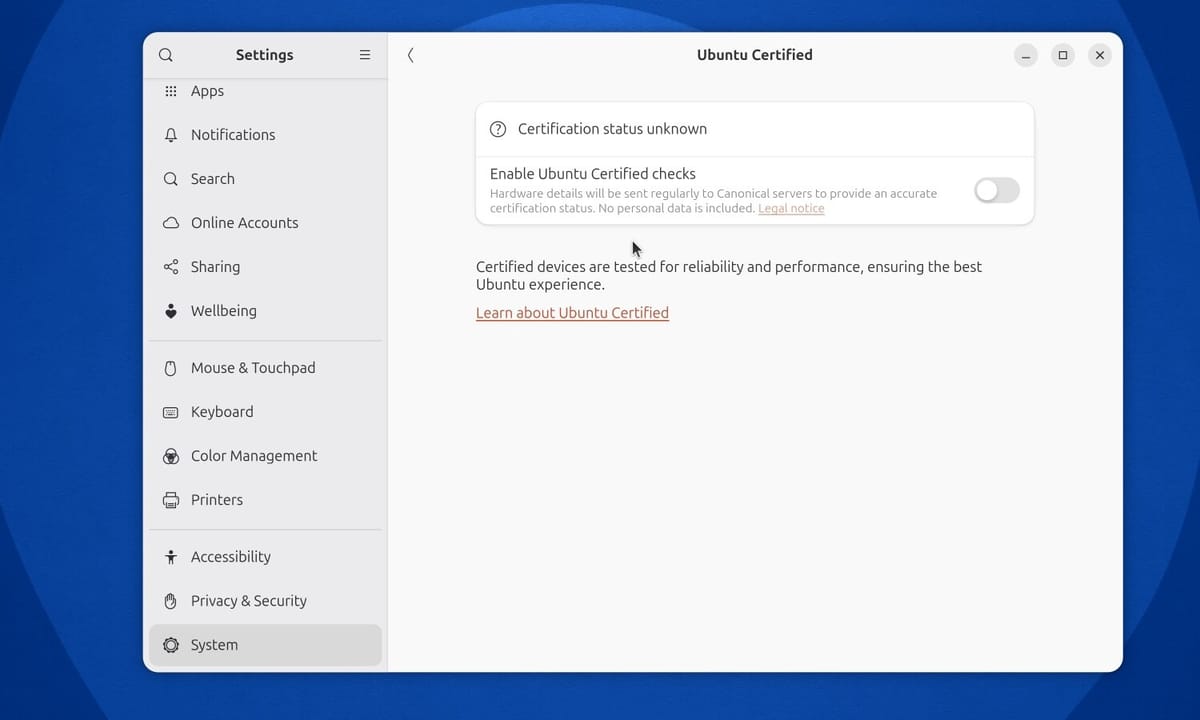
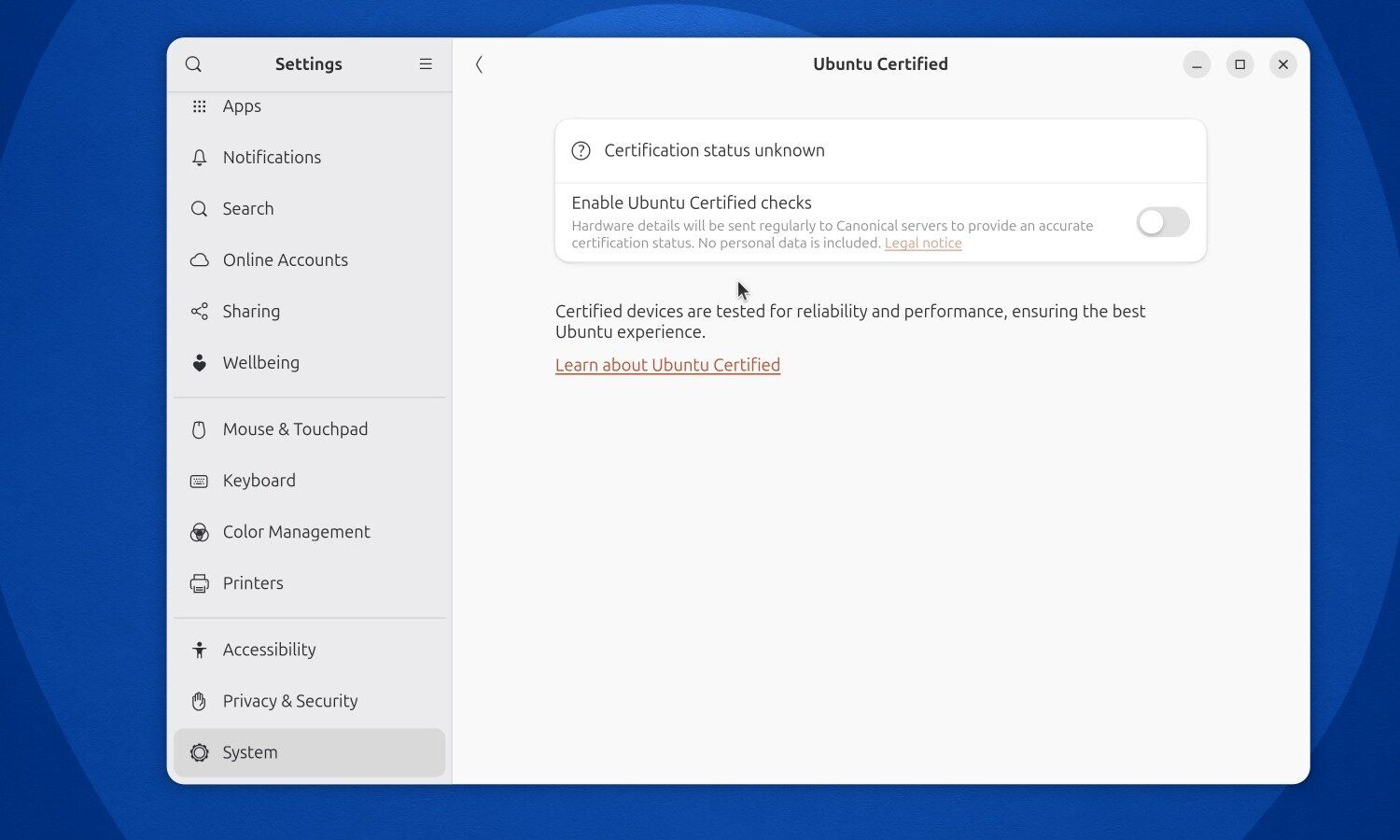
Settings has a new row under System: Check if this computer is Ubuntu Certified. Ubuntu Certified is Canonical’s program for testing specific computer models with Ubuntu, and our article on what the certification covers explains what it does and does not promise.
The row opens a page called Ubuntu Certified that starts with “Certification status unknown”. The check stays off until you turn on the switch labeled Enable Ubuntu Certified checks. The text under the switch says what turning it on means: “Hardware details will be sent regularly to Canonical servers to provide an accurate certification status. No personal data is included.” If you would rather not send anything, leave it off.
GNOME 51 and Linux 7.3
One row higher on the System page, About shows the two big version changes: the GNOME Shell Version row reads 51.0, and the Kernel Version row starts with Linux 7.3. Next to the GNOME version is a new button with the tooltip “Release Notes,” which opens the notes for the GNOME version you run. GNOME’s own GNOME 51 release notes list that button as part of a reorganized About page.
If you want to know which release a machine runs right now, our guide to checking your Ubuntu version covers the About page and the terminal commands.
Smaller GNOME 51 changes in Files and the screenshot tool
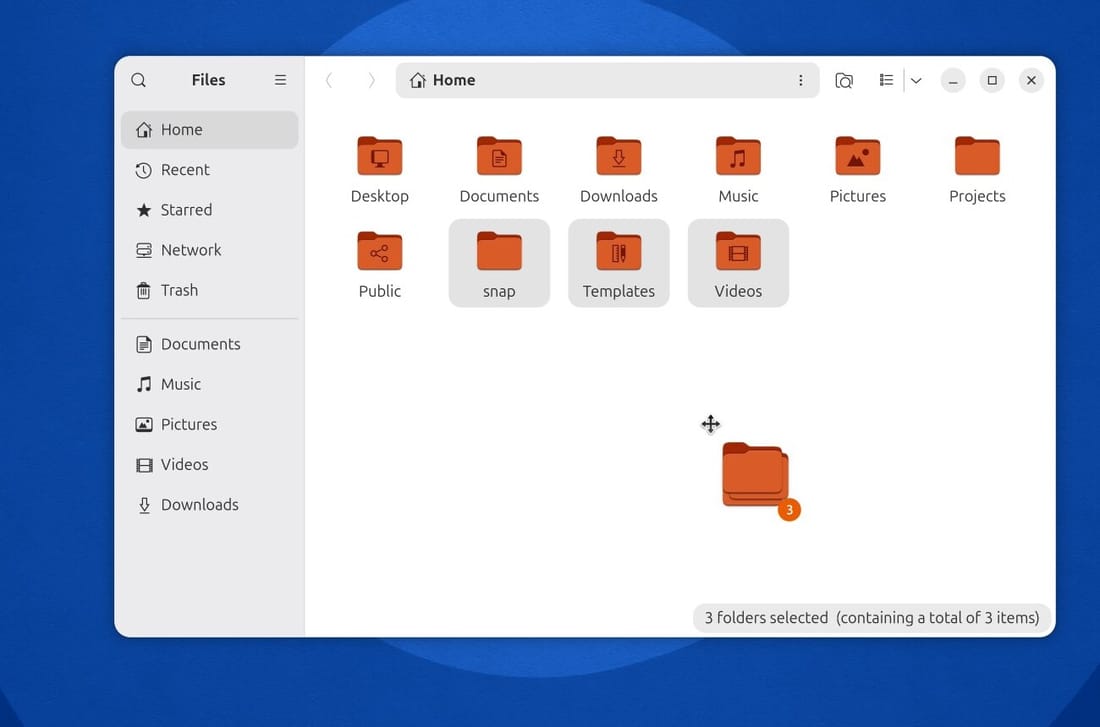
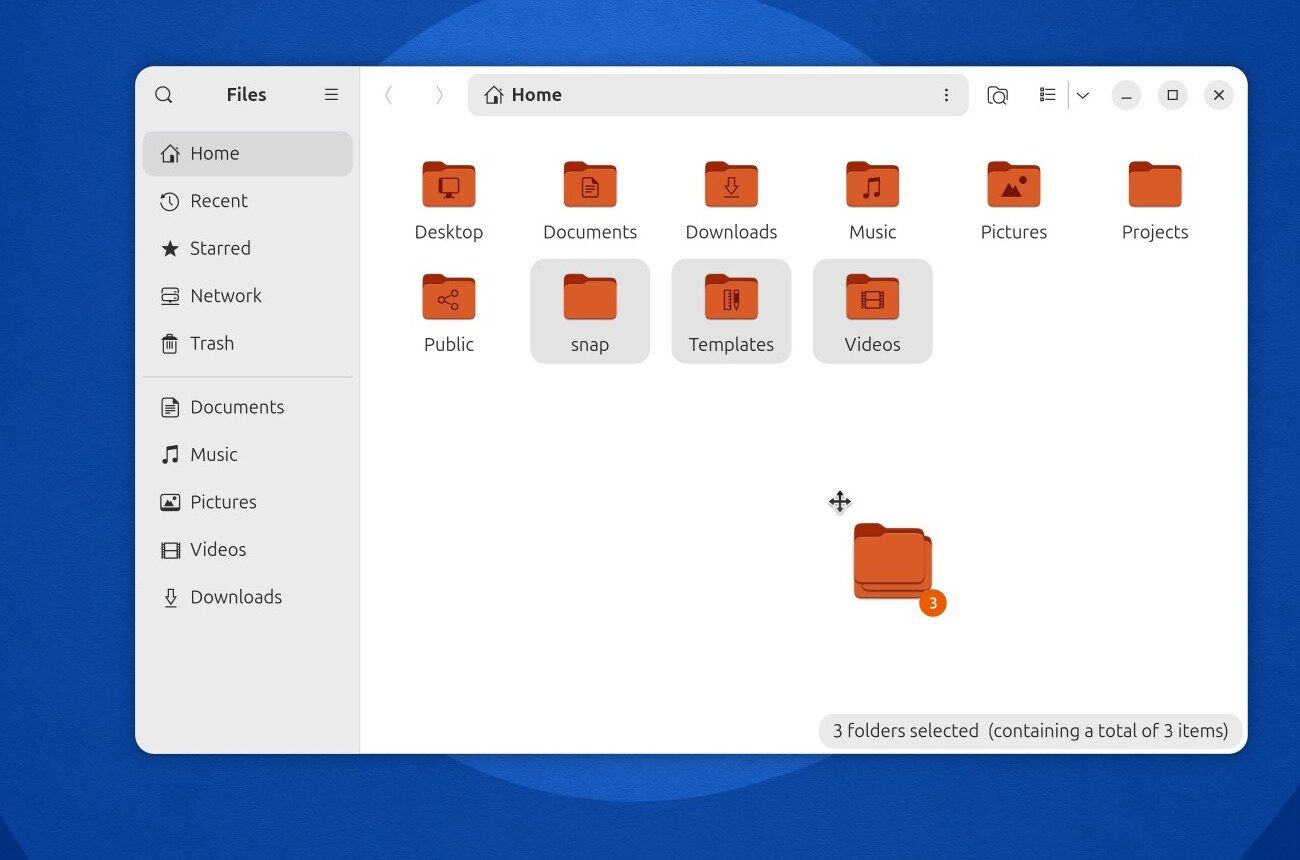
In Files, drag several selected items at once, and a small orange badge next to the dragged icon shows how many you are moving. Select three folders, start the drag, and the badge reads 3. The badge is one of the Files changes in the GNOME 51 release notes, along with faster folder loading and grouped notifications.
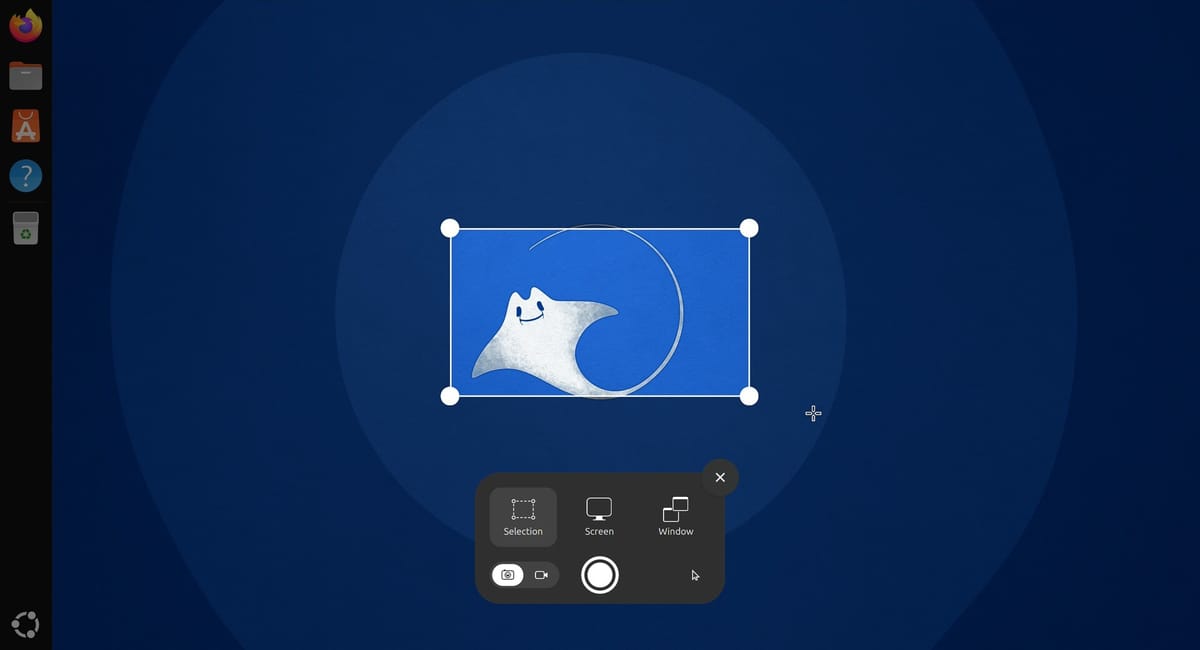
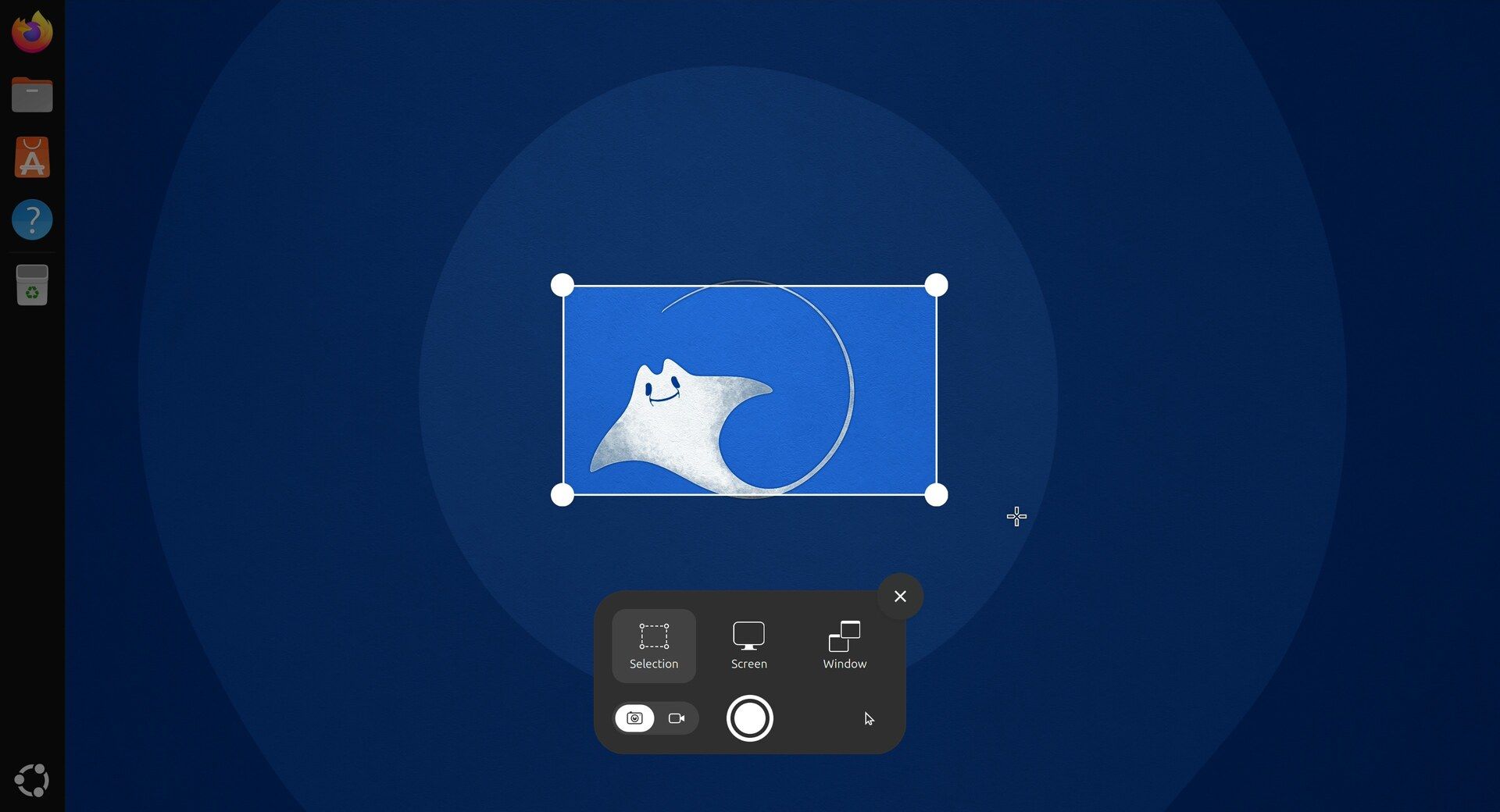
In the screenshot tool, the arrow keys now resize and move the selected area. Press the Print Screen key ( prtsc ), and with Selection chosen in the toolbar, the arrow keys grow or shrink the selected area. Each press moves one edge a few pixels: and push the left and top edges out, and pulls the left edge back in. With alt held, an arrow moves the whole area instead, which helps you line it up without the mouse.
GNOME’s notes add two more keys: shift or ctrl with an arrow make coarse or fine changes, and r resets the area. Press enter to take the screenshot. A notice says “Screenshot Captured,” the image goes to the clipboard, and the file is saved in the Screenshots folder inside Pictures.
cp, mv, and rm now come from a Rust rewrite
Ubuntu 26.04 already used uutils coreutils, a rewrite of the basic file commands in the Rust programming language, for most of them. Ubuntu 26.10 finishes the move. The 26.10 release notes say the remaining GNU versions of cp, mv, and rm, which had stayed because of compatibility issues, have now been migrated. You can check it in a terminal:
cp --versionThe first line of the answer is cp (uutils coreutils) followed by a version number. If a script of yours depends on GNU behavior, the release notes point to the 26.04 instructions for switching between the two.
Sequoia PGP, an OpenPGP implementation written in Rust, is now in the main archive, with sq and sqv as counterparts to gpg and gpgv; gpg is still available. Ubuntu now ships OpenSSL 4, and OpenSSH is split into two packages, so the default openssh-server and openssh-client no longer include GSSAPI and Kerberos support. People who log in with Kerberos at work need the new -gssapi packages, and the upgrader may pick them when it finds signs that a machine uses Kerberos.
How to get Ubuntu 26.10
You can install Ubuntu 26.10 fresh from the download, or upgrade a machine that runs Ubuntu 26.04 LTS. If you are still on Ubuntu 24.04 LTS, move to 26.04 first; our guide to upgrading Ubuntu 24.04 to 26.04 walks through it. Ubuntu upgrades one release at a time, so there is no direct path from 24.04 to 26.10.
Decide whether to leave the LTS track
Ubuntu 26.10 is an interim release. Canonical’s guide to LTS and interim releases says interim releases are supported for nine months, so 26.10 gets updates until July 2027, while Ubuntu 26.04 LTS gets them until 2031. After you move to 26.10, you upgrade about every six months: to 27.04 by July 2027, then to 27.10, until the next long-term release, 28.04. Canonical’s guide says you can switch back to following only LTS releases at two points: on the interim release just before an LTS (27.10, before 28.04), or after you upgrade to an LTS. A machine you do not want to touch twice a year is better off staying on 26.04.
Change the release setting on 26.04
Out of the box, Ubuntu 26.04 only looks for new long-term releases. That choice sits in the file /etc/update-manager/release-upgrades, on a line that reads Prompt=lts. Fresh installs of 26.10 already use Prompt=normal, so this step is only for machines on 26.04. Ubuntu 26.04 does not include the Software & Updates app that used to hold this setting, so the quickest way is the terminal.
-
Press ctrl alt t to open a terminal.
-
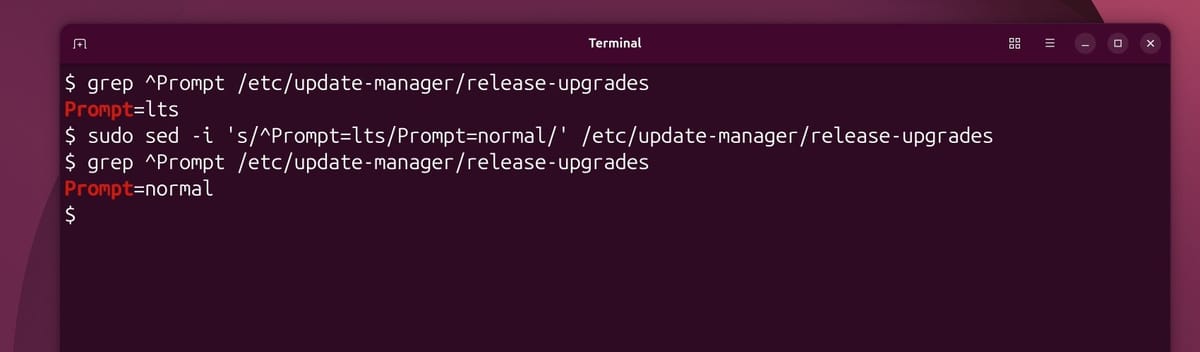
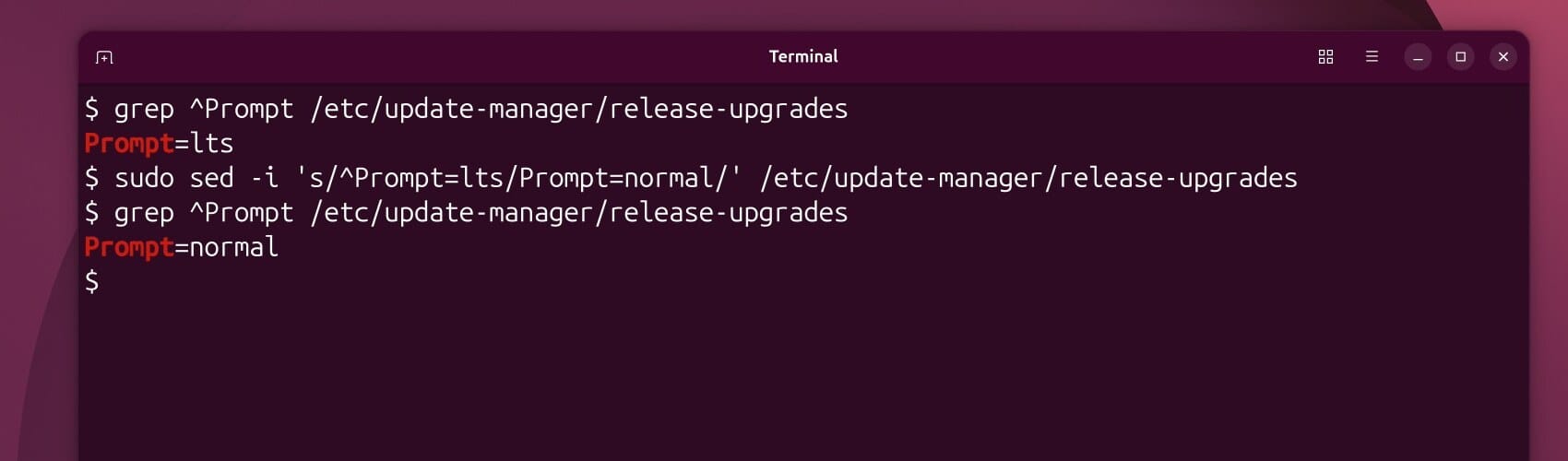
Check the current setting:
grep ^Prompt /etc/update-manager/release-upgradesOn a standard 26.04 install, it prints
Prompt=lts. -
Change the line to
Prompt=normal:sudo sed -i 's/^Prompt=lts/Prompt=normal/' /etc/update-manager/release-upgradessudoasks for your password first. Type it and press enter . The command prints nothing when it works. -
Check the line again:
grep ^Prompt /etc/update-manager/release-upgradesIt should now print
Prompt=normal.
To do it in a window instead, install Software & Updates with sudo apt install software-properties-gtk, open its Updates tab, and set Notify me of a new Ubuntu version to For any new version. It changes the same line. To go back to long-term releases only, run the sed command with lts and normal swapped.
Wait for upgrades to open, then upgrade
The new setting does not make 26.10 appear on release day. Canonical turns on upgrades to a new interim release days or weeks after it comes out. Ubuntu’s upgrade guide says a few days, but the wait can be longer. Ubuntu 25.10 came out on October 9, 2025, and OMG! Ubuntu reported that Canonical planned to turn on upgrades from 25.04 “on or before October 23rd”, two weeks later. The Upgrades section of the 26.10 release notes says when they are open.
Once they are, the upgrade itself works like any other Ubuntu release upgrade. Back up your files, install every waiting 26.04 update in Software Updater, and open Software Updater again. It says the software on the computer is up to date and that Ubuntu 26.10 is now available, with an Upgrade… button. From a terminal, sudo do-release-upgrade does the same. Our 24.04 to 26.04 guide goes through every question the upgrader asks, and the answers there apply to this upgrade too.


