
Ubuntu 26.04 LTS, code-named Resolute Raccoon, came out on April 23, 2026, and Canonical supports it until April 2031. Upgrades between long-term releases always wait for the first point release, and this time they also waited for fixes to rust-coreutils, the new Rust version of basic commands like ls. Ubuntu 26.04.1 arrived on August 27, and Canonical turned on upgrades from 24.04 on September 29, 2026.
This is the written companion to our upgrade video. It follows the same steps in the same order, with the exact wording of every dialog and the answer we gave. We upgraded an Ubuntu 24.04.5 desktop to 26.04.1 LTS with GNOME 50.1, in a virtual machine on VMware Workstation. From opening Software Updater to the 26.04 desktop, the work took about 18 minutes on a fast connection. Ubuntu’s own upgrade guide says to allow up to an hour.
What changes in 26.04
The upgrade brings two years of changes from three interim releases. The desktop moves from GNOME 46 to GNOME 50, and the kernel moves to Linux 7.0 (24.04.5 machines on the HWE kernel already run 7.0; ours did). Ptyxis replaces GNOME Terminal as the default terminal, Papers opens documents, Loupe opens images, and Resources replaces System Monitor. In a terminal, sudo is now sudo-rs, a Rust rewrite. Ubuntu 26.04 also adds AMD’s ROCm libraries to the Universe repository, and our guide to which hardware runs Ubuntu’s inference snaps best covers running local AI models on it.
The Ubuntu desktop session now runs only on Wayland, so the “Ubuntu on Xorg” choice at the login screen is gone. Apps that still need X11 run through XWayland. The full list is in Canonical’s summary for LTS users. Read it before you start, because it lists the changes that can affect your own setup.
Before you start
Back up anything you cannot lose. The upgrade keeps your files and settings, but it replaces most of the system, and there is no supported way back to 24.04: going back means a fresh install. Copy your home folder to an external drive, or take a snapshot if you run Ubuntu in a virtual machine (we did). Plug in a laptop before you start.
Check your free disk space. The upgrader needs several gigabytes. Ours downloaded about 2 GB of packages, and the upgrader checks the space itself and stops with a message if there is not enough. This command shows the free space on the system disk:
df -h /Make a note of your PPAs and third-party sources. Software from outside Ubuntu, such as a PPA, Google Chrome, or a VPN client, comes from extra sources that the upgrade may switch off. List them now, so you know what to check afterwards:
ls /etc/apt/sources.list.d/A stock install has ubuntu.sources, and often a leftover installer copy called ubuntu.sources.curtin.orig. Anything else is a third-party source.
Install every 24.04 update first. Ubuntu offers the upgrade only to a system that is up to date. Press super (the Windows key on a PC keyboard), type software updater, and press enter .
Software Updater checks for updates, then says “Updated software has been issued since Ubuntu 24.04 was released. Do you want to install it now?” Our machine had 7 security updates and 23 other updates, about 8 MB in all, which you can see under “Details of updates”. Click Install Now. When it says “The computer needs to restart to finish installing updates,” click Restart Now.
If you prefer the terminal, these commands do the same job. Use full-upgrade rather than upgrade, because a package that upgrade keeps back will block the release upgrade:
sudo apt update
sudo apt full-upgrade
Start the upgrade in Software Updater
After the restart, open Software Updater the same way. This time it says “The software on this computer is up to date. However, Ubuntu 26.04.1 LTS is now available (you have 24.04).” Click Upgrade….
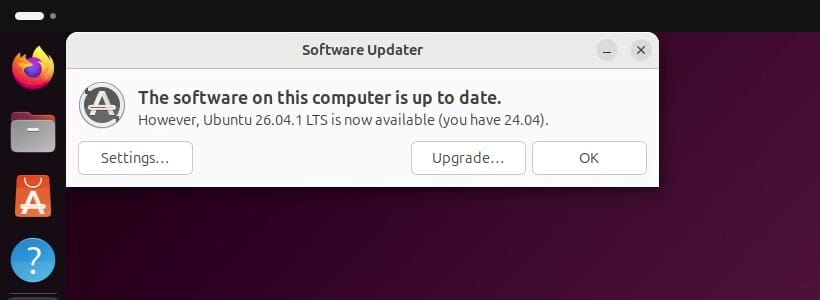
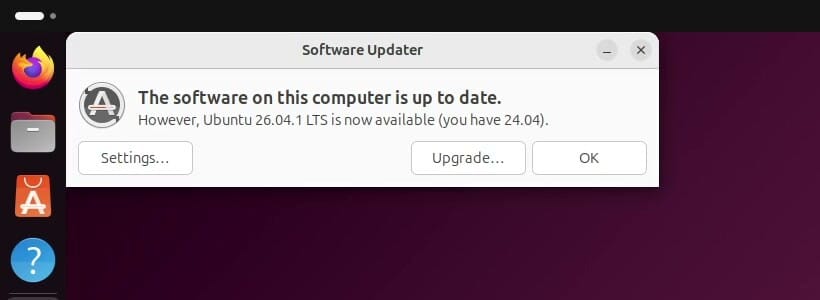
A password prompt appears: “Authentication Required. To upgrade Ubuntu, you need to authenticate.” Type your password and click Authenticate. (Our test machine was set up to skip this prompt, so it does not appear in the video.) Do not click Cancel here: it closes Software Updater with no message, and you have to start again.
The upgrade is not offered yet
Canonical rolls the offer out to 24.04 machines over several days, so yours may still say only that the software is up to date. To make Software Updater check for a new release right away, run this in a terminal:
update-manager -cYou can also skip the wait and use the terminal path below, which works as soon as upgrades are open. If neither offers 26.04, open /etc/update-manager/release-upgrades and check that it says Prompt=lts. A value of never turns release upgrades off. You do not need the -d option that older guides use: it targets a development release, and 26.04.1 is a normal release now.
The release notes and the upgrade summary
The upgrader opens a Release Notes window first, with Cancel and Upgrade buttons. In our VMware machine the notes area stayed blank, but the upgrade itself ran normally. The same notes are on documentation.ubuntu.com. Click Upgrade.
The Distribution Upgrade window lists six steps, from “Preparing to upgrade” to “Restarting the computer”. It checks the system and works out the changes, which took about a minute for us. Then it asks “Do you want to start the upgrade?” Our machine had 21 packages to remove, 187 new packages to install, and 1448 to upgrade, with a 2,012 MB download. Details opens the three lists.
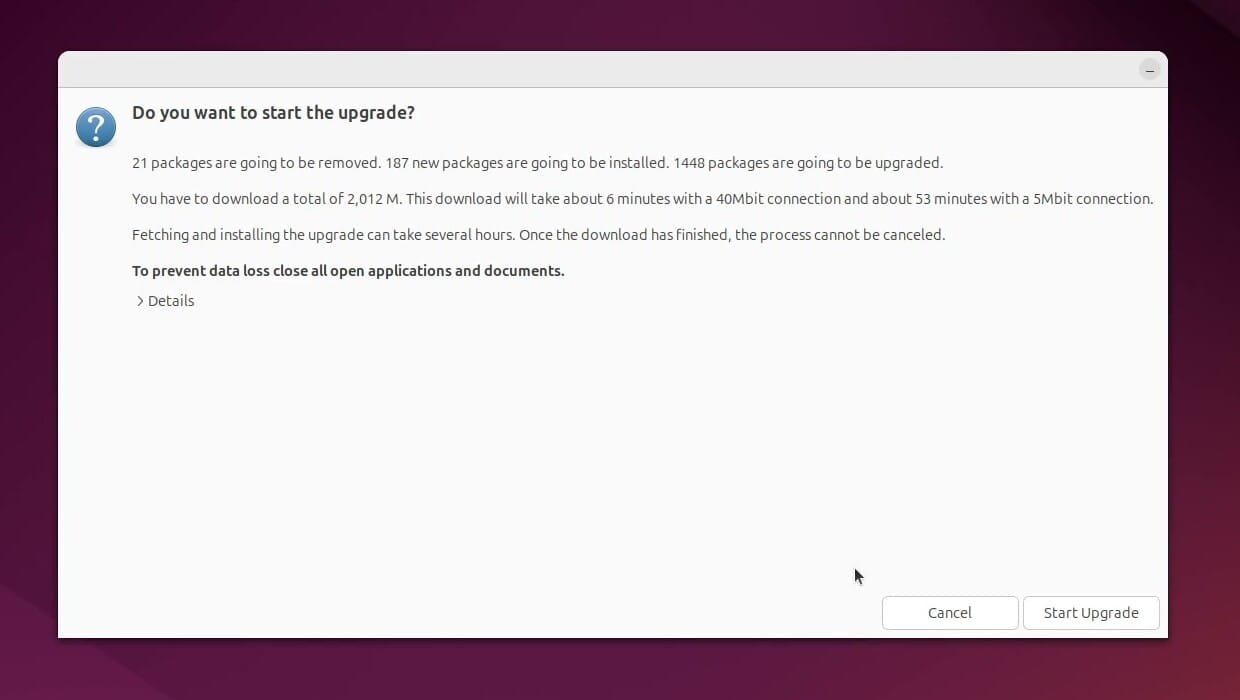
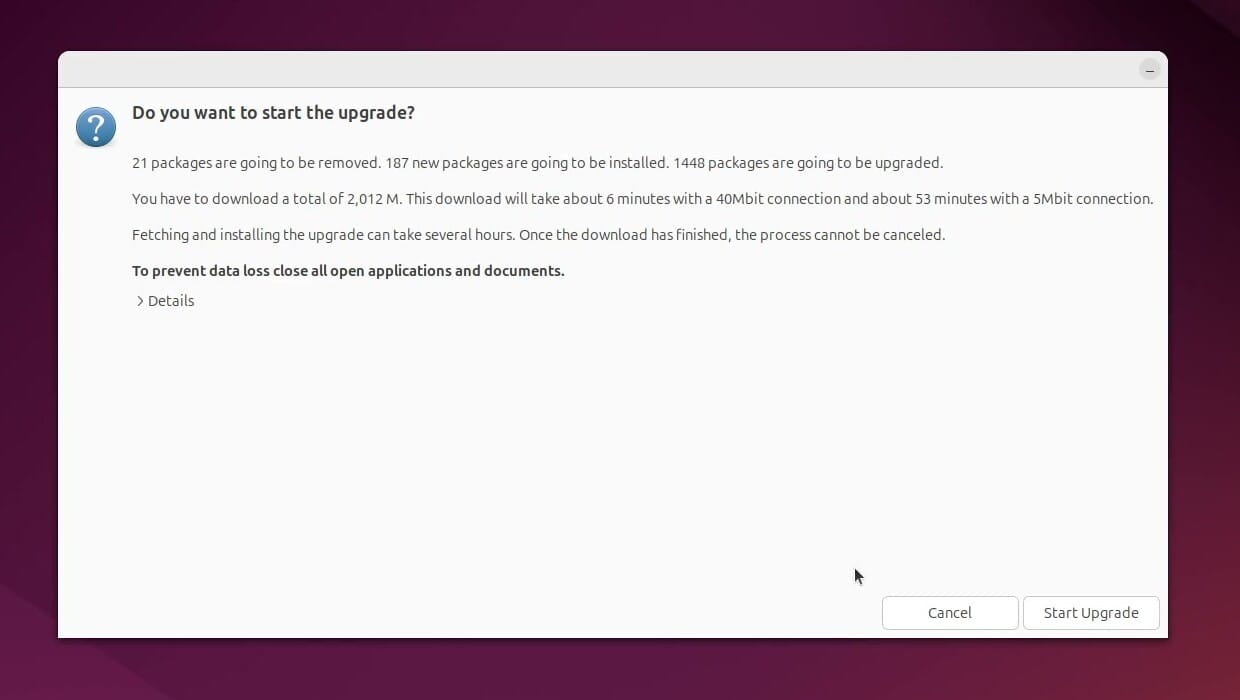
Read the last lines before you click. Once the download finishes, the upgrade cannot be canceled, and the dialog asks you to close all open applications and documents. Save your work, close your other apps, and click Start Upgrade.
A notice says “Lock screen disabled”. The lock screen stays off until the upgrade is done, so stay near the computer or keep it somewhere safe. The upgrade does not go on until you click Close.
Answer the questions the upgrader asks
The upgrader stops several times to ask a question, and it waits as long as you take to answer. Check on it every few minutes, or the upgrade sits idle.
Third-party sources
If you added PPAs or other third-party sources, the upgrader may switch them off and tell you so. If it finds packages that came from outside Ubuntu, it can also show a “Foreign Packages Installed” prompt. Continue the upgrade, and turn the sources back on afterwards (see below). If the upgrade fails because of one of those packages, Ubuntu’s guide says to remove the package, upgrade, and install it again later. Our machine had no third-party sources, so it asked nothing here.
Configuring libc6
After the download, which took under a minute on our connection, a window called Configuring libc6 asks one question with a check box: “Restart services during package upgrades without asking?”
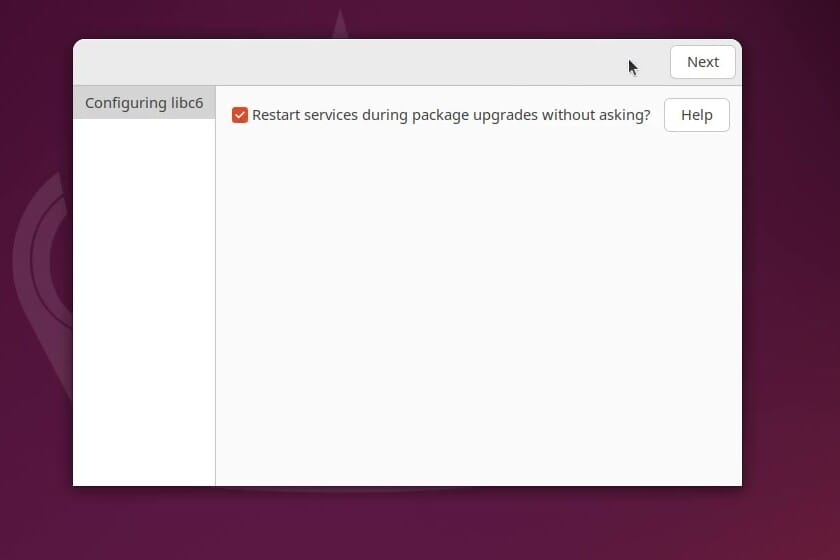
Tick the box and click Next. Background services then restart on their own when their packages update, instead of the upgrade stopping to ask about each one. On a desktop that is the right answer. With the box ticked, our upgrade asked no more service questions.
Installing the upgrades
On our machine this step ran for about ten minutes, the longest part of the upgrade, with no questions. Partway through, the wallpaper changes to the 26.04 design and some dock icons change. Ubuntu’s upgrade guide calls these visual glitches normal while the upgrade runs, so leave the computer alone until it finishes.
Replace the customized configuration file?
Near the end, the upgrader asks “Replace the customized configuration file ‘/etc/gdm3/custom.conf’?” This question appears when you changed a system configuration file that the new release also changes. Your file name may be different. Ours was the settings file for GDM, the login screen, because we set our test machine to log in by itself.
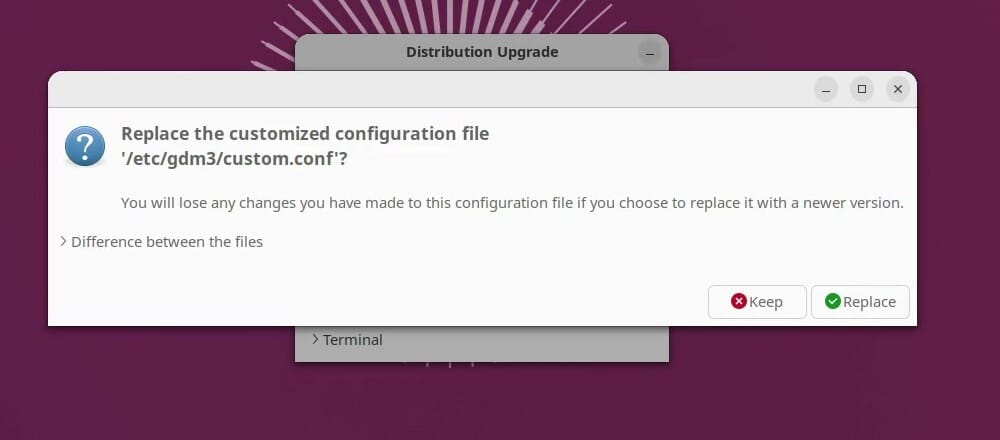
Keep holds on to your changes, so it is the safe choice, and it is what we clicked. Replace installs the new release’s version and throws away your edits. If you are not sure what you changed, open “Difference between the files” to compare them first. When you keep your file, the package’s new version is normally saved next to it with a .dpkg-dist ending, so you can merge any new settings later.
Remove obsolete packages?
Next, the upgrader offers to remove packages that 26.04 no longer needs. On our machine that was 162 packages.
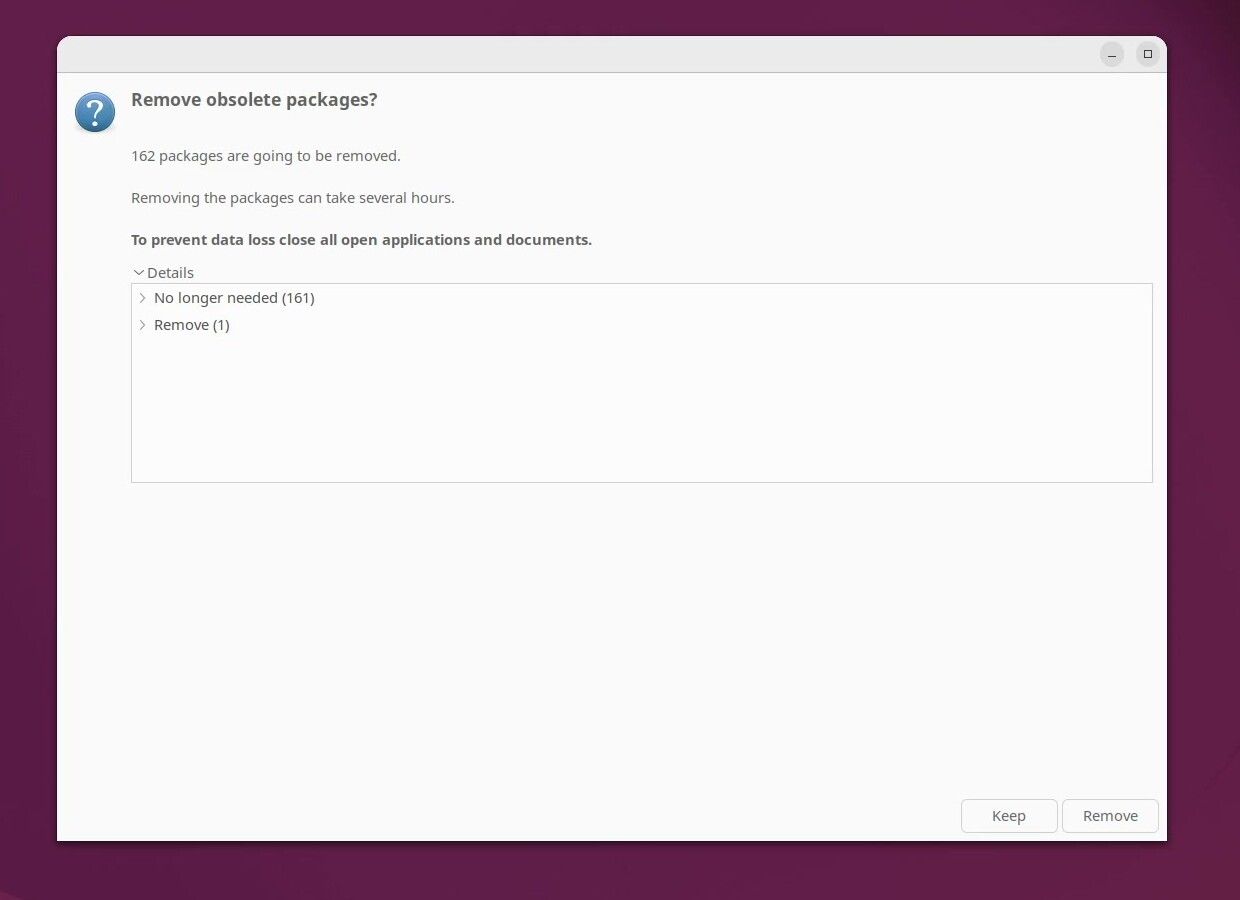
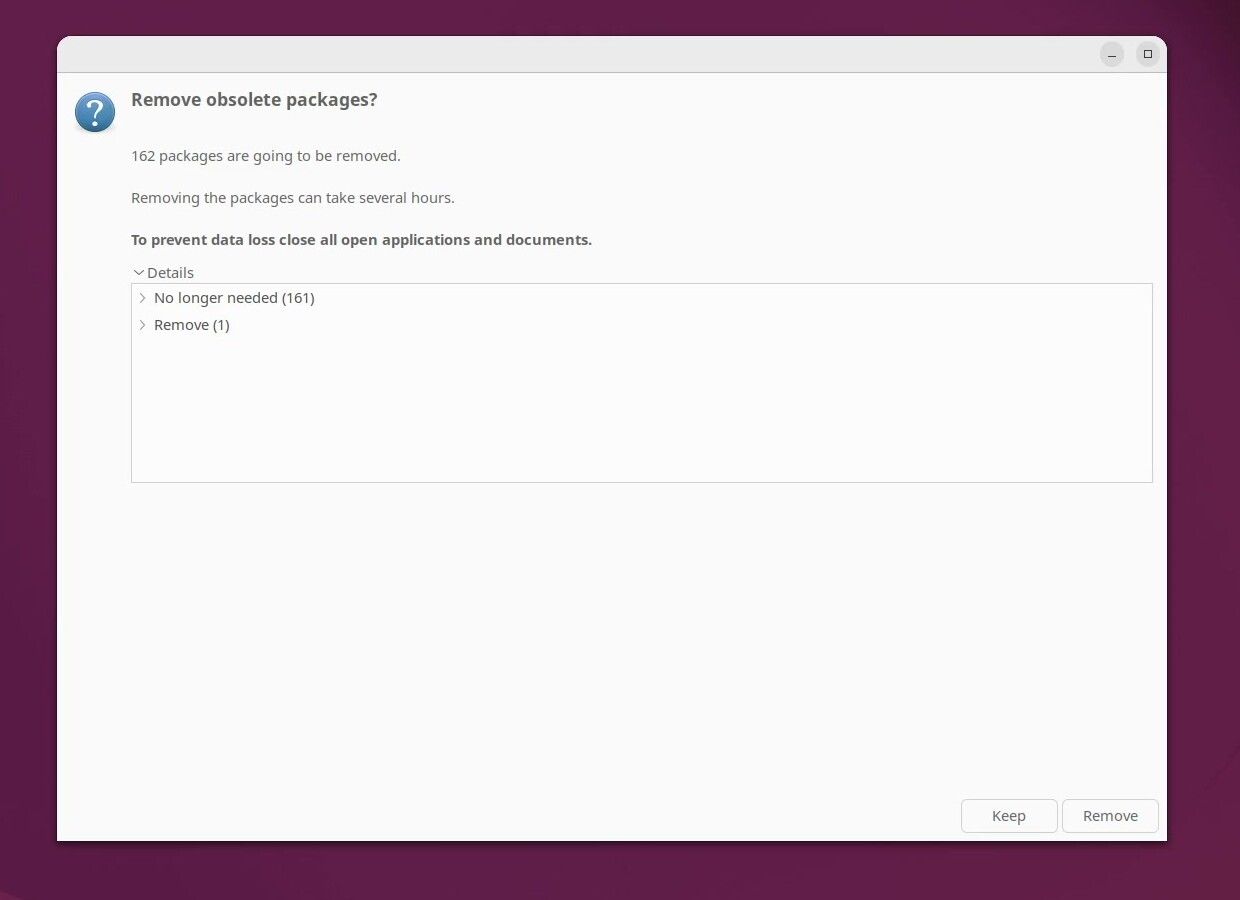
Click Remove, unless you know that you need one of them; you can open Details to check the list. Ubuntu’s guide gives the same advice. The removal and clean-up took just over a minute for us.
Restart the system to complete the upgrade
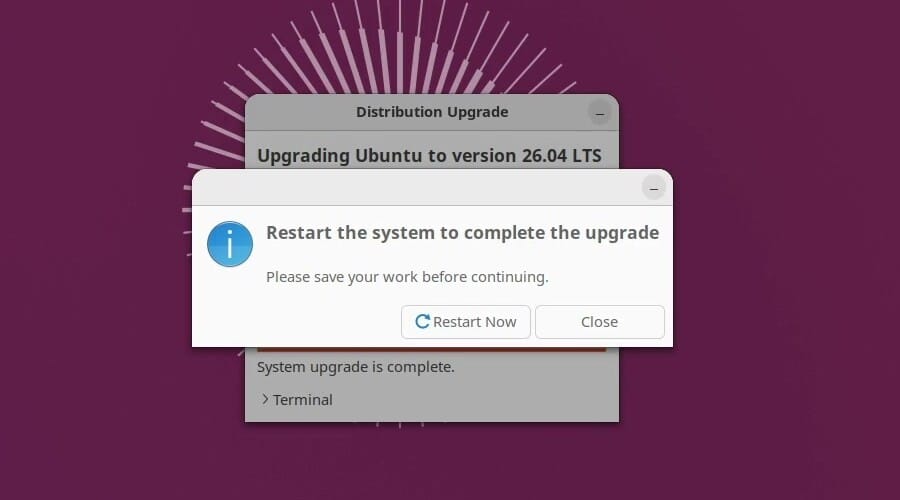
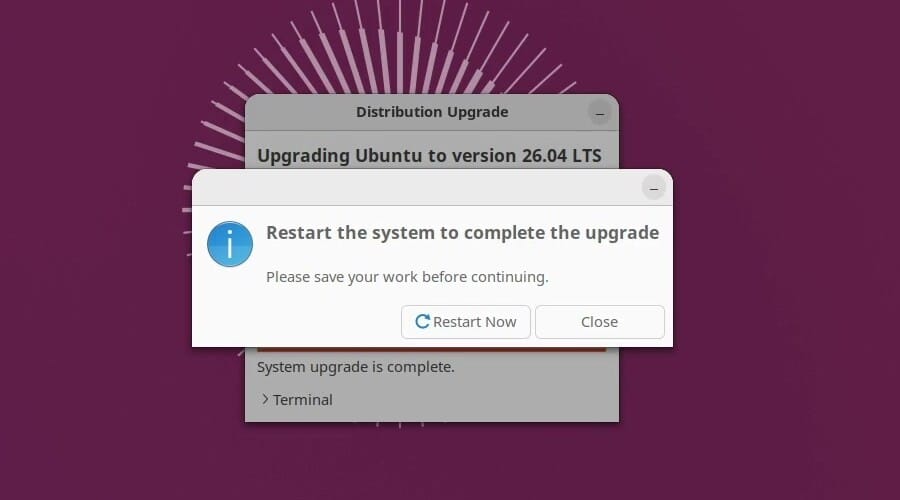
The last dialog says “Restart the system to complete the upgrade. Please save your work before continuing.” Click Restart Now. The first boot after an upgrade can be slower than usual while the system finishes its setup.
Upgrade from the terminal with do-release-upgrade
do-release-upgrade runs the same upgrader in a terminal, and it works on a desktop or a server. Install the 24.04 updates first, restart if asked, then run:
sudo do-release-upgradeIt asks the same questions as the graphical upgrader, in text. You confirm the start of the upgrade and the removal of obsolete packages by typing y and pressing enter . The libc6 question opens as a text screen; choose Yes. A changed configuration file brings a prompt with a list of keys. N (or O) keeps your version, which is the safe answer, Y (or I) installs the new version, and D shows the differences. At the end, it asks to restart.
If you run it over SSH, the upgrader warns you before it starts, because a dropped connection in the middle of an upgrade is hard to recover from. Run it from a local console when you can.
After the upgrade
After the restart, a welcome window says “Welcome to Ubuntu 26.04.1 LTS!” Click Next. On the following pages, you can skip Ubuntu Pro for now, choose whether to turn on location services and the two “Help Improve Ubuntu” switches (we left all three off), and pick a look before you click Finish.
Check the version
Open the system menu in the top right corner and click the settings button. Click System at the bottom of the list, then About. It should say Ubuntu 26.04.1 LTS. System Details lists the GNOME version, the windowing system (Wayland), and the kernel; ours showed GNOME 50 and Linux 7.0. In a terminal, cat /etc/os-release gives the same answer. Our guide to checking your Ubuntu version covers /etc/os-release, lsb_release, hostnamectl, and the About panel in Settings.
To see the new apps, click the grid button at the bottom of the dock. Resources and the new Security Center are there, along with Sysprof, a tool that finds what slows a program down. Terminal now opens Ptyxis. If you type sudo --version in it, it reports sudo-rs. On our upgraded machine the old GNOME Terminal was still installed alongside Ptyxis.
Turn your third-party sources back on
Some third-party sources can stay switched off after the upgrade, and nothing on the desktop tells you they are still off. List the source files again and compare the list with the one you made before you started:
ls /etc/apt/sources.list.d/Our machine had only Ubuntu’s own ubuntu.sources and the installer’s ubuntu.sources.curtin.orig. On a machine with PPAs or vendor sources, a file that now ends in .disabled was switched off; an open bug (LP #2167655) leaves some one-line .list sources that way. A .sources file was switched off if it contains the line Enabled: no.
Before you turn a source back on, check that it publishes packages for 26.04. Its address usually contains the release name, which for 26.04 is resolute. Many vendors publish new setup instructions for each release, and following those is often simpler than editing the old file. To turn on a .sources file, open it in an editor, change Enabled: no to Enabled: yes, and run sudo apt update. Running sudo apt update also shows an error for any source that has nothing for 26.04 yet.
You can do the same in the Software & Updates app, on the Other Software tab. The upgrade removed that app from our machine. To get it back, run:
sudo apt install software-properties-gtkStay on long-term releases
The upgraded system still follows long-term releases only, so it will not offer Ubuntu 26.10 in October. The setting is the line Prompt=lts in /etc/update-manager/release-upgrades, and our upgrade kept it. If you want the interim releases, change it to Prompt=normal.
If the upgrade fails or stops
“Please install all available updates for your release before upgrading.” A package is kept back, often one from a PPA or from backports. Run sudo apt update and sudo apt full-upgrade, restart, and try again.
Not enough free space. The upgrader says how much space it needs. Empty the Trash, remove apps you do not use, and run sudo apt autoremove and sudo apt clean to clear old packages, then try again.
The upgrade stopped or the computer lost power partway through. Start the computer again and log in. It may be able to resume. Then finish the half-installed packages and fix broken dependencies, as Ubuntu’s guide describes:
sudo dpkg --configure -a
sudo apt --fix-broken install
“Could not calculate the upgrade” or another error. Third-party packages often cause these. The upgrader writes its logs to /var/log/dist-upgrade/. Look in main.log for the package it names, remove that package, and run the upgrade again. If you report a bug, attach the files from that folder.
The desktop draws wrong in a virtual machine. The 26.04 release notes list a known issue: GTK 4 apps, including the wallpaper, may not display correctly in VirtualBox or VMware with 3D acceleration turned on. Turning off 3D acceleration in the virtual machine’s display settings avoids the condition the release notes name.
You want 24.04 back. Ubuntu does not support a downgrade. Restore your backup or snapshot, or reinstall 24.04, which receives security updates until 2029.


