
Omarchy and Ubuntu are both free, Linux-based operating systems. Ubuntu comes from Canonical, and its desktop explains each choice in a window with buttons. Omarchy comes from David Heinemeier Hansson; it opens ready to use, with its own apps, themes, and menus, and it expects you to learn its keyboard shortcuts.
If you are new to Linux, Ubuntu is the easier start: it works with the mouse, installs apps from a store, and installs security updates by itself. Omarchy suits a newcomer who wants to learn keyboard shortcuts, restyle the whole desktop in one pick, and start each update with a snapshot behind it. Omarchy is made for a computer that only you use; Ubuntu also suits a computer you share.
The versions in this guide
The Ubuntu side is Ubuntu 26.04.1 LTS, installed with the installer’s default choices and then fully updated. If you are not sure which release you have, our guide to checking your Ubuntu version shows four ways to find out.
The Omarchy side is a preview of Omarchy 4.5, the second release candidate (4.5.0rc2). The 4.5 release adds floating windows and a dock, which matter for a newcomer, so this guide uses it instead of 4.0. A release candidate is a test build, and the Omarchy 4.5.0rc2 release notes say to “expect bugs, rough edges, and the occasional thing that breaks outright.” A new Omarchy install starts on the stable channel, so until 4.5 is final, some menus on your machine can differ from the ones below.
On both systems, Super is the Windows key on a PC keyboard.
First boot
Omarchy opens on a disk password and a few cards
Omarchy’s installer encrypts the disk unless you opt out, so the first thing you see after the install is a password box. You type that password every time the computer starts. In return, someone who takes the computer while it is off cannot read your files.
After the password, Omarchy logs you in to its desktop: a dark theme called Tokyo Night, a bar along the top, and no welcome window or tour. A few notification cards stack up in the top right corner, and they stay until you click or dismiss them:
- Learn Keybindings: “Super + K for cheatsheet.” and “Super + Space for Omarchy Menu.” A click opens the keyboard shortcut list.
- Setup Git: “Identification for code commits.” A click opens Omarchy’s Git setup in a terminal, which sets the identity Git puts on your code commits. Git is the tool coders use to track changes, so you can ignore the card if you do not write code.
- Update System: “Click to update the system.” It shows only when updates are waiting.
- Setup Wi-Fi: shows instead when the computer has no network. A click opens the network panel.
Write down the two shortcuts on the first card. Once the cards are gone, nothing on the screen names them again. super k opens a searchable list of every shortcut, and super space opens the Omarchy menu, where every setting and install lives. The small icon at the far left of the bar opens the same menu with a click. Our list of Omarchy shortcuts to learn first covers the next few.
Omarchy is made for a single user. On an encrypted install, the disk password is the only password at boot, with no login screen after it. On an install without encryption, later boots show a login screen with one password box for the last account that logged in and no way to pick another one; you also see that screen after you log out. No menu adds another person. You can make a second account in a terminal with useradd, but the login screen cannot pick it. The Omarchy team has an open proposal for a Users page, with no release or date set.
Ubuntu opens a welcome window
Ubuntu’s installer asks two questions that shape the first boot. On its Applications page, Default selection gives you “Just the essentials, web browser and basic utilities”, and Extended selection adds an office suite and more tools. The Default selection has no video player, so a double-clicked video file gets “There is no app installed” until you add one. On the “Encryption and file system” page, the first choice is No encryption; pick Encrypt with a passphrase if you want the same protection Omarchy turns on for you.
The first login opens a welcome window that walks through a few settings, one page at a time:
- A welcome page for Ubuntu 26.04.1 LTS, with a link to the release notes.
- Ubuntu Pro, “Free for personal use”, with Skip for now selected. More on Pro under “Keeping it running” below.
- Location Services, off.
- Help Improve Ubuntu: sharing system data and error reports with the Ubuntu team, both off.
- Appearance: Default (light) or Dark style, and ten accent colors.
- Ready to go: a picture of popular apps (Spotify, VS Code, Brave, Steam, and others) above one button, Open App Center. The icons are part of the picture and do nothing when clicked; you pick apps one at a time in the App Center.
Every default on these pages leaves sharing and location off, and none of them asks you to sign in to an online account. You can change the settings later in Settings, and Ubuntu Pro in the Security Center app.
Ubuntu works for more than one person. The Users page in Settings adds an account for each person, with its own password, files, and settings. The login screen lists every account by name, so each person picks their own.
Getting your apps
Omarchy installs apps from its menu
Press super space and choose Install. The list groups apps by kind: Package, AI, Service, Development, Editor, Style, Gaming, Browser, Web App, and more below. Each entry installs at once when you click it or press Enter, in a floating terminal window, with no store page and no confirm button. For most entries, the terminal first asks for your password. When the install ends, press any key to close the window.
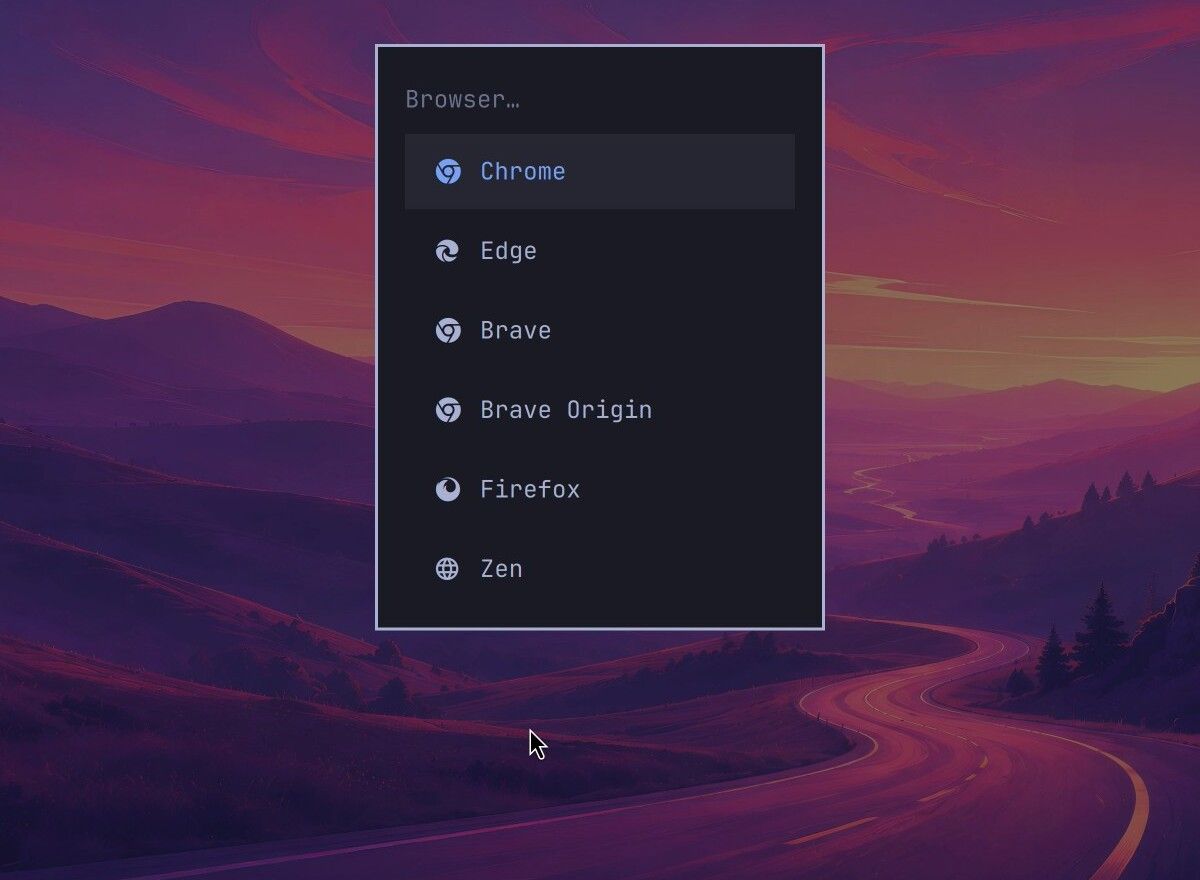
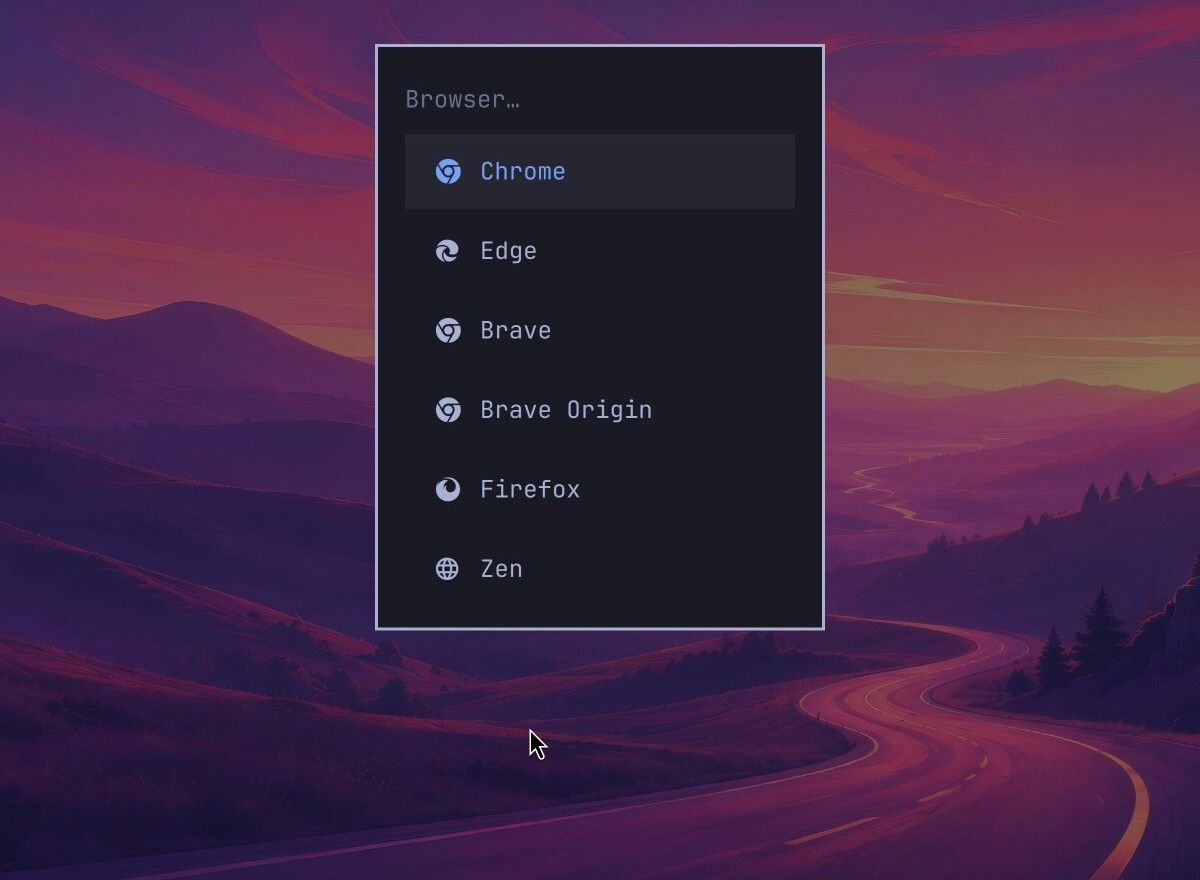
These are the paths for three common apps:
- Brave: Install, Browser, Brave. The terminal ends with “Brave browser installed. Make it the default via Setup > Defaults > Browser.” Brave does not open by itself.
- Spotify: Install, Service, Spotify. It opens by itself on its login screen when the install ends.
- VS Code, Microsoft’s code editor: Install, Editor, VSCode. It does not open by itself. Press super alt space to open the Apps grid, type
visual, and press Enter. Its first window asks you to sign in for GitHub Copilot; Continue without Signing In sits at the bottom right.
To make Brave the default browser, open the menu again and choose Setup, Defaults, Browser, then Brave. A notification says “Brave is now the default browser”, and from then on super shift enter , the browser shortcut, opens Brave. The first time, Brave shows four short setup pages; the last one, “Help make Brave better.”, has two usage-report boxes ticked, so untick them if you prefer before you click Finish.
Spotify sits under Service, which is hard to guess, but typing an app’s name in the Omarchy menu finds its entry. Omarchy also ships with apps already set up, among them LibreOffice, Obsidian, an image viewer, a media player, and web apps for sites such as Google Maps, Google Photos, WhatsApp, YouTube, and Zoom. For anything without an entry of its own, Install, Package lists every package in Arch Linux’s repositories, and you need the package’s exact name.
Ubuntu installs apps from the App Center
The App Center is the orange bag icon in the dock on the left. Type an app’s name in the search box at the top and press Enter. Results come in two groups, Snap packages and then Debian packages, and a green check mark after the publisher’s name means the App Center has verified that publisher.
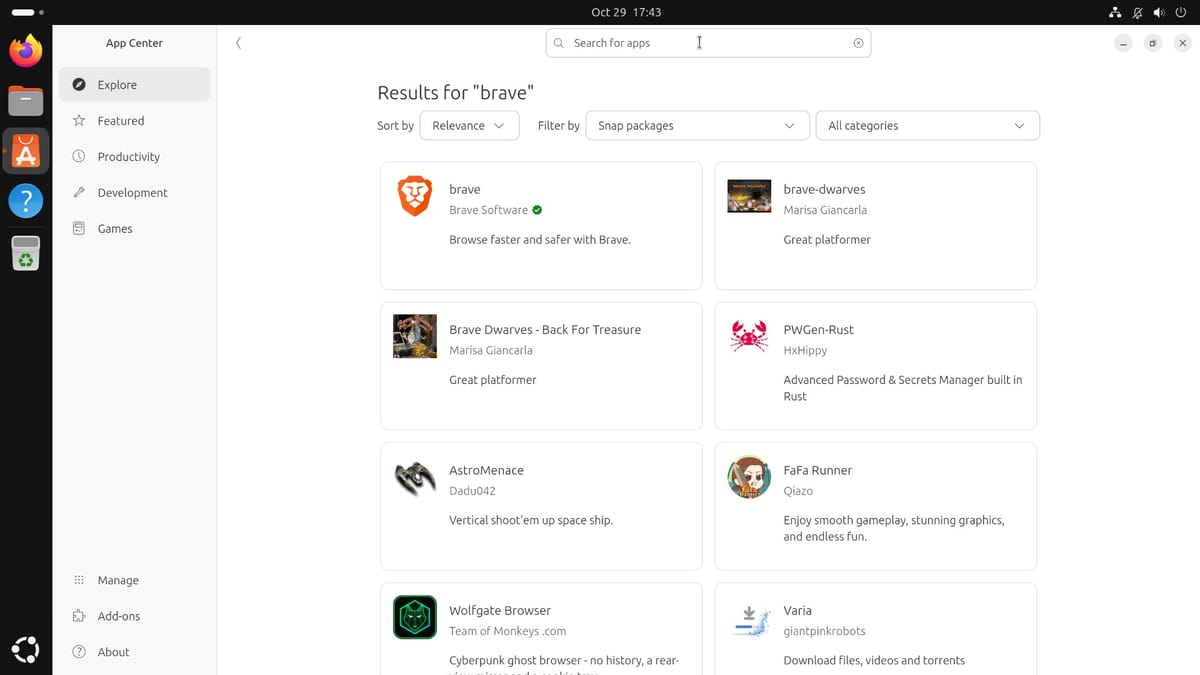
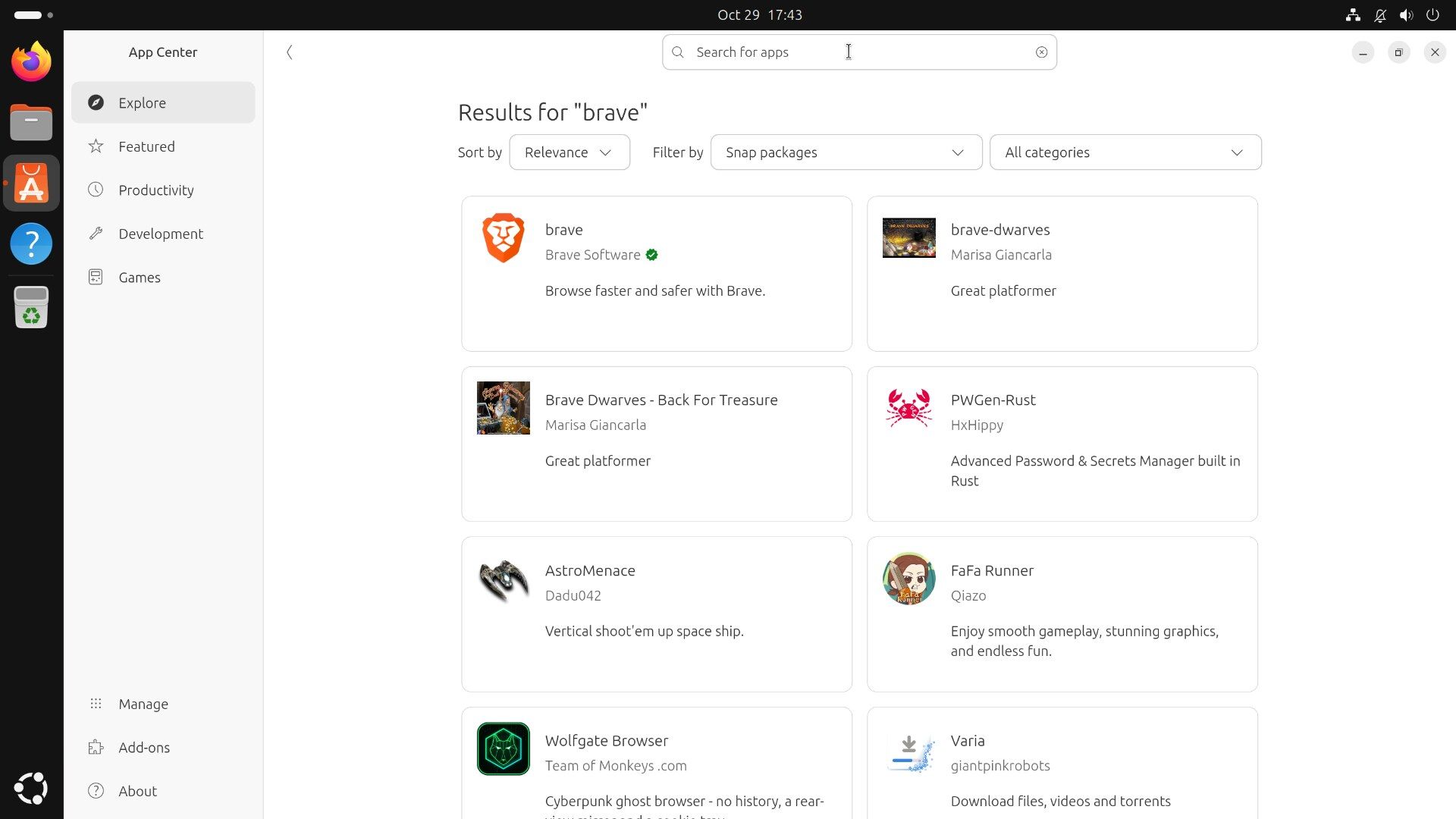
Search brave, click the first card (brave, from Brave Software), and click Install. Ubuntu asks for your login password in a window called Authentication Required; after you type it once, installs in the next few minutes do not ask again. When the button changes to Open, click it. Brave’s welcome page has a Set Brave as default browser button, and it opens a small Ubuntu window titled Question: “Allow settings change?” Click Yes, and Brave confirms with “Brave is now your default browser”.
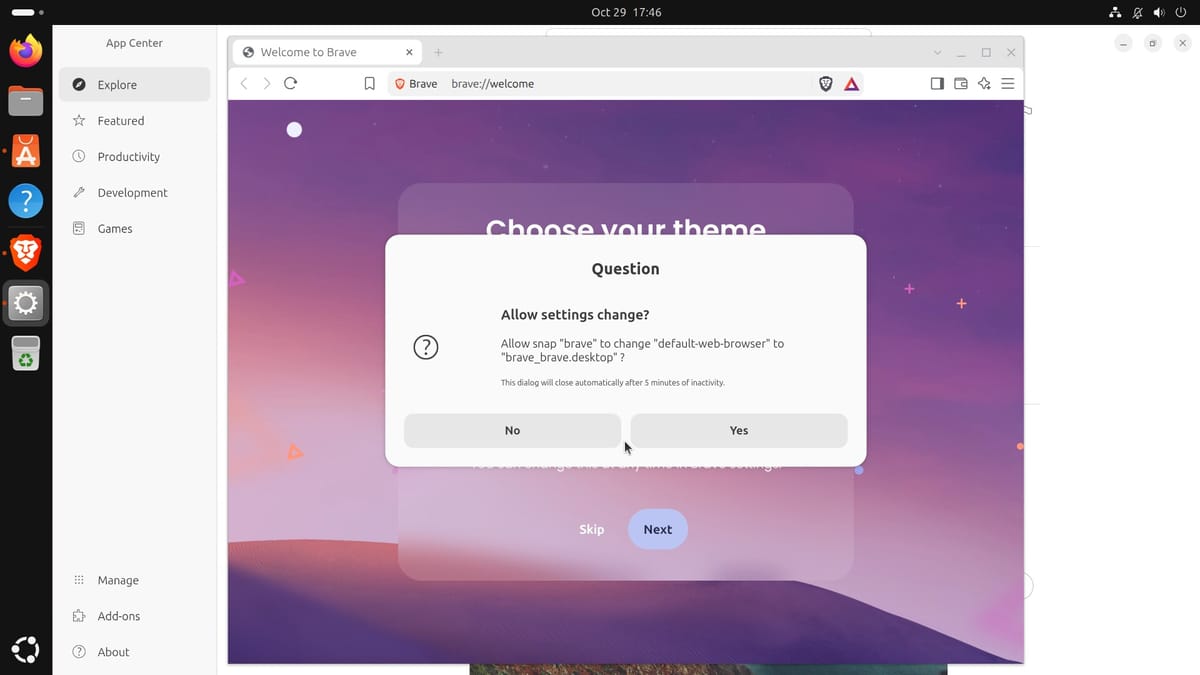
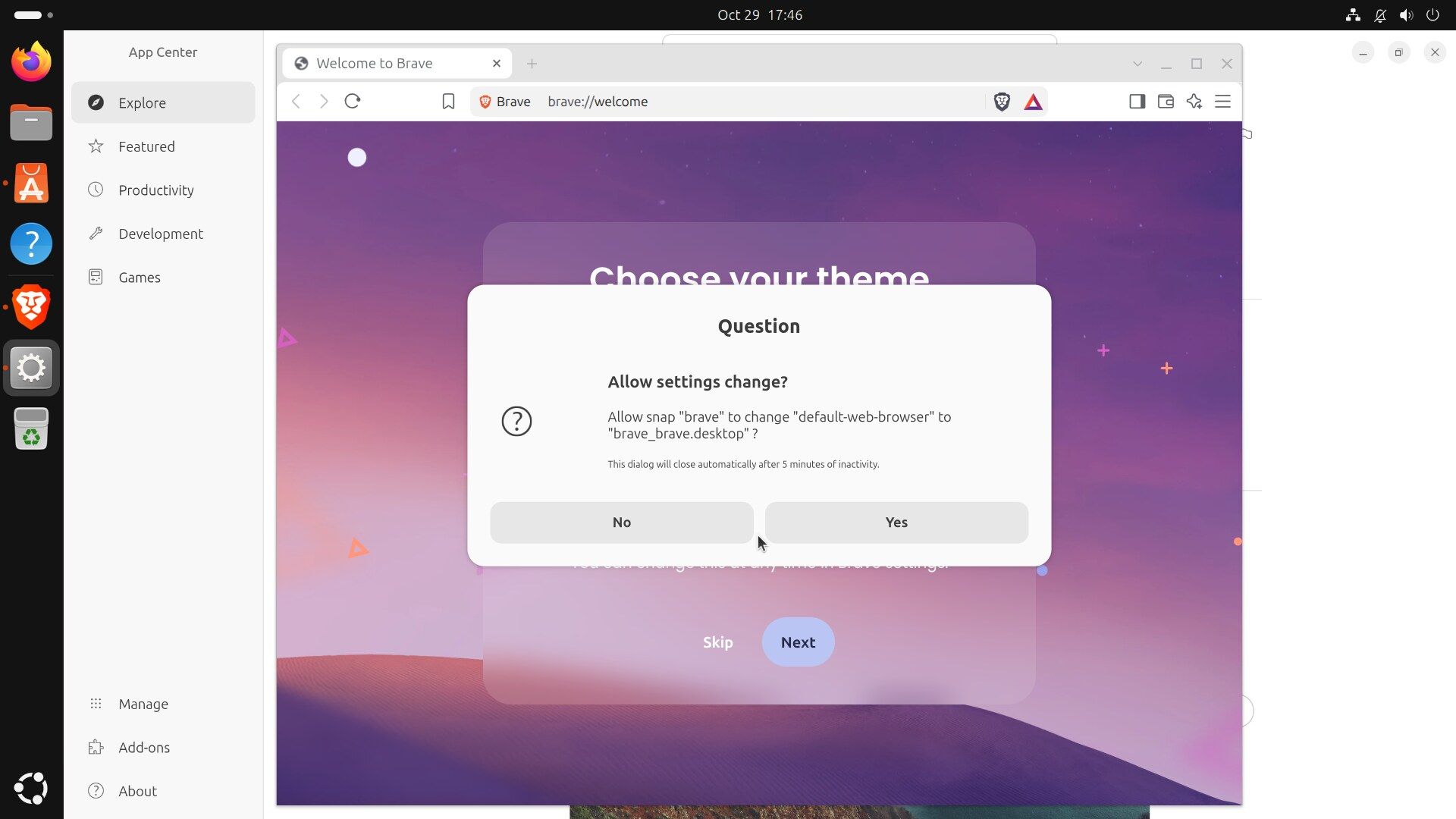
Spotify is the first result for spotify, published by Spotify with the check mark. For VS Code, search code, not vs code: the first result is code, from Visual Studio Code, verified, while a search for “vs code” shows other apps first.
Not every result comes from the company behind the app. Discord’s App Center version comes from Snapcrafters, a community group, not from Discord. The check mark is how you tell them apart. Brave also offers its own package through its apt repository, and the Brave Linux install page says the snap, which Brave Software maintains, is “not yet working as well as our native packages”, and gives terminal steps for the repository route. The App Center snap is the easier start for a beginner.
Working with windows
Omarchy tiles windows, or floats them with a dock
Omarchy arranges windows for you in a style called tiling. The first window fills the screen, a second takes half, and a third splits one of the halves. Tiled windows never overlap. Open a browser with super shift enter , the Files app with super shift f , and a terminal with super enter , and each one takes its share at once.
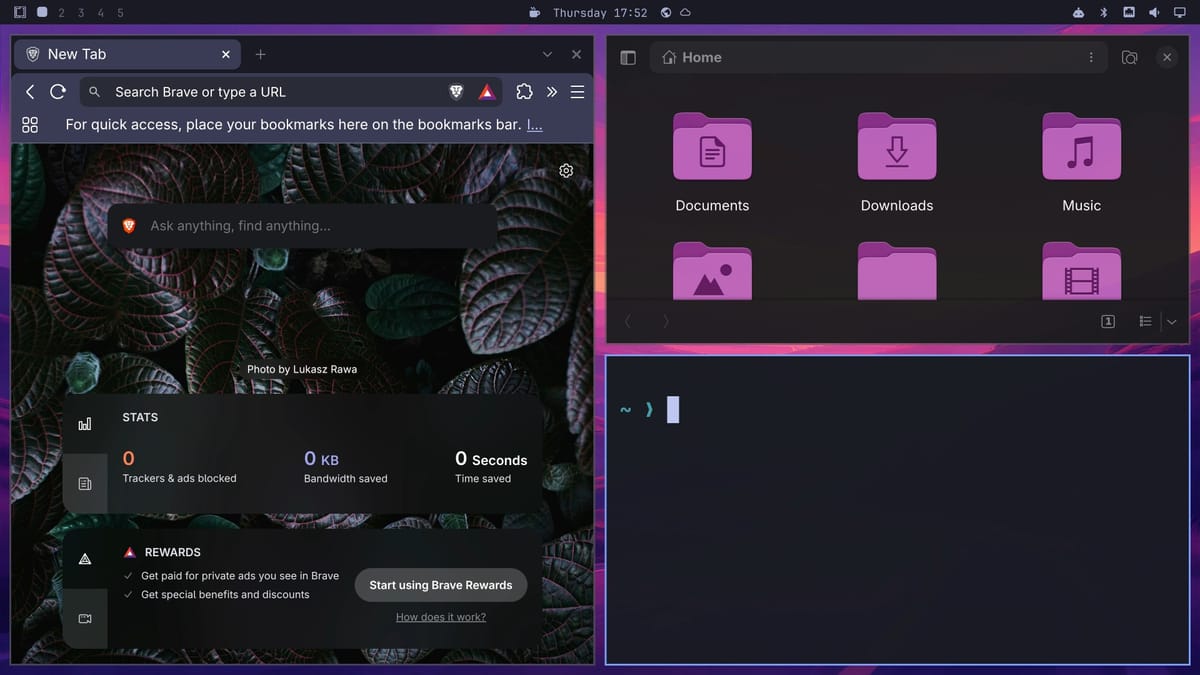
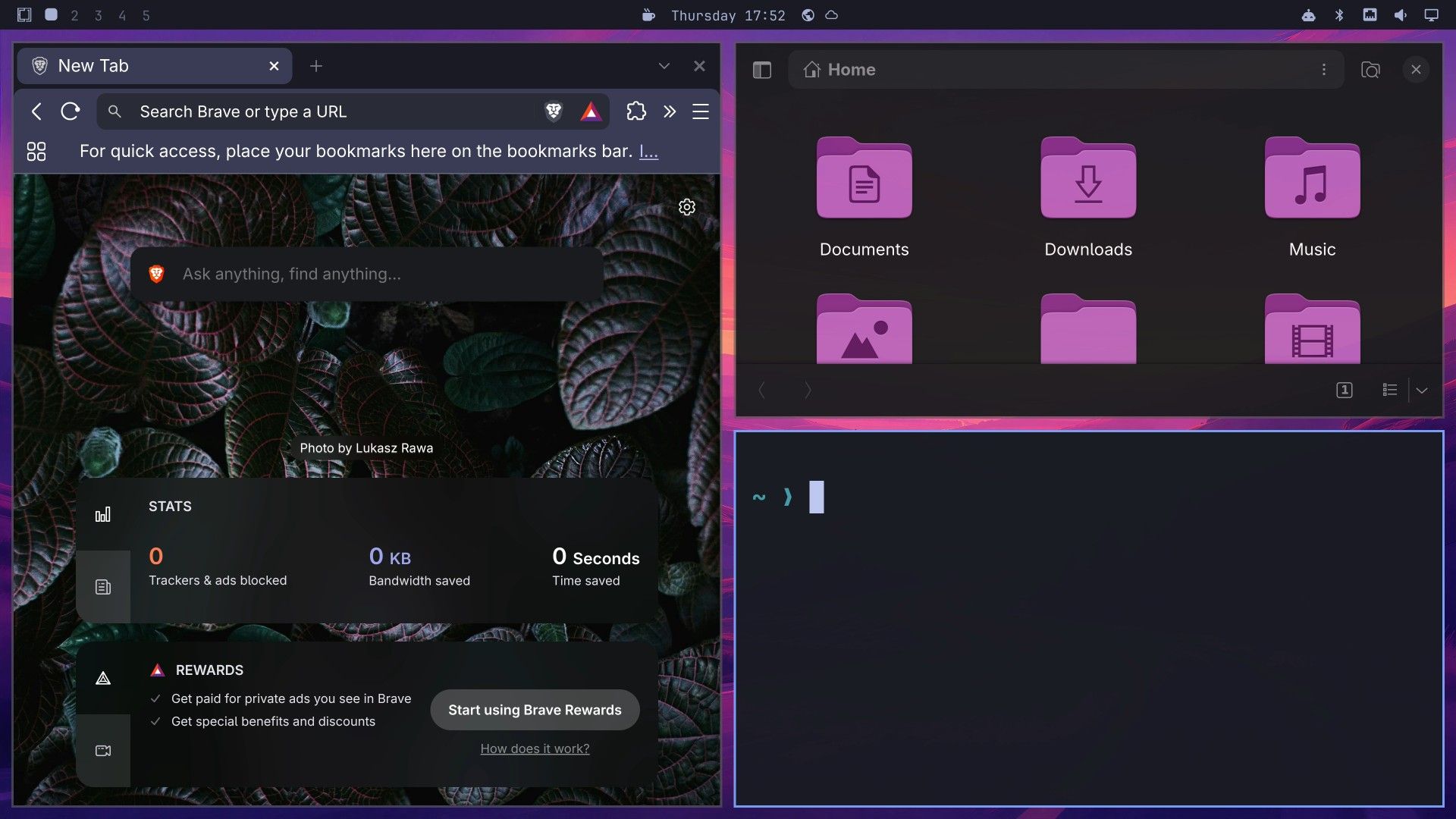
The keys you use most with tiles:
- super (or any arrow) moves the focus to the window on that side.
- super shift (or any arrow) swaps the focused window with its neighbor.
- super - and super = resize the focused window.
- super j flips a pair between side by side and stacked.
- super f makes a window full screen, and super w closes it.
- super t lets one window float on top of the tiles.
- Hold Super and drag with the left mouse button to move a window, or with the right button to resize it.
In the super k list, typing a word searches it. A search for “resize” finds only the mouse shortcut, because the keyboard entries are named “Expand window left” and similar, so search “expand” for those.
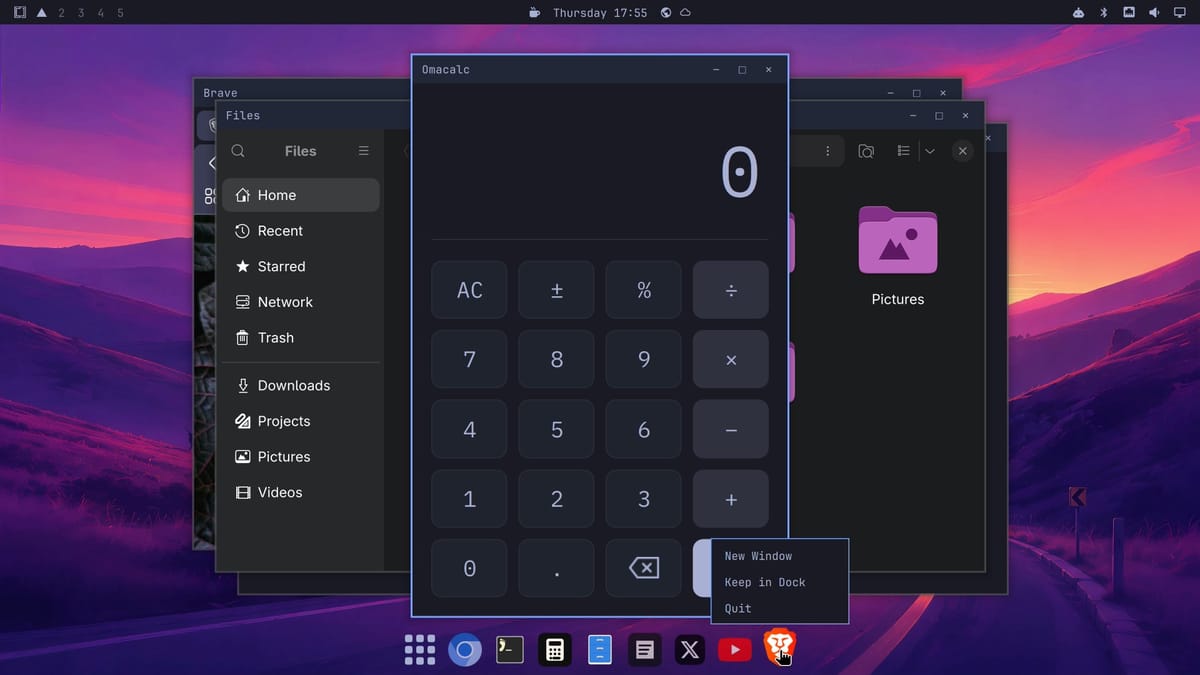
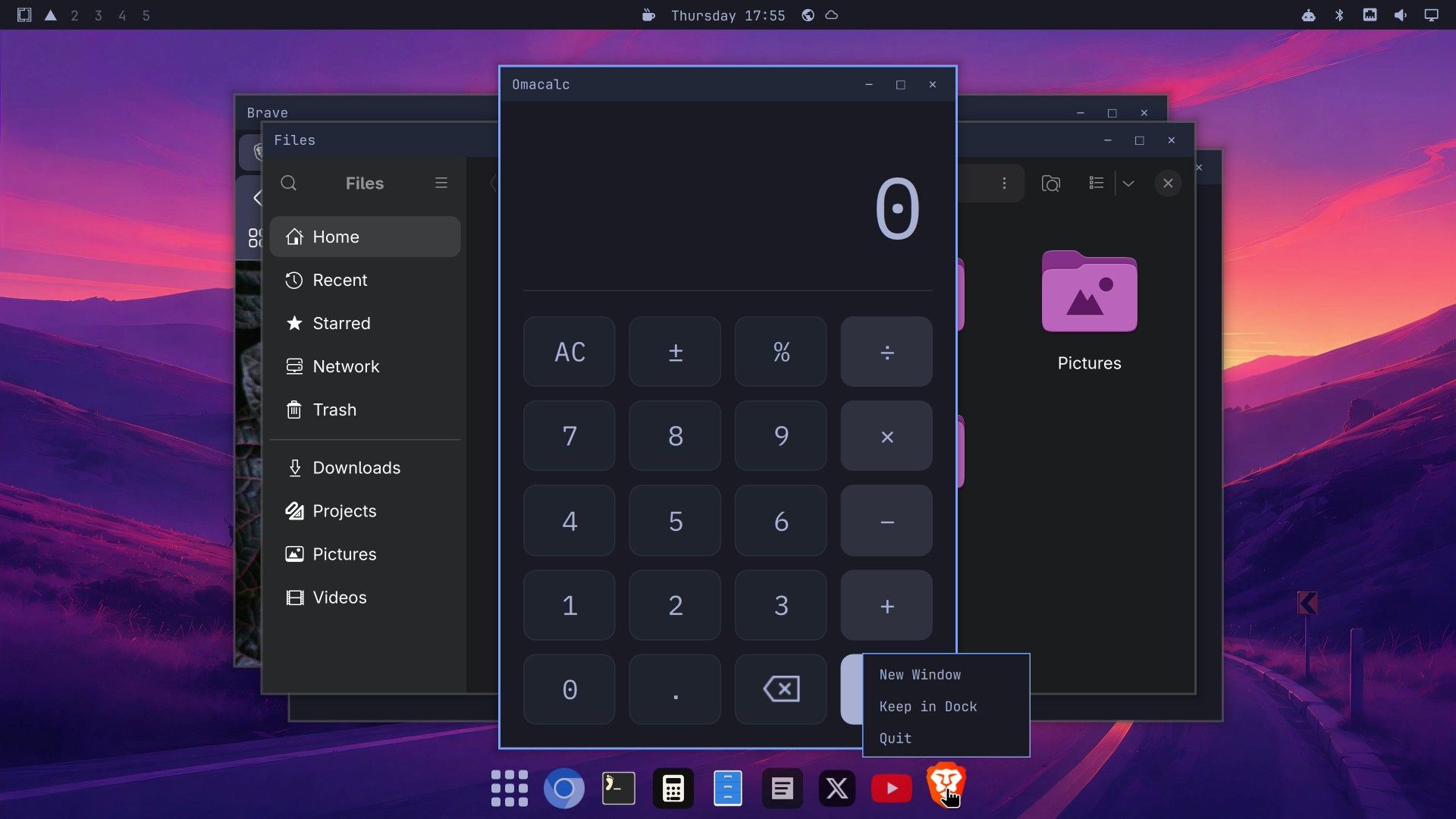
Omarchy 4.5 adds a floating layout with a dock. super alt l switches the current workspace to floating, and a notification says “Workspace layout set to floating”. Each window gets a title bar with minimize, maximize, and close buttons, and a dock appears along the bottom. To go back, super l switches the workspace to tiling. Each workspace keeps its own layout. Our guide to Omarchy’s floating windows and dock also shows how to make floating the default.
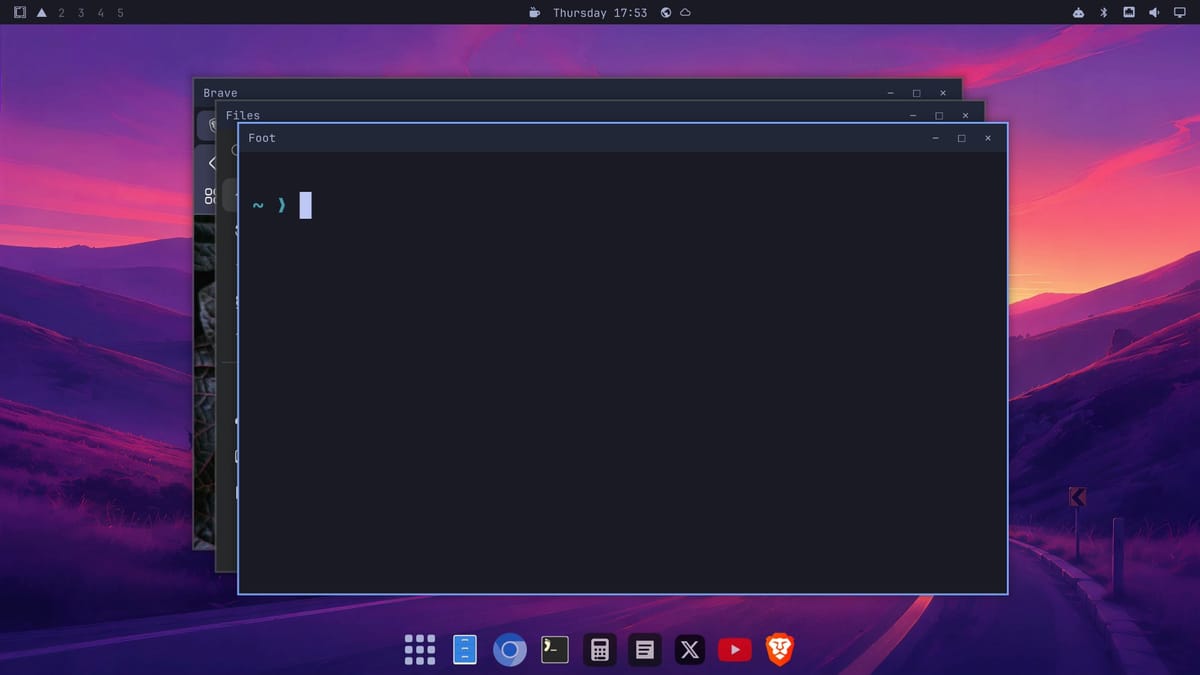
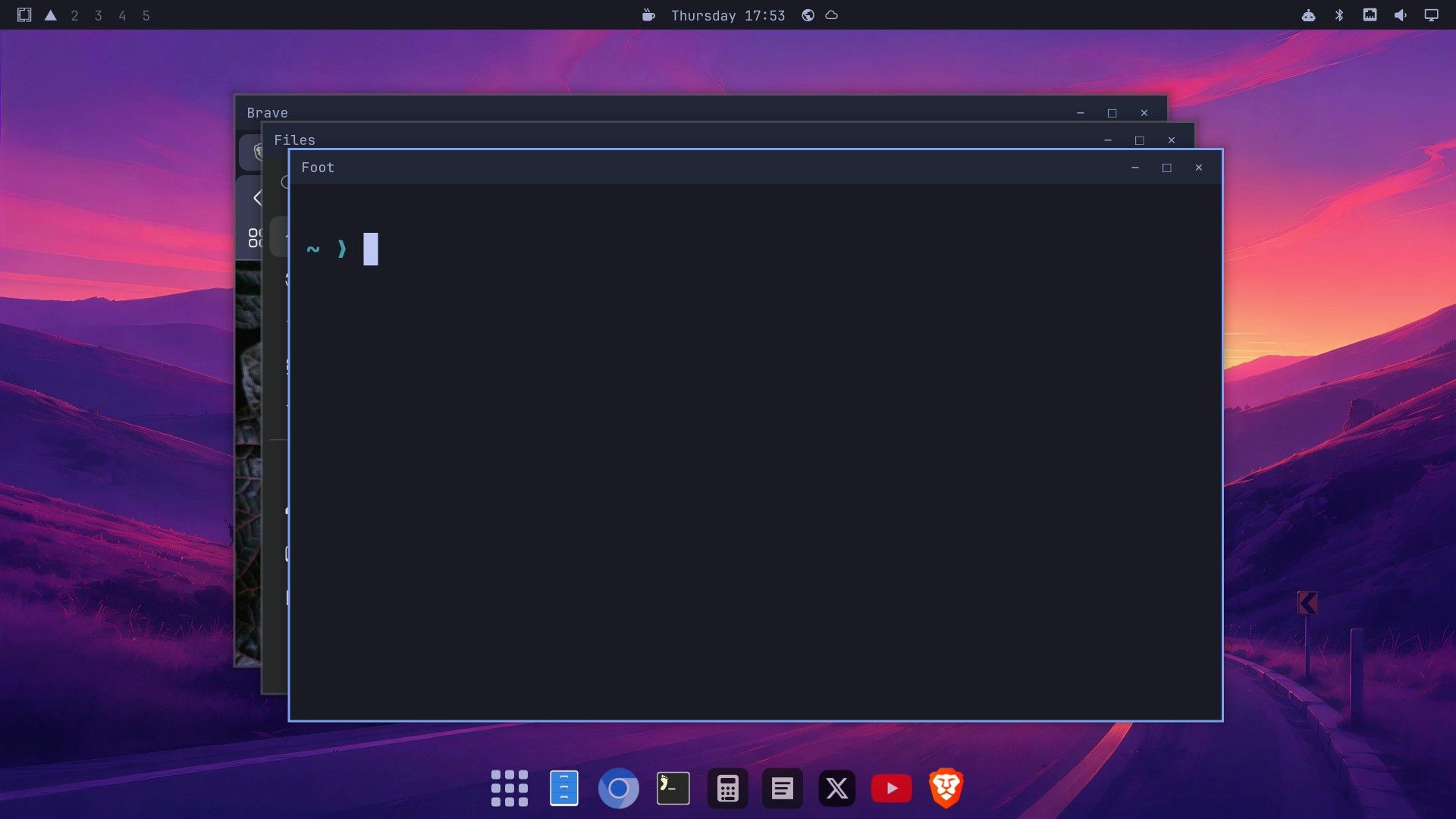
The dock launches its pinned apps, shows apps that are running, brings a running app to the front, and holds minimized windows until you click their icon. Right-click an icon for New Window, Keep in Dock, and Quit; Escape does not close that menu, so click the desktop instead. You can drag pinned icons to reorder them. The maximize button fills the screen and covers the dock, and a second click puts the window back. A window dragged to the edge of the screen does not snap to half of it; it keeps its size.
Workspaces are separate screens of windows. The bar shows workspaces 1 to 5 at the top left, and the keys reach 10. super 2 switches to workspace 2. super shift 2 moves the focused window to workspace 2, and the view follows it; add Alt to move it without following. super tab goes to the next workspace.
Ubuntu overlaps windows and snaps them to the edges
Drag a window by its title bar to the left or right edge of the screen: a colored preview fills that half, and the window fills it when you let go. Ubuntu then shows the Tiling Popup in the empty half, with your other open windows as large tiles, and one click fills that half with the window you pick.
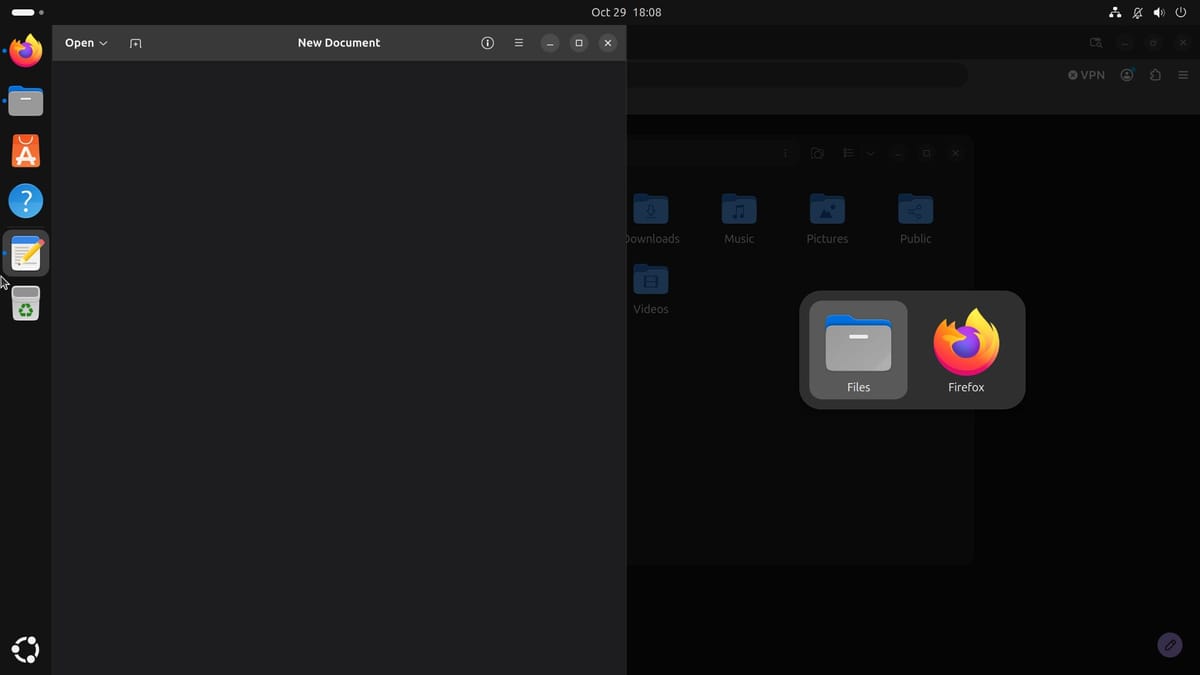
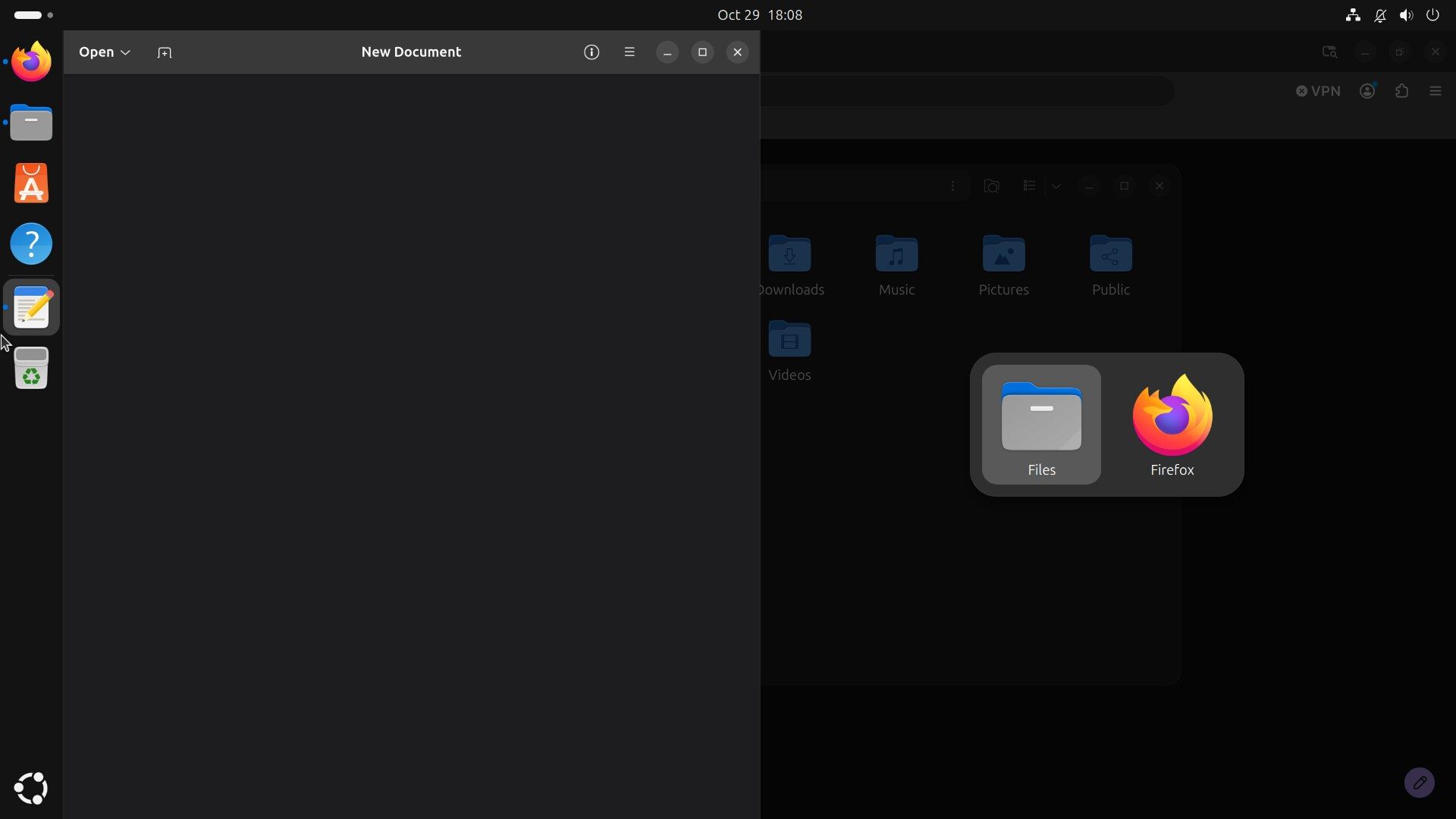
The keyboard does the same. super and super snap the window to a half, super maximizes it, and super restores it. While the Tiling Popup is open it takes your key presses, so press Escape before the next shortcut. These options are in Settings, Ubuntu Desktop, Enhanced Tiling. The “Window Resize” switch under Settings, Multitasking shows off even though edge snapping works, because Ubuntu’s Enhanced Tiling replaces that older setting.
Press super to open Activities, an overview of your open windows and workspaces. Ubuntu always keeps one empty workspace after the ones you use. super shift page down moves the focused window to the next workspace, and when you move a window onto the empty one, Ubuntu adds a new empty one after it. super page up and super page down switch between them. Settings, Multitasking calls this Dynamic Workspaces, and it also removes a workspace once it is empty. To keep a fixed number instead, choose Fixed Number of Workspaces on that page.
Making it yours
Omarchy themes restyle the whole desktop at once
An Omarchy theme is a wallpaper with matching colors for the bar, the window borders, the terminal, and your apps. Press super shift ctrl space , or open the menu and choose Appearance, then Theme. The picker shows a picture of the whole desktop for each theme. Arrow keys move through them, typing filters them, and Enter applies one.
Within about a second, everything changes together: the wallpaper, the window borders, the terminal, the folder icons in Files, and Brave’s tab strip and toolbar. Twenty-four themes come with 4.5 RC2. Most are dark. Catppuccin Latte turns the bar, the terminal, Files, and Brave light, and the list also has Flexoki Light and White.
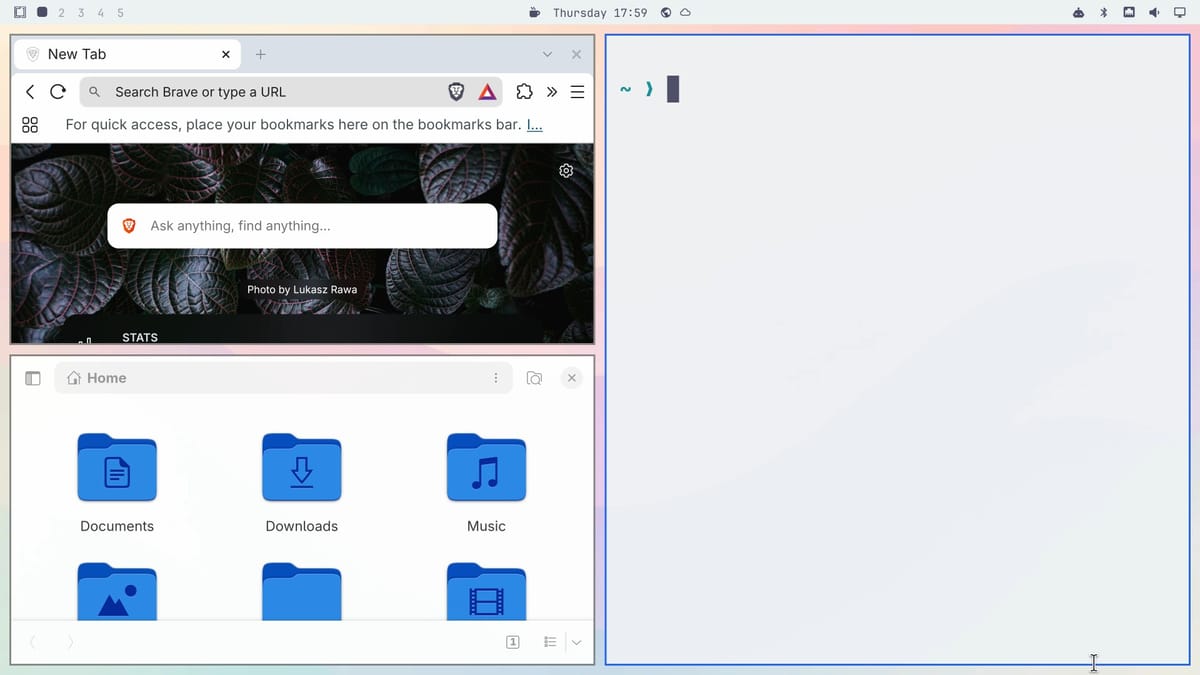
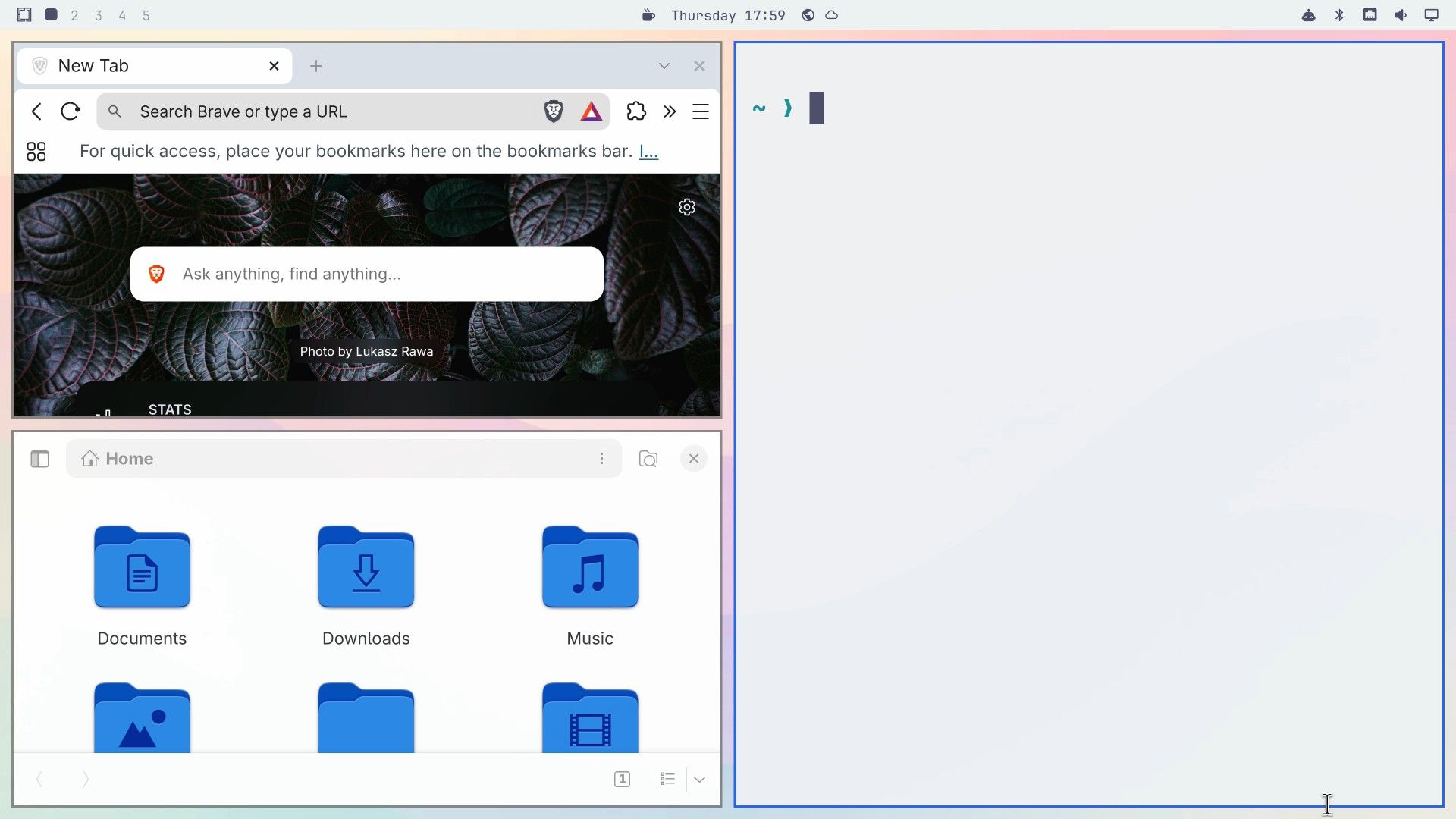
The same Appearance menu has Background and Font entries, so you can change either one without picking a new theme. Install, Style, Theme adds themes other people made, from a link (see omarchy.org/themes).
Ubuntu offers light or dark, an accent, and a wallpaper
Ubuntu’s look is set in Settings, Appearance, with three controls. Style switches between Default (light) and Dark, and the change reaches the desktop and the apps at once. Accent Color offers ten colors for buttons, toggles, and highlights. Background holds the built-in wallpapers, plus Add Picture… for a photo of your own; a right-click on the desktop and Change Background… opens the same page.
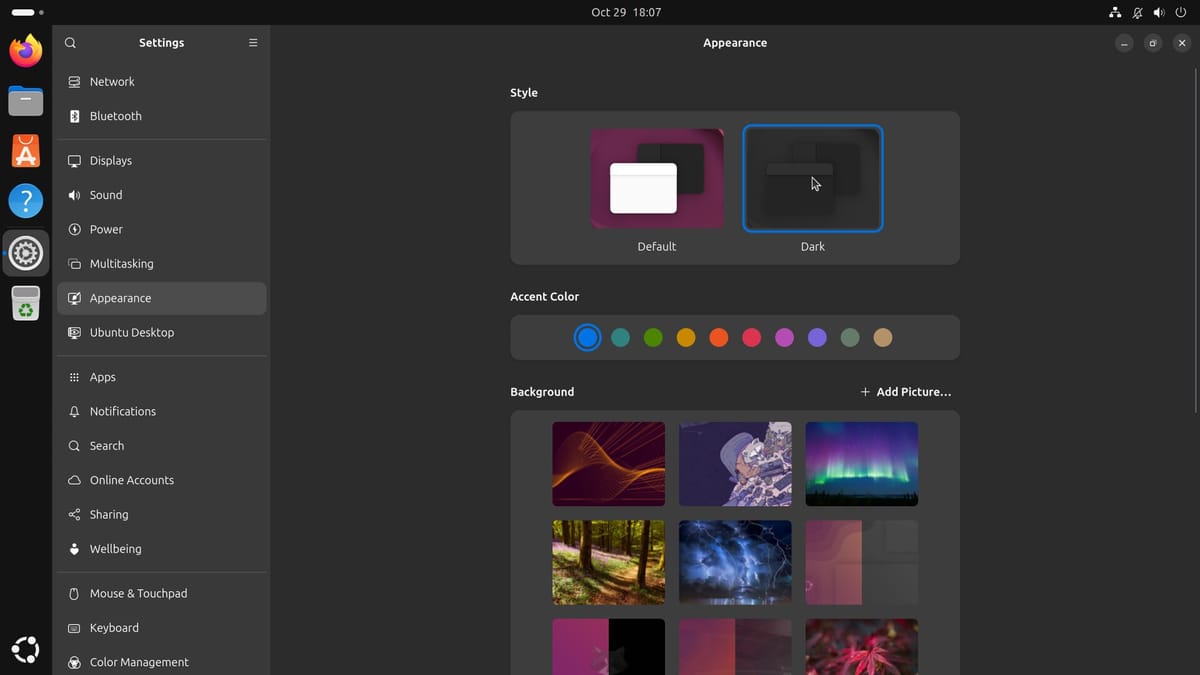
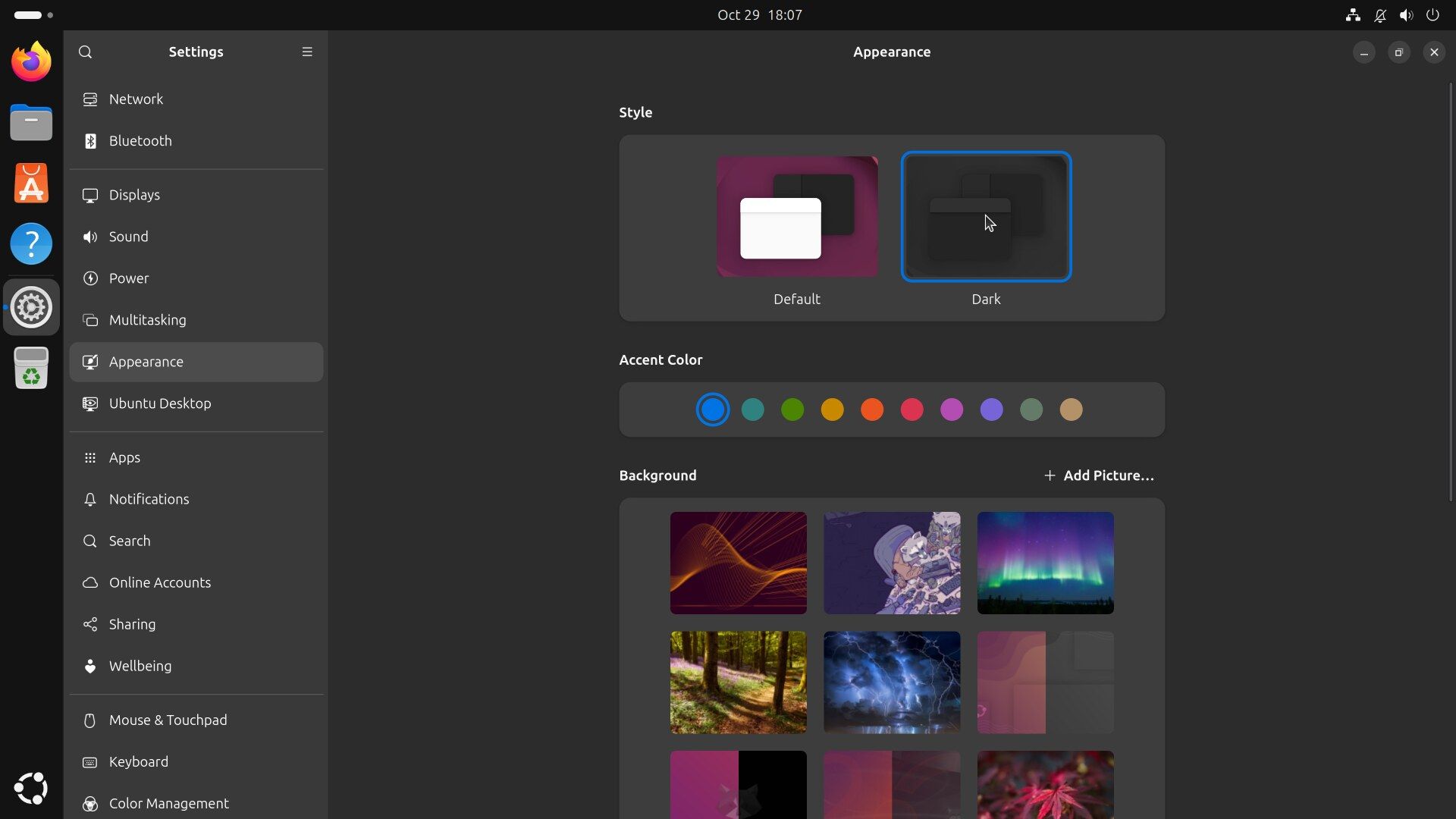
Settings, Ubuntu Desktop holds the dock options: auto-hide, icon size, and whether the dock sits on the left, bottom, or right. Past that, a new font or a full theme needs GNOME Tweaks, which a default install does not include; install it with sudo apt install gnome-tweaks.
An AI assistant
Omarchy installs AI apps and sets up coding agents
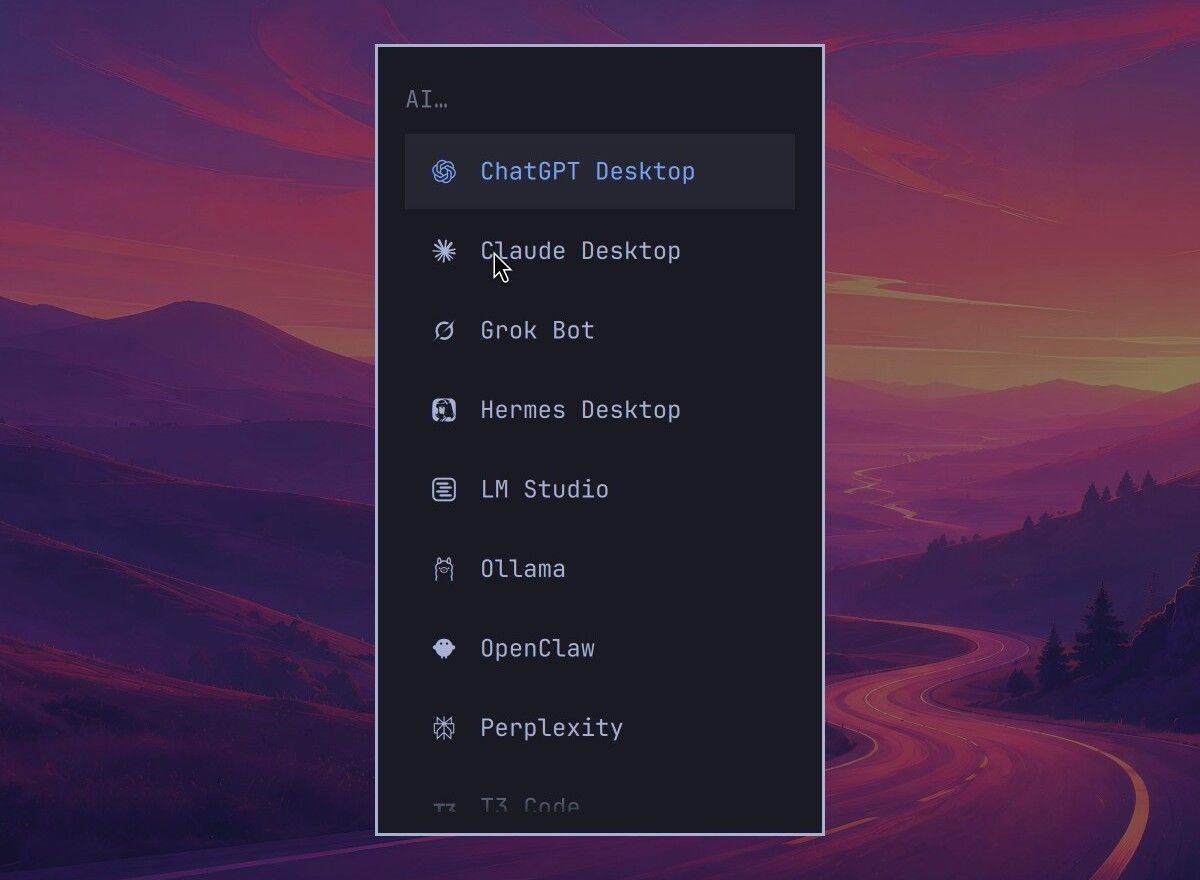
In the Omarchy menu, Install, AI lists ChatGPT Desktop, Claude Desktop, Grok Bot, Hermes Desktop, LM Studio, Ollama, OpenClaw, Perplexity, and T3 Code. Picking Claude Desktop or ChatGPT Desktop installs that app, and it opens by itself on its sign-in screen. Both keep running in the background after super w closes the window, and their icons stay in the bar’s tray.
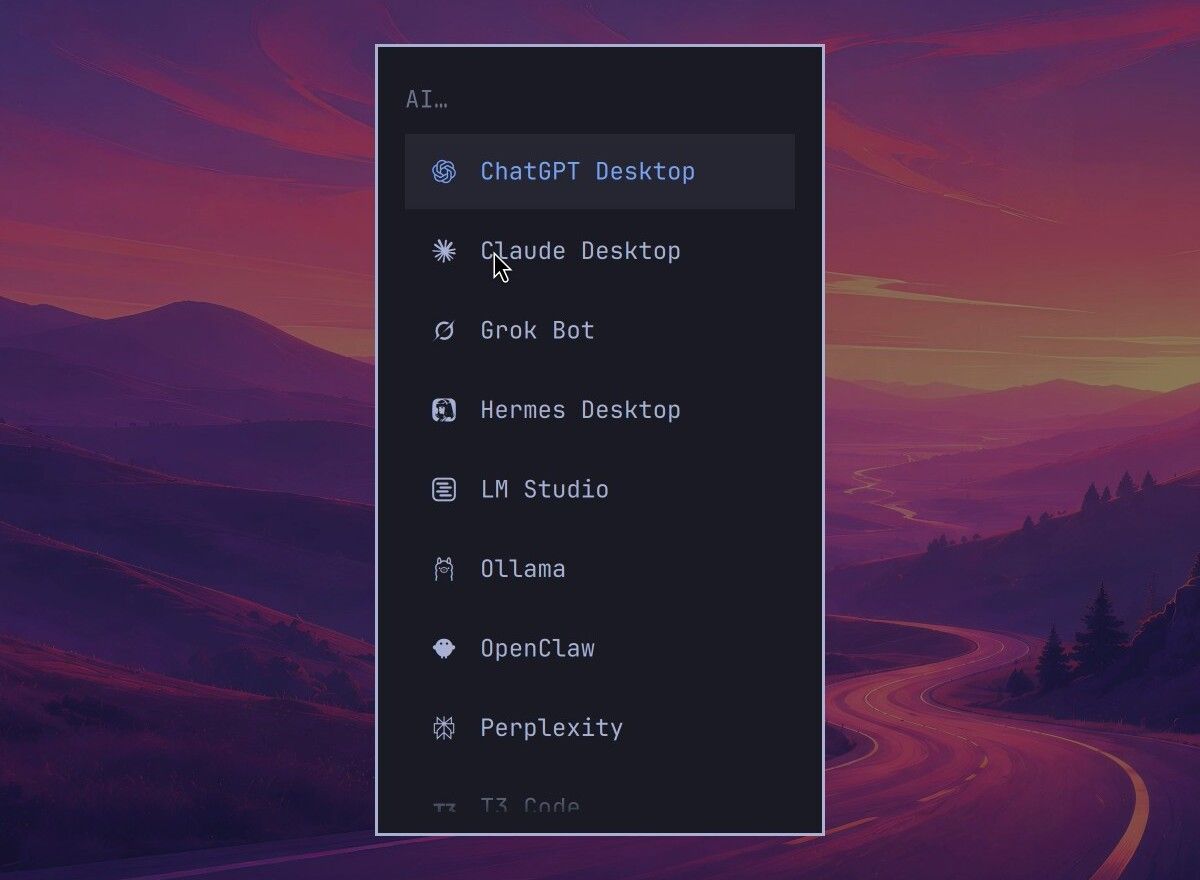
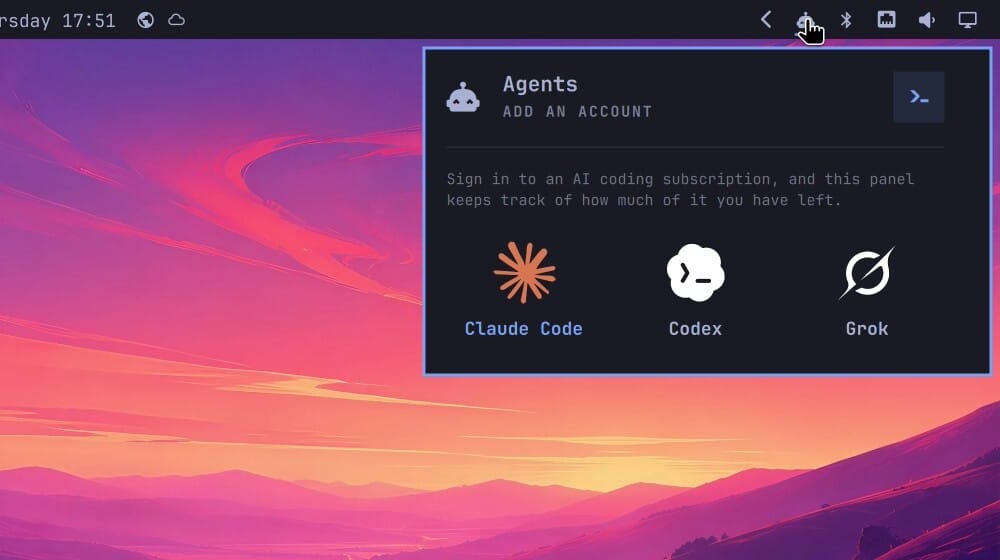
The robot icon on the right of the bar is for AI coding agents, programs that work in a terminal and can read and change files for you. A left-click opens the Agents panel, with tiles for Claude Code, Codex, and Grok and the line “Sign in to an AI coding subscription, and this panel keeps track of how much of it you have left.” Nothing runs until you sign in to one of them.
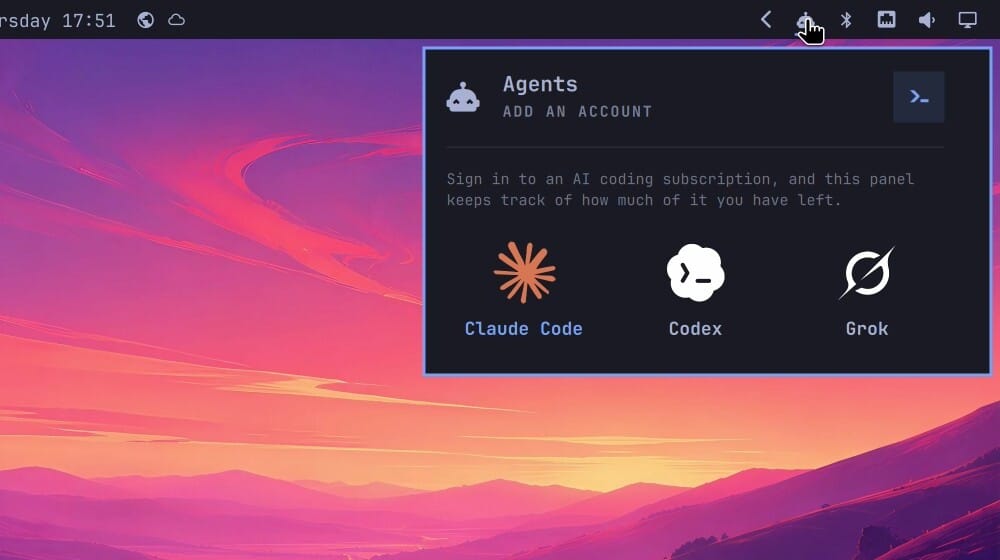
To pick a default agent, choose Setup, Defaults, Agent, which lists 24 of them; picking one that is not installed installs it first. super shift ctrl a opens the same list while no default is set, and a right-click on the robot icon starts your default agent. Omarchy gives these agents a skill, a set of instructions for changing its settings, themes, and bar. The Omarchy manual calls that experimental and says “It’s best to run in plan mode first”.
Ubuntu gets each AI app from its company’s site
Ubuntu 26.04 has no AI assistant built in. A search for “chatgpt”, “claude”, or “gemini” in the App Center finds apps with those names from other developers, not from OpenAI, Anthropic, or Google.
ChatGPT has an official Linux app as a .deb file:
- In Firefox, go to
chatgpt.com/download, click Download for Linux, and choose x64 (.deb) (or arm64 on an Arm computer). - Open Files, click Downloads in the sidebar, and double-click
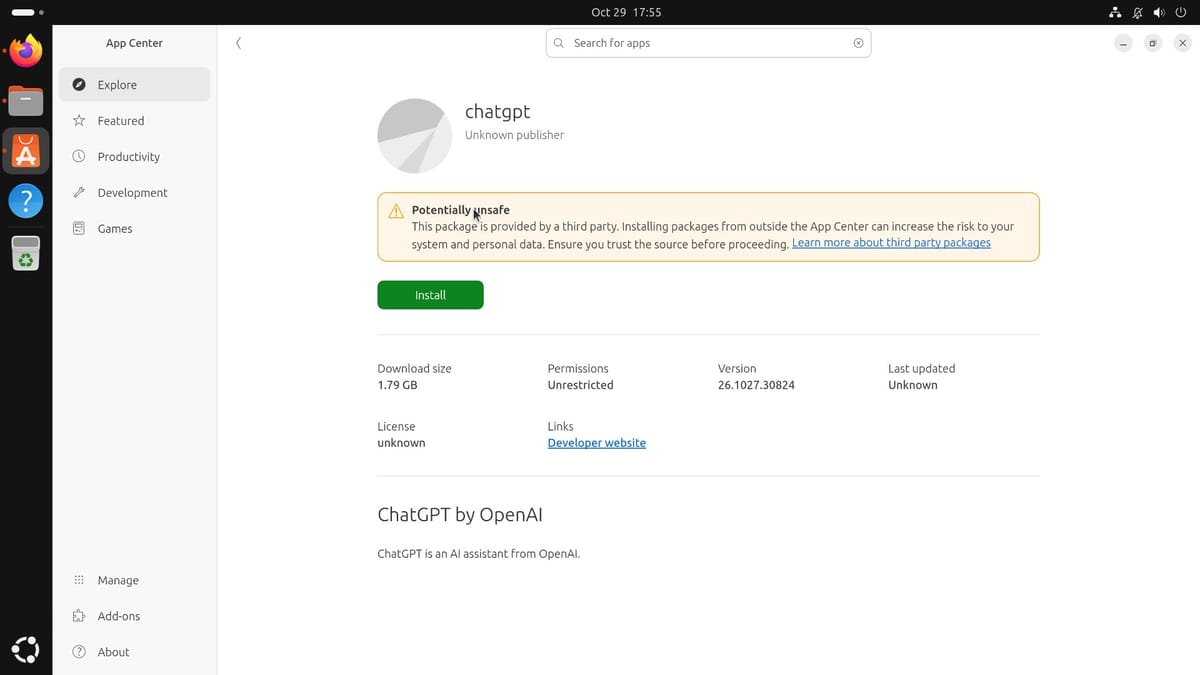
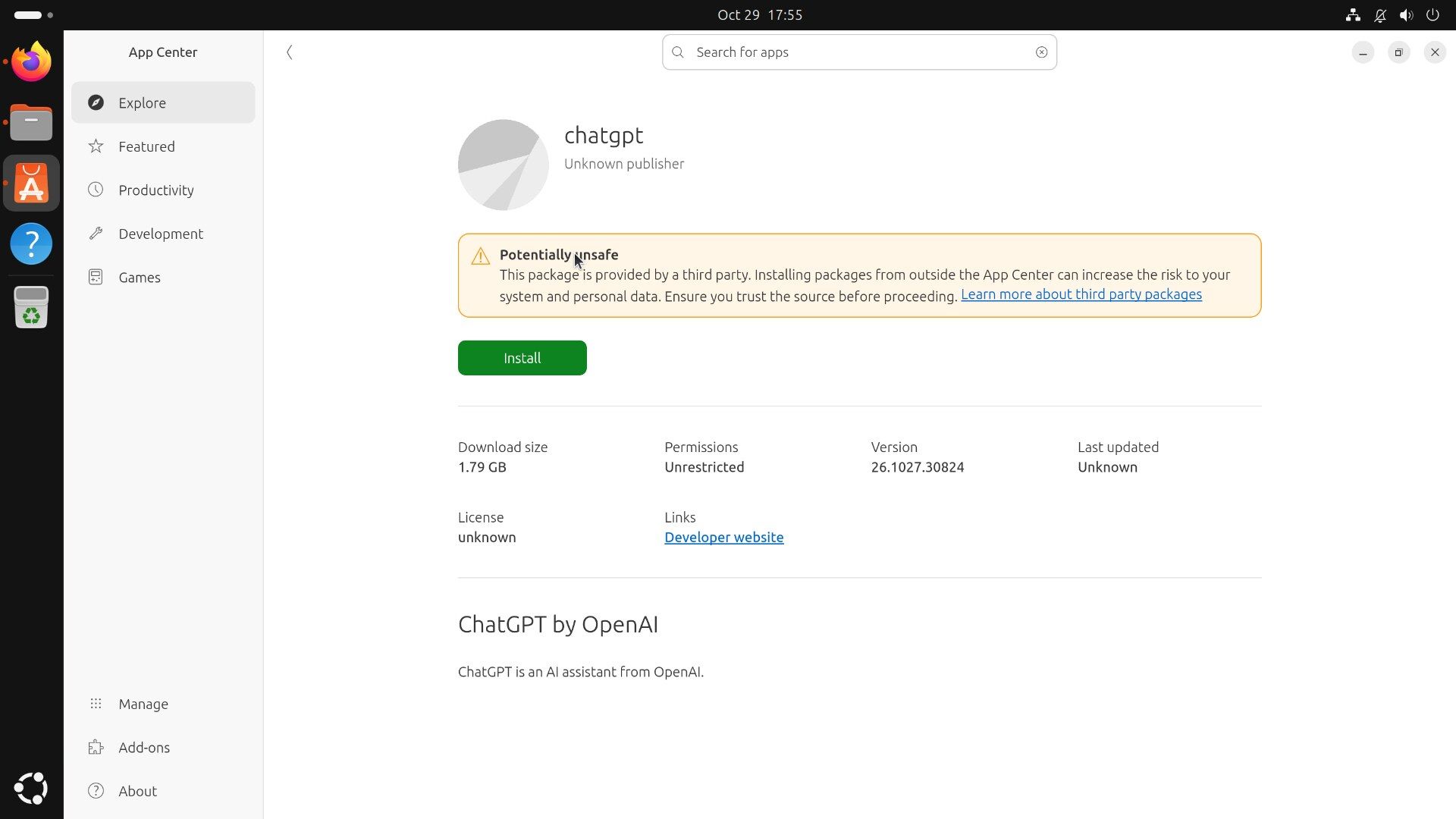
chatgpt_amd64.deb. A click on the file in Firefox’s download list ends on “No Apps Available” instead. - The App Center opens on the package with Unknown publisher and a yellow Potentially unsafe box. That warning appears for any package from outside the App Center’s store; this one came from OpenAI’s own site. Click Install, confirm Install at “Are you sure you want to install it?”, and type your password.
- The button ends on a greyed-out Installed, with no Open button. Open Show Apps at the bottom of the dock and click ChatGPT.
The package also adds OpenAI’s software source, so later versions arrive with your normal updates. If you prefer the terminal, cd ~/Downloads and then sudo apt install ./chatgpt_amd64.deb does the same install.
Claude has a Linux desktop app in beta, for Ubuntu 22.04 or later and Debian 12 or later. The Download for Linux button on claude.com leads to Anthropic’s Claude Desktop on Linux page, which installs it from Anthropic’s apt repository with these commands. Open Terminal from Show Apps and run them in order. A default Ubuntu 26.04 install has no curl, so the first command installs it:
sudo apt install curl gnupgDownload Anthropic’s signing key. The command prints nothing when it works:
sudo curl -fsSLo /usr/share/keyrings/claude-desktop-archive-keyring.asc https://downloads.claude.ai/claude-desktop/key.ascCheck the key. The fingerprint gpg prints should be 31DDDE24DDFAB679F42D7BD2BAA929FF1A7ECACE:
gpg --show-keys /usr/share/keyrings/claude-desktop-archive-keyring.ascRegister the repository:
echo "deb [arch=amd64,arm64 signed-by=/usr/share/keyrings/claude-desktop-archive-keyring.asc] https://downloads.claude.ai/claude-desktop/apt/stable stable main" | sudo tee /etc/apt/sources.list.d/claude-desktop.listInstall the app:
sudo apt update && sudo apt install claude-desktopThe first sudo asks for your login password, and nothing shows while you type it. Each apt install asks “Continue? [Y/n]”; press Y. The last command installs about 50 packages, mostly the QEMU virtual machine tools Claude’s Cowork feature uses (about 208 MB to download).
Then open Claude from Show Apps. Its first launch shows an Ubuntu window, Add Keyboard Shortcuts, offering ctrl alt space to open Claude from anywhere; click Add or Cancel, then Get started to sign in. Updates arrive through Software Updater, and sudo apt remove claude-desktop uninstalls it. The beta does not yet have Computer Use or Dictation. If you only want to chat, claude.ai in the browser needs no install.
Gemini, Google’s assistant, has no Linux app, so on both systems you use it at gemini.google.com in the browser.
Keeping it running
A long-term support (LTS) release is a fixed version that gets fixes for years. A rolling release moves its apps and system parts to new versions all the time. Ubuntu 26.04 is an LTS release; Omarchy, built on Arch Linux, is a rolling release.
Ubuntu installs security updates by itself and reminds you about the rest
Ubuntu puts out an LTS release every two years, and Canonical’s release cycle page gives each one five years of standard security maintenance: for 26.04, until May 2031. Security updates install in the background each day, with no prompt. Snap apps, such as the ones from the App Center, check for updates four times a day and install them by themselves.
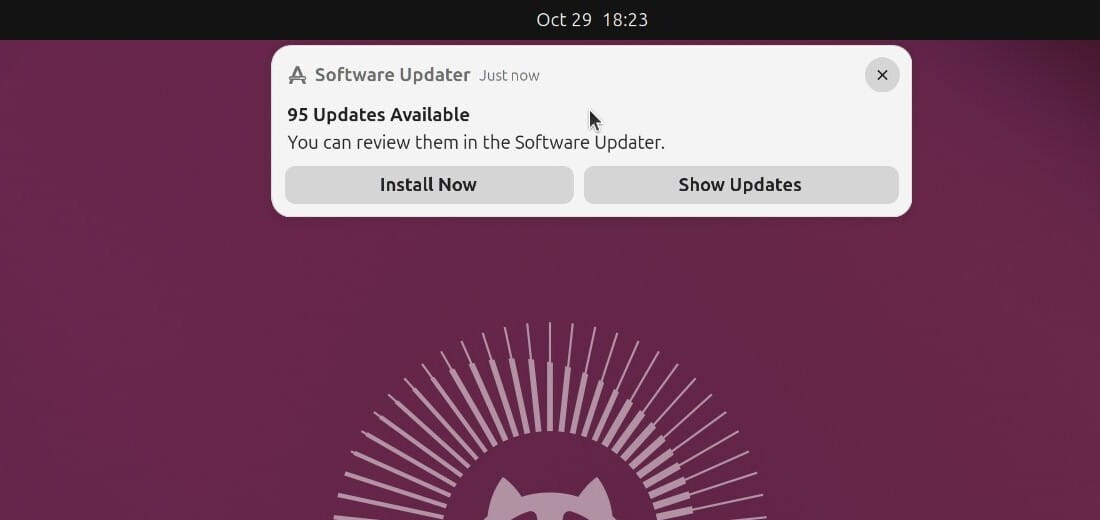
Other updates wait for you. A notification about them shows up at most once a week: “Software Updater”, “95 Updates Available” (the number varies), and “You can review them in the Software Updater.” Hover over it for two buttons. Install Now installs everything. Show Updates opens Software Updater, which asks “Do you want to install it now?” with Remind Me Later and Install Now. Install Now asks for your password, and if the update needs a restart, a window says so; Restart Later lets you finish your work first. To check yourself at any time, open Show Apps, type updater, and open Software Updater.
A default install has no screen that shows or changes this schedule. The settings app for it, Software & Updates, is a separate package:
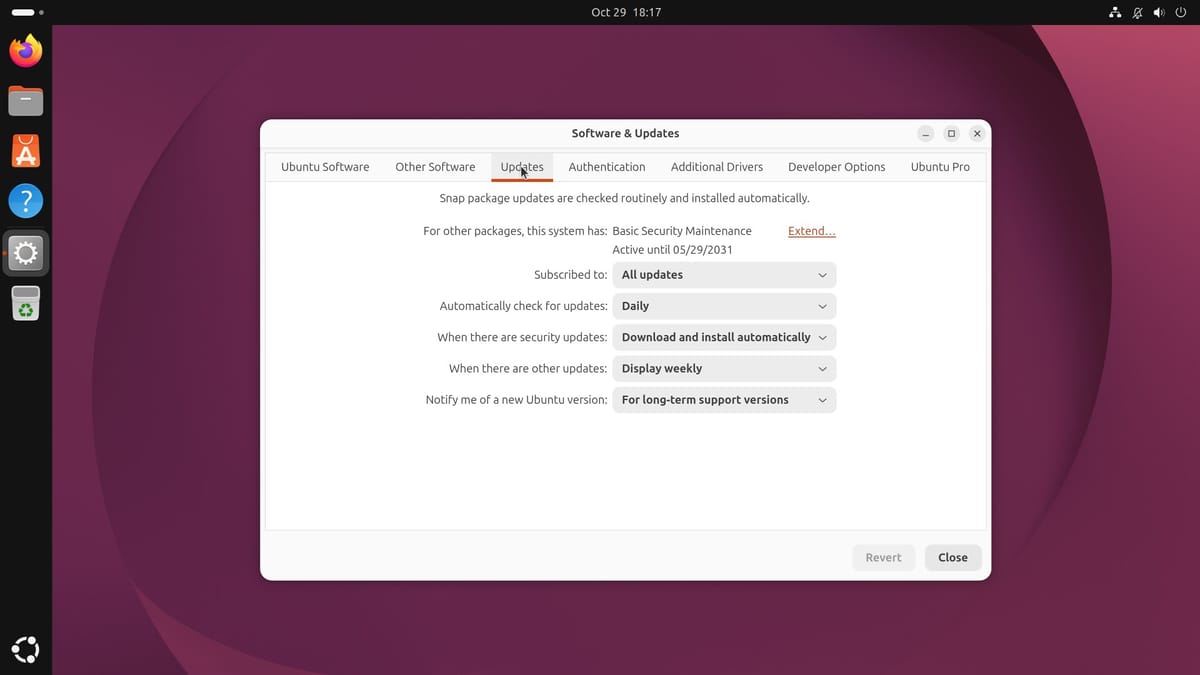
sudo apt install software-properties-gtkIts Updates tab shows what Ubuntu does on its own: “Snap package updates are checked routinely and installed automatically”, a daily check, security updates set to “Download and install automatically”, other updates set to “Display weekly”, and new Ubuntu versions offered “For long-term support versions”. Change the “When there are other updates” menu to see the reminder more or less often. Once this app is installed, Software Updater also gets a Settings button that opens it.
Now and then Software Updater may say “Not all updates can be installed” and offer a partial upgrade. One cause is phased updates: Ubuntu rolls some updates out in stages, to a share of computers at a time, so it can stop an update that breaks things. Ubuntu’s explanation of phased updates says you “can safely ignore” the kept-back message, and “Once the update has been deemed safe for release, you will receive the update automatically.” If phasing is the cause, install the rest and run Software Updater again in a few days.
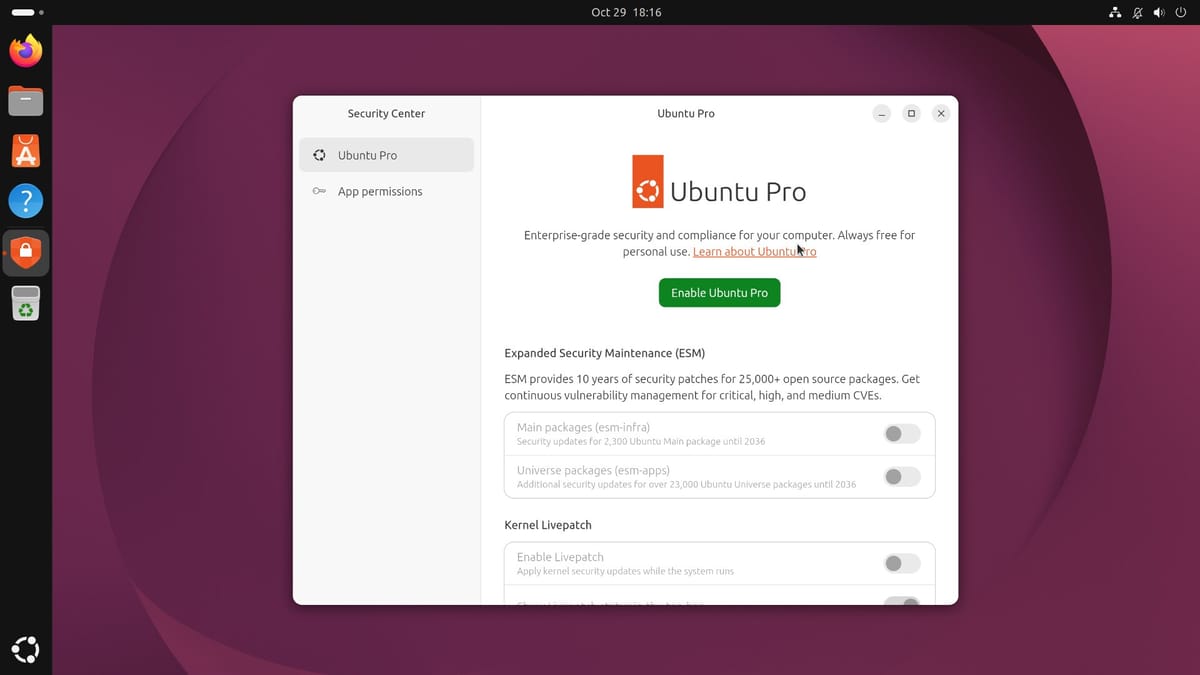
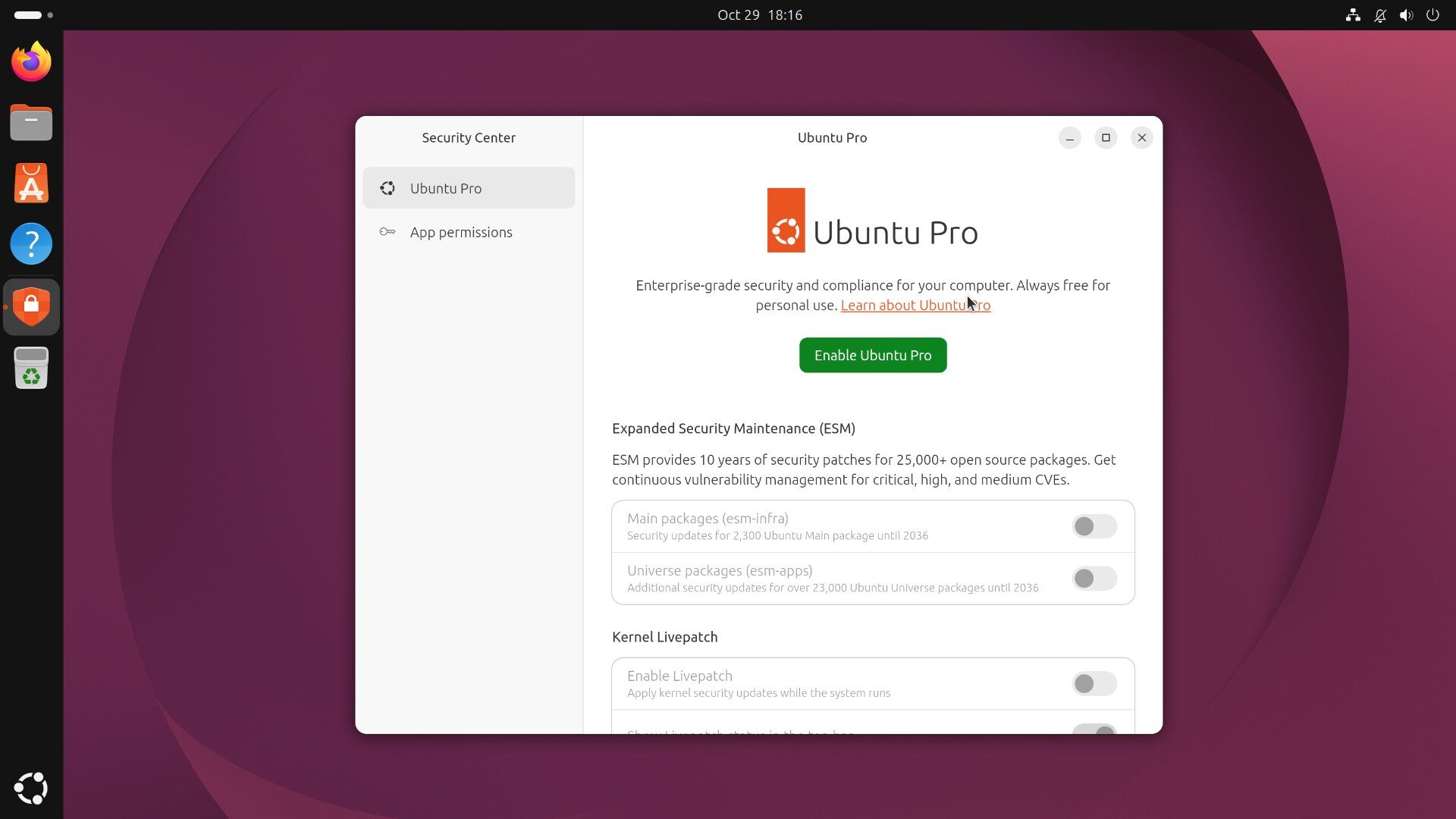
Ubuntu Pro, which the welcome window offers with Skip for now selected, stretches security updates to 2036 and covers far more software. Canonical’s Ubuntu Pro page says it “is and always will be free for personal use on up to 5 physical machines”, and it extends security maintenance from the Main repository to the whole archive, Main and Universe, for 10 years. To turn it on, open Security Center from Show Apps, choose Ubuntu Pro, and click Enable Ubuntu Pro. You need an Ubuntu One account, the same sign-in the Ubuntu Pro dashboard uses. In a terminal, sudo pro attach starts the same process, and Ubuntu’s attach guide says “By default, the Free Personal Token will be selected.”
Ubuntu offers the next LTS release, 28.04, only after its first point release (28.04.1), which Ubuntu’s upgrade documentation says usually comes several months after the release itself. You never have to take the in-between versions.
Omarchy updates start when you choose, with a snapshot first
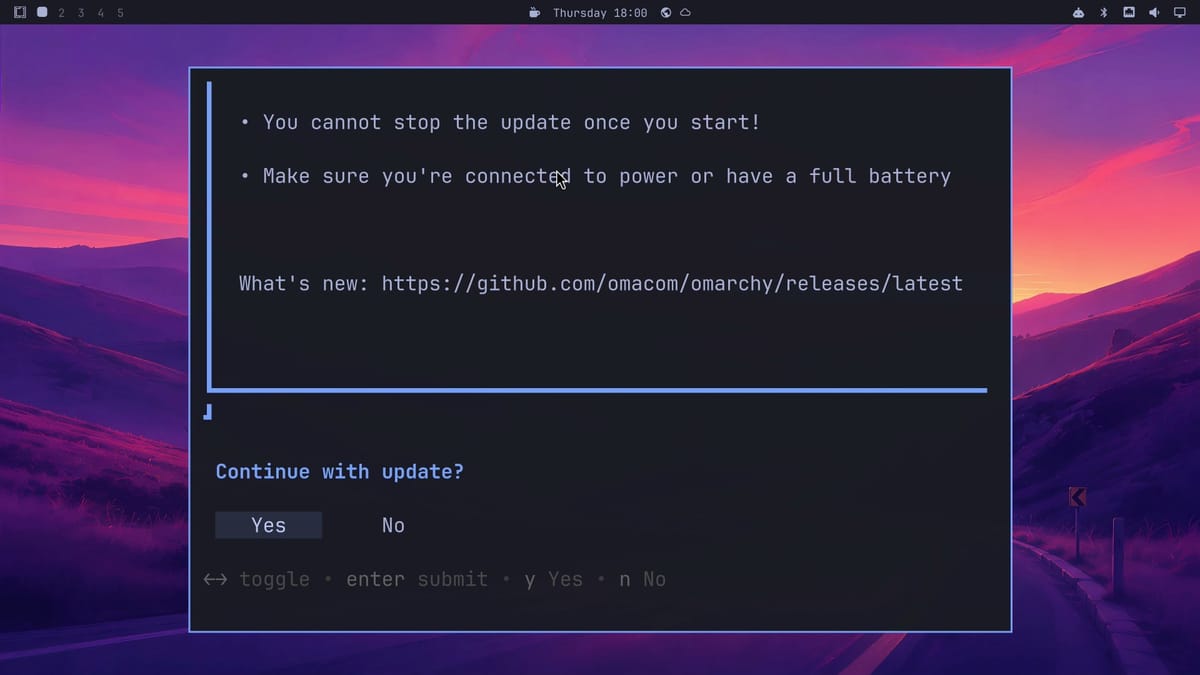
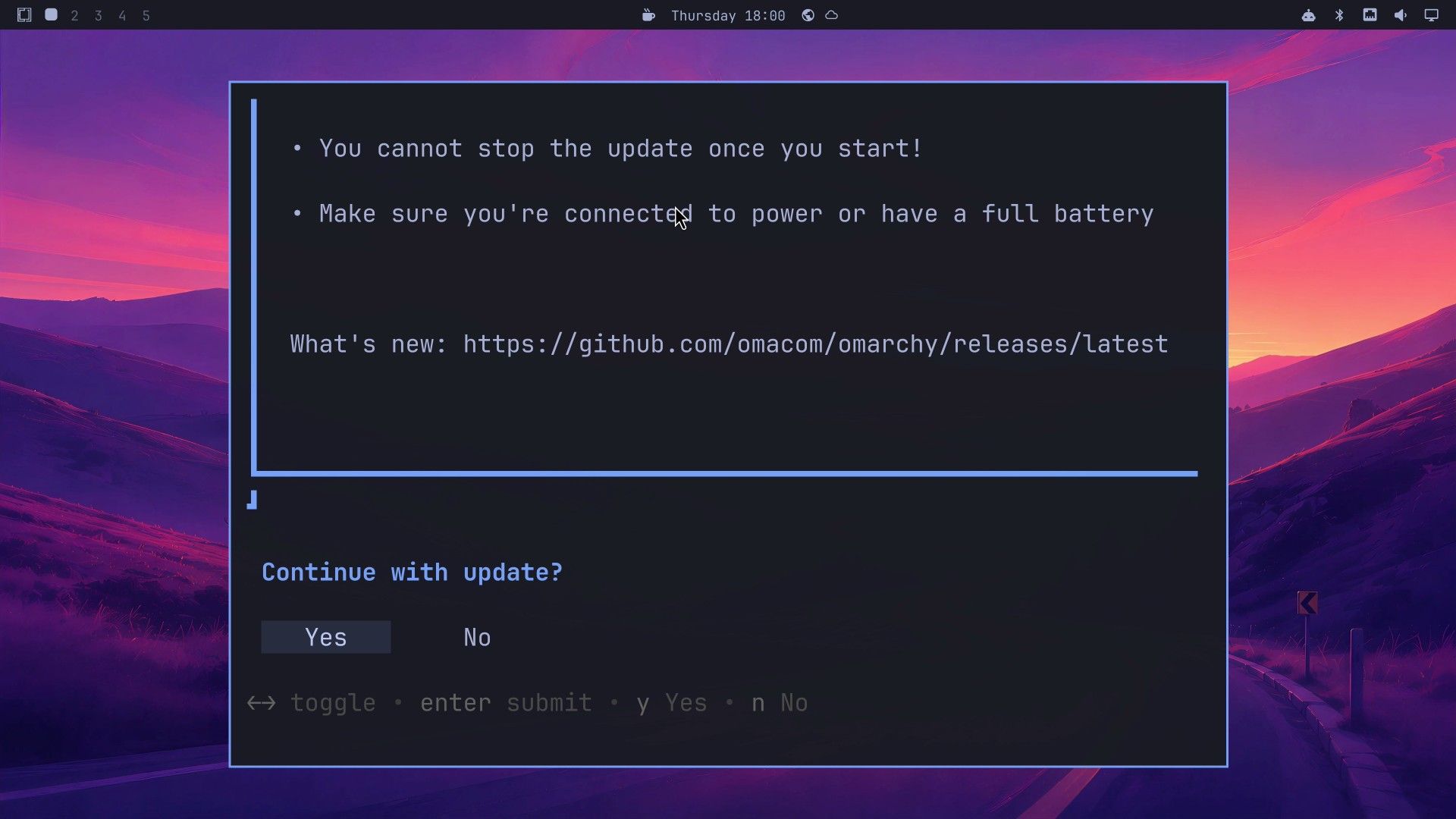
Omarchy’s bar has an update widget that checks for a new Omarchy release every six hours. When one is out, an update icon, two arrows in a circle, appears on the bar; the Omarchy manual puts it to the right of the clock. Nothing installs until you start the update. Click the icon to start the update in a terminal. To update at any time, open the menu and choose Update, then Omarchy. The terminal warns “You cannot stop the update once you start!” and “Make sure you’re connected to power or have a full battery”, links to what’s new, and asks “Continue with update?” with Yes selected. Press N to back out.
Yes asks for your password, saves a snapshot (a copy of the system files as they are now), then updates the system packages, Omarchy’s own settings, and any apps from the Arch User Repository, and offers a restart if one is needed. Always update through the bar icon, this menu, or omarchy update in a terminal. The manual warns that running pacman -Syu directly skips “the snapshot, migrations, and configuration updates”, and Omarchy stops a direct upgrade and points you to omarchy update.
The snapshot is how you go back when an update breaks something. Omarchy’s boot menu shows for only about a second as the computer starts, so keep tapping a key, such as the down arrow, while the computer powers on, and it stops at the menu. Nothing on the screen mentions that. Open Snapshots, pick a snapshot by its number and date, press Enter to open it, then press Enter on the kernel entry inside it to boot. Once you are in, a notification, “Restore this snapshot now!”, offers Restore now, which makes that snapshot your system again. A restore puts back the system files, but not your home folder, where your own files and settings live. Our guide to rolling back from the Limine boot menu walks through a full restore.
Which one suits you
Ubuntu suits you if you would rather use the mouse and get apps from a store. Its welcome window explains each choice, the App Center shows who made each app, and Ubuntu 26.04 gets security updates until 2031, or 2036 with the free Ubuntu Pro. The system you learn stays the same for years. Security updates install by themselves, and the rest wait for a weekly reminder and one click. A few apps the store does not carry, such as Claude, need a vendor’s site or the terminal. Ubuntu also suits a computer you share, with an account for each person.
Omarchy is the better fit if you want a keyboard-first desktop that changes often, on a computer that only you use. Once you know the shortcuts, you rarely need the mouse, and every update starts with a snapshot to fall back on. The start is harder, because nothing on screen teaches the shortcuts after the first cards. You also start each update yourself, from the bar’s update icon or the menu, and rolling back means catching a boot menu that shows for about a second.
If you are still unsure, start with Ubuntu, where most everyday tasks need only the mouse. If the shortcuts and themes in the Omarchy sections above look like fun rather than work, try Omarchy, and keep the six shortcuts to learn first open while you do.


