
A snapshot is a saved copy of your system files. Omarchy stores its system on Btrfs, so a snapshot takes about a second and starts out using almost no extra disk space, and the Limine boot menu lists every snapshot so you can start the computer from one. If an update or a change breaks something, you boot the last good snapshot, check that it works, and then make it your main system again with one command.
This is the written companion to our snapshots video, with every command we ran. We make a snapshot, break the system on purpose by removing the Chromium browser, boot the snapshot from the boot menu, and restore it for good. Everything below was done on Omarchy 4.0.4.
What you need
You need Omarchy installed with the Limine boot loader, which has been the default since Omarchy 2.0. The Omarchy manual says snapshots from the boot menu do not work on GRUB or systemd-boot. You also need a terminal and your password: making and restoring snapshots needs admin rights, so both commands may ask for your password.
Omarchy uses the Super key for most shortcuts; on a PC keyboard that is the Windows key. If the Omarchy shortcuts are new to you, our list of Omarchy shortcuts to learn first covers the terminal, the browser key, and the system menu.
Make a snapshot with omarchy snapshot create
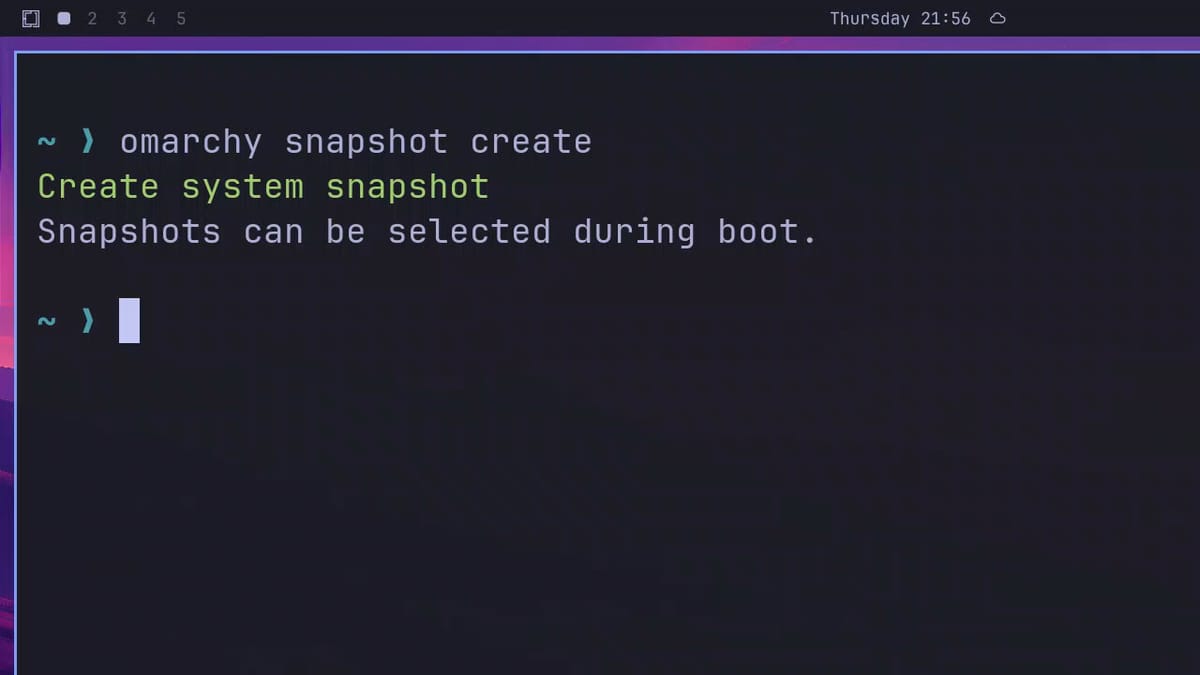
Press super enter to open a terminal, then run:
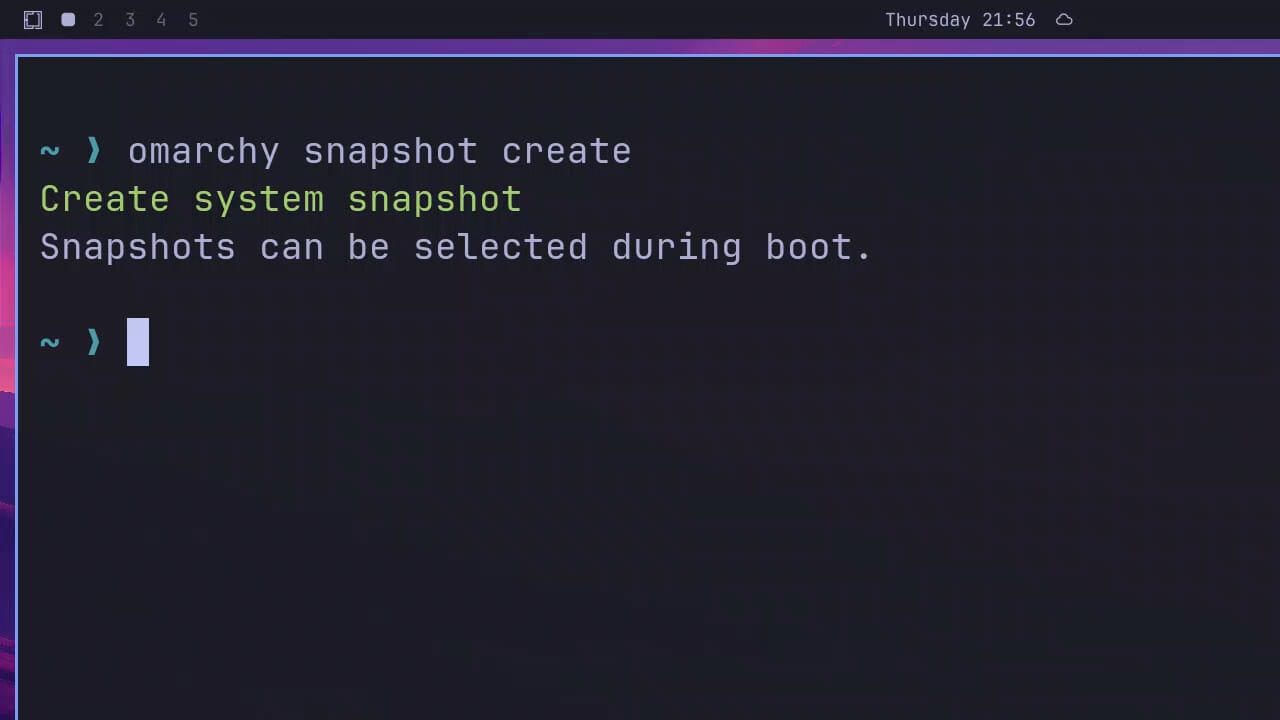
omarchy snapshot createThe command also works as omarchy-snapshot create, with a hyphen. Type your password if it asks. The output is two lines, a green “Create system snapshot” and then “Snapshots can be selected during boot.” It finishes in about a second, and the new snapshot is in the boot menu straight away. Its description is the Omarchy version, in our case 4.0.4-1.
Remove an app to test the rollback
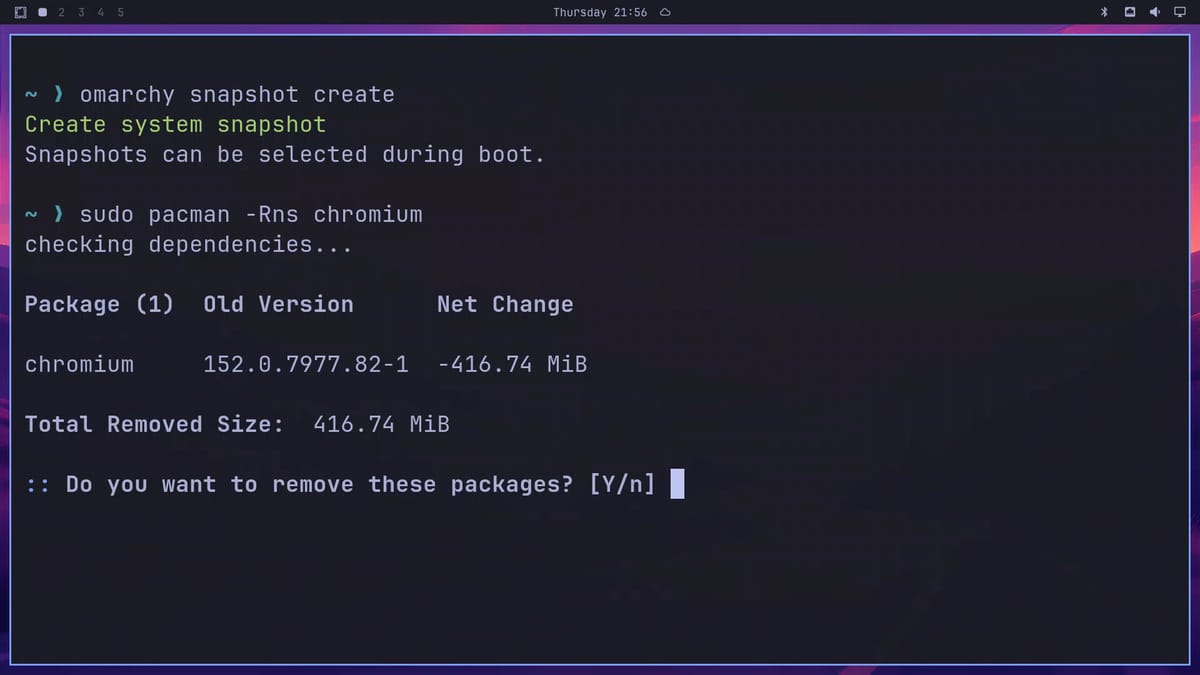
To have something to roll back, we removed the browser. super shift b opens Chromium, the default browser; close it again with super w . Then remove it:
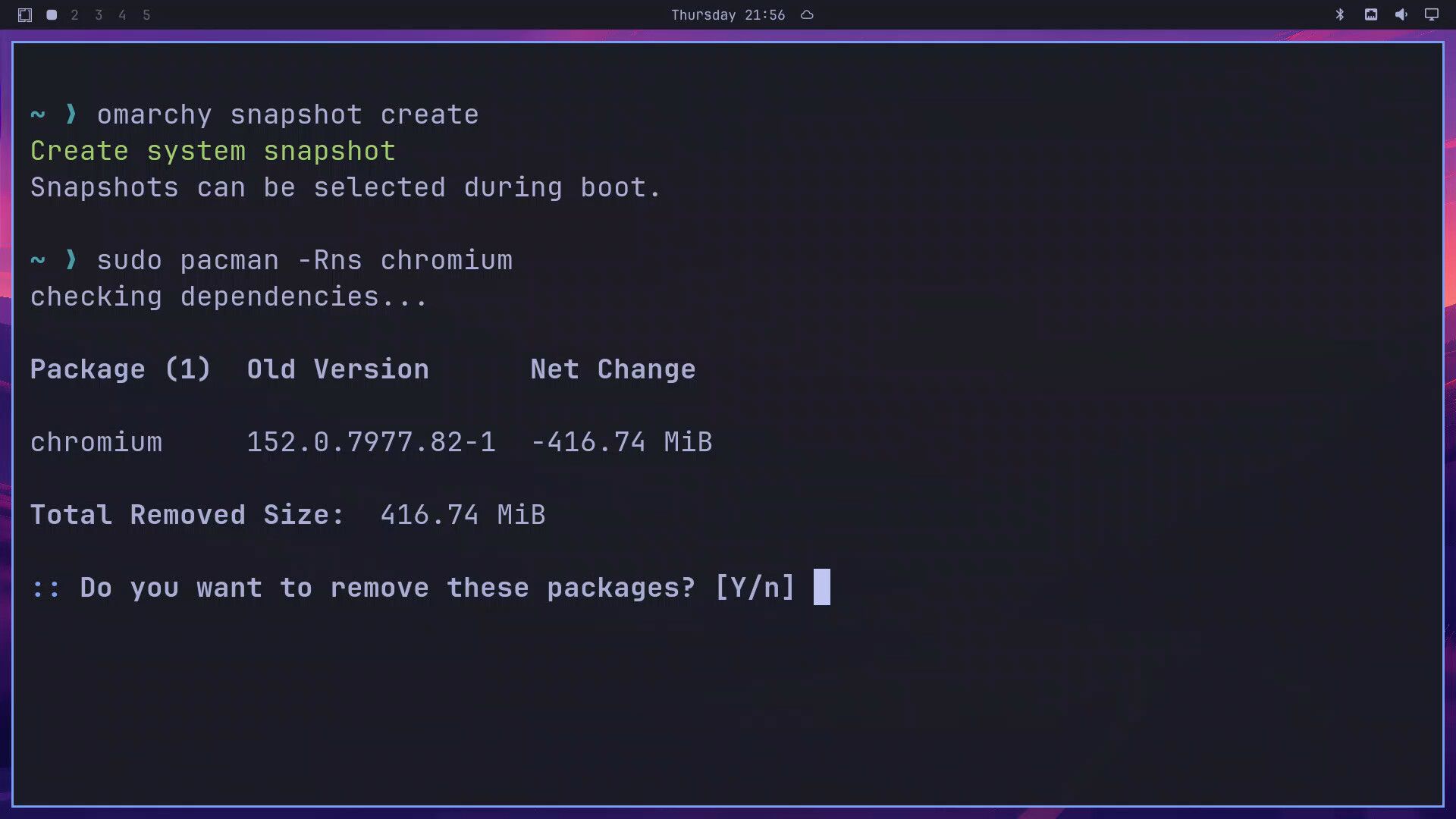
sudo pacman -Rns chromium-R removes the package, -n deletes its config files instead of keeping backup copies, and -s removes dependencies that nothing else needs. Pacman lists what it will remove (chromium, 416.74 MiB for us) and asks “Do you want to remove these packages? [Y/n]”. Press enter to say yes.
Now super shift b opens no browser. Instead, a notification titled “App failure” pops up at the top right, with “Error: Command not found”. It stays on screen until you press super , to clear it.
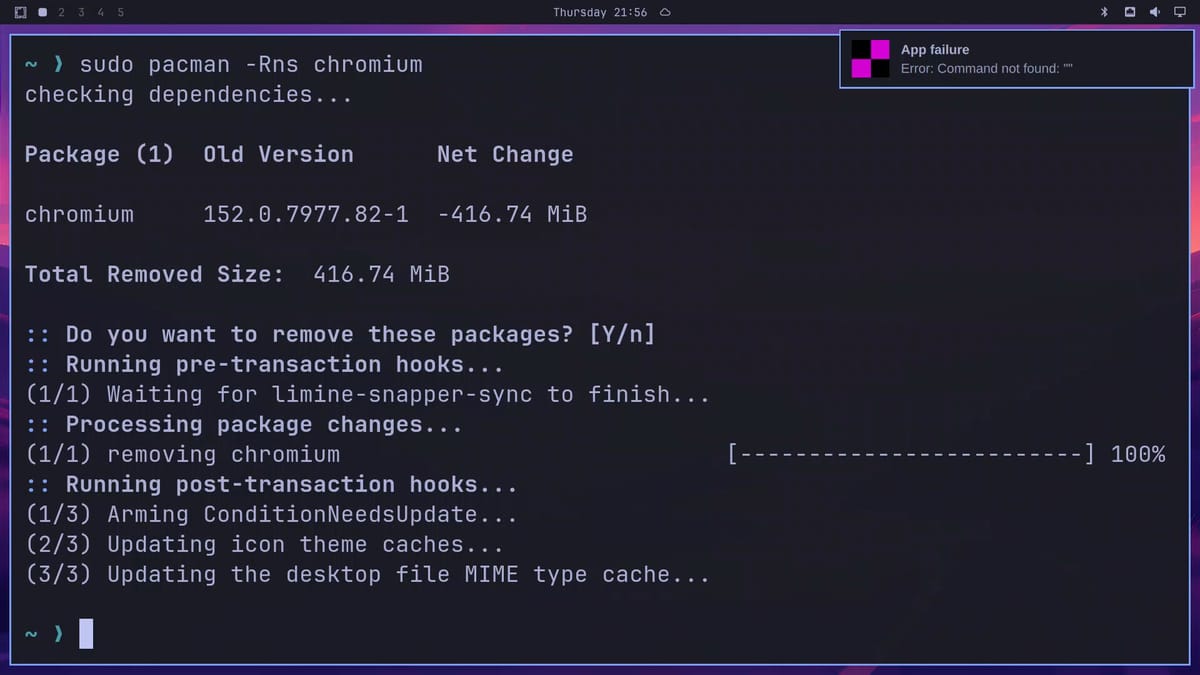
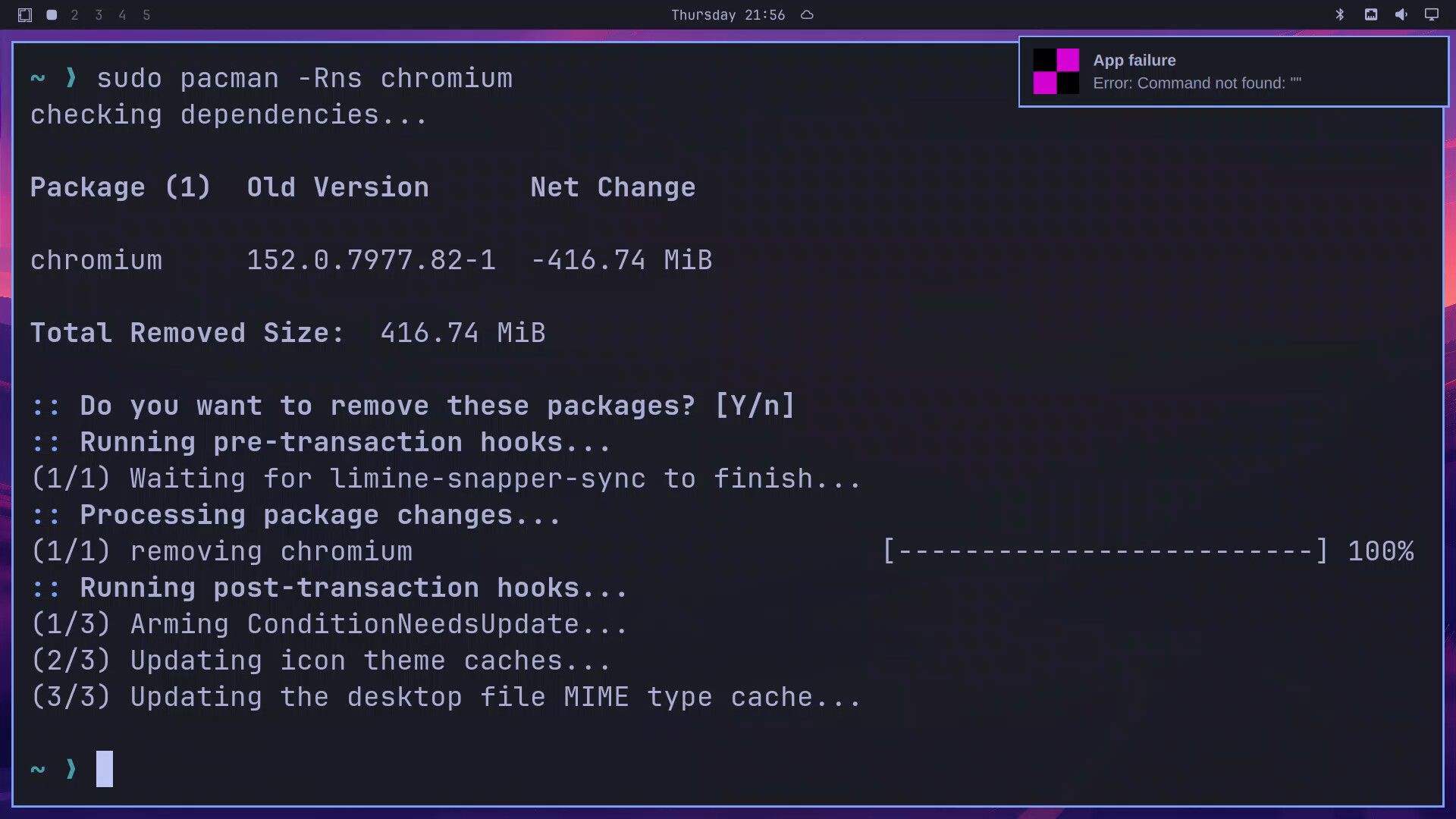
A missing browser is easy to fix with sudo pacman -S chromium. We use it here because the break is obvious on screen: the same steps undo an update or a system change that you cannot fix by hand.
Boot the snapshot from the Limine menu
Press super esc to open the system menu, move down to Reboot, and press enter . The computer restarts at once, with no confirmation.
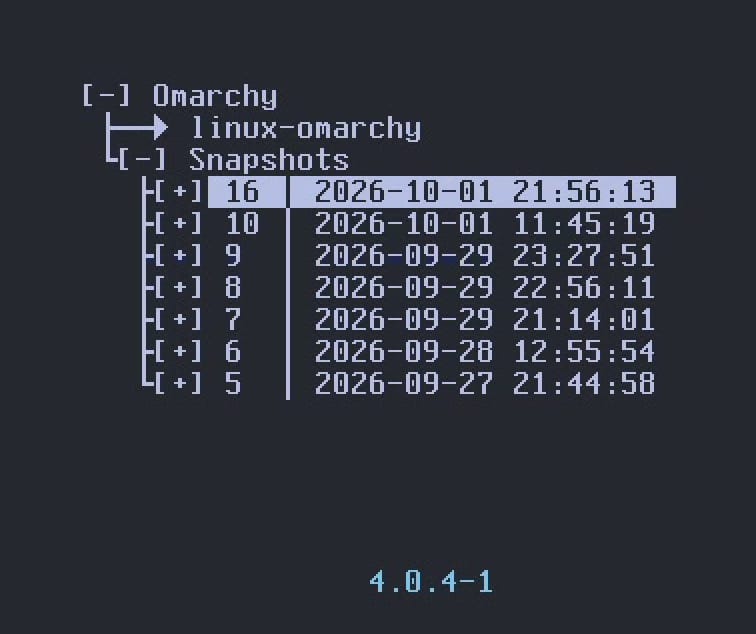
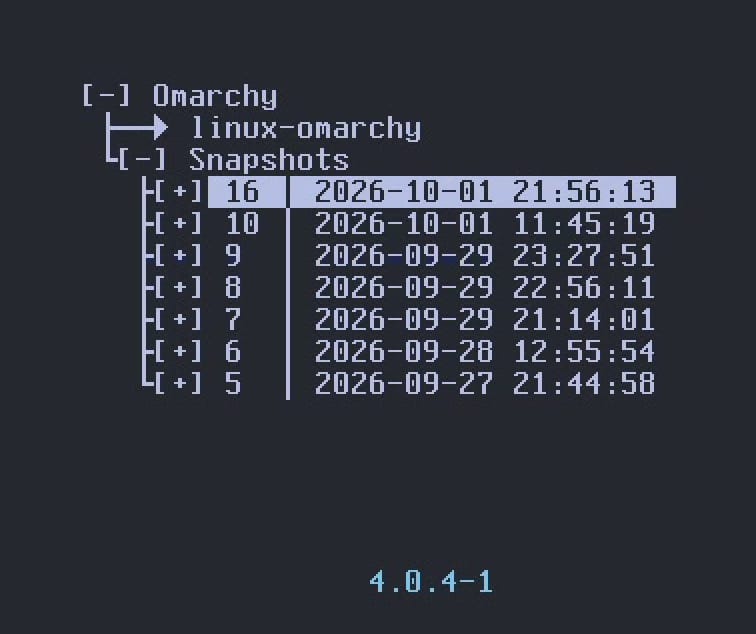
The boot menu, titled “Omarchy Bootloader”, shows linux-omarchy (your normal system) and a Snapshots folder under it. It waits about five seconds (“Booting automatically in 5…”) and then starts the normal system, so press any key to stop the countdown.
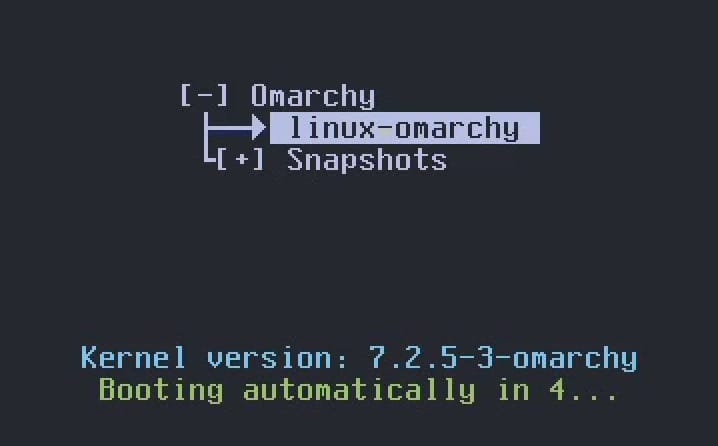
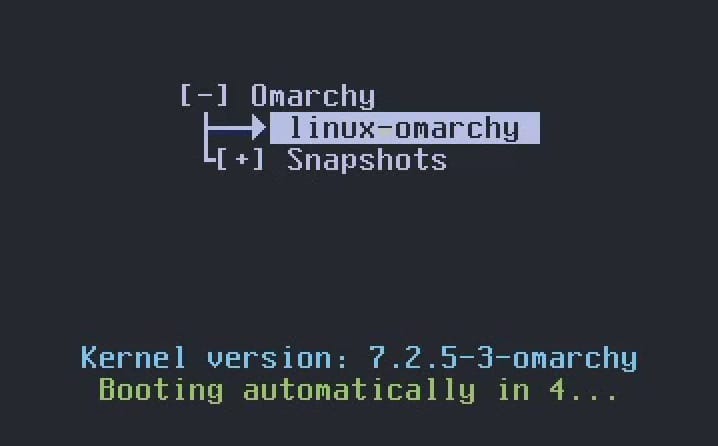
To boot the snapshot:
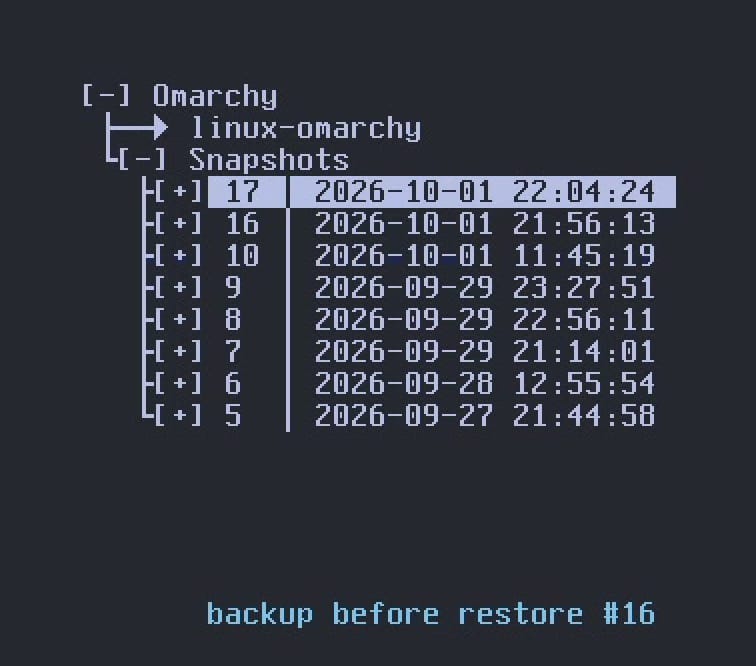
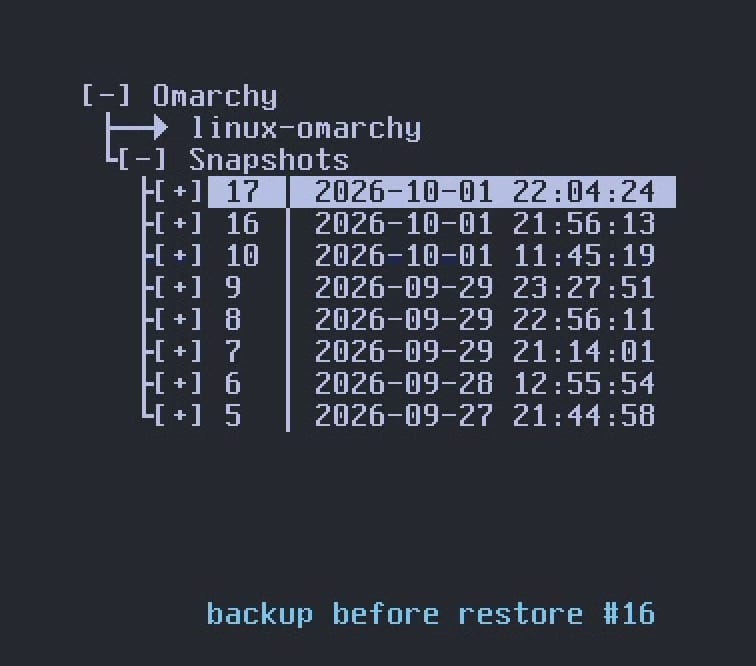
- Press to highlight Snapshots, then enter to open it. Each row is one snapshot, with its number and the date and time it was made, newest first.
- Press to highlight the snapshot you made, which is the top row. The line at the bottom of the screen shows its description, the Omarchy version.
- Press enter to open the snapshot. It holds one boot entry,
linux-omarchy. - Press to highlight that entry, then enter to boot it.
- Type your disk password, as on every boot.
Check that the snapshot is read-only
The desktop looks the same as on a normal boot. Press super shift b , and the browser opens, because the snapshot still has Chromium. Close it with super w .
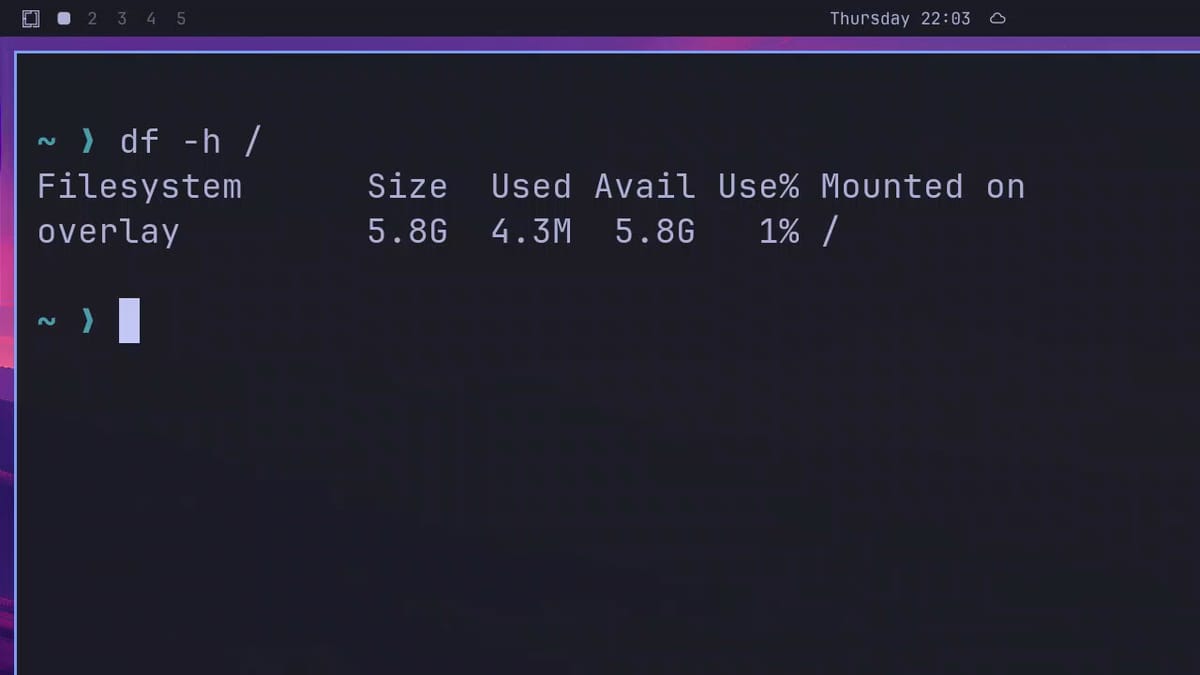
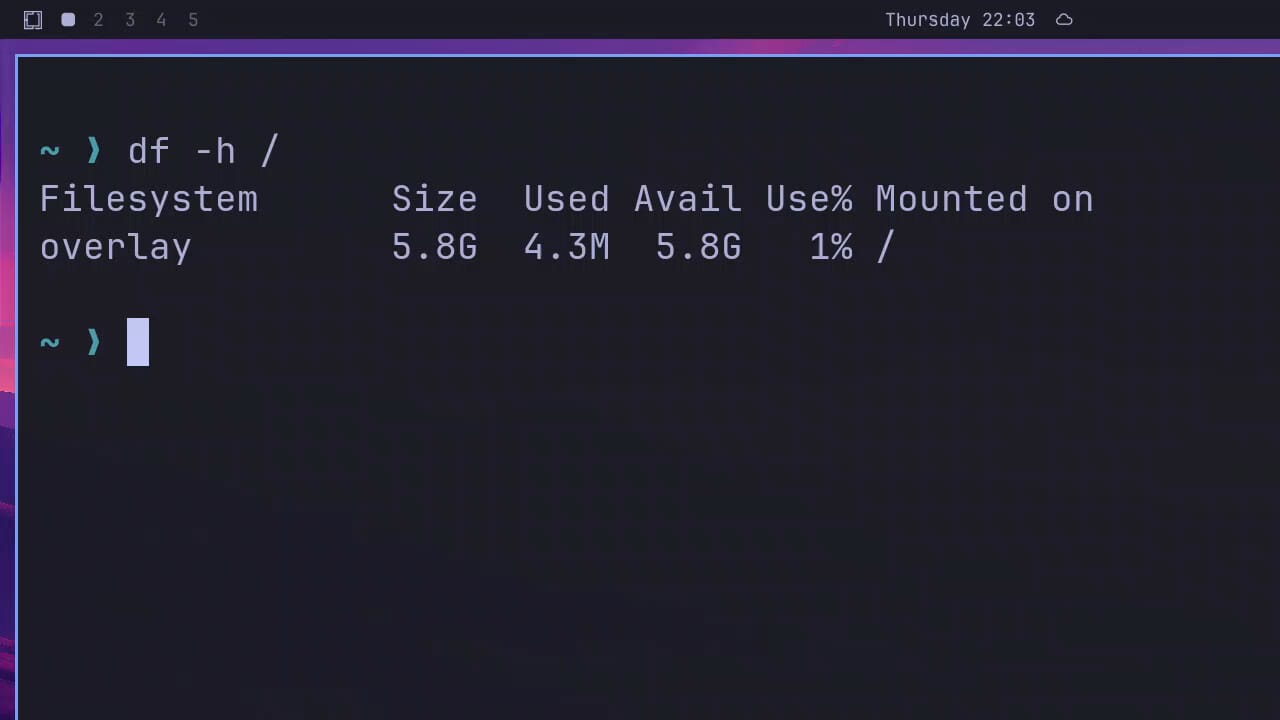
Nothing on the desktop tells you that you are in a snapshot. The Omarchy manual describes a notification that offers to restore the snapshot, but on Omarchy 4.0.4 it is turned off. To check, open a terminal and run:
df -h /The first column says overlay instead of the name of a disk. A booted snapshot is read-only, so Omarchy puts a temporary layer in memory on top of it. You can install and change things, but any change to the system is lost at the next reboot. Your home folder is the live one, so files you save in it stay.
Restore the snapshot for good
If the snapshot works, make it your main system. In the same terminal, run:
omarchy snapshot restoreType your password if it asks. The command shows the snapshot’s number, date, and description, and the restore method, replace. Then it asks “Restore snapshot 16 (method: replace)?”, with your snapshot’s number, and offers three choices: [r] restore, [l] list, and [c] cancel. Type r and press enter . (c cancels before anything changes.)
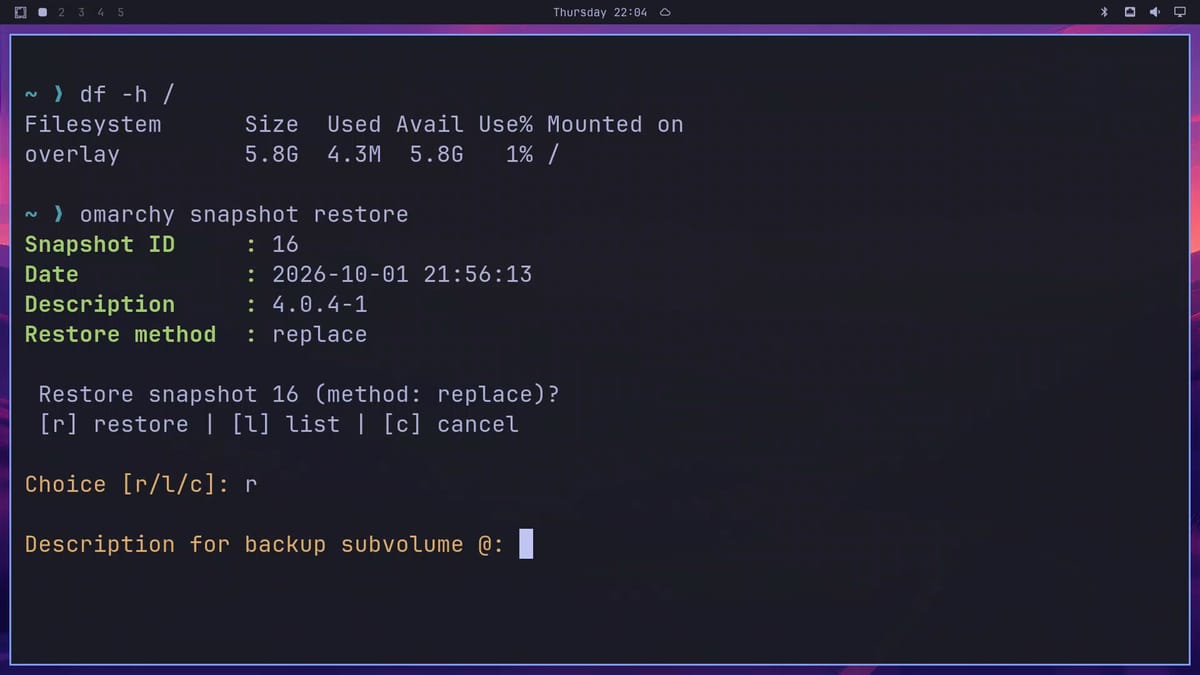
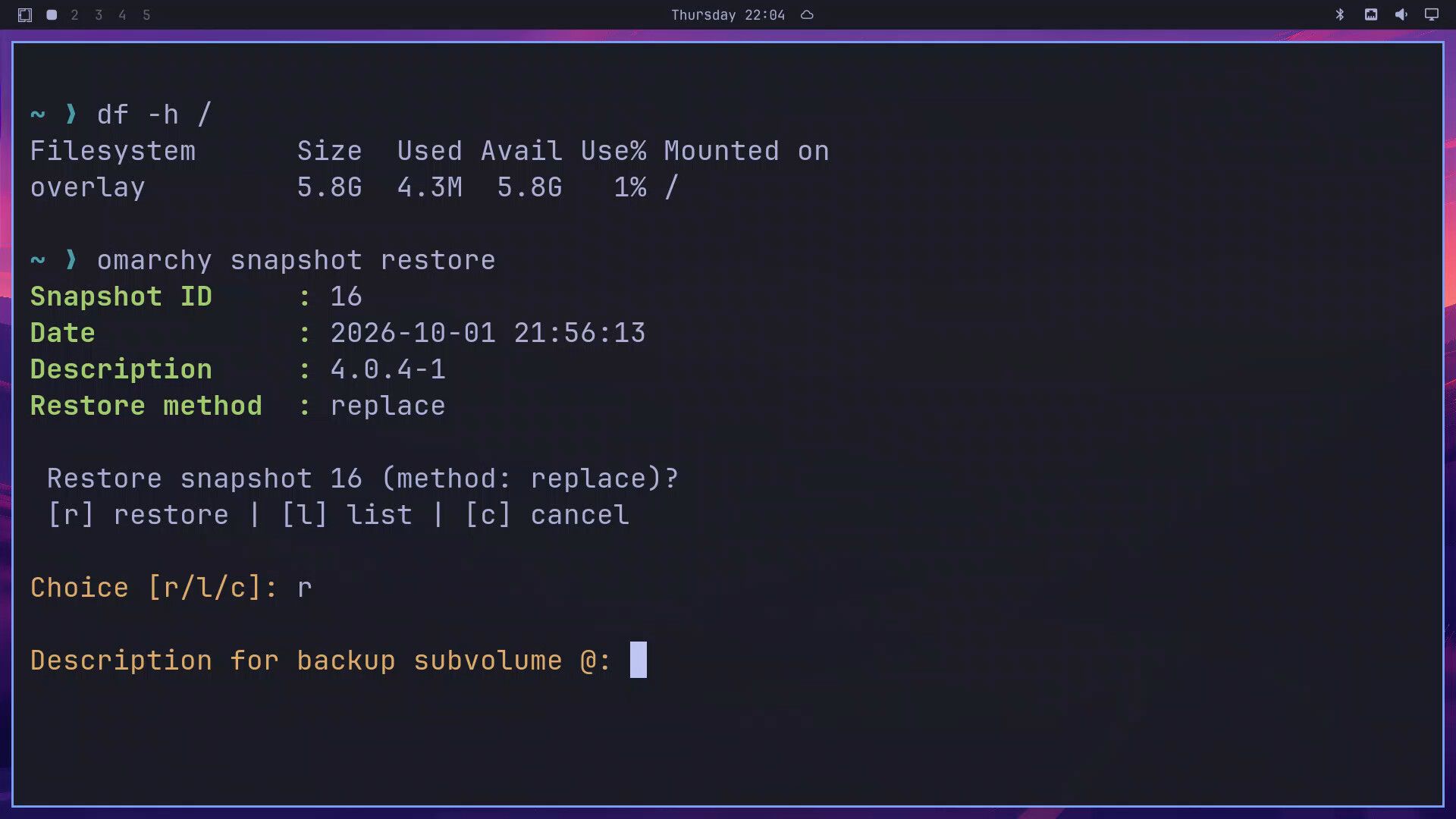
Next it asks “Description for backup subvolume @:”. This is the name for a snapshot of your current system, the one you are replacing. Press enter to keep the default name, “backup before restore” followed by the snapshot number. The restore takes a second or two. It ends with “Restore complete. Reboot now? [Y/n]:”, and enter reboots.
Reboot into the restored system
At the boot menu, press enter on linux-omarchy, the first entry, or let the countdown run out. This is your normal entry again, and it now starts the restored system. After the disk password and the desktop, press super shift b : Chromium opens on a normal boot, so the restore stuck.
A restore rolls back the system and keeps your home folder
A restore covers the programs, the system settings in /etc, and the package database, which together are called root. The Omarchy manual says your files and your settings, including the ~/.config folder, stay as they are.
A snapshot can undo a broken update, but it cannot bring back a deleted file from your home folder. If you roll back to an older version of an app that already rewrote its settings in a newer format, the old version finds the new settings in ~/.config, and you have to sort that out by hand. Back up your personal files separately.
Undo a restore with the backup snapshot
The restore saved your old system as a snapshot named “backup before restore”, with the number of the snapshot you restored (ours read “backup before restore #16”). It sits at the top of the Snapshots list in the boot menu. If you change your mind, boot it the same way as any other snapshot and run omarchy snapshot restore in it.
Omarchy makes a snapshot before every update and keeps five
The update you run from the Omarchy menu, omarchy update, calls omarchy snapshot create before it changes any package. A plain pacman command makes none, so run omarchy snapshot create yourself before you install, remove, or change system packages.
Omarchy’s snapper settings keep up to five snapshots made this way, by an update or by you. Right after each new one, snapper deletes the oldest ones past five. A snapshot you make with a plain sudo snapper -c root create does not count, so it stays until you delete it, and the list shows it as an extra row. The “backup before restore” snapshot does not count toward the five either. To list your snapshots with their descriptions, run:
sudo snapper -c root listTo delete one, use its number from that list. If the deleted entry is still in the boot menu afterwards, refresh the menu:
sudo snapper -c root delete 17
sudo limine-snapper-sync
If you turned on Direct Boot
Omarchy has an option, Setup > Direct Boot in the Omarchy menu, that skips the Limine menu and goes straight to the disk password screen. With it on, the firmware starts Omarchy directly, so you never see the Snapshots list. To reach your snapshots, pick Limine from your computer’s firmware boot menu, or run Setup > Direct Boot again to turn it off and boot through Limine as before. The Omarchy manual also says the setup refuses to run on American Megatrends and Apple firmware, so on those machines the Limine menu stays.
Troubleshooting
The computer booted the normal system before you could pick a snapshot. The countdown is about five seconds. Reboot and press as soon as the menu shows; any key stops the countdown.
Snapper commands fail inside a booted snapshot. In a booted snapshot, root is the temporary overlay, not a Btrfs subvolume, so sudo snapper -c root list stops with an “IO Error”. Make new snapshots and manage old ones from the normal system: restore first, or reboot to linux-omarchy.
A deleted snapshot is still in the boot menu. Run sudo limine-snapper-sync to rebuild the list.
Where to go next
Installing a new package, such as the Flea file manager, is a good time to run omarchy snapshot create first. For more Omarchy setup, our guide to finding and installing Omarchy plugins covers the plugin marketplace. If you are still picking hardware, the Omarchy 4 hardware guide lists the mini PCs and laptops that run it well.


