
Flea is a file manager built for Omarchy by a developer who goes by GM. It is a community project that first appeared on GitHub in early September 2026. It is meant to be run from the keyboard, and it takes its colors from your Omarchy theme. Omarchy ships with Nautilus, the file manager from GNOME, and Flea can replace it for folders, the file manager shortcut, and the file dialogs in other apps.
This is the written companion to our Flea video, with every command we ran. Everything below was done on Omarchy 4.0.4 with Flea 0.3.5-2 from Omarchy’s package repository.
Omarchy’s default file manager may change
On September 11, 2026, David Heinemeier Hansson, who created Omarchy, posted on X that “the days of Nautilus as the default file manager in Omarchy are numbered.” He named Flea as one of several attempts at a successor, not as his pick, and said a new default will arrive with an upcoming Omarchy release or the one after it. Until then, Flea is an optional install, and Nautilus stays the default unless you change it.
What you need
You need a working Omarchy install and a terminal. Omarchy uses the Super key for most shortcuts; on a PC keyboard that is the Windows key. If the Omarchy shortcuts are new to you, our list of Omarchy shortcuts to learn first covers the terminal, the launcher, and closing windows.
Flea depends on Omarchy’s own shell components, so it installs on Omarchy and not on plain Arch Linux. Flea itself runs without root, and the changes it makes when you set it as the default are files in your home folder.
Install Flea from Omarchy’s repository
Press super enter to open a terminal, then run:
omarchy pkg add fleaThis installs Flea from Omarchy’s own package repository, and the package is signed by the Omarchy team. It also brings ten small helper packages, including support for phones, cameras, and extra image formats (gvfs-afc, gvfs-gphoto2, and kimageformats among them). On our box the whole install took a few seconds; on a machine that has never downloaded those packages, expect a download of about 9 MiB. When it finishes, press super w to close the terminal.
If Flea does not start after the install, your package database is probably out of date. Earlier builds of the repository package (0.3.4-1, and 0.3.5-1 in our test) left out part of the interface and fail to launch (Flea issue #216); Omarchy fixed it in 0.3.5-2. Refresh the database, then install again:
sudo pacman -Syy
omarchy pkg add flea
Flea also has a community build in the AUR, flea-bin, which follows Flea’s own releases and can be a release ahead of the Omarchy repository (0.3.6 against 0.3.5 when we recorded). The Flea README installs it with omarchy pkg aur add flea-bin. The two packages conflict, so drop one before you add the other. We used the signed repository package for this guide.
Open Flea and move around with the keyboard
Press super alt space for the app launcher, type flea, and press enter . Flea opens on your home folder, with your places listed on the left.
Flea uses the same movement keys as Vim. j moves down and k moves up. l opens a folder and h goes up one folder. In our demo home folder, five presses of j reached Pictures, and two presses of l opened Pictures and then our lake trip photos.
ctrl 3 switches to the grid view, with a thumbnail for each photo. The last photo in our folder is stored sideways in the file, and Flea still shows it the right way up, in the grid and in the preview. ctrl 1 switches back to the list view (and ctrl 2 gives a column view). Switch back to the list before you press h : in the grid, h and l move sideways between photos instead of up and into folders.
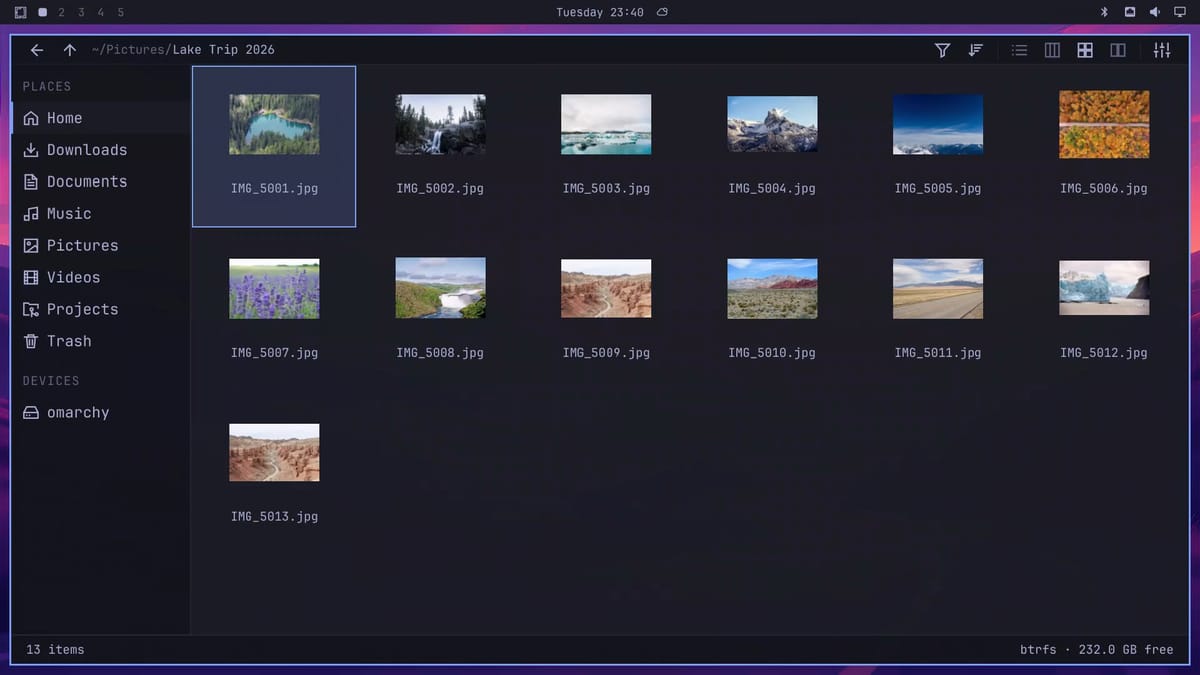
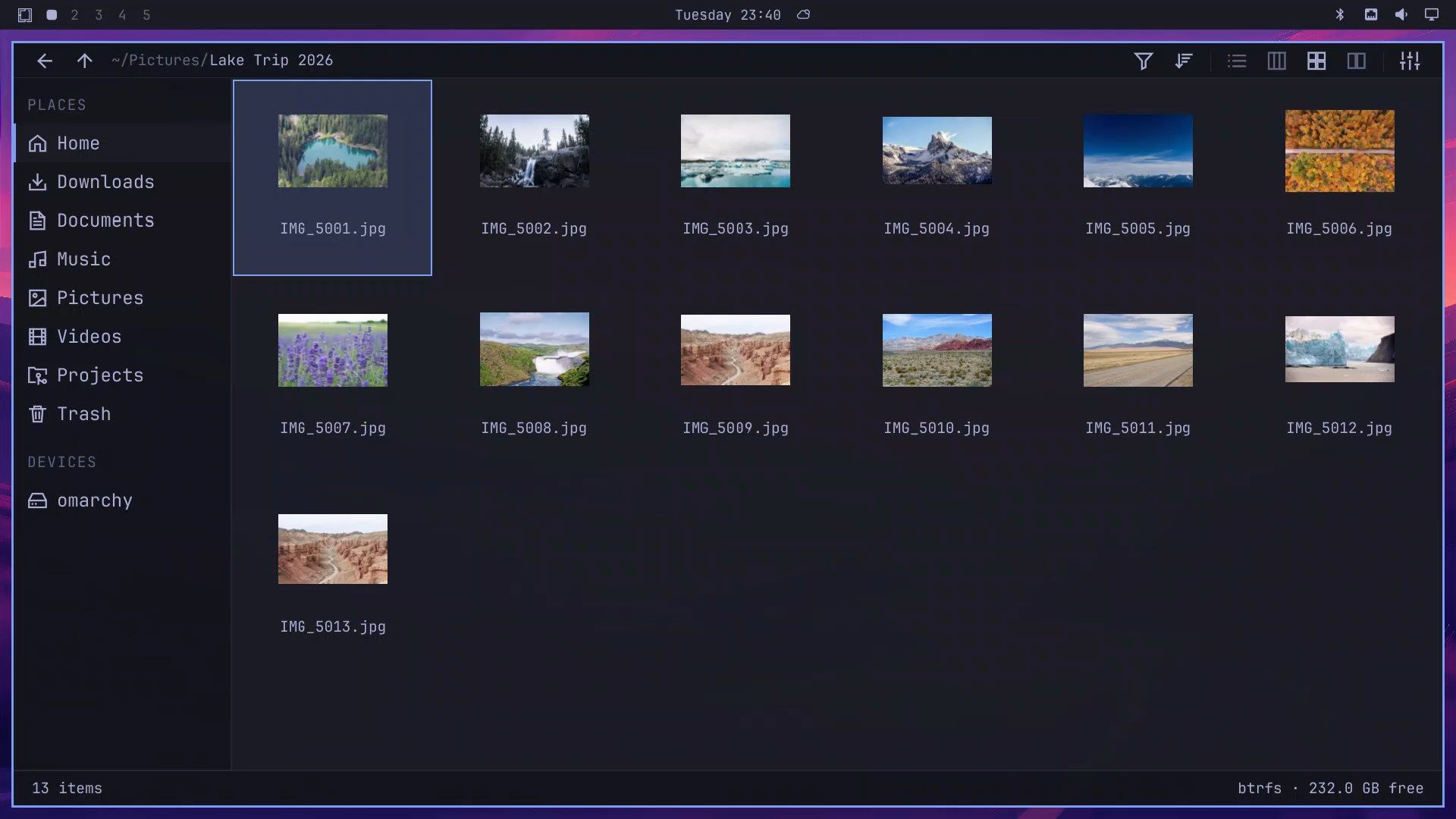
The space bar opens Quick Look, a large preview of the file under the cursor. In Quick Look, j steps to the next photo and k to the previous one without closing the preview, and esc closes it. The right arrow key did not step between photos for us, so use j and k .
Preview PDFs, notes, and archives with Quick Look
In our Documents folder, shift g jumped to the last file, a photo book saved as a PDF. The space bar opened it, l turned to the next page, and e expanded the preview to fill the window. One press of esc closed both.
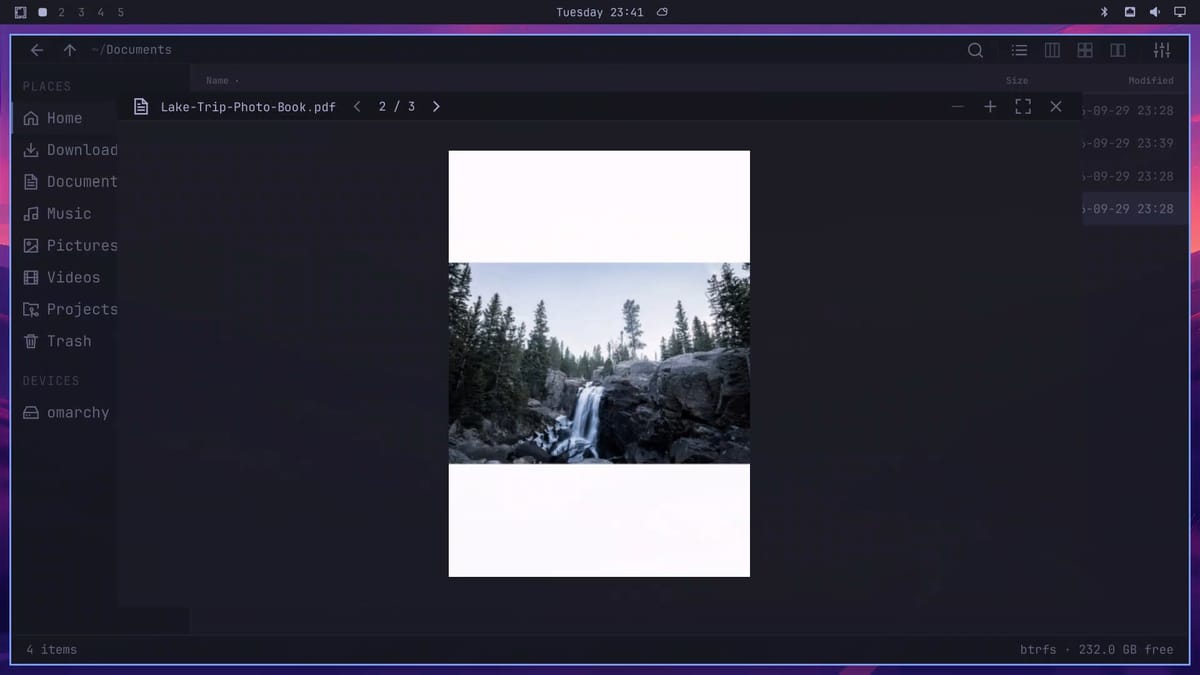
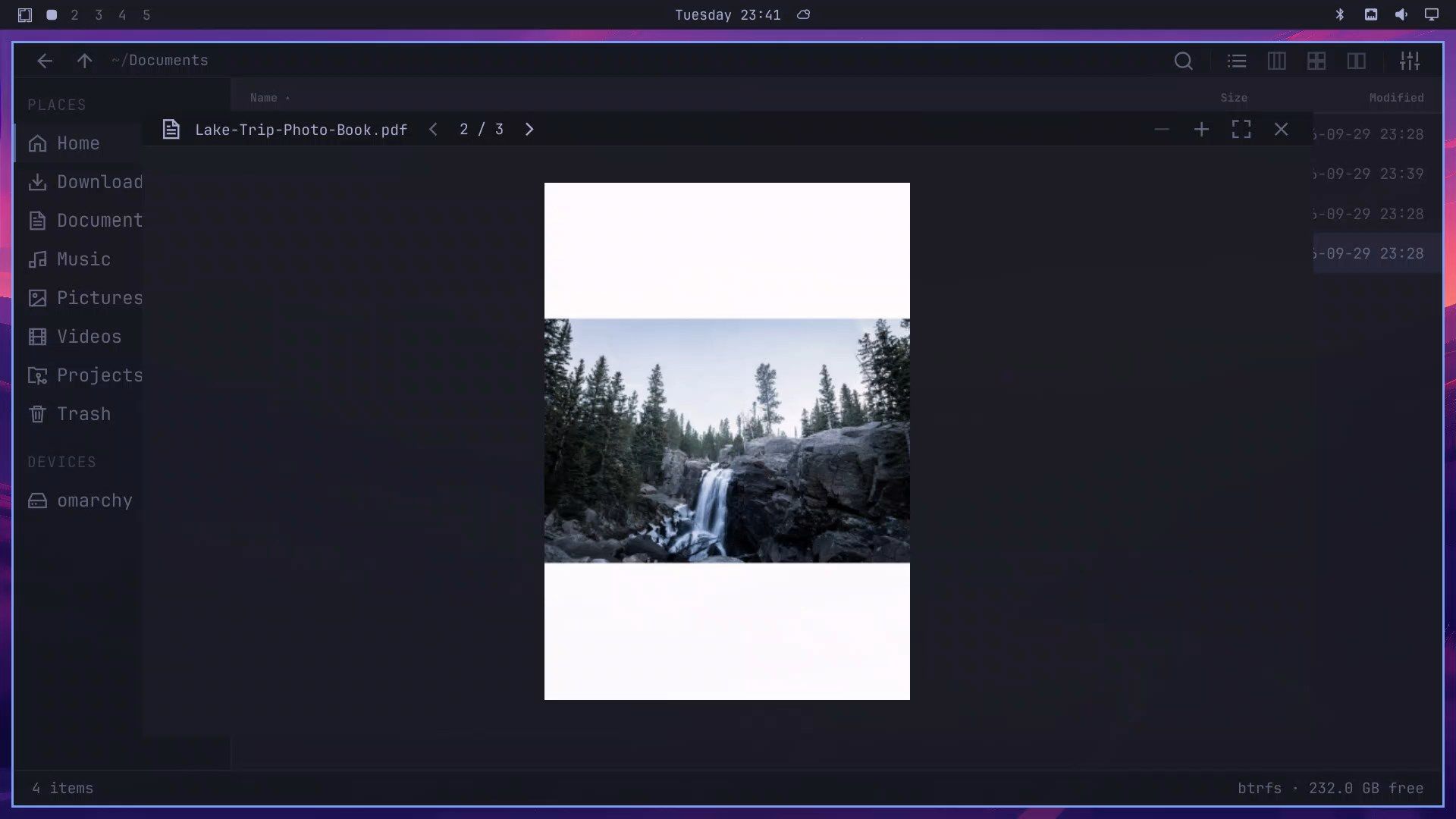
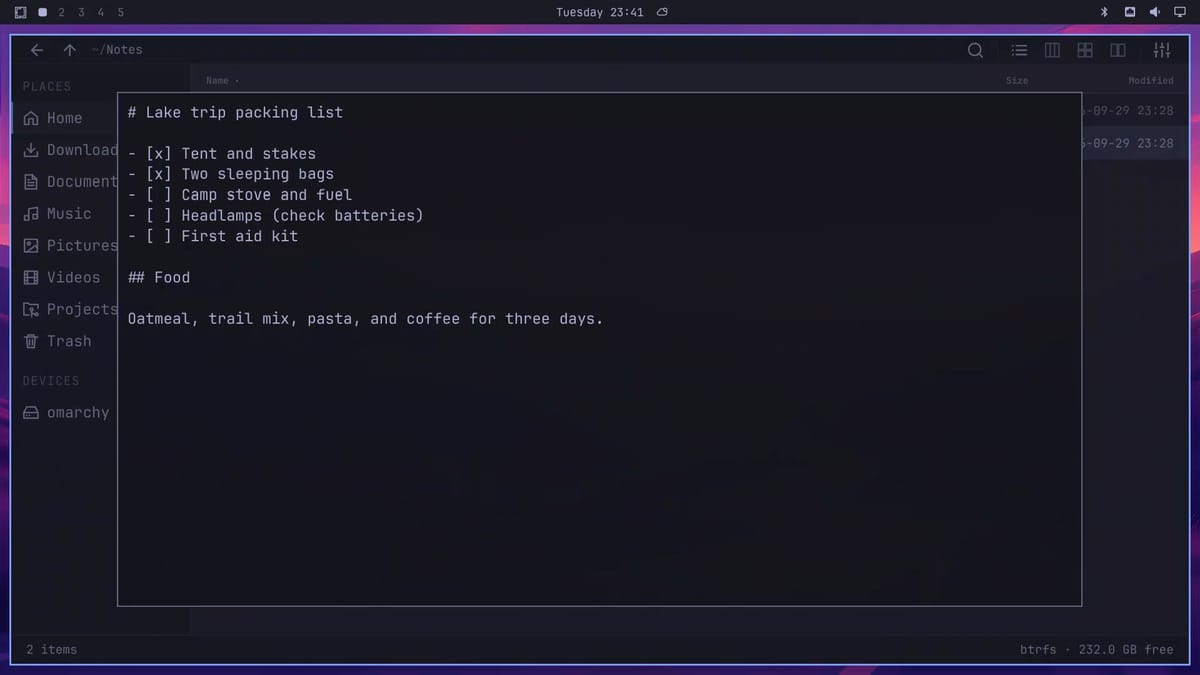
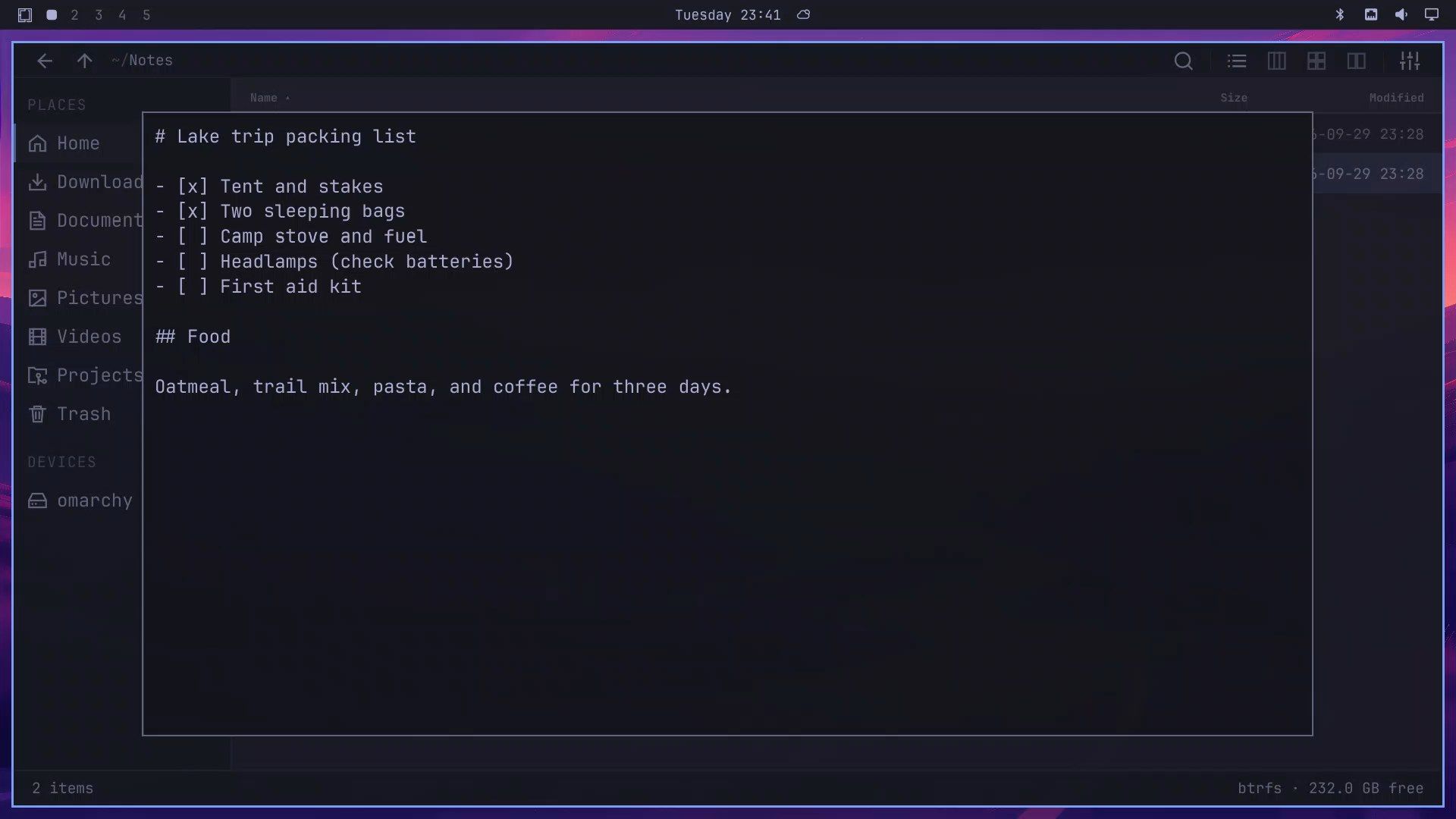
Quick Look shows a Markdown file as plain text, with the pound signs and brackets left in, because Flea does not render Markdown yet. On a ZIP file, the space bar lists what is inside and how big it is unpacked. Our test archive showed “14 entries · 33.8 MB unpacked” above the file list.
Extract an archive, then trash and undo
To unpack the ZIP, press esc to close the preview, then m to open the menu for that file. Move down to Extract with j (it was seven presses down from Open in our menu) and press enter . The files land in a new folder named after the archive, the cursor moves onto it, and the status bar says “Archive written.”
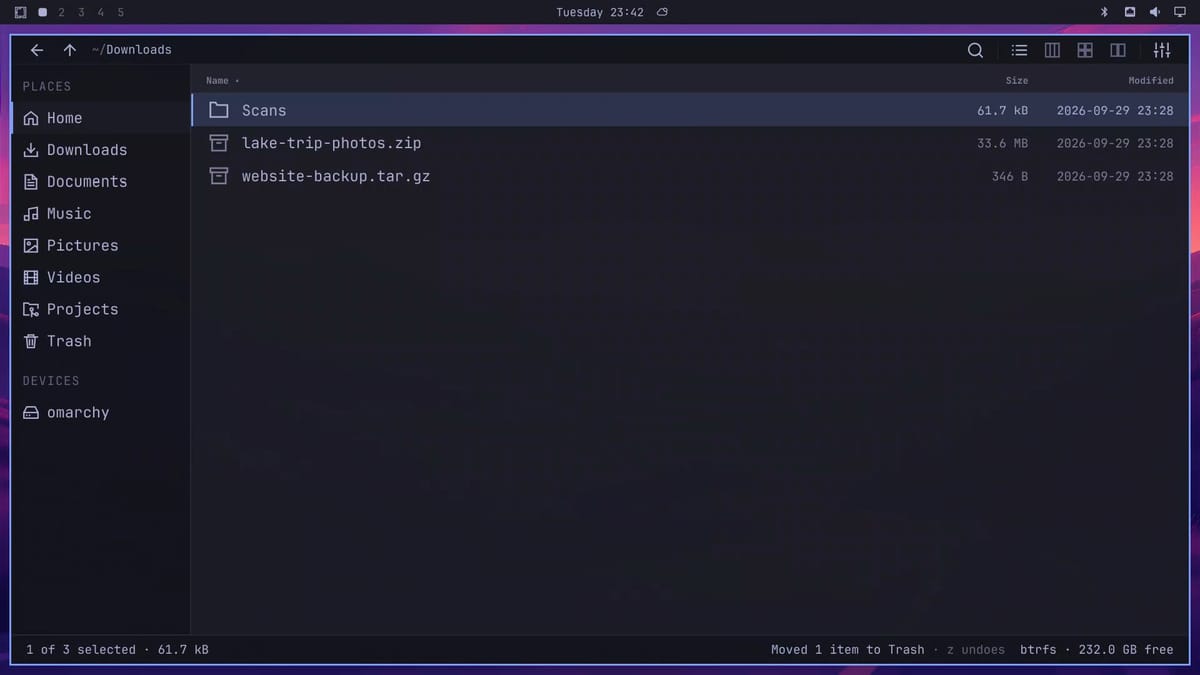
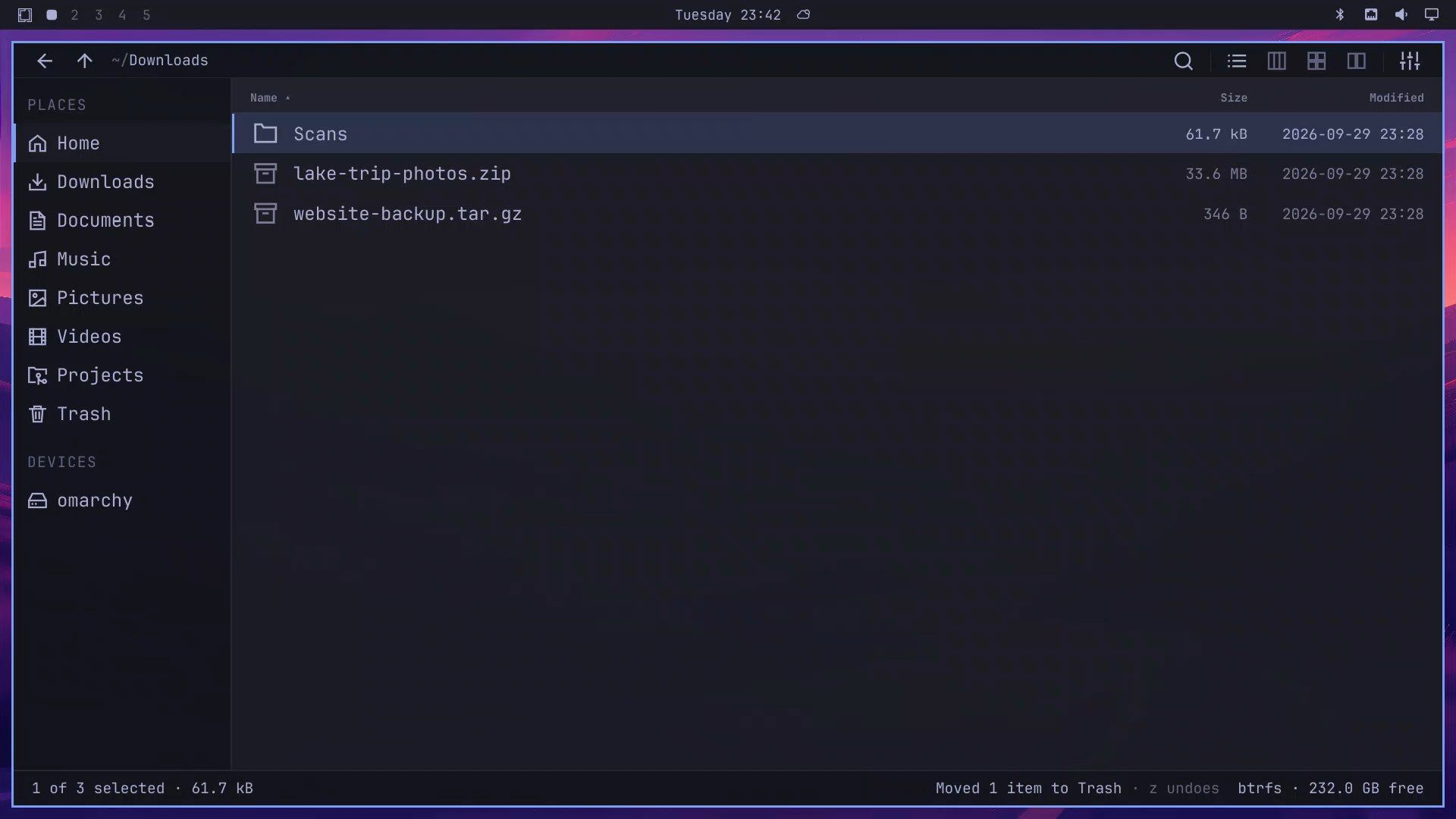
Deleting has no confirmation step. Pressing d twice sends the item under the cursor straight to the Trash. The status bar then reads “Moved 1 item to Trash · z undoes”, and pressing z brings it back. If you are used to a confirmation dialog, read the status line after each delete.
Copy files with a selection and the path bar
We copied four scans into another folder. Open the folder with the files, press v to start a selection, and press shift j to grow it one file at a time. Three presses gave us four scans, and the status bar read “4 of 6 selected”. y copies them, and the status bar tells you that p pastes.
The colon key : opens the path bar with the current path selected, so whatever you type replaces it. We typed ~/Documents/Taxes 2025, pressed enter to go there, and pressed p to paste the four scans. If you paste files that already exist in the folder, Flea asks what to do, with Cancel, Skip, Keep both, and Replace.
Search from your home folder
Go back to your home folder and press f to search. Type the search term and press enter right away: the search runs when you press Enter, and until then the old listing stays on screen under the result count. We searched for banana, and both banana bread files showed up, each with the folder it is in.
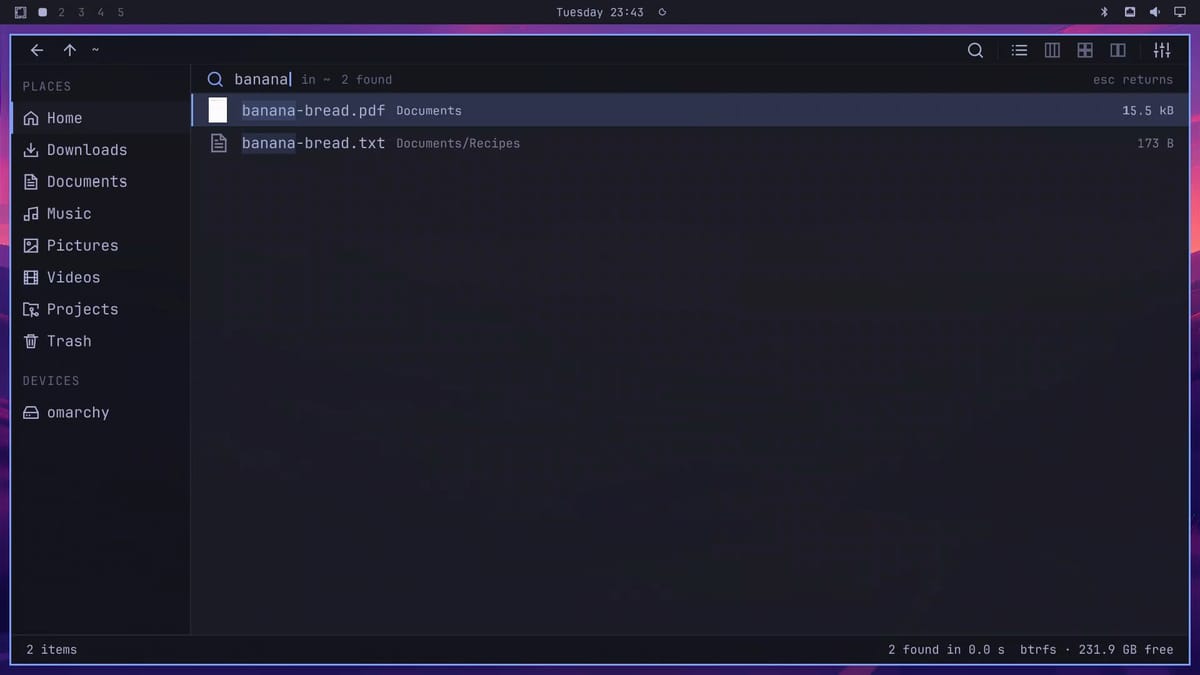
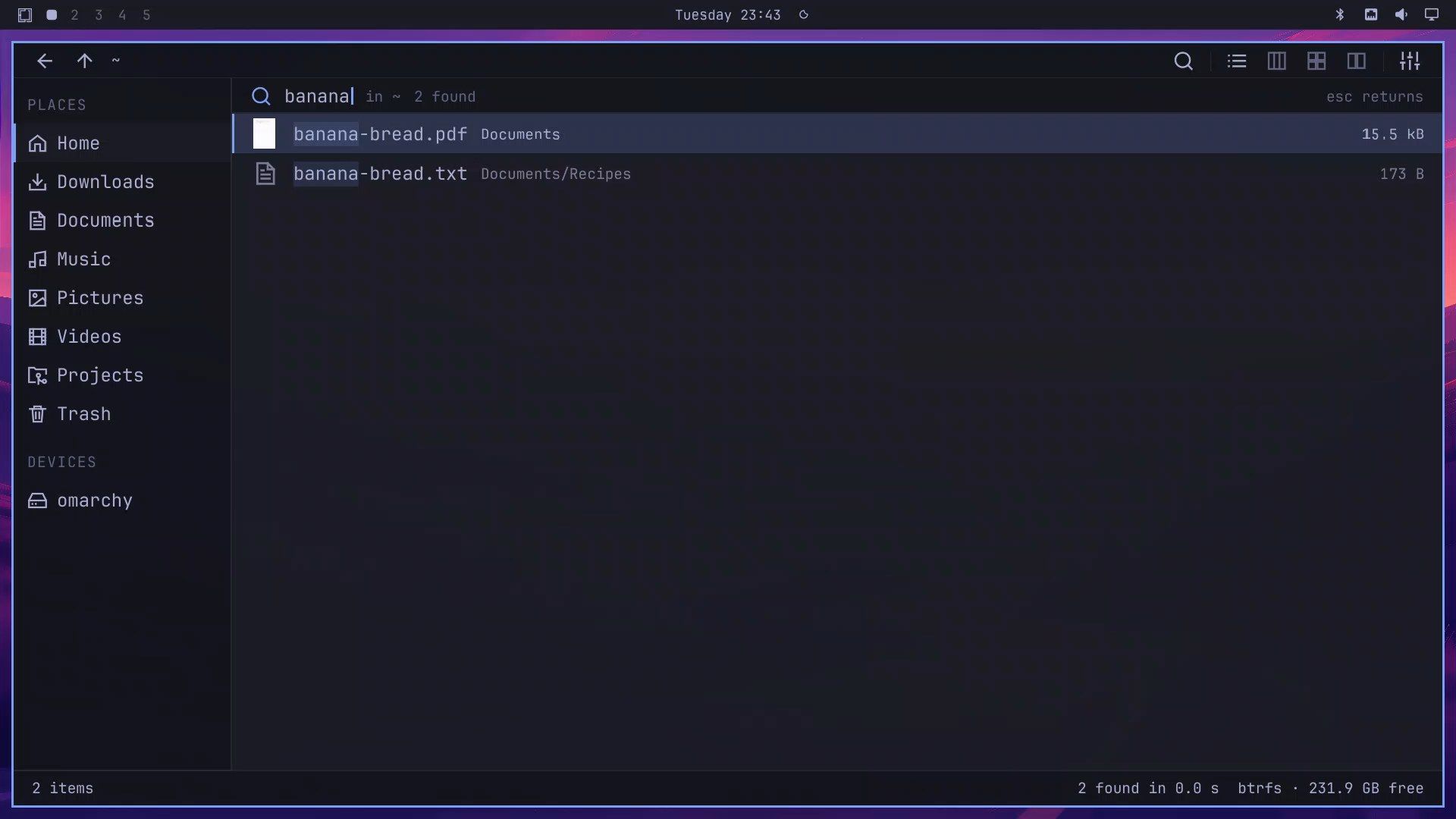
That search also went through the 100,000 files in our Big test folder, and the status bar reported “2 found in 0.0 s”, so under a tenth of a second. For a quick filter of the folder you are in, / narrows the listing as you type.
Switch key presets and theme colors
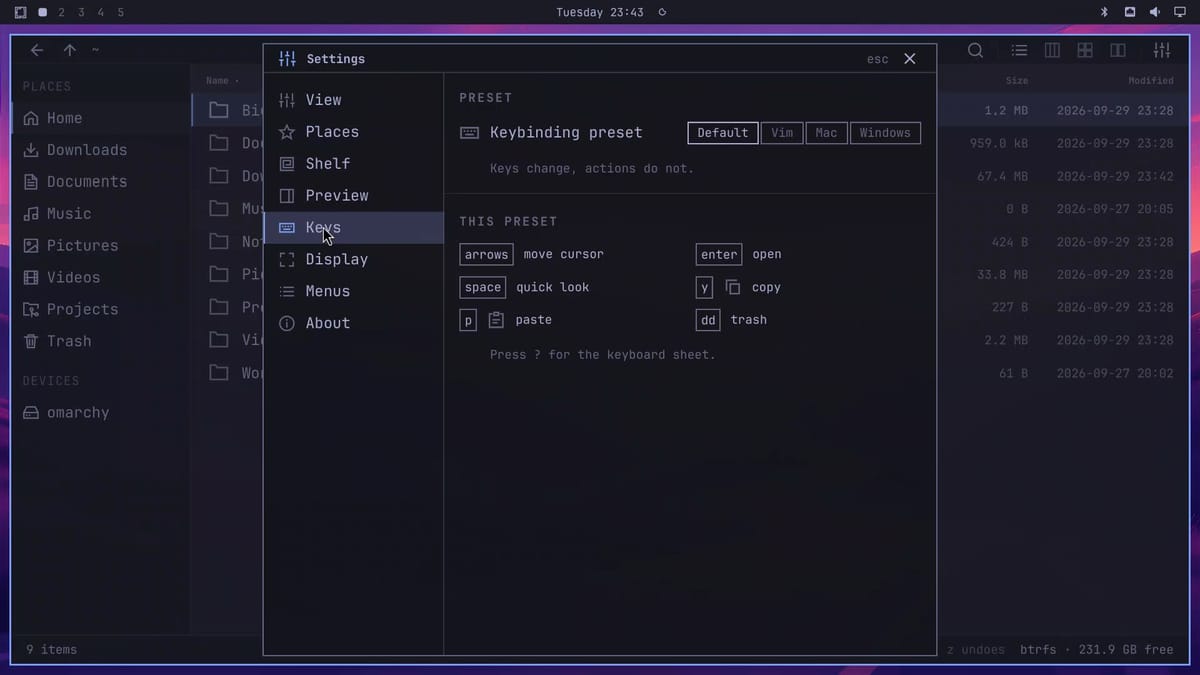
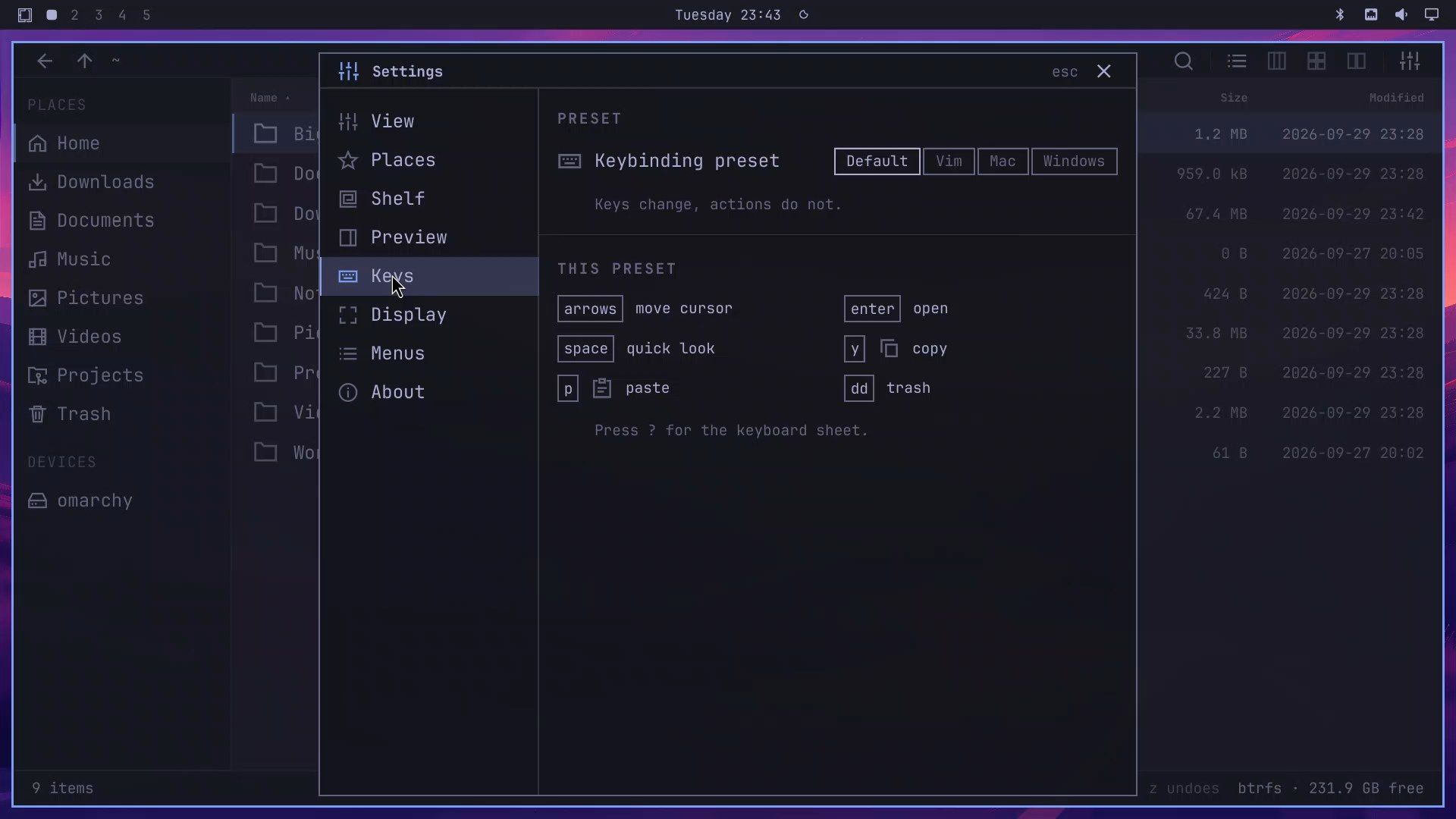
To change the letter keys, press the comma key , to open Settings and click Keys. Flea has key presets for Vim, Mac, and Windows, next to the default one. Press ? at any time for a sheet of the current keys.
Flea also follows the Omarchy theme. Press super ctrl shift space to open the theme menu, type gruv to find Gruvbox, and press enter . Flea changes colors along with the rest of the desktop, without a restart.
Flea’s default keys
This table uses the Default preset; the Vim, Mac, and Windows presets change some of these keys.
| Key | What it does |
|---|---|
| j / k | Move down / up |
| l / h | Open a folder / go up one folder (list view) |
| g / shift g | Jump to the first / last file |
| ctrl 1 / ctrl 3 | List view / grid view |
| space | Quick Look; in the file picker, mark a file |
| l and e in a PDF preview | Next page, fill the window |
| esc | Close the preview or dialog |
| m | Menu for the file under the cursor (Extract, Compress, Rename, and more) |
| d d | Move to the Trash, no confirmation |
| z | Undo |
| v , then shift j | Start a selection, then grow it |
| y / p | Copy / paste |
| : | Path bar |
| f | Search from the current folder |
| , | Settings |
| ? | Key sheet |
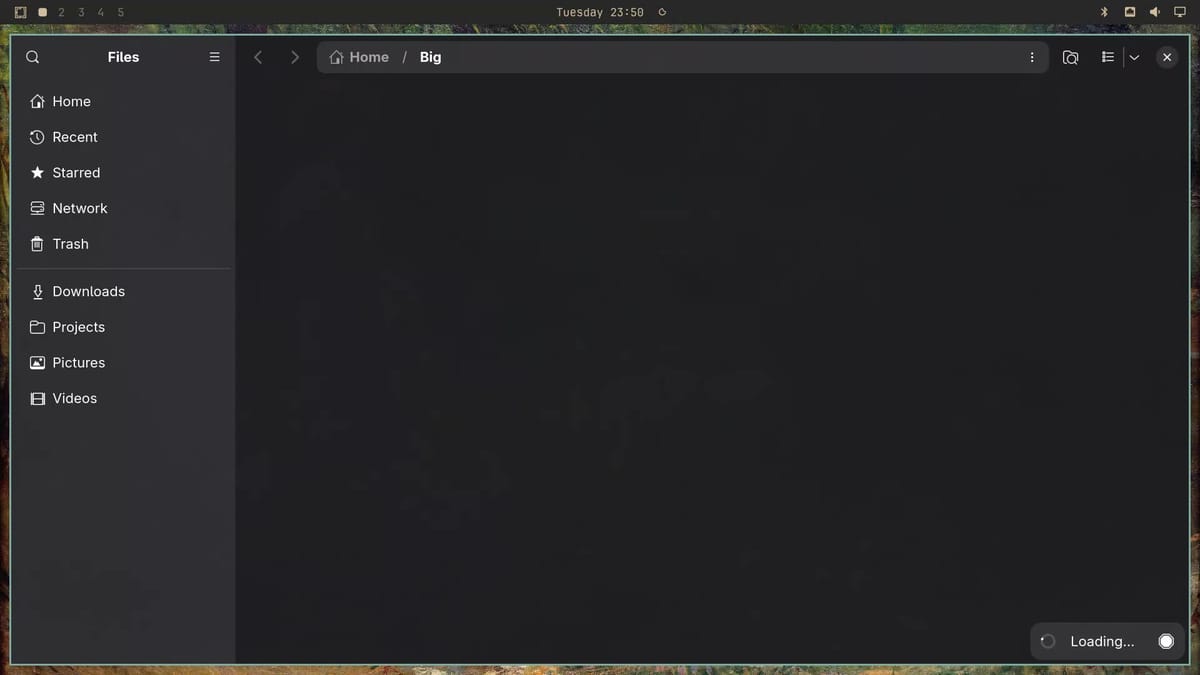
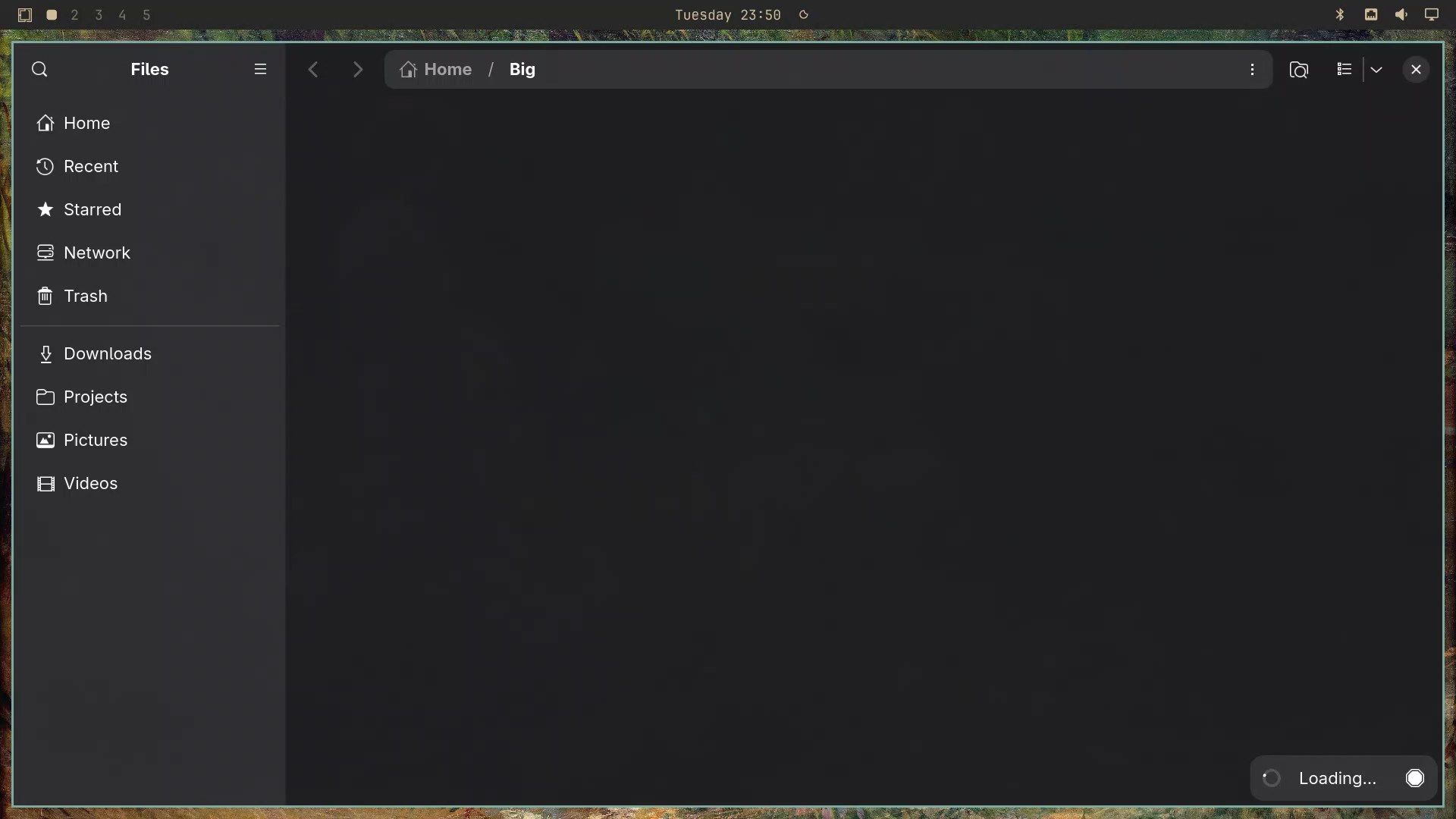
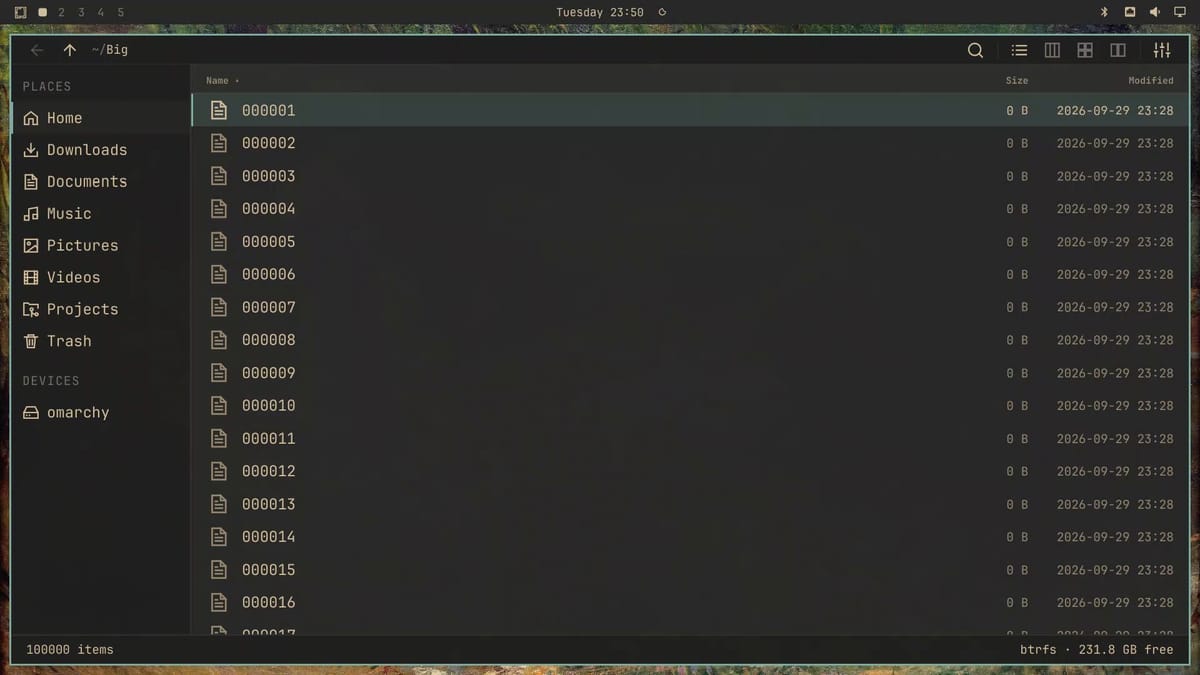
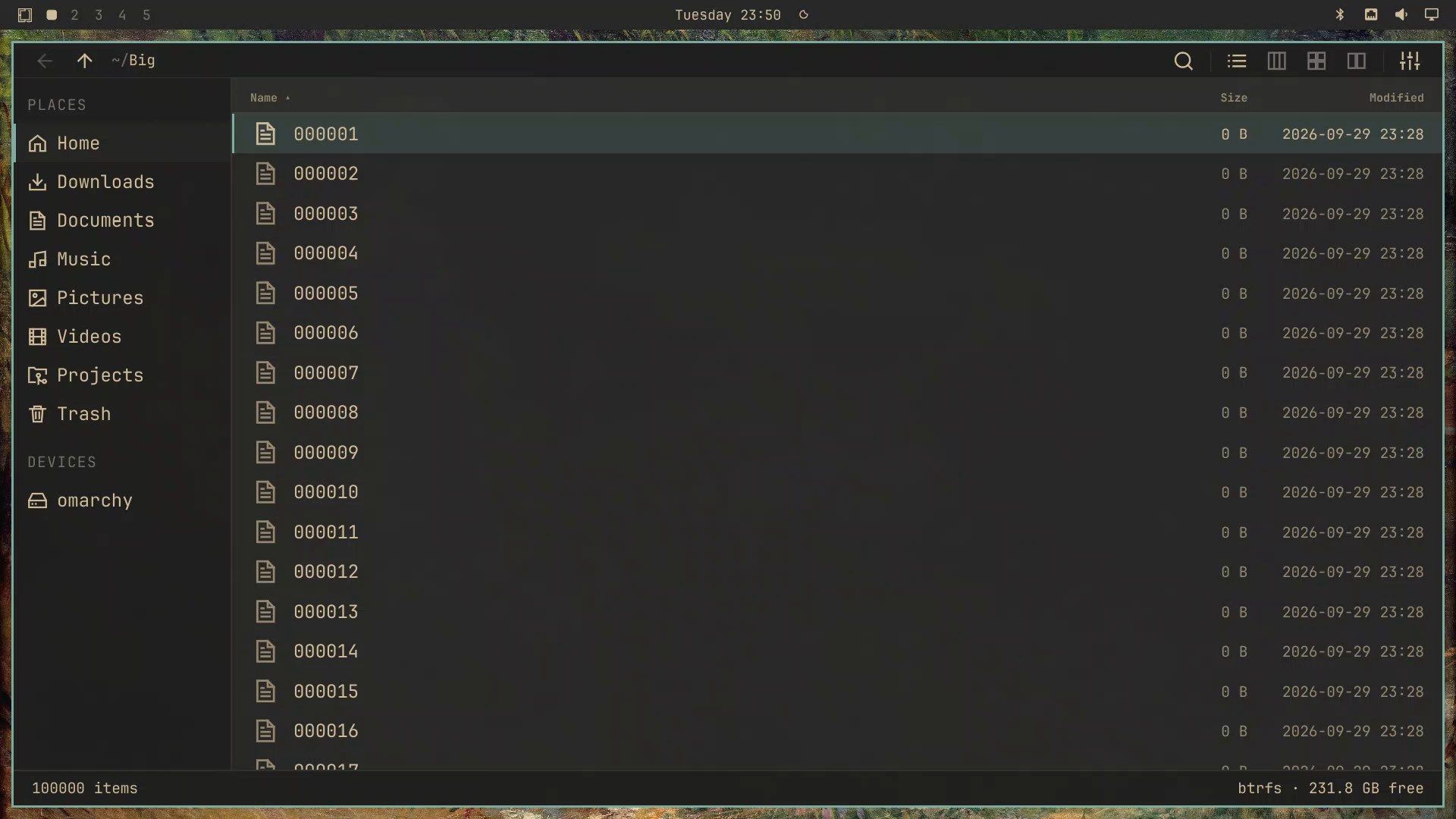
Flea listed a 100,000-file folder in 0.63 seconds; Nautilus took 4.95
We timed both file managers opening the same folder of 100,000 empty files on an Intel N100 mini PC (a GMKtec NucBox G2), with Nautilus 50.3.1 and Flea 0.3.5-2. Before each run we closed both apps and cleared the system’s file cache, so neither app got a head start from files already in memory:
sudo sh -c 'sync; echo 3 > /proc/sys/vm/drop_caches'We then launched the app on the folder and timed it from the screen recording at 60 frames per second. For Nautilus, the clock stopped at the first frame with icons; for Flea, at the first frame showing the complete list. Nautilus opens an empty window that says “Loading…” after about 0.8 seconds and shows its icons about four seconds later. Flea’s window appears with the full list and “100000 items” in the status bar.
| Run | Nautilus, icons shown | Flea, full list shown |
|---|---|---|
| 1 | 6.30 s | 0.72 s |
| 2 | 4.95 s | 0.63 s |
| 3 | 5.03 s | 0.63 s |
| 4 | 4.90 s | 0.62 s |
| 5 | 4.93 s | 0.62 s |
| Median | 4.95 s | 0.63 s |
Run 1 was the first launch of each app in that session, and it was the slowest for both. These are our measurements on one machine, one folder of empty files, and one version of each app; a folder of real photos with thumbnails, or a faster machine, will give different numbers. The Flea README publishes its own benchmark tables from the author’s machine. Once the folder is open, shift g jumps to the last of the 100,000 files and g goes back to the top.
Make Flea the default with flea —default
To keep Flea, open a terminal and run:
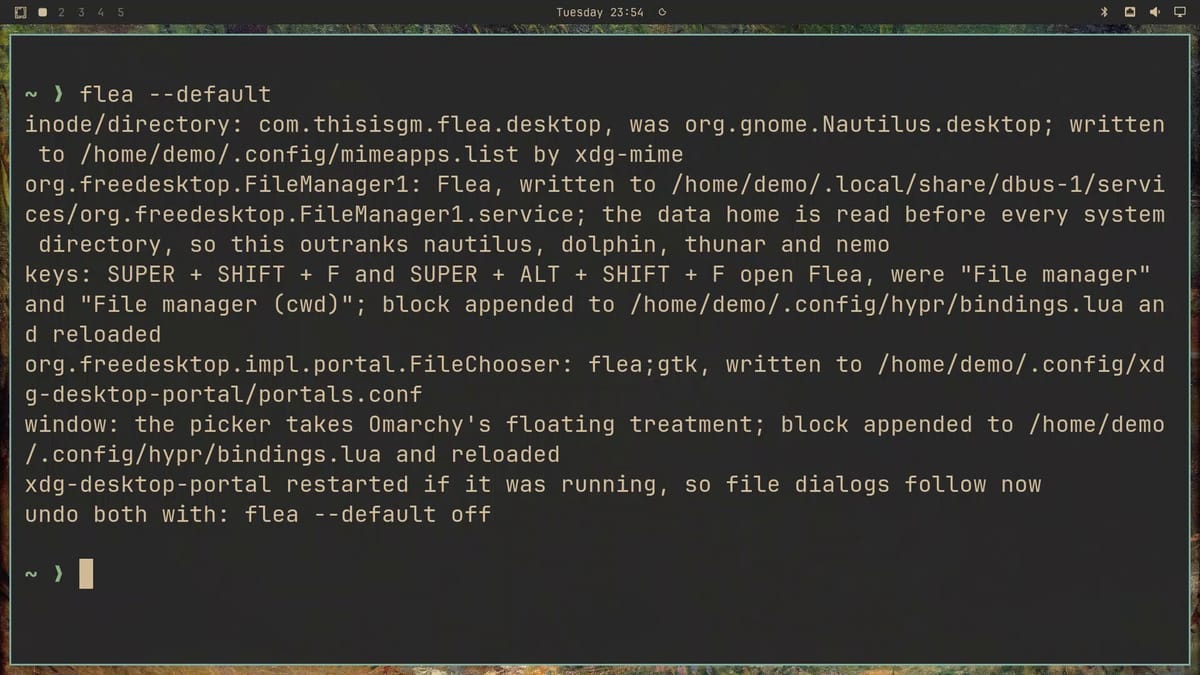
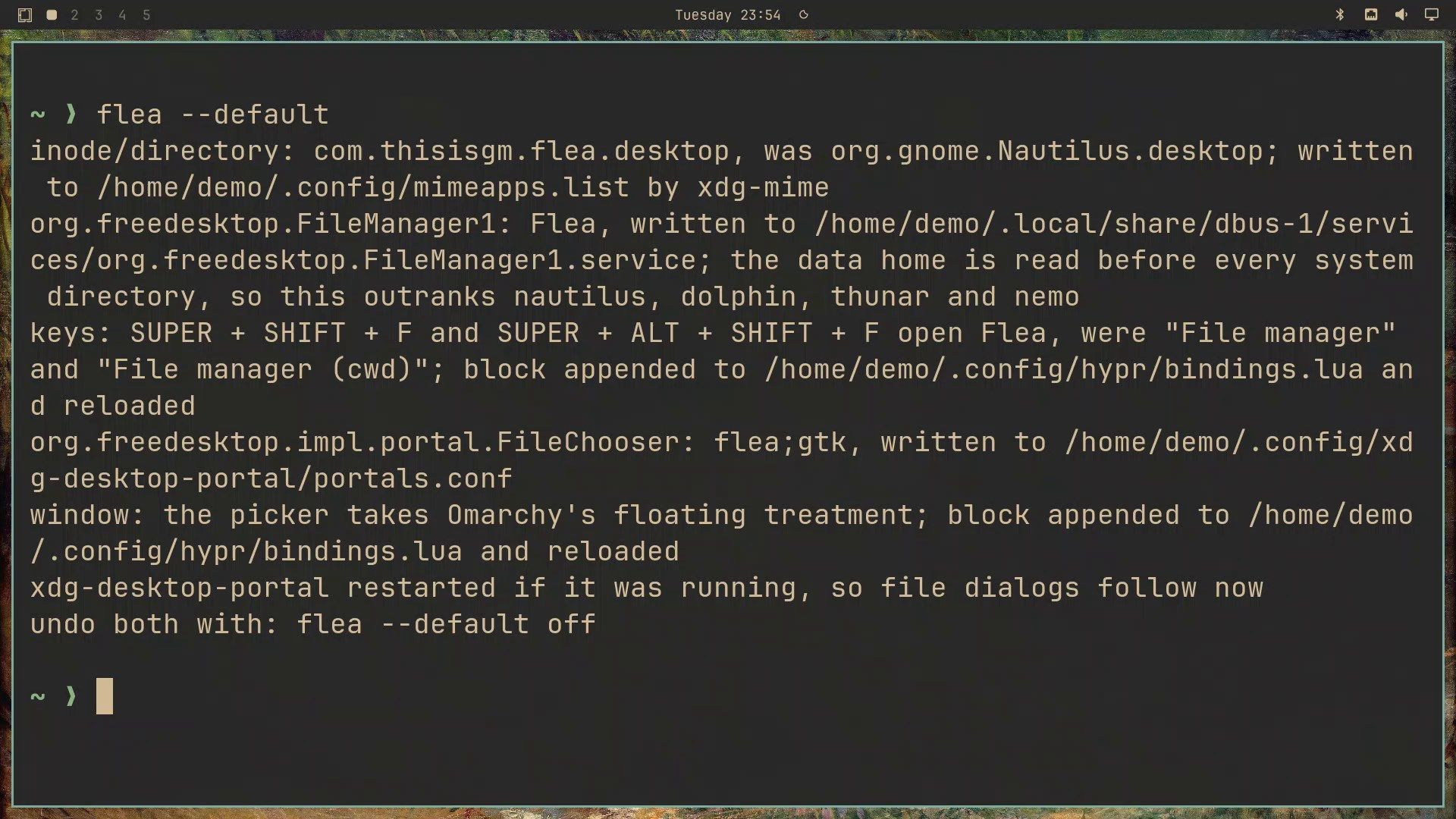
flea --defaultIt sets Flea as the app for folders, for super shift f (Omarchy’s file manager shortcut), and for file dialogs in other apps. The output lists each change and ends with the line “undo both with: flea —default off”. After that, super shift f opens Flea instead of Nautilus.
To try a file dialog, we opened a simple upload page in the browser, pressed tab to reach Choose Files, and pressed the space bar to open it. Flea’s own picker opened, titled “Open Files”, instead of the usual dialog. We went into our photos folder, marked three photos with the space bar, and pressed enter to send them; the page then said “3 files”.
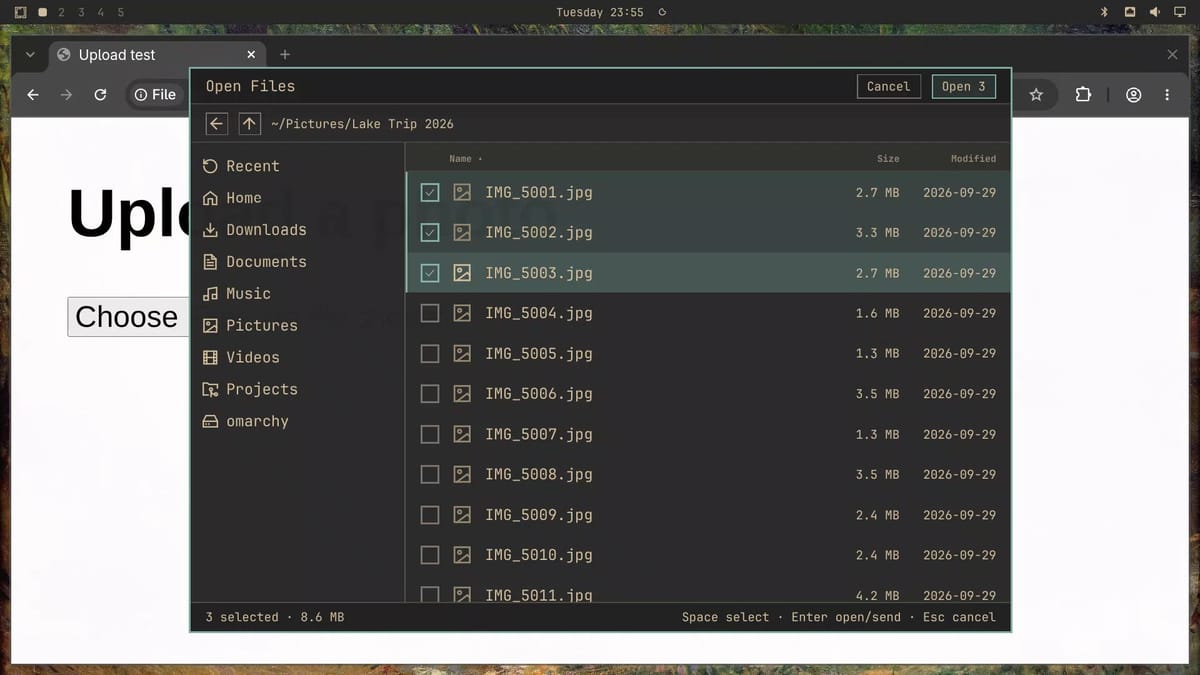
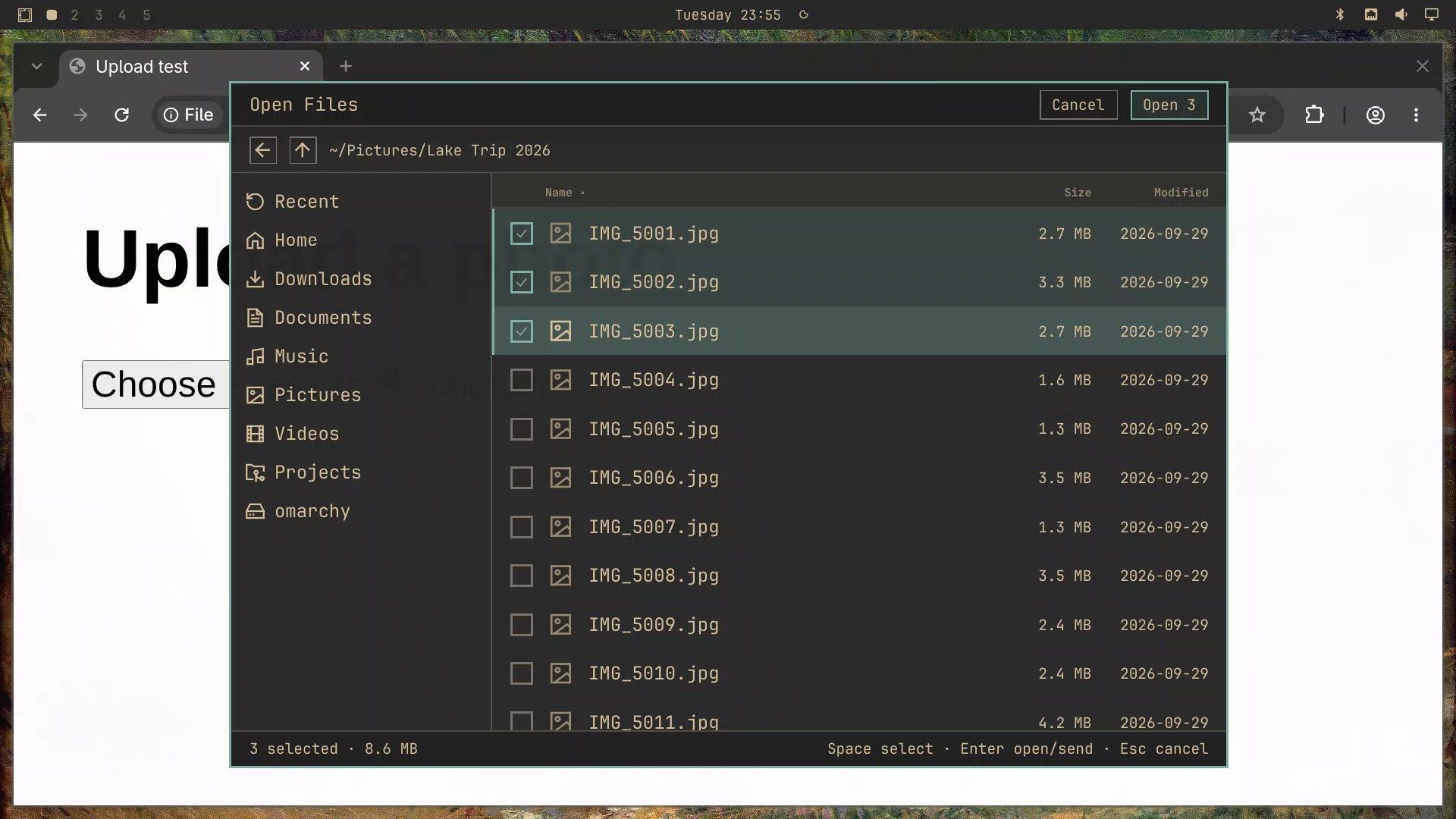
The picker shows plain file icons, though, with no thumbnails and no preview. In a folder full of photos with camera-style names, that makes the right one harder to find than in the usual dialog, which shows thumbnails.
Switch back to Nautilus
To go back, run:
flea --default offIt removes each change that flea --default made and restarts the file dialog service. super shift f opens Nautilus again, and file dialogs go back to the usual one.
Remove Flea and its leftover folders
Run flea --default off first if Flea is still the default. Removing the package does not undo those settings, and a leftover setting can break “Show in folder” in other apps until you delete it. Then remove Flea:
omarchy pkg drop fleaIt removes Flea and the ten packages it brought with it. Flea’s settings and cache folders stay in your home folder, so delete both with one command:
rm -rf ~/.local/state/flea ~/.cache/flearm -rf deletes those folders and everything in them without asking, so check the paths before you press enter .
What Flea does not do yet
Quick Look shows Markdown as plain text, the file picker has no thumbnails, and there is no bulk rename for many files at once. New versions come out every few days (Flea went from its first release to 0.3.6 in under four weeks), so keys and menus may change after this guide. If a key here does nothing on your copy, press ? for the current key sheet.
Troubleshooting
Flea does not start after the install. Your package database is probably stale and pacman installed the broken 0.3.5-1 build. Run sudo pacman -Syy, then omarchy pkg add flea again, and check that the installed version is 0.3.5-2 or newer.
h and l move sideways instead of between folders. You are in the grid view. Press ctrl 1 for the list view, or use backspace to go up a folder.
The right arrow does nothing in Quick Look. Use j and k to step between files in the preview.
“Show in folder” opens nothing after removing Flea. Flea was still the default when the package was removed, and its file manager registration stayed behind. Delete it, then log out and back in:
rm ~/.local/share/dbus-1/services/org.freedesktop.FileManager1.serviceWhere to go next
For more Omarchy setup, our guide to finding and installing Omarchy plugins covers the plugin marketplace and how to clean up after a plugin. If you are still picking hardware, the Omarchy 4 hardware guide lists the mini PCs and laptops that run it well.


