
On Omarchy, you can tell your computer what you want, typed or out loud, and have an AI agent such as Claude Code do the work, while you stay in charge through git and the password box. Omarchy keeps its settings in plain text files and runs its tools as commands, so Claude Code can edit those files and run those commands for you. Omarchy also has agent tools of its own, including an agents icon, a drop-down console and three agent skills.
A git history of your settings folders lets you take back a change in those folders, and a system package install stops at Omarchy’s password box, which shows the command and waits until you type your password yourself.
Here we give Claude a folder of its own, a notes file with three house rules, and that git history, then run four jobs: a new theme, a look through the system logs and a crash, a keyboard shortcut requested by voice, and an app install. Every request we used is here word for word, so you can copy it.
We followed these steps on Omarchy 4.5 (release candidate 3, 4.5.0rc3) with Claude Code 2.1.316 on November 2, 2026. Claude writes its own answers each time, so your wording, file names and commit ids will differ from ours, but the steps hold.
What you need
You need Omarchy 4.5 and a Claude subscription that includes Claude Code. Omarchy installs Claude Code the first time you start Claude or pick it as your default agent, and you sign in through your browser when it asks. Voice input (in the key binding job) also needs a microphone on the same computer, because Claude Code’s dictation does not work over SSH.
You also need your account password for the last job, because Claude does not know it. Omarchy’s Passwordless Sudo setting (under Setup, Security) stops sudo from asking for a password, so leave it off if you want commands that need root (administrator rights) to stop at the password box.
Omarchy’s agent tools
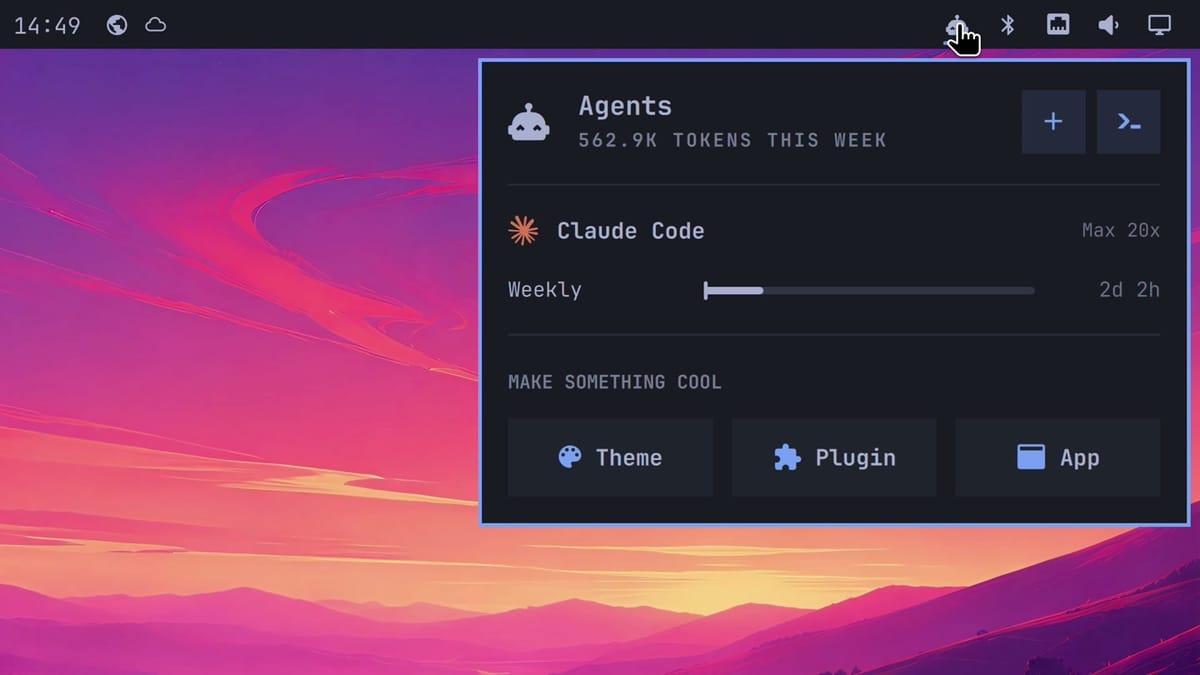
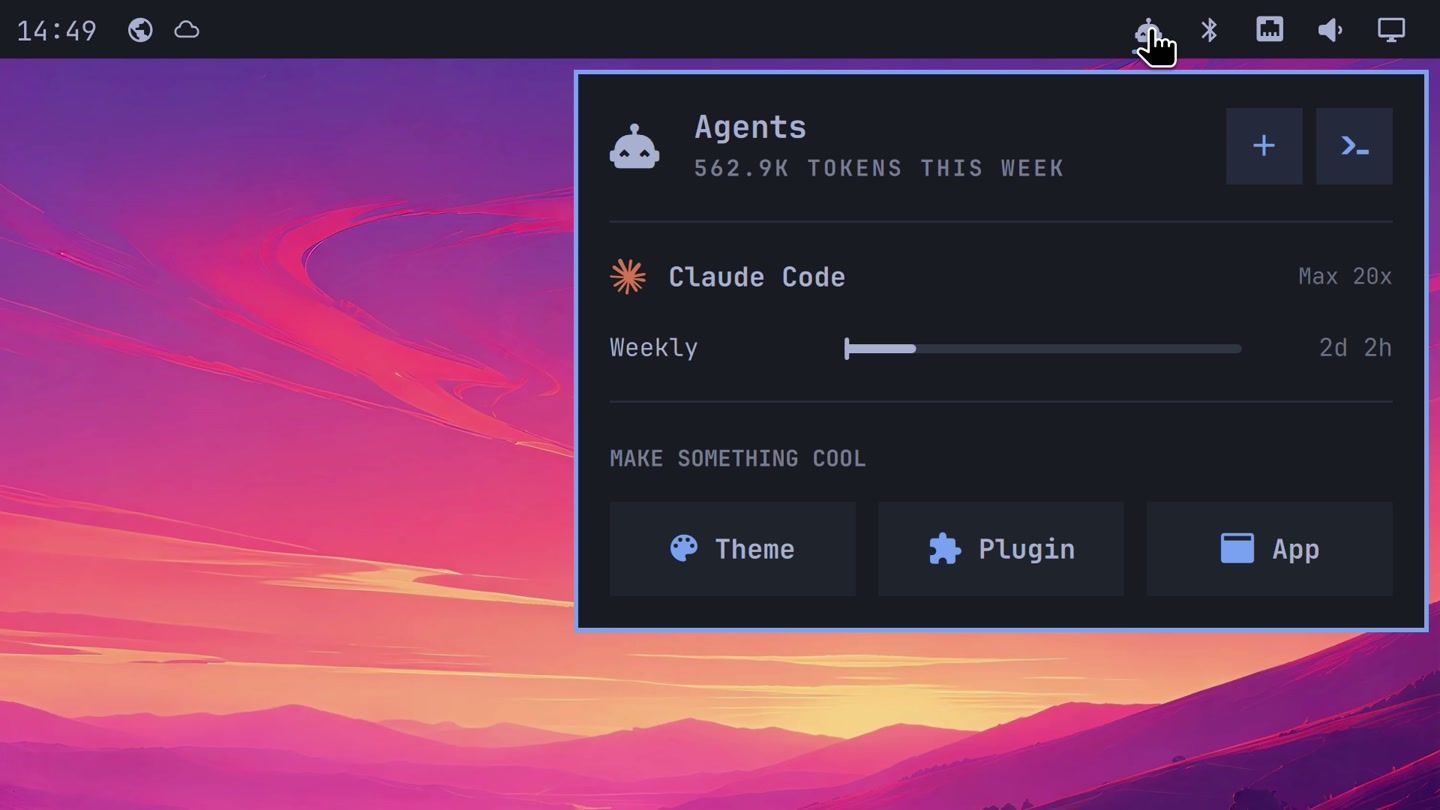
The robot icon on the right side of the top bar is the agents icon. A left-click opens the agents panel. Before you sign in to anything, the panel offers sign-in for Claude Code, Codex and Grok, and the first one you sign in to becomes your default agent. Once you’re signed in, it shows each subscription with how much of it you have left and when the limit resets, and under Make something cool it has three buttons: Theme, Plugin and App. Each one starts your default agent with a request that’s already written.
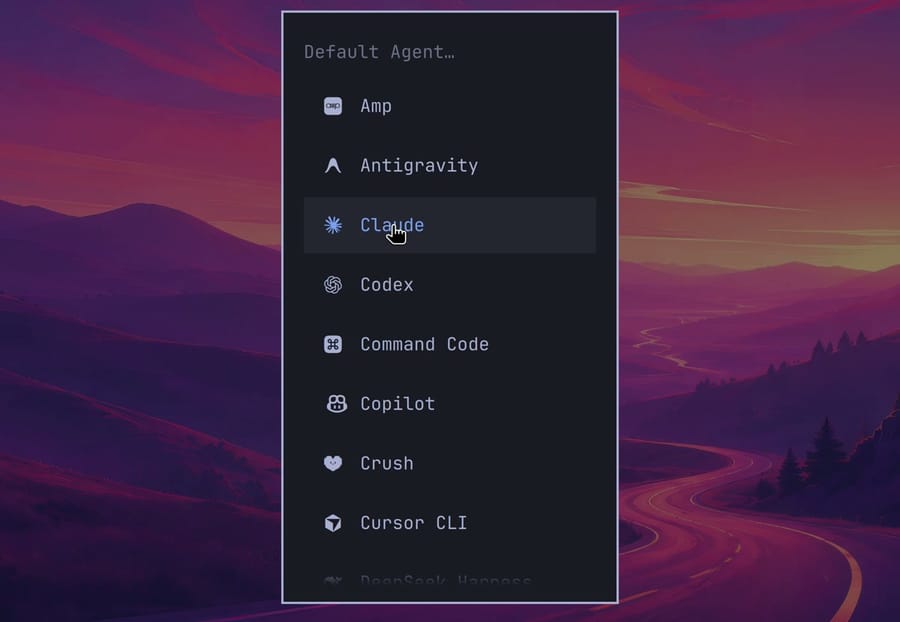
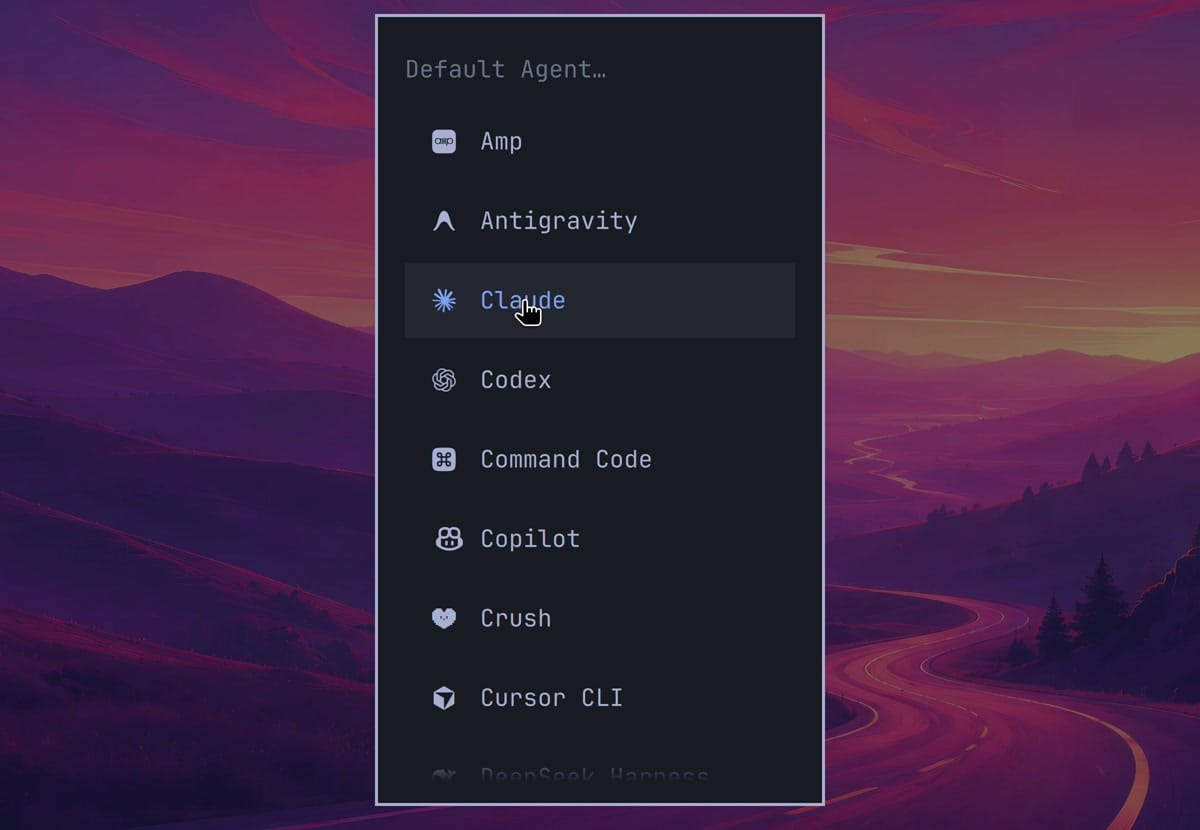
The default agent is set in the main menu. Press super space , then choose Setup, Defaults and Agent. The list holds 24 agents in alphabetical order; pick Claude. Picking Claude also tries to install Claude’s browser extension for Chromium-based browsers, so a password box may open for that step. The Omarchy manual says that cancelling it still selects and launches Claude. You can also set the default from a terminal with omarchy default agent claude.
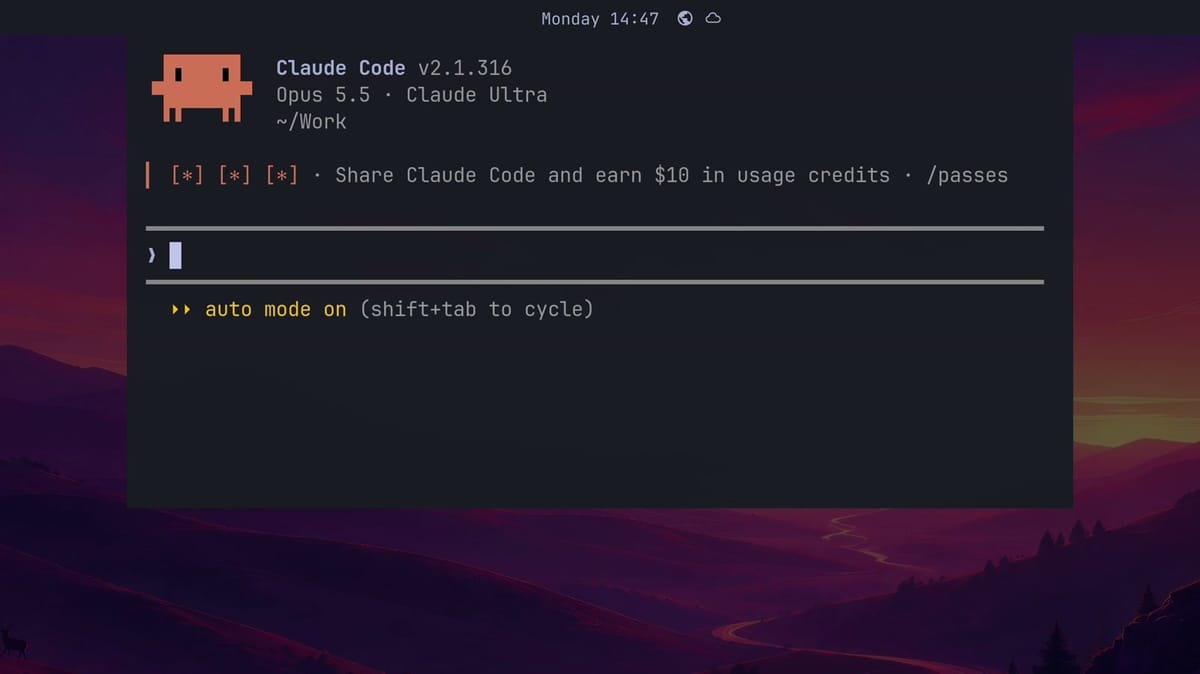
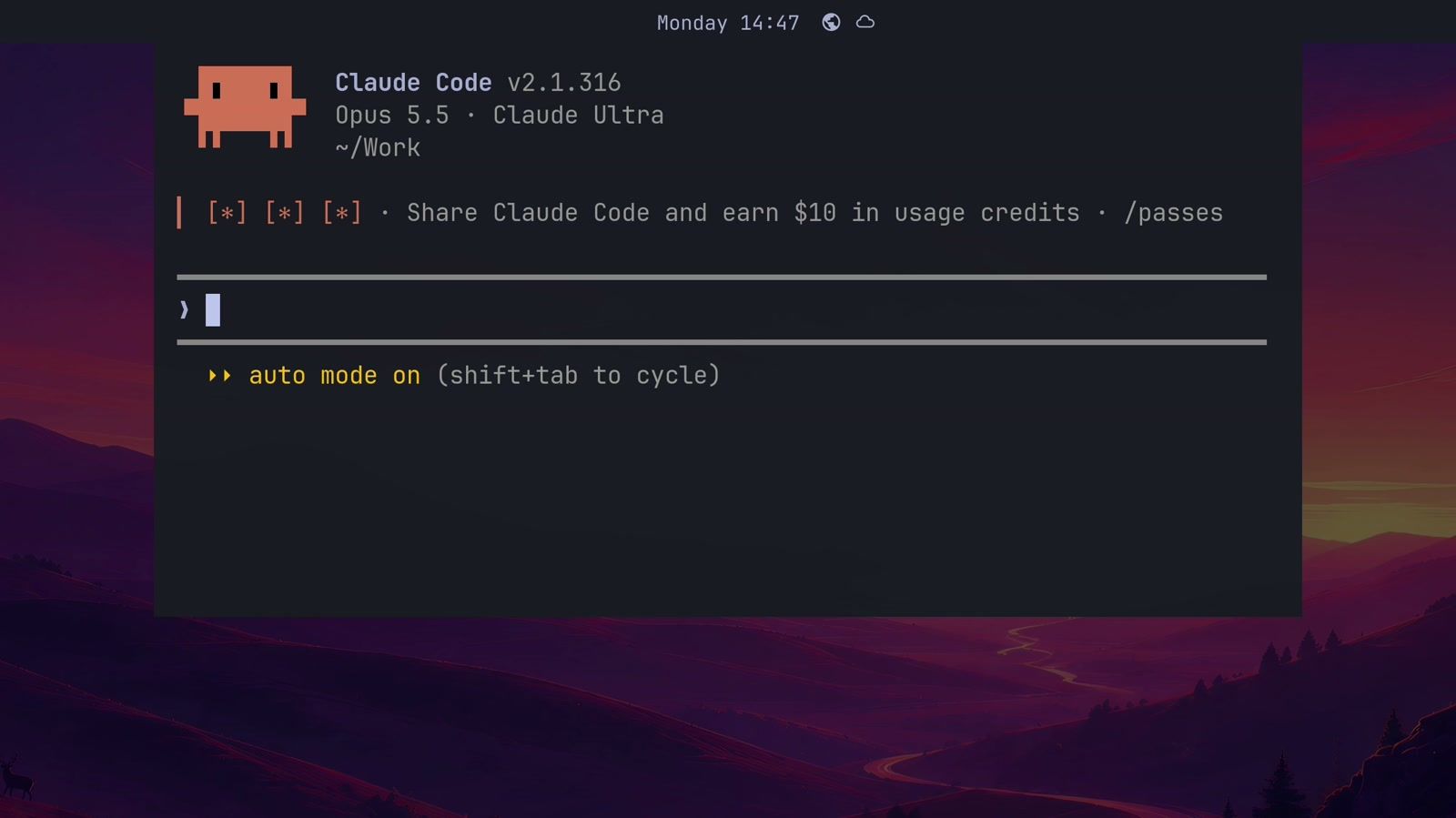
With a default set, you can start Claude from several places. A right-click on the agents icon opens it in a terminal window of its own, and so does super shift ctrl a . In a terminal you already have open, a runs your default agent inside that terminal, and cx does the same with Claude Code. All of these start Claude in auto mode, which skips most permission questions and is explained in the folder section below. When the starting folder is your home folder, all of them except cx open in ~/Work instead, because agents do not save a “trust this folder” answer for a home folder.
New in Omarchy 4.5, super ` drops a console over the top half of the screen, with your default agent already running inside it. It suits a quick question. The grave key is the backtick, left of the number 1 key, and pressing the same keys again slides the console away.
Omarchy also ships three agent skills. A skill is a set of instructions an agent reads for one kind of job. Omarchy links its skills into ~/.claude/skills (and the matching folders for Codex, Pi, Antigravity and Hermes), so Claude finds them on its own:
- omarchy: how to change your settings and use Omarchy’s own commands. It tells the agent to edit only
~/.config/, never/usr/share/omarchy/. - omarchy-app: how to build a desktop app the way Omarchy’s own apps are built. Our guide to building Omarchy apps with the app skill uses it.
- diagnose-crash: how to work out why a program crashed, without changing anything.


The manual calls the omarchy skill experimental and suggests plan mode first, so you can see what the agent wants to change before it changes it.
Give Claude a folder of its own
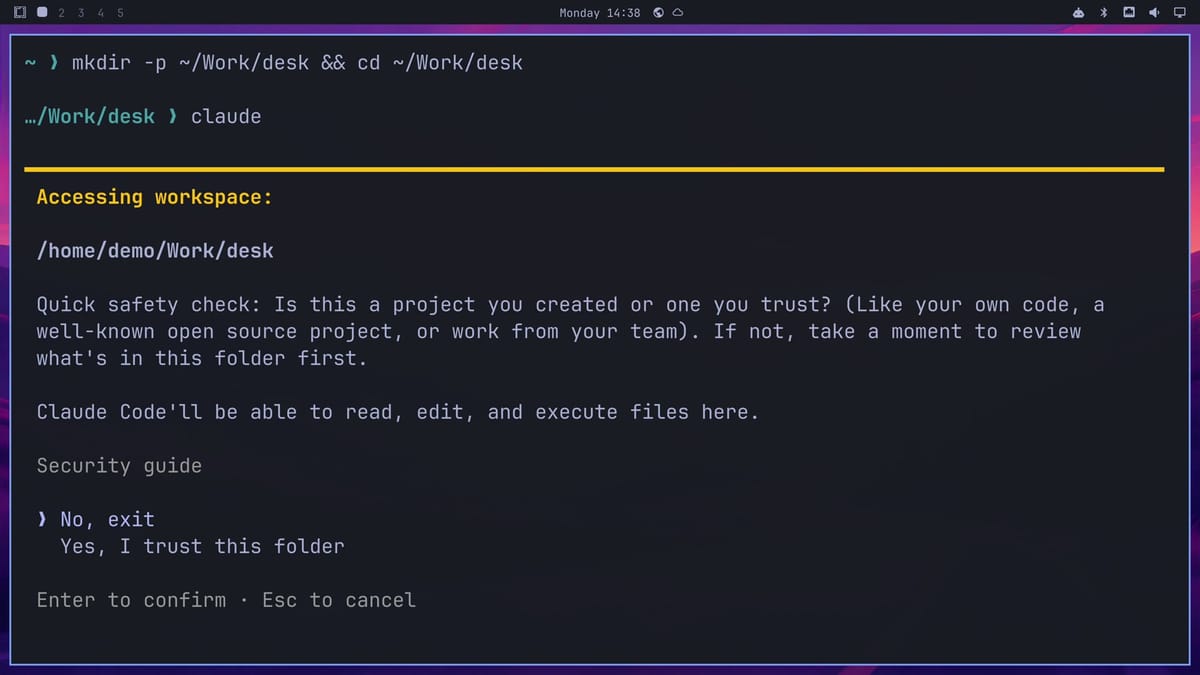
Claude Code works from the folder where you start it, and it reaches other folders when a job needs them, as the settings jobs below do. In a terminal ( super enter ), make a small folder inside your Work folder and start Claude there:
mkdir -p ~/Work/desk && cd ~/Work/desk
claude
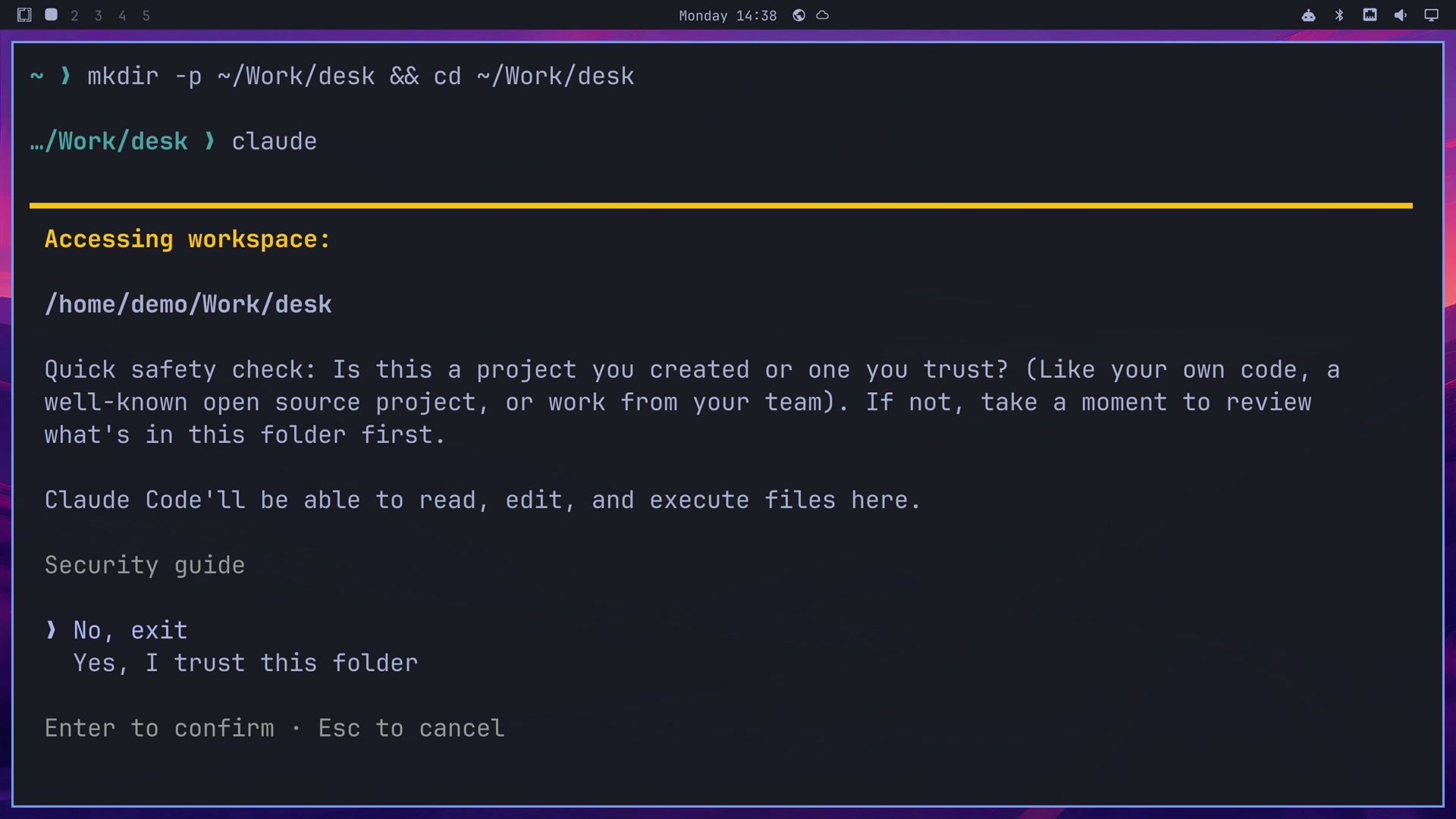
The first time Claude starts in a folder, it asks whether you trust the files in it. Choose Yes, I trust this folder, which lets Claude read, edit and run files there. If you already trusted ~/Work (picking a default agent starts Claude there), the prompt does not show, because trust carries down to folders inside it.
Look at the line at the bottom of Claude’s window. Ours said auto mode on. In auto mode, a second model checks Claude’s riskier actions before they run, instead of asking you about each one. That cuts down the questions, but it does not promise that every action is safe. If your footer shows a different mode, shift tab cycles through the modes, and the cx shortcut starts Claude in auto mode. The Claude Code permission modes page explains each one.
Write a CLAUDE.md with three rules
Before Claude changes anything, have it look around and write down what it found. Claude reads a file called CLAUDE.md every time it starts. The one in ~/.claude/ is your personal file, so its notes apply in any folder where you start Claude. This is the request we sent:
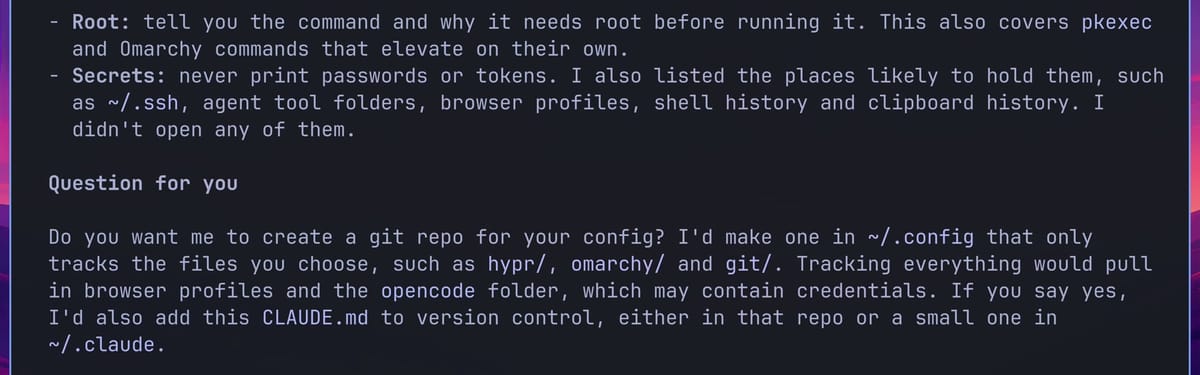
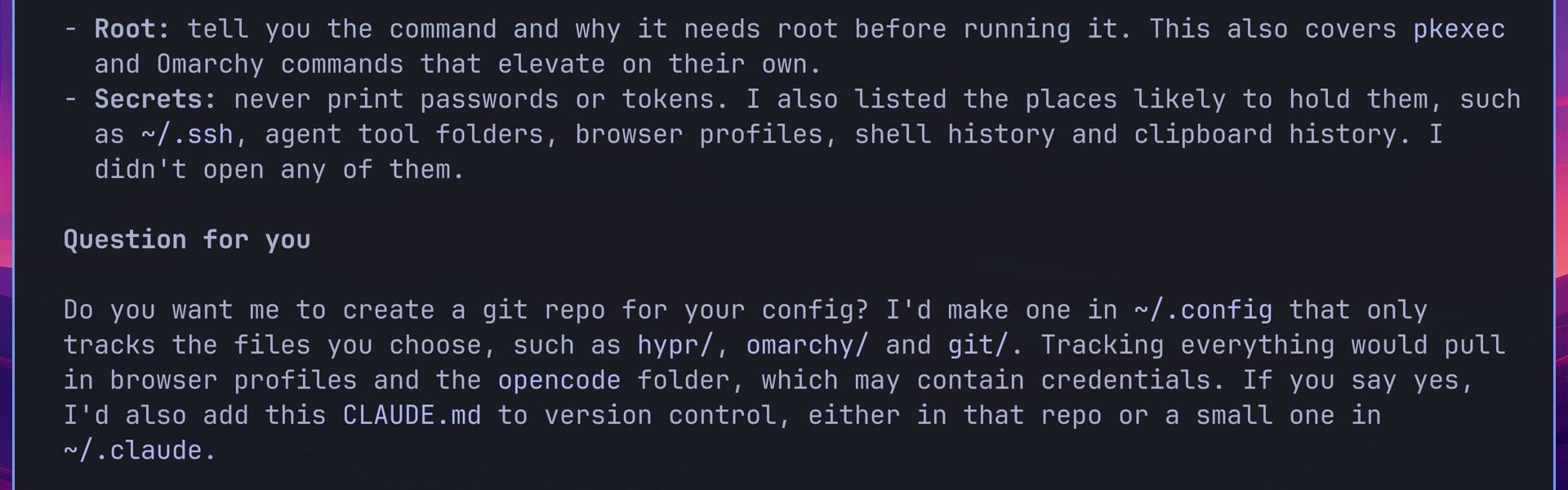
Look around this computer without changing anything: the Omarchy version, the desktop, the installed apps, and where the settings live. Leave out the hardware and anything plugged in. Don't use sudo. Then write what you found to ~/.claude/CLAUDE.md, with these rules: commit config changes to git before and after, tell me before any command that needs root, and never print passwords or tokens.Claude loaded the omarchy skill first, then ran read-only commands and wrote a 73-line notes file: the Omarchy and Hyprland versions, the theme and terminal, where your overrides live (~/.config/hypr/*.lua, ~/.config/omarchy/shell.json and the rest), the app list, and the three rules. It also listed the places likely to hold secrets, such as ~/.ssh and browser profiles, without opening them. It pointed out that the git rule could not be followed yet, because nothing was in git, and asked whether it should make a repository.
Claude follows these rules, but nothing forces it to. You can open ~/.claude/CLAUDE.md in any editor and change the rules yourself. The Claude Code memory docs list where else Claude looks for these files.
Put your settings in git
Claude Code has an undo of its own, called rewind: press esc twice with the input box empty, or type /rewind. Rewind tracks only the files Claude edited with its own editing tool. A file that only a shell command changed, or a package it installed, stays as it is (Claude Code checkpointing covers the limits). On Omarchy, Claude often changes settings through commands, so a git history of the settings folders, with a commit for each change, catches the setting changes that rewind misses.
Make a git repository of the Omarchy settings folders (Hyprland, the Omarchy shell, and the terminals), leave out anything with passwords or tokens, and make the first commit.Claude made the repository in ~/.config with an ignore file that blocks everything except the folders it tracks (hypr, omarchy, and the alacritty, foot, ghostty and kitty terminal folders), and it also blocks names like *token*, *secret*, *.key and .env inside them. It made one commit of 29 files and pushed nothing anywhere. Its secret check was pattern matching only, and it said so, so read git status and the diff before you ever push the repository somewhere public.
Git covers your settings folders, not the whole system. A command that changes other files in your home folder is outside git and never opens the password box, so in auto mode only the second model’s check looks at it. Omarchy’s snapshots roll back packages and system files, but not your home folder; our guide to Omarchy snapshots and rollback from the Limine menu shows how.
Make a theme from the agents panel
Open the agents panel and click Theme. A full-size agent window opens with this request already sent: “Make me a new Omarchy theme. Ask me what look or inspiration I have in mind, then build it following the Omarchy skill’s theming guide and switch to it.”
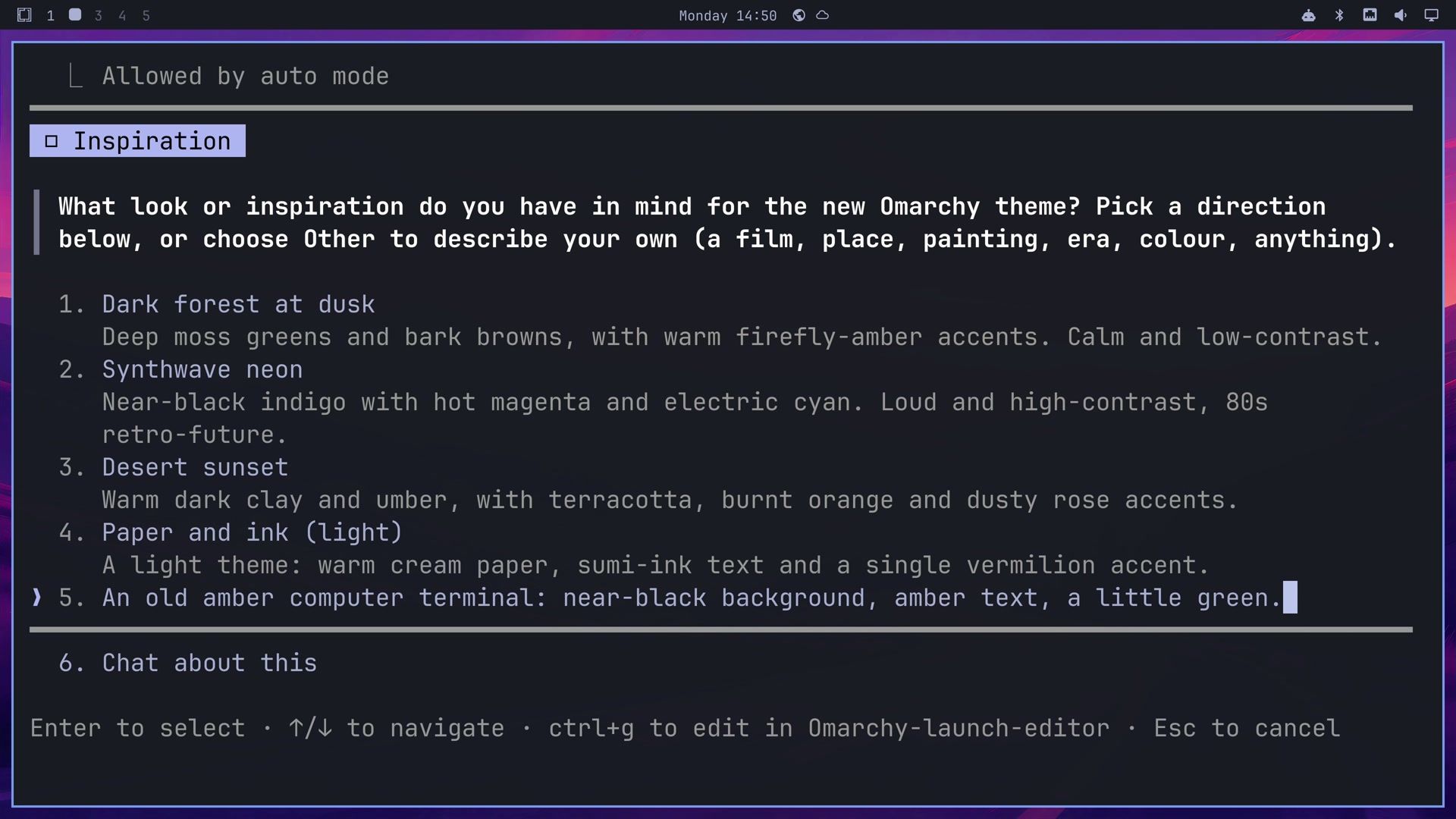
Claude asks one question in a small form, with a few looks to choose from. The choices change each time. We moved to the row for typing our own answer (the fifth row in our form) and entered:
An old amber computer terminal: near-black background, amber text, a little green.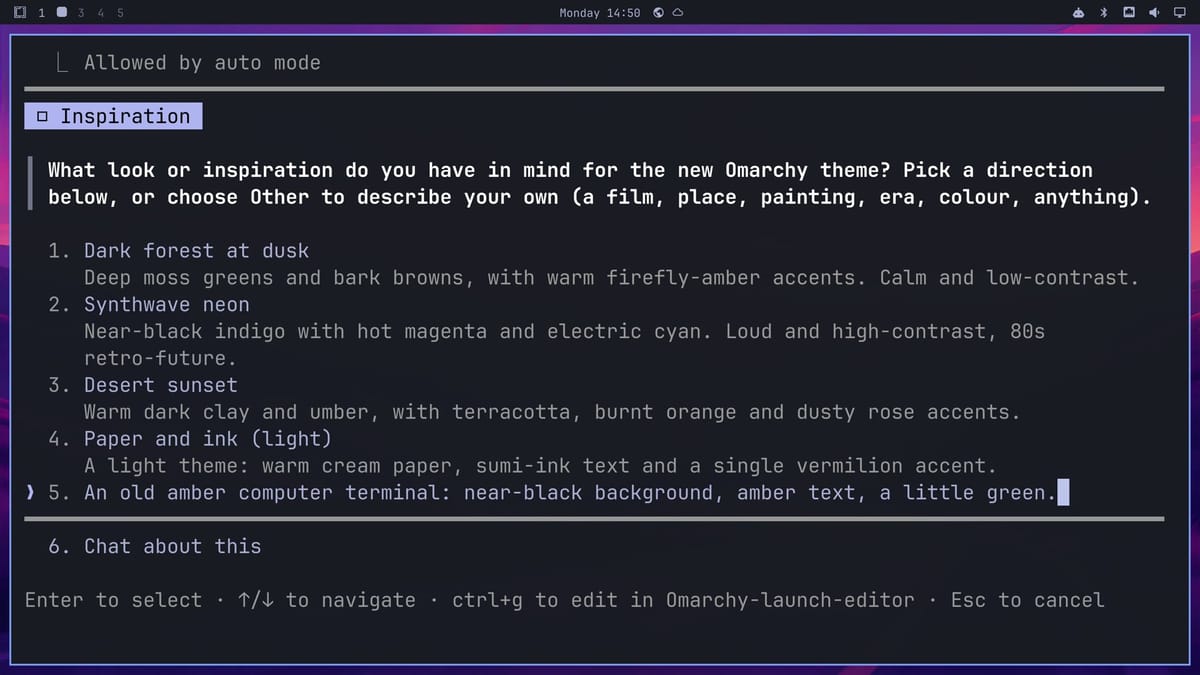
Claude may ask to read the theming notes, because the skill files sit outside its folder; the prompt reads “Allow this read outside the working directories?”, and it is safe to allow. It then picked the colors, drew a wallpaper (a near-black screen with scanlines and a glowing READY. prompt), and switched to the new theme before it finished, so the window border and terminal changed color while it worked. Following its notes, it also committed the settings before and after the change. The whole turn took about four minutes.
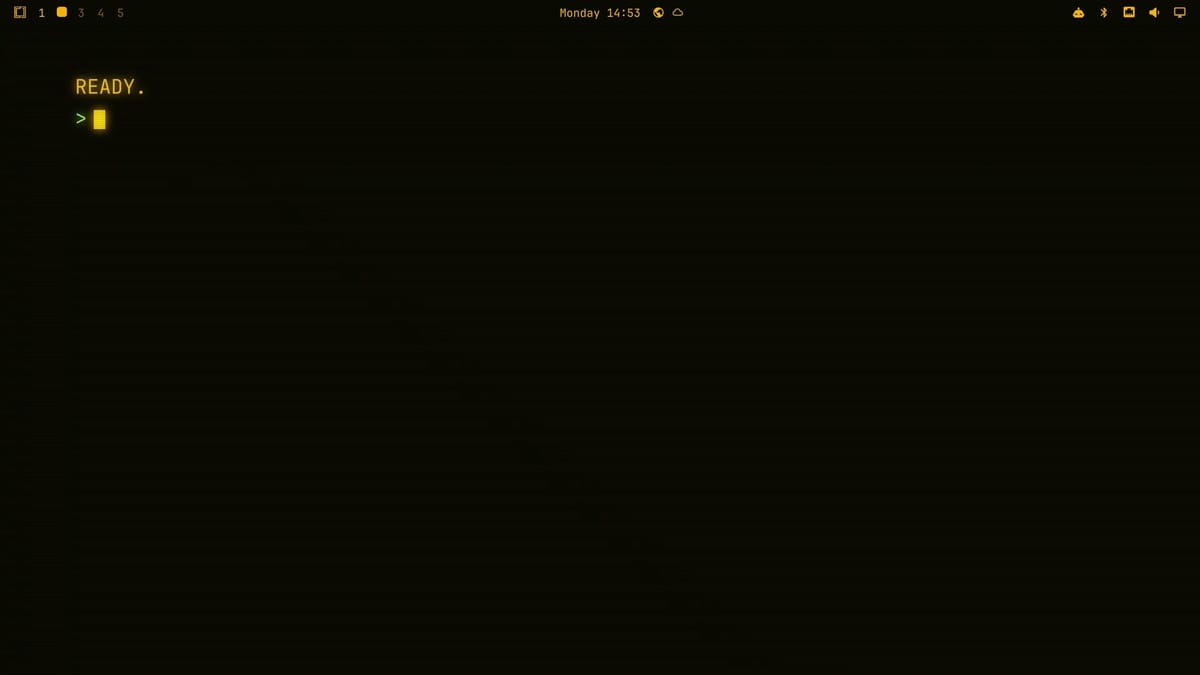
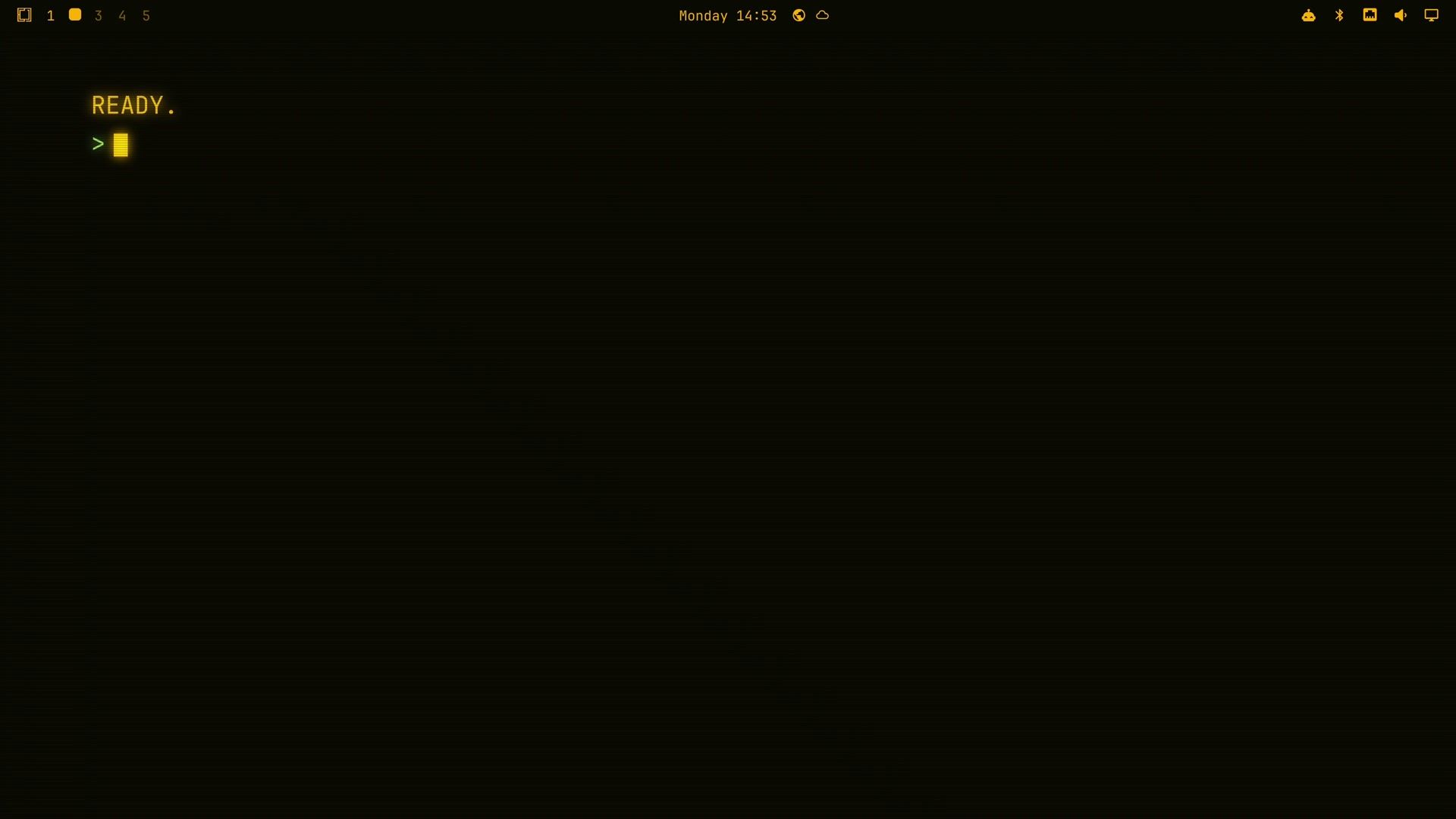
Setting a theme also changes the browser’s colors. Omarchy allows that one change without your password, so no password box opens. To get the stock theme back, press super ctrl t for the theme menu, type tokyo, and press enter on Tokyo Night. If you would rather pick a theme from your wallpaper’s colors, our Aether theme guide does that without an agent.
Read the logs and a crash notice
Go back to the Claude window in ~/Work/desk, or start a new one there. Reading the logs only needs Claude to look, so the request says so:
What went wrong since this boot, and what is slowing the boot down? Keep the answer short. Look, but don't change anything.Claude ran one read-only command that gathered the boot timing, failed services and journal errors, and answered within seconds. It found nothing serious: no failed services, nothing crashed, ten startup error lines with one worth a look and the rest probably harmless, and a boot of about 24 seconds. The biggest part was the firmware, at about 10 seconds, and Claude pointed out that only the BIOS settings can change that.
Omarchy can also hand a crash to Claude. To see it, crash a harmless program on purpose. Type these as two separate commands in a terminal, not on one line, so the signal hits sleep and not the shell:
sleep 300 &
kill -SEGV $!
A notice opens near the top right: “Process crashed: sleep” and “Click to diagnose with AI”. Click it, and Omarchy starts Claude with the diagnose-crash skill and its own crash request.
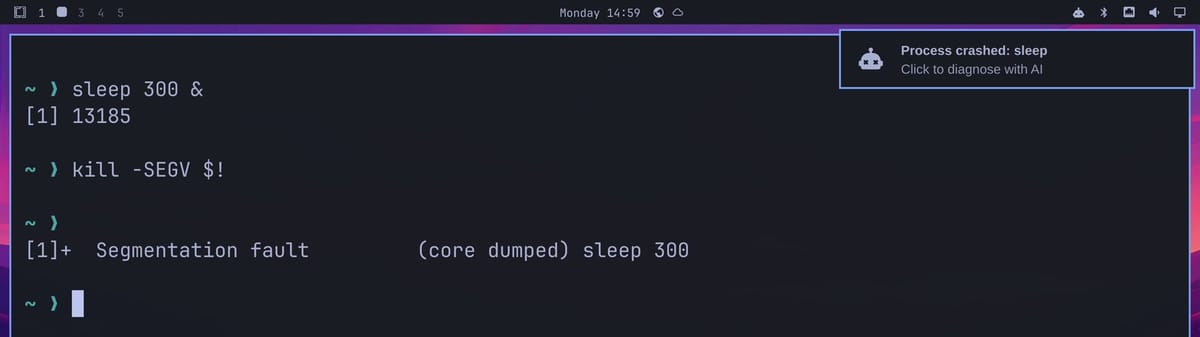
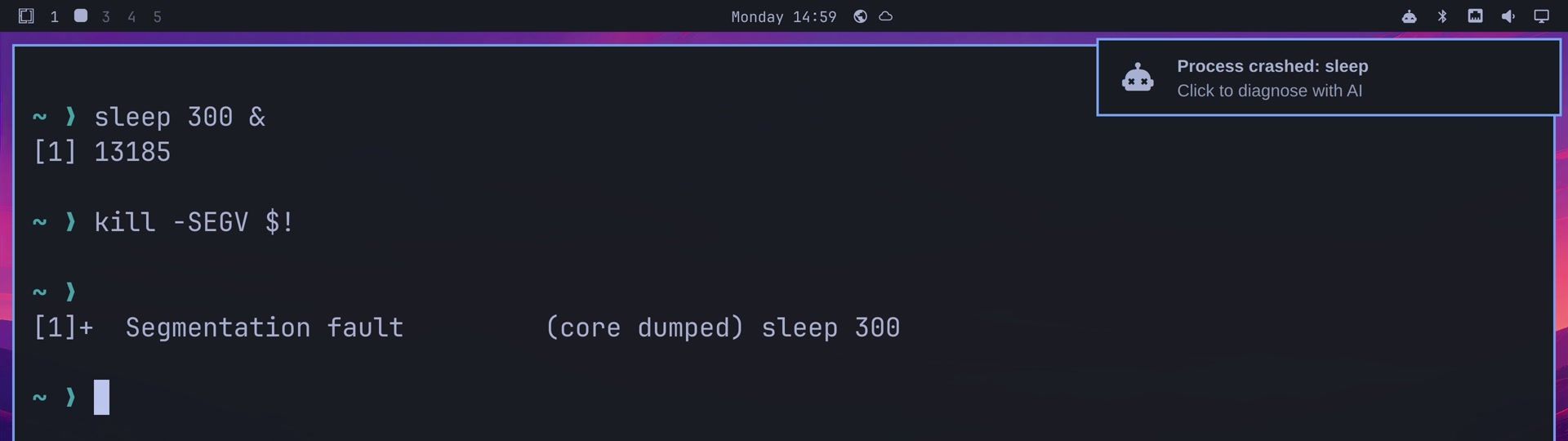
From the core dump, Claude found that sleep did not crash on its own. The signal came from another process through kill(), so it was not a bug. Claude changed nothing, deleted the temporary copies it made, and offered to turn off crash notices for that one program. You can do that yourself with omarchy crash mute sleep, and turn it back on with omarchy crash mute sleep off. The answer can quote other entries from your system log, such as SSH logins, so read it before you share it.
Add a key binding by voice
A key binding is a keyboard shortcut. Omarchy’s Print Screen key already takes an area screenshot, saves it and copies it; we asked for one that only copies the area, ready to paste.
Claude Code turns speech into typed text with its voice command. Type /voice and press enter . The first time, it turns on hold mode: hold space while you speak, and the footer says “listening” while the words appear in the input box. When you let go, the text waits until you press enter . If you would rather not hold a key, /voice tap switches to tap mode: tap space to start and again to send.
Dictation needs a claude.ai sign-in and a microphone on the computer itself, and the audio goes to Anthropic to be transcribed (voice dictation docs). This is the spoken request:
Make a shortcut that takes a screenshot of an area I pick and copies it. Use Super Alt S if it's free, or pick a free one.

Claude read the screenshot notes in the omarchy skill and checked the shortcuts already set. super alt s already moves a window to the scratchpad, so Claude used super alt c instead and left the scratchpad key alone. It added one line to ~/.config/hypr/bindings.lua, reloaded Hyprland, and committed the change. Without “if it’s free”, Claude may take the key anyway and only tell you afterwards what it replaced.
Press super alt c , drag over part of the screen, and the area goes to the clipboard with a “Screenshot copied to clipboard” notice and no file saved. Our guide to adding your own keyboard shortcuts in Omarchy covers the same file by hand.
Undo a change with git revert
To take the shortcut out again, ask Claude to use the git history:
Undo the screenshot shortcut using the git history.For the undo, Claude used git revert, which adds a new commit that reverses the old one, so nothing is erased from the history. Then it reloaded Hyprland, and super alt c did nothing after that. You can see each step in the history with git -C ~/.config log --oneline. Our log below also shows the Syncthing commits from the next section.


Install an app that needs your password
The last job is Syncthing, which keeps folders in sync between your computers without a central server. Installing a package changes system files, so it needs root.
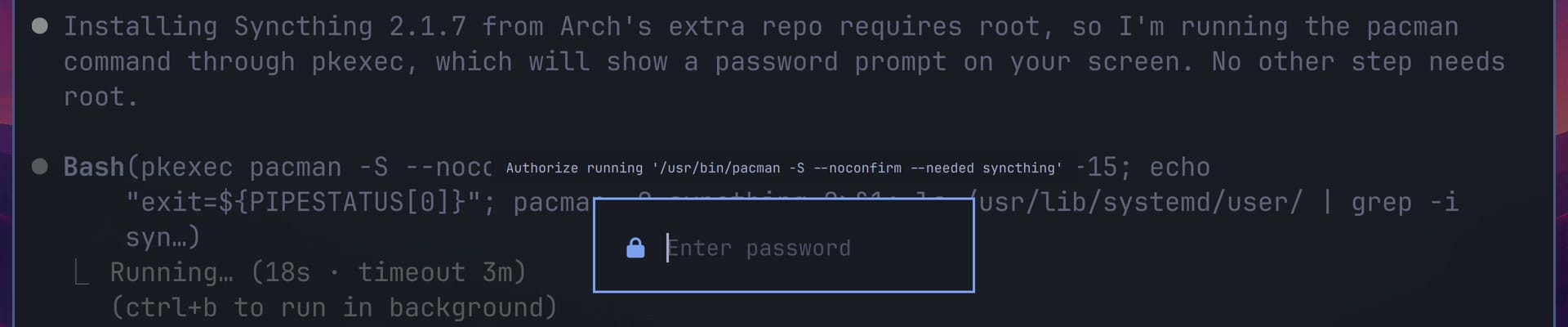
Install Syncthing, have it start at every login, and open its page in the browser.As its notes ask, Claude said first that the install needs root and that a password prompt would appear. It ran pacman through pkexec, and Omarchy’s password box opened. The box shows the full command before you type anything; ours read “Authorize running ‘/usr/bin/pacman -S —noconfirm —needed syncthing’”. Check that the command does only what you asked, then type your password yourself.
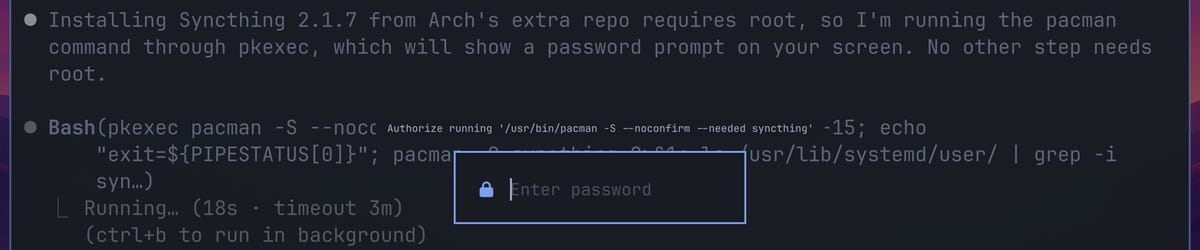
For the login start, Claude added one line to Hyprland’s autostart file, ~/.config/hypr/autostart.lua, which needs no root, and committed it like the shortcut. That line starts Syncthing when the desktop starts, not on an SSH login. Then it opened Syncthing’s page at http://127.0.0.1:8384. A notice there asks you to set a user name and password for the page (under Actions, Settings, GUI). Set one before you share any folders.
To take Syncthing out again:
Now take Syncthing out again: stop it and remove the package.Claude stopped Syncthing, reverted the autostart commit (no root needed), and removed the package, which opened the same password box with /usr/bin/pacman -Rs --noconfirm syncthing. It left ~/.local/state/syncthing/ in place, because we only asked to remove the package. That folder holds Syncthing’s keys, which a reinstall would reuse, and Claude gave us the command to delete it.
Troubleshooting
No trust prompt in the new folder. Trust carries down from a parent folder. If you picked Claude as the default agent first, ~/Work is already trusted, so ~/Work/desk starts without asking.
Claude asks to read files outside its folder. The Omarchy skills are links into /usr/share/omarchy/, outside Claude’s working folder, so Claude asks before it reads them. Allow it; Claude only reads the skill’s notes. The first option, “Yes, and keep allowing any reads outside the working directories”, stops the question for every folder from then on, so choose “Yes, but ask again next time” if you want Claude to keep asking.
Voice mode does nothing. Dictation needs a local microphone and does not work in an SSH session, so start Claude in a terminal on the Omarchy desktop itself, with a microphone connected. Press esc to cancel a recording.
No crash notice. On one line, sleep 300 & kill -SEGV $! can hit the shell before it becomes sleep, so the notice names bash, or nothing shows. Type the two commands separately. Omarchy also shows only one notice per program per minute, so wait a minute before you try again. Crash capture can be turned off under Trigger, Toggle, Crash Capture in the main menu.
Claude picked a different key or changed a default shortcut. Answers vary from run to run. Name a key and add “if it’s free, or pick a free one”, then check the answer for what it replaced. If it changed something you wanted, ask it to revert that commit.
Related guides
For more agent work on Omarchy, our guides cover building an Omarchy plugin with an AI coding agent, running several coding agents from one terminal with Herdr, and five Omarchy plugins that bring AI to the desktop. If you use a Chromebook too, we also have a guide to running Claude Code on a Chromebook.


