
Omarchy 4.5 comes with a built-in agent skill called omarchy-app. A skill is a set of written instructions and templates that your AI coding agent reads before it starts. This one tells the agent how to build a desktop app for Omarchy: write it in C++ and Qt Quick, test it, use the accent color of your theme, and install it as a package, so it shows up in the app launcher like any other program. You bring the agent, such as Codex or Claude Code, on your own subscription.
This guide is a preview of Omarchy 4.5 RC1, the first release candidate, tested on version 4.5.0rc1-1 with Codex as the agent. To start Codex, we used the App button in the new agents panel. The omarchy-app skill and the agents panel may change before the final 4.5 release. We asked for a focus timer called Focus, and Codex built, tested, and installed it in 3 minutes 54 seconds, with no failed build and no retry.
What you need
You need Omarchy on the 4.5 release candidate. The v4.5.0-rc1 release notes say to expect bugs, rough edges, and the occasional thing that breaks outright. Use a test machine, or have a working backup or a snapshot you know how to roll back to before you switch. For a tour of the rest of the release, see what’s new in Omarchy 4.5.
To move an existing install to the release candidate, open the Omarchy menu with super space (Super is the Windows key on a PC keyboard), then pick Update, Channel, RC. After that, run Update, Omarchy from the same menu. New machines can start from the RC1 ISO on the release page instead.
You also need a coding agent installed and signed in, on a plan that includes it. The Omarchy AI manual lists launchers for Claude Code, OpenAI Codex, OpenCode, Google’s Antigravity CLI, GitHub Copilot CLI, Crush, Grok Build, Kimi Code, Pi, Oh My Pi, Ori, Hermes, Muse Code, and Cursor CLI. Omarchy installs the omarchy-app skill for Claude Code, Codex, Pi, Antigravity, and Hermes, so pick one of those for an app build.
Set your default agent
The agents panel’s App button always starts your default agent, so set that first. In the Omarchy menu, open Setup, Defaults, Agent, and pick one from the list. The terminal command does the same thing:
omarchy default agent codexThat command also opens the agent in a new window, which you can close. If you have not set up any agent yet, the agents panel walks you through signing in to Claude, Codex, or Grok, and the first one you sign in to becomes the default. Grok is not one of the five agents above that get the omarchy-app skill in their own folder, and we did not test an app build with it.
Start the agent from the agents panel
The agents panel opens with a left click on the robot icon in the top bar. A right click on the same icon starts your default agent straight away. The panel lists your subscriptions with their usage meters, and under them a row called Make Something Cool with three buttons: Theme, Plugin, and App.
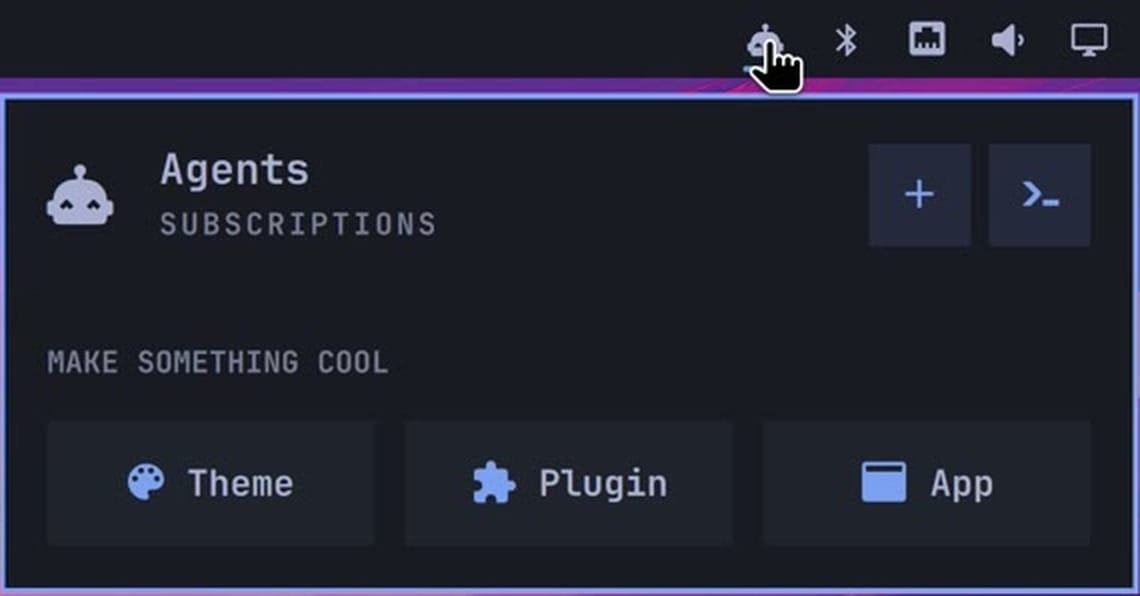
The App button opens your default agent in a new window with a ready-made request as its first message. The button only starts the agent; the request tells it to follow the omarchy-app skill, and the skill drives the build:
Make me a new app for my Omarchy desktop. Ask me what it should do, then build it following the omarchy-app skill and install it so it shows up in the app launcher.The omarchy-app skill says to write the app in C++ with Qt Quick, build it with qmake6 and make, keep the project in ~/Work/<name>, and add three scripts: bin/build, bin/test, and bin/install. It also supplies template code that reads the accent color of your current Omarchy theme and loads translations of the app’s text. The skill file is on GitHub if you want to read it before you start.
Answer the agent’s question
Codex read the skill, then asked what the app should do, and for a name if we had one. It printed the question twice, in slightly different words. One answer covers both.
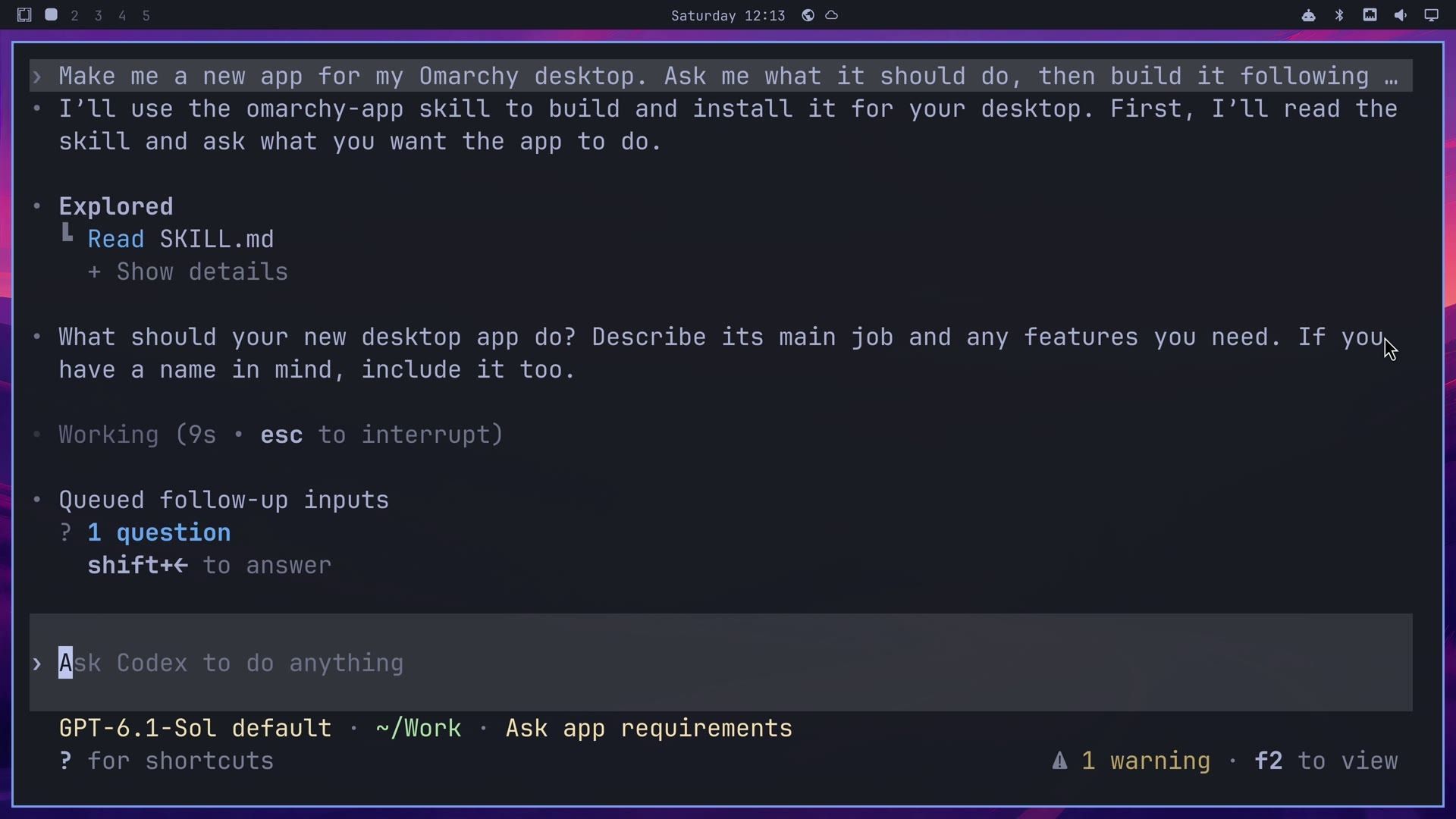
This is the answer we typed, word for word:
A focus timer called Focus. One big round countdown ring in the theme's accent color with the minutes left in the middle. Space starts and pauses, R resets. Work and break lengths can be changed in a small settings panel and are saved for next time. When a session ends, show a desktop notification and switch to the break.Name each feature you care about. Codex chose everything we left out on its own, including the default lengths of 25 minutes of work and a 5-minute break. It asked nothing more after this answer.
Let the agent build, test, and install
Codex read the skill’s templates, wrote the app to match them, and built it. The compiler and the Qt libraries come preinstalled on Omarchy 4.5, so there was nothing to install before the first build. Codex then wrote tests for its own code and ran them, and the timer and saved-settings tests passed. Because the skill asks for translations, it also checked a Danish version of the screens.
To install, Codex ran the project’s bin/install script, which builds an Arch Linux package with makepkg and installs it. The package manager then tracks Focus like any other app, so you can remove it later with sudo pacman -R focus focus-debug (the package takes the app’s name, and makepkg also installed a matching debug package). The agents panel starts Codex in a mode where an automatic reviewer approves commands such as this install, so no approval prompt appeared on screen.
On a normal Omarchy install, this step usually needs your password, because installing a package runs through sudo. Our test machine skips the password, so we did not see what happens when one is needed: Codex may stop and ask you, or the install may fail. If it fails, run bin/install yourself in a terminal from the project folder. Omarchy also has Setup, Security, Passwordless Sudo, which turns the prompt off for a set time such as 15 minutes; while it is on, anything running as your user can act as root without asking, so turn it off when the build is done.
Next, Codex opened Focus beside its own window, took a screenshot to check it, and sent a test notification. A Focus complete card appeared at the top right. Its summary says the timer, settings, keyboard, and notification checks all passed.
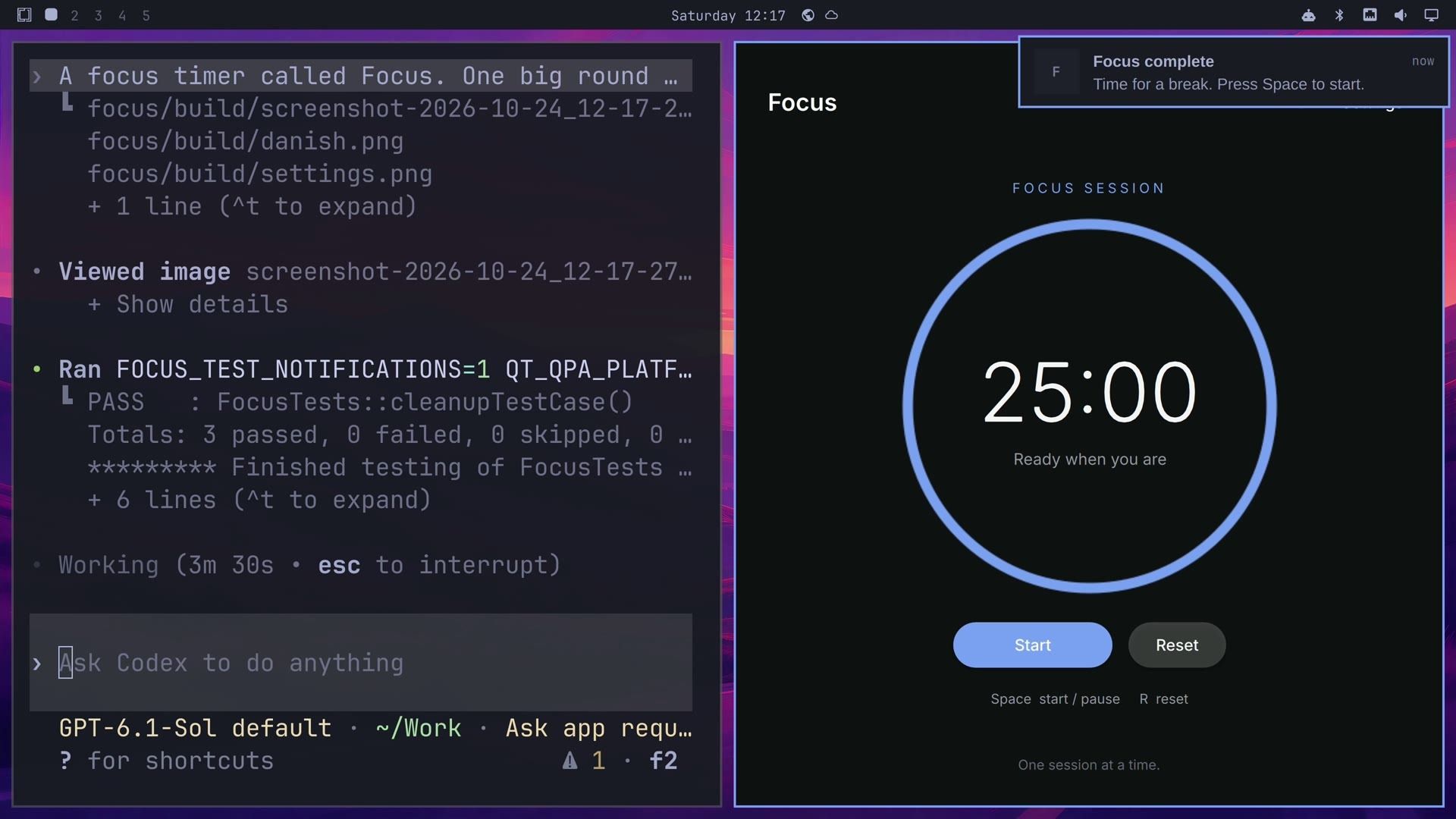
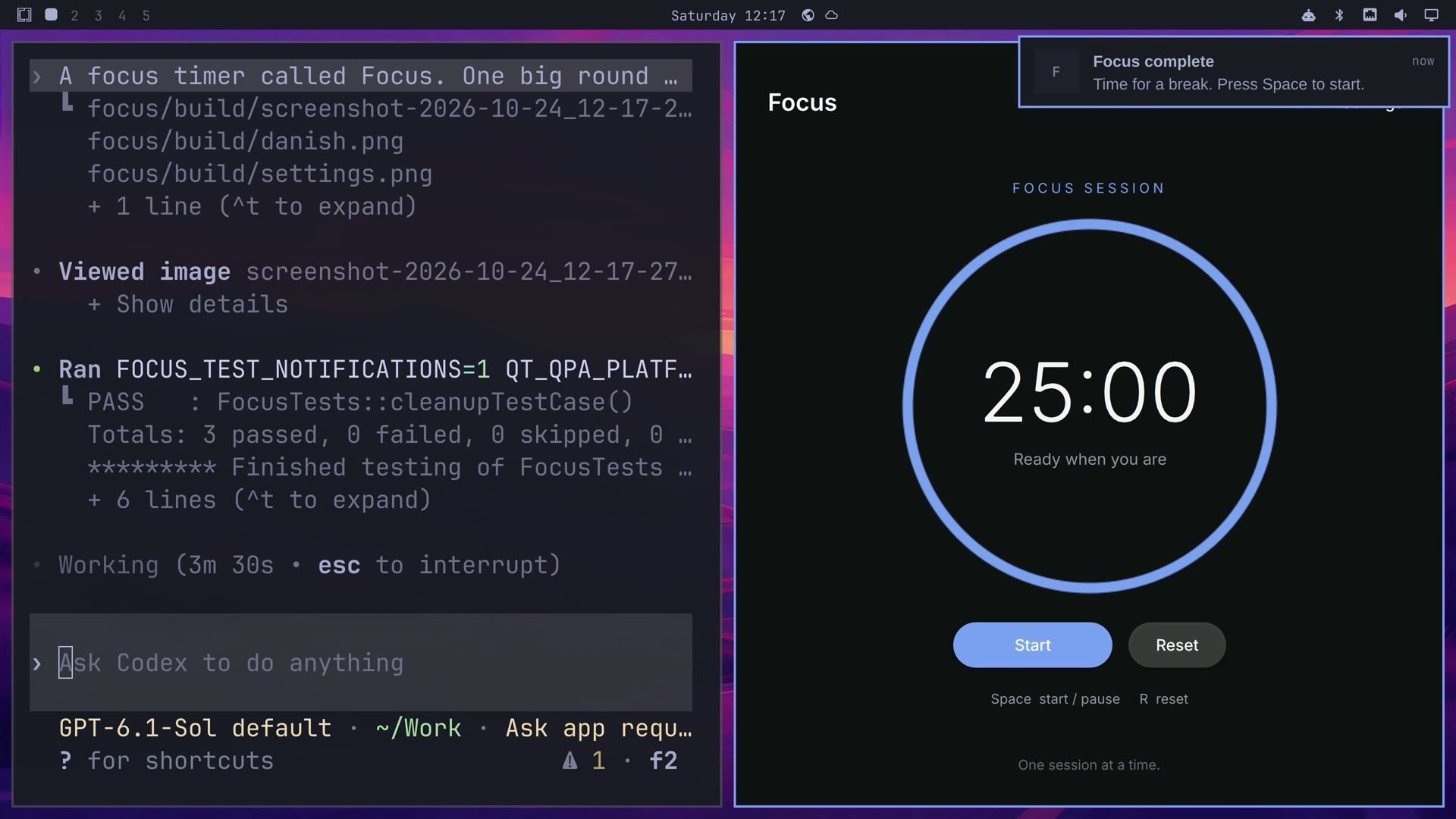
Codex finished 3 minutes 54 seconds after our answer. An earlier test run with the same answer took 3 minutes. The summary said where to find the app: super space , then Focus.
Focus keeps its settings and follows the theme
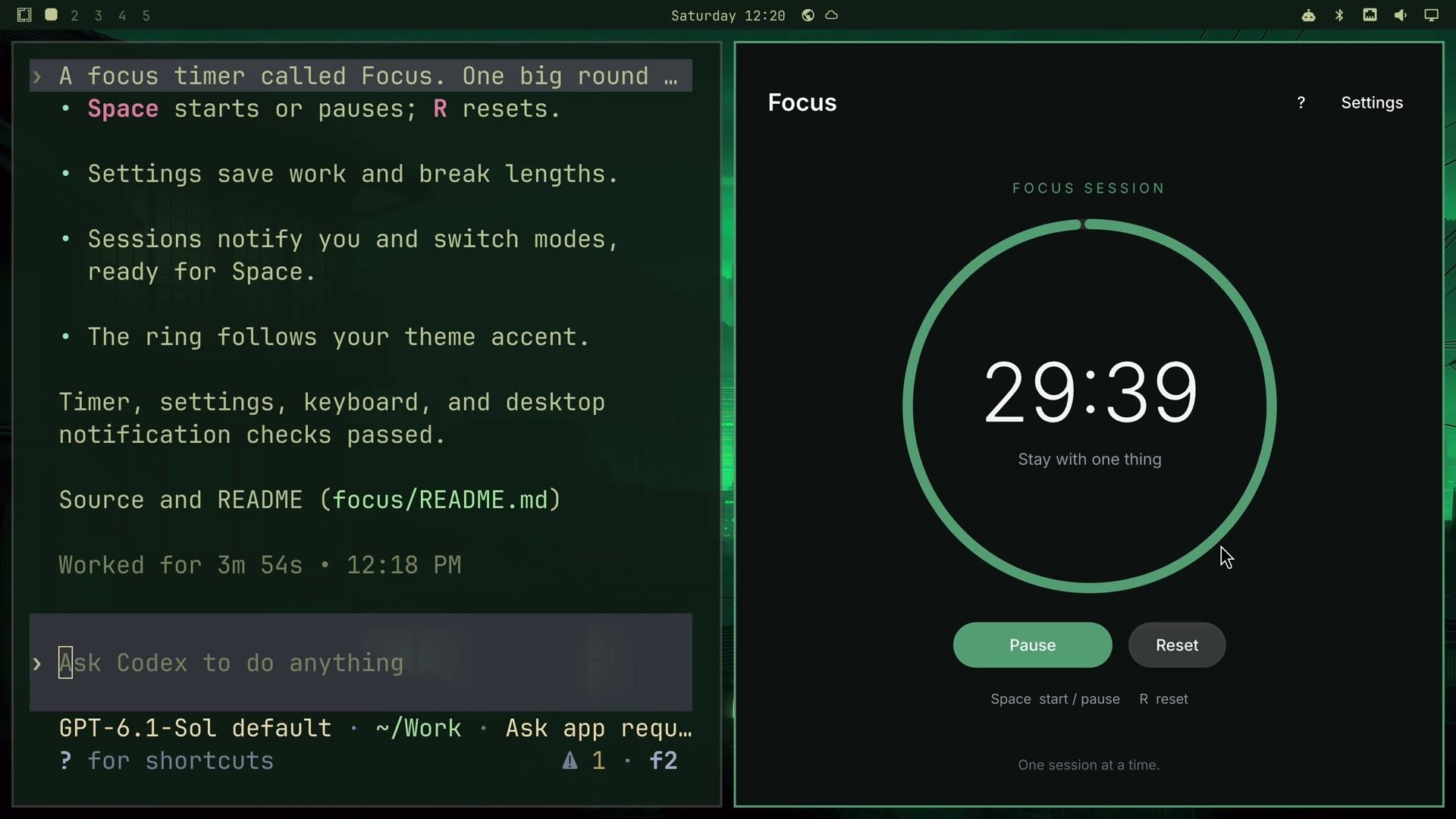
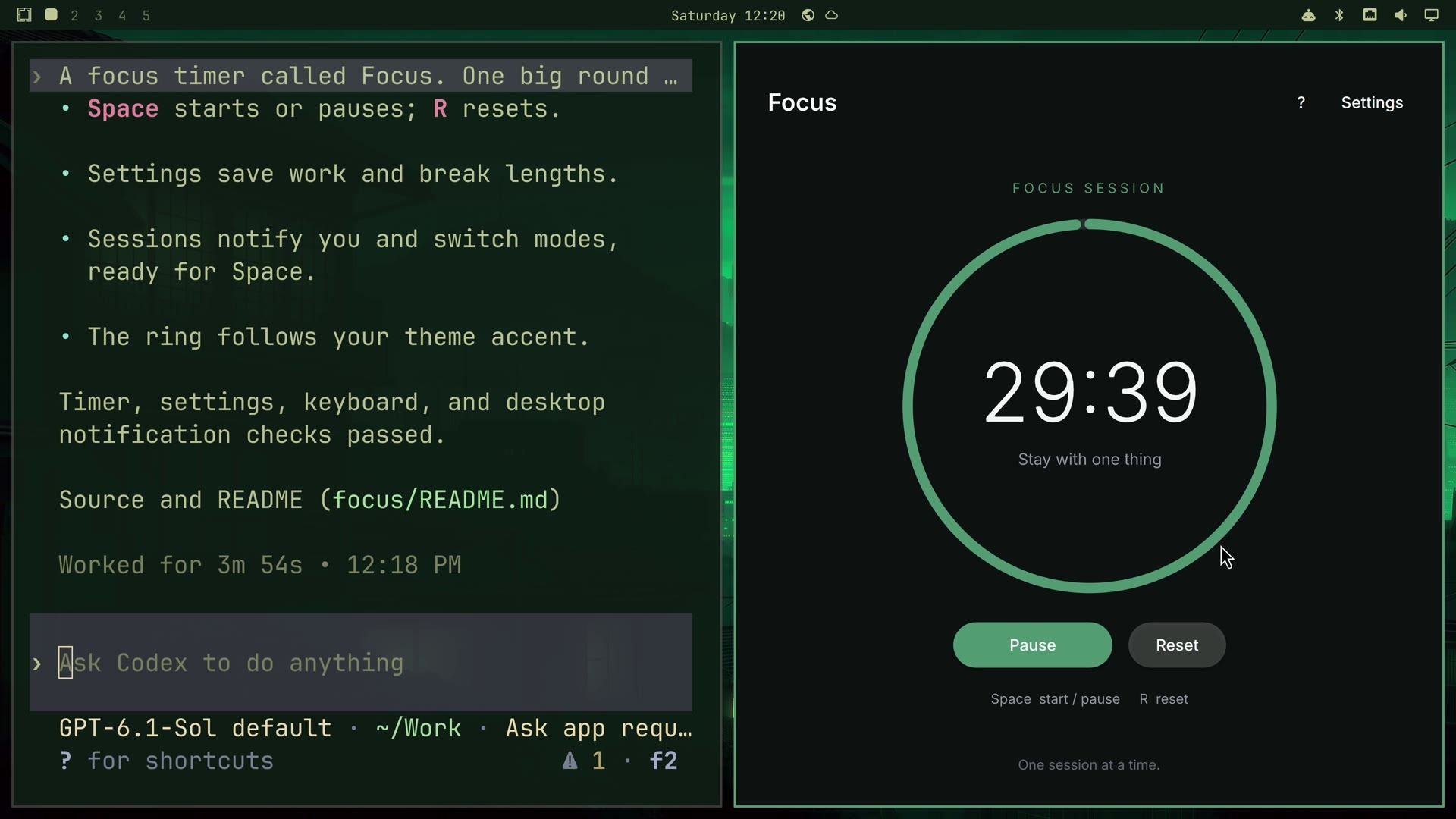
The Focus window has the ring with the time in the middle, Start and Reset buttons, and a Settings link at the top. space starts the countdown, a second space pauses it, and r resets it to the full session. On a 25-minute session the ring shrinks so slowly that the numbers are the place to watch.
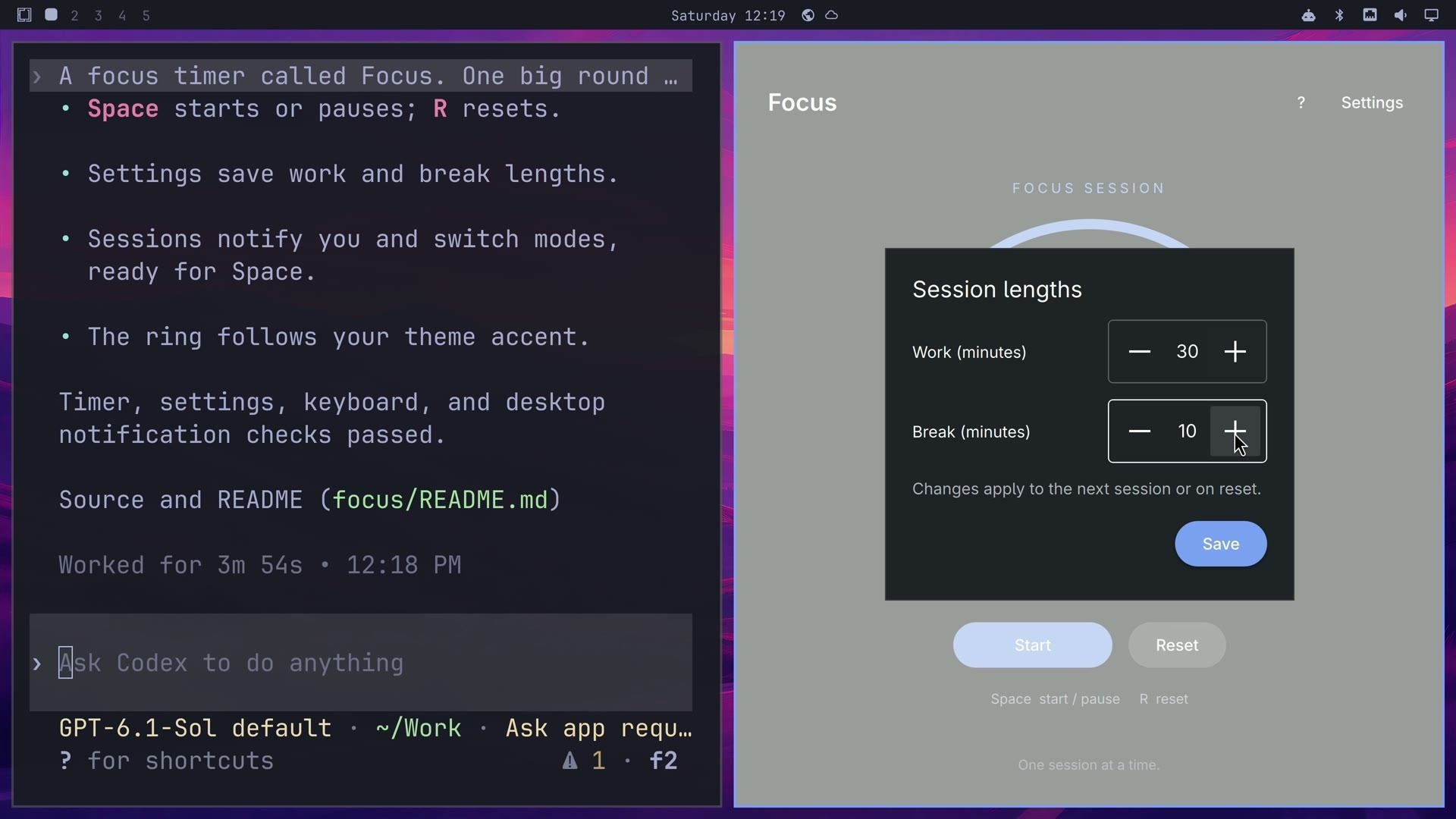
Settings opens a small panel called Session lengths, with minus and plus buttons for the work and break minutes. We set work to 30 and the break to 10 and pressed Save, and the ring changed to 30:00. The panel sits on a light gray layer that looks out of place on a dark app.
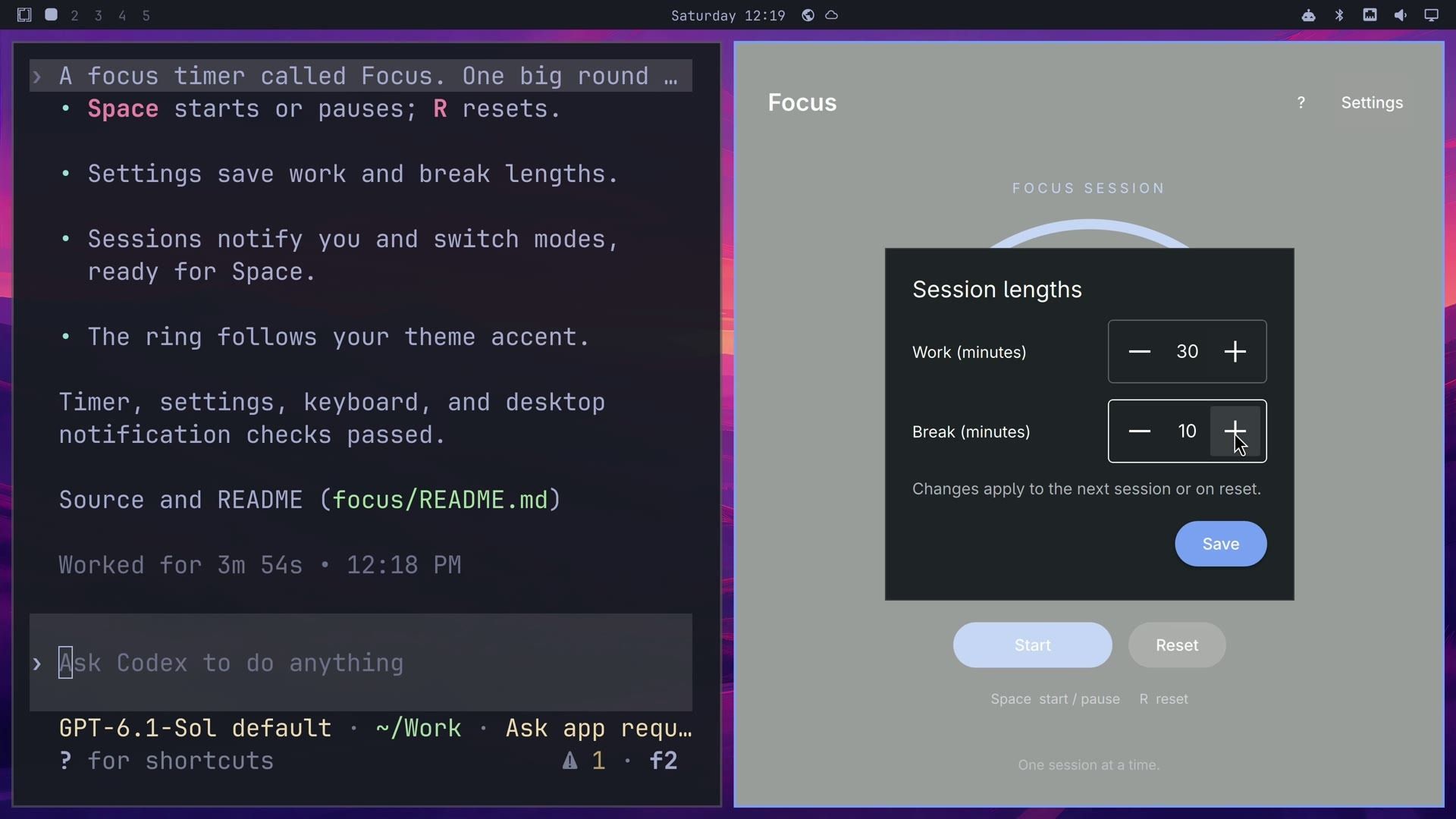
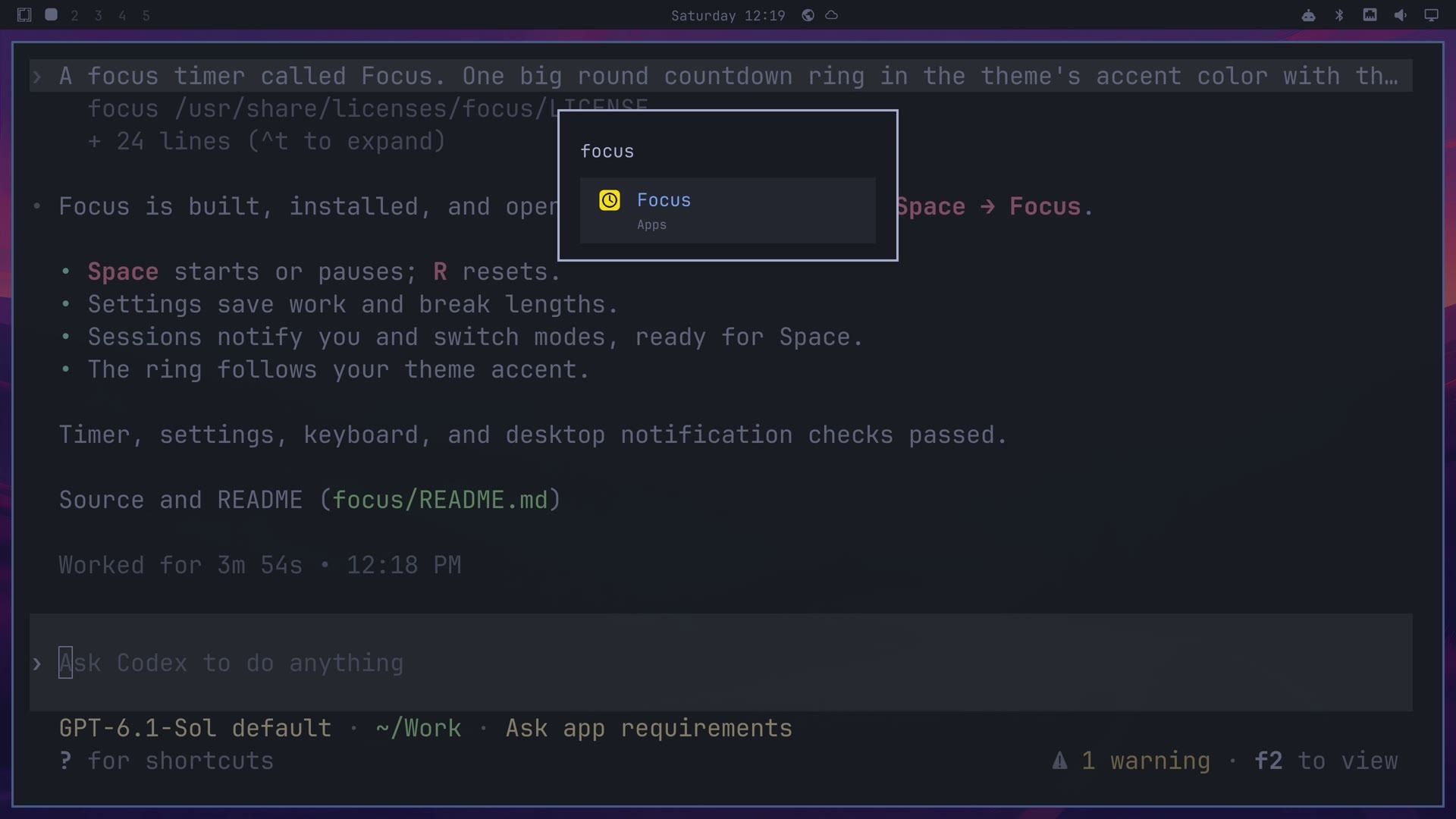
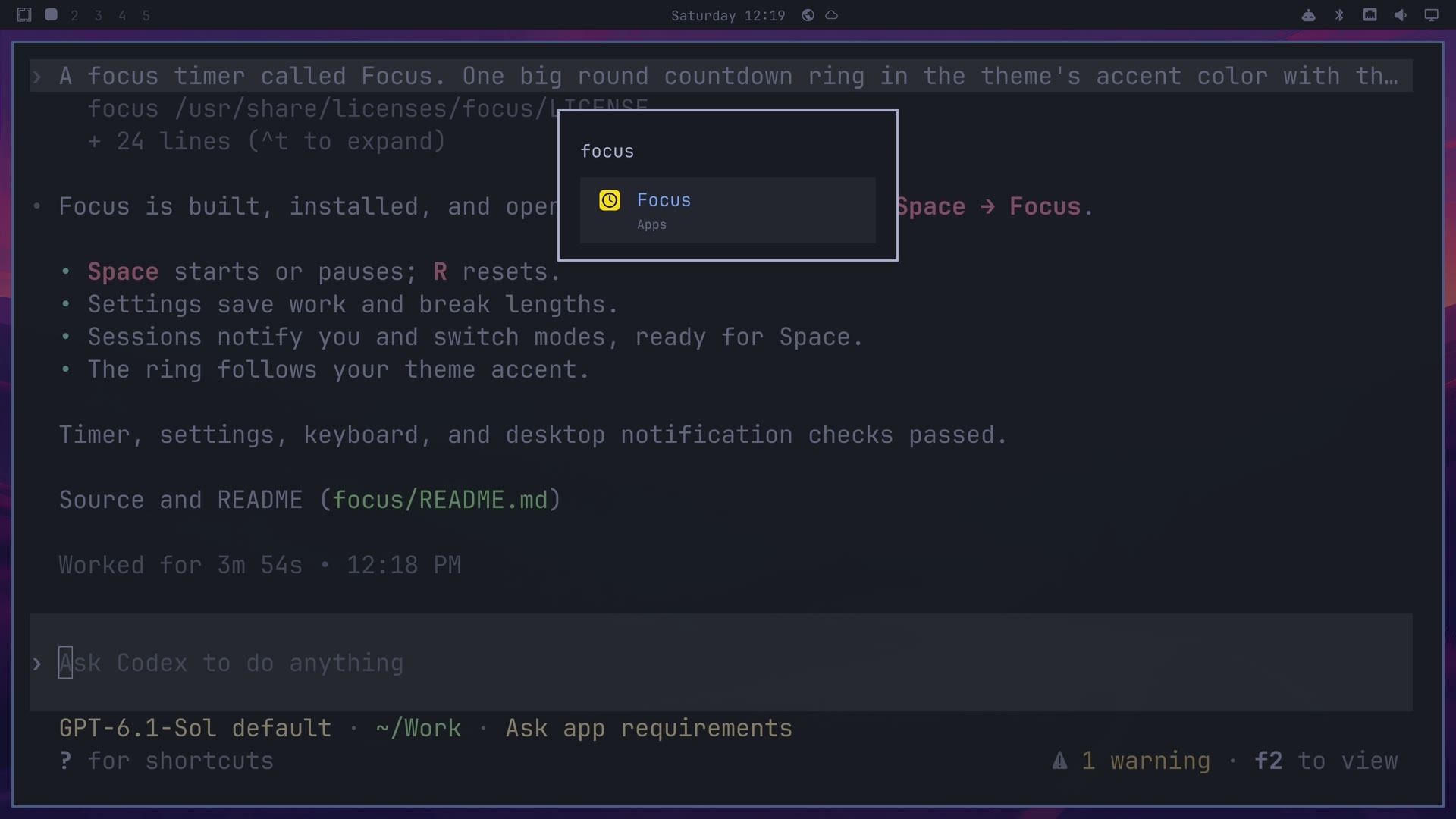
To check that the settings stick, quit Focus with q , open the Omarchy menu with super space , and type focus. The app is listed under Apps with the yellow clock icon Codex drew for it. Press enter , and Focus opens again at 30:00.
The ring uses the theme’s accent color and follows a theme change right away. With a session running, we opened the theme picker with super shift ctrl space and chose Osaka Jade. The ring, the Focus Session label, and the Pause button turned from blue to green while the timer kept counting. The dark background stayed the same.
Expect a different app each time
In our first test build, Focus had a Work Session label, a Cancel button in its settings, and a break that started by itself. In the second build, the label said Focus Session, settings had only a Save button, and a finished session waited for space . In both builds, the notification showed a plain letter F where the app icon should be. To get a Cancel button or a break that starts by itself, say so in your answer.
The tests that pass are tests the agent wrote for its own code. They do not replace using the app for a while. Before you rely on an app like this, have a second AI coding agent read through the code. Codex keeps the project in ~/Work/focus (or whatever name your app gets), so you can open that folder in another agent and ask it to review the app for bugs and for anything it does with your files.
Troubleshooting
If the App button does nothing, or starts the wrong agent, check your default agent in Setup, Defaults, Agent. The button starts whatever is set there, and it needs that agent signed in.
If the install step stops, read the agent’s last message. Codex runs in a sandbox that blocks system changes, so the install has to run with more access, and the automatic reviewer approved that in our runs. If the reviewer refuses the command, run bin/install yourself in a terminal from the project folder.
If you want changes, stay in the same agent window and describe them, for example a darker settings layer or a real icon in the notification. The agent edits the project in ~/Work and can run bin/install again.
Related guides
For more AI tools on the same desktop, see five Omarchy plugins that bring AI to your desktop. If Omarchy is new to you, start with how Omarchy is built and the first keys to learn.


