
Cua is an open source driver that lets an AI agent see the apps on your Linux desktop and click and type in them. On Omarchy, an extra Hyprland plugin gives the agent a second pointer and keyboard of its own. With that plugin, the agent can draw in Inkscape while you keep typing in another window, and your own pointer never moves.
This guide has every command from the video embedded above, plus the steps to remove Cua again. Cua itself never calls an AI model. The agent that drives it does the thinking, and here that agent is Codex, signed in with a ChatGPT plan. There is no Cua account, and the runs count toward that plan’s usage.
Everything below ran on October 16, 2026, on Omarchy’s Edge channel (development build 4.0.0.r7026, which is ahead of stable 4.0.4) with Hyprland 0.56.2-4, cua-driver-bin 0.33.4-2, cua-hyprland-plugin 0.33.2-3, Inkscape 1.4.4-6, Chromium 154, and Codex CLI 0.163.0. Cua’s platform support page lists Hyprland and Omarchy as experimental. Try it on a spare machine, not on the computer you work on every day.
What you need
You need Omarchy on the Edge channel, an x86_64 machine, a US keyboard layout with Caps Lock off, and an AI agent that supports MCP, a protocol that lets agents use outside tools. We used Codex. Cua’s agent setup page also lists Claude Code, Cursor, OpenCode, and others.
The driver package is in Omarchy’s stable repository too, but the cursor plugin is only in the Edge repository. It requires the exact Hyprland build 0.56.2-4, which only the Edge mirror carries. The newest stable release, 4.0.4, has 0.56.2-2, so the plugin will not install there.
Omarchy has an open pull request that adds Cua to the Install and Remove menus, plus a Cua Input toggle. It was not merged on our test day, so every step here runs in a terminal.
Cua gets the same access to your apps that you have. Before you install it, you can ask an AI coding agent to read through the driver’s source code and the plugin’s package files and tell you what they do.
Make a snapshot, then switch to Edge
Edge gets new features before they reach a stable release, so make a snapshot first:
omarchy snapshot createOur guide to Omarchy snapshots and rollback from the Limine boot menu shows how to boot that snapshot and restore it. Note its number: Omarchy keeps only the five newest numbered snapshots, and every update makes a new one.
To switch, press super space and go to Update, then Channel, then Edge. Super is the Windows key on a PC keyboard. The menu runs omarchy-channel-set edge, which points the package manager at the Edge repository, upgrades the system, and replaces the omarchy package with omarchy-dev. Expect a few hundred package changes, including a new kernel.
Our switch stopped once at a step that adds a clock to the bar, because the bar was restarting at that moment. A minute later, that step’s commands worked when run by hand, and then omarchy update finished the rest. If yours stops, read the error before you run the update again. Reboot when the switch is done.
Install the driver, the plugin, and Inkscape
Inkscape is the drawing app that the agent uses in background mode later:
sudo pacman -S cua-driver-bin cua-hyprland-plugin inkscapeThe plugin’s README asks for the install from a text console outside the desktop. A terminal on the desktop followed by a reboot also worked. Either way, the plugin needs a fresh session, so reboot or log out and back in before you go on.
The README also has a compatibility check for the installed plugin. The checksum in this command belongs to release 0.33.2-3; for a newer release, copy the command from the README:
python3 /usr/share/cua-hyprland-plugin/profile_verify.py \
  --kit /usr/share/cua-hyprland-plugin \
  --kit-sha256 a97fc47ec49600dfd79ba459c05a410b744e0a462b3a0cf59864a7d6fce9601d \
  --consumer /usr/lib/cua/hyprland/cua-hyprland-plugin.so
On our machine it printed “Passed installed profile compatibility checks”. If it fails, leave the plugin unloaded.
Load the plugin and turn its input on
Hyprland is the program that draws Omarchy’s windows. Loading the plugin into it gives the agent its pointer and keyboard, but they do nothing until you turn the plugin’s input on.
First, create the settings file that turns input on. Omarchy reads every file in its toggles folder each time Hyprland reloads its settings, and at login:
mkdir -p ~/.local/state/omarchy/toggles/hypr
echo 'if hl.get_config("plugin.cua.enabled") ~= nil then hl.config({ plugin = { cua = { enabled = true } } }) end' \
  > ~/.local/state/omarchy/toggles/hypr/cua-input.lua
At login, Hyprland reads its settings before the plugin loads, and a setting for a plugin it does not know yet is a config error. The if guard makes the line do nothing until the plugin is there.
Then, in each new session, load the plugin and reload Hyprland’s settings:
hyprctl plugin load /usr/lib/cua/hyprland/cua-hyprland-plugin.so
hyprctl reload
Both commands print ok. To check the result, run hyprctl -j cua:status: configured should be true and transport should show "ready": true. The README also asks for keyboard_layout_independent, foreground_numlock_compatible, and ime_popup_guard to read true before you go on. Setting plugin.cua.enabled with hyprctl eval did not turn the input on in our tests, so keep the setting in the file.
Start Inkscape only after the plugin is loaded. An Inkscape window that was open before the load refused every background action in our tests with client_not_bound. When it starts, close its welcome dialog and open a new document.
Turn off telemetry
The driver sends usage data by default, which the Omarchy pull request calls “content-free telemetry”. To turn it off:
cua-driver telemetry disableThe reply reads “Telemetry disabled. The local installation ID was retained; run cua-driver telemetry reset-id to erase it.”
Connect Codex over MCP
Sign in to Codex first. Run codex in a terminal and follow the sign-in steps, or run codex login --device-auth to sign in with a code in a browser. Our guide to five Omarchy AI plugins covers Omarchy’s agent launchers. The approval prompts below appear when you start plain codex in a terminal; Omarchy’s cy shortcut and super shift ctrl a start Codex in its auto-approve mode, which skips them. Then add the driver as a tool:
codex mcp add cua-driver --env CUA_DRIVER_RS_ENABLE_WAYLAND=1 -- /usr/bin/cua-driver mcp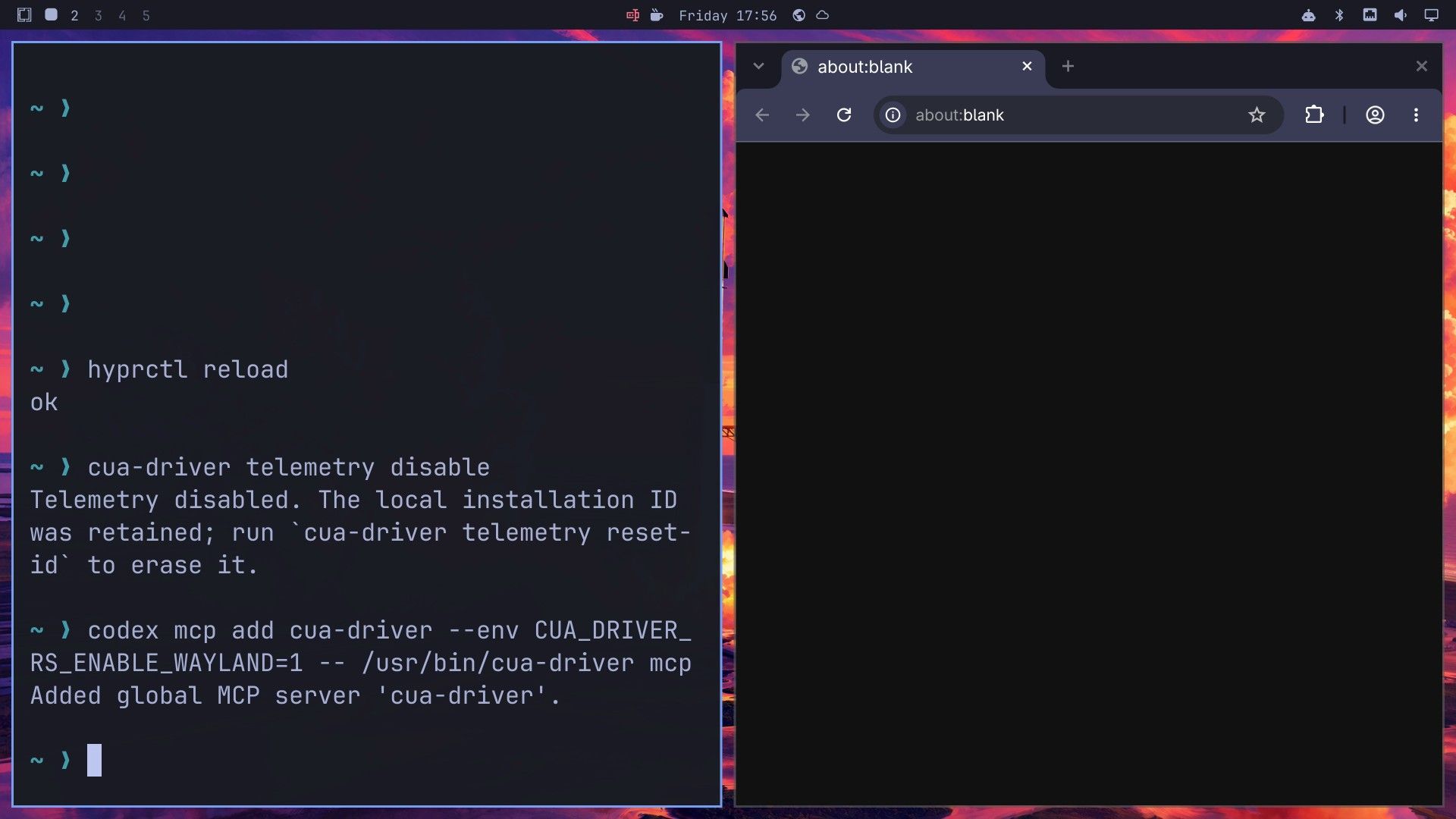
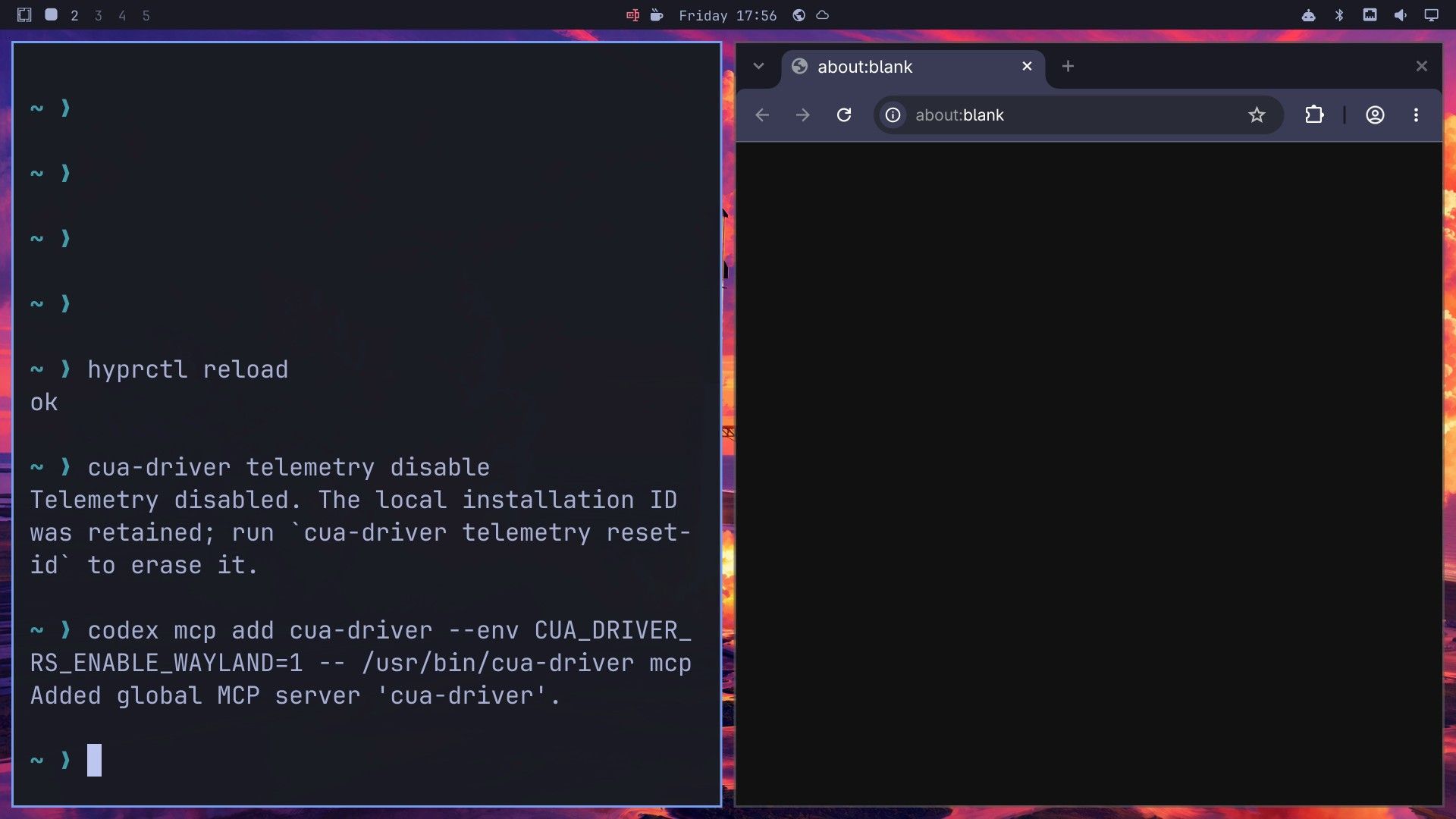
Codex starts the driver without your desktop session’s variables, and without them the driver reports “not a Wayland session” and finds no windows. Open ~/.codex/config.toml and add this line under the [mcp_servers.cua-driver] heading:
env_vars = ["WAYLAND_DISPLAY", "XDG_RUNTIME_DIR", "HYPRLAND_INSTANCE_SIGNATURE", "DBUS_SESSION_BUS_ADDRESS", "XDG_SESSION_TYPE", "XDG_CURRENT_DESKTOP", "DISPLAY"]Codex asks before it runs each driver tool that can change something on screen: in our tests, click, drag, type_text, press_key, and set_value. The prompt offers three ways to allow the tool (Allow, Allow for this session, and Always allow) and a fourth option to cancel. Only Always allow carries over to the next Codex session. It writes a table like this one into the same file:
[mcp_servers.cua-driver.tools.press_key]
approval_mode = "approve"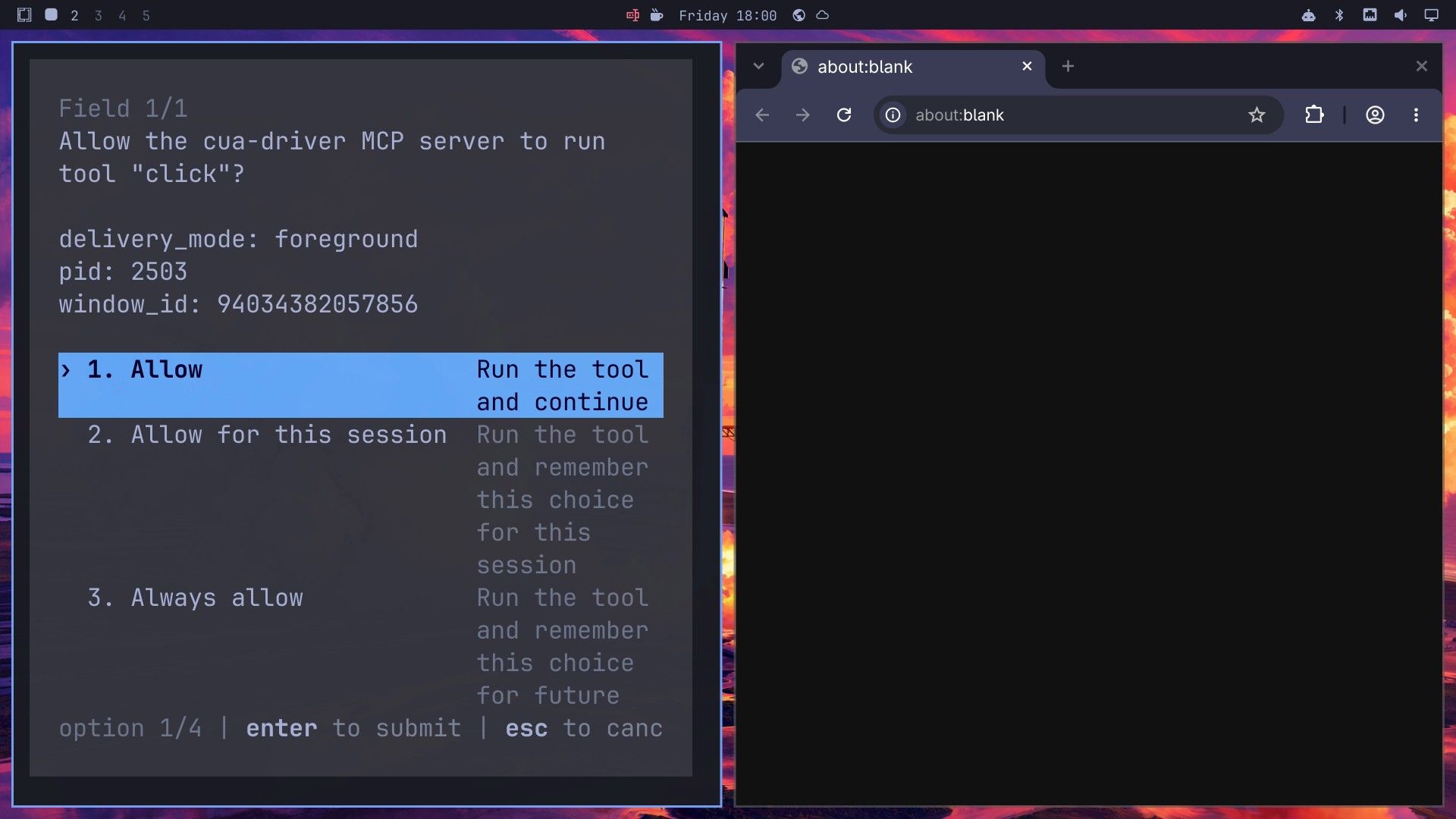
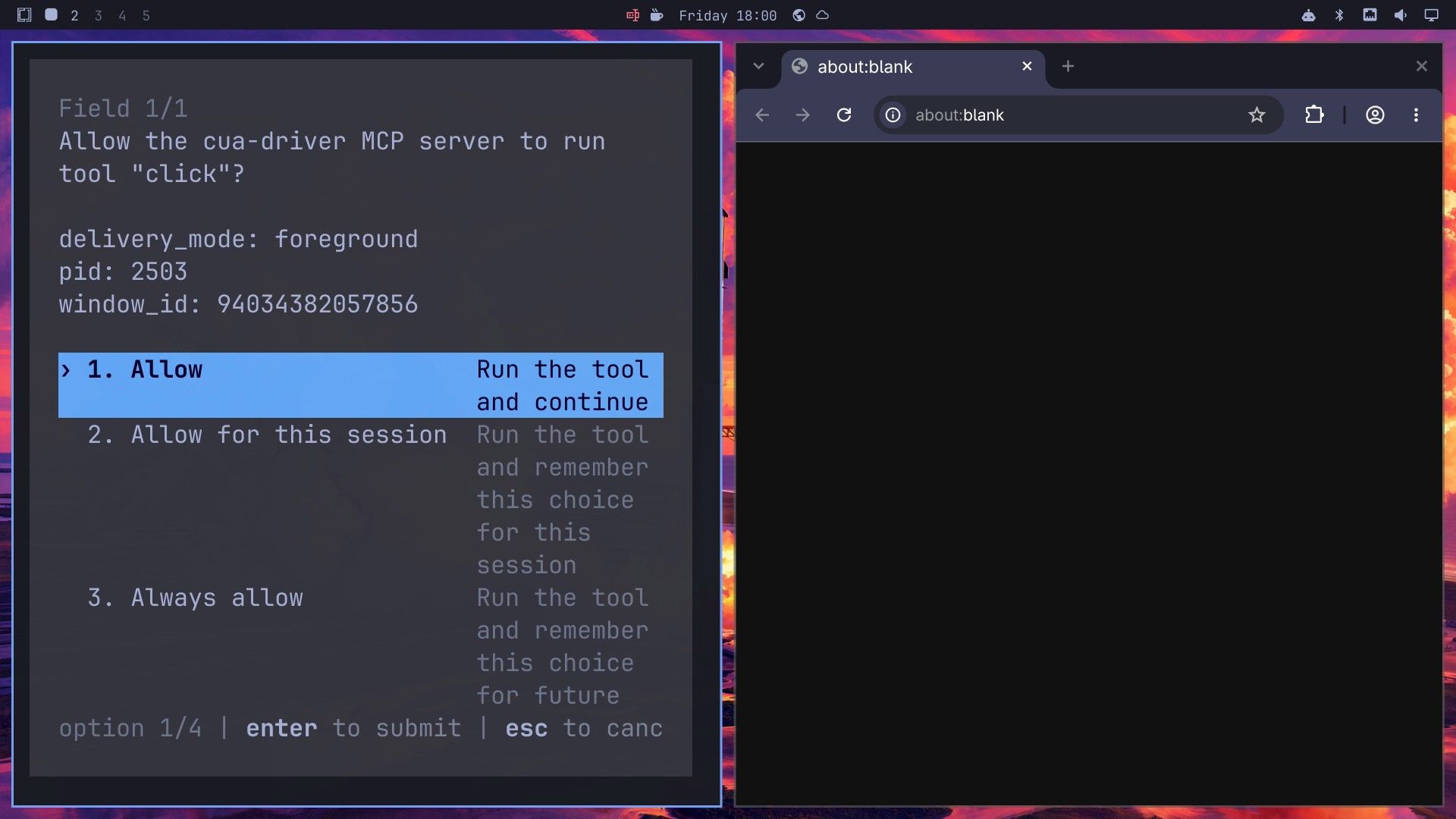
You can also write these tables by hand before a run, one per tool. A pre-allowed tool runs without asking, so allow only the tools you are willing to let the agent use. Running codex mcp add again rewrites the [mcp_servers.cua-driver] table, and in our tests it dropped env_vars. After any new add, put env_vars back and check that your approval tables are still there.
Let the agent use your pointer in foreground mode
We started Codex next to an empty Chromium window and sent this prompt:
Use the cua-driver tools with delivery_mode foreground. I authorize foreground control of the Chromium window: you may focus it and move my pointer. Use raw pointer and keyboard actions, one action per call, not the browser_* tools. Use the click tool to click the Chromium address bar (do not use Ctrl+L), type en.wikipedia.org/wiki/Inkscape, and press Enter. If an action is refused with foreground_physical_keys, wait 2 seconds and retry it. Reply in one short sentence.
The driver refused the first click, right after we approved it, with foreground_unavailable (primary_target_busy). The Enter key we had pressed to approve was still down, and the driver refuses a foreground step while a physical key or button is held. Codex waited two seconds and retried, and the click went through. Our pointer jumped to the address bar, and a pink arrow showed where the agent was working.
The first address landed after the old about:blank text, so Chromium showed an error page. Codex read the window, selected the whole address, typed it again, and the Wikipedia article on Inkscape opened. To skip that detour, tell the agent to select the address bar text before it types. Codex reported “Worked for 58s”.
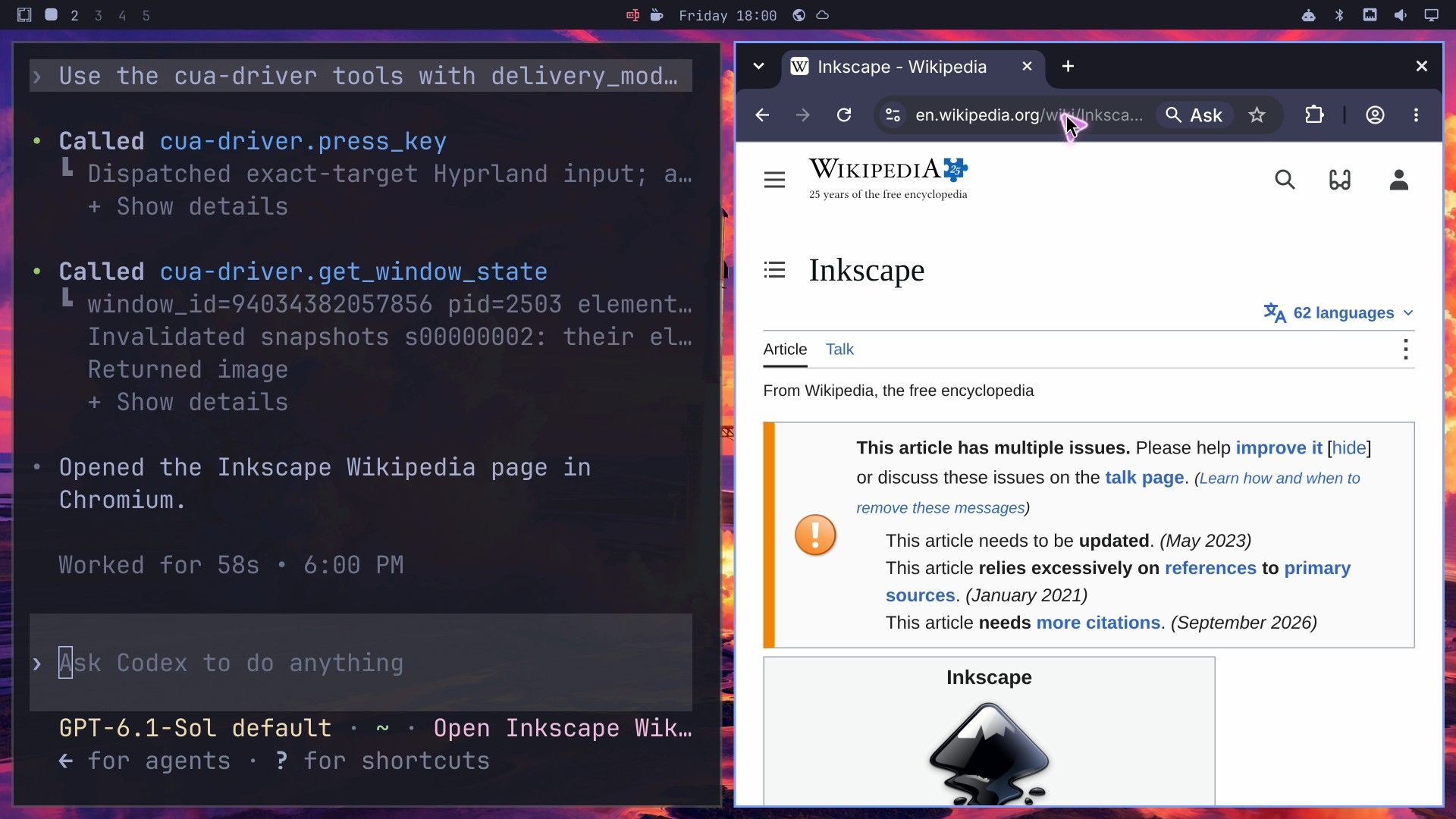
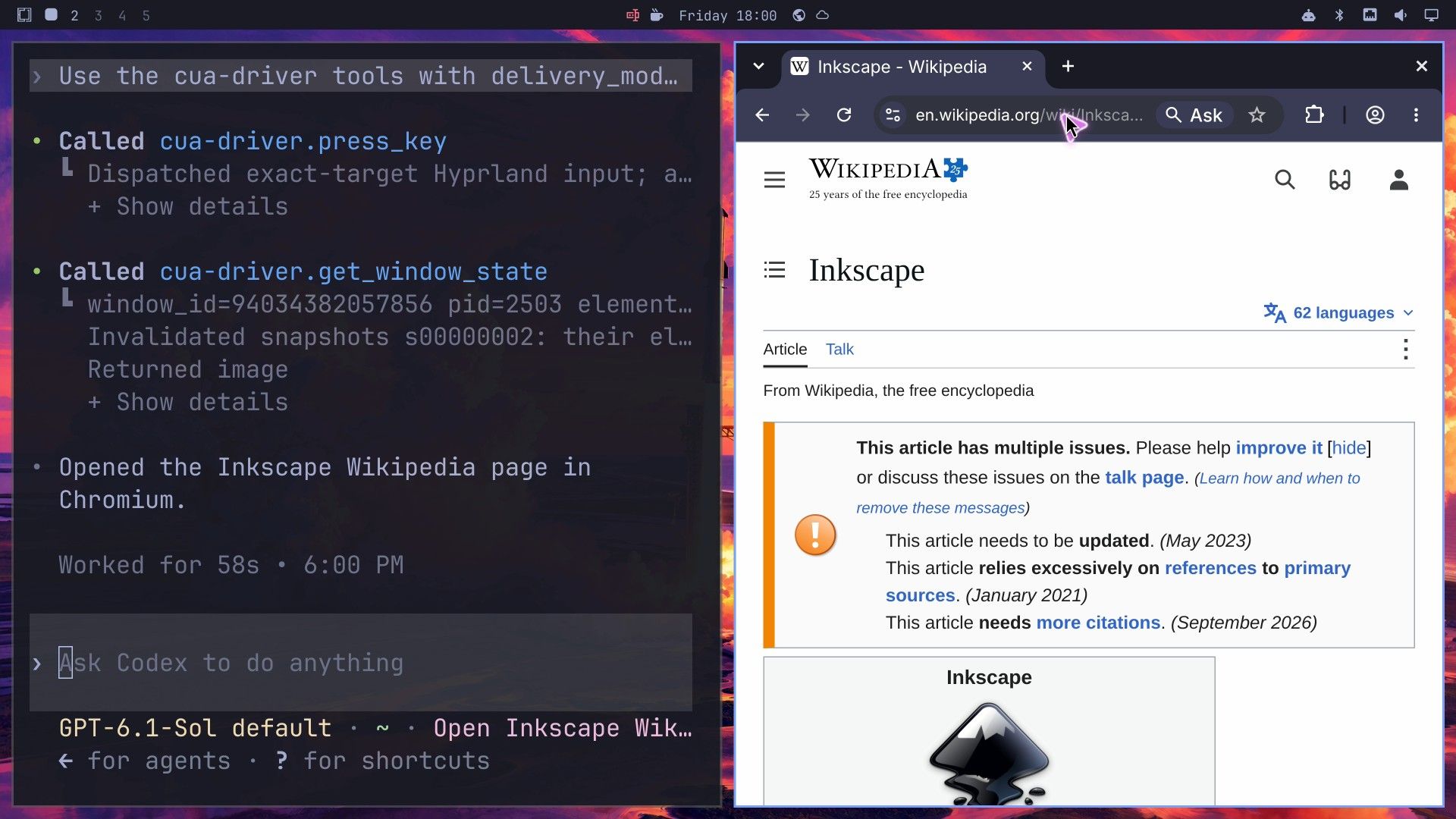
After the run, Chromium kept the focus and our pointer stayed where the agent left it. Cua’s platform support page says foreground actions on Hyprland change focus and the pointer and do not restore them. Keep your hands off the mouse and keyboard while the agent works in this mode.
Let the agent draw with its own cursor in background mode
In background mode, the agent sends clicks and keys through the plugin’s pointer and keyboard, and yours stay free. It works only in apps that Cua has checked. We asked for one background click in Chromium, and the driver refused it with background_unavailable (client_not_qualified).
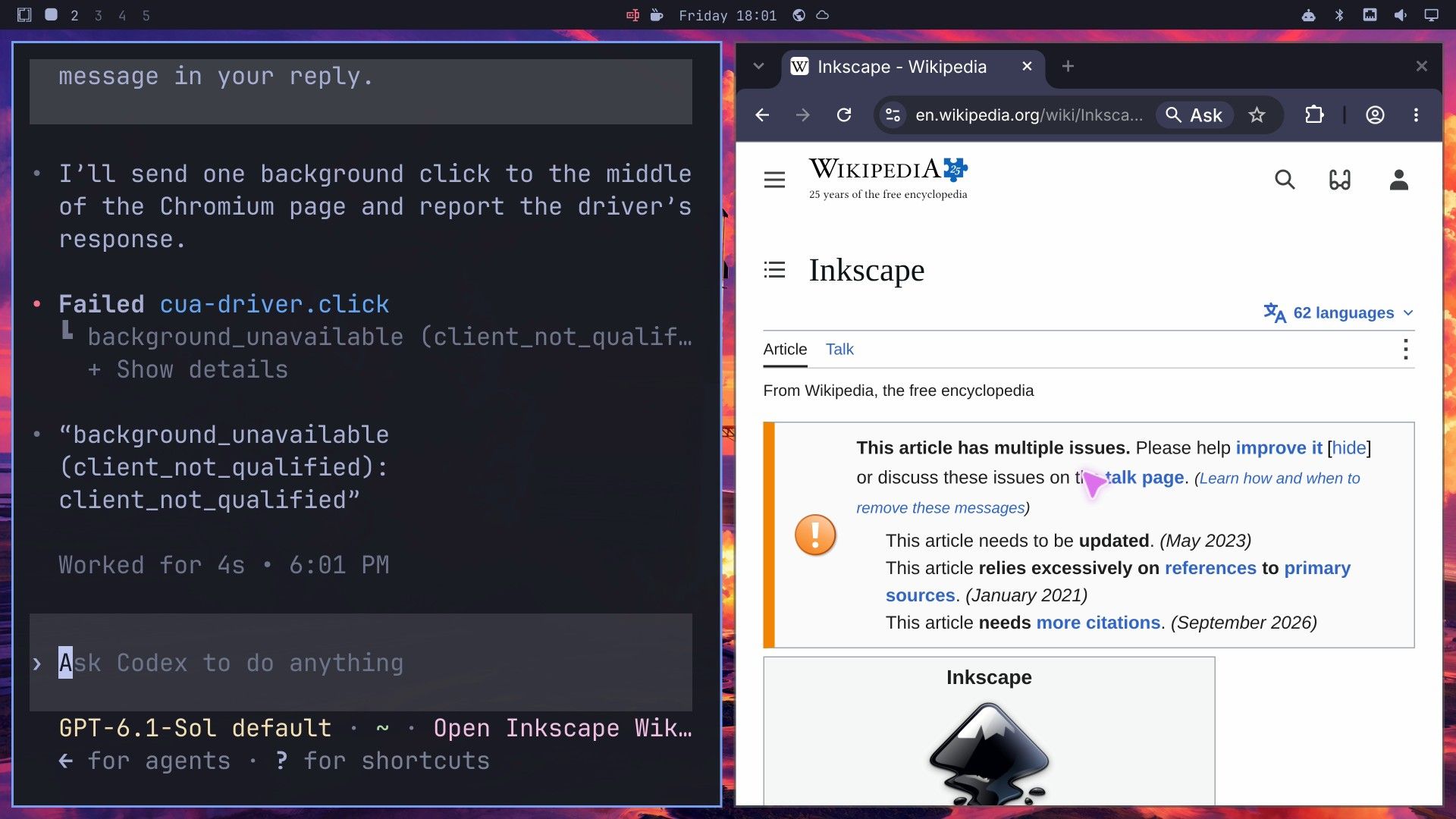
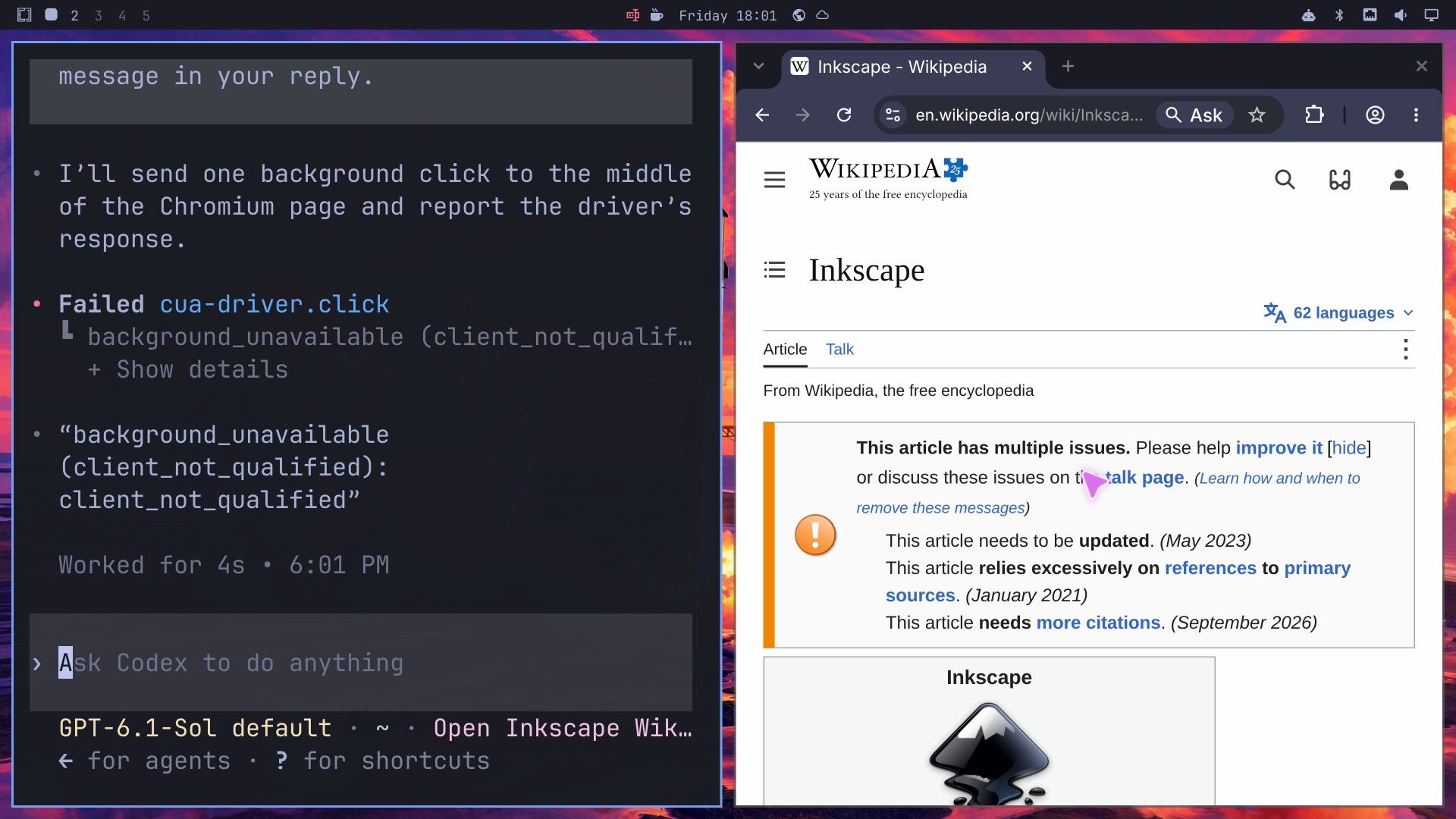
Inkscape is on the list. We kept Inkscape, Codex, and Omawrite, the writing app we kept typing in, on one workspace, so both cursors show in one view. To move a window to another workspace, focus it and press super shift 2 (for workspace 2). Our layout had Omawrite above Codex on the left, and Inkscape on the right half. Then we sent this prompt:
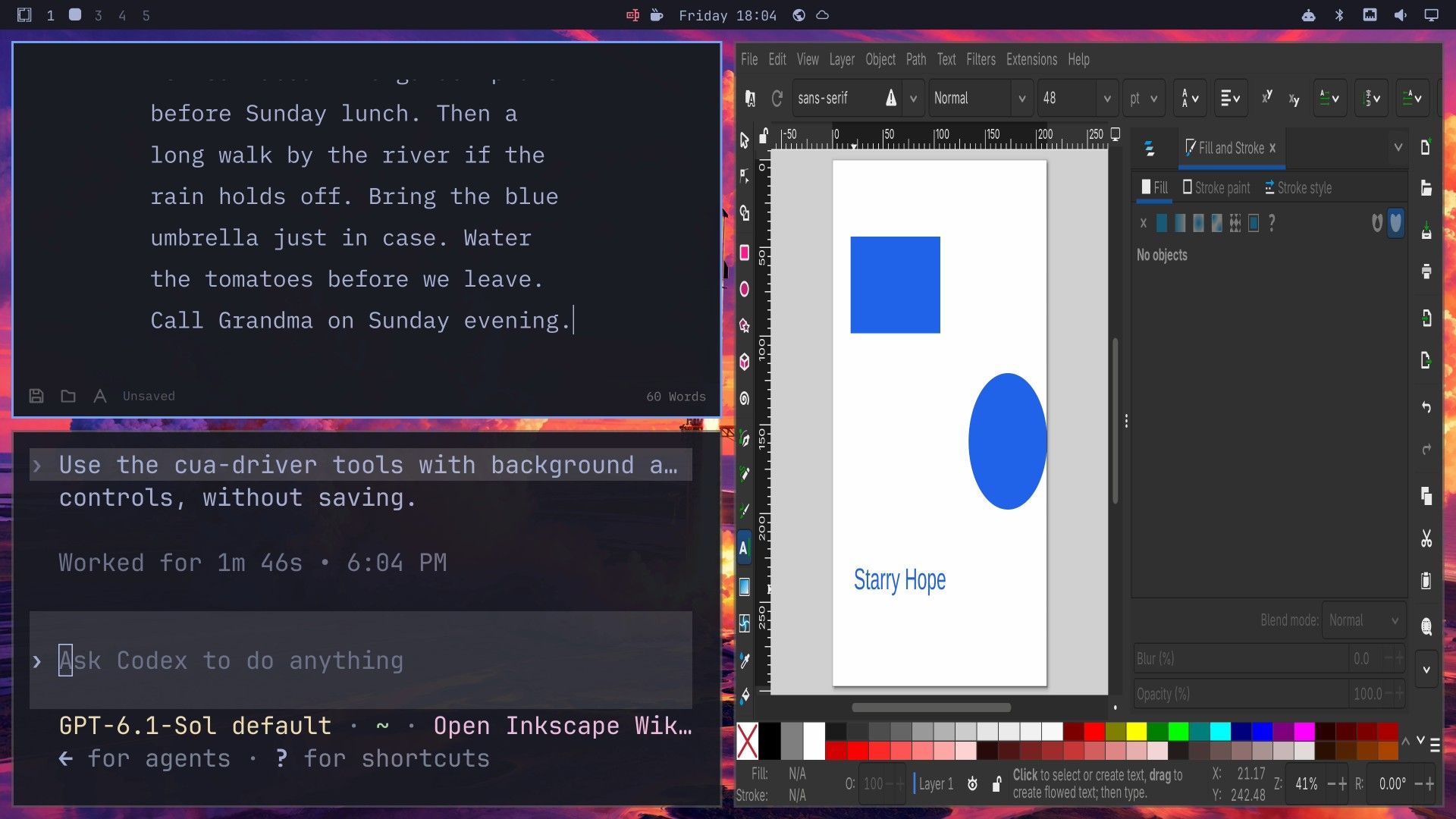
Use the cua-driver tools with background actions only. In the Inkscape window, draw a blue rectangle and a blue circle, then add the text Starry Hope in large letters. Do not focus Inkscape, raise it, or move my pointer. Do not use foreground delivery. Do not save the file. Reply in one short sentence when done.
Right after sending it, we clicked into Omawrite and kept writing. Two cursors stayed on screen: our text cursor in Omawrite and the agent’s pink arrow over Inkscape.
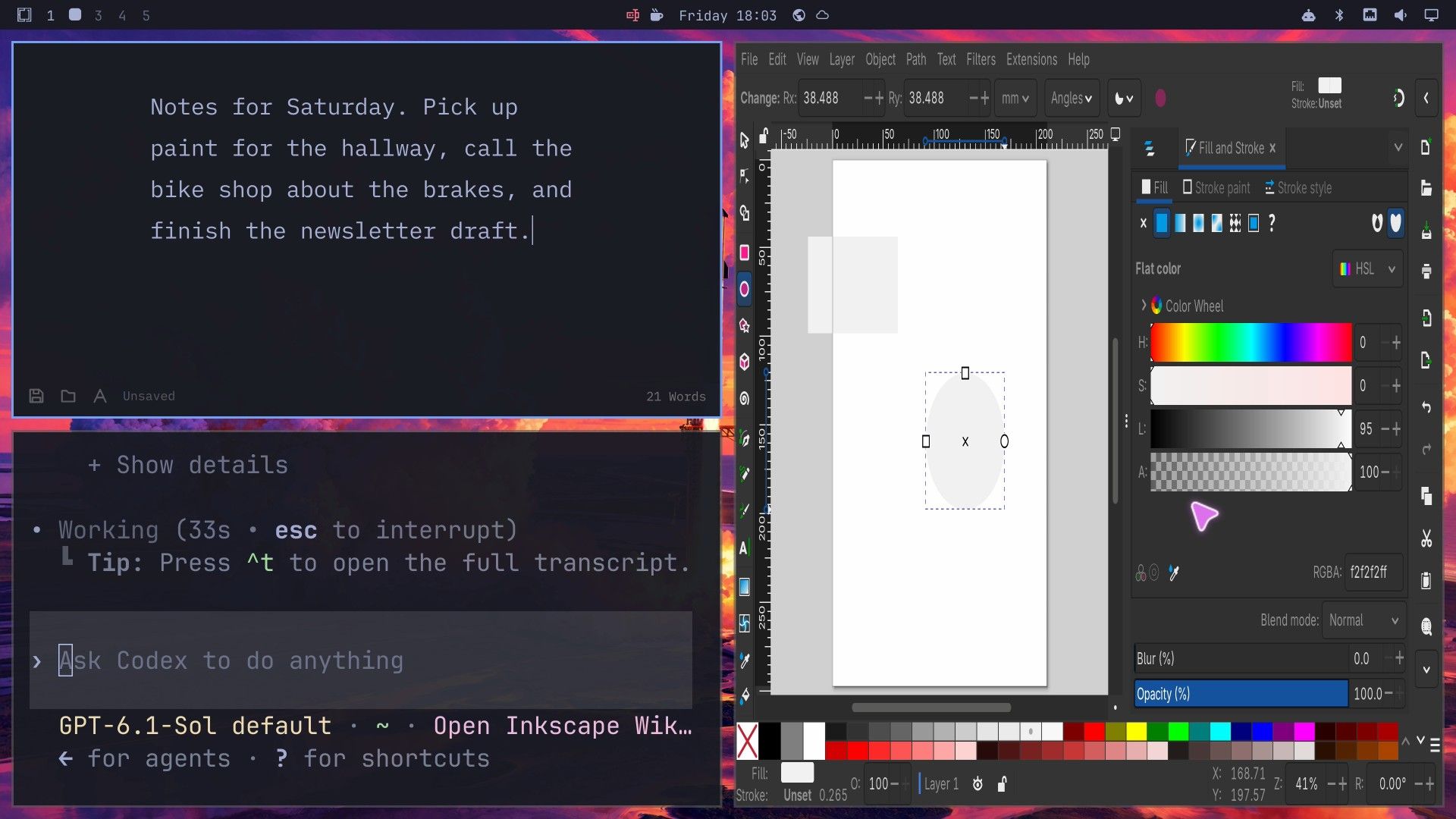
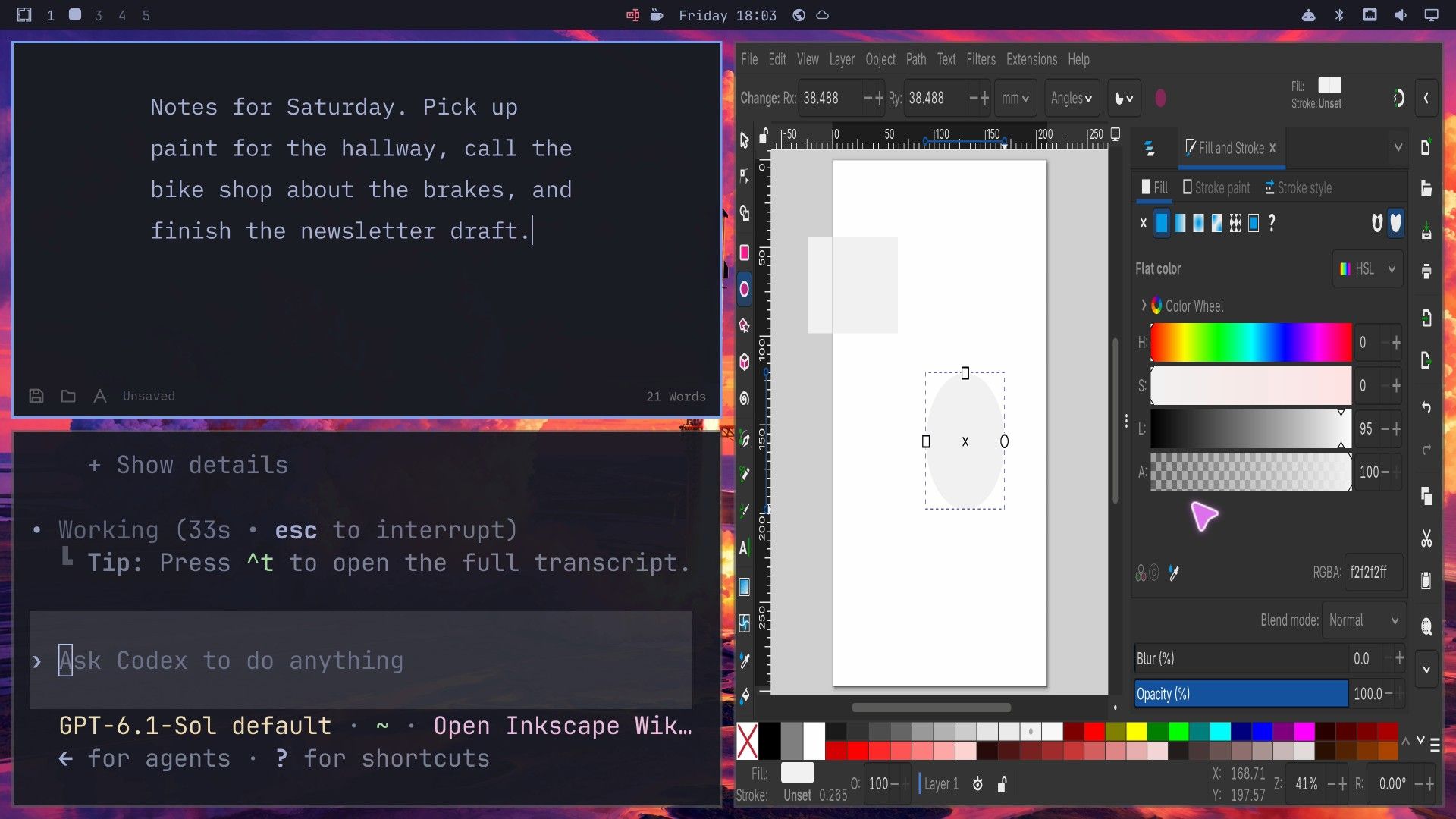
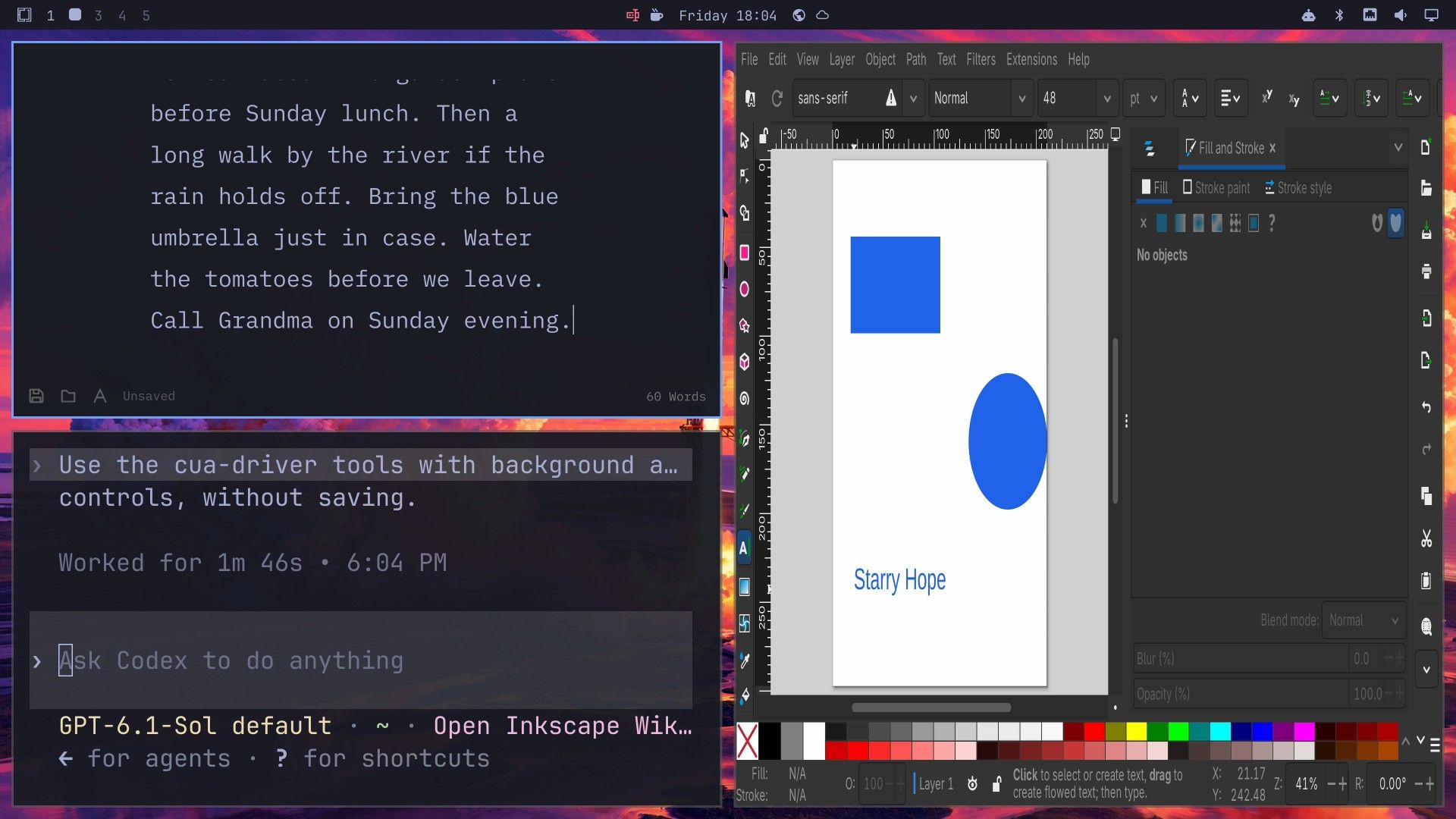
The agent drew a rectangle and an ellipse, selected both, and set one blue fill for the pair. It moved the rectangle fully onto the page and added “Starry Hope” at 48 points in the same blue. Omawrite kept the focus the whole time, and all 60 words we typed arrived intact. Codex reported “Worked for 1m 46s”.
Tell the agent not to save while you type. When Inkscape’s save dialog opened in an earlier run, it took the focus for 11 seconds, and keys typed then would have landed in the dialog.
Limits we hit
- One app. Inkscape 1.4.4-6 was the only app we could install that takes background input. Cua’s platform support page also lists LibreOffice Calc 26.2.5-3, but neither mirror carried that version on our test day. Chromium, Electron apps, and XWayland apps are not covered.
- The cursor shows everywhere. The agent’s arrow is drawn on top of the screen, so a parked arrow can sit over another window, and it shows on other workspaces too.
- Updates can fail. The plugin pins Hyprland and ten other packages to exact versions. While it is installed, an
omarchy updatethat moves any of them fails.
Turn it off and remove it
To turn the agent’s input off, delete the settings file and reload Hyprland’s settings:
rm ~/.local/state/omarchy/toggles/hypr/cua-input.lua
hyprctl reload
The plugin stays loaded until you log out. Its README says never to unload and reload it in a running session.
To take the driver out of Codex, run this, then remove any [mcp_servers.cua-driver.tools.*] tables left in ~/.codex/config.toml:
codex mcp remove cua-driverTo remove the packages, the README says to save your work, leave the desktop, and remove the plugin from a text console, then start a fresh session without it. Then remove the driver and Inkscape. We have not run these removal commands ourselves:
sudo pacman -R cua-hyprland-plugin
sudo pacman -Rns cua-driver-bin inkscape
To stay on Edge without Cua, remove the plugin first, then update as usual.
To leave Edge too, restore the snapshot you made before the switch, as shown in our snapshots and rollback guide. The Edge switch installed a new kernel, and the boot partition is not part of the snapshot, so boot the snapshot from the Limine menu and restore it from there. A restore rolls back the system files only. Your home folder stays as it is, so follow the settings-file and Codex steps above either way. To go back to stable without a snapshot, the Omarchy menu has Update, then Channel, then Stable. We have not tested either way back across the Edge switch.


