
Omarchy is built for the keyboard. Its windows have no title bar buttons, and there is no dock or taskbar to click. If you come from Windows or a Mac, you may reach for a close button that is not there. Familiar Desktop, an Omarchy plugin by Tom Ballard, adds both: minimize, maximize, and close buttons on every window, and your apps on a taskbar or a dock.
This guide has every step from our Familiar Desktop video, embedded above. It installs the plugin, tries its Windows and Mac layouts, and removes it again. Everything below was done on Omarchy 4.0.4 with Hyprland 0.56.2 and Familiar Desktop 0.1.4, which Tom Ballard released on October 9, 2026. The dock code started as a fork of rosakodu’s omarchy-dock, and the plugin credits both authors.
What you need
You need Omarchy 4 on a 64-bit Intel or AMD computer (x86_64) and an internet connection for the setup downloads. The plugin’s title bars depend on one exact Hyprland build, the one in Omarchy 4.0.4, and setup stops with a message on any other version. ARM computers are not supported.
Most Omarchy shortcuts start with the Super key, which is the Windows key on a PC keyboard. If the Omarchy shortcuts are new to you, our list of Omarchy shortcuts to learn first covers the terminal, the launcher, and closing windows. For how Omarchy plugins work in general, and how to check one before you install it, see How to Find, Check, and Install Omarchy Plugins.
Check the catalog page for the latest install steps
Familiar Desktop is a new project. Version 0.1.0 came out on October 5, 2026, and 0.1.4 followed four days later, so the install steps can change. Before you start, open its page in the Omarchy plugin catalog: Familiar Desktop on plugins.omarchy.org.
On October 9, 2026, the page listed version 0.1.4 with the Snapshot verified tag, and its Availability box said Manual setup instead of showing an install command. The page says this plugin “requires additional setup before it can be enabled” and points to the author’s own instructions. In practice that means you install it from its GitHub address, as below. If the catalog later shows a normal install command, use that one.
Install Familiar Desktop from its GitHub address
Open a terminal with super enter and run this command. It is the install command from the plugin’s README:
omarchy plugin add https://github.com/tcballard/omarchy-plugin-familiar-desktop --enableCheck the address before you press enter . The catalog also lists a separate plugin called Familiar, from a different author, that switches Omarchy between GNOME, Plasma, and Mac styles. The one in this guide is Familiar Desktop, and its address ends in omarchy-plugin-familiar-desktop.
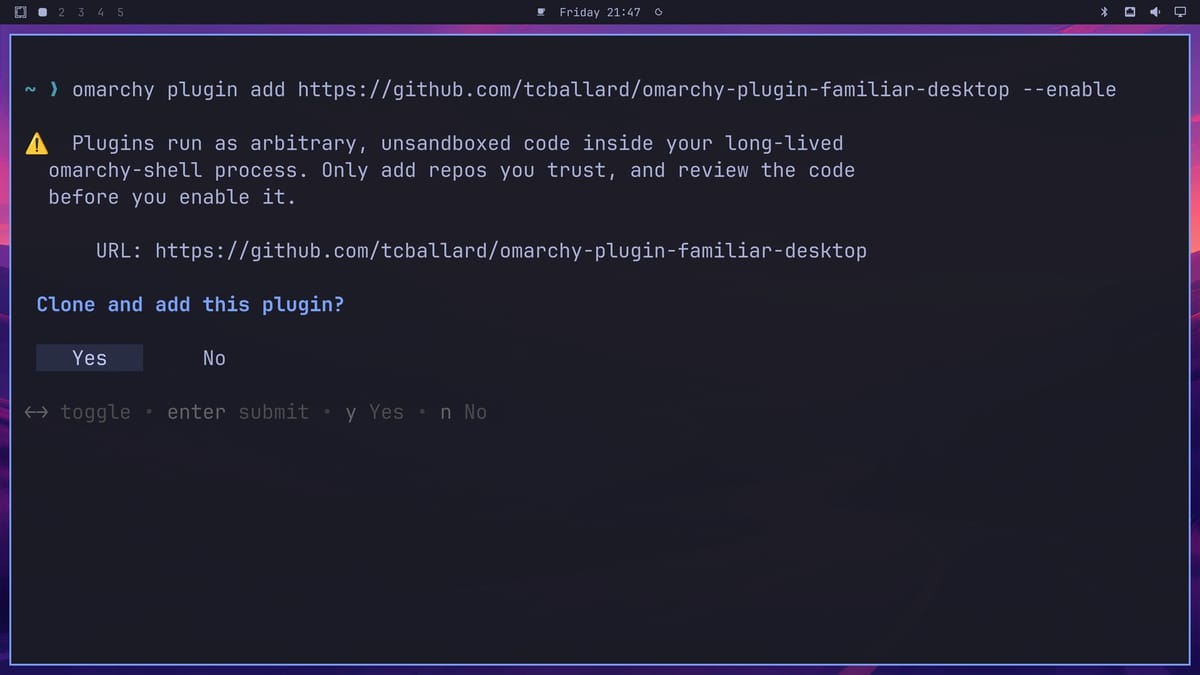
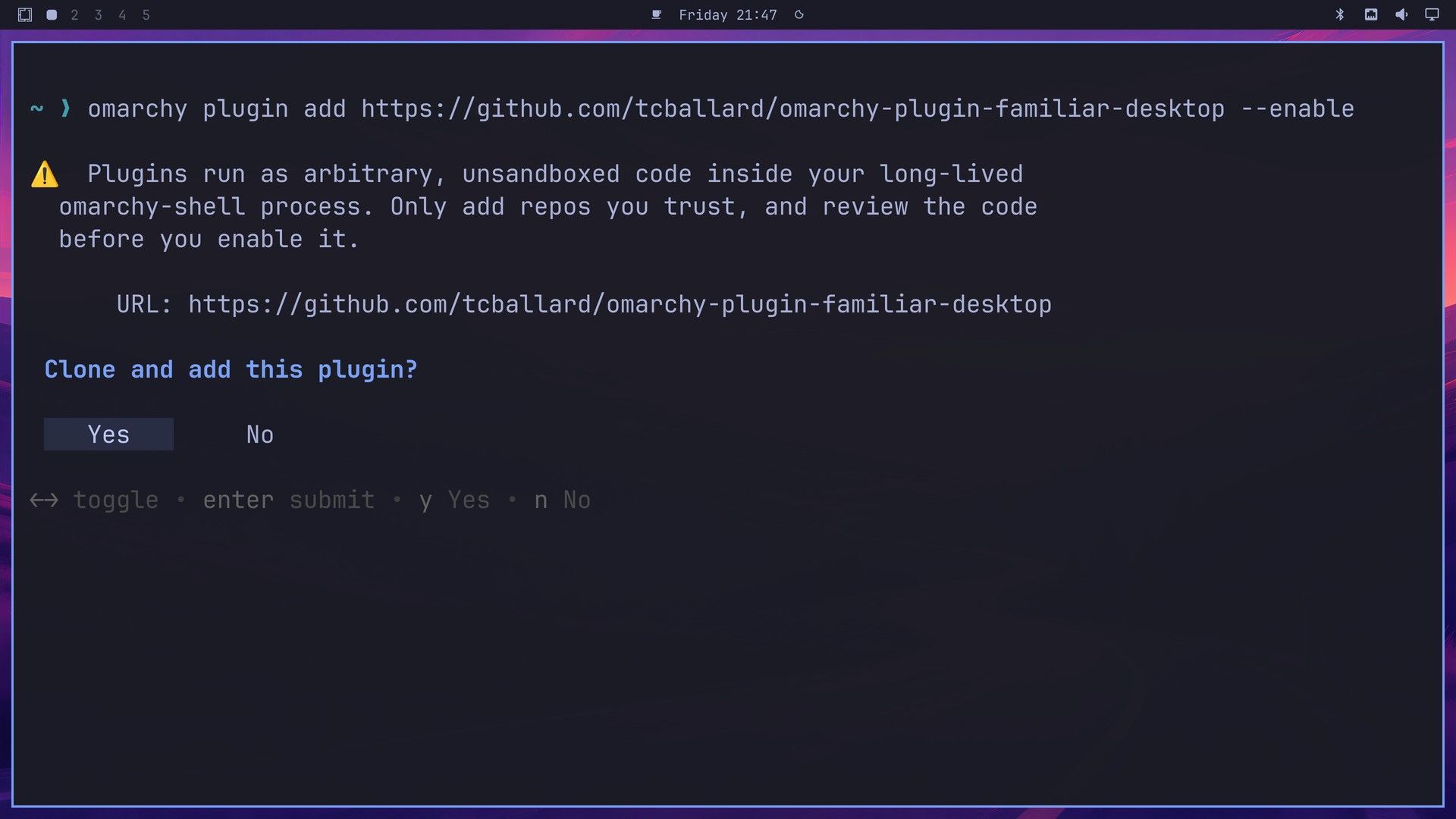
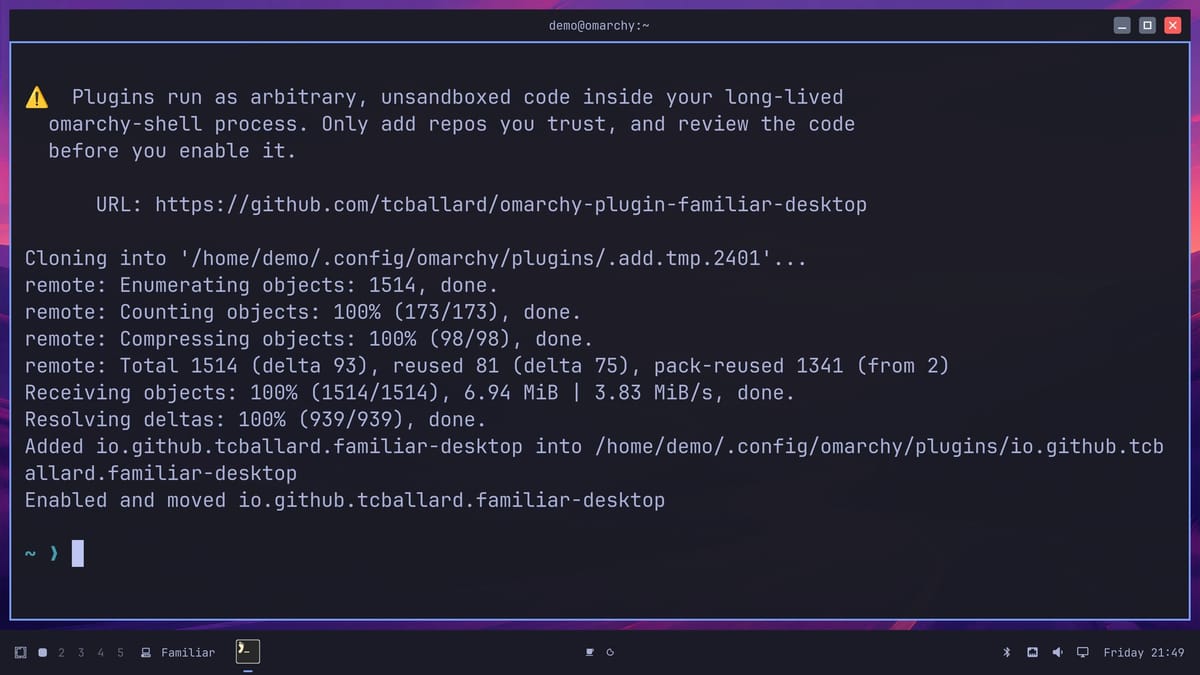
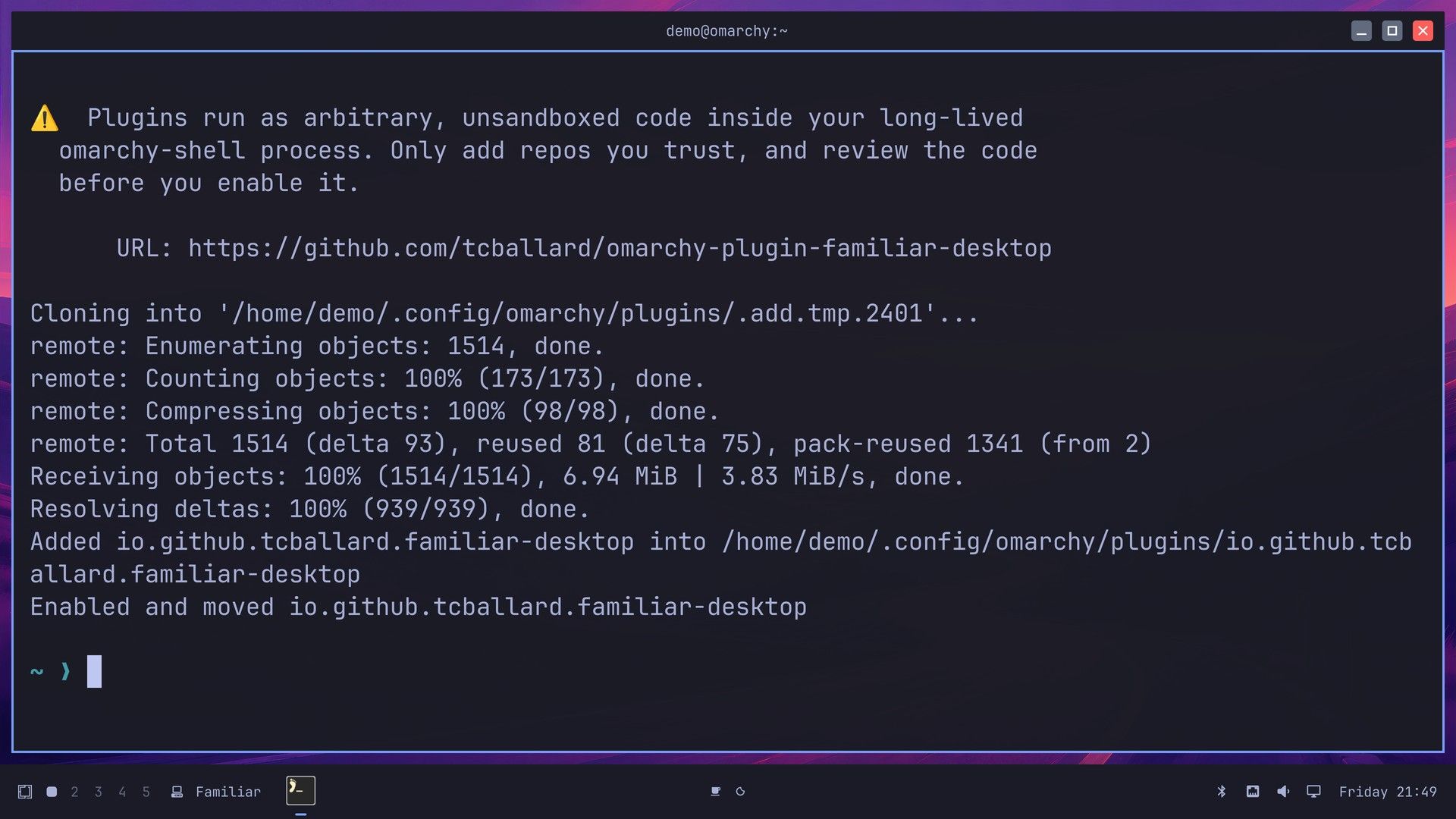
Omarchy shows its standard warning first: “Plugins run as arbitrary, unsandboxed code inside your long-lived omarchy-shell process. Only add repos you trust, and review the code before you enable it.” The omarchy-shell process is the program behind your top bar and menus. Yes is already selected, so enter downloads the plugin.
Next it asks which bar section the plugin’s icon goes in: left, center, or right. The default is right, so press enter . The terminal prints “Enabled and moved io.github.tcballard.familiar-desktop,” a small computer icon appears in the top bar, and the setup window opens on its own a few seconds later.
Pick Windows or Mac in the setup window
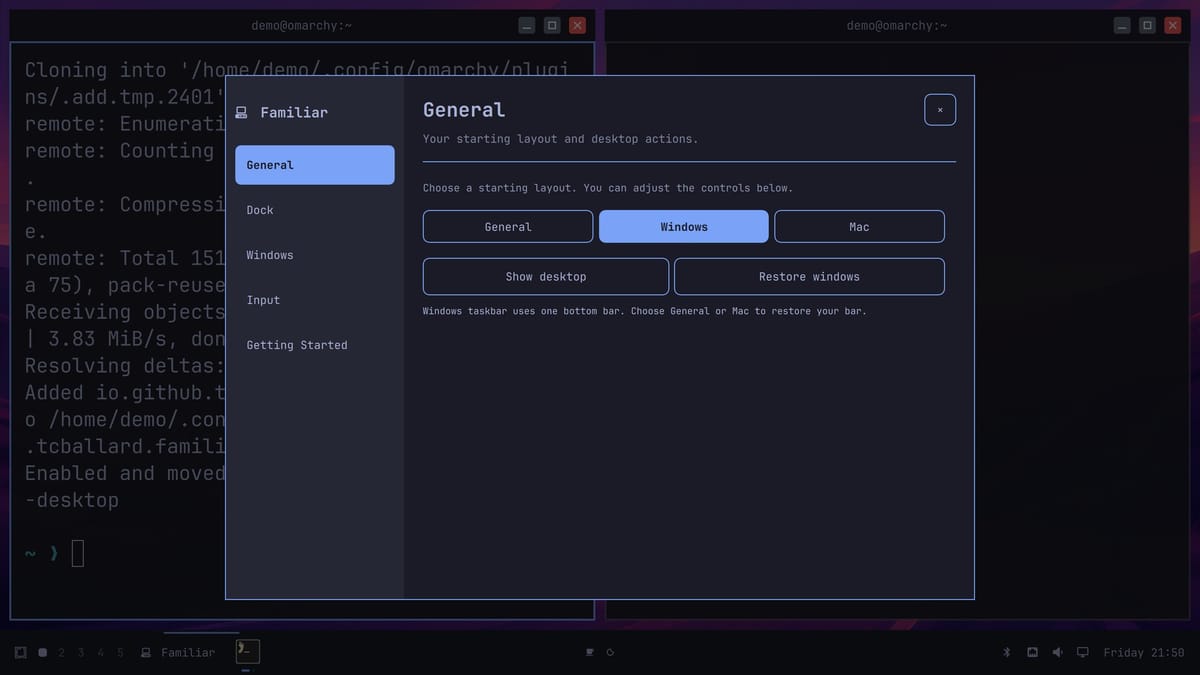
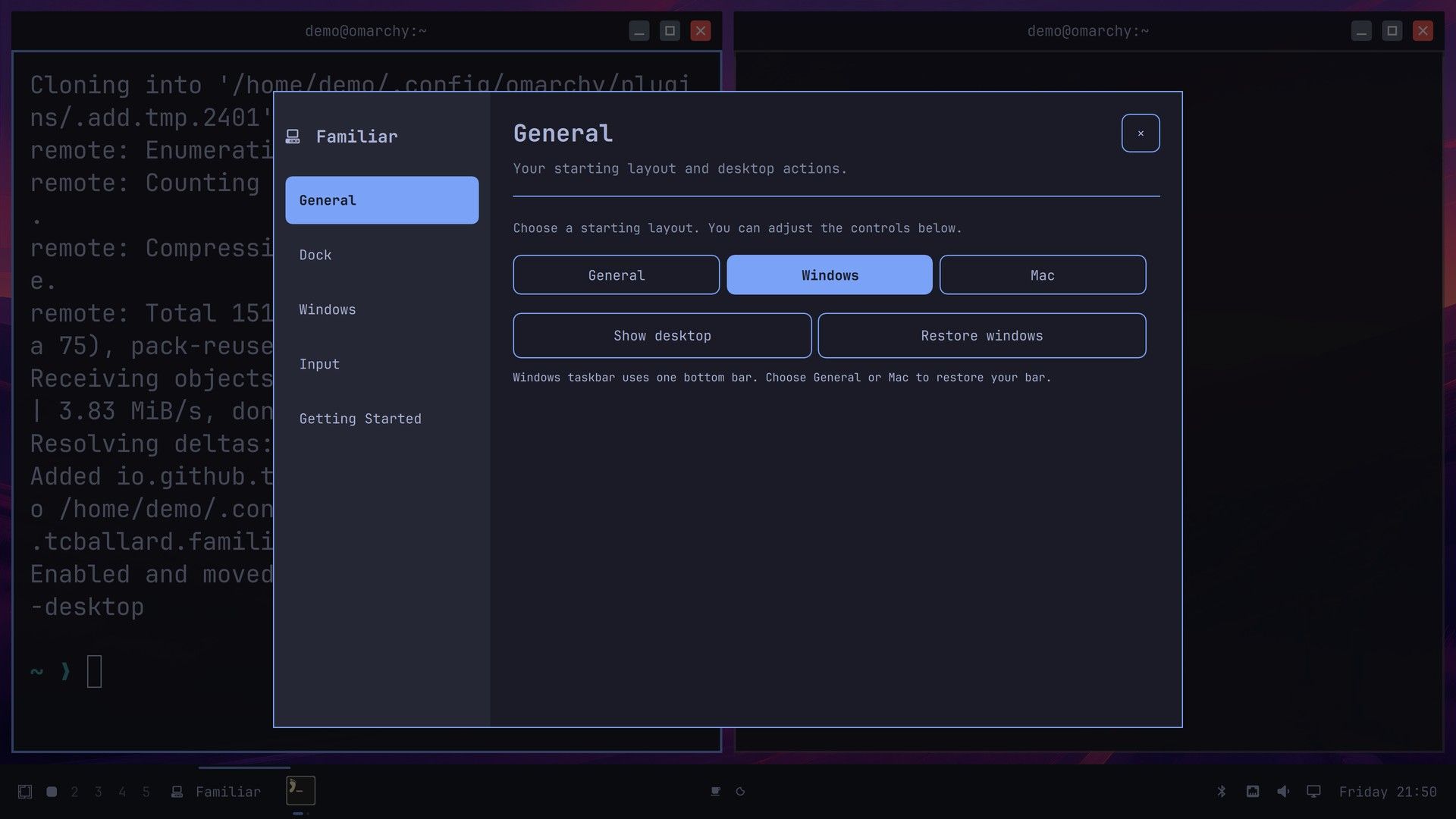
The setup window asks which layout you want. Windows puts the window buttons on the right side of each title bar. Mac puts them on the left, as red, yellow, and green dots. Windows is selected by default. You can switch layouts later in the plugin’s settings, so either choice is fine here.
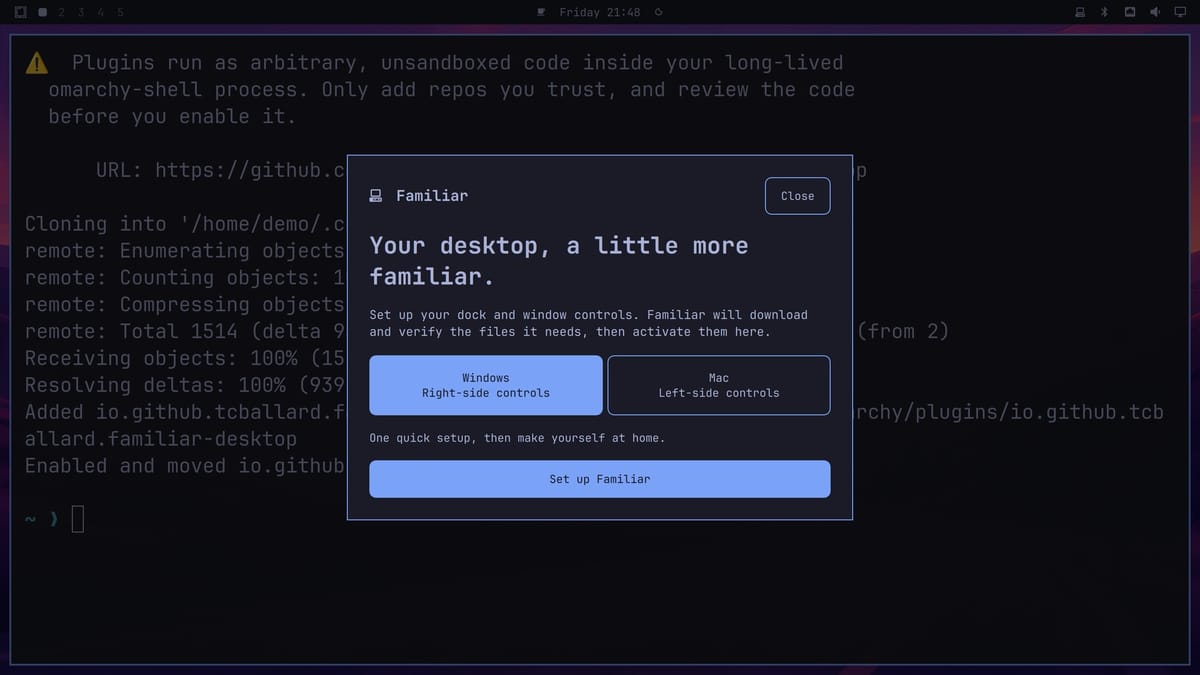
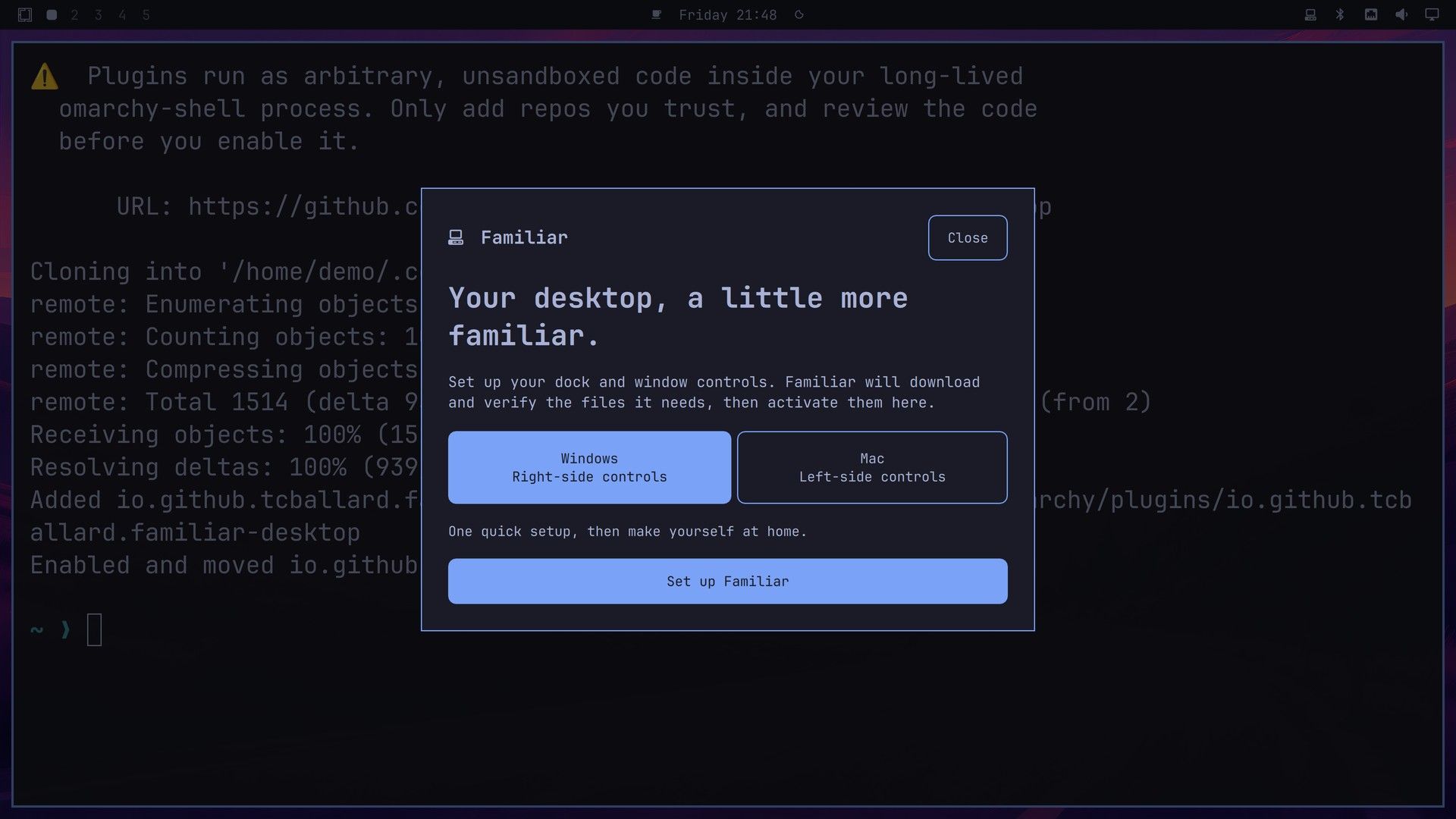
Click Set up Familiar. Setup downloads two files from the author’s GitHub release, checks them, and turns everything on. It takes a few seconds. The window then says “Make yourself at home,” and Start using Familiar closes it. Nothing is downloaded until you click the setup button, and this in-app setup never asks for your password.
You trust the author with code inside Hyprland
The two downloads are prebuilt programs. One is the plugin’s helper program, which moves windows and writes its settings. The other is a title bar add-on, a patched build of Hyprbars, the title bar plugin from the Hyprland project. Setup compares each file with a SHA-256 fingerprint stored in the plugin’s code and stops if either one does not match. That check catches a swapped or damaged download.
The title bar add-on runs inside Hyprland, the program that draws all your windows and handles your keyboard and mouse. Code there can see everything on your screen. The fingerprints come from the same author as the files, so they protect you from a bad download, not from the author or anyone who controls his GitHub account.
Before we recorded the video, we had Claude Opus, Anthropic’s AI model, review the code of version 0.1.4. The review read the setup, install, and uninstall scripts and the core of the helper program in full, and searched the rest of the code, including about 15,000 lines of interface code, for network use, file writes, and launched programs. It found no internet use after setup, no tracking or telemetry, and no sudo in the in-app setup. Both downloaded files matched the fingerprints in the code and the author’s automated GitHub build of the same version. The review rated the plugin “install with caveats,” with no high or critical findings. The caveats are the ones above: the add-on runs inside Hyprland, and one person controls the code and the builds.
That review covers version 0.1.4 only. Each update brings new code and new files, and omarchy plugin add installs whatever is newest on GitHub, not the snapshot the catalog checked. For a newer version, or for any other plugin, have an AI coding agent read the code before you install. Paste the repository address into the agent and ask what the plugin downloads, what it runs, which files it changes, and whether it sends data anywhere.
Use the Windows layout
In the Windows layout, the Omarchy top bar moves to the bottom of the screen and becomes a taskbar. From the left, it has the Omarchy menu, your workspaces, a Familiar button for the settings, and your running apps. The clock and the system icons sit on the right. Every window now has a title bar with minimize, maximize, and close buttons on the right, and the close button is red.
To try the buttons, open a second window. super shift f opens the file manager, and its icon joins the taskbar. Click the first button, minimize, and the file manager disappears while its icon stays on the taskbar. Click that icon, and the window comes back. Hyprland tiles windows, so a restored window may come back in a different spot than where it was.
The middle button maximizes a window, so it fills the screen down to the taskbar. Click the same button again to put it back beside the other windows. The red close button closes the window, and its icon leaves the taskbar unless you pinned the app.
Pin an app from its taskbar menu
Each app on the taskbar has its own menu. Open a second terminal with super enter , then right-click the terminal icon on the taskbar. The menu lists both terminal windows by name and workspace, and five actions below them: Go to window / restore, Bring here, New Window, Pin to Dock, and Minimise. Go to window jumps to the window you picked, and Bring here moves it to the workspace you are on.
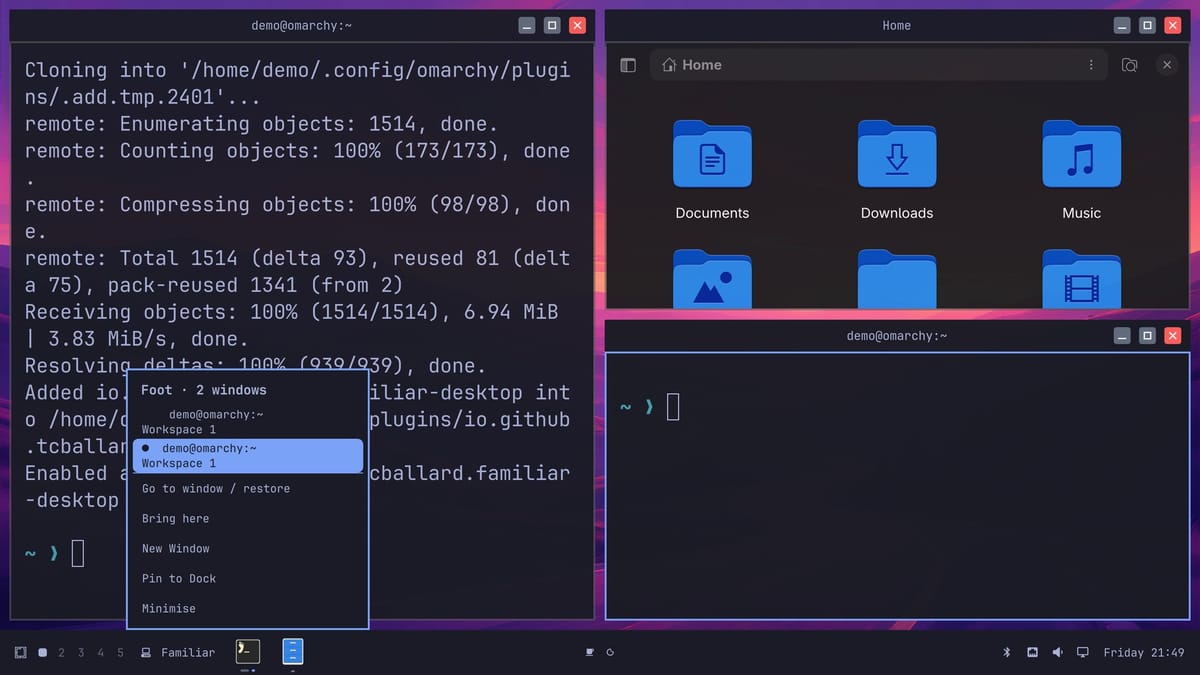
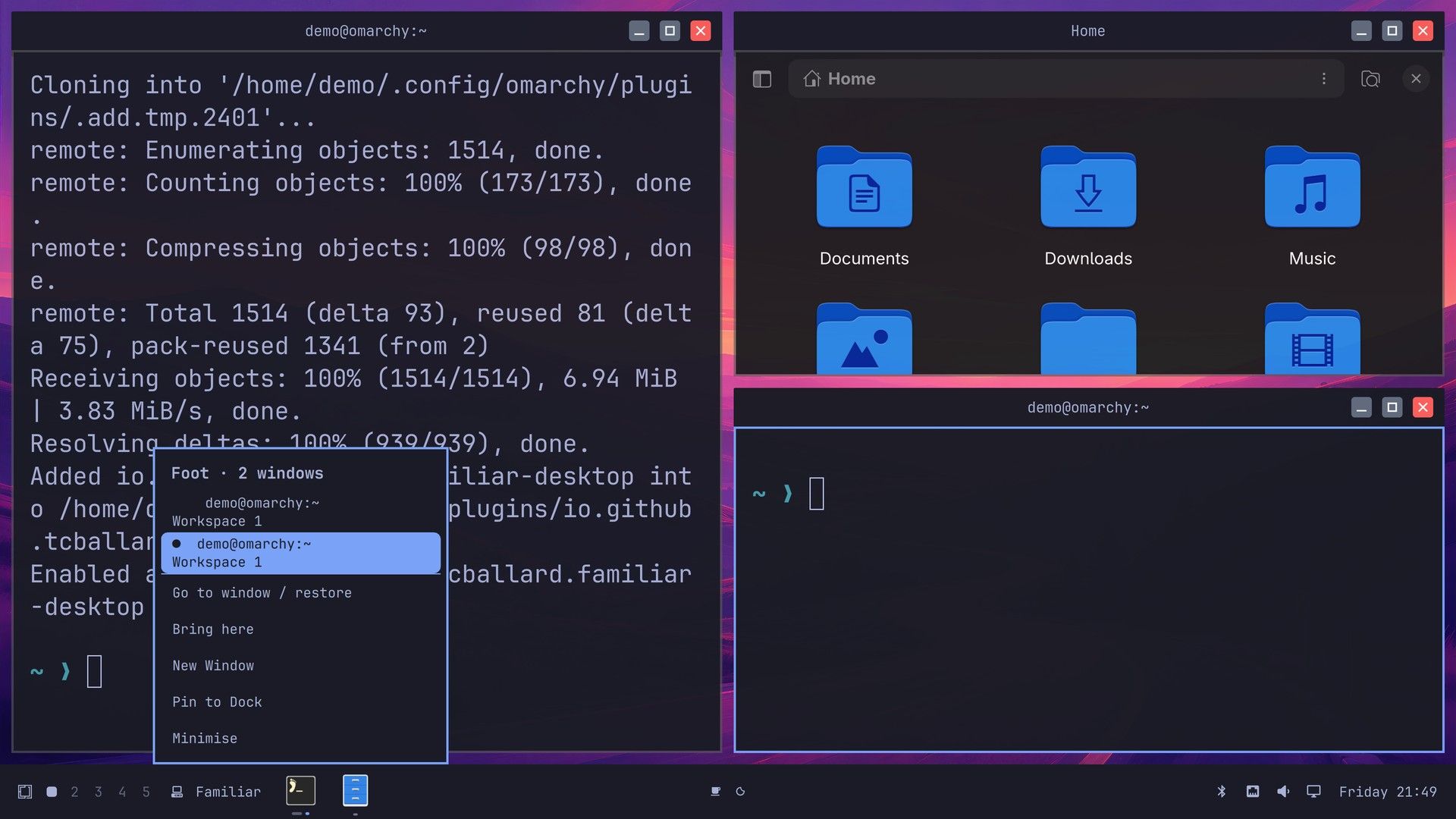
Pin to Dock keeps the app’s icon on the taskbar even when no window is open, so you can click it to start the app. Pins are shared between the layouts, so a pinned terminal stays pinned when you switch to the Mac layout.
Switch to the Mac layout
Click the Familiar button on the taskbar to open the settings. The sidebar has General, Dock, Windows, Input, and Getting Started pages. On the General page, the three starting layouts are General, Windows, and Mac. Click Mac.
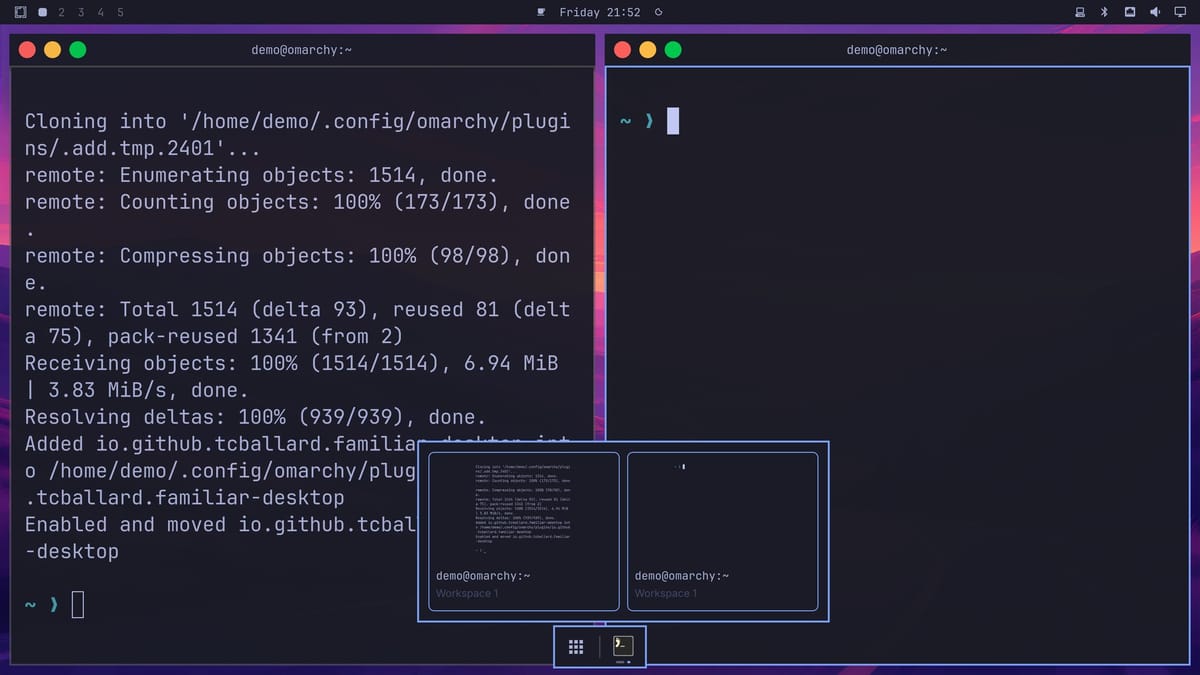
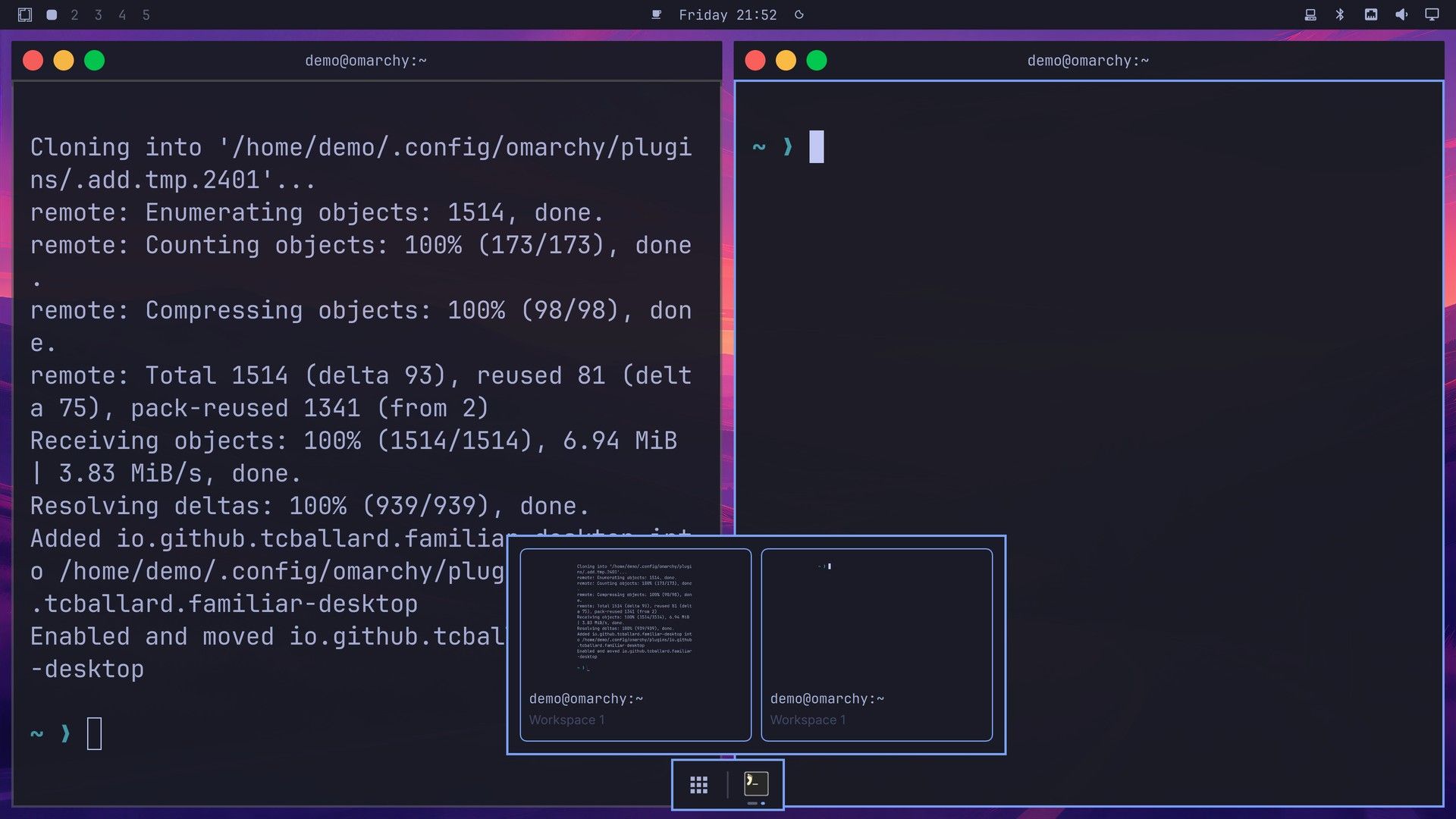
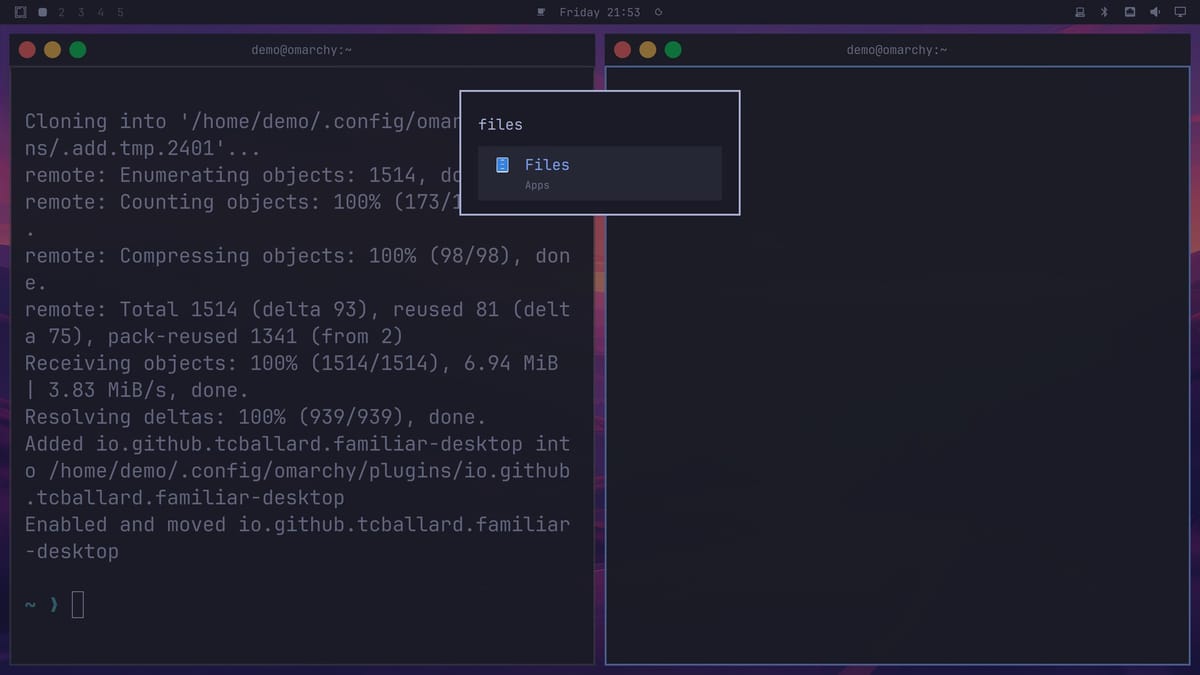
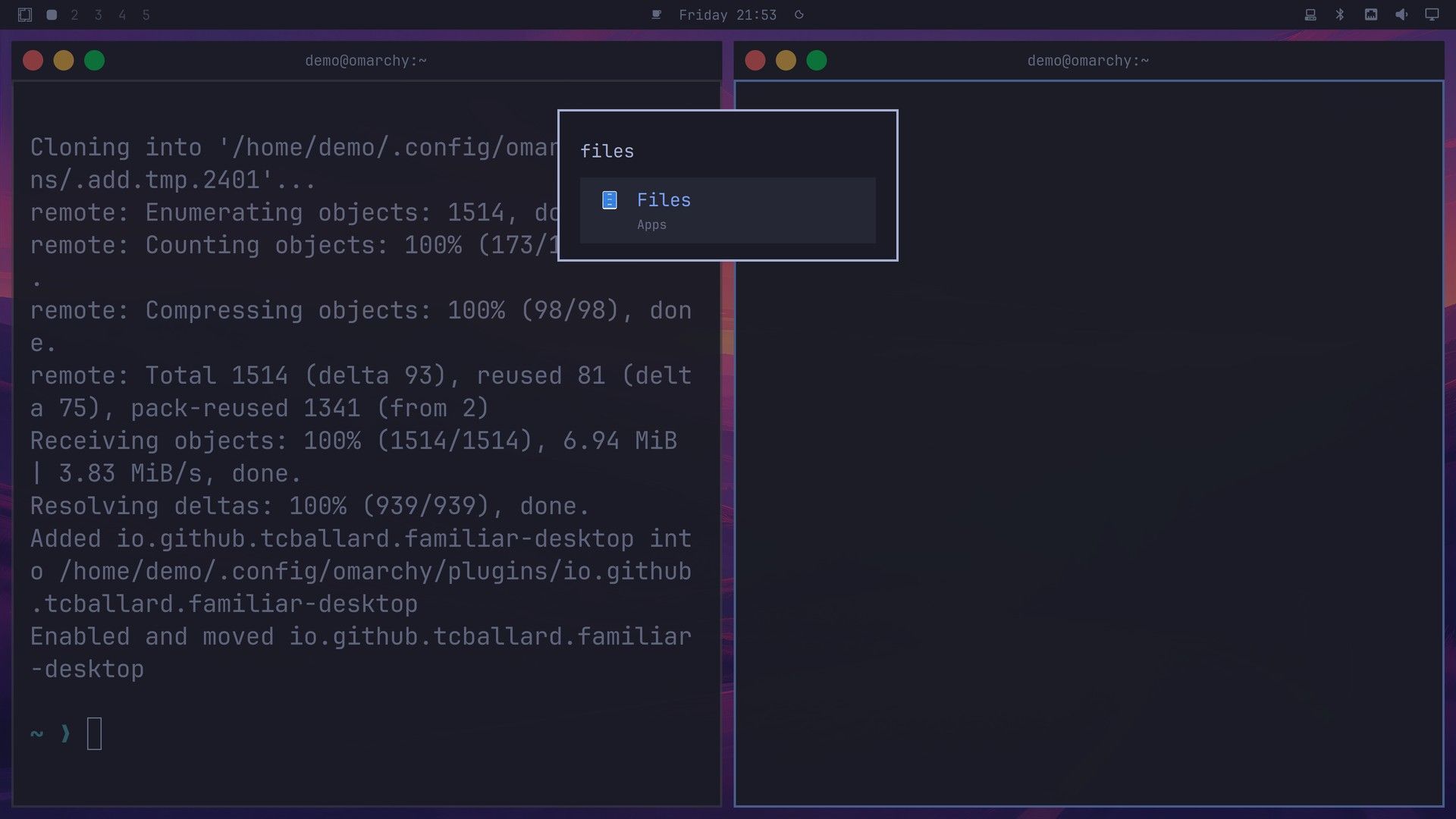
The settings close on their own. The Omarchy bar goes back to the top, the window buttons move to the left as red, yellow, and green dots, and the dock is hidden at the bottom of the screen. The General layout, which we did not use, keeps the dock always visible on the edge opposite the bar.
To show the dock, move the pointer to the middle of the bottom edge of the screen, then move it up a little onto the dock. The dock slides up only from that middle section of the edge, and it hides again if the pointer leaves it. The dock holds an app grid button and your pinned and running apps. Hover over an app icon to see a preview of each of its windows.
The grid button opens a list of all your apps with a search box. Type files, and the file manager comes up. Click the Files result to open it. The yellow dot minimizes a window into the dock, and clicking its icon in the dock brings it back. Omarchy’s own keyboard shortcuts we tried kept working in both layouts.
Remove Familiar Desktop with its uninstall script
Remove this plugin with the script that comes with it, not the usual omarchy plugin remove command. The script removes the title bars, puts the Omarchy bar back where it was, undoes the plugin’s changes to your Hyprland config, and then removes the plugin. The plugin’s README says the usual command alone does not do that cleanup.
First, bring back any minimized window. The script stops while a window is minimized, so the window is not left hidden. If you run it with one minimized, it prints “Hidden windows remain. Restore minimised windows from the dock before uninstalling; no plugin files removed” and changes nothing.
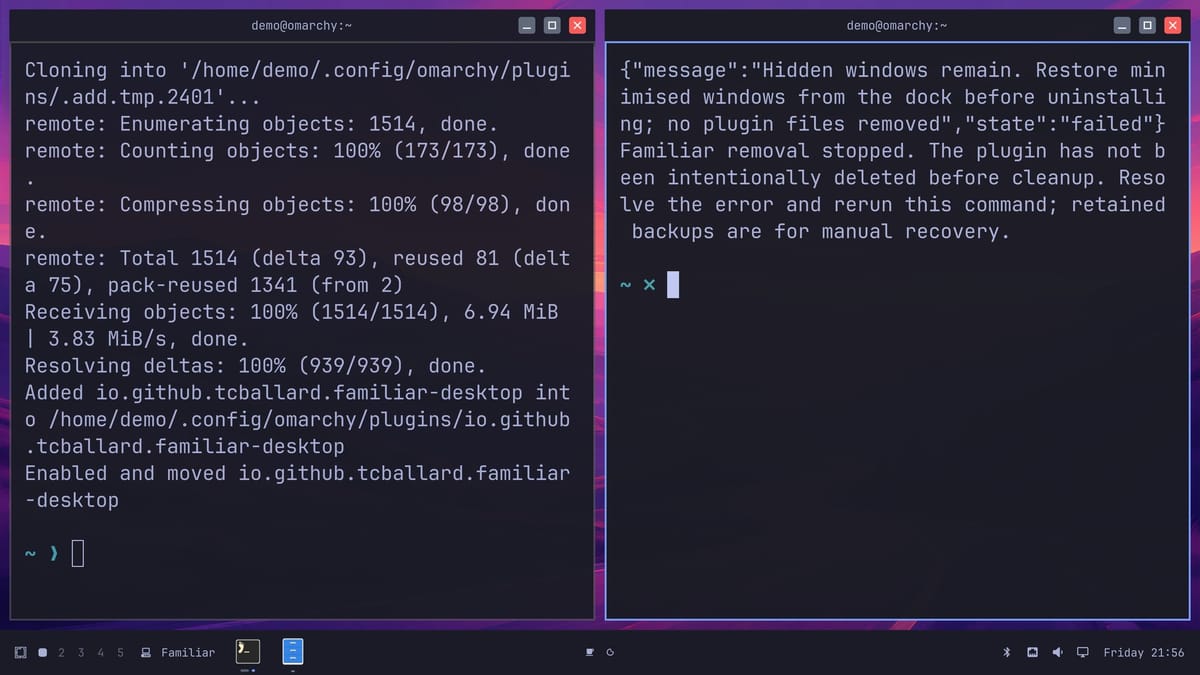
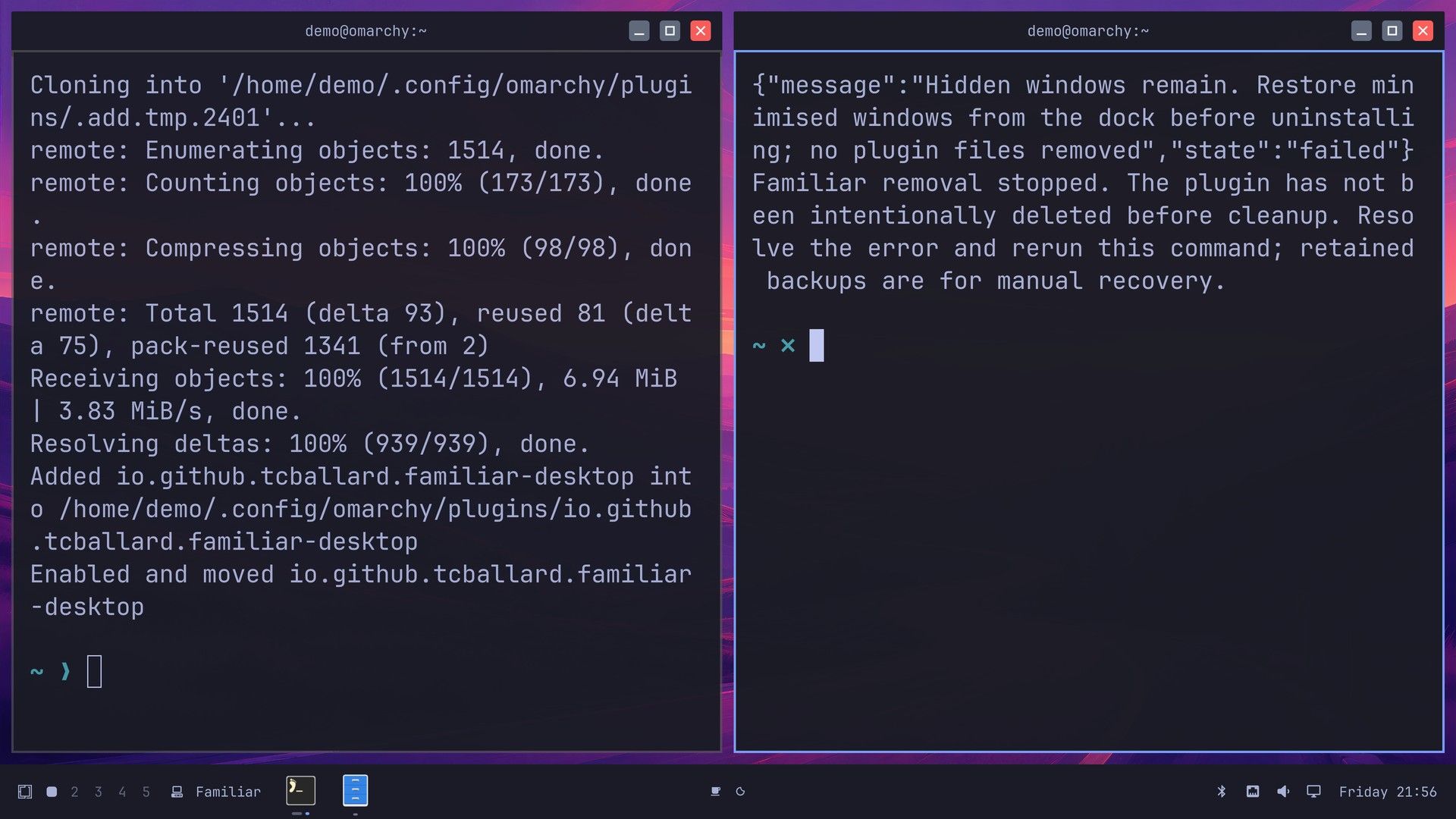
Click the minimized app’s icon on the taskbar or in the dock to restore it. Then click in a terminal and run:
bash ~/.config/omarchy/plugins/io.github.tcballard.familiar-desktop/uninstall.shThe script prints a few status lines, then “Removed io.github.tcballard.familiar-desktop.” and “Familiar removed. Personal configuration is preserved; preferences and recovery backups are retained.” The title bars and the Familiar icon disappear at once, and the bar is back at the top.
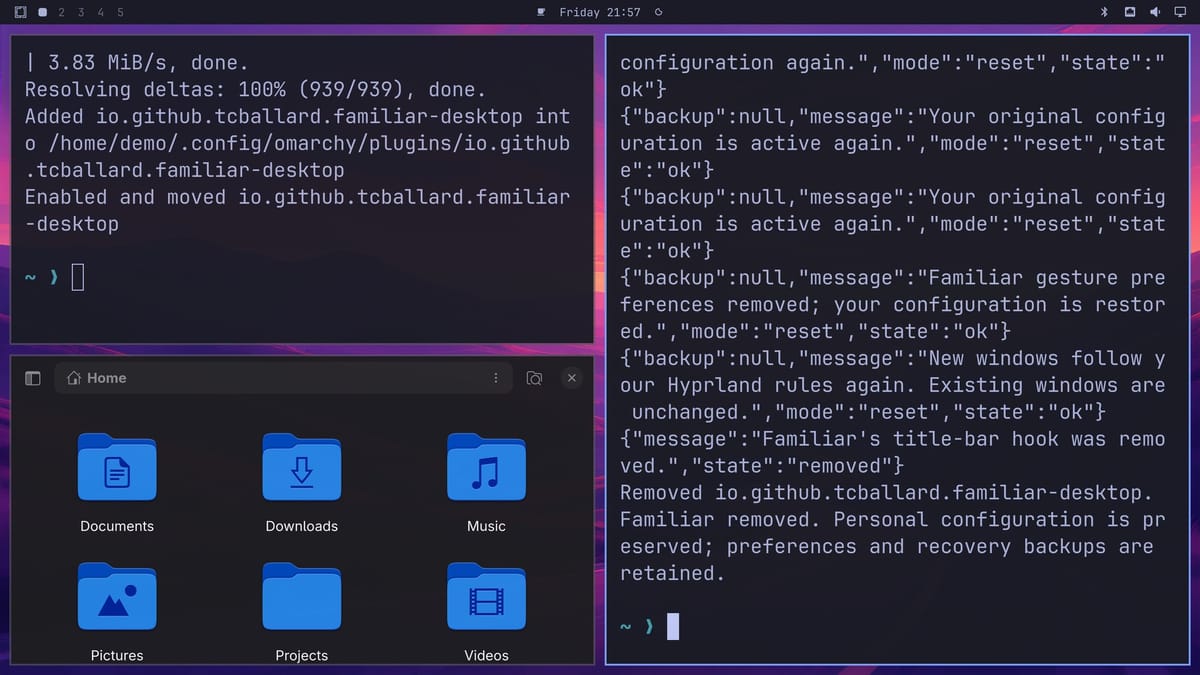
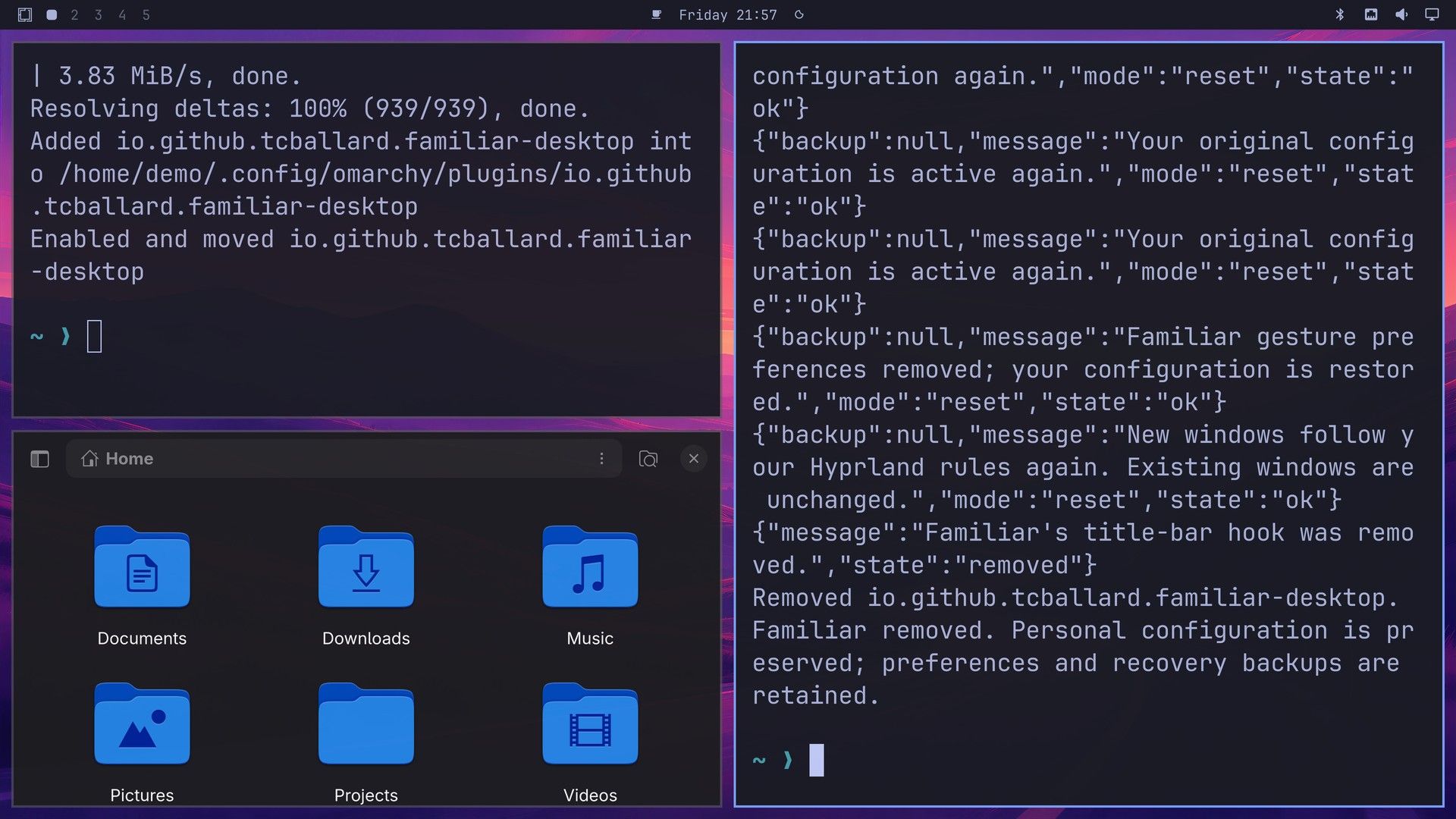
The script keeps your Familiar settings and pinned apps, in case you install it again. These files stay behind:
~/.config/omarchy/familiar-desktop-settings.json(your layout and preferences)~/.config/omarchy/familiar-desktop-pinned.json(your pinned apps)~/.config/omarchy/familiar-titlebars/(the generated title bar settings)~/.local/state/familiar-desktop/(recovery backups)~/.local/state/omarchy/familiar-desktop-badges.json(notification counts for the dock icons)
If you do not plan to come back, you can delete them. The plugin itself and its downloaded files are gone after the script runs. If you install it again later, it finds your old settings and pinned apps, and the layout you pick in the setup window replaces the saved one.
Leave gestures and Command shortcuts off for now
The Input settings page has two extras, trackpad gestures and Command editing shortcuts, which make Super C, V, X, A, and Z act like the Command shortcuts on a Mac. Both fail on Hyprland 0.56.2, the version in Omarchy 4.0.4: gestures are rejected and rolled back, and the shortcuts show a Lua error on every press. This is issue #76 on the plugin’s GitHub, and it was still open when version 0.1.4 came out. Omarchy already makes super c and super v copy and paste in most apps.
Apps that draw their own title bar
Web browsers based on Chromium, such as Omarchy’s default browser, draw their own title bar, so they get two: Familiar’s bar above the browser’s tab strip. That is issue #67. As a workaround, the README says to enter the app’s Hyprland window class in the Skip apps with their own title bars setting, so Familiar leaves that app alone. We did not test that setting.
We also skipped the Dock and Input settings pages, Show desktop, and setups with more than one monitor. The plugin’s README says it has not been tested on every multi-monitor or mixed display scaling setup.
Troubleshooting
Setup stops with a compatibility message. The title bar add-on works only with the Hyprland build in Omarchy 4.0.4. After an Omarchy update that changes Hyprland, a new Familiar Desktop release may need to catch up. Check the catalog page and the plugin’s GitHub releases, update the plugin, then open the Windows page in Familiar’s settings and click Set up or repair window controls to run setup again.
The Mac dock does not appear. Move the pointer to the middle of the bottom edge, not a corner, then move it up a little onto the dock. The edge trigger is a short strip in the middle, and the dock hides again if the pointer drops off the edge without rising onto it.
The uninstall script stops. A window is still minimized. Restore it from the taskbar or the dock, then run the script again.
You ran omarchy plugin remove first. That command deletes the plugin folder but skips the cleanup, so Familiar’s marked block stays in ~/.config/hypr/looknfeel.lua. The plugin’s removal notes say to install the same version again, then run the uninstall script. They are in the rollback document.
More Omarchy guides
New Familiar Desktop releases are listed on the plugin’s GitHub releases page. If you are still choosing hardware for Omarchy, our Omarchy 4 hardware guide covers mini PCs and laptops that run it well.


