
This is the written companion to our video on five Omarchy plugins, embedded above, with every command and settings change from the video. The five are Spaces, which shows the apps on each workspace in the top bar; Fathom, which replaces Alt Tab; Lock Screen Explorer, a gallery of lock screen designs; Gona Launcher, a full-screen app launcher; and Shan Shui, a moving ink landscape painted across the desktop. All five come from the Omarchy plugin marketplace, and each installs with omarchy plugin add followed by the plugin’s GitHub address.
Two of them need changes after the install. Spaces works best with Omarchy’s own workspace numbers turned off and with app icons shown on every workspace, and Fathom only takes over Alt Tab after you paste a short block into your keybindings file. Shan Shui also needs Node.js, which Omarchy does not install by default.
Everything here ran on Omarchy 4.0.4 on October 8, 2026, with Spaces 1.2.0 (plus two later commits), Fathom 0.3.0, Lock Screen Explorer 1.9.6, Gona Launcher 1.0.2, and Shan Shui 1.0.0.
Read the source before you install a plugin
A plugin runs inside omarchy-shell, the long-lived program that draws the Omarchy desktop, with your user account’s access to your files and the network. There is no sandbox around it. When you run the install command, Omarchy warns you first: “Plugins run as arbitrary, unsandboxed code inside your long-lived omarchy-shell process. Only add repos you trust, and review the code before you enable it.” Then it asks Clone and add this plugin?
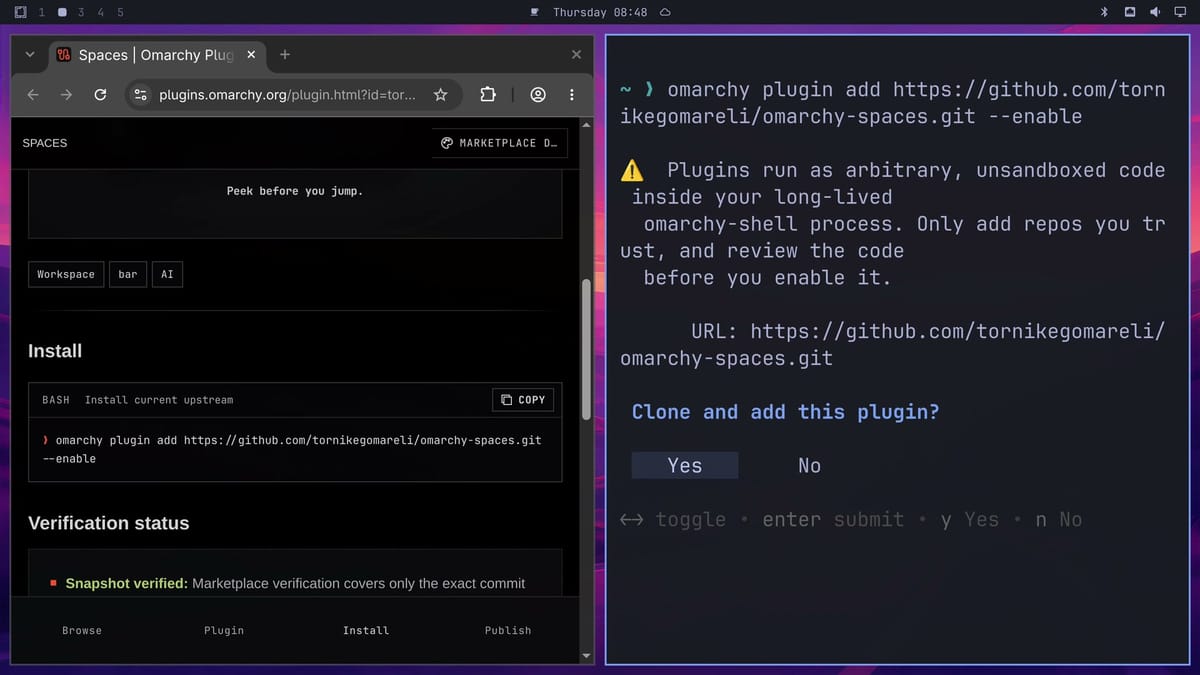
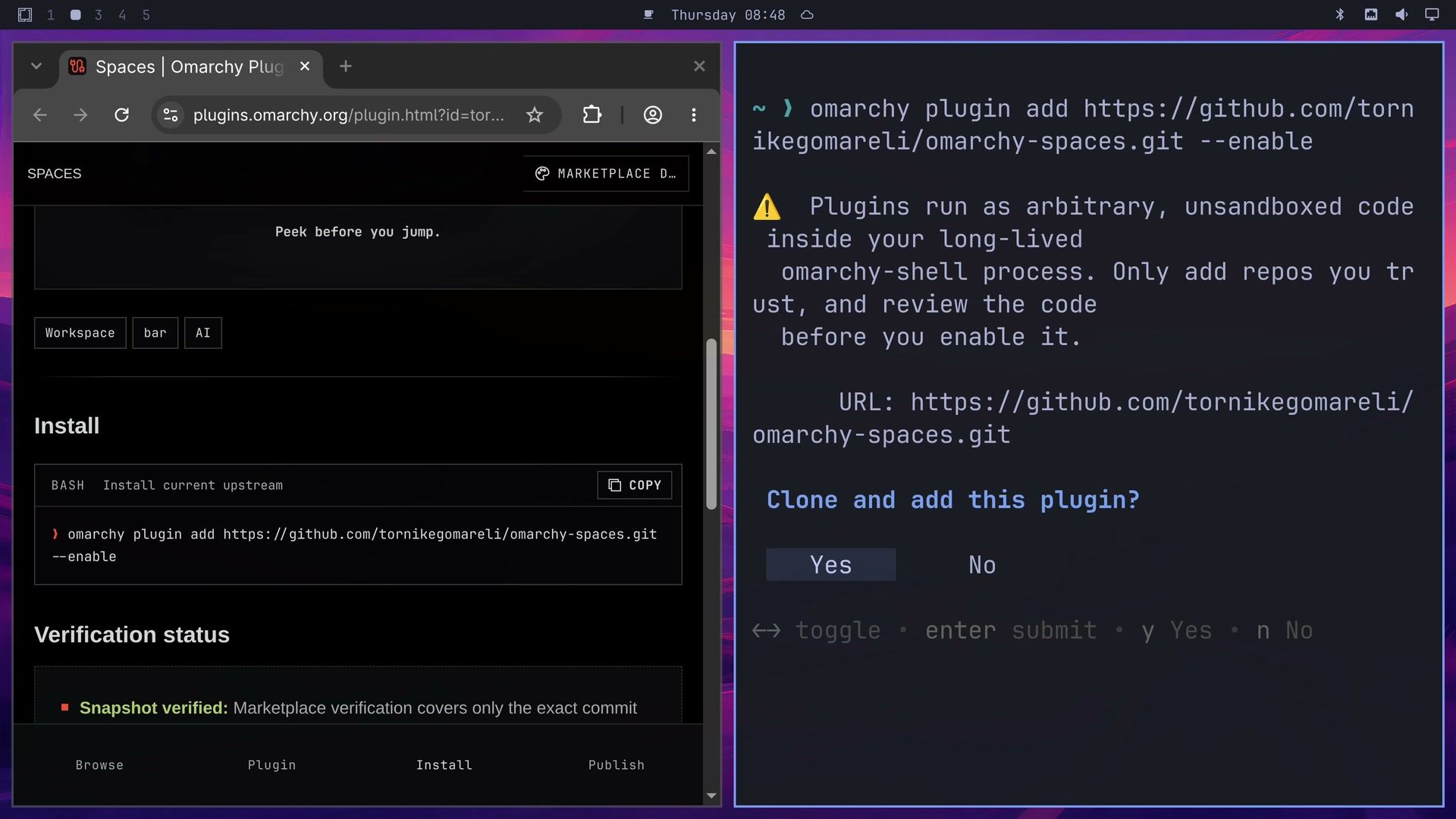
Every plugin page on the marketplace links to its source code. Open it and look for commands that download or run other code, anything that asks for sudo, and web addresses the plugin has no reason to contact. The install command clones the newest code from GitHub, which can be newer than the copy the marketplace checked. When we recorded, the Spaces page marked its two newest commits as not yet verified. Our guide to finding, checking, and installing Omarchy plugins walks through that check on two other plugins.
Each install below follows the same steps. Open the plugin’s marketplace page, click Copy in the Install section, paste the command into a terminal with super v (or ctrl shift v ), and press enter . Read the warning, then choose Yes. A plugin with a bar button then asks which part of the top bar it goes in.
Spaces shows the apps on every workspace
Spaces is by Tornike Gomareli (GitHub, @tornikegomareli on X). Its buttons can take the place of Omarchy’s plain workspace numbers once you turn those off, so you can see what is open before you switch.
omarchy plugin add https://github.com/tornikegomareli/omarchy-spaces.git --enableWhen the clone finishes, Omarchy asks where in the top bar the plugin should go. We picked left, where the workspace numbers live. Spaces then adds its own row of workspace buttons next to Omarchy’s numbers, so the bar shows both.
Turn off Omarchy’s workspace numbers
Both rows do the same job. The Spaces README gives this command to remove Omarchy’s row:
omarchy plugin disable omarchy.workspacesSet Spaces to show every app
By default, Spaces shows app icons only on the workspace you are on and the one under the pointer. To show them on every workspace, set its showApps setting to all. We did that in ~/.config/omarchy/shell.json: find the entry with "id": "tornikegomareli.spaces" in the bar layout and add the showApps line, so the entry reads like this (yours may have more settings in it):
{
  "id": "tornikegomareli.spaces",
  "showApps": "all"
}
The bar picks up the change when you save the file. You can also right-click the Spaces buttons to open its settings panel, which saves to the same file. The Spaces README also lists a command that sets the same value:
omarchy bar set tornikegomareli.spaces showApps allUse Spaces
With both changes made, only the Spaces buttons are left, and each one shows its apps. Hover over another workspace and a live preview of it opens under the bar. The preview keeps updating: on workspace 3, btop’s graphs keep moving inside it. Click a window in the preview to jump to that window, or click a workspace button to switch to it, the same way the built-in numbers did.
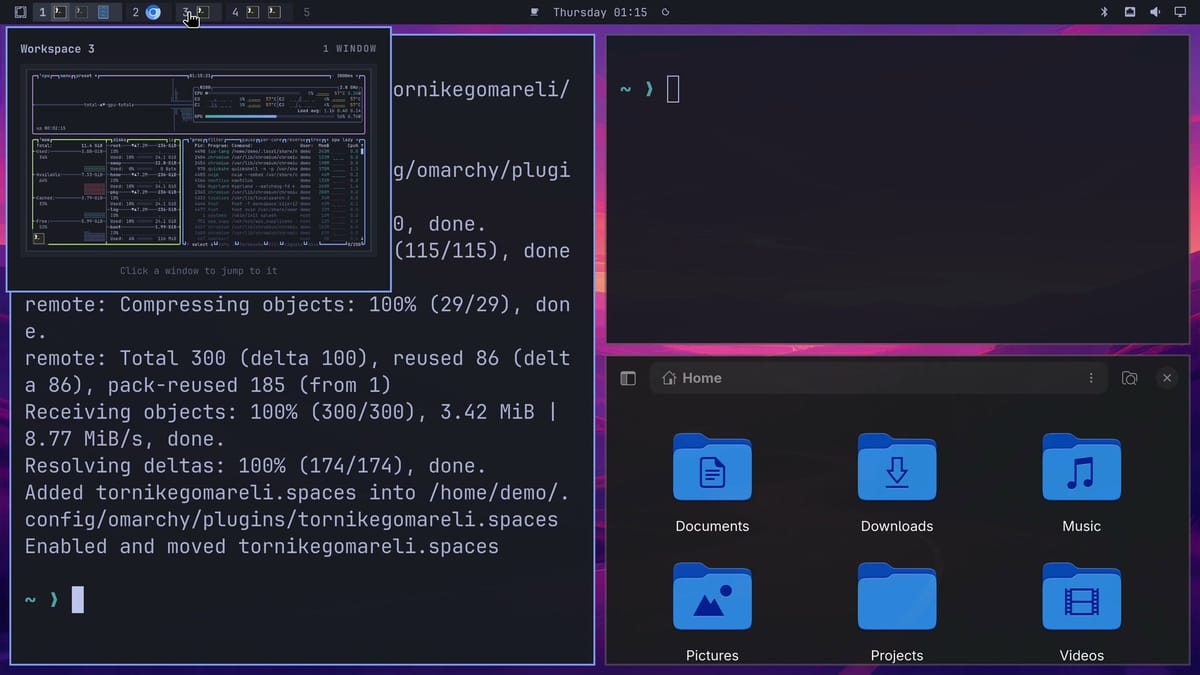
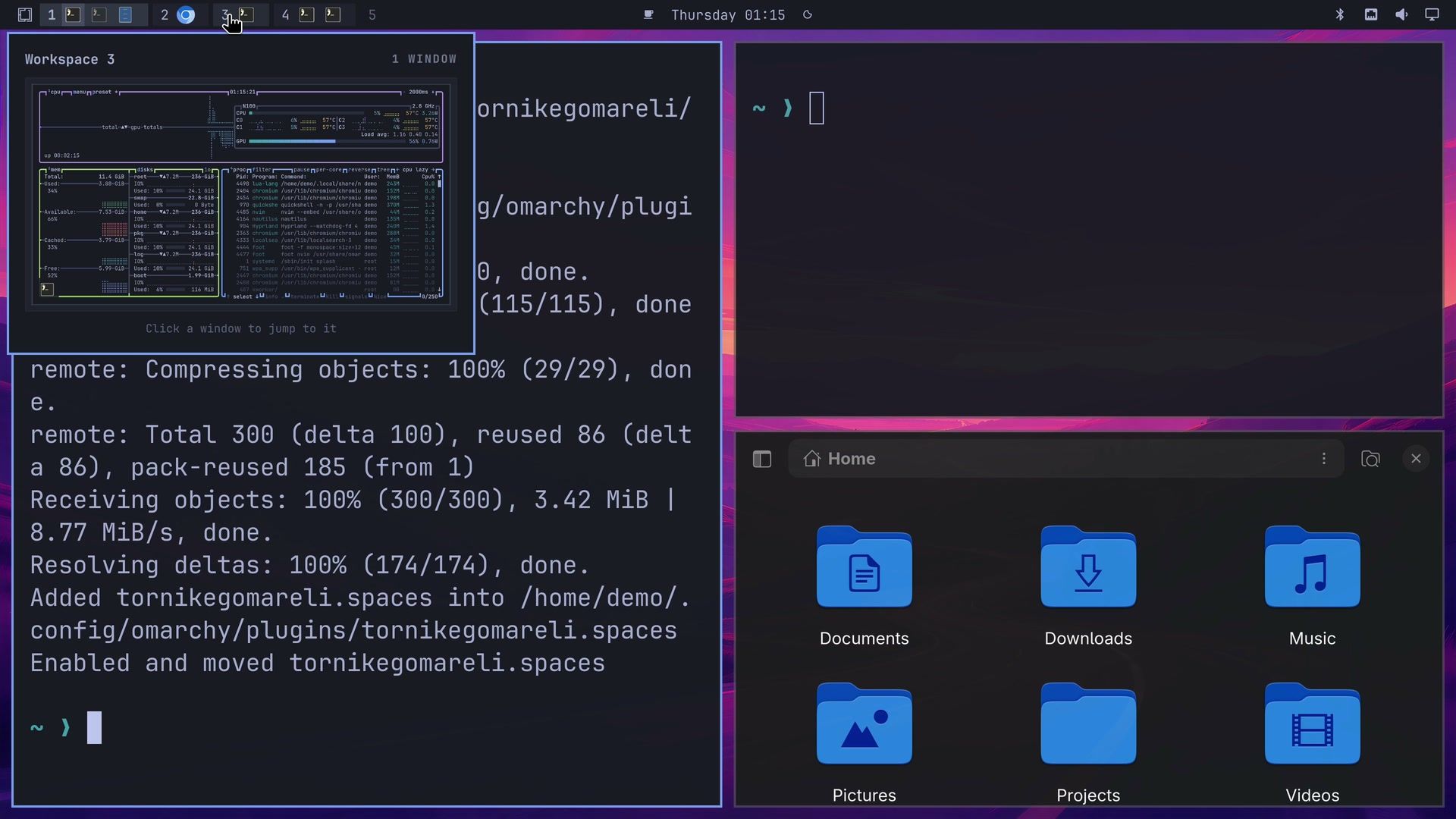
Spaces can also badge a workspace when a coding agent there needs you; the Spaces README covers the extra hooks that needs, and we did not use them.
Fathom replaces Alt Tab with a depth view
Where Spaces shows what is open on each workspace, Fathom changes how you move between the windows themselves. Maarten Tolhuijs made Fathom (GitHub, @m_tolhuijs on X). Its Alt Tab view sorts your windows by when you last used them and stacks the older ones into the distance.
omarchy plugin add https://github.com/mtolhuys/fathom.git --enableAdd the Fathom block to your keybindings file
The install loads Fathom, but Alt Tab still belongs to Omarchy until you add this block from the Fathom README at the end of ~/.config/hypr/bindings.lua:
-- fathom: begin
do
  local fathom = os.getenv("HOME") .. "/.config/omarchy/plugins/io.github.mtolhuys.fathom/hypr/fathom.lua"
  local file = io.open(fathom, "r")
  if file then
    file:close()
    pcall(dofile, fathom)
  end
end
-- fathom: end
Hyprland reloads its config when you save the file, and Alt Tab opens Fathom from then on. The block does nothing while Fathom is removed or turned off, and an error inside Fathom’s own file cannot stop the rest of your keybindings from loading. A typo in the block itself can still break your keybindings, so paste it exactly as shown. To check who owns Alt Tab, run the check script that ships with the plugin:
bash ~/.config/omarchy/plugins/io.github.mtolhuys.fathom/bin/load-bindings --checkUse Fathom
Hold alt and tap tab . Your windows stack back into the distance, newest in front, and the ruler on the left shows how long ago each one had focus, from “now” down to two hours. Each tap goes one window deeper, and the strip along the bottom shows every workspace with its windows. Let go of alt and the window in front gets focus.
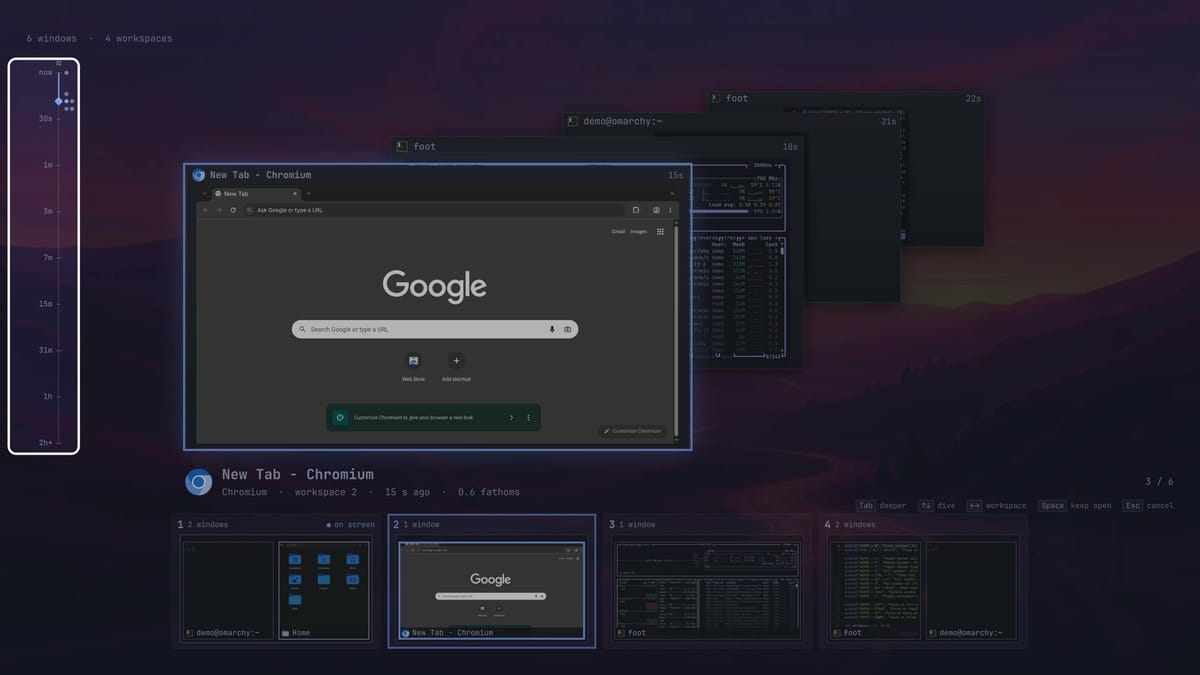
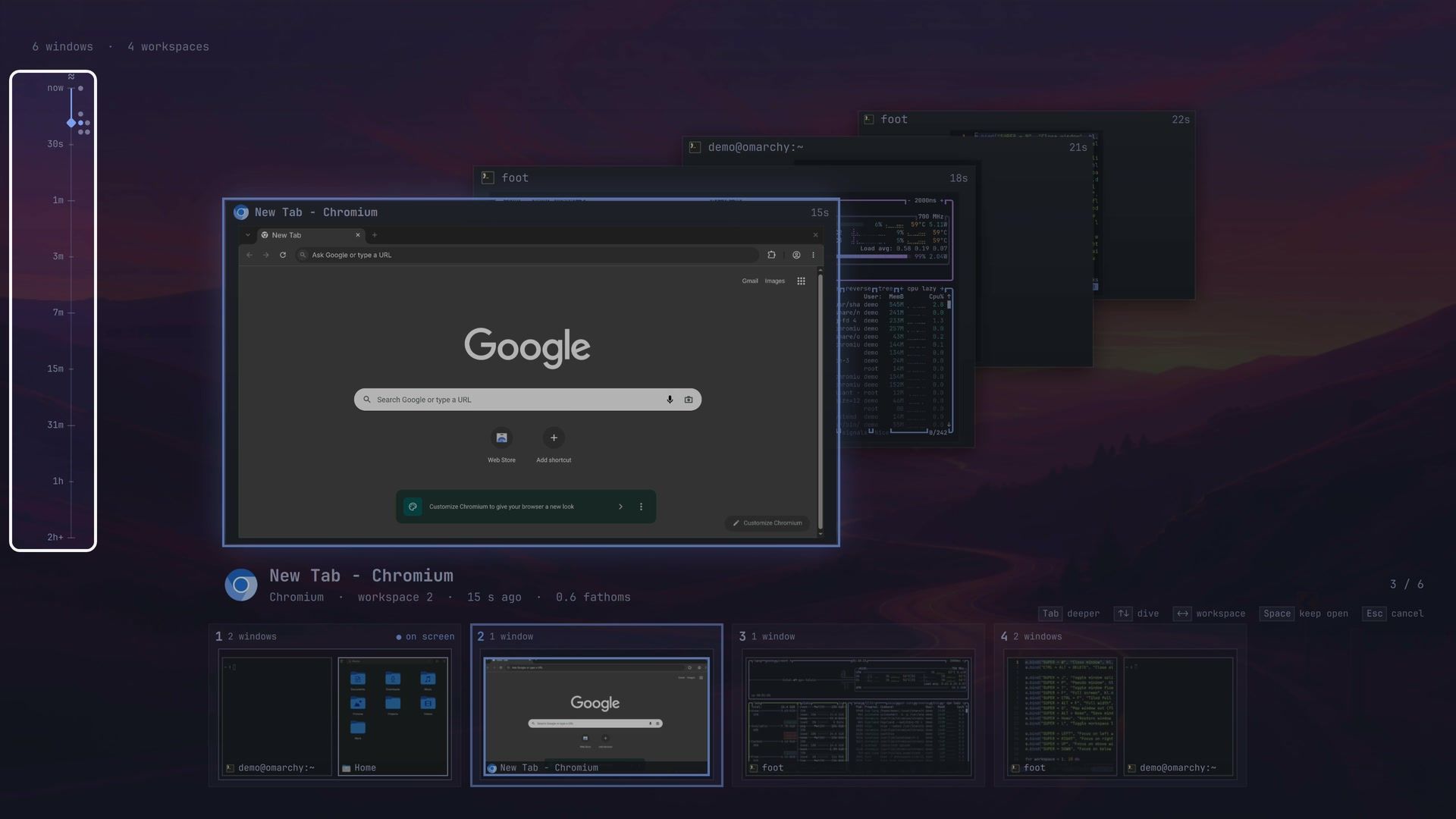
A quick Alt Tab switches back to the last window without drawing the view at all. While you hold Alt, the arrow keys also move through the stack, the numbers 1 to 9 jump to that workspace’s newest window, and typing letters filters by app or title.
Lock Screen Explorer is a gallery of lock screens
Lock Screen Explorer changes the screen you see when you step away from the computer. It comes from SirJul1337 (GitHub, @SirJul1337 on X). It holds a gallery of lock screen designs, a picker to preview and switch between them, and a designer for building your own.
omarchy plugin add https://github.com/SirJul1337/omarchy-lock-explorer.git --enableThe install turns off Omarchy’s built-in lock screen service and puts its own in its place, so the screen still locks as before. The explorer has no menu entry by default. This command opens it:
omarchy-shell lock exploreIf that answers “Function not found” right after the install, the README says to run omarchy restart shell and try again.
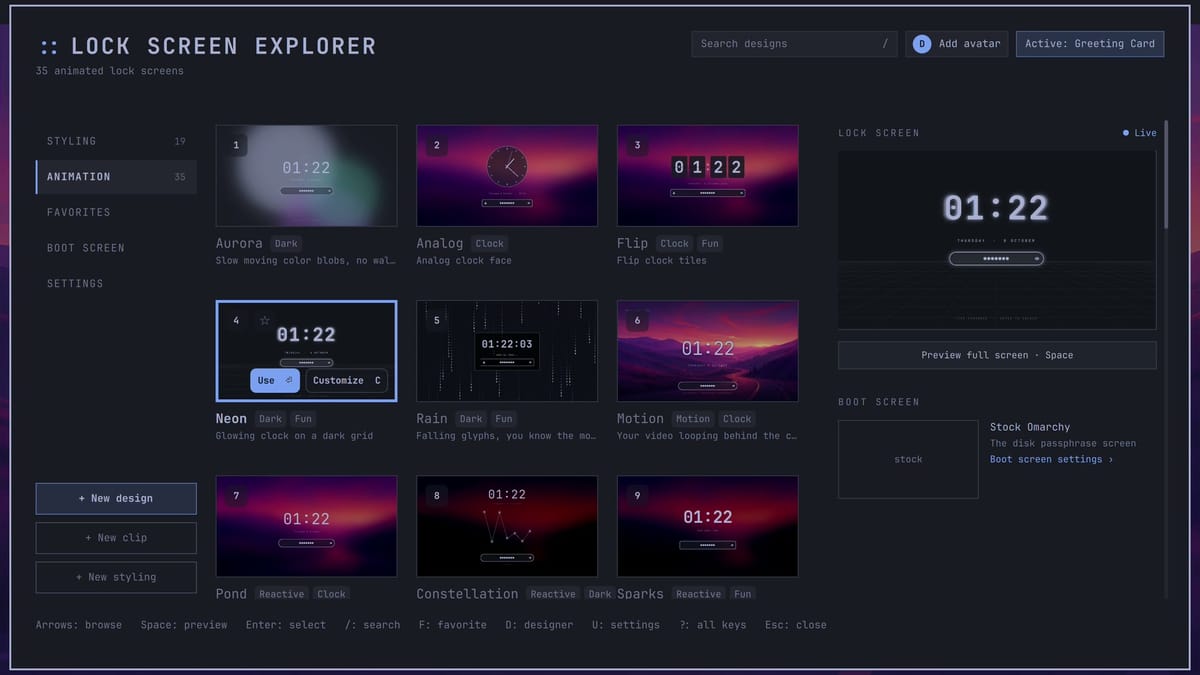
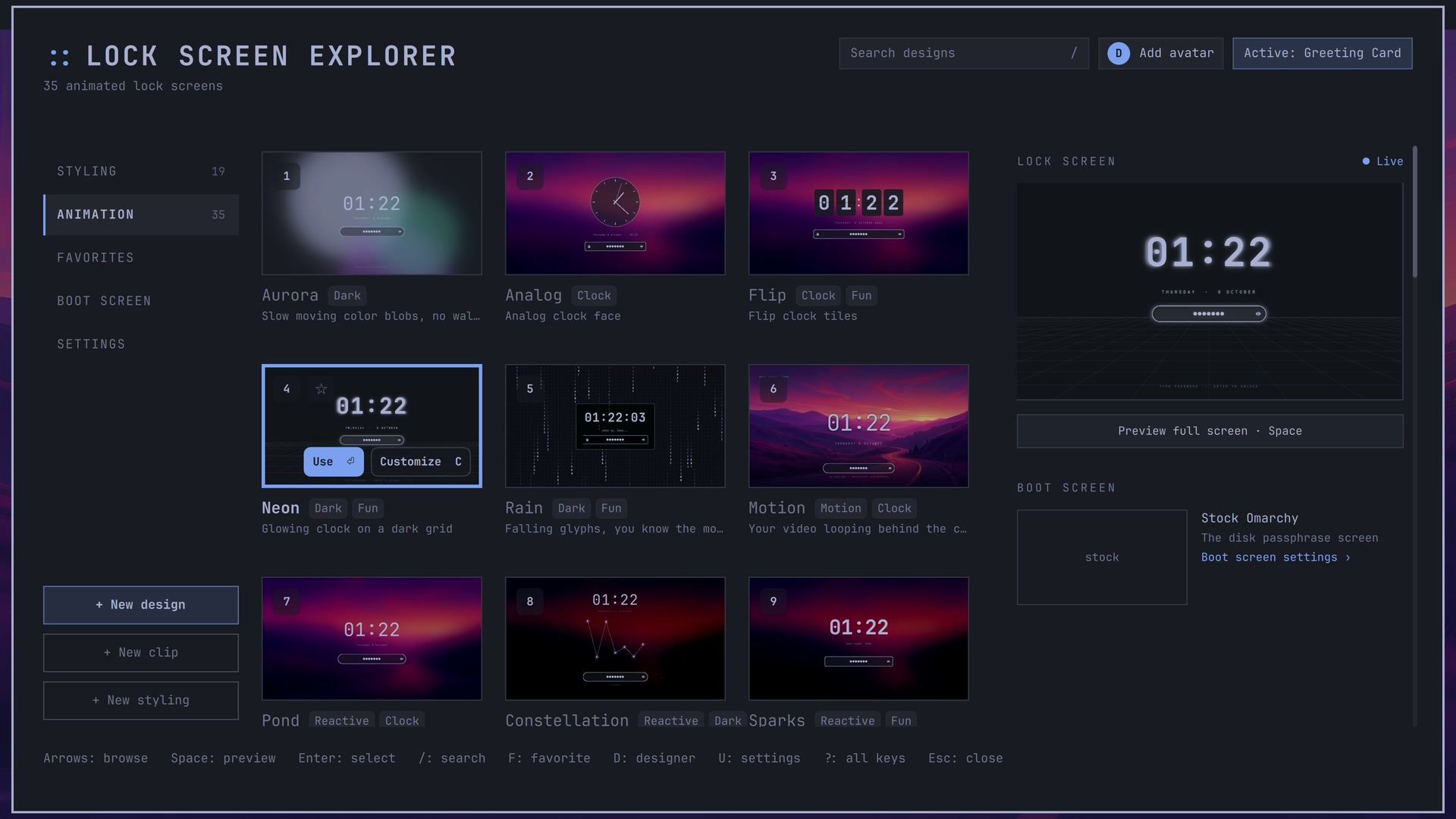
The designs sit in a grid, with a live preview on the right. tab moves between the Styling, Animation, and Favorites tabs, and on the Animation tab every tile moves. space shows the selected design full screen, the arrow keys step through the rest, and esc goes back to the grid. Press enter only on a design you want to use, because it sets that design as your lock screen. Press d to open the designer, where you build a layout from parts like a clock, the date, and a greeting.
We kept to the picker and the designer. The plugin can also change the boot screen and set up a security key, and both of those touch system settings outside the lock screen; read the README before you use them.
Gona Launcher opens your apps from colored tiles
Gona Launcher gives you a full-screen launcher that sorts your apps into colored tiles, and you can lay out the tiles and their colors yourself. Its author is Mgldvd (GitHub, @Mgldvd_tech on X).
omarchy plugin add https://github.com/Mgldvd/gona-launcher.git --enableIt adds a grid icon to the top bar, and clicking it opens the launcher. The first time, a welcome screen asks you to pick a preset. We chose the Omarchy preset, which fills tiles like Web, Chat, System, Dev, Office, Media & Play, and Create with the apps Omarchy installs.
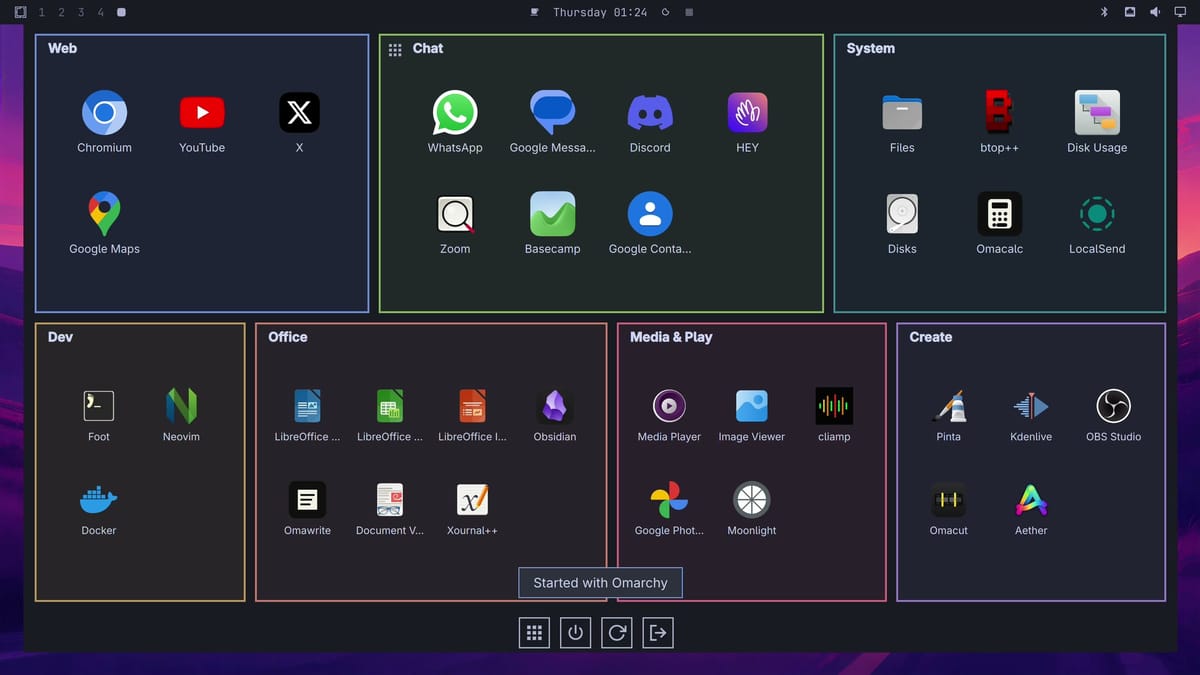
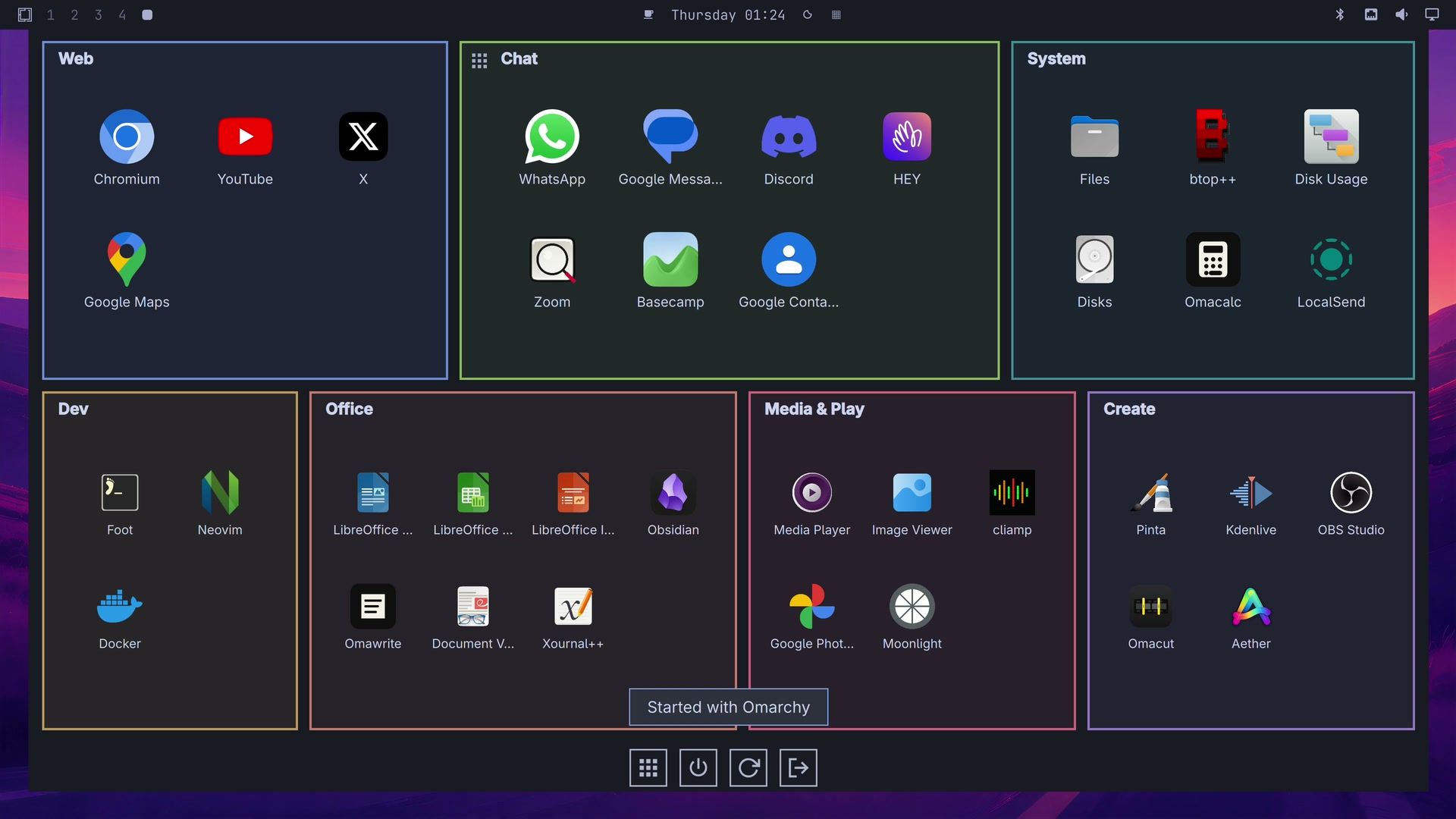
The welcome screen also has an Open with Super switch. Turned on, it adds a shortcut to ~/.config/hypr/bindings.lua so that pressing and releasing super alone opens the launcher. We left it off, so our keybindings file stayed as it was. Check how the switch is set before you continue; you can change it later under the gear icon, Keys.
Typing filters the apps as you go, and clicking an app opens it as the launcher closes. The row of buttons at the bottom includes power off, restart, and log out, so watch where you click.
Shan Shui paints an ink landscape on the desktop
Shan Shui paints an ink landscape that drifts across your desktop, with mountains, trees, and little houses, and more of the scene is drawn as it moves. ZeD (GitHub) wrote it. It is built on LingDong’s {Shan, Shui}* generator, which the menu credits at the bottom.
omarchy plugin add https://github.com/zednaked/omarchy-shanshui.git --enableShan Shui draws its landscapes with Node.js. Its README says Node.js is not installed on Omarchy by default, and to install the nodejs package if you have no node (a node from mise also works). The first strips of the landscape appear within about half a minute of the install. The Shan Shui README says to restart the shell after the install; ours worked without it. If nothing appears, restart it with omarchy restart shell.
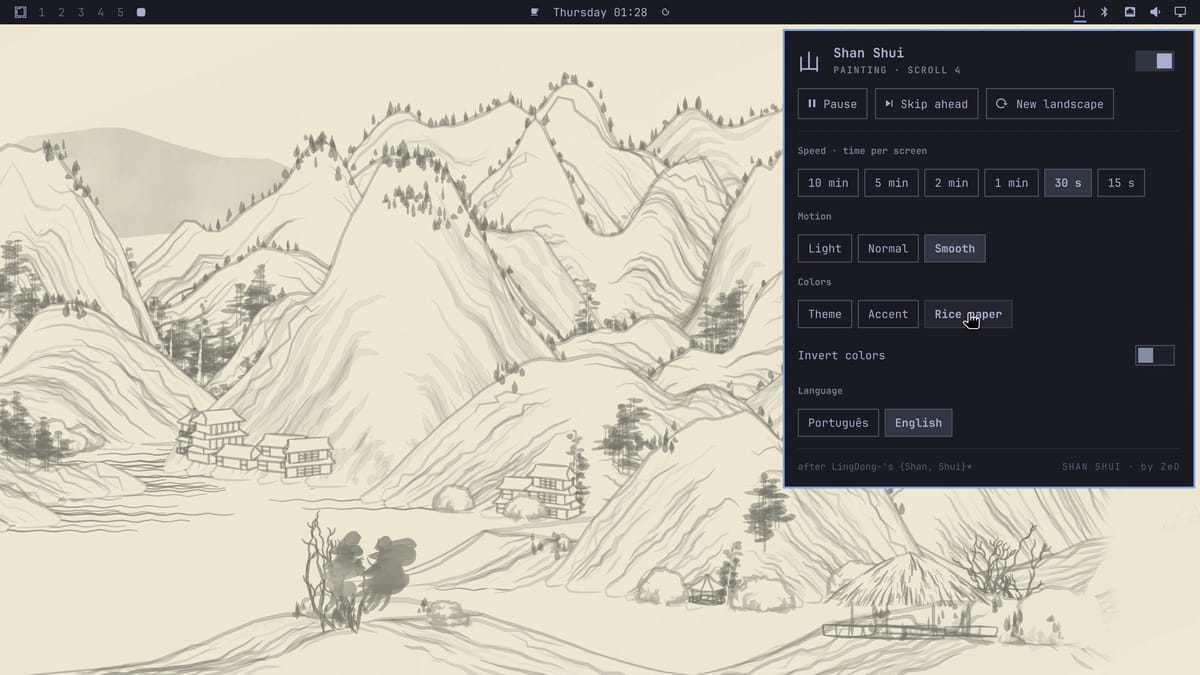
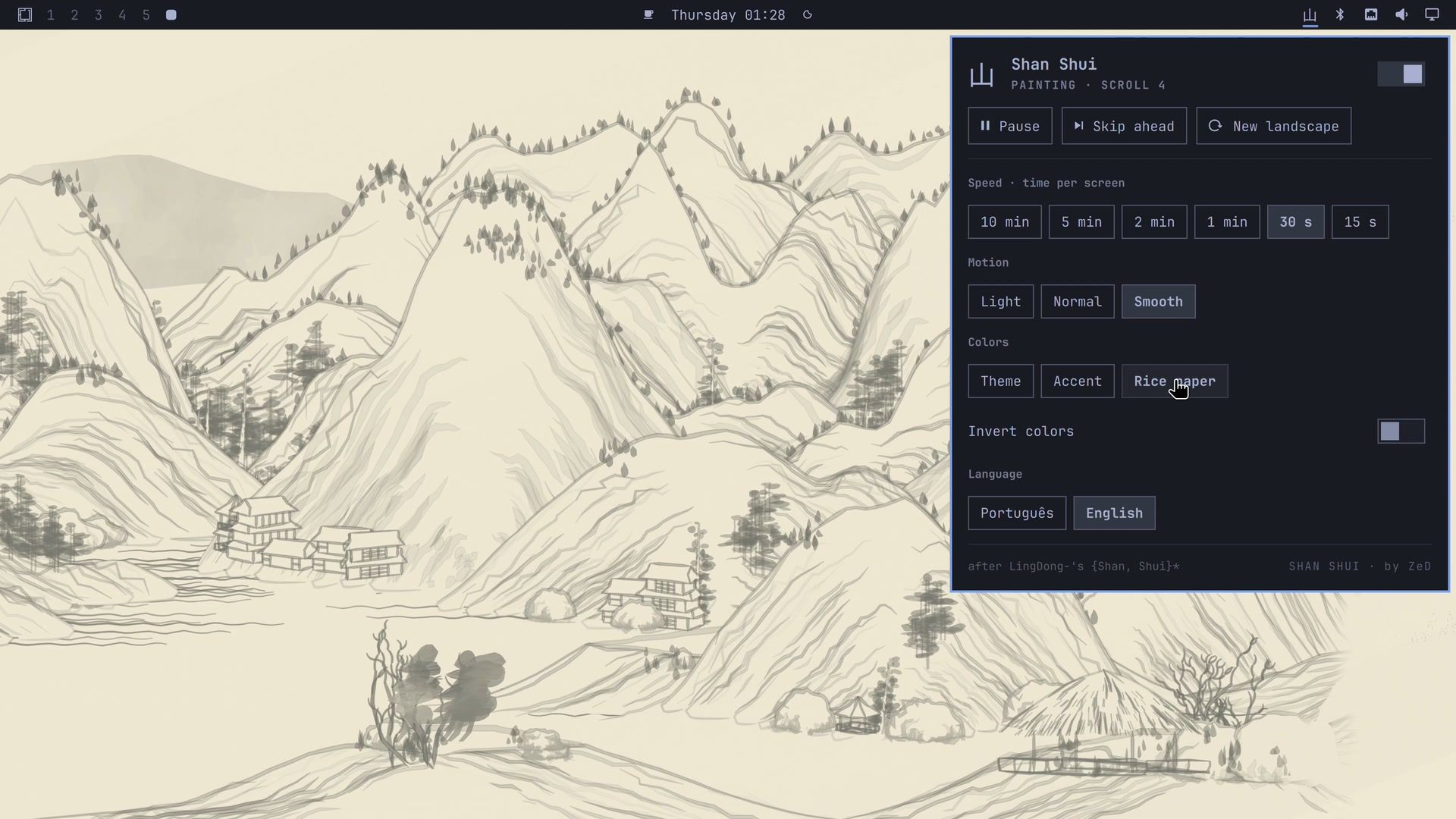
Click its icon in the top bar to open the menu. Its top row has Pause, Skip ahead, and New landscape. Below that, the speed runs from 10 minutes down to 15 seconds per screen, and the motion setting is Light, Normal, or Smooth. The colors can follow your theme or its accent color, or switch to Rice paper, which gives the cream look of an old paper scroll. At the default 5 minutes per screen the drift is slow; 30 seconds with Smooth motion makes the movement easy to follow, and it is the setting we used in our YouTube video.
Remove a plugin and undo its setup
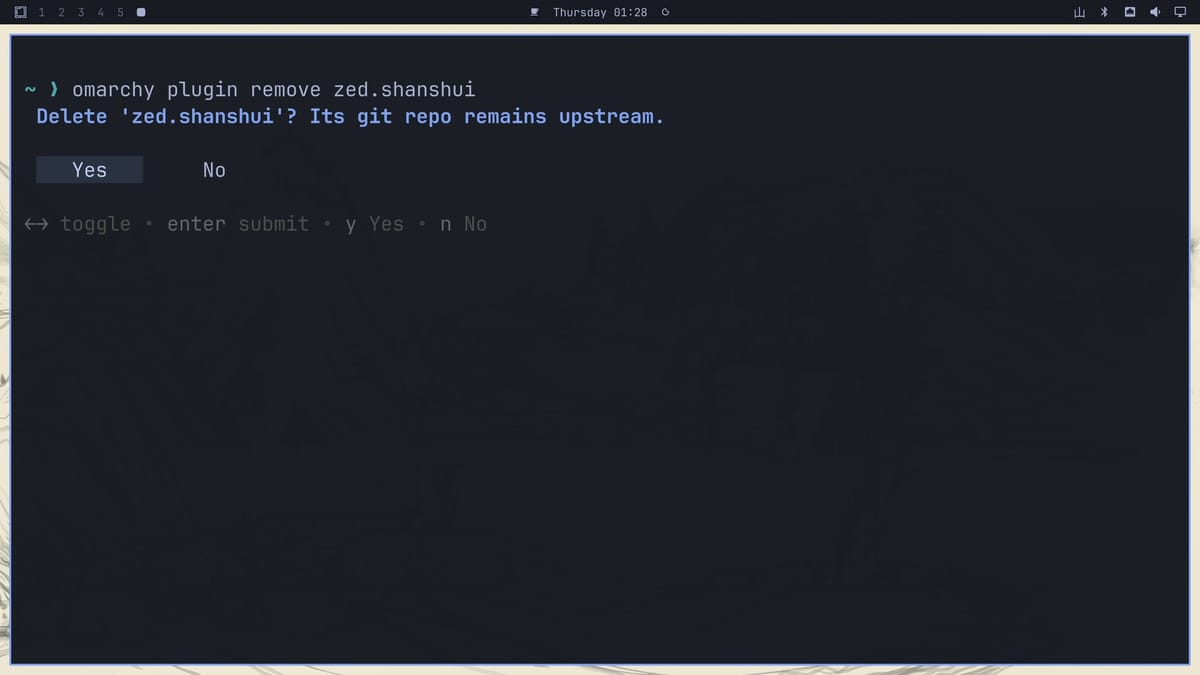
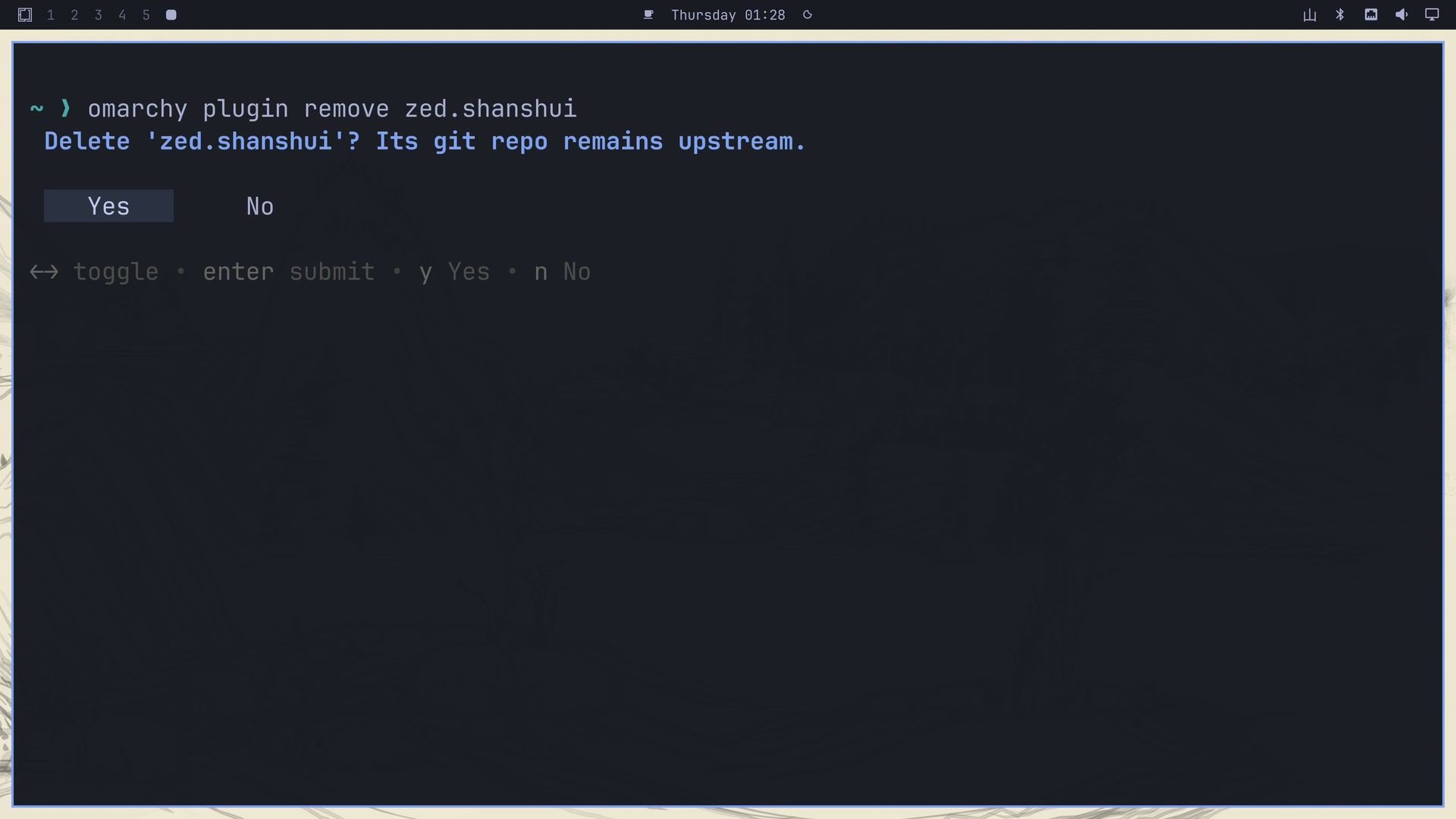
The omarchy plugin remove command, followed by the plugin’s ID, takes any of these off. For Shan Shui it asks “Delete ‘zed.shanshui’? Its git repo remains upstream.” Choose Yes.
These are the IDs of the five plugins:
| Plugin | ID |
|---|---|
| Spaces | tornikegomareli.spaces |
| Fathom | io.github.mtolhuys.fathom |
| Lock Screen Explorer | io.github.sirjul1337.lock-explorer |
| Gona Launcher | gona.launcher |
| Shan Shui | zed.shanshui |
Spaces
Remove the plugin, then turn Omarchy’s workspace numbers back on:
omarchy plugin remove tornikegomareli.spaces
omarchy plugin enable omarchy.workspaces
The showApps setting lived in the Spaces entry, so it goes with the plugin. When we did this, the workspace numbers came back in the center of the bar. If that happens, move the omarchy.workspaces entry back into the left list of the bar layout in ~/.config/omarchy/shell.json.
Fathom
Remove the plugin, then delete everything from -- fathom: begin to -- fathom: end in ~/.config/hypr/bindings.lua:
omarchy plugin remove io.github.mtolhuys.fathomHyprland reloads when you save the file, and Alt Tab is Omarchy’s again.
Lock Screen Explorer
Remove the plugin, then turn Omarchy’s own lock screen back on with the second line. The README says the remove can leave the built-in lock screen off, and then nothing locks the screen.
omarchy plugin remove io.github.sirjul1337.lock-explorer
omarchy plugin enable omarchy.lock
Designs you made in the designer stay in ~/.config/omarchy/lock-designs/; delete that folder if you want them gone.
Gona Launcher
If you turned on Open with Super, turn it off first under the gear icon, Keys. Then remove the plugin. The second line is optional and deletes its settings and tiles:
omarchy plugin remove gona.launcher
rm -r ~/.config/gona-launcher ~/.local/state/gona-launcher
Shan Shui
The landscape is a layer above your wallpaper, so the wallpaper shows again after the remove. Shan Shui keeps three folders of its own, which the second line deletes:
omarchy plugin remove zed.shanshui
rm -rf ~/.config/zed.shanshui ~/.local/state/zed.shanshui ~/.cache/zed.shanshui
rm -rf deletes without asking, so check the paths before you press enter .
Where to go next
If you are new to Omarchy, our guide to the first Omarchy keyboard shortcuts to learn covers the keys used above, and the Omarchy hardware guide covers the mini PCs and laptops that run it. Each plugin’s README, linked from its marketplace page, lists more settings than we used here.


