
Omarchy is an Arch Linux setup that you drive from the keyboard. There is no dock and there are no desktop icons, so apps start from a shortcut or the menu. Windows tile side by side instead of stacking, and most things you do start with the Super key (the one with the Windows logo on most keyboards). Omarchy’s manual calls these keyboard shortcuts hotkeys. This is the written companion to our Omarchy keyboard shortcuts video, with the same six shortcuts in the same order.
These shortcuts are from Omarchy 4.0.4. Omarchy’s own shortcut list calls the Enter key Return.
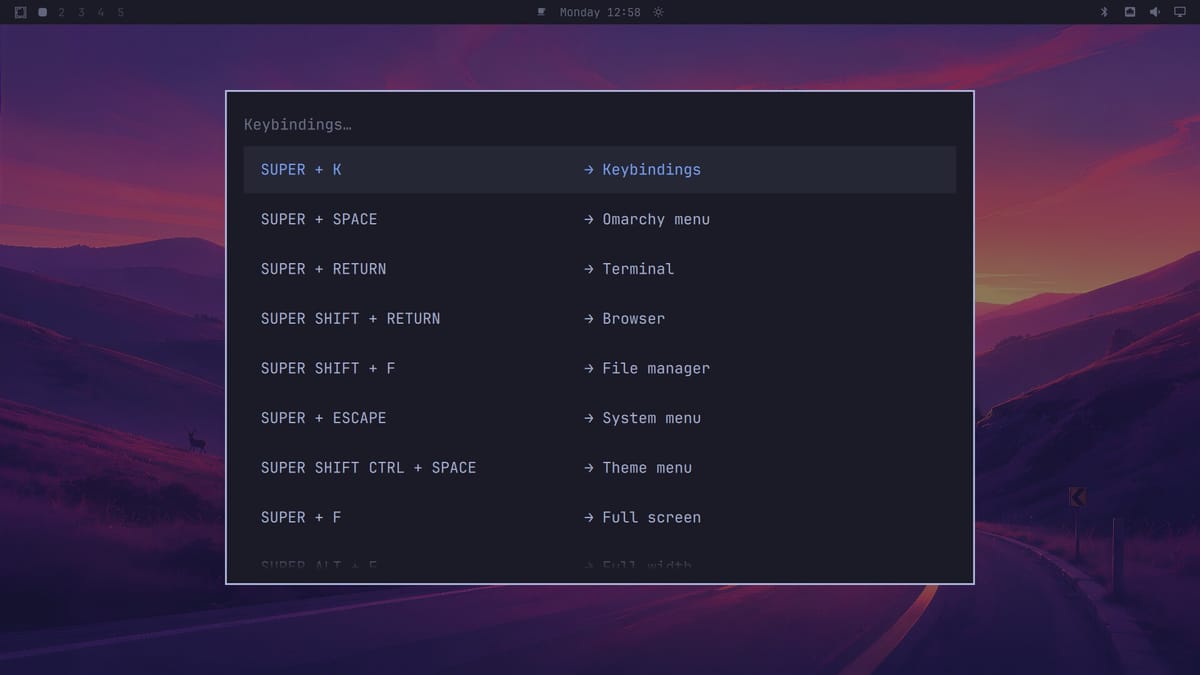
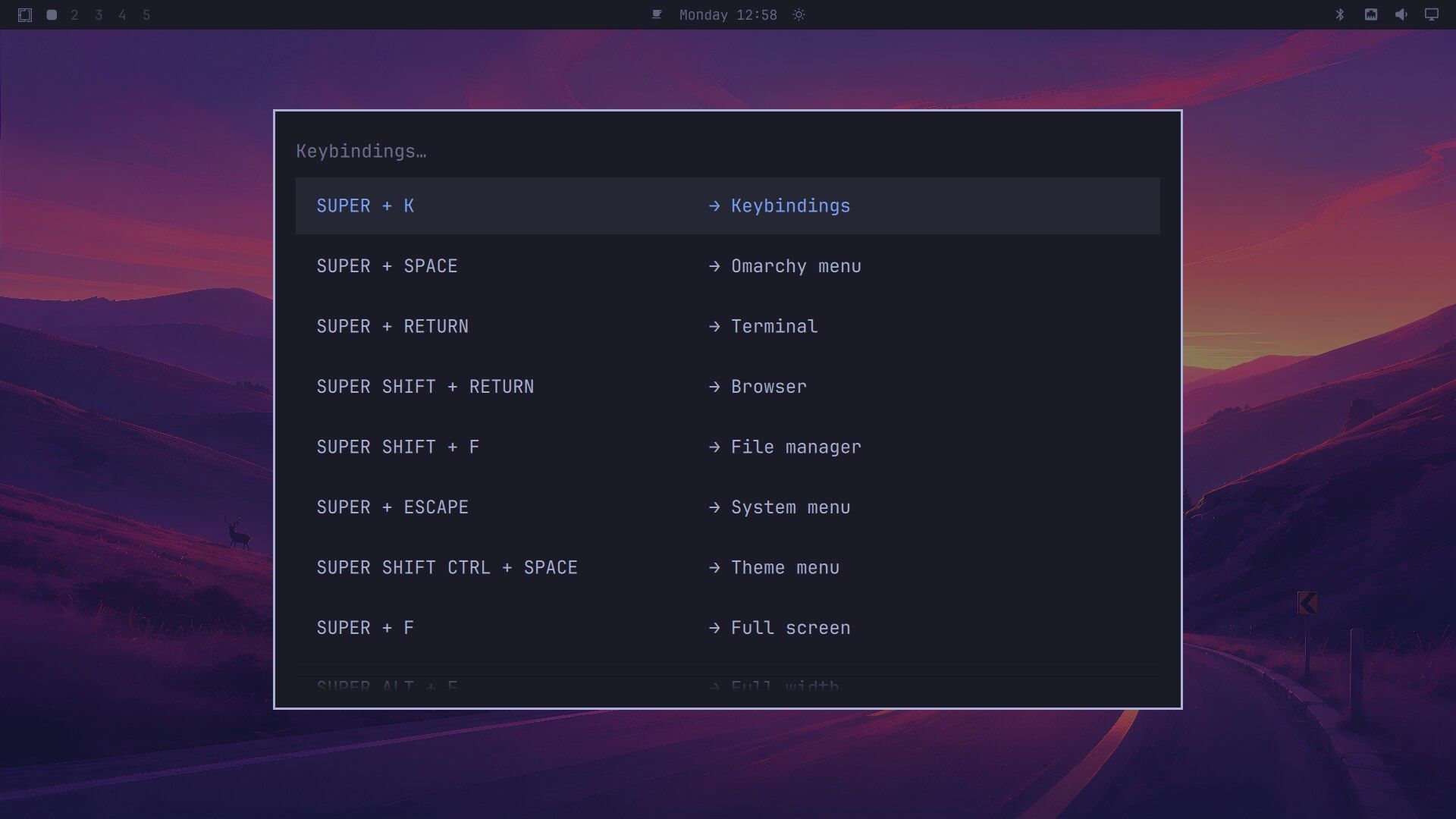
Super K lists every shortcut
Each row of the list pairs a shortcut on the left with what it does on the right, one row for every shortcut on the system. Learn super k first, because it can remind you of every other shortcut in this guide.
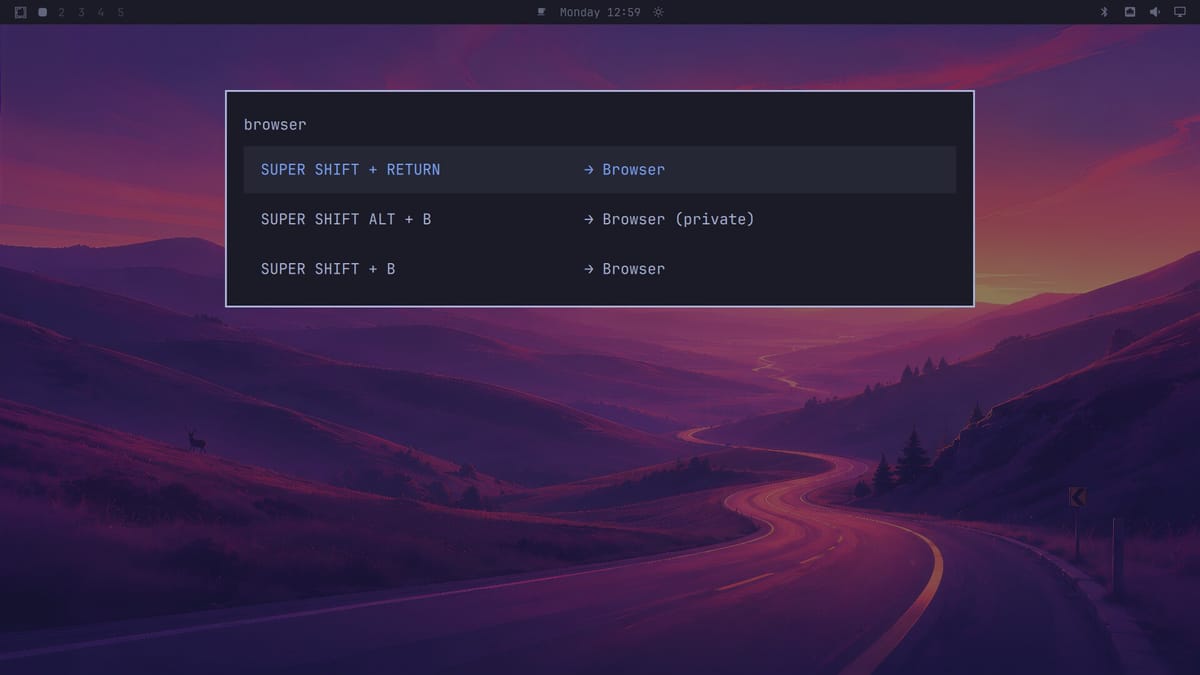
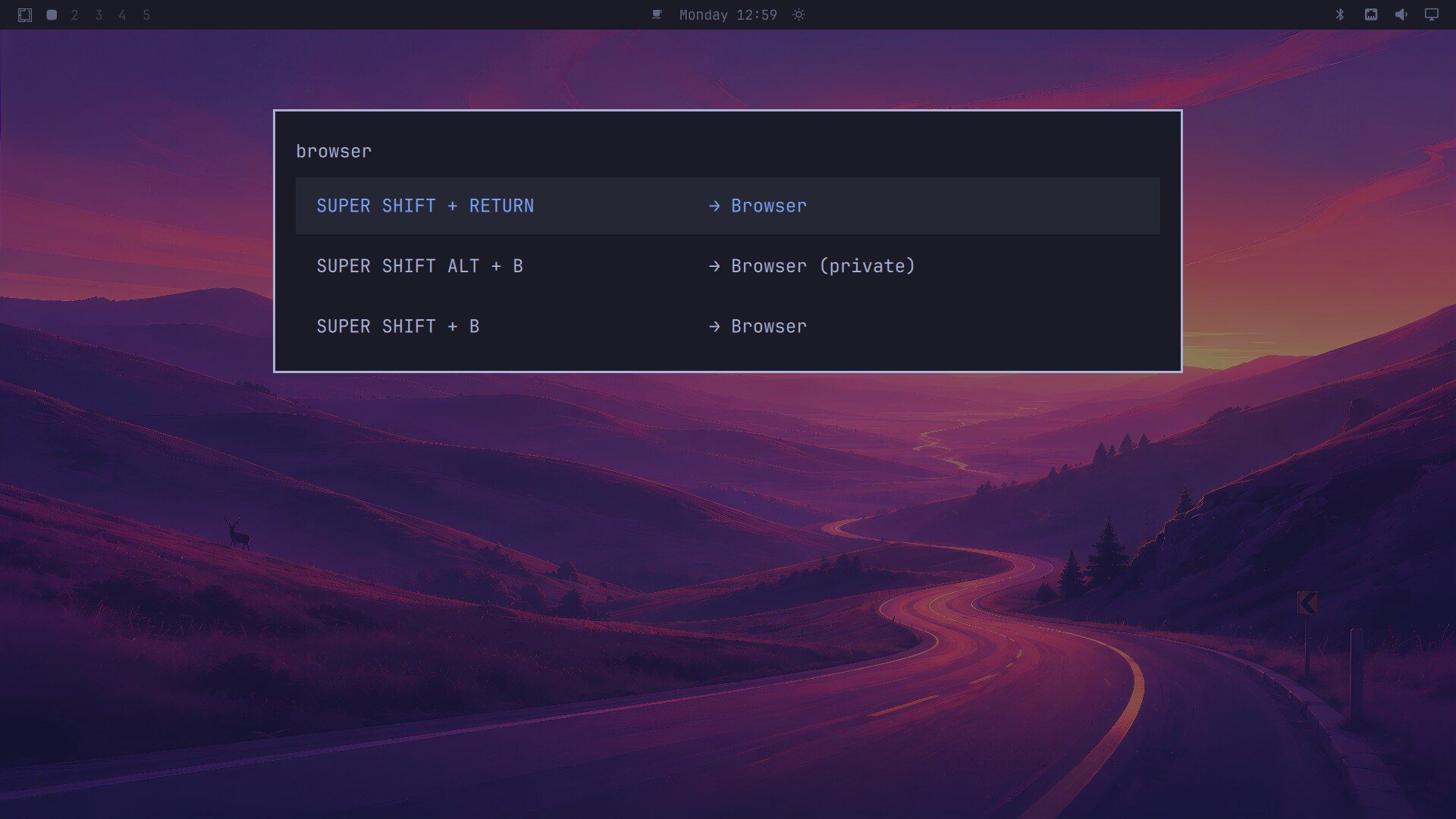
The list filters as you type. Type browser and it drops to three rows: Super Shift Enter, Super Shift Alt B for a private window, and Super Shift B. Press enter and Omarchy runs the highlighted row, so the list works as a launcher too. The first esc clears what you typed, and the second closes the list.
Super Space opens the Omarchy menu
Apps, Learn, Trigger, Style, Setup, Install, Remove, Update, About, and System are the top entries when you press super space . Themes are under Style, settings under Setup, and installers under Install.
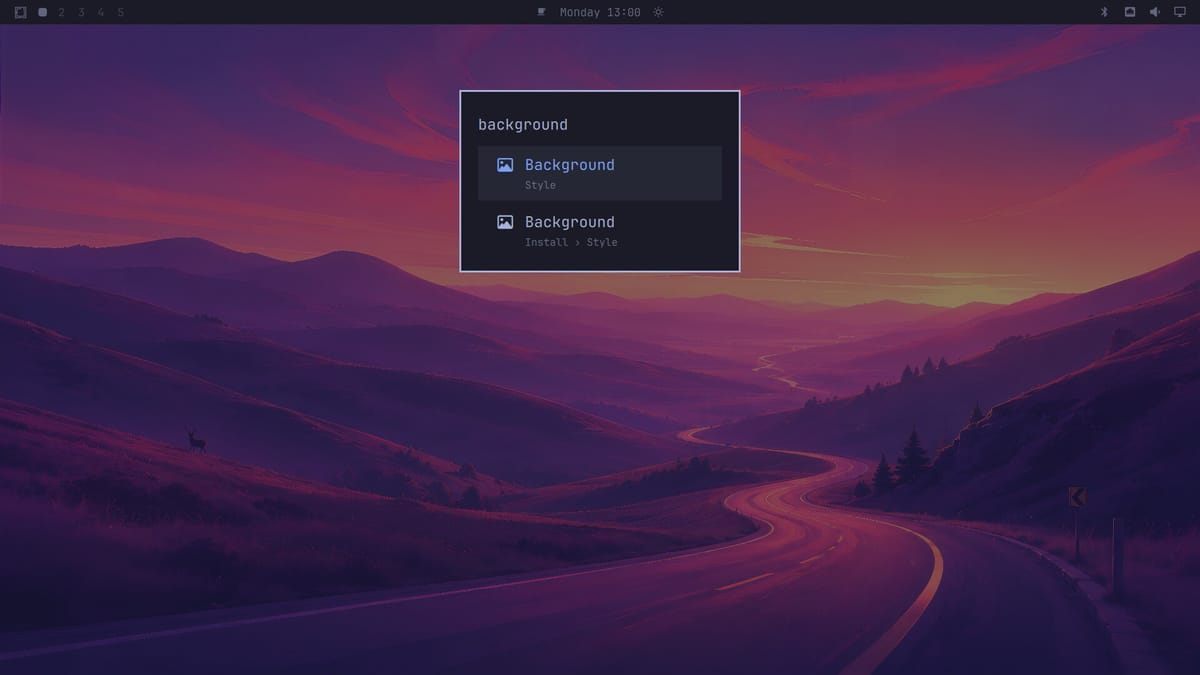
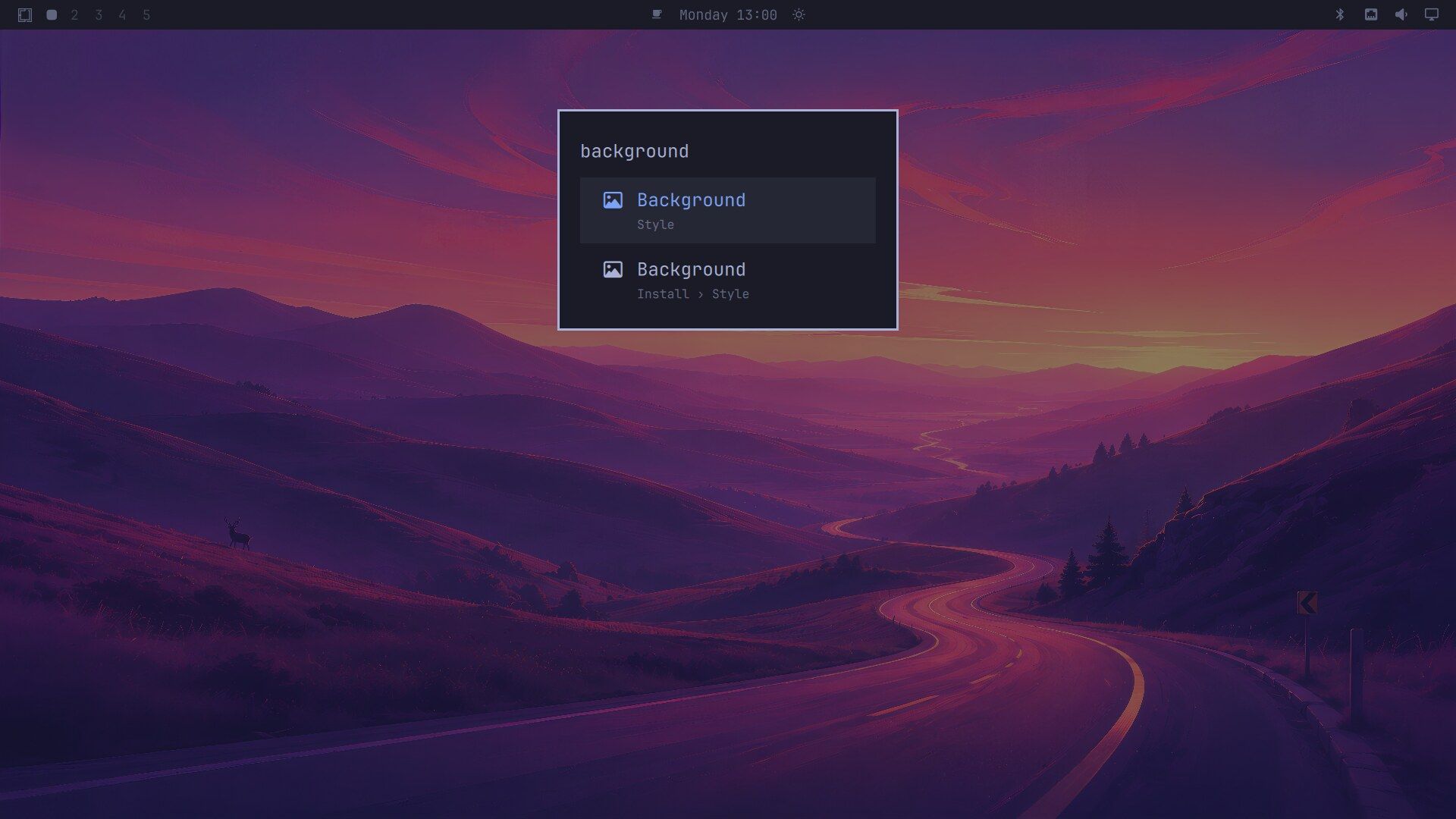
You can find an entry without knowing where it lives, because the menu also filters as you type, and each result shows its place in the menu under its name. Type background and you get two results: one under Style and one under Install › Style.
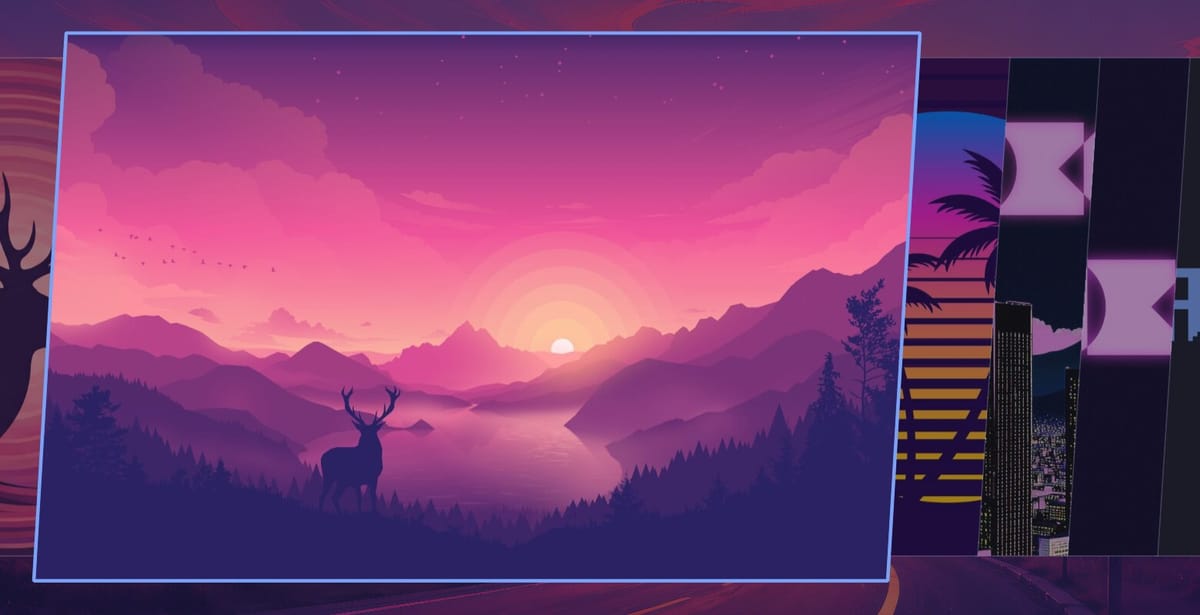
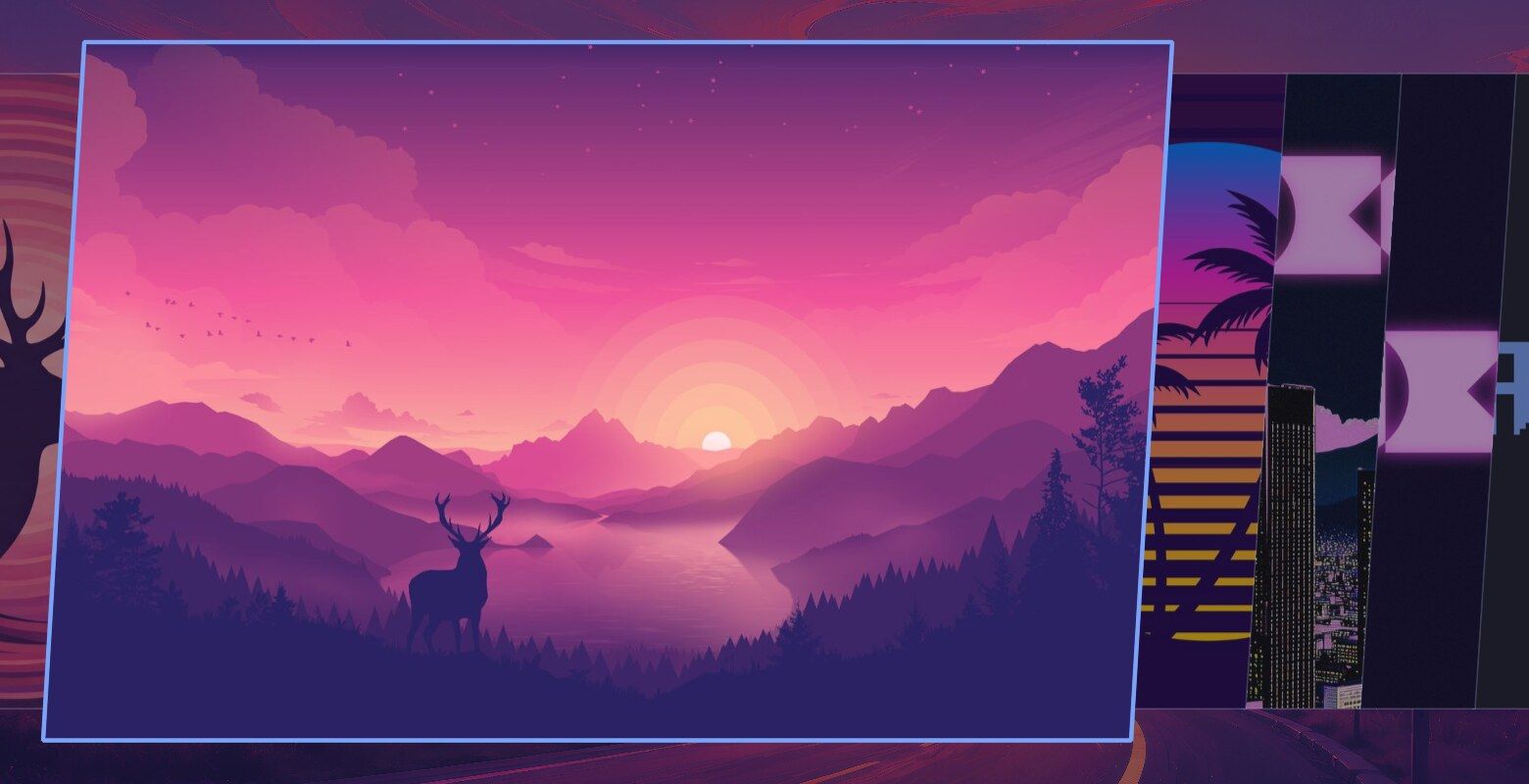
Press enter on the first one to open the background switcher. The current wallpaper shows as a large card with the others lined up beside it. Use to move through them and enter to set one as your wallpaper.
Super Enter opens a terminal
On an empty workspace, super enter gives you a terminal that fills the screen. If a terminal is already focused, the new one starts in that terminal’s folder. On a default Omarchy install, that terminal is Foot.
Super Shift Enter opens the browser
Chromium is the browser on a default install, and super shift enter starts it. super shift b does the same thing. Omarchy tiles windows, so the browser opens beside the terminal and the terminal shrinks to the left half of the screen.
Super and a number switch workspaces
Omarchy has ten workspaces. super 1 through super 9 go to workspaces 1 to 9, and super 0 goes to workspace 10. The numbers at the left of the top bar show where you are.
Add Shift to take the focused window with you. super shift 2 moves the browser to workspace 2, and the view follows it there, so the browser now fills the screen. super 1 takes you back to the terminal, and super 2 brings the browser back into view.
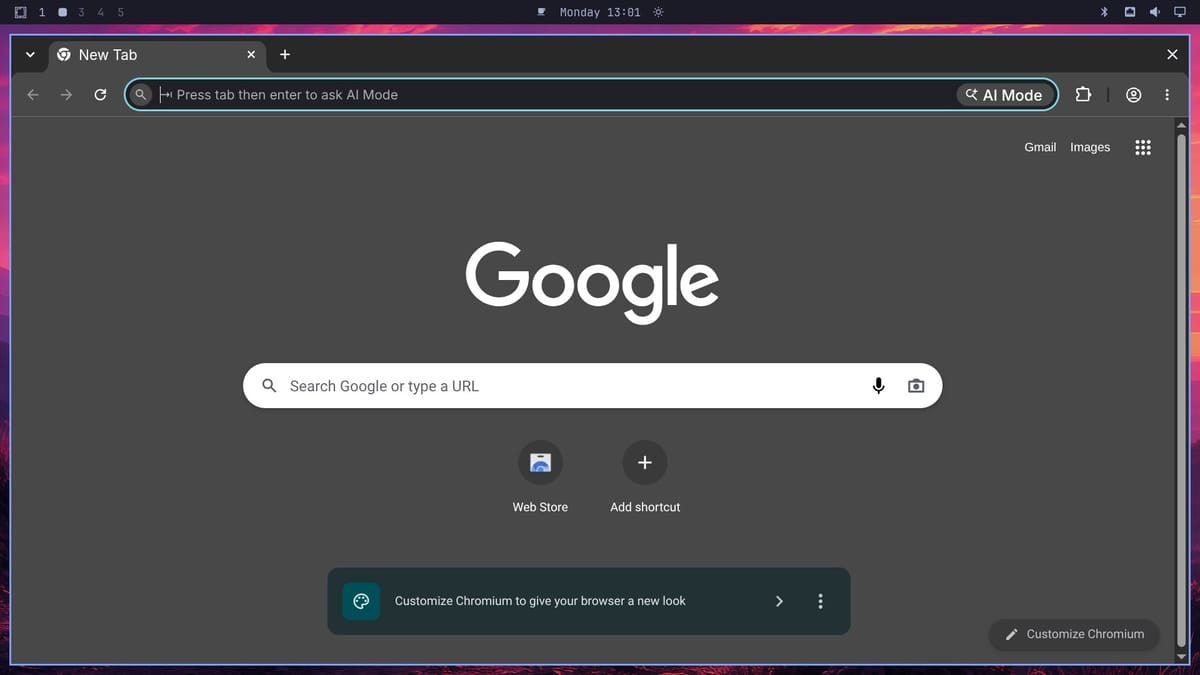
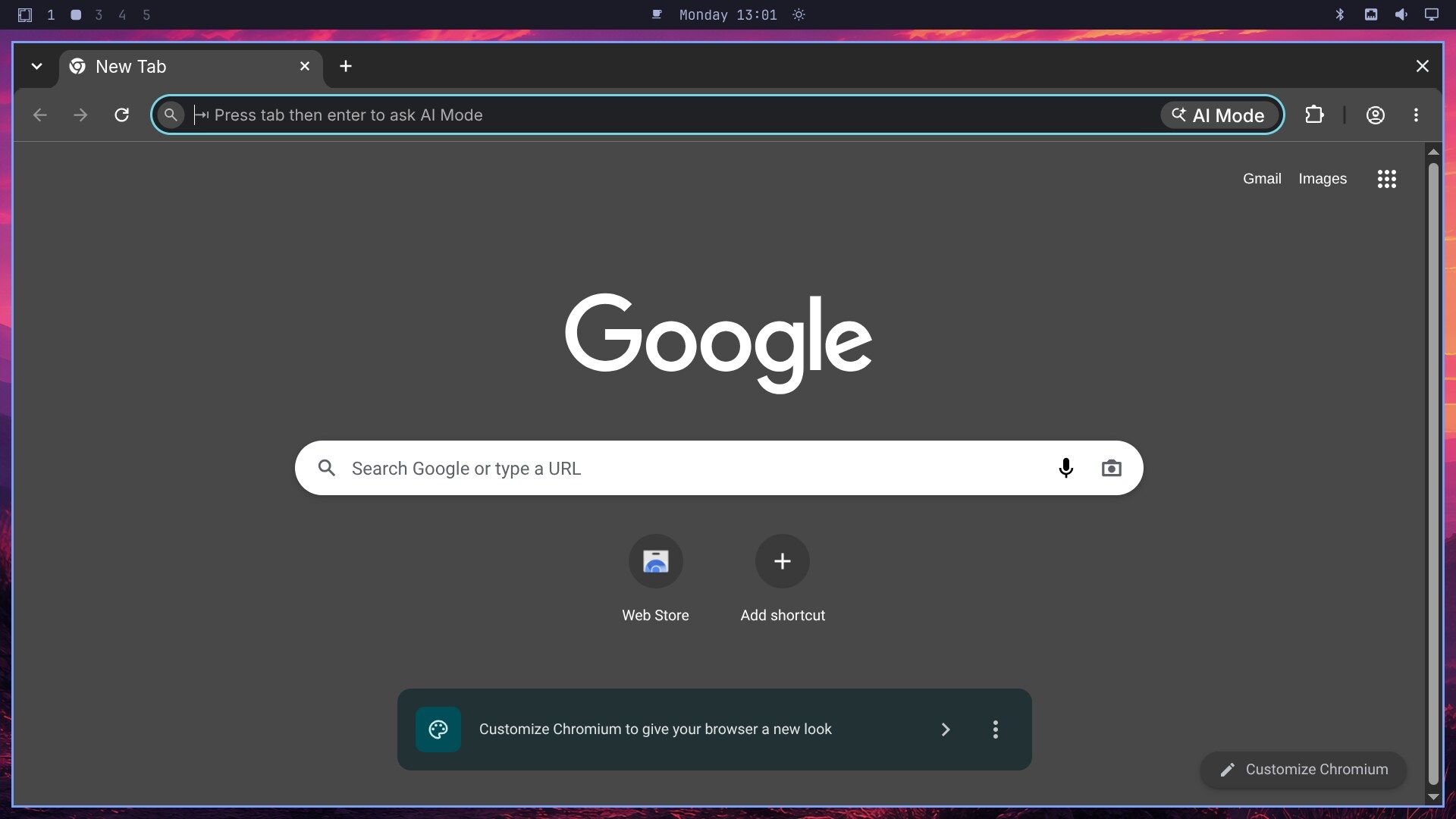
To send a window away without following it, use super shift alt 2 instead. The window moves to workspace 2 and you stay where you are.
Super W closes a window
Press super w on workspace 2 and the browser closes. Press super 1 , then super w again, and the terminal closes too, which leaves an empty desktop. It always closes the window that has focus.
The Omarchy manual lists Super Q alongside Super W for closing windows, but Super Q is not bound. Use Super W. If you want every window gone at once, ctrl alt delete closes them all.
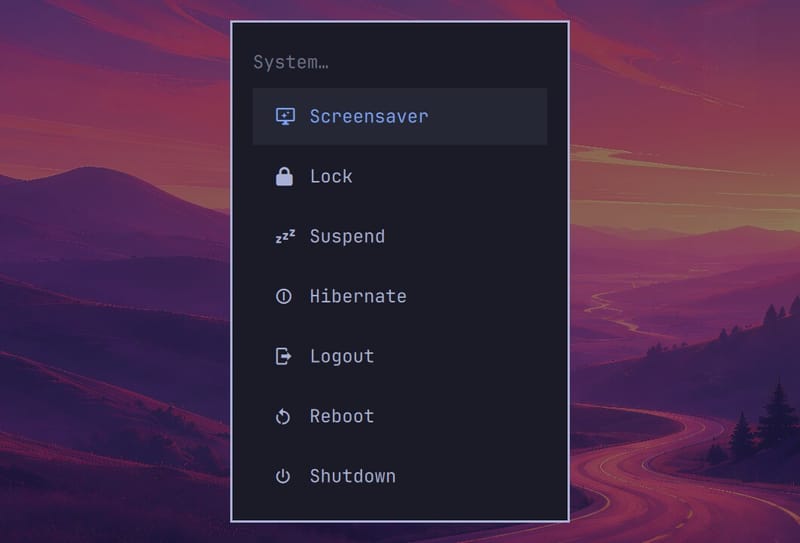
Bonus: Super Escape opens the System menu
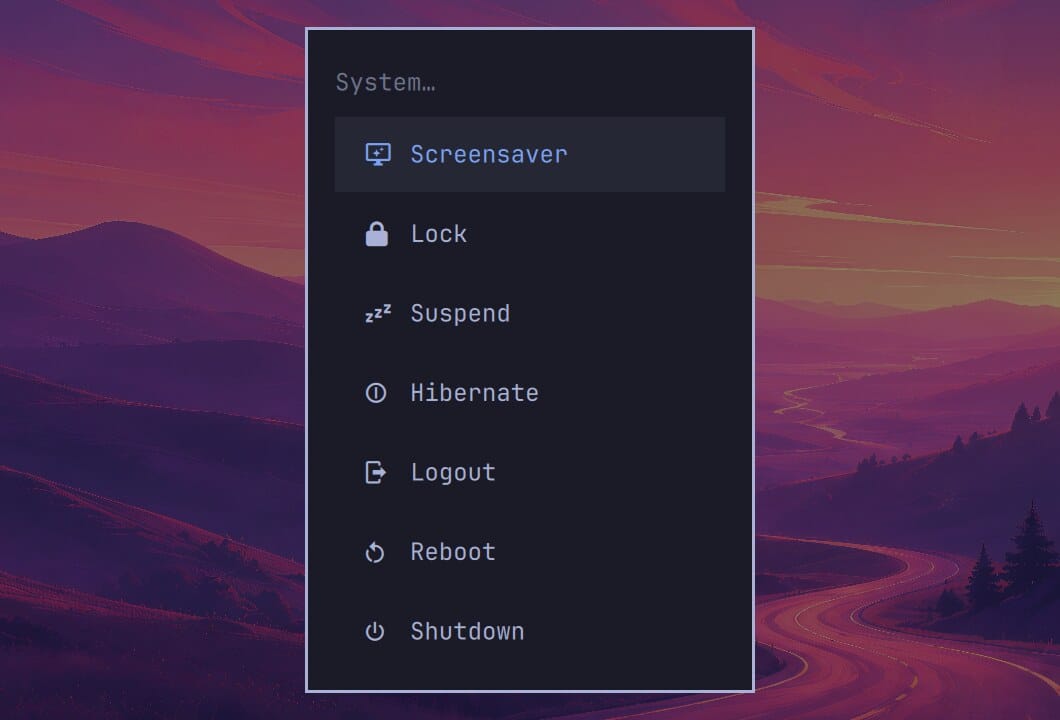
Lock, log out, reboot, and shut down all sit in one short list under super esc . On our machine it showed Screensaver, Lock, Suspend, Hibernate, Logout, Reboot, and Shutdown. Press esc to close it.
All seven shortcuts in one table
| Shortcut | What it does |
|---|---|
| super k | List every shortcut; type to filter, Enter runs the result |
| super space | Omarchy menu; type to filter, Enter opens the result |
| super enter | Terminal |
| super shift enter | Browser |
| super 1 to super 0 | Go to workspace 1 to 10; add Shift to move the window and follow it, Shift and Alt to move it and stay |
| super w | Close the window |
| super esc (bonus) | System menu: lock, log out, reboot, shut down |
Shortcuts to learn next
super and super (and the up and down arrows) move focus to the window in that direction, which is how you get from the terminal to the browser without the mouse. Add Shift, as in super shift , and the two windows swap places. super f makes the focused window full screen, and pressing it again puts the window back in its tile.
super alt space opens a menu that lists only apps. It is quicker than the full Omarchy menu when all you want is to start a program. If you used Omarchy 3, the two menu shortcuts swapped places in version 4: Super Space used to be the app launcher.
If you are still choosing a machine to run Omarchy on, our Omarchy hardware guide covers the mini PCs and laptops that run it well. Once the shortcuts are familiar, our guide to finding and installing Omarchy plugins shows how to add bar widgets, panels, and other add-ons.


