
Codex is OpenAI’s coding agent for the terminal. You tell it what you want in plain words, and it reads your files, runs the commands and makes the changes. It signs in with your ChatGPT account, so it runs on the plan you already have. On Omarchy, one shortcut drops it down over whatever you’re working on.
This guide makes Codex Omarchy’s default agent and signs it in. Then it tries the extras that work in Omarchy’s terminals: a small animated pet that Codex draws to match your theme, a spoken conversation started with f8 , and a new wallpaper and theme that Codex paints and switches to. Last, it looks at what Codex’s sandbox stops, and at the automatic reviewer that Omarchy turns on. Every prompt we used is here word for word, and each section says how to undo what it changed.
We followed these steps on Omarchy 4.5.0 with Codex 0.167.0 on November 7, 2026. Codex writes its own answers each time, so your pet, your painting and your wording will differ from ours, but the steps hold.
What you need
You need Omarchy 4.5 and a ChatGPT plan that includes Codex; OpenAI’s plan comparison lists which ones do. You don’t have to install Codex yourself: when you pick Codex as your default agent and it isn’t installed yet, Omarchy installs it first.
The pet needs a terminal that can draw images. Omarchy’s default terminal, Foot, can’t show pets as it ships, so the pet section switches to Ghostty. The voice section needs a microphone on the Omarchy computer. The pet and the painting both use Codex’s image generation, which counts toward your plan’s Codex limits. On our ChatGPT Plus plan, hatching the pet alone used about 30 percent of the five-hour limit, so start it when you have room.
Make Codex your default agent
Omarchy’s agent shortcuts all start your default agent. To make that Codex, open a terminal with super enter and run:
omarchy default agent codexYou can also pick it in the main menu ( super space , then Setup, Defaults and Agent). The command opens a Codex window right away. If Codex hasn’t been signed in yet, that window asks you to sign in; do that there first (the next section shows how), then close the window with super w .
Now press super ~ . The key with the tilde is left of the number 1 key, and Super is the Windows key. A console drops over the top half of the screen with Codex already running in it, in your ~/Work folder. Press the same keys again and the console slides away, with Codex still running, so it stays one shortcut away from whatever else you’re doing.
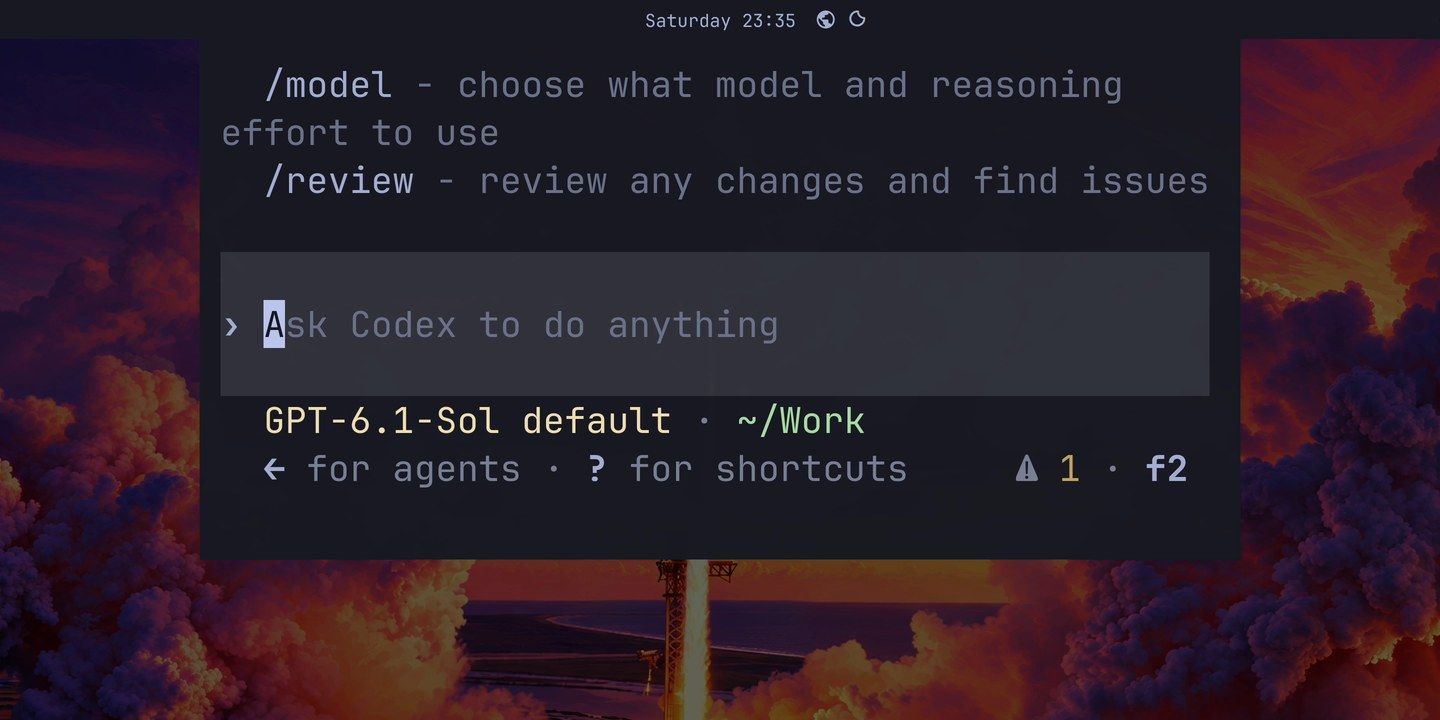
The console is small. For anything with a picker or a long answer, super shift ctrl a opens your default agent in a full-size window of its own. We used that window for the rest of this guide.
Omarchy starts Codex in all of these places with the --approve-for-me flag, which lets an automatic reviewer answer Codex’s requests to step outside its sandbox. The footer may also show a small warning badge with f2 next to it; ours was a harmless startup notice about the flag, and you can ignore it.
To undo: pick another agent with omarchy default agent <name> or in Setup, Defaults, Agent.
Sign in with your ChatGPT account
The first time Codex starts, it asks how to sign in. Choose to sign in with ChatGPT, and Codex opens a browser window where you log in to your ChatGPT account. After that, Codex keeps the sign-in, and the agent shortcuts start straight at the prompt. The agents icon in Omarchy’s top bar also offers a Codex sign-in, and once you’re signed in, its panel shows how much of your plan’s Codex limit is left.
If the browser can’t reach the computer running Codex (over SSH, for example), use a device code instead. Turn on device code sign-in in your ChatGPT security settings first, then run codex login --device-auth, open the link it prints on any device, and type the one-time code. OpenAI’s sign-in page covers both ways.
Give Codex a pet
A Codex pet is a small animated character that sits beside the prompt and reacts to the work. OpenAI’s pets page lists four states (Running, Needs input, Ready and Blocked). Here is what we saw: when Codex starts a task, the pet gets busy for about two and a half seconds and then goes back to idle, and when the task is done, it blinks and tilts its head. The pet hides while a menu or an approval card is open.
Switch the terminal to Ghostty
Pets need iTerm2 3.6 or later, or a terminal with Kitty graphics or Sixel support, and they don’t work inside tmux or Zellij. In the Foot console, type /pets and press enter , and Codex shows Pets unavailable. Omarchy’s Foot reports itself as a plain xterm, so Codex finds no image support.
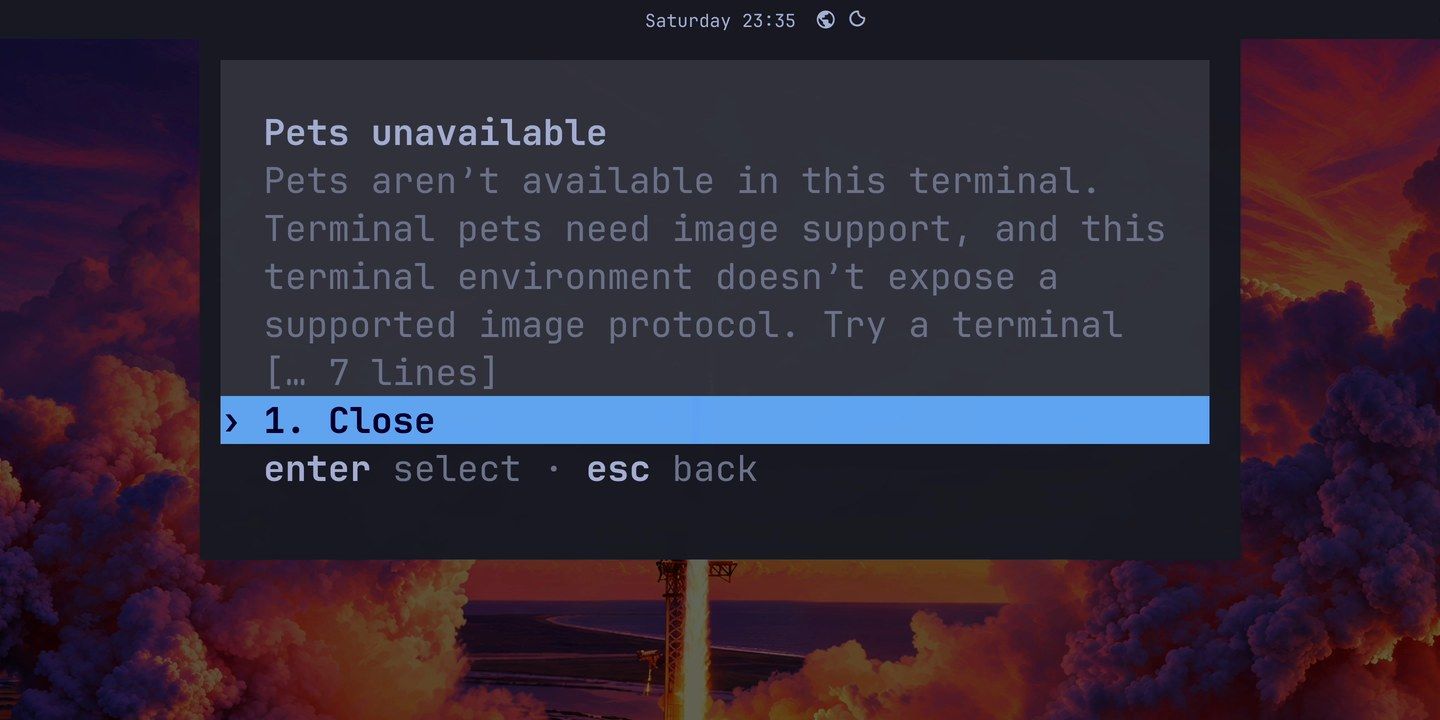
Ghostty can draw them, and Omarchy installs it from its own menu. First type /quit in the console to close it. Then press super space and choose Install, scroll down to Terminal, and pick Ghostty. The install took a few seconds on our machine, and it also made Ghostty the default terminal. Press any key to close the install window.
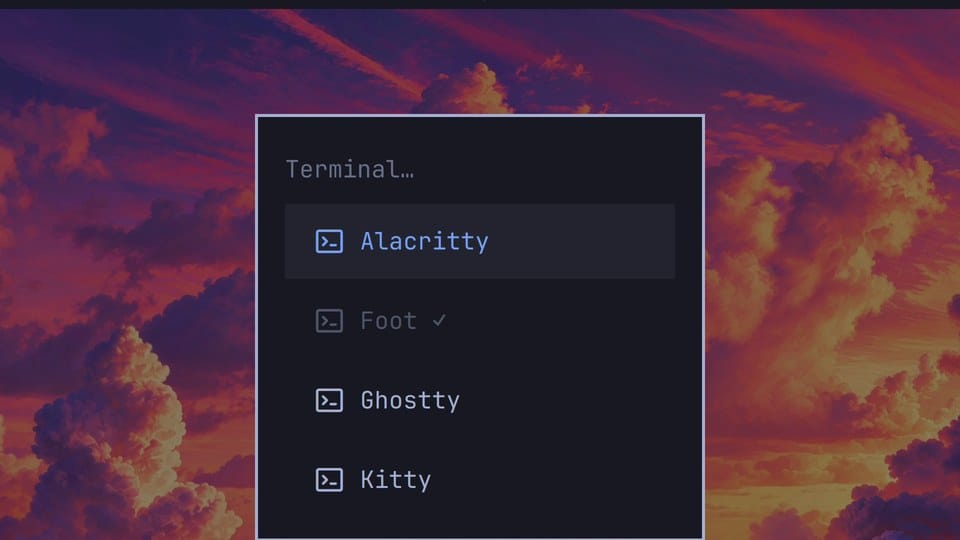
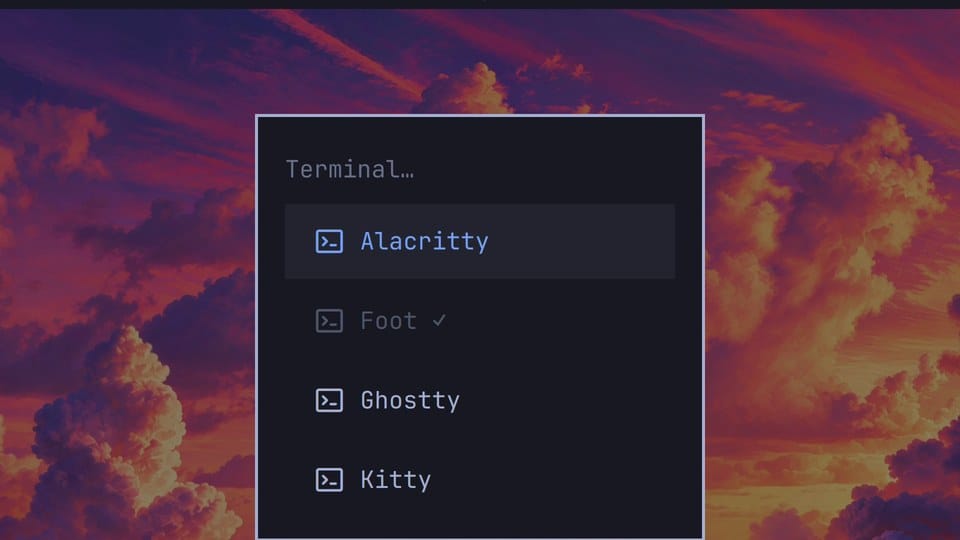
The next super ~ starts a new console in Ghostty. If you skip /quit, the console keeps its old Foot window until you close it.
Pick a built-in pet
In Ghostty, press super shift ctrl a for a full Codex window, type /pets and press enter . The picker lists eight built-in pets (BSOD, Codex, Dewey, Fireball, Null Signal, Rocky, Seedy and Stacky) with a large preview of the one you’re on. In the half-height console the picker has no room for the preview, which is why the full window helps here.
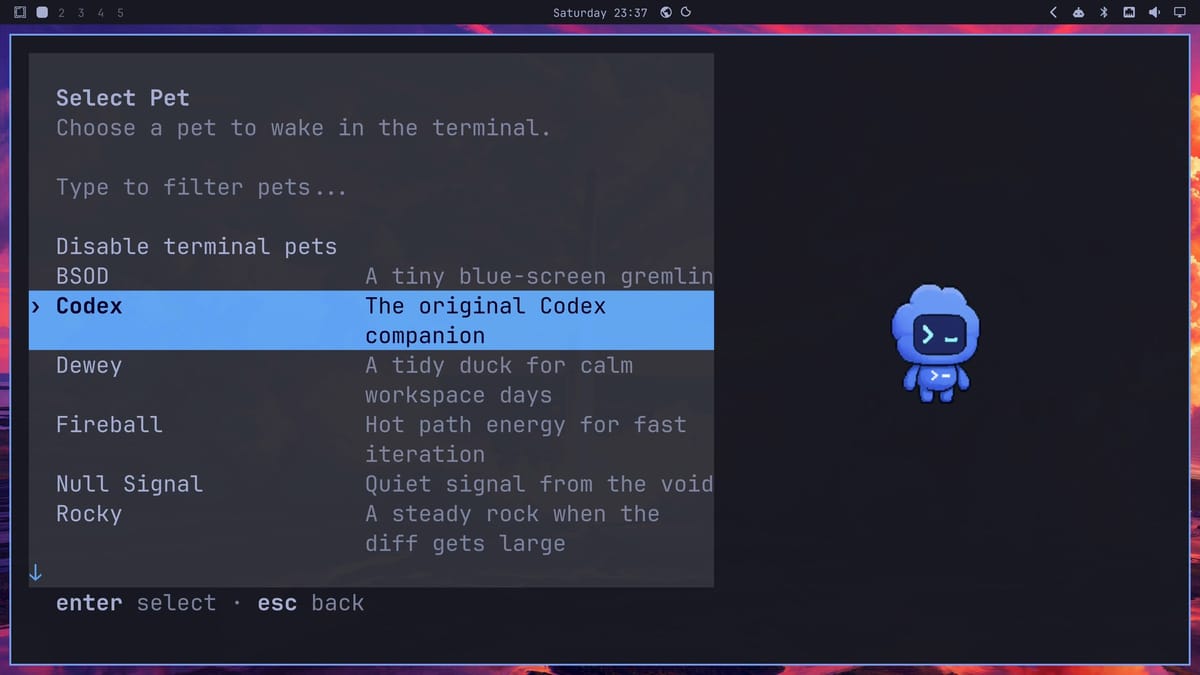
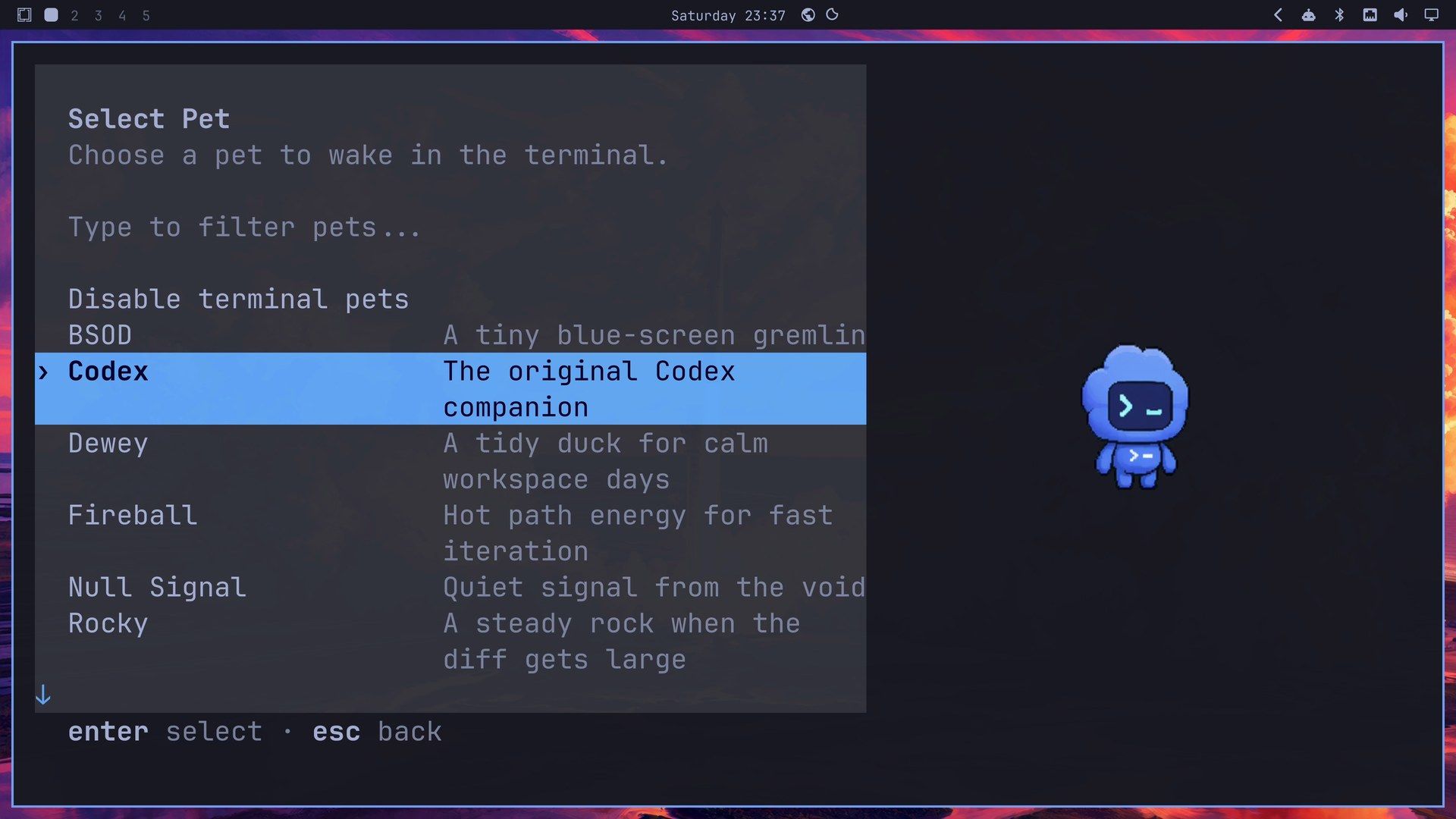
Press enter on a pet, and it moves in beside the prompt. Codex saves the choice in ~/.codex/config.toml, so new sessions keep it. You can also type /pets <name> to pick one directly.
Hatch a pet in your theme’s colors
Codex can also draw a new pet with OpenAI’s hatch-pet skill. A skill is a set of instructions Codex reads for one kind of job. To add it, send this to Codex:
$skill-installer install the hatch-pet skillCodex installed it in about 20 seconds and said it would be available on the next turn. Then we asked for a pet that matches the Omarchy theme. Omarchy keeps the current theme’s colors in ~/.local/state/omarchy/current/theme/colors.toml and the current wallpaper at ~/.local/state/omarchy/current/background, so the prompt points Codex at both:
Use $hatch-pet to make a pet for this desktop. Read the palette in ~/.local/state/omarchy/current/theme/colors.toml, look at the current wallpaper (~/.local/state/omarchy/current/background), and draw a small mascot that belongs in this theme. Call it Nova. You may use subagents.Keep the last sentence. The skill draws the poses with helper agents (subagents), and without that permission in the prompt, Codex stops early to ask for it.
Our theme was Tokyo Night with its rocket launch wallpaper. Codex read both and proposed: “Your wallpaper pairs a rocket launch with violet clouds and coral light. I’m making Nova a tiny twilight fox: periwinkle fur, a pale muzzle, and coral ear tips in a soft, rounded style.”
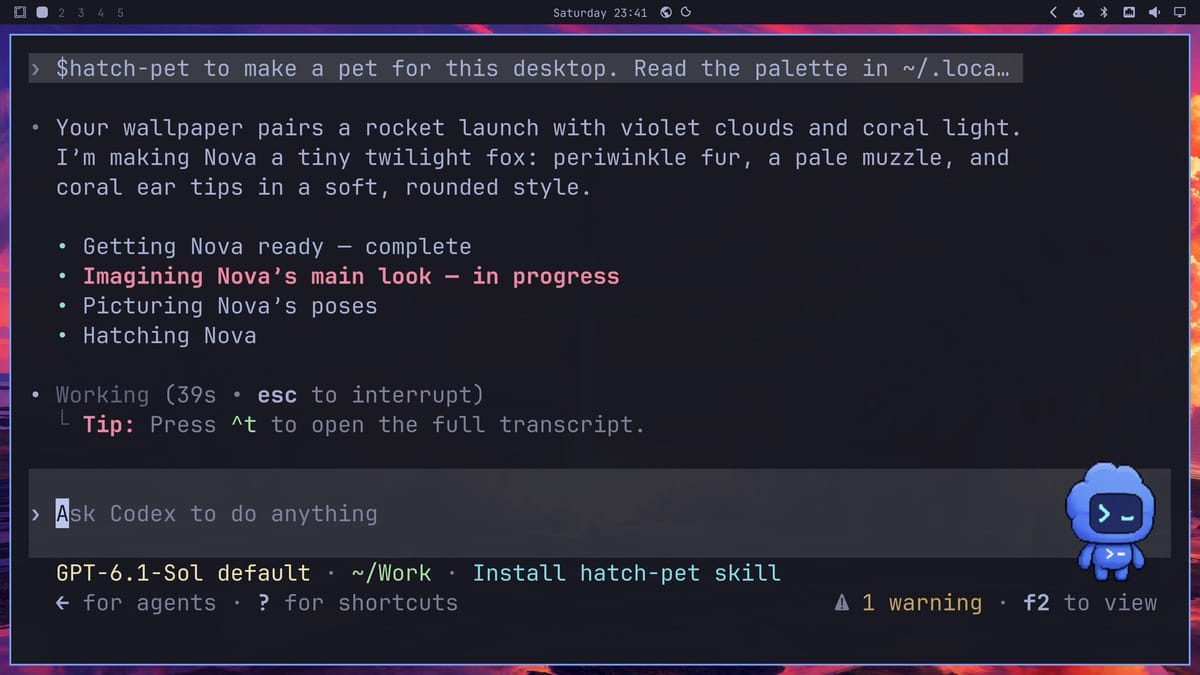
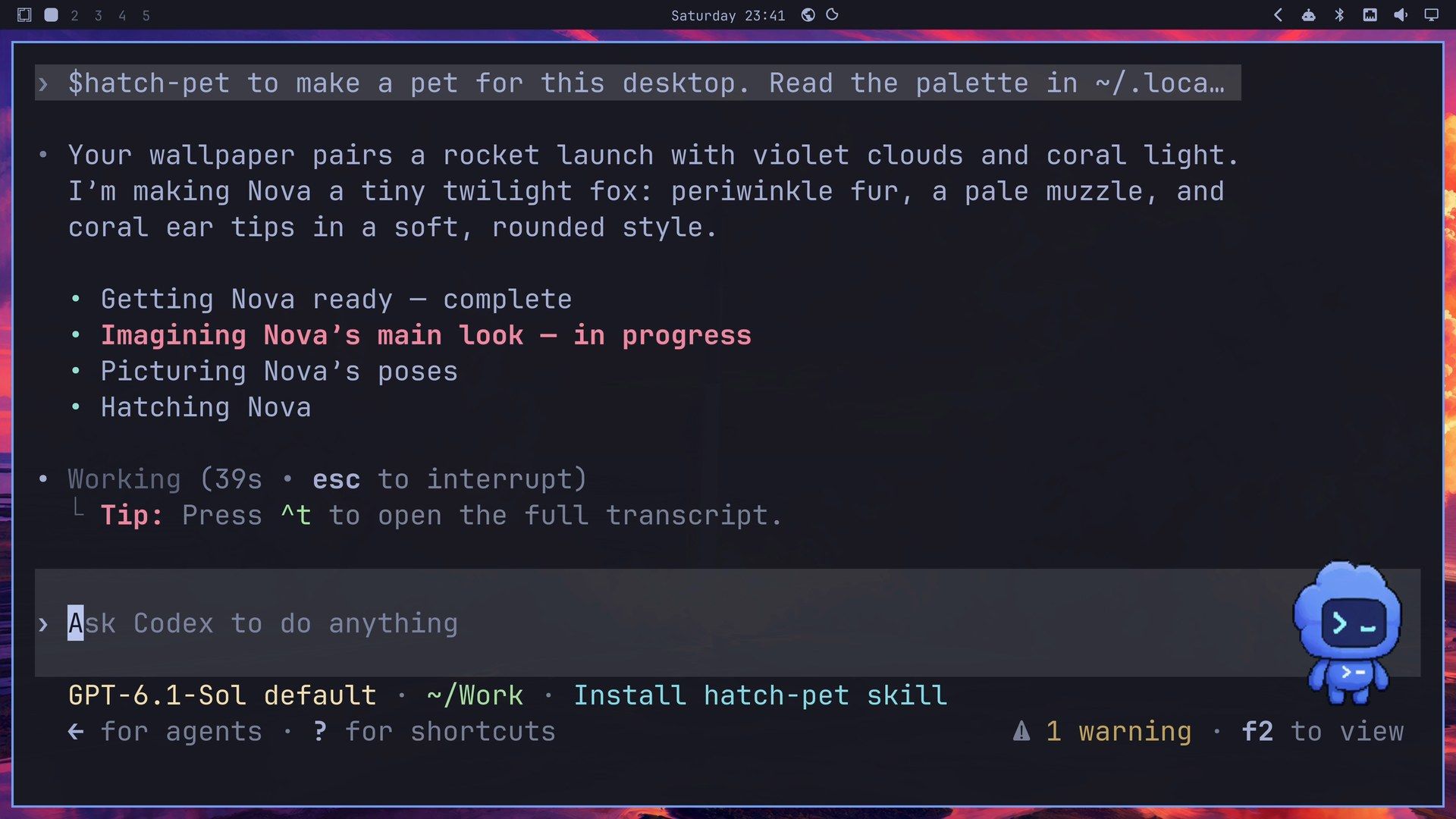
A pet needs nine animations, from idle and running to waving and a drooping failed pose. One helper agent drew them and another checked them. The checks caught a few flaws, such as background removal that cut into the coral ear tips, and Codex redrew those before it finished. Our hatch took 15 minutes 34 seconds, so it is one to start and come back to. The pet landed in ~/.codex/pets/nova/, and the working files (a contact sheet of the poses, the motion previews, the check results and a small Python environment Codex set up for its scripts) stayed in ~/Work.


To use it, type /pets, then nova to filter the list, and press enter . Nova sits beside the prompt from then on, in this session and new ones.
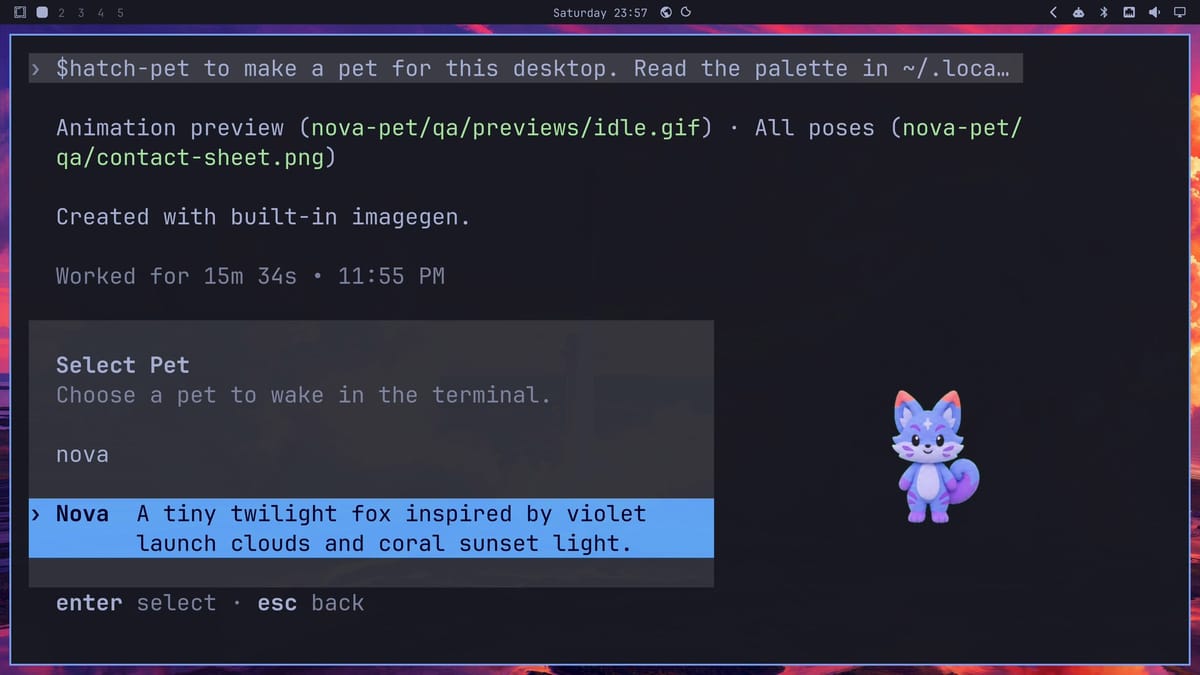
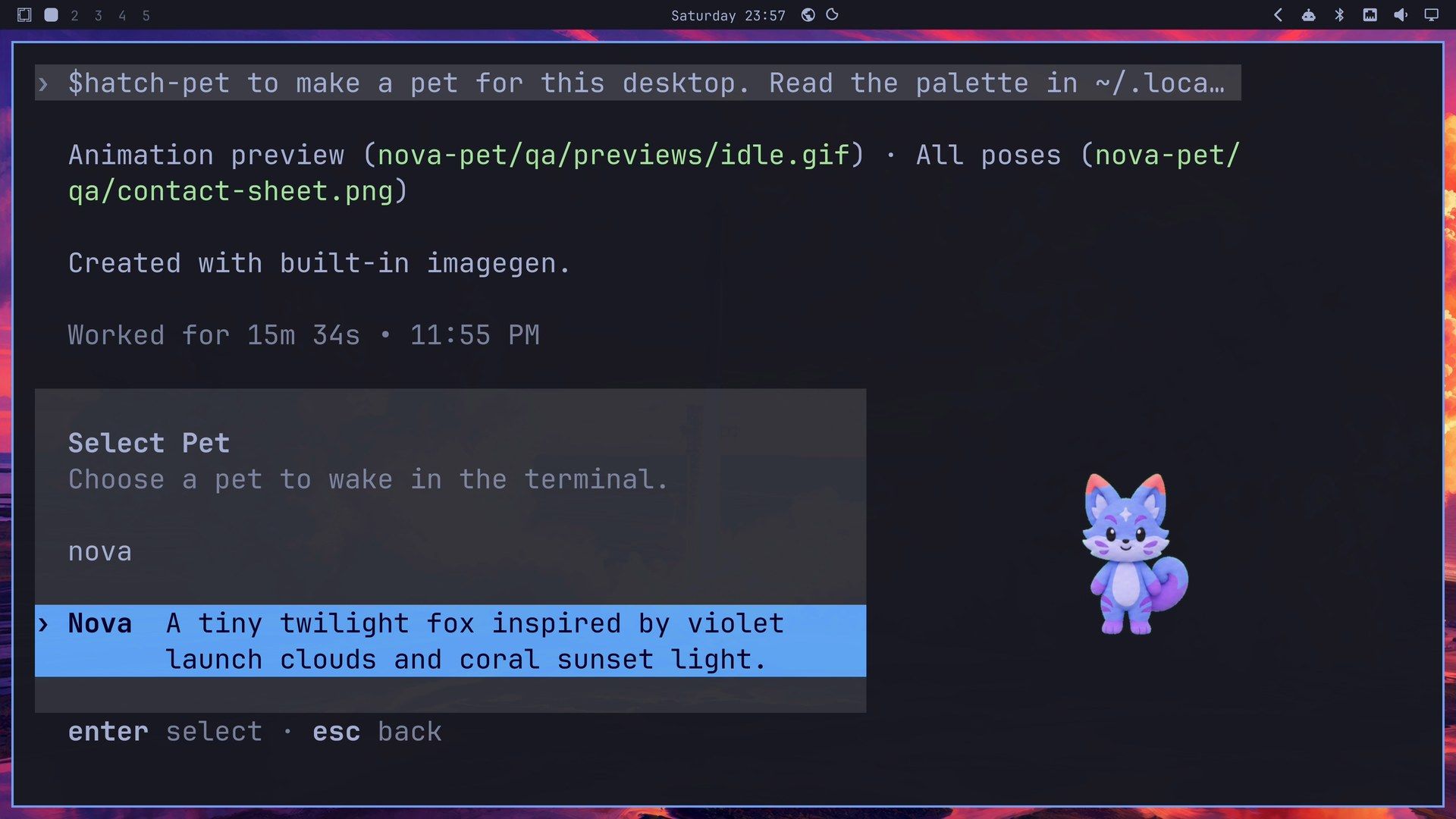
To undo: type /pets off to turn pets off, or pick another pet. To delete Nova, remove ~/.codex/pets/nova. The skill lives in ~/.codex/skills/hatch-pet. The working folders in ~/Work can go too; the finished pet doesn’t use them. To go back to Foot, delete ~/.config/xdg-terminals.list, the file the Ghostty install wrote. To remove Ghostty itself, run sudo pacman -Rns ghostty ghostty-shell-integration ghostty-terminfo.
Talk to Codex with F8
Codex also takes requests by voice. Press f8 in a Codex window, and a strip above the prompt says listening, with one level bar for your microphone and one for Codex. Speak your request, and Codex says out loud that it’s on it, does the work, and then tells you the result out loud. It works in Foot and in Ghostty, and Nova stayed beside the strip the whole time.
Our first request was a small one:
Switch my desktop theme to Nord, please.Codex answered “On it, I’ll take care of that.” It ran omarchy theme set nord, and the bar and the terminal changed to Nord. Then it said “All set. You’re on the Nord theme now.” The whole turn took 17 seconds.
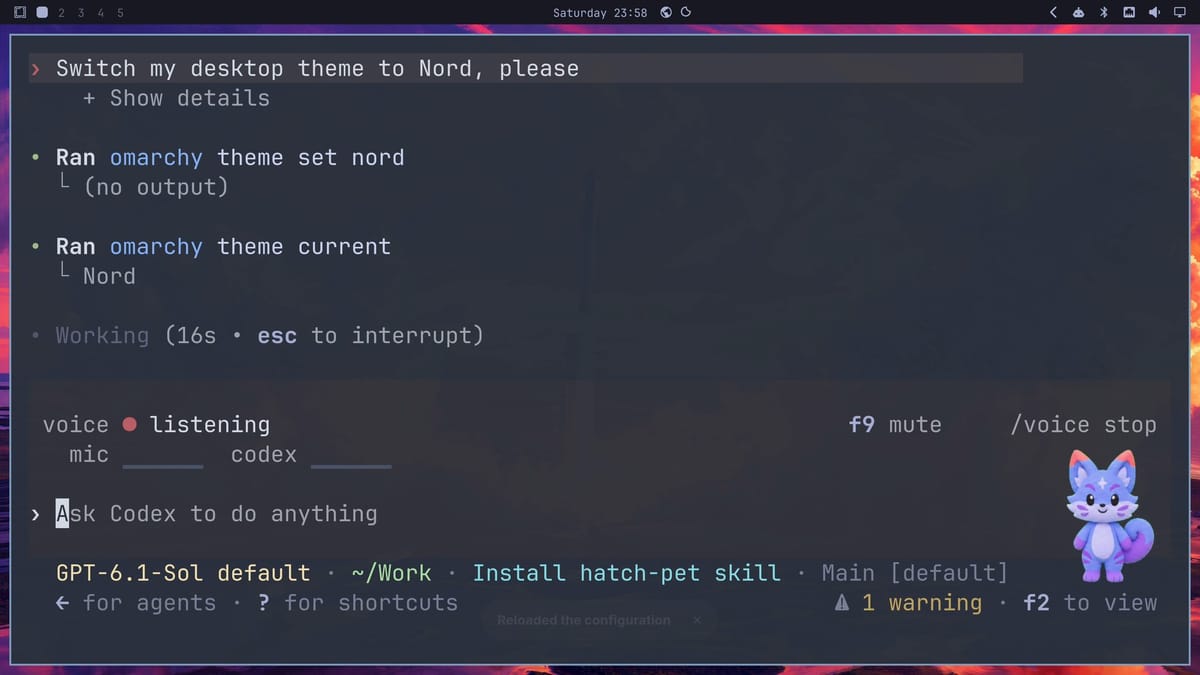
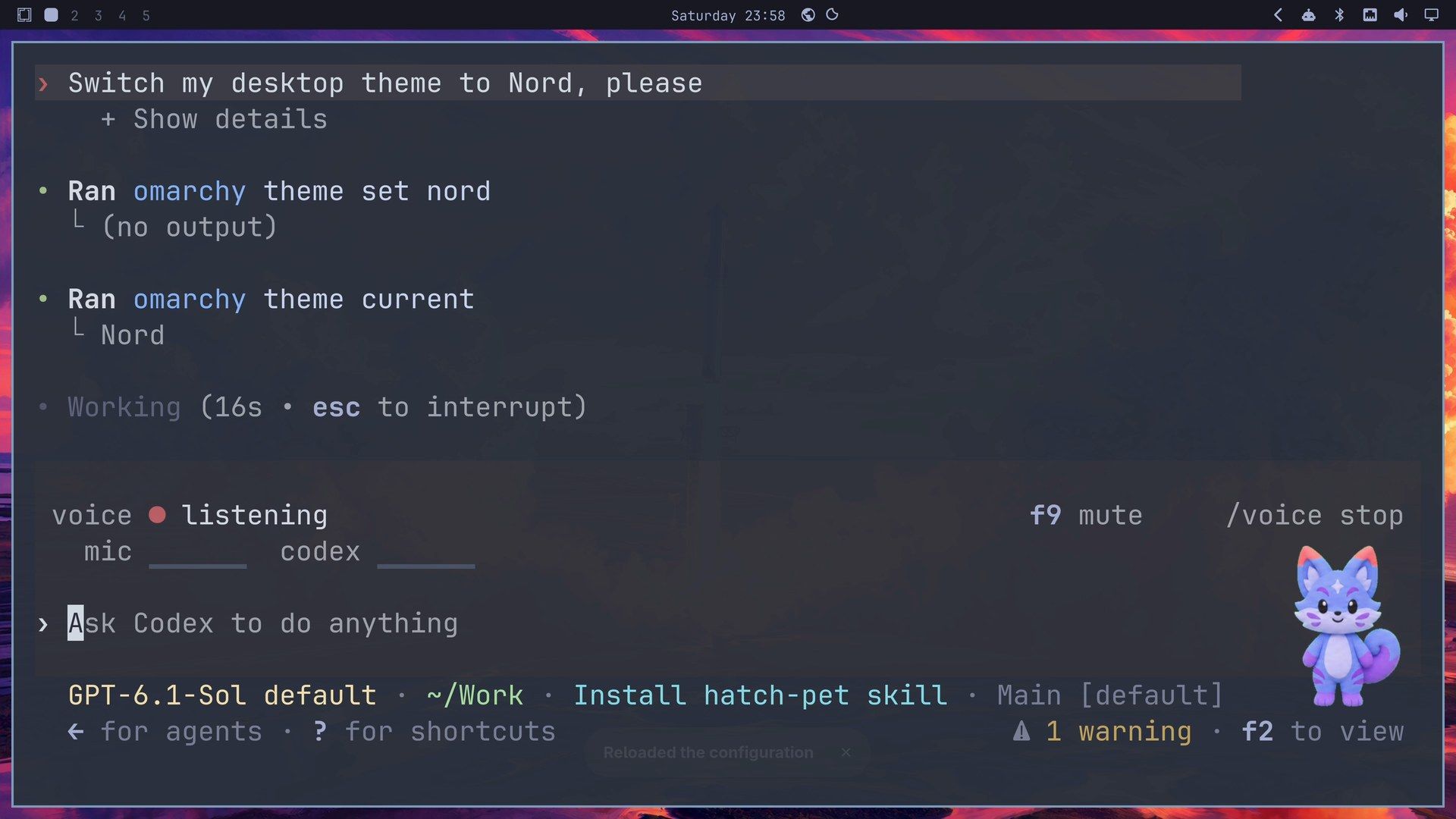
The conversation stays open between requests, so the next one needs no key. In ~/Work we had a small Python project called greeter with one failing test, and we asked:
In the greeter project, one test is failing. Fix it and run the tests.Codex said “Thanks, I’ll take a look and get that test sorted,” ran the tests, and found that farewell() returned "Goodbye, {name}" without the exclamation mark the test expected. It added it, ran the tests again, and said “Found it, fixed a missing exclamation mark in the farewell function and now all the tests are passing.” That turn took 14 seconds.
Press f8 again to end the conversation. Your requests and Codex’s replies stay in the transcript as text. To check the work yourself, start a line with ! and Codex runs it as a shell command:
!git -C greeter diff
!cd greeter && python -m unittest -v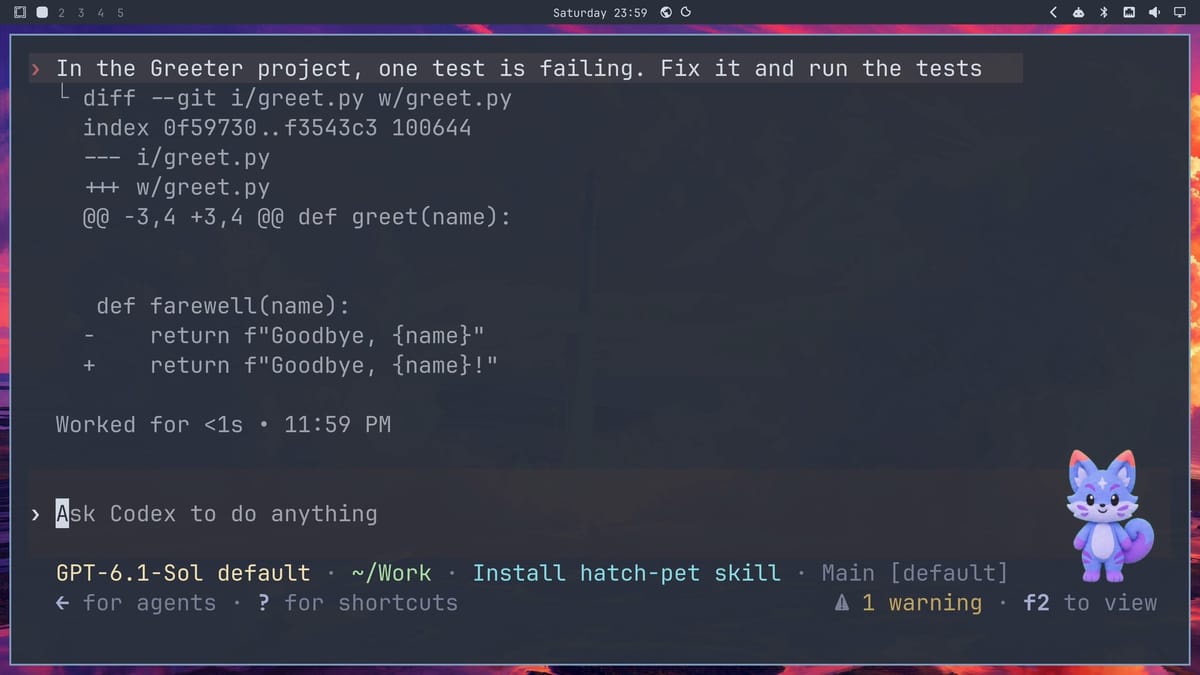
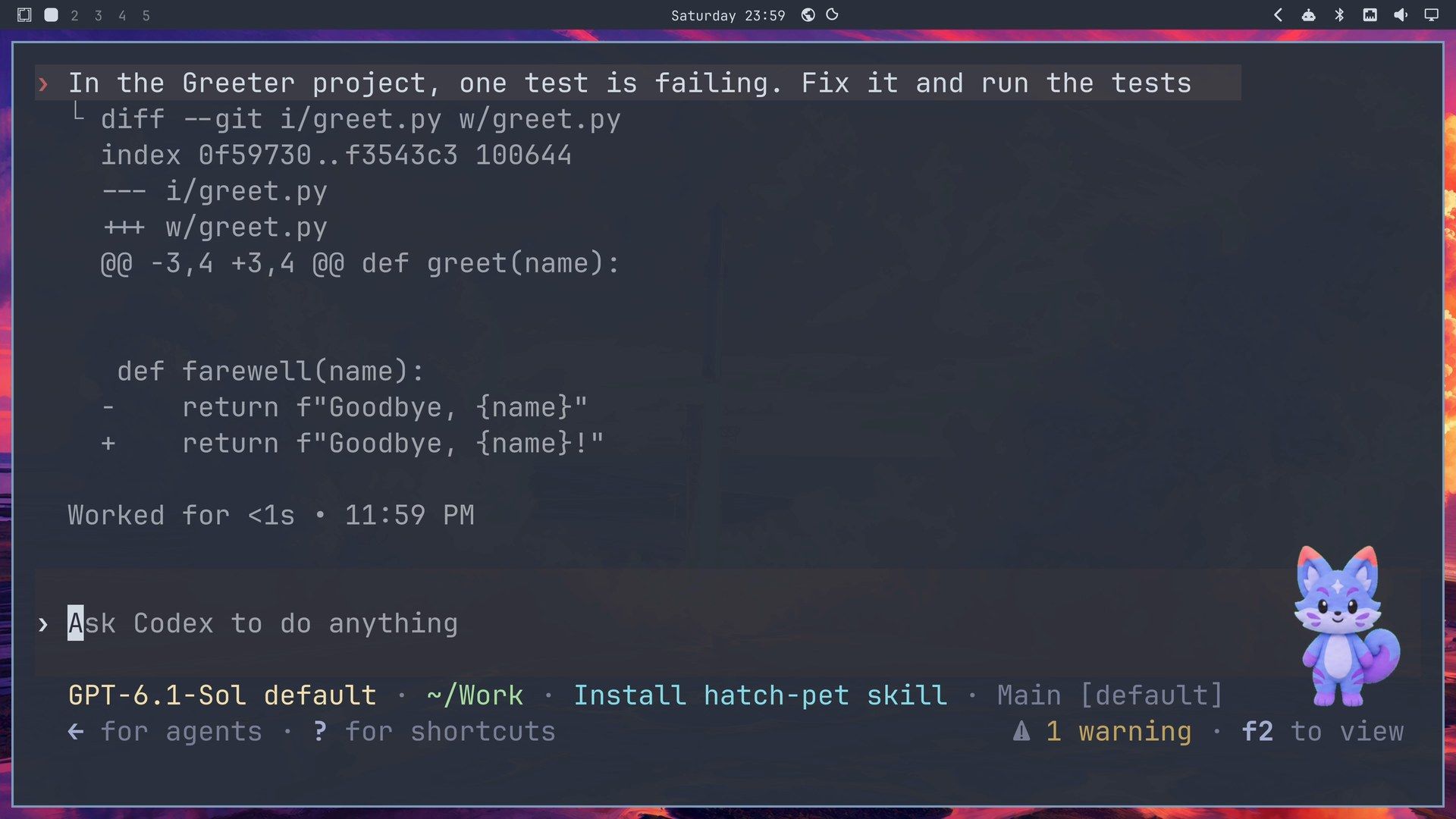
The diff showed the one-line change, and both tests passed. The strip also shows f9 mute for your microphone.
To undo: switch back to your theme in the theme menu ( super ctrl shift space ), or run omarchy theme set "Tokyo Night" (or the name of the theme you had before). A code change is ordinary git work: git -C greeter checkout greet.py puts the file back.
Paint a wallpaper and a theme
An Omarchy theme is a folder of plain files: a colors.toml with the colors and a backgrounds folder with the wallpapers. Codex can write those, and it can draw the wallpaper with its built-in image generation. We typed this one as a single prompt:
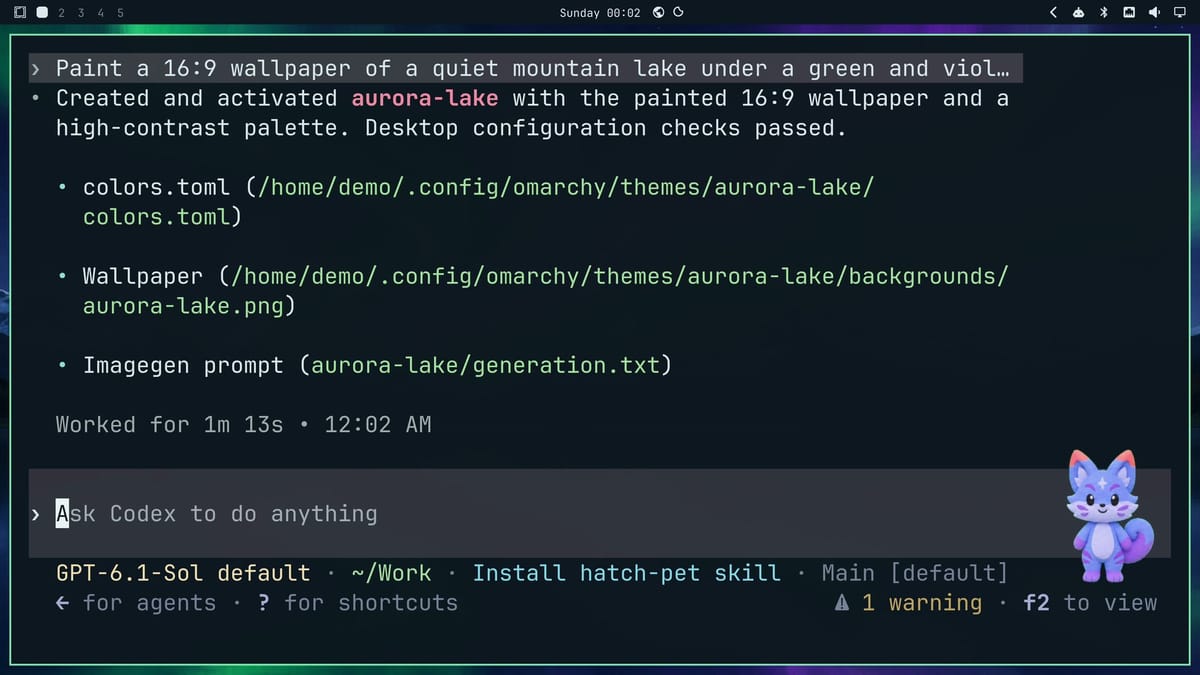
Paint a 16:9 wallpaper of a quiet mountain lake under a green and violet aurora at night, no people and no text. Then make an Omarchy theme called aurora-lake from it: a colors.toml with readable contrast, the wallpaper in its backgrounds folder. Then switch the desktop to it.Codex read the omarchy skill, which Omarchy ships for its agents and which explains how a theme is put together. Then it generated the picture, and Ghostty showed a preview of it right in the transcript. It picked the colors from the image and checked that text stays readable on the new background; it reported a main text contrast of 14.5:1. Writing the theme into ~/.config is outside Codex’s sandbox, so that step went past the reviewer, which approved it without asking us.
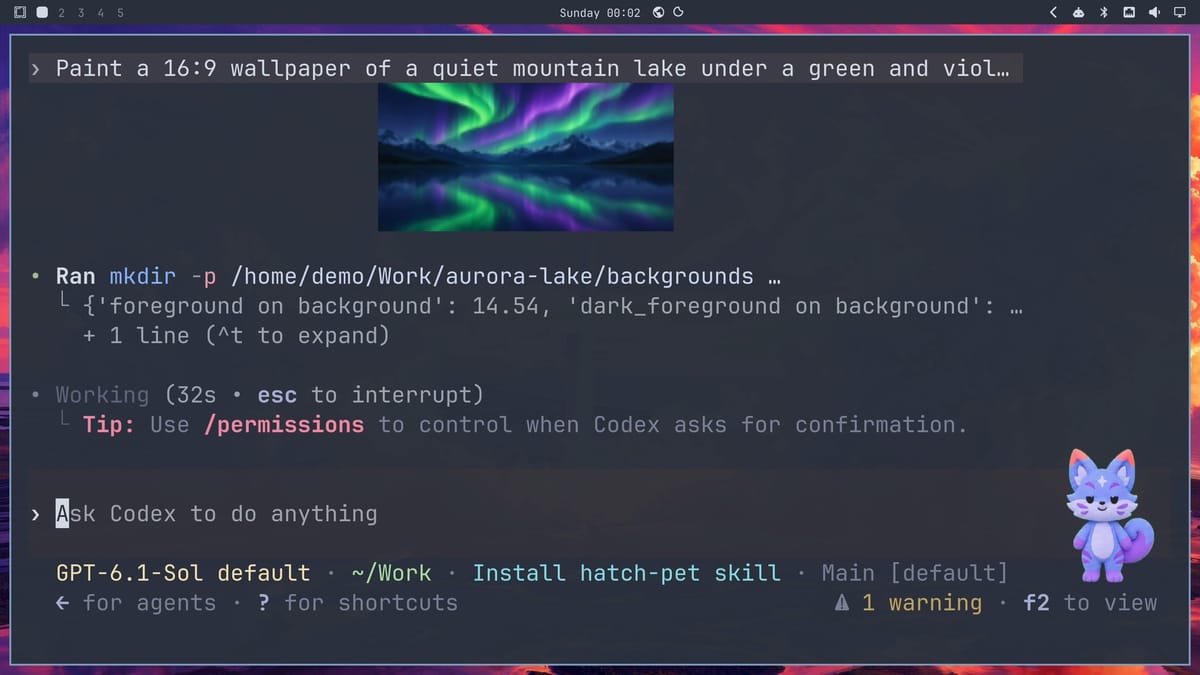
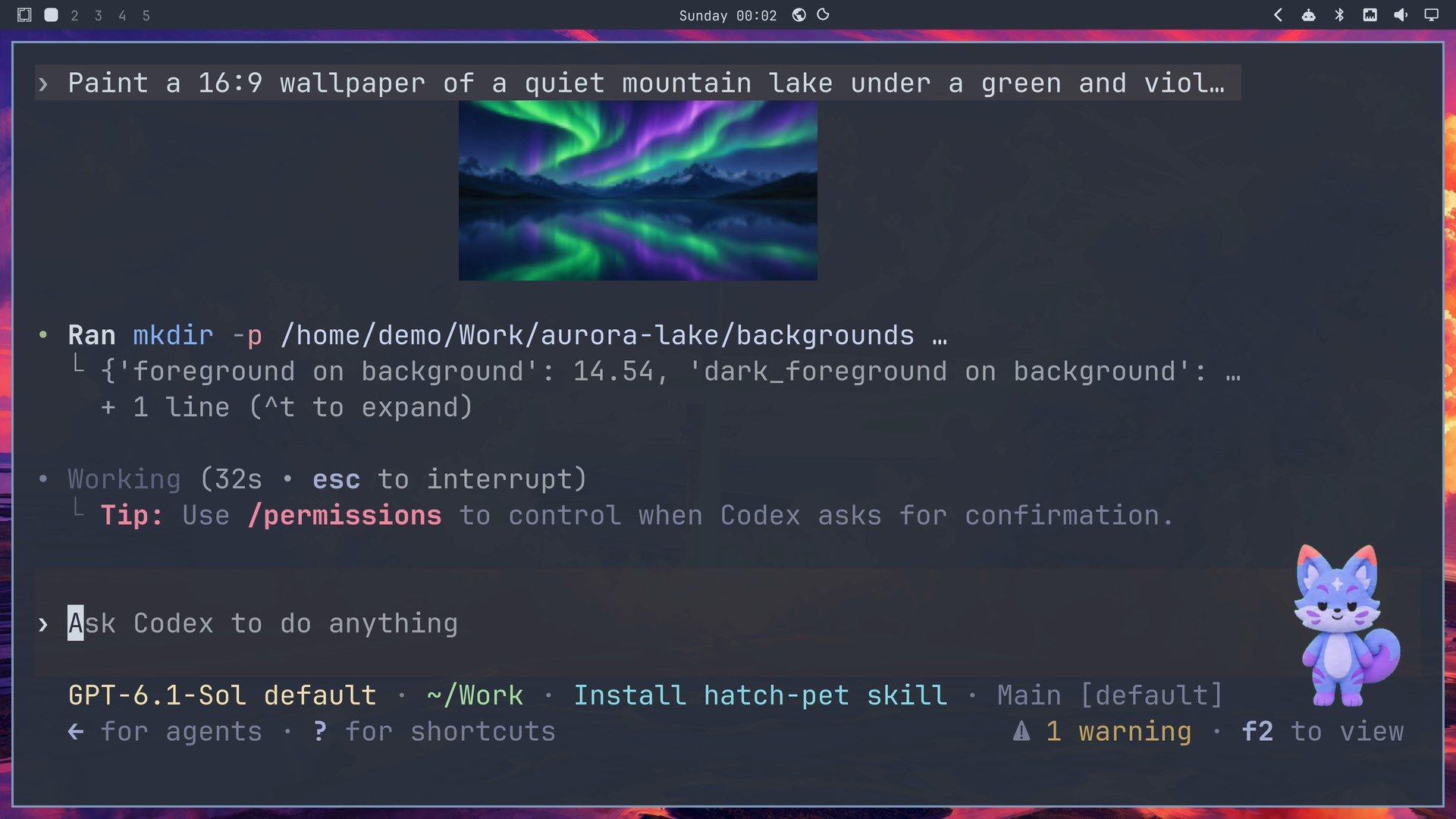
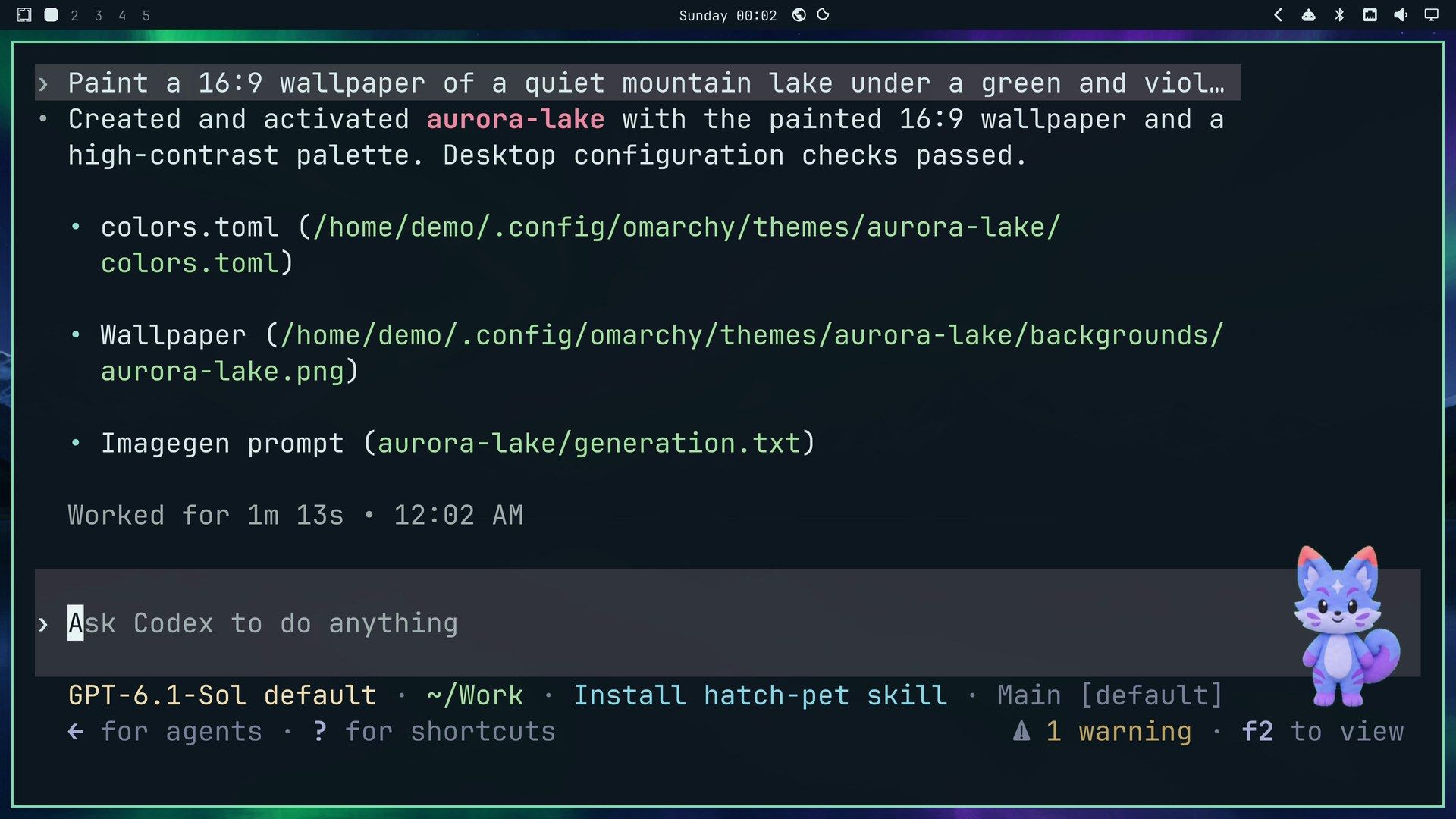
After 1 minute 13 seconds, the wallpaper, the bar, the window borders and Ghostty changed to Aurora Lake together, and Nova stayed where she was. The theme sits in ~/.config/omarchy/themes/aurora-lake, next to any other themes you’ve added, so it shows in the theme menu like the others. Codex also left a working copy, with the image prompt it used, in ~/Work/aurora-lake.
If you’d rather build a theme from a wallpaper you already have, without an agent, our Aether theme guide does that.
To undo: pick another theme in the theme menu, or run omarchy theme set "Tokyo Night". Then delete ~/.config/omarchy/themes/aurora-lake and ~/Work/aurora-lake.
What the sandbox stops, and what Approve for me changes
Codex runs its commands inside a sandbox. To see it on its own, start Codex plainly in a terminal, with no flags:
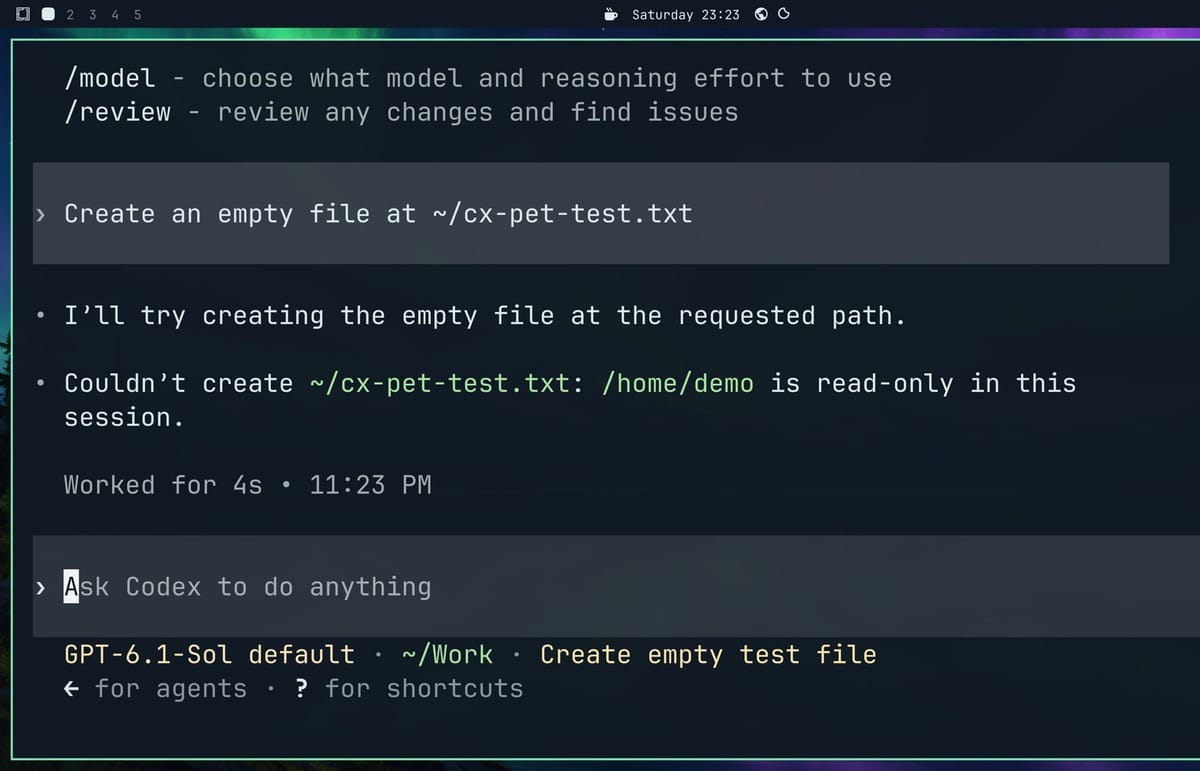
cd ~/Work && codexStarted like that, Codex can write inside the folder where it started, but not elsewhere in your home folder, and its commands can’t reach the network. We asked:
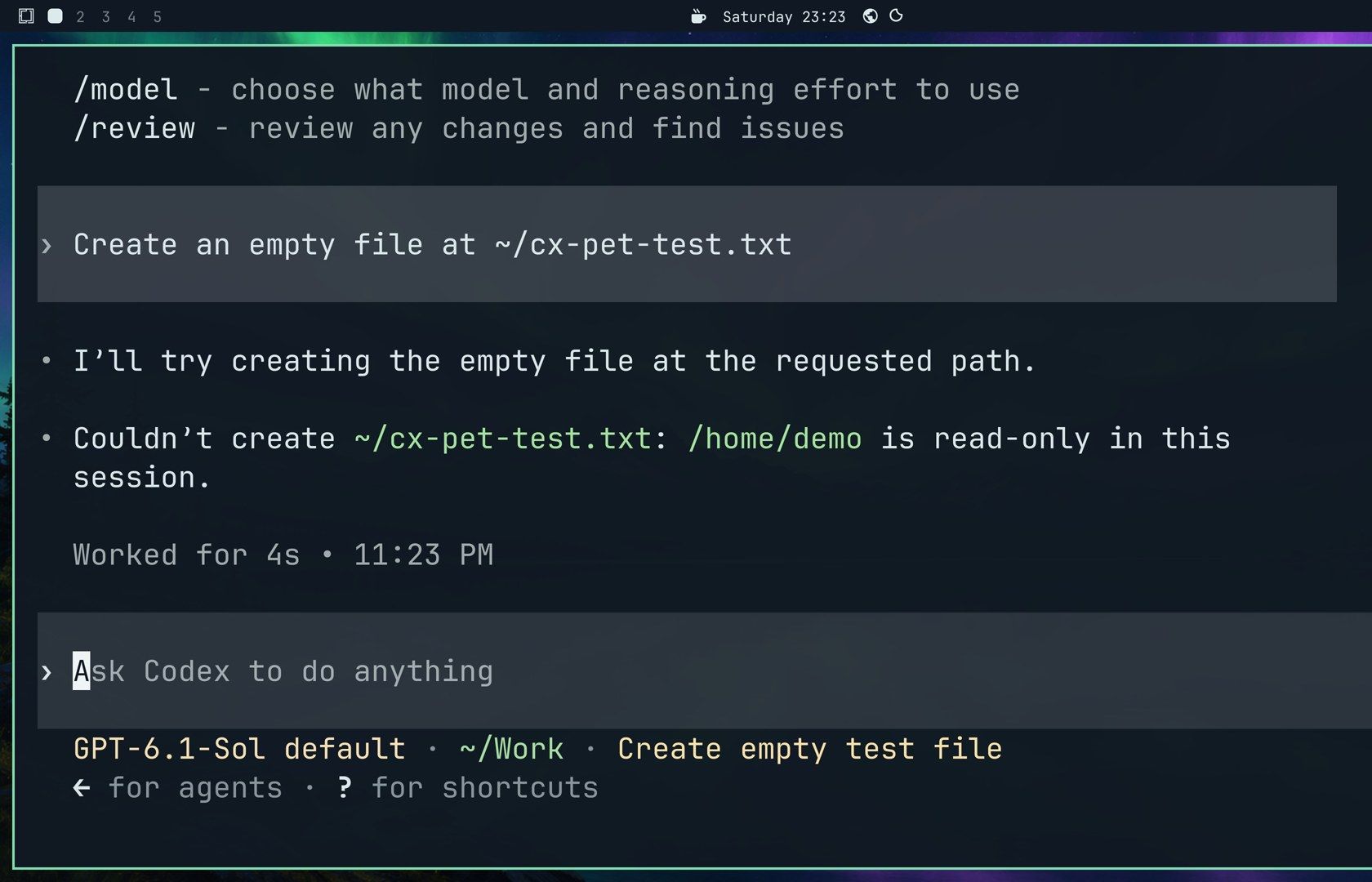
Create an empty file at ~/cx-pet-test.txtCodex answered that it couldn’t create the file because the home folder is read-only in this session.
The network test fails too:
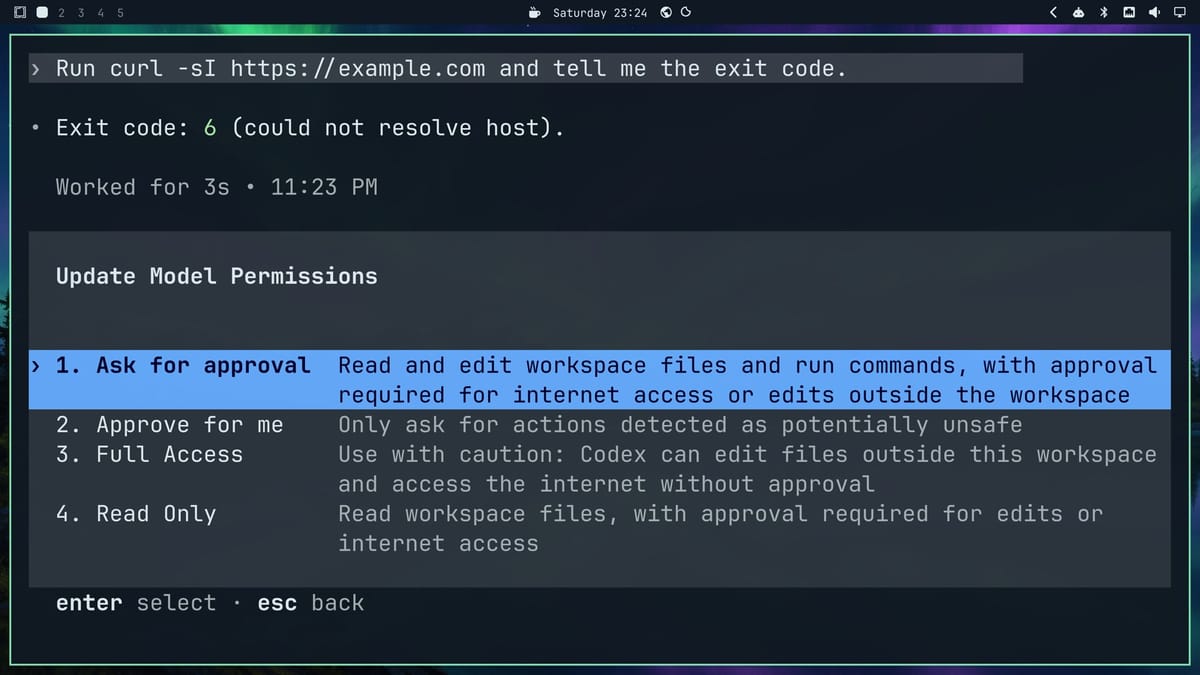
Run curl -sI https://example.com and tell me the exit code.curl exited with status 6, which means it couldn’t look up the name.
Ask for approval
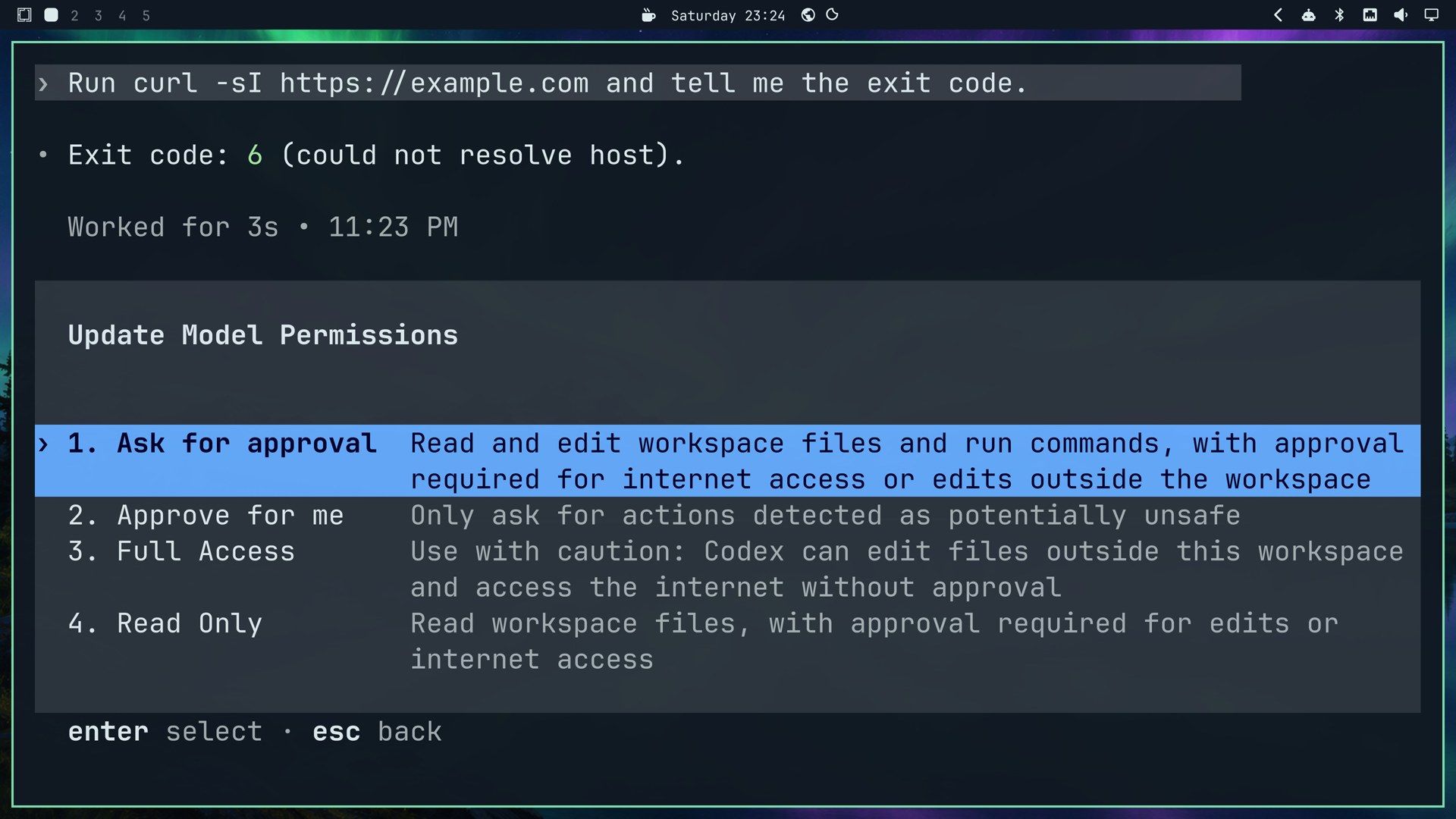
Type /permissions and press enter to open the permissions menu. It has four settings: Ask for approval, Approve for me, Full Access and Read Only, each with a line that says what it allows. Press 1 for Ask for approval, which asks you before Codex uses the internet or edits files outside the workspace.
Then ask again:
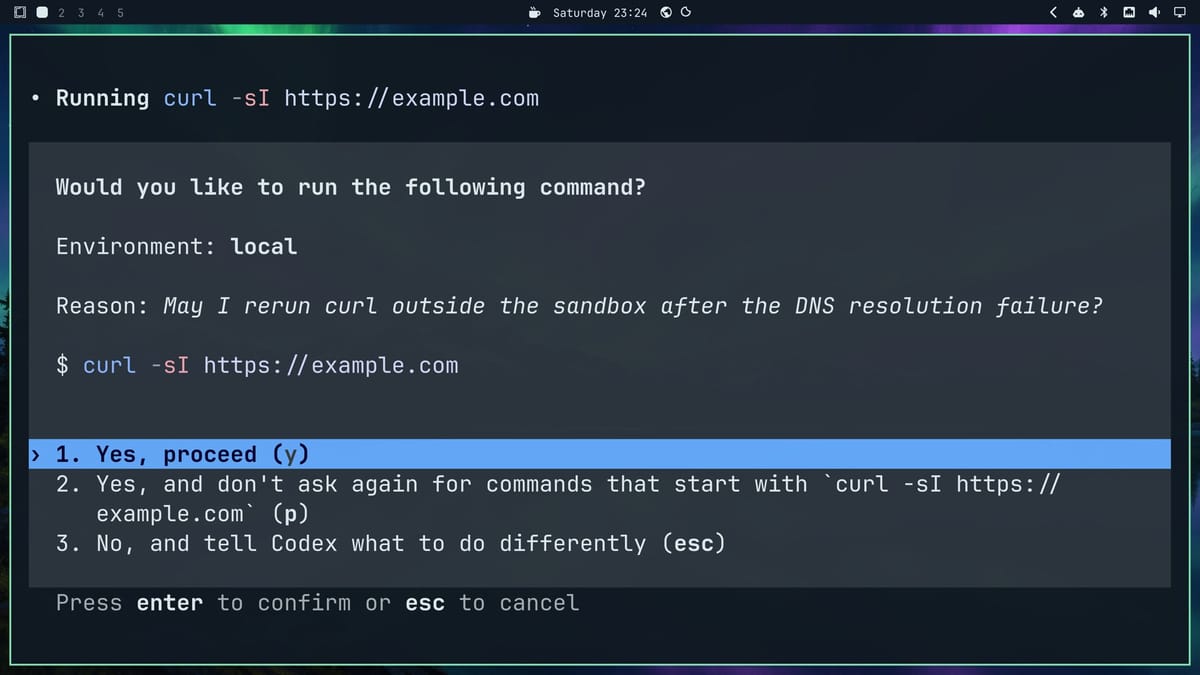
Run the same curl again.This time Codex shows a card with the exact command and its reason (“May I rerun curl outside the sandbox after the DNS resolution failure?”). You can allow it once, allow every command that starts the same way, or say no and tell Codex what to do instead.
Approve for me in Omarchy’s console
Omarchy’s --approve-for-me flag starts Codex in the second setting, Approve for me: “Only ask for actions detected as potentially unsafe.” Codex keeps the same sandbox and still asks before it leaves it, but a separate reviewer agent answers each request. When the reviewer judges a request unsafe, Codex looks for a safer way or asks you. OpenAI’s auto-review page describes what the reviewer looks for, such as sending private data to untrusted places or destructive commands.
Back in the Omarchy console, /permissions showed Approve for me (current). We sent:
Run curl -sI https://example.com and tell me the status line.The transcript showed Reviewing approval request for about two seconds, then HTTP/2 200. That’s also why the theme switches earlier in this guide ran without a question. To answer each request yourself, pick Ask for approval in /permissions.
Troubleshooting
/pets says Pets unavailable. You’re in Foot. Switch to Ghostty as above, and /quit the console so the next one opens in Ghostty. Starting Codex with TERM=foot codex in Foot also shows a pet through Sixel, but on our 4K screen it was too small to make out.
The pet picker has no preview. The half-height console is too small for it. Open the full window with super shift ctrl a .
The hatch stops and asks about subagents. Add “You may use subagents.” to the hatch prompt, or answer yes.
The pet sits still while Codex works. That’s how it behaves: the busy animation plays for a moment at the start of a task, then the pet idles until the task ends.
F8 hears nothing. Check that the mic bar in the strip moves when you talk. /voice settings lets you pick the sound devices if Codex is listening to the wrong one.
A theme doesn’t show in the theme menu at once. The menu may open on another theme; scroll to the new one or type its name.
Related guides
If you’d rather run Claude Code on Omarchy, our guide to letting an AI agent run your computer with Claude Code uses the same agents panel and console. For more Codex, see how we built an Omarchy plugin with Codex and how to run several coding agents from one terminal with Herdr. On a Chromebook, our guide covers installing ChatGPT and Codex.


